5.3.1 “Button”
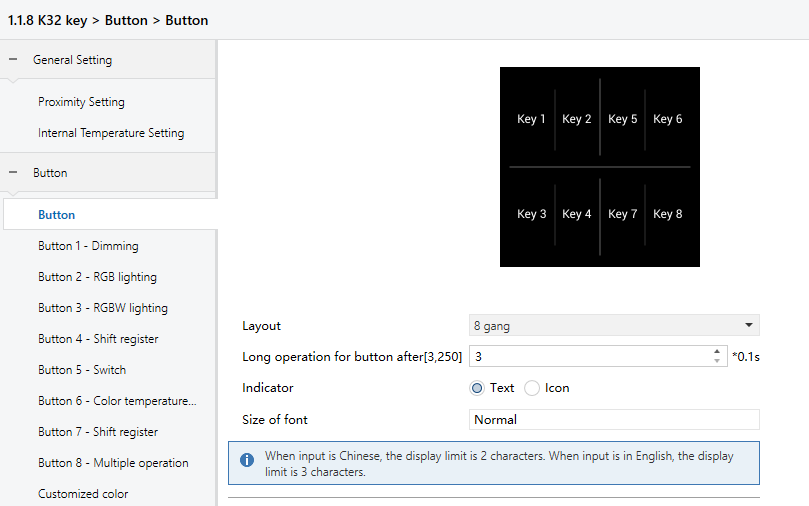
Figure 5.3.1 "Button" Interface
Layout
Set the number of buttons on the K32 panel.
Options:
2 gang: 2 buttons
3 gang: 3 buttons
4 gang: 4 buttons
6 gang: 6 buttons
8 gang: 8 buttons
The system will then generate corresponding thumbnails and text/icon configuration fields based on the selected button count.
Long operation for button after
Set the time threshold for recognizing a long press.
If a button is pressed longer than the set duration, it is treated as a long operation; otherwise, it is treated as a short press.
Indicator
Select how the button label is displayed on the OLED screen.
Options:
Text: Display a text label.
Icon: Display an icon.
The following parameters appear when the “Text” is selected.
- Indicator text x
Set the displayed text, allowing up to 13 characters as input.
NOTE:
The maximum display length depends on the layout and font size settings:
For 2, 3, or 4 gang layouts with Normal size: Up to 4 Chinese characters or 6 letters.
For 2, 3, or 4 gang layouts with Large size: Up to 2 Chinese characters or 5 letters.
For 6 or 8 gang layouts (Normal size only): Up to 2 Chinese characters or 3 letters.
- Size of font
Set the size of the text.
Options:
Normal or Large for 2-4 gang layouts
Normal (default) for 6 and 8 gang layouts
The following parameters appear when the “Icon” is selected.
- Indicator icon x
Select the icon to be displayed.
Options:
Leave home
Dinner
Go home
Shade
AC
Lighting
Music
Sleep
Coffee
Floor heating
Gym, Reading
Scenario
Function of button x
Set the function assigned to the button.
Options:
Disable
Switch
Dimming
RGB lighting
RGBW lighting
colour control type
Value sender
Scene control
Shade
Shift register
Multiple operation
Delay mode
The following sections provide detailed description for each button function.
5.3.2 “Switch”
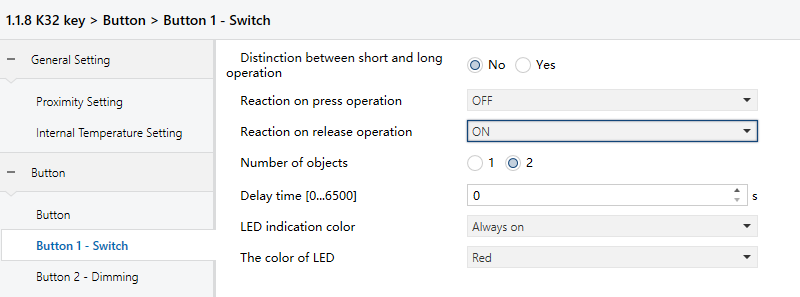
Figure 5.3.2 "Switch" Interface
Distinction between short and long operation
Set whether to distinguish between short and long button presses.
Options:
No
Yes: The button differentiates based on the press duration. Only when the press time reaches the defined threshold will it be recognized as short or long, and the corresponding function will be executed.
Reaction on short/press operation
Reaction on long/release operation
Define the action triggered during short or long press and release events. The object value is updated immediately upon confirmation.
Options:
No reaction: No telegram is sent.
OFF: Send an “OFF” telegram.
ON: Send an “ON” telegram.
TOGGLE: Each operation alternates the switch state between ON and OFF. For example, if the previous telegram was ON, the next operation will send OFF, and the one after that will send ON again. The switch retains its last state and toggles accordingly with each activation.
Number of objects
Visible when the long press/release action is not set to “No reaction”.
Set whether short and long press actions share the same object or use separate ones.
Options:
1
2
Delay time
Set the delay before the telegram is sent.
Options: 0...6500
LED indication colour
Set the LED indication state when the button has a switch function.
Options:
Disable
Indicate Key switch: LED indicates based on the telegrams sent by the button。
NOTE:
This “Indicate Key switch” option is only available when the button function is switch or dimming and the group object is set to 1.
Indicate external object : LED indicate based on an external object
Indicate button press: LED lights up when the button is pressed
Always on
The following parameters appear when the “Indicate Key switch” is selected.
- Object value="0", the color of LED
- Object value="1", the color of LED
Set the LED color when the button sends a 0/1 telegram.
Options:
Red
Green
Blue
White
Yellow
Cyan
Magenta
Orange
Cyan blue
Customized colour 1
Customized colour 2
Customized colour 3
Customized colour 4
Customized colour 5
The following parameters appear when the “Indicate external object” is selected.
- External object data types
Set the object type of the external object.
Options:
1bit
1byte
NOTE:
At startup, the device sends a read request. LED status reflects the reply; no LED change if no response is received.
When “1bit” is selected, the following parameters appear.
- Object value="0", the color of LED
- Object value="1", the color of LED
These parameters set the LED colour based on the 1bit value from the bus.
Options:
Red
Green
Blue
White
Yellow
Cyan
Magenta
Orange
Cyan blue
Customized colour 1
Customized colour 2
Customized colour 3
Customized colour 4
Customized colour 5
When “1byte” is selected, the following parameters appear.
- Threshold value is
Set the threshold value.
Options: 1~255
- If object value<threshold value, the color of LED
- If object value=threshold value, the color of LED
- If object value>threshold value, the color of LED
Set the LED color based on how the input value compares to the threshold. Available colors are the same as those listed for the 1bit option.
The following parameters appear when the “Indicate button press” is selected.
- When press the button, the indication of LED
Set the LED indicator status when pressing the button.
Options:
On
Flashing
When “On” is selected, the following parameters are visible.
- On duration time is
Set how long the LED stays on.
Options:
500ms
1s
2s
3s
When “Flashing” is selected, the following parameters are visible.
- Flashing period time is
Set the LED flashing cycle.
Options:
0.4s
0.8s
...
2.0s
- Normal indication is
Set the LED status after flashing.
Options:
OFF
ON
The following parameters appear when the “Indicate button press” or “Always on” is selected.
- LED indication colour
Set the LED indication colour.
Options:
Red
Green
Blue
White
Yellow
Cyan
Magenta
Orange
Cyan blue
Customized colour 1
Customized colour 2
Customized colour 3
Customized colour 4
Customized colour 5
In the following sections, repeated LED settings will not be redefined due to similar usage.
5.3.3 “Dimming”
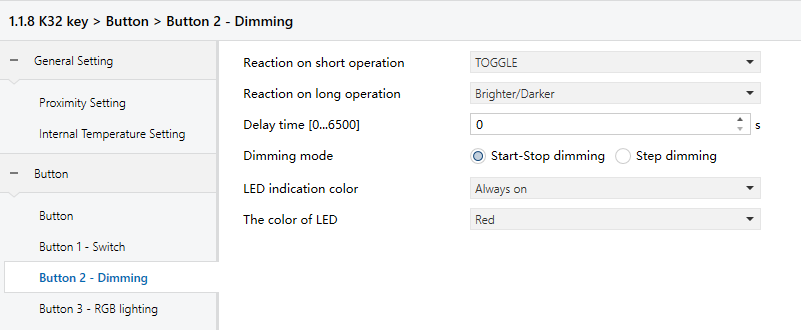
Figure 5.3.3 "Dimming" Interface
Reaction on short operation
Set the switch value sent on a short operation.
Options:
No reaction: No telegram sent.
OFF: Send “Off” telegram.
ON: Send “On” telegram.
TOGGLE: Toggle between “On” and “Off” on each operation.
Reaction on long operation
Set the dimming value sent on a long operation. It sends a dimming telegram (brighter or darker), and stops dimming upon release.
Options:
No reaction: No telegram sent.
Brighter: Send “Brighter” telegram.
Darker: Send “Darker” telegram.
Brighter/Darker: Alternate between “Brighter” and “Darker” on each operation.
NOTE:
If either the switch or dimming parameter uses TOGGLE, they interact. For instance, if the switch is ON, the next dimming action darkens the light; if OFF, it brightens.
Delay time
Set the delay before sending the telegram.
Options: 0~6500
NOTE:
The delay time applies only to short presses.
Dimming mode
This parameter appears when the parameter Reaction on long operation is not set to “No reaction”. It defines how dimming telegrams are sent.
Options:
Start-stop dimming: Send a brighten/dim telegram when dimming starts, and a stop telegram when dimming ends. No cyclic telegrams are sent.
Step dimming: Send dimming telegrams cyclically. A stop telegram is sent when dimming ends.
- Step size
This parameter is visible when “Step dimming” is selected. It sets the brightness change (percentage) for a cyclic telegram.
Options:
100%
50%
...
1.56%
- Interval of tele. cyclic send [0..25,0=send once]*0.1s
This parameter is visible when “Step dimming” is selected. It sets the time between cyclic telegrams.
Options: 0~25 (0=Send only once)
5.3.4 “RGB lighting”
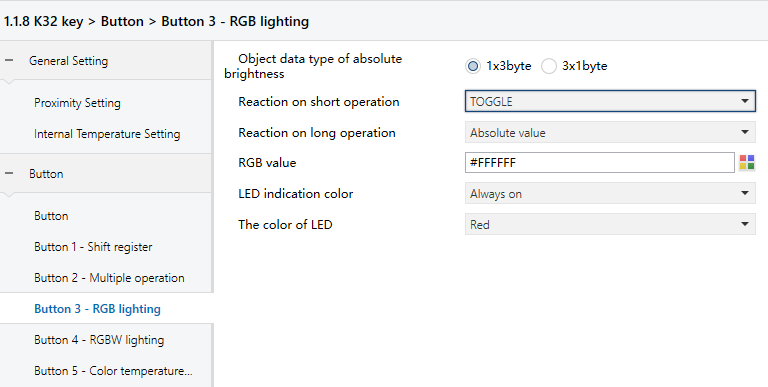
Figure 5.3.4 "RGB lighting" Interface
Object data type of absolute brightness
Set the data type for absolute brightness.
Options:
1*3byte: Control RGB lighting via a single 3-byte object.
3*1byt: Control RGB lighting via three 1-byte objects.
Reaction on short operation
Reaction on long operation
Set behavior for short or long presses.
Options:
No reaction
OFF
ON
TOGGLE
Absolute value
- RGB value
This parameter is visible when “Absolute value” is selected. It sets the RGB value.
Options: #000000~#FFFFFF
5.3.5 “RGBW lighting”
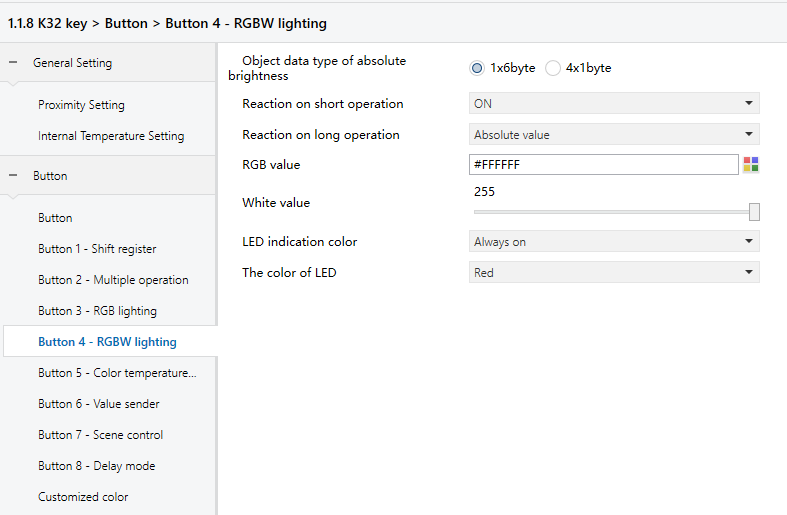
Figure 5.3.5 "RGBW lighting" Interface
Object data type of absolute brightness
Set the data type for absolute brightness.
Options:
1*6byte: Control RGBW lighting via a single 6-byte object.
4*1byte: Control RGBW lighting via four 1-byte objects.
Reaction on short operation
Reaction on long operation
Set behavior for short/long operation.
Options:
No reaction
OFF
ON
TOGGLE
Absolute value
- White value
This parameter is visible when “Absolute value” is selected. It sets the white value.
Options: 0~255
- RGB value
This parameter is visible when “Absolute value” is selected. It sets the RGB value.
Options: #000000~#FFFFFF
5.3.6 “Colour temperature control”
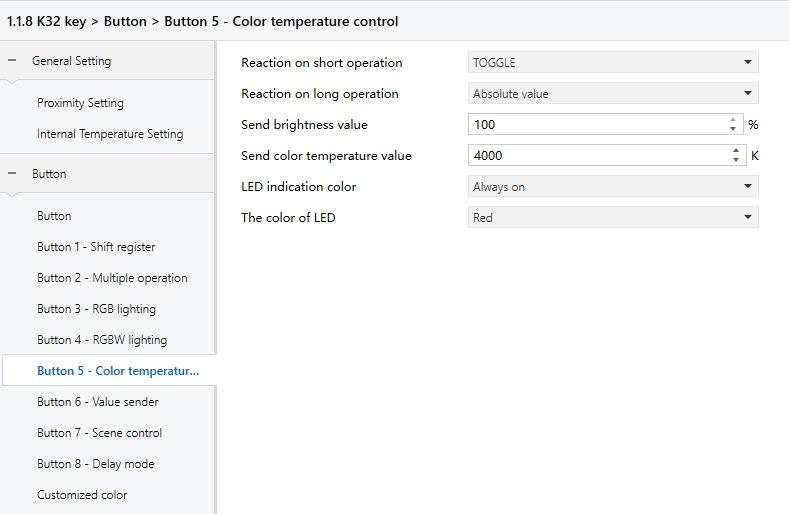
Figure 5.3.6 "Color temperature control" Interface
Reaction on short operation
Reaction on long operation
Set behavior for short/long operation.
Options:
No reaction
OFF
ON
TOGGLE
Absolute value
- Send brightness value
This parameter is visible when “Absolute value” is selected. It sets the brightness value.
Options: 0~100
- Send colour temperature value
This parameter is visible when “Absolute value” is selected. It sets the colour temperature value.
Options: 0~10000
5.3.7 “Value sender”
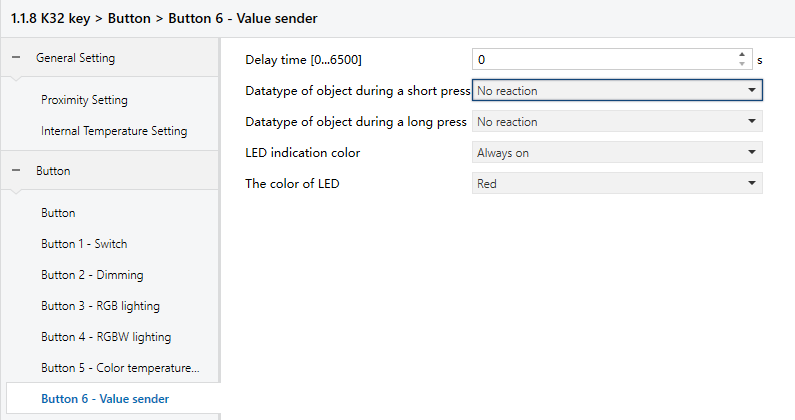
Figure 5.3.7 "Value sender" Interface
Delay time
Set the delay before sending telegrams.
Options: 0~6500
Datatype of object during a short press
Datatype of object during a long press
Select the data type for telegrams sent on short or long presses.
Options:
No reaction
1bit value[ON/OFF]
2bit value[0..3]
4bit value[0..15]
1byte signed value[-128..127]
1byte unsigned value[0..255]
1byte percentage[0-100%]
2byte signed value[-32768..32767]
2byte unsigned value[0..65535]
2byte float value
4byte signed value
4byte unsigned value
4byte float value
14byte string
- Reaction to short operation
- Reaction to long operation
These parameters are visible when the data type is not set to “No reaction”.
If 1-bit (ON/OFF) is selected:
Options:
none
off
on
toggle
For other types. Value ranges depend on the previously selected data type.
Options:
none
send value 1
send value 2
send value 1 <-> send value 2
5.3.8 “Scene control”
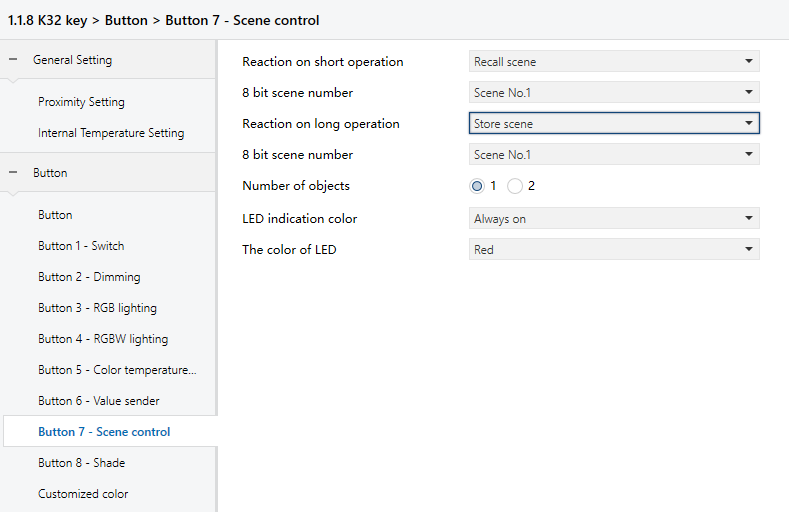
Figure 5.3.8 "Scene control" Interface
Reaction on short operation
Reaction on long operation
Set whether the press recalls or stores a scene.
Options:
No reaction
Recall scene
Store scene
- 8 bit scene number
Visible when reaction is not “No reaction”. Select the scene number.
Options: Scene NO.1 ~ 64 (Telegram values: 0~63)
- Number of objects
Visible when “Reaction on long operation” is not “No reaction”.
Set whether short and long presses use a shared or separate object.
Options: 1/2
5.3.9 “Shade”
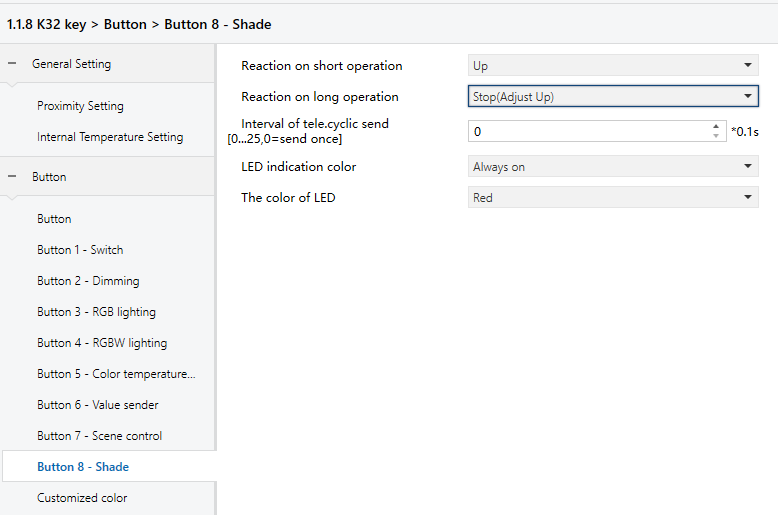
Figure 5.3.9 "Shade" Interface
Reaction on short operation
Reaction on long operation
Set the action triggered by a short/long press.
Options:
No reaction
Up
Down
Up/Down
Stop(Adjust Up)
Stop(Adjust Down)
Stop(Adjust Up/Down)
- Interval of tele. cyclic send [0..25,0=send once]*0.1s
Visible when a “Stop(Adjust…)” option is selected. It defines the interval between cyclic telegrams.
Options: 0~25 (0 = Send only once)
5.3.10 “Shift register”
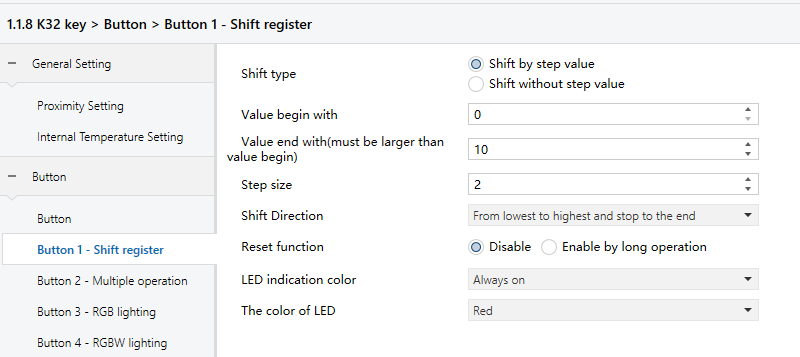
Figure 5.3.10.1 "Shift register_Shift by step value" Interface
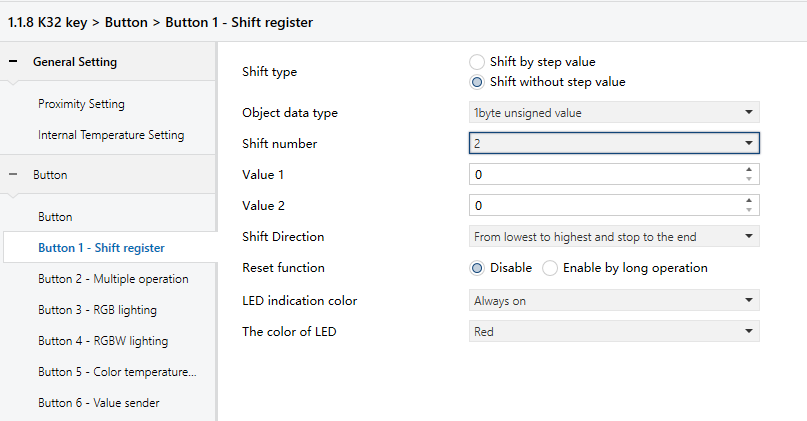
Figure 5.3.10.2 "Shift register_Shift without step value" Interface
Shift type
Choose how values are shifted.
Options:
Shift by step value: Set start and end values and the increment (direction from low to high) or decrement (direction from high to low) for each shift.
Shift without step value: Specify up to 10 fixed values to be sent sequentially with each shift operation.
The following parameters appear when the “Shift by step value” is selected.
- Value begin with
Set the starting value.
Options: 0~240
- Value end with(must be larger than value begin with)
Set the ending value.
Options: 1~250
NOTE:
The ending value must be greater than starting value.
- Step size
Set the step value to increment or decrement with each shift.
Options: 0..240
The following parameters appear when the “Shift without step value” is selected.
- Object datatype
Set the data type for the shift object.
Options:
1 byte unsigned value
Scene number
HVAC mode
- Shift number
Set the number of shift values (maximum 10).
Options: 0/1/2../10
- Value x (x=1~10)
Set the value to be sent at each shift step. Valid range depends on the selected data type.
Options: 0~255/Scene NO1~64/Comfort mode/Standby mode/Economy mode/Frost/heat protection
Shift Direction
Set the shift direction.
Options:
From lowest to highest and stop to the end
From highest to lowest and stop to the begin
From lowest to highest and cyclically
From highest to lowest and cyclically
Reset function
Enable or disable the shift reset function.
Options:
Disable
Enable by long operation: Resets the shift to the starting position via a long operation.
5.3.11 “Multiple operation”
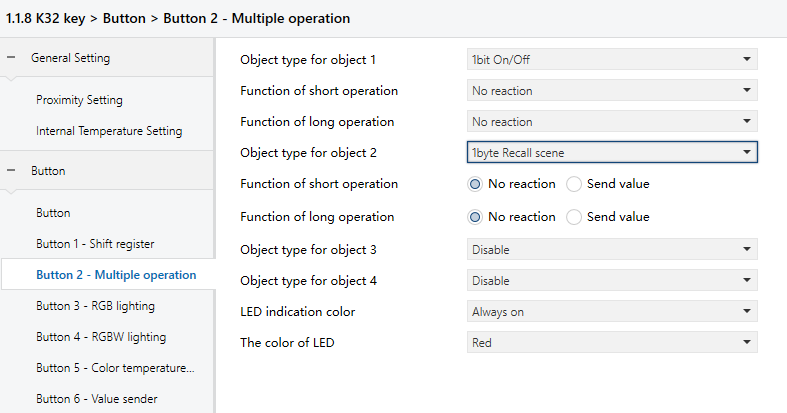
Figure 5.3.11 "Multiple operation" Interface
Object type for object x (x=1~4)
Set the data type to be sent during short/long operation.
Options:
Disable
1Bit On/Off
1Bit Up/Down
1Byte Recall Scene
1Byte Store Scene
1Byte Percentage
1Byte Unsigned value
Function of short operation
Function of long operation
Define the action for each operation: either “No reaction” or “Send Value” (the value is set in the next parameter).
Value x... (x=1~2)
Visible when the object type is set to “1Byte Recall Scene”, “1Byte Store Scene”, “1Byte Percentage”, or “1Byte Unsigned value”. It specifies the value to be sent. The valid range depends on the selected data type in Object type for object x.
5.3.12 “Delay mode”
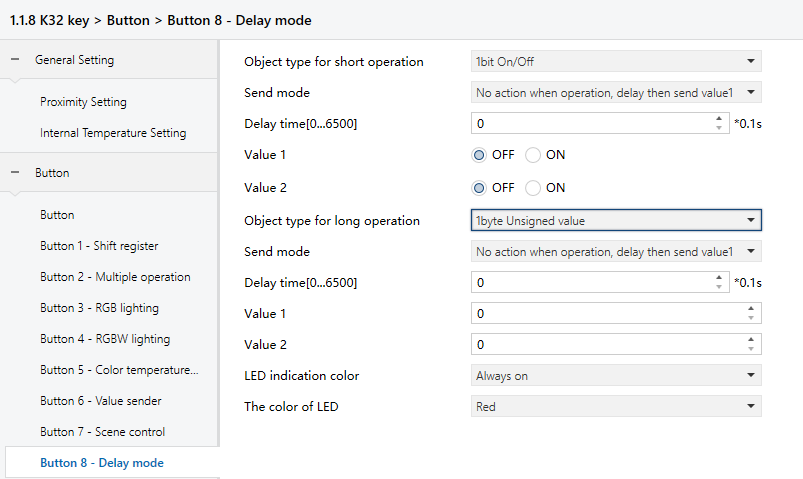
Figure 5.3.12 "Delay mode" Interface
Object type for short operation
Object type for long operation
Set the data type to be sent during short/long operation.
Options:
Disable
1Bit On/Off
4Bit Dimming
1Byte Unsigned value
Send mode
Set how the value is sent.
Options:
No action when operation,delay then send value1
No action when operation,delay then send value2
Send value1 when operation,delay then send value2
Send value2 when operation,delay then send value1
Delay time [0..6500]s
Set the delay time.
Options: 0~6500
Value x (x=1~2)
Set the values to be sent. The valid range depends on the selected data type.
5.3.13 “Customized color”
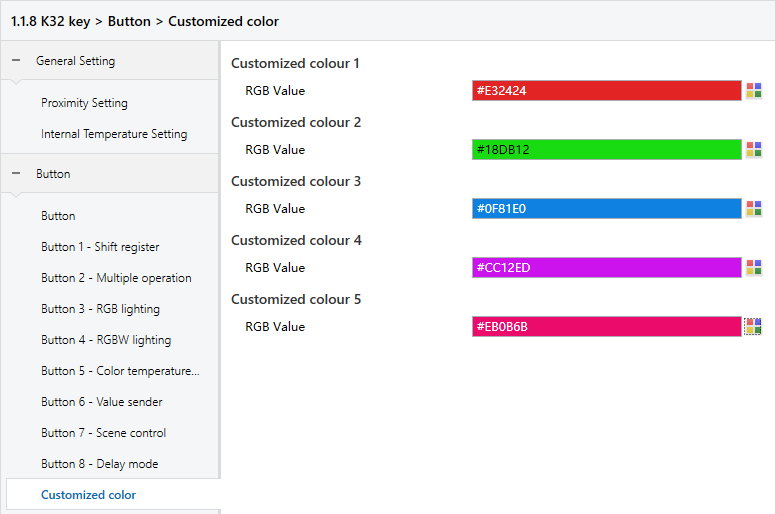
Figure 5.3.13 "Customized color" Interface
Customized colour x (x=1~5)
-RGB value
Customize the LED color. Users can customize up to 5 colors.
Options: #000000~#FFFFFF