Before Getting Started
All IR Controller IR22 firmware versions support the connection with akubela panels and gateways.
Power the IR22 using the included USB cable and a 5VDC/1A power charger.
Ensure the HyPanel or Gateway (G31) you want to pair with is powered on.
Make sure there are no obstructions between the IR22 and the controlled devices. Refer to the installation guide for placement requirements.
The LED indicators and sounds of IR22 described below help confirm whether each operation is successful.
LED / Sound | Description |
One beep, green indicator on for 5 seconds | Pairing successfully |
Two beeps, red indicator on for 5 seconds | Pairing failed |
Yellow indicator on during learning; flashes once with a beep when an infrared code is learned | IR learning in progress |
One beep, green indicator flashes | Reset complete |
Pair IR22 with akubela System
Via HyPanl Device
TIP:
This example uses a large-screen HyPanel Pro. For small-screen panels such as HyPanel Plus, swipe down from the top of the screen and go to
> Device Management >
to add the IR controller.
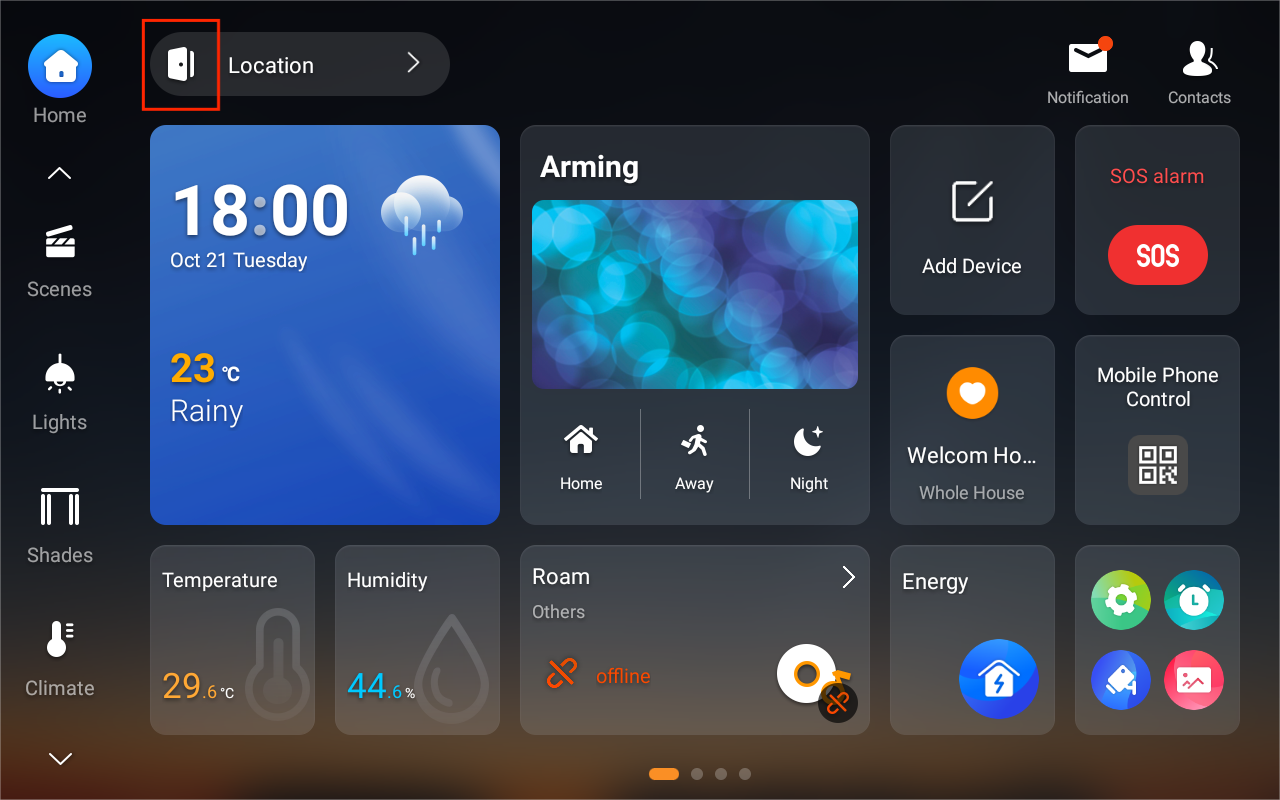
On the Home screen, tap
 at the top.
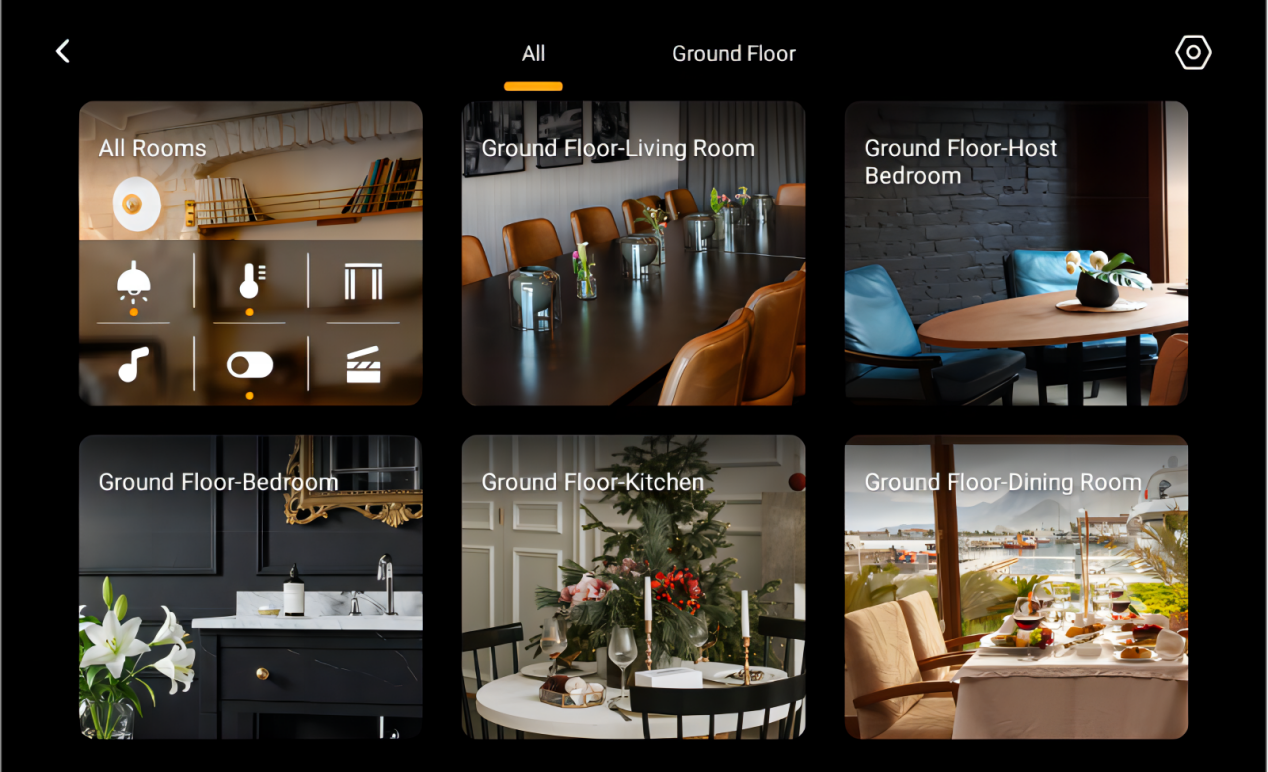
Select the room where you want to add the device.
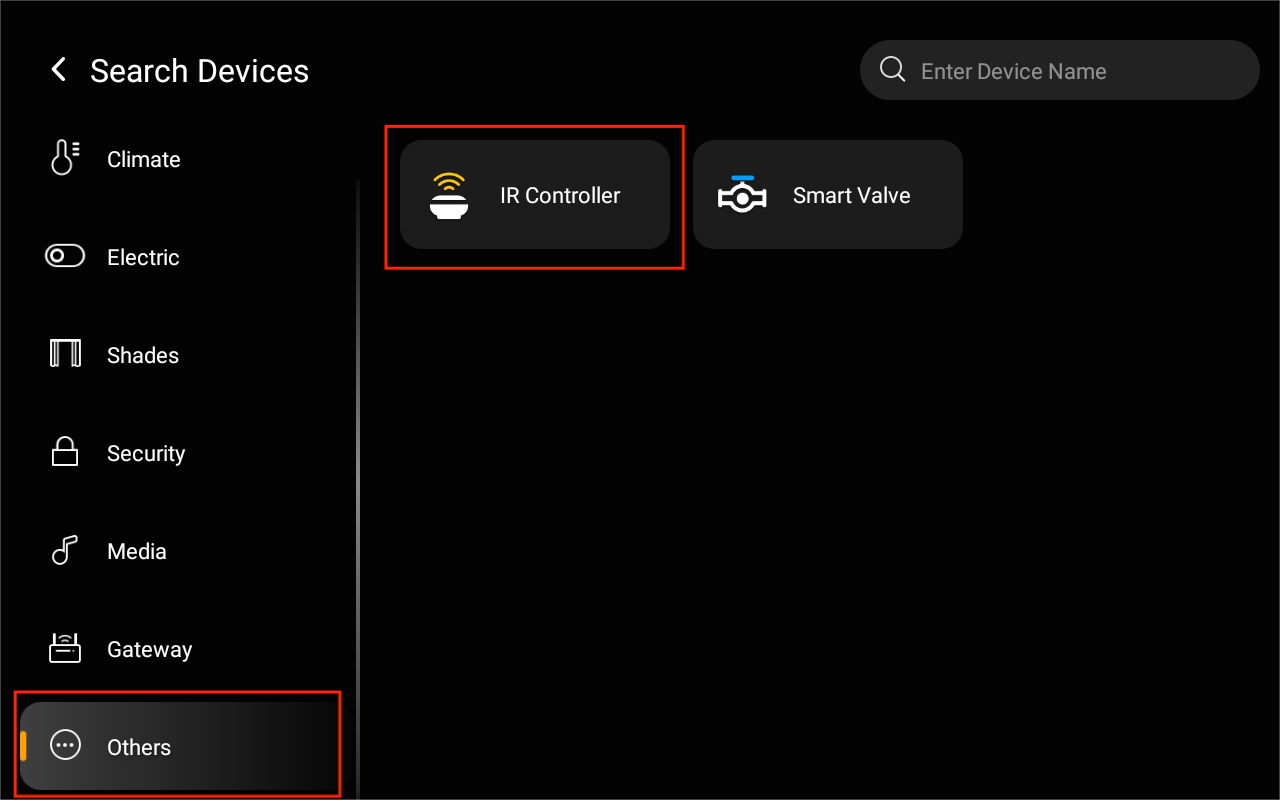
Tap
 in the upper right corner, then select Others > IR Controller.
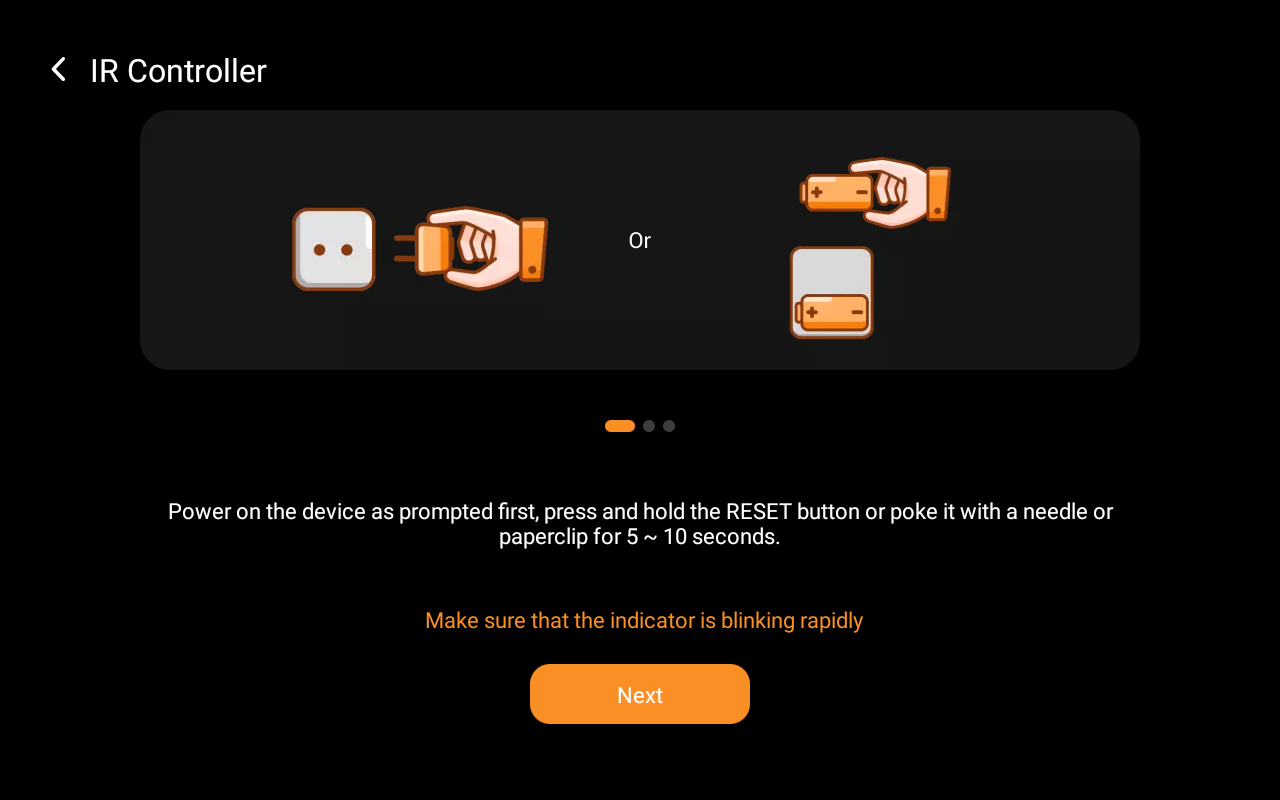
Put the IR22 into pairing mode: press and hold the side button until the green indicator flashes and a beep is heard. Then click Next.
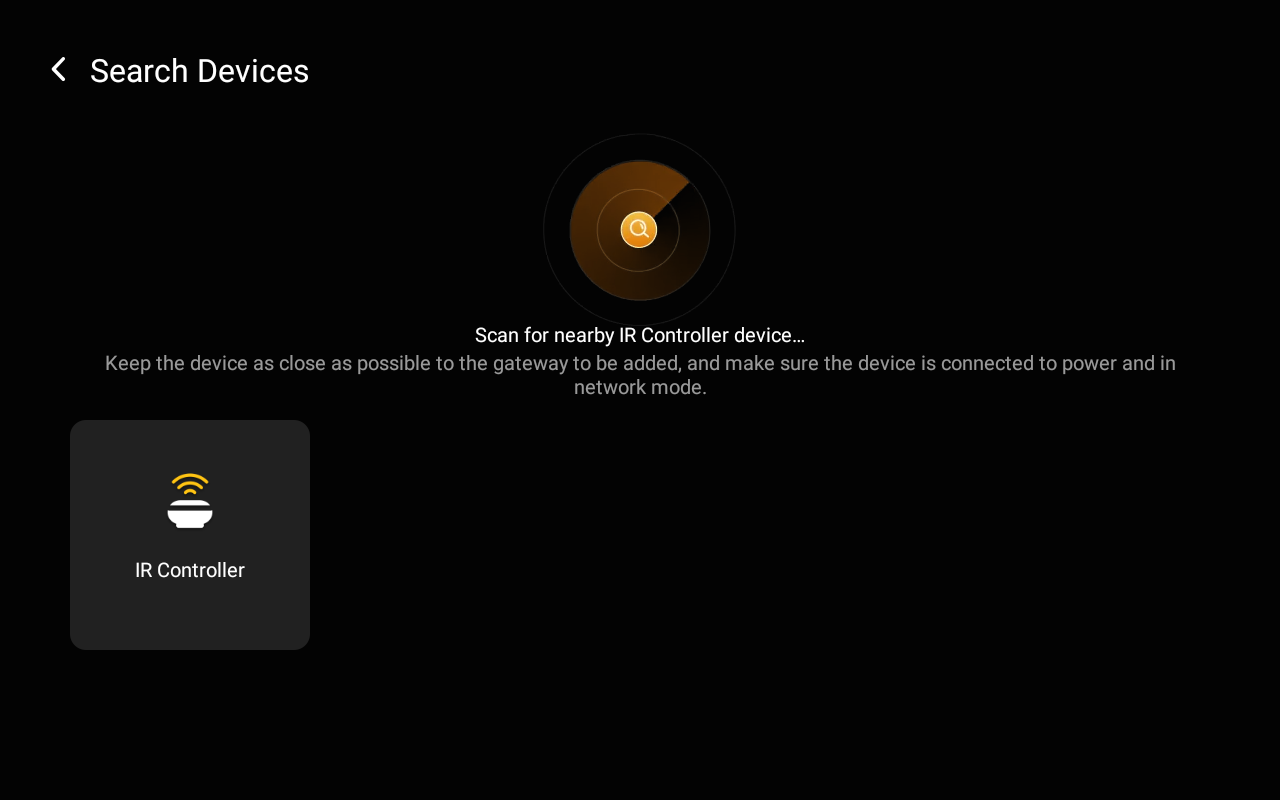
Wait for the HyPanel Pro to detect the IR22, tap the detected device, and complete the pairing.
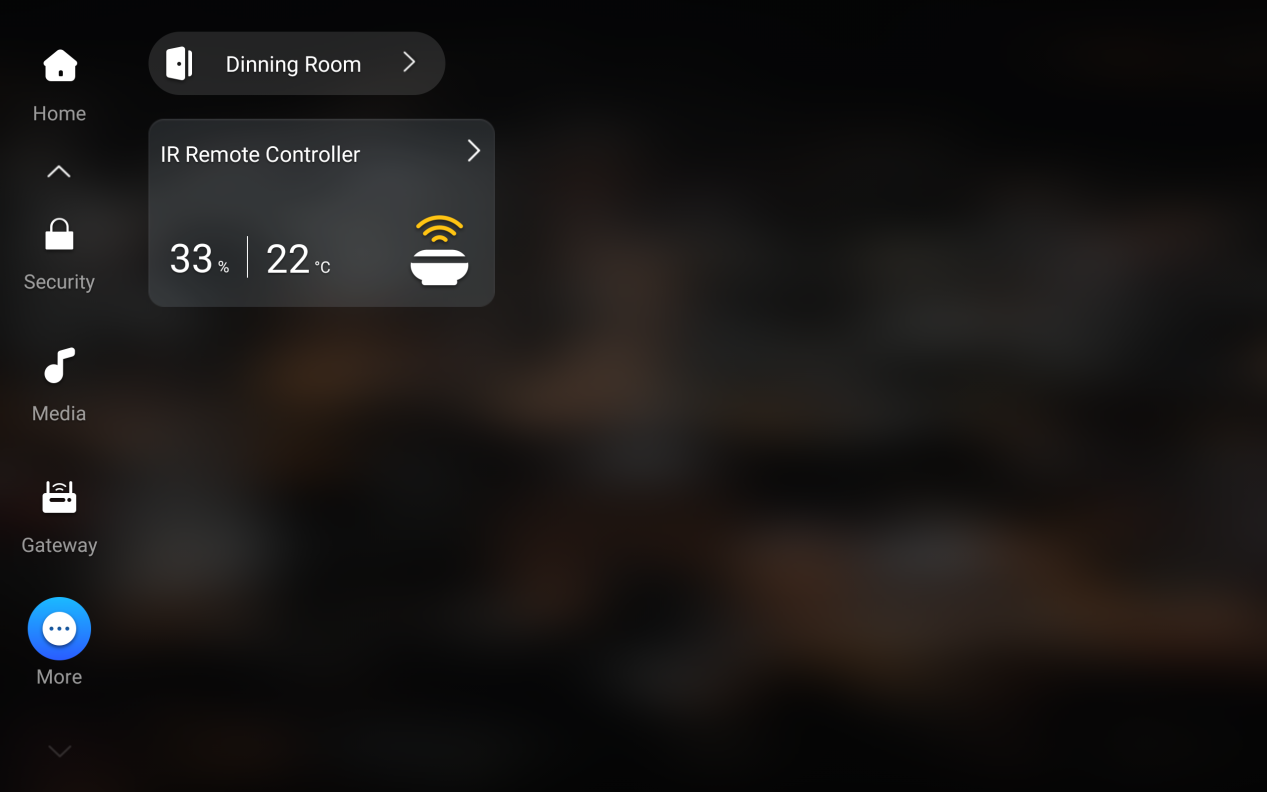
After pairing, the IR22 will appear on the More screen.
Via BelaHome App
Log in to the BelaHome app.
Tap
 , then tap
  in the upper right corner.
 Tap the gateway name and select the gateway to which you want to add the IR22.
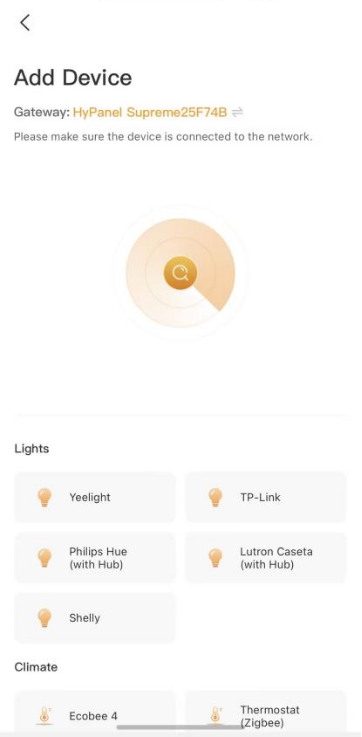
Put the IR22 into pairing mode: press and hold the side button until the green indicator flashes and a beep is heard.
TIP:
For best results, place the IR22 and the gateway as close as possible - ideally in the same room. If there is a wall between them, keep the distance within 10 meters.
Wait for the search results, select the detected device, and tap Next.
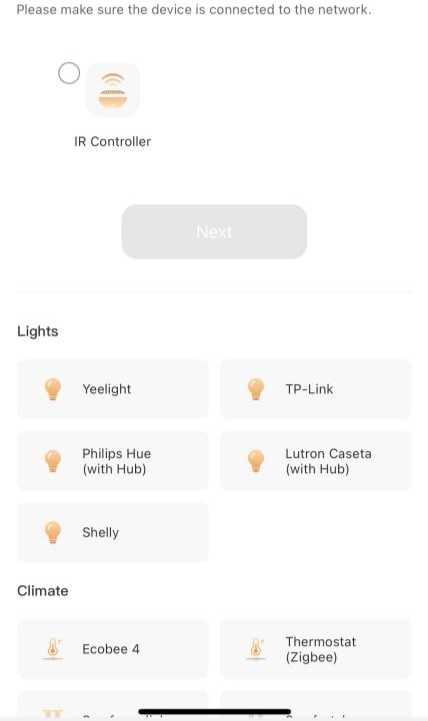
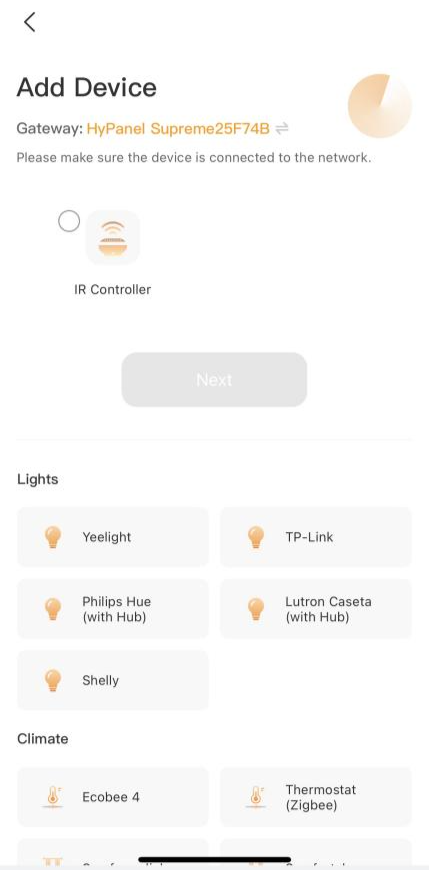
Wait for the device to be added successfully, then tap Next.
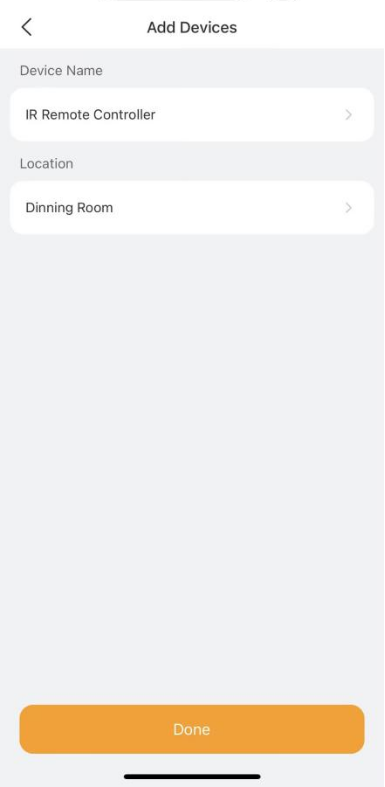
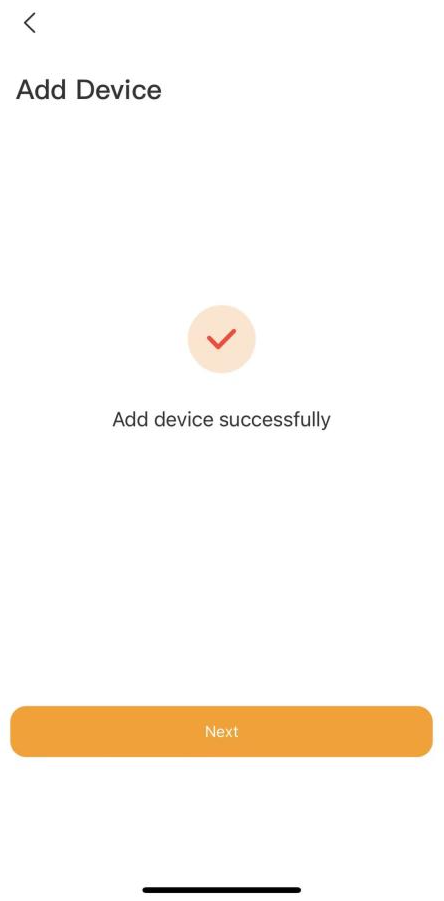 6. Set the device name and location, and tap Done.
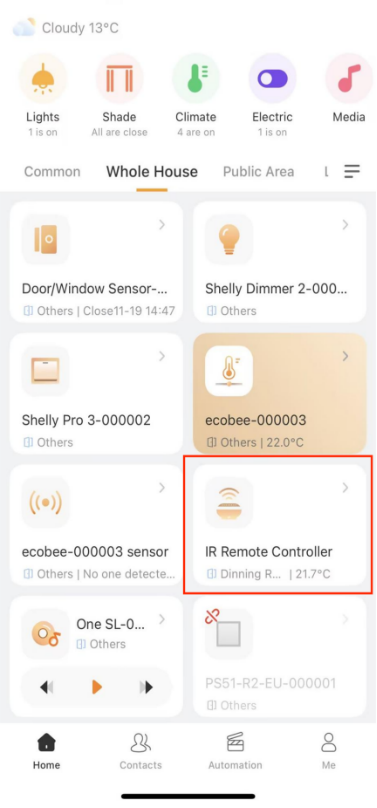
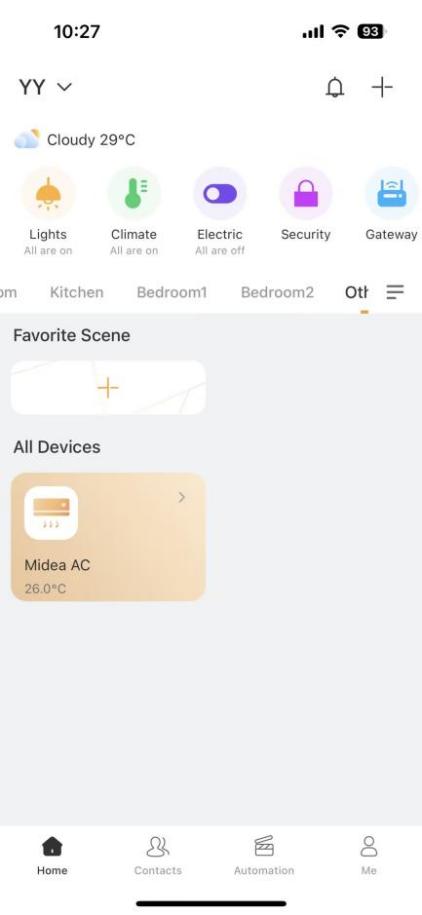
Once added, the IR22 appear on the Home screen.
Add TVs or ACs to IR22
You can use one IR22 to manage up to 30 IR-based TVs and air conditioners.
Via HyPanel Devices
Go to the More screen, tap the IR22 card, then tap
 in the upper right corner.
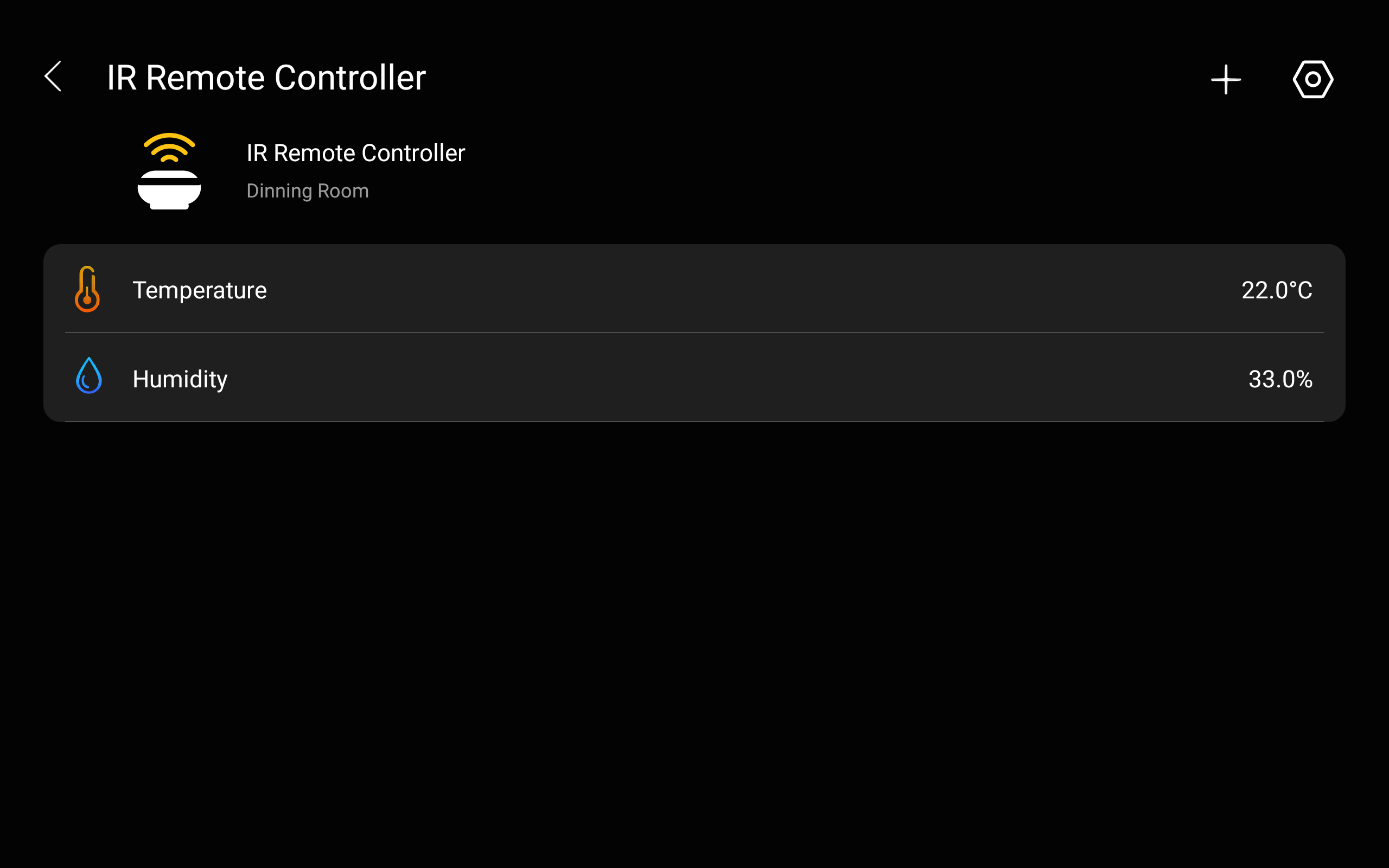
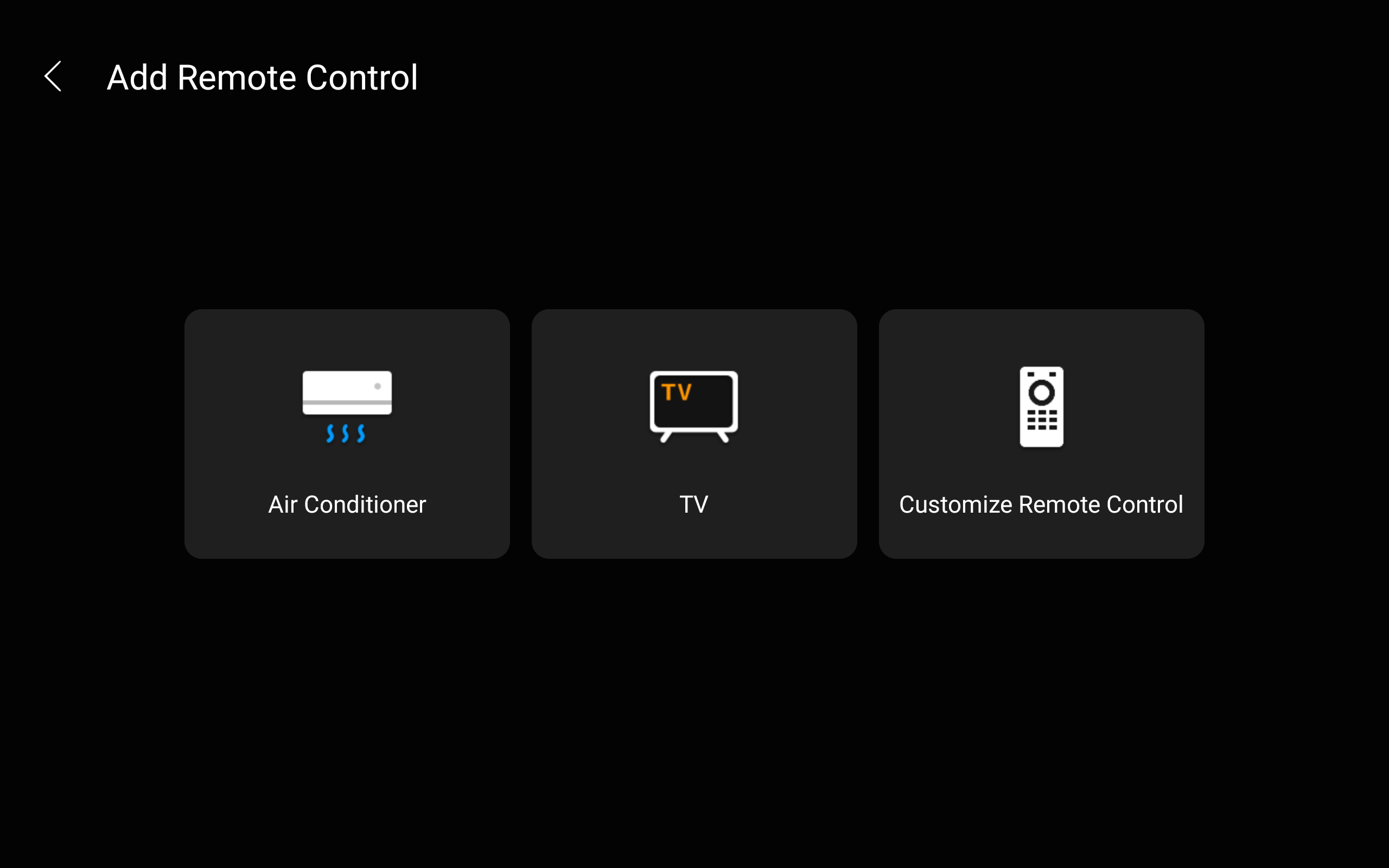
Select the device type. Here we use TV as an example.
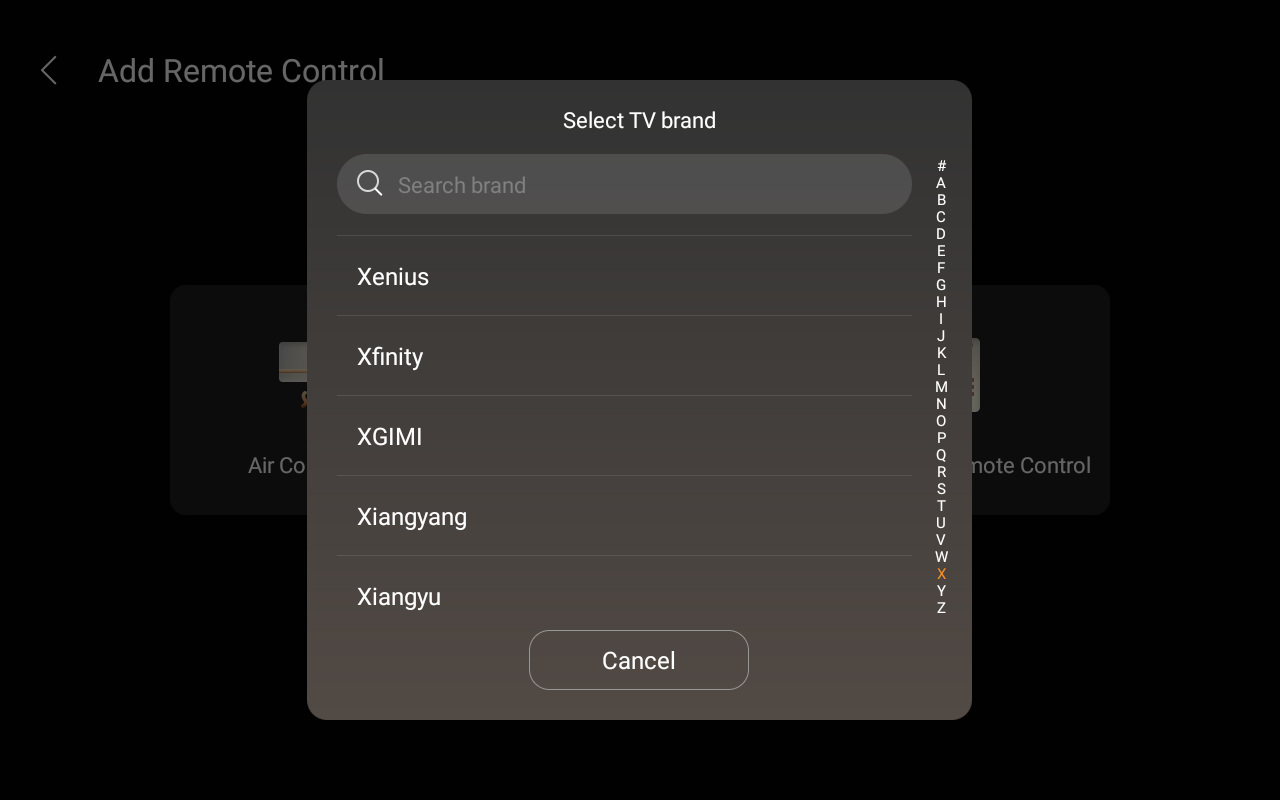
Select the device brand.
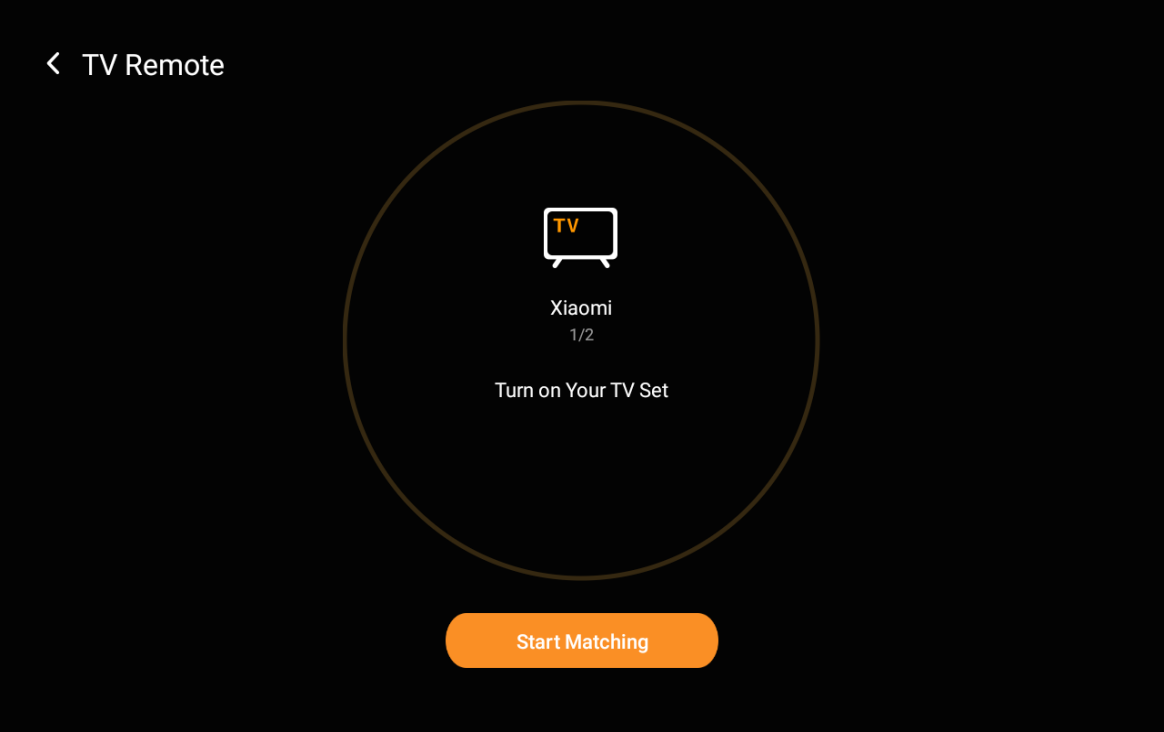
Tap Start Matching.
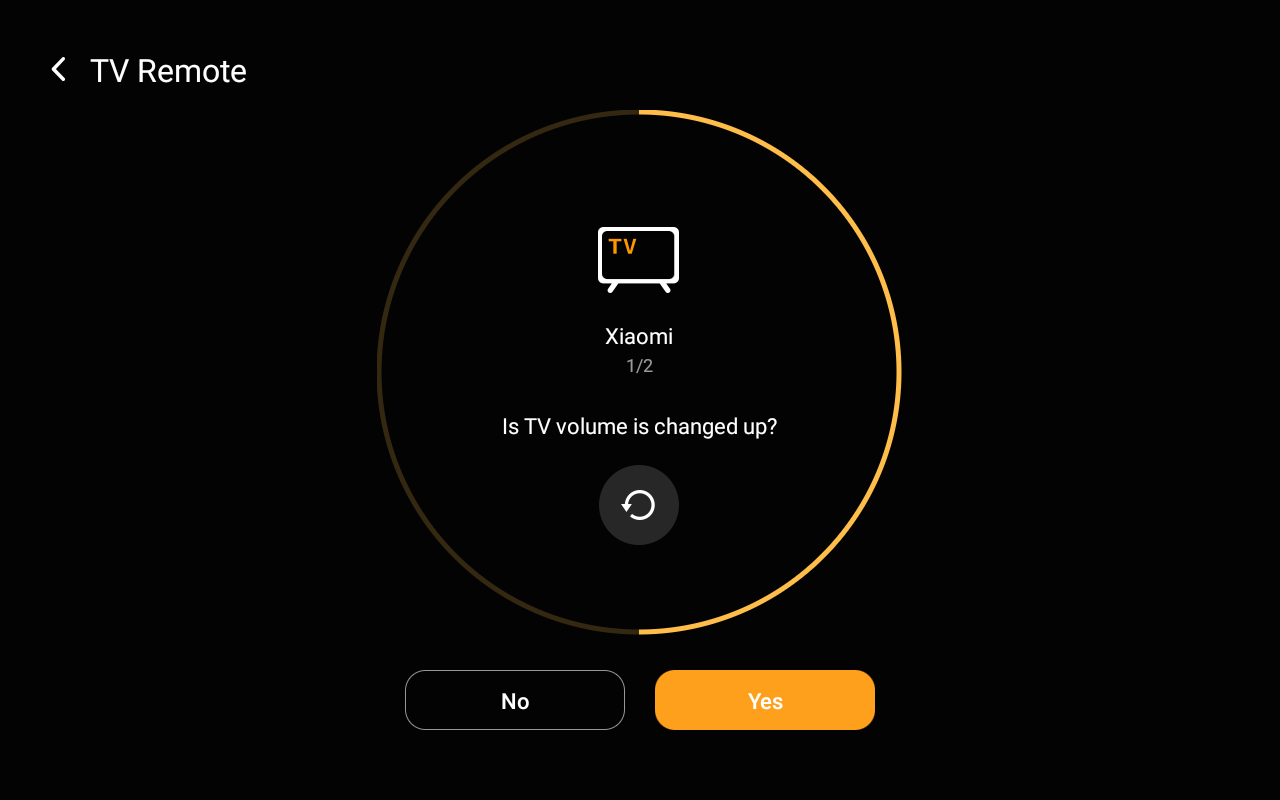
Follow the on-screen prompts to test the device response:
Tap Yes if the device responds correctly.
Tap No to try the next option.
Tap
 to try the matching process again.
Name the device, and select its location, then tap Done.
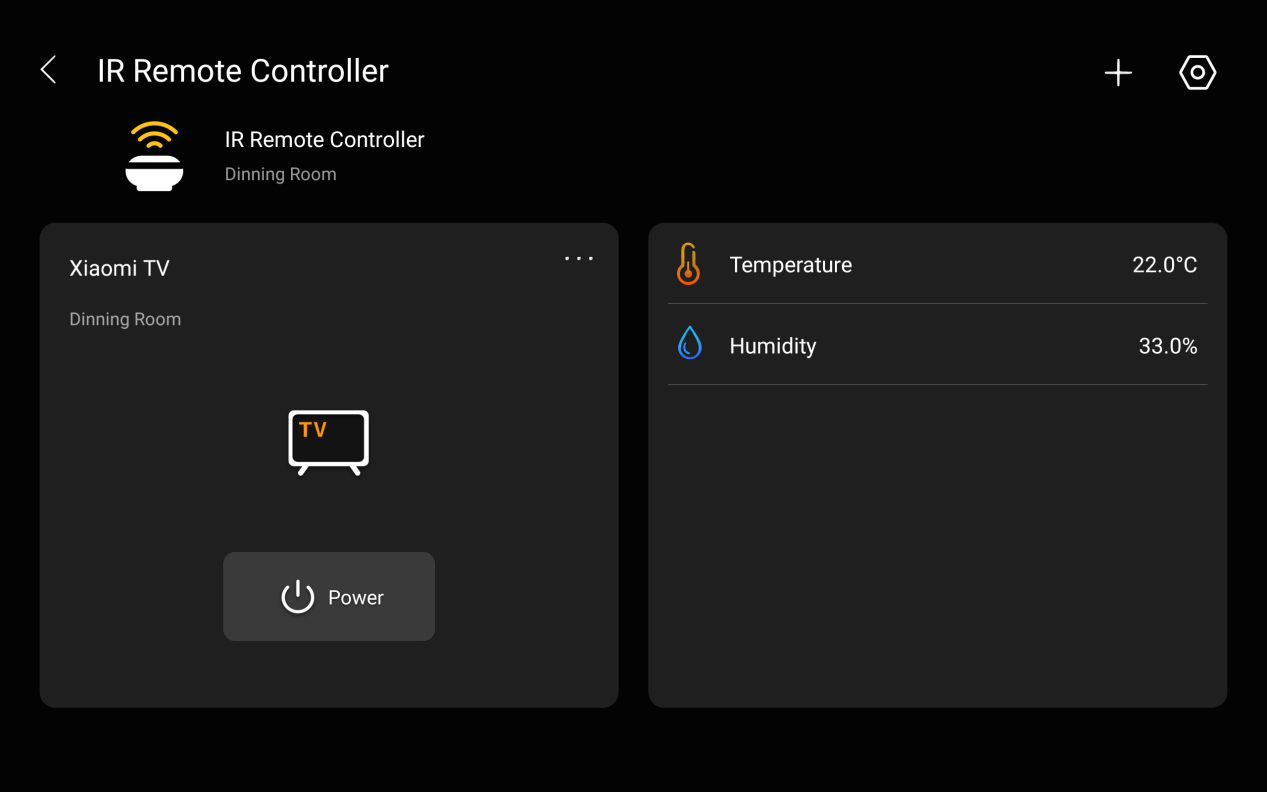
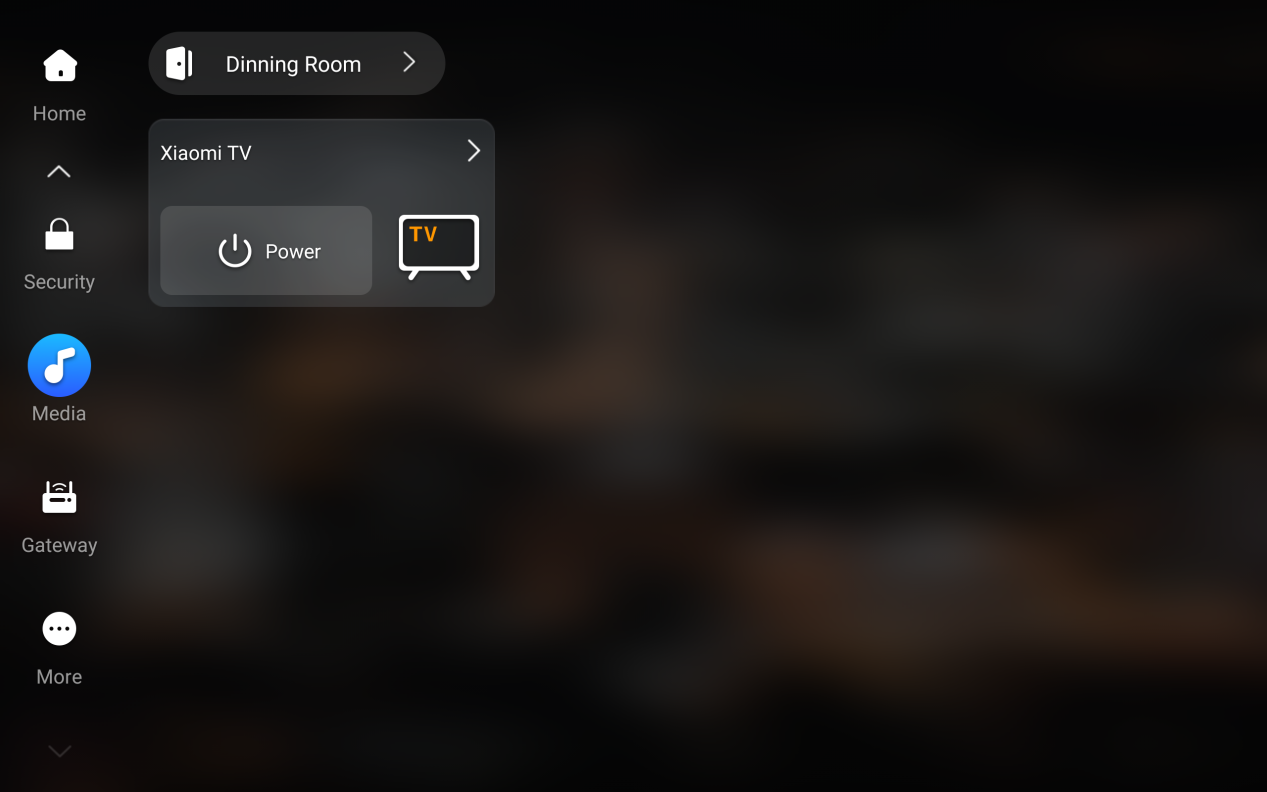
The added device will appear on the IR22 details screen and the Media screen.
Via BelaHome App
Log in to the BelaHome app.
Tap the IR22 to open its details screen.
Tap
 .
.Select Air Conditioner or TV.
Choose the device brand.
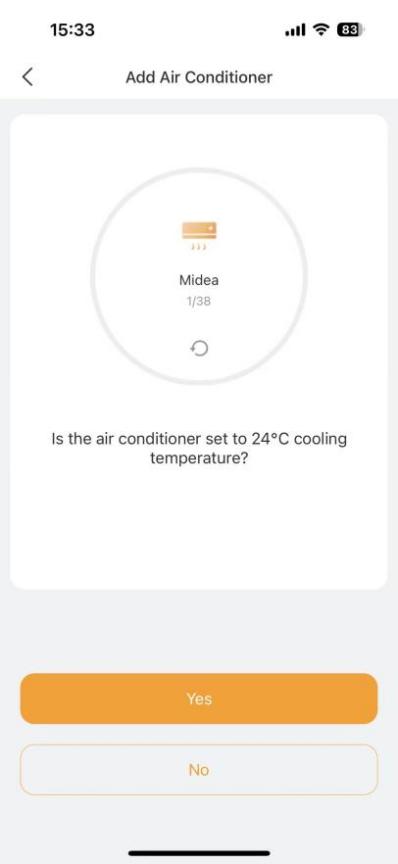
Follow the on-screen prompt to verify device control:
If the device responds correctly, tap Yes to confirm.
If not, tap No to try the next option.
If the device does not respond, tap
 to try the matching process again.
Name the device and select its location.
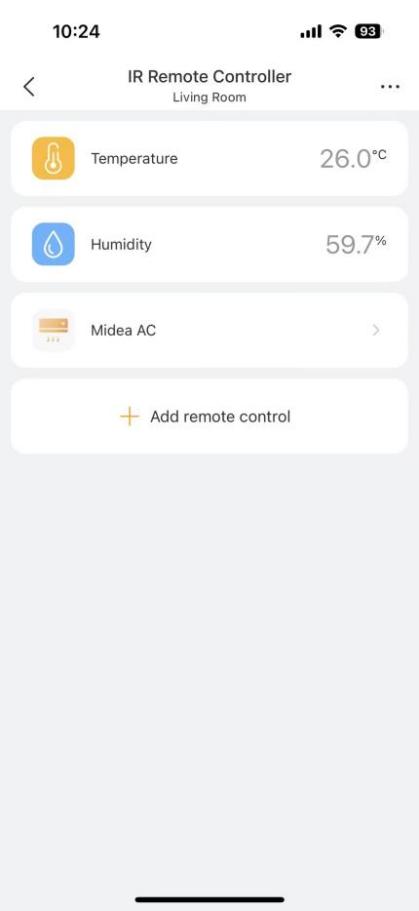
Once added, the device will appear on both the BelaHome app Home screen and the IR22 details page.
Add Custom Remotes Using IR Learning Feature
The IR22 can learns infrared codes from an existing remote, allowing it to control devices directly.
NOTE:
Each custom remote supports up to 100 buttons.
Via HyPanel Devices
Go to the More screen.
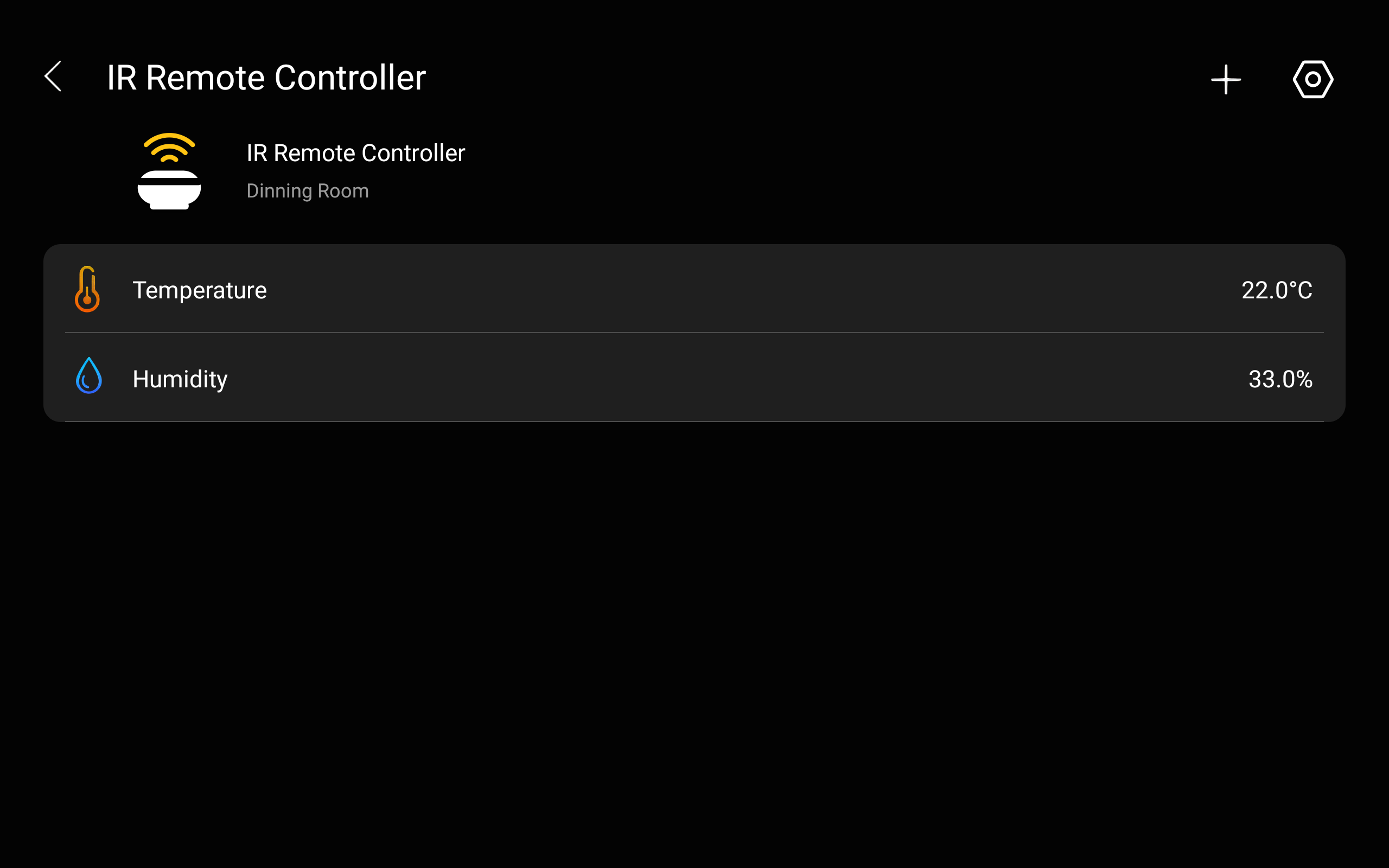
Tap the IR22, then tap
 in the upper right corner.
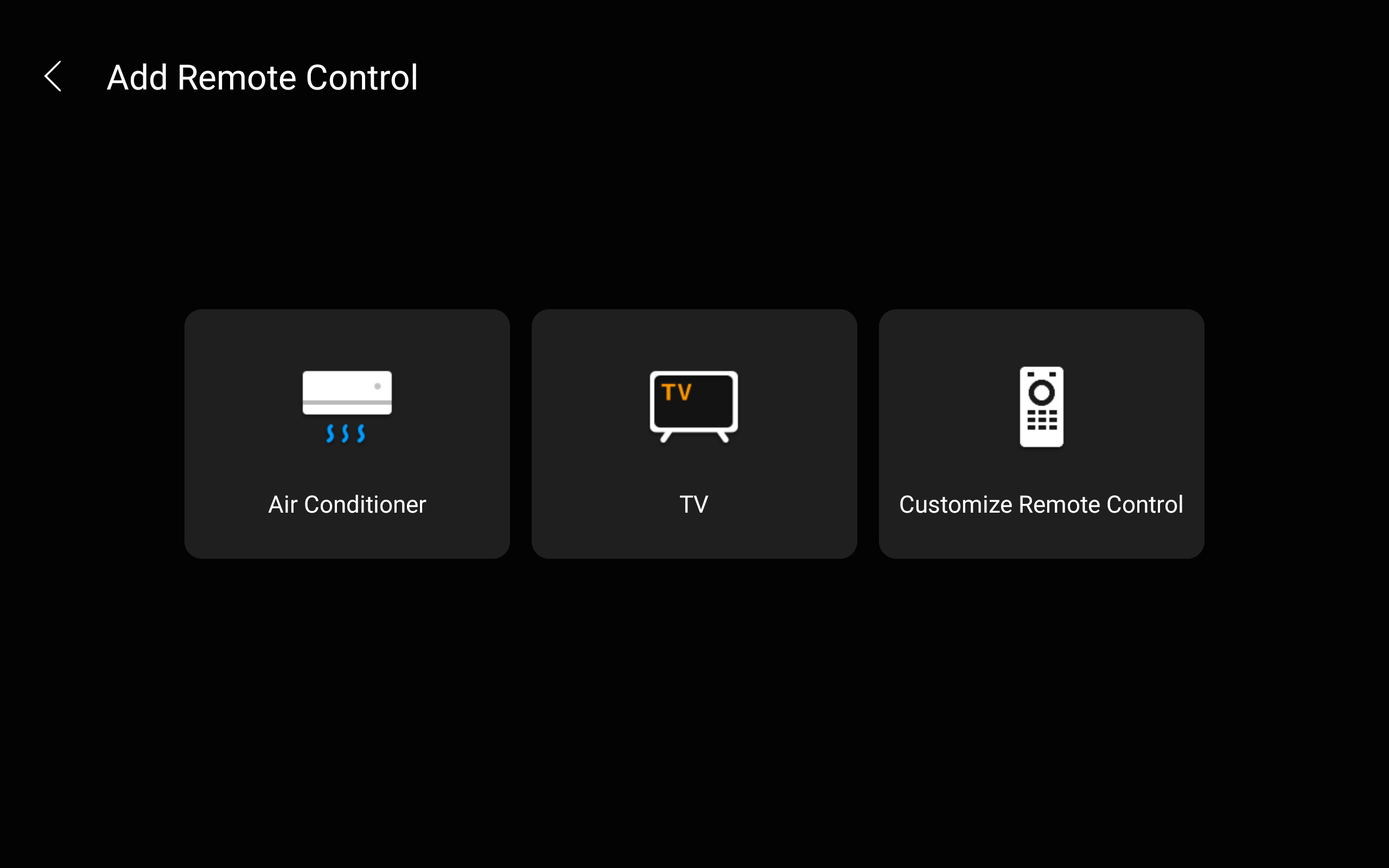
Select Customize Remote Control.
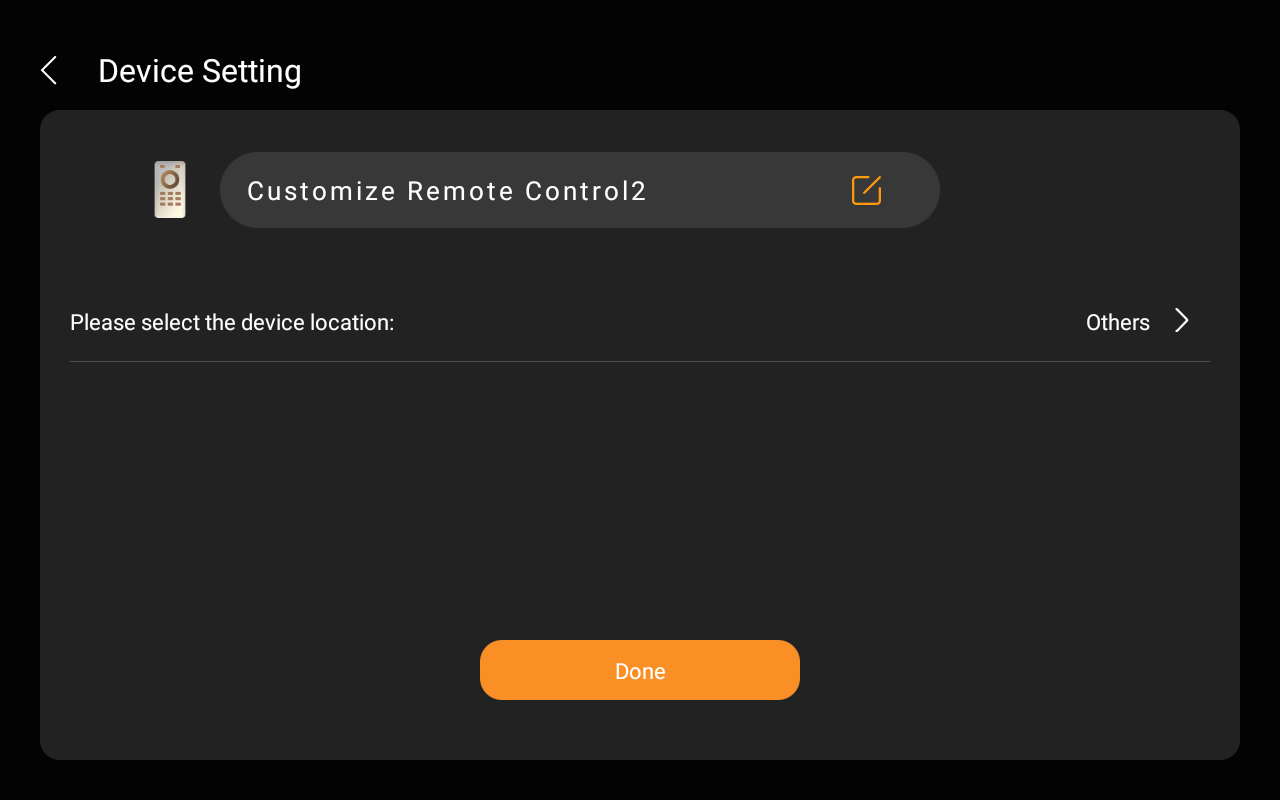
Name the remote and choose its location, tap Done.
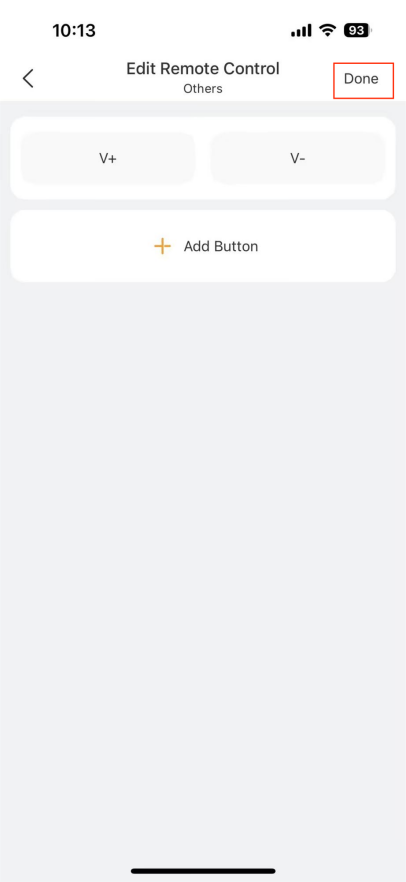
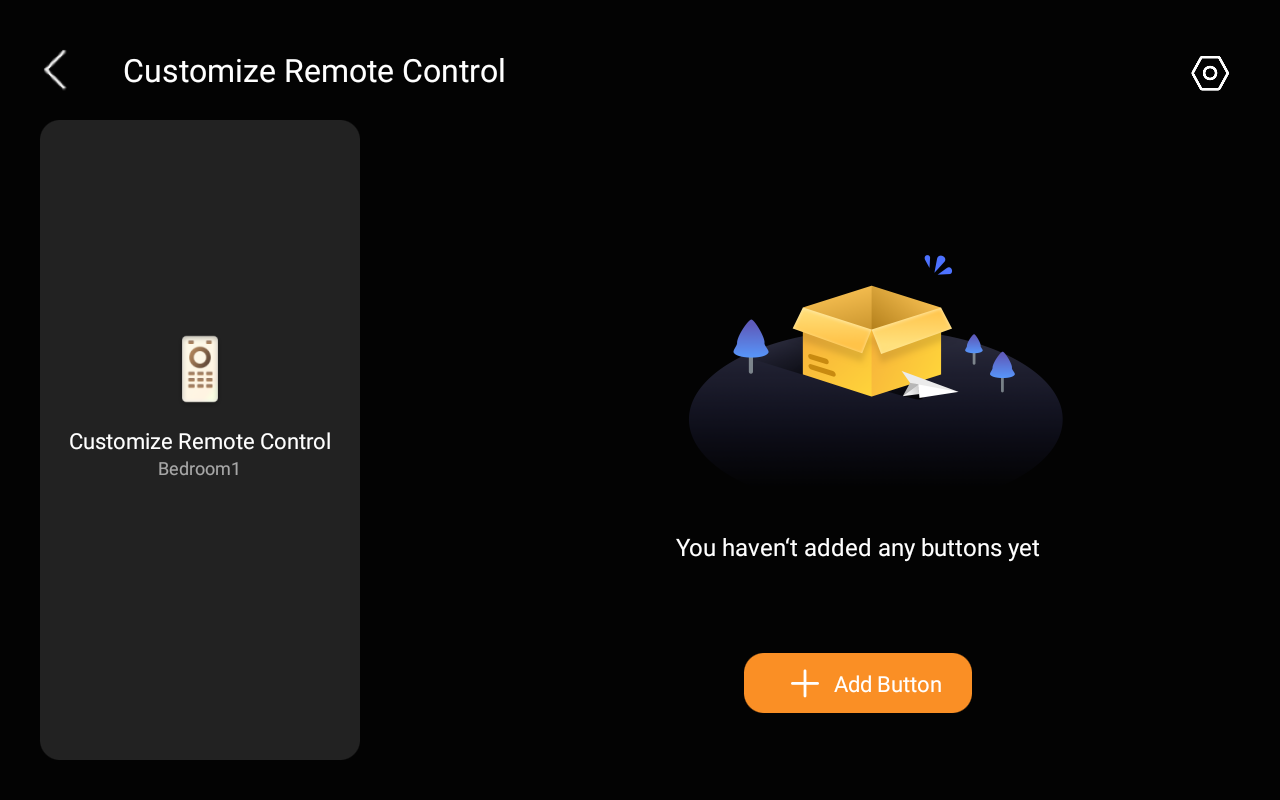
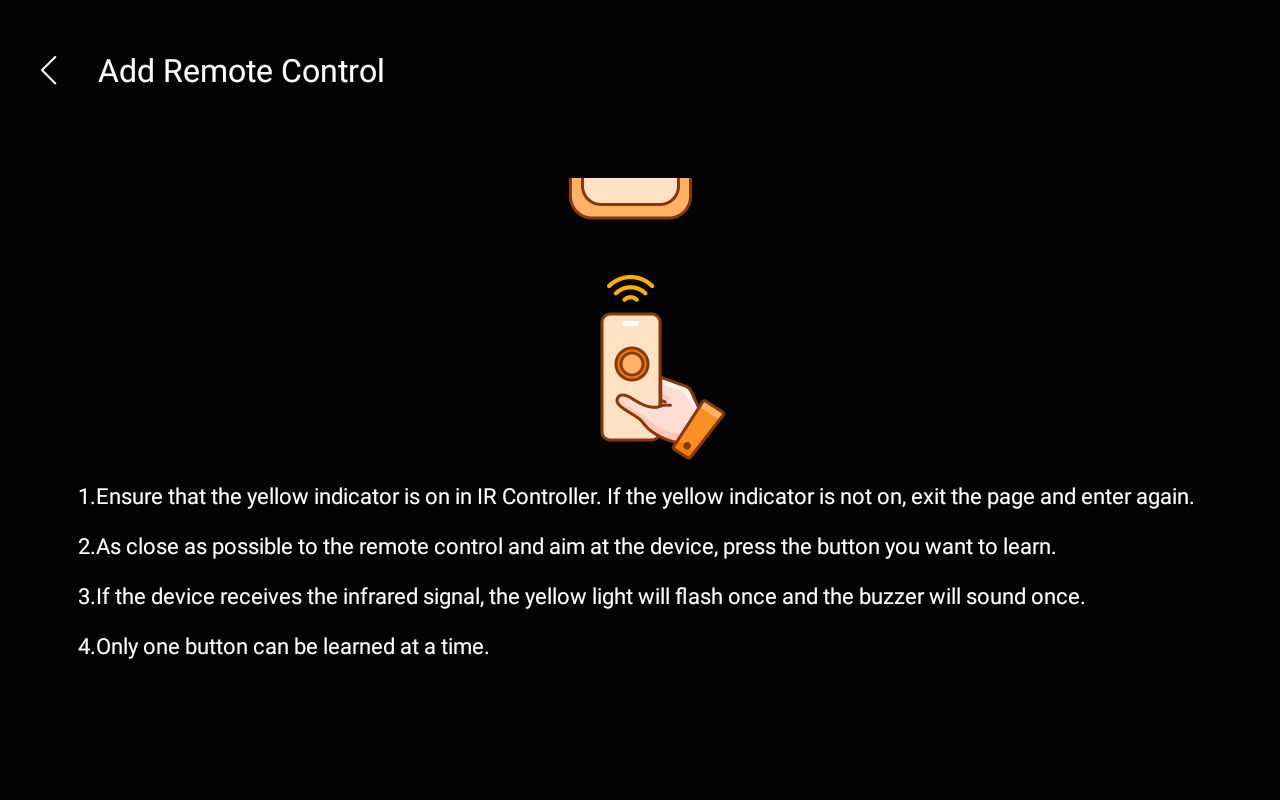
Tap Add Button and follow the onscreen instructions to learn the infrared code and add the button.
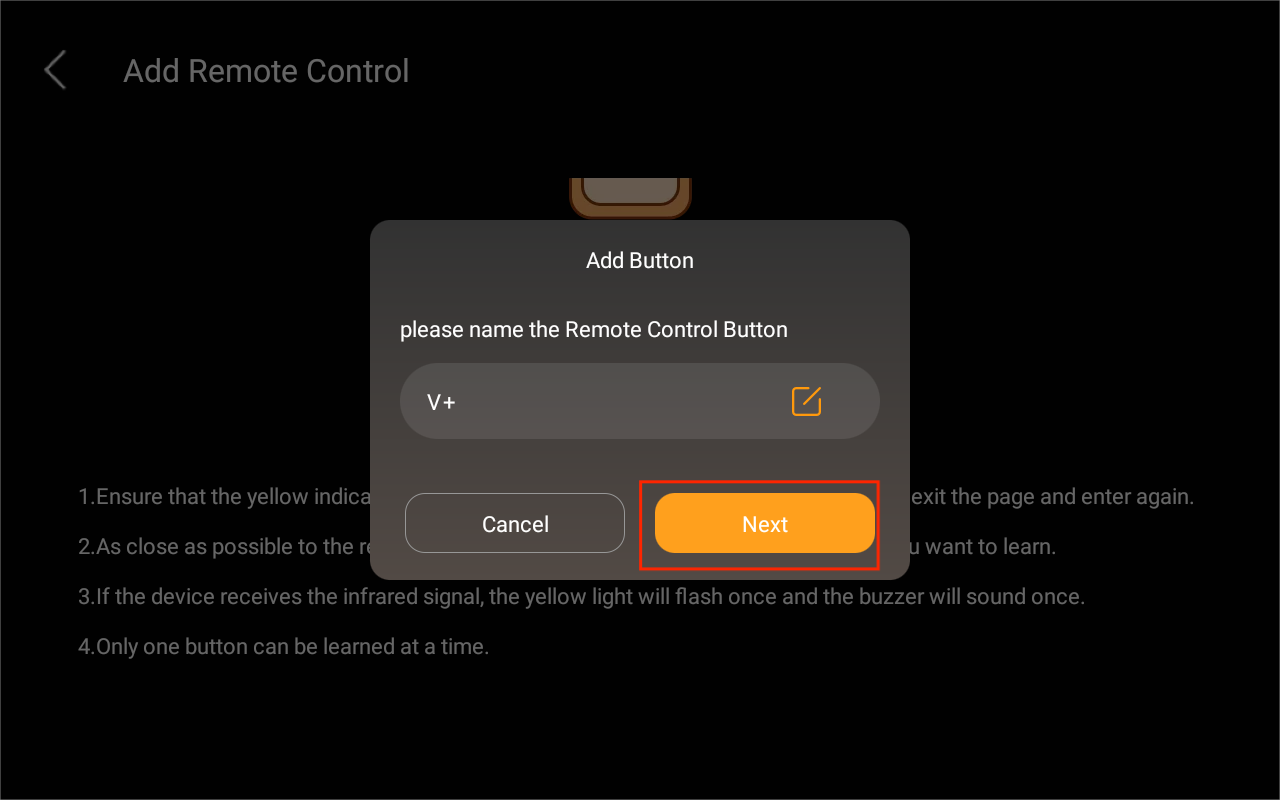
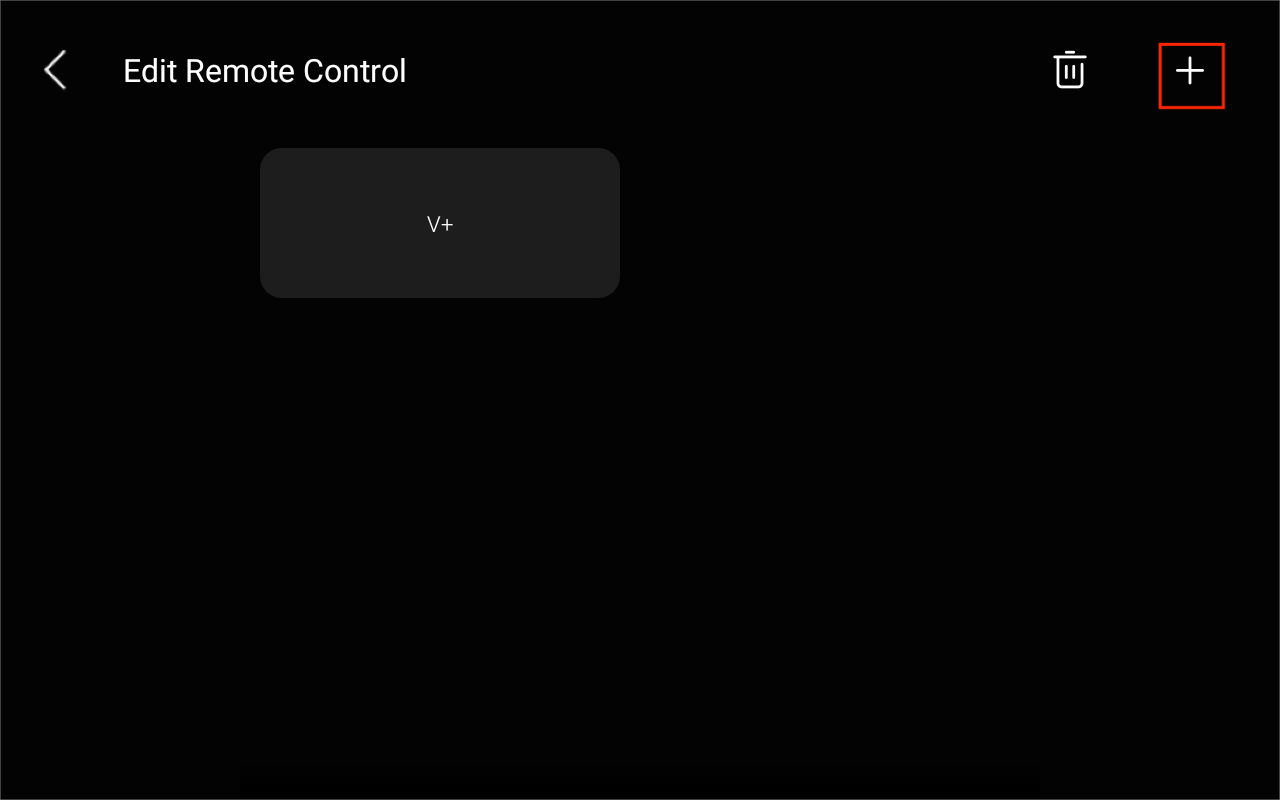
Name the button. To add more buttons, tap Next >
 .
.
Via BelaHome App
On the IR22 details screen, tap
 .
.Select Custom Remote Control from the list.
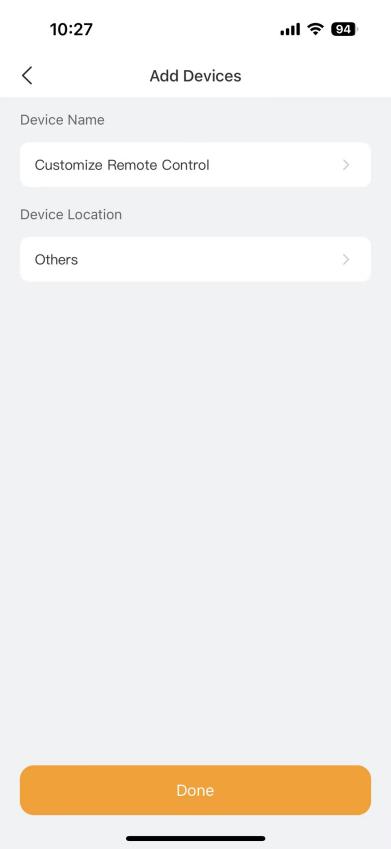
Enter a name for the remote and select its location, then tap Done.
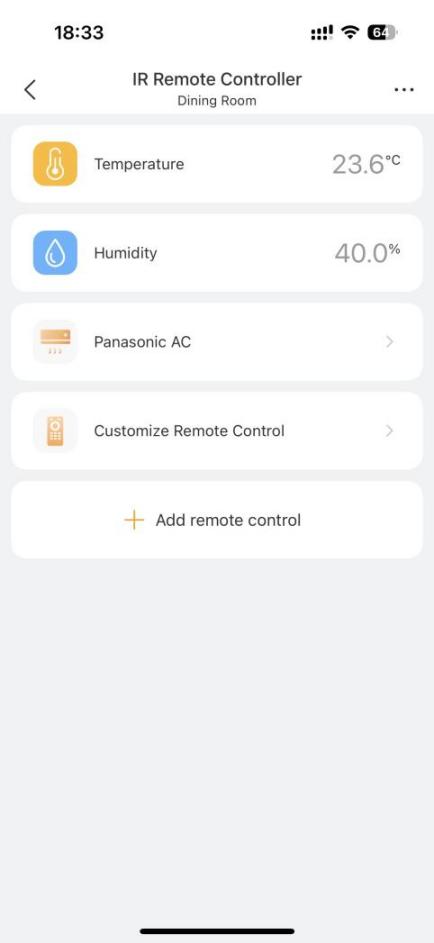
The added remote will be listed on the details screen.
Tap the remote and tap
 .
.
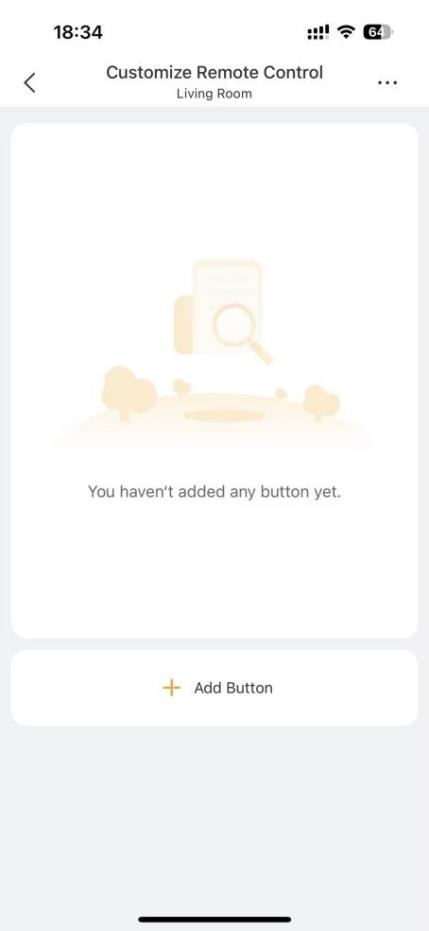
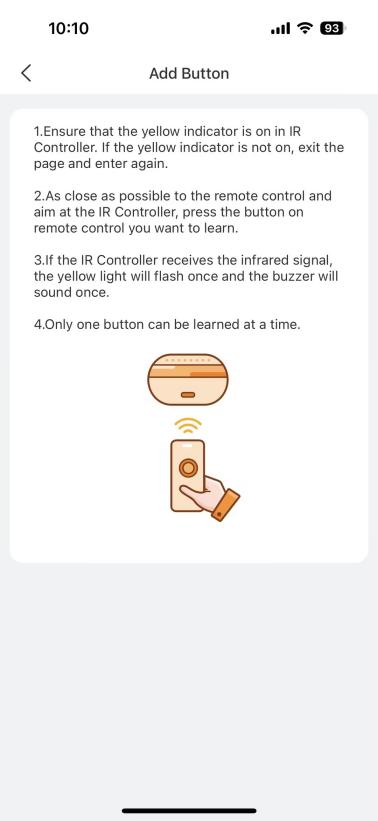
Make sure the IR22’s indicator light turns yellow (learning mode).
Point the original remote toward the IR22 as close as possible.
Press the button you want to learn on the original remote. The IR22’s indicator will flash once to confirm successful learning.
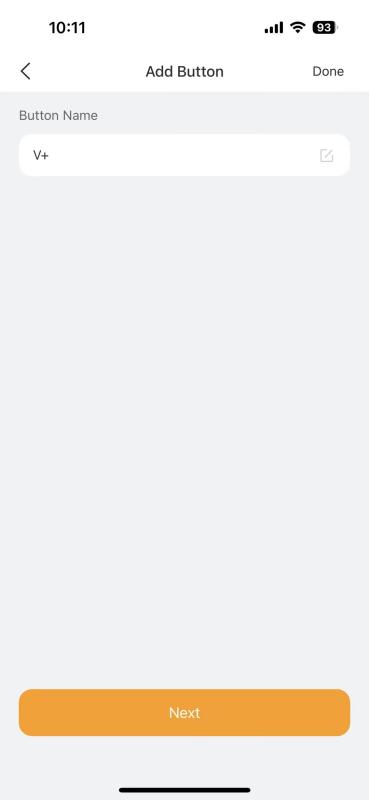
Name the button.
To add more buttons, tap Next > Add Button, and repeat steps 7 - 9.
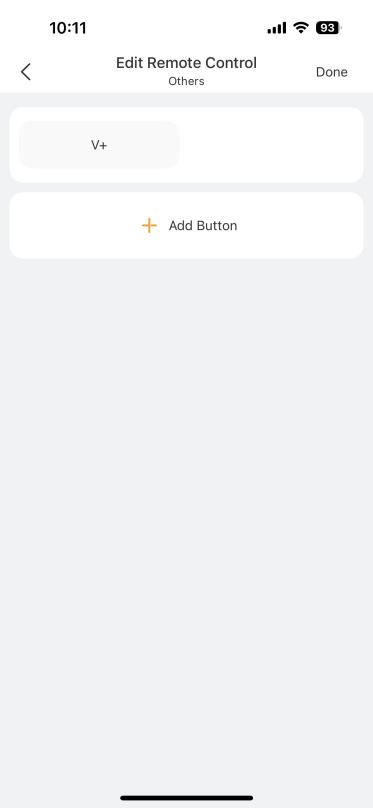
Tap Done when all buttons have been added.