Users may need real-time video monitoring of specific rooms. By integrating third-party IP cameras with the akubela system, users can view live video streams directly on HyPanels or through their BelaHome app.
Before Getting Started
Make sure your IP camera (IPC) brand and model are supported.
Brand | Model | Compatible akubela Products | Remark |
Hikvision | DS-2CD3325 |
| |
DS-2CD3346P1-L | |||
DAHUA | DH-P20A1 | ||
DH-3H3200-ADW |
| ||
Milesight | MS-C2962-FIPB | ||
Foscam | MPS4012 |
| |
Uniview (UNV) | IPC3614LE-ADF28K-G | ||
2N | Helios IP Verso | ||
EZVIZ | CS-C4X-6D42FER | ||
CS-H9c-V100-8G55WKFL |
| Dual-camera device: When connected via ONVIF (on HyPanel Supreme, Ultra, Pro, SmartPanel, or SmartPanel Elite 10), only the lower fixed camera is supported; direction keys are not functional. | |
Lmou | TA4D-10M-E62B |
| |
Starnet | SN1718-CI |
| |
TP-Link | TL-IPC45AW-COLOR 5.1 | ||
TL-IPC544T(P)-WB6 1.0 |
RTSP URL formats reference.
NOTE:
The following formats are for reference only. Contact the IPC manufacturer to confirm the RTSP URL format for the specific device.
Brand | Model | RTSP URL Format |
|---|---|---|
Hikvision | DS-2CD3325 | Main Stream: rtsp://username:password@IP:554/Streaming/Channels/101 Sub Stream: rtsp://username:password@IP:554/Streaming/Channels/102 |
DS-2CD3346P1-L | ||
DAHUA | DH-P20A1 | Main Stream: rtsp://username:password@IP:554/cam/realmonitor?channel=1&subtype=0 Sub Stream: rtsp://username:password@IP:554/cam/realmonitor?channel=1&subtype=1 |
DH-3H3200-ADW | ||
Milesight | MS-C2962-FIPB | rtsp://username:password@IP:554/main rtsp://username:password@IP:554/sub rtsp://username:password@IP:554/third |
Foscam | MPS4012 | Main Stream: rtsp://IP:88/videoMain Sub Stream: rtsp://IP:88/videoSub |
Uniview (UNV) | IPC3614LE-ADF28K-G | Main Stream: rtsp://username:password@IP/media/video1 Sub Stream: rtsp://username:password@IP/media/video2 |
2N | Helios IP Verso | H264: rtsp://IP:554/h264_stream MPEG4: rtsp://IP:554/mpeg4_stream MJPEG: rtsp://IP:554/mjpeg_stream |
EZVIZ | CS-C4X-6D42FER | Main Stream (H.265): rtsp://username:password@IP/h265/ch0/main/av_stream Sub Stream (H.265): rtsp://username:password@IP/h265/ch0/sub/av_stream |
CS-H9c-V100-8G55WKFL | Upper Camera Main Stream: rtsp://username:password@IP:554/Streaming/Channels/201 Sub Stream: rtsp://username:password@IP:554/Streaming/Channels/202 Lower Camera Main Stream: rtsp://username:password@IP:554/Streaming/Channels/101 Sub Stream: rtsp://username:password@IP:554/Streaming/Channels/102 | |
Lmou | TA4D-10M-E62B | Upper Camera Main Stream: rtsp://username:password@IP:554/cam/realmonitor?channel=1&subtype=0&unicast=true Sub Stream: rtsp://username:password@IP:554/cam/realmonitor?channel=1&subtype=1&unicast=true Lower Camera Main Stream: rtsp://username:password@IP:554/cam/realmonitor?channel=2&subtype=0&unicast=true Sub Stream: rtsp://username:password@IP:554/cam/realmonitor?channel=2&subtype=1&unicast=true |
Star-net | SN1718-CI | Main Stream: rtsp://username:password@IP:554/ch1/0 Sub Stream 1: rtsp://username:password@IP:554/ch1/1 Sub Stream 2: rtsp://username:password@IP:554/ch1/2 |
TP-Link | TL-IPC45AW-COLOR 5.1 | Main Stream: rtsp://username:password@IP:554/stream1/ Sub Stream: rtsp://username:password@IP:554/stream2/ |
TL-IPC544T(P)-WB6 1.0 |
Setup Scenarios
Scenario 1: Camera Has a Public IP Address
Use this method when the IP camera is accessible through a public IP address.
NOTE:
All HyPanel models support adding third-party IP cameras through the akubela Cloud.
Steps
Log in to akubela Cloud using an installer account.
Select the target project, and do as the following:
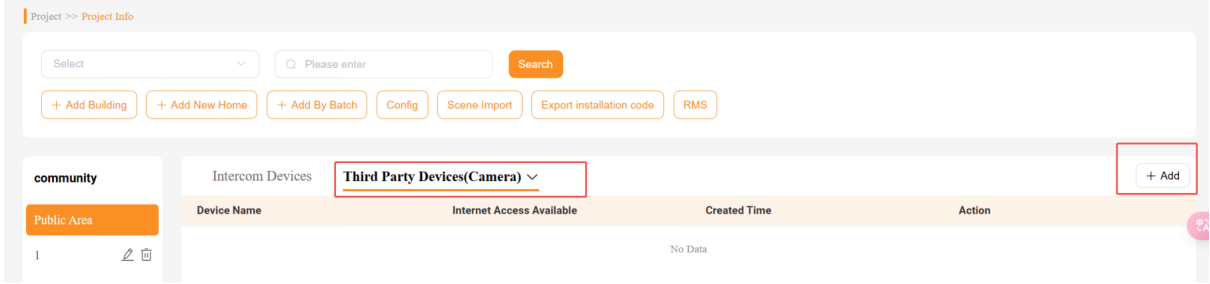
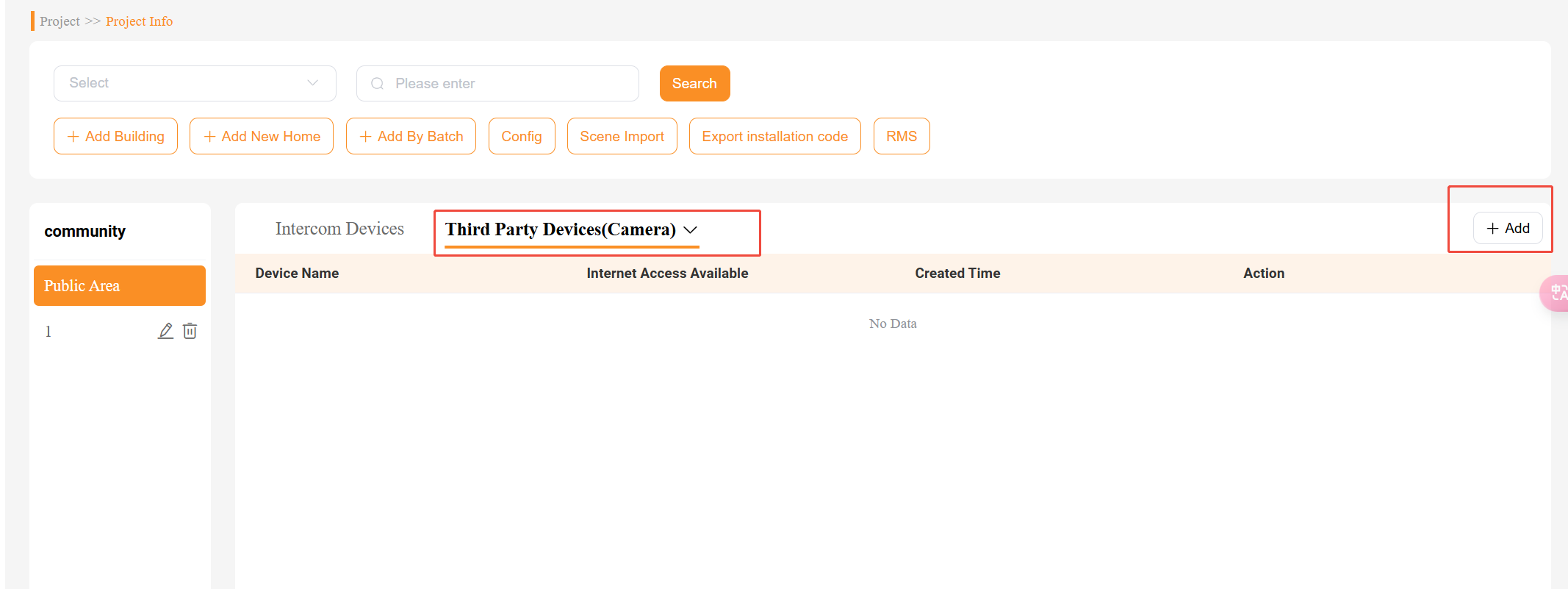
Community project: Go to Detail, select Public Area or a specific building, then click Third Party Device(Camera) > Add.
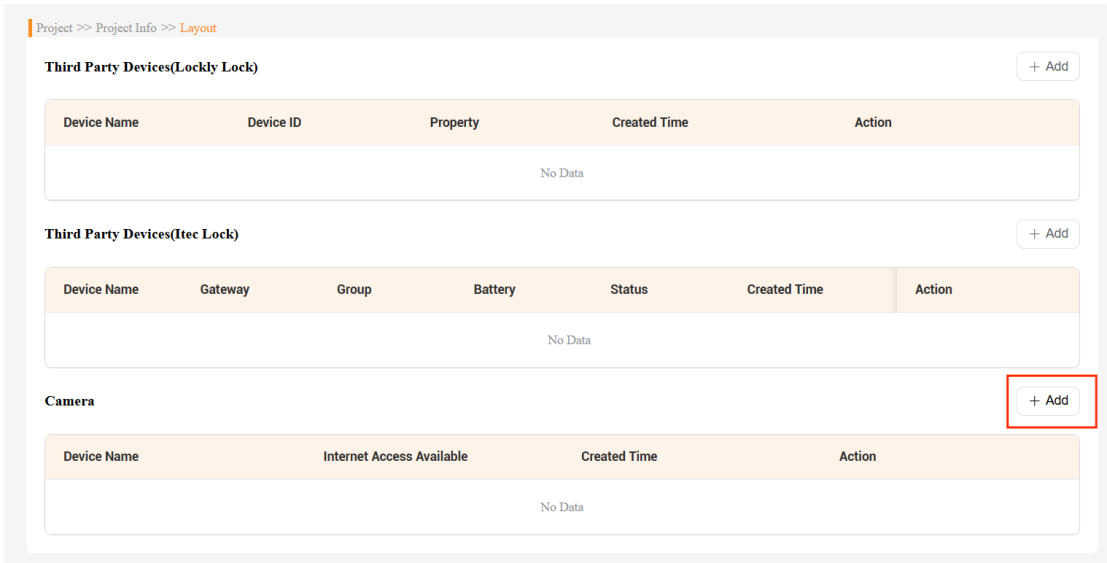
Single-tenant project: Go to Detail > Layout > Camera > Add.
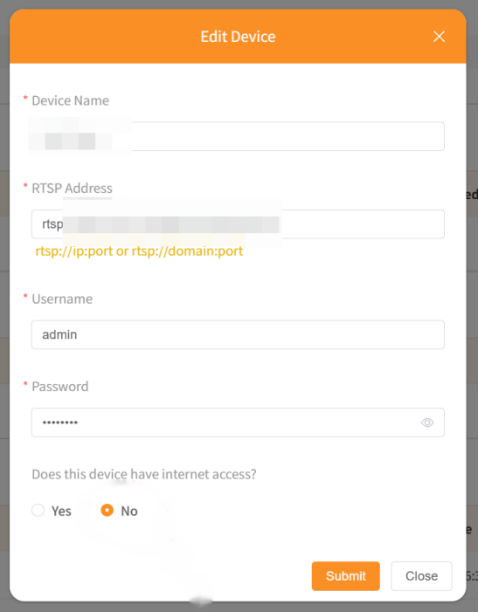
Enter the required camera information:
Device name
RTSP address (must be a public IP; format provided by the camera manufacturer)
Camera username and password (provided by the camera manufacturer)
Set “Does this device have internet access” to No.
Scenario 2: Camera Does Not Have a Public IP Address
Use this scenario when:
The camera does not have a public IP address.
The camera and the Home Center are connected to the same local network (LAN).
In this configuration, the home center transfer the camera stream to the app.
You can add the camera using one of the following methods.
Method 1: Add via akubela Cloud
NOTE:
This method is supported by all HyPanel models.
Log in to akubela Cloud using an installer account.
Create a community project, and click Details > Third Party Device(Camera) > Add.
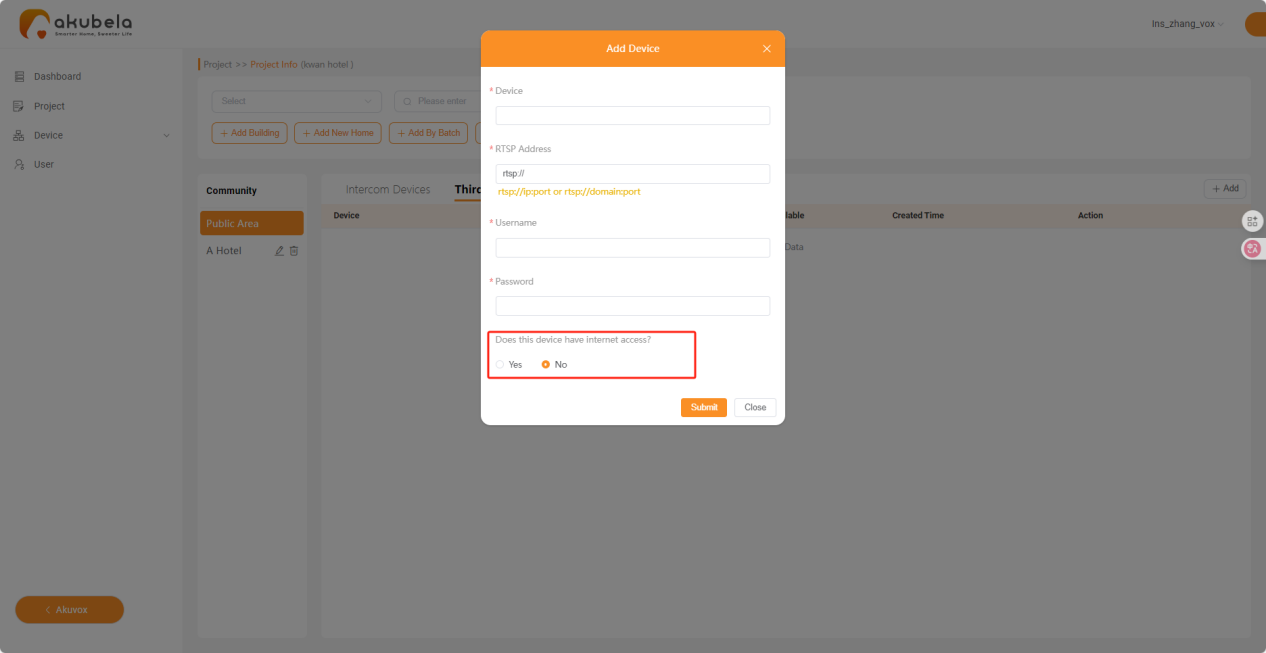
Enter the following details:
Device name
RTSP address (must be the LAN IP; format provided by the camera manufacturer
Camera username and password (provided by the camera manufacturer)
Set “Does this device have internet access” to No.
Method 2: Add via HyPanel Device
NOTE:
Only large-screen panels(excluding the HyPanel Elite 7) support adding cameras directly from the panel.
Cameras with angle adjustment must be added this way to enable the angle control.
Tap
 in the upper right corner.
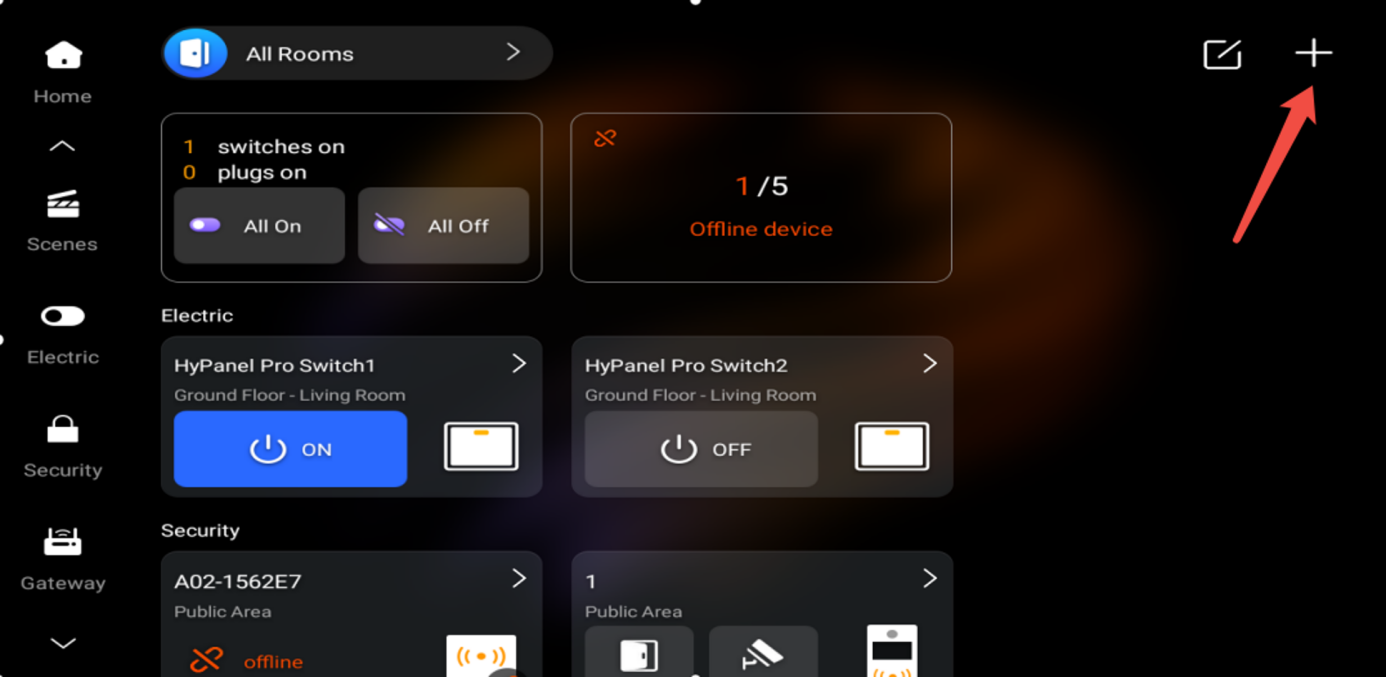
Do one of the following:
Auto-search (ONVIF)
(1) Wait for the scan results, and select the detected camera.
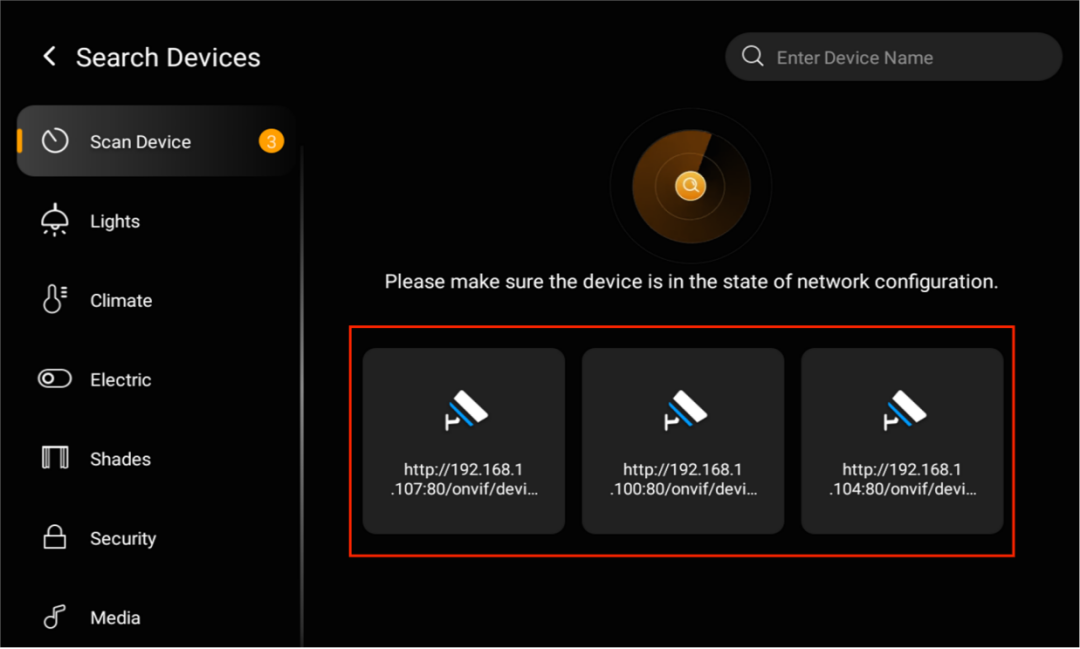
(2) Enter the camera username and password.
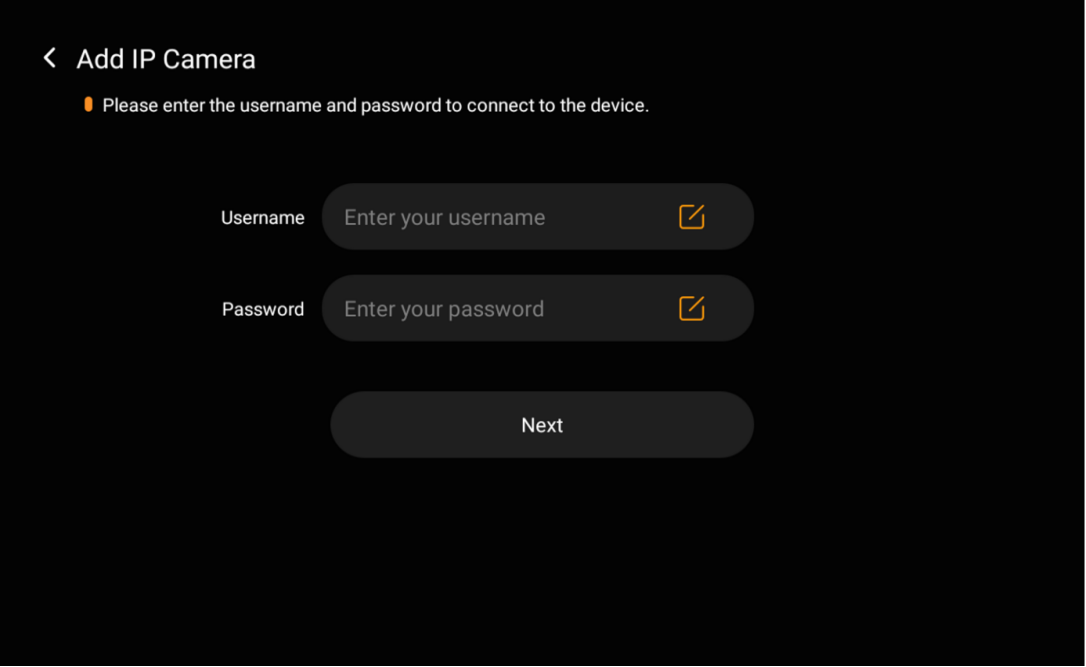
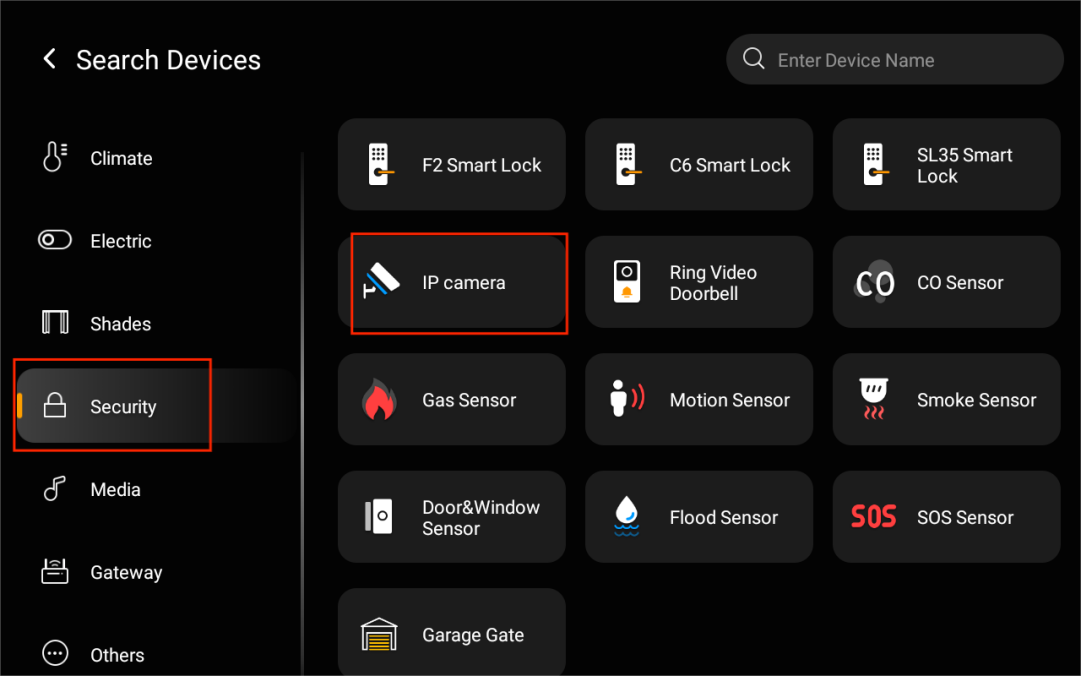
Manual configuration (RTSP)
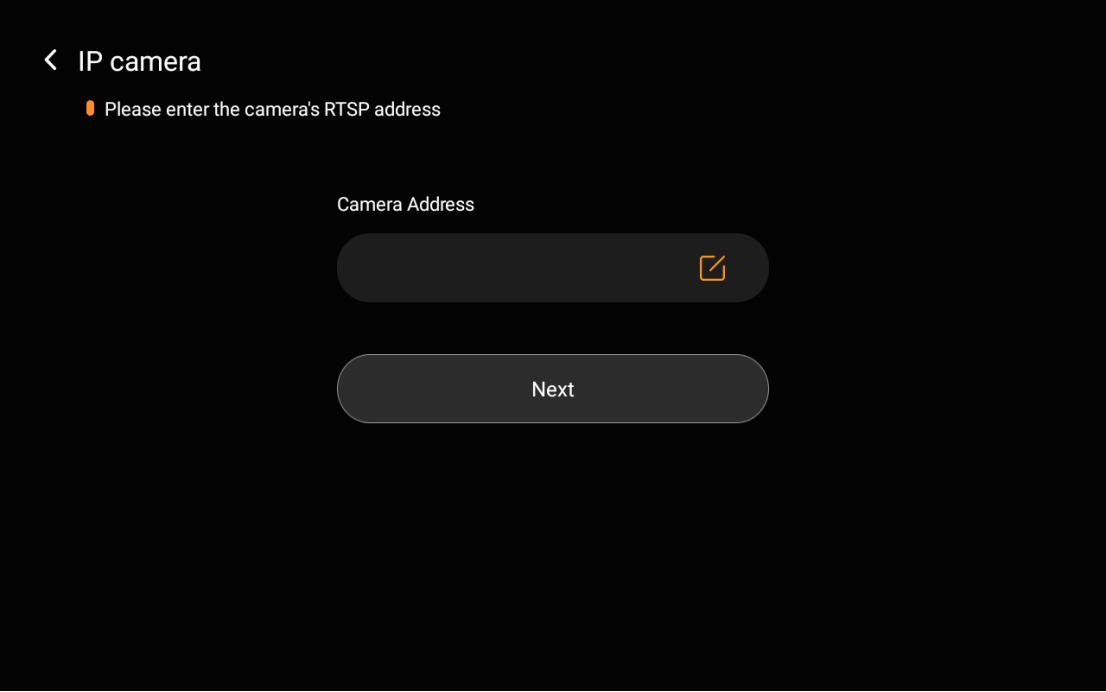
(1) Go to Security > IP Camera.
(2) Follow the onscreen instructions to enter the camera’s RTSP address and valid credentials.
Method 3: Auto Search via the Device Web Portal
NOTE:
HyPanel Lite, HyPanel Elite 7, and Gateways G31/G32 do not support this method.
Open a browser.
Enter the home center IP address and log in to the device web portal.
Click Add subdevice.
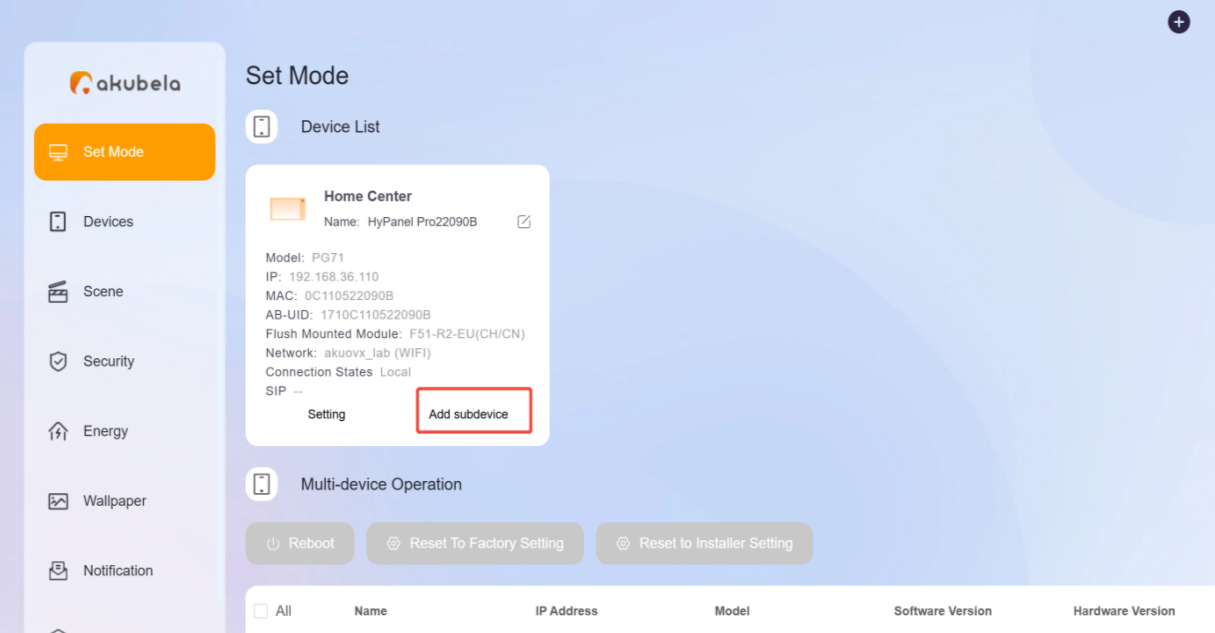
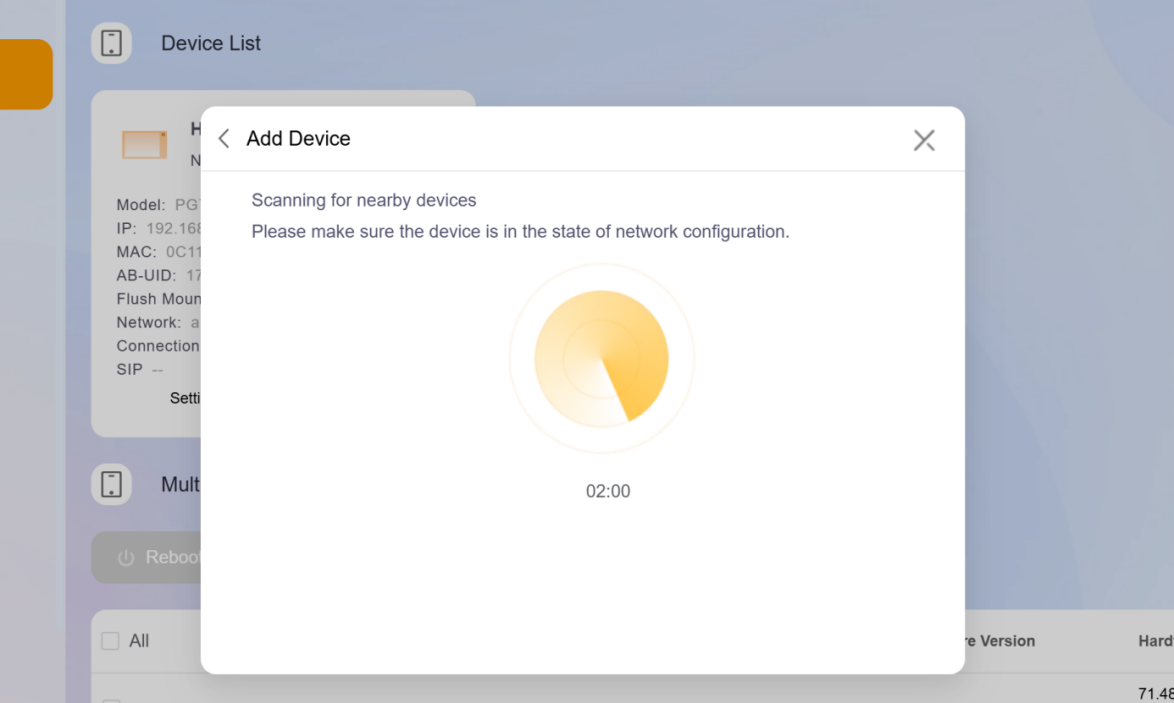
The system will automatically scans cameras on the same LAN.
Select the desired camerea and follow the onscreen instructions to complete the setup.
Method 4: Add as a Local Contact
NOTE:
Gateways G31/G32 do not support this method.
Log in to the device web portal.
Go to Set Mode > Local Contacts List > Add.
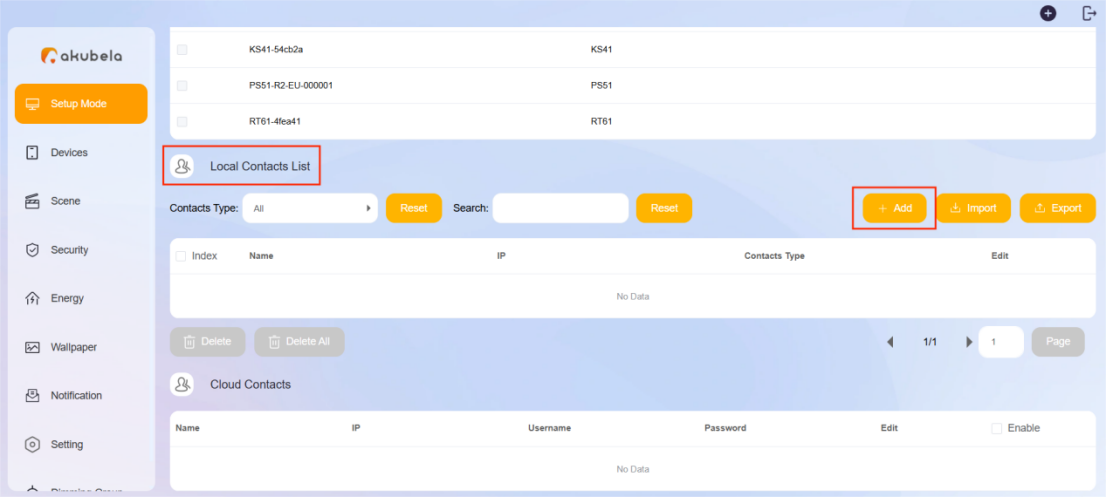
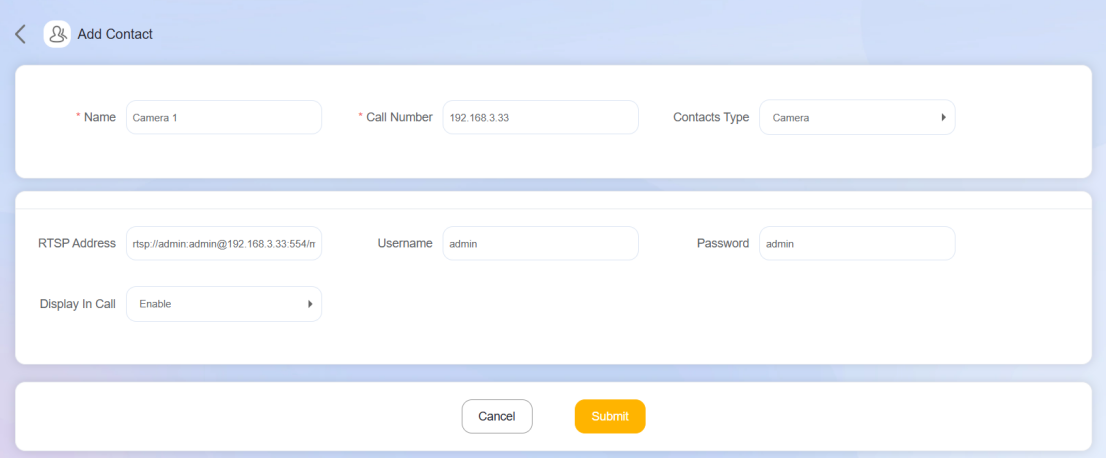
Set Contacts Type to Camera.
Enter the camera name, call number, RTSP URL, and the camera username and password for authentication.
Enable Display in Call if you want to view the live stream during a call.
Click Submit.
Using the Camera
On HyPanel Devices
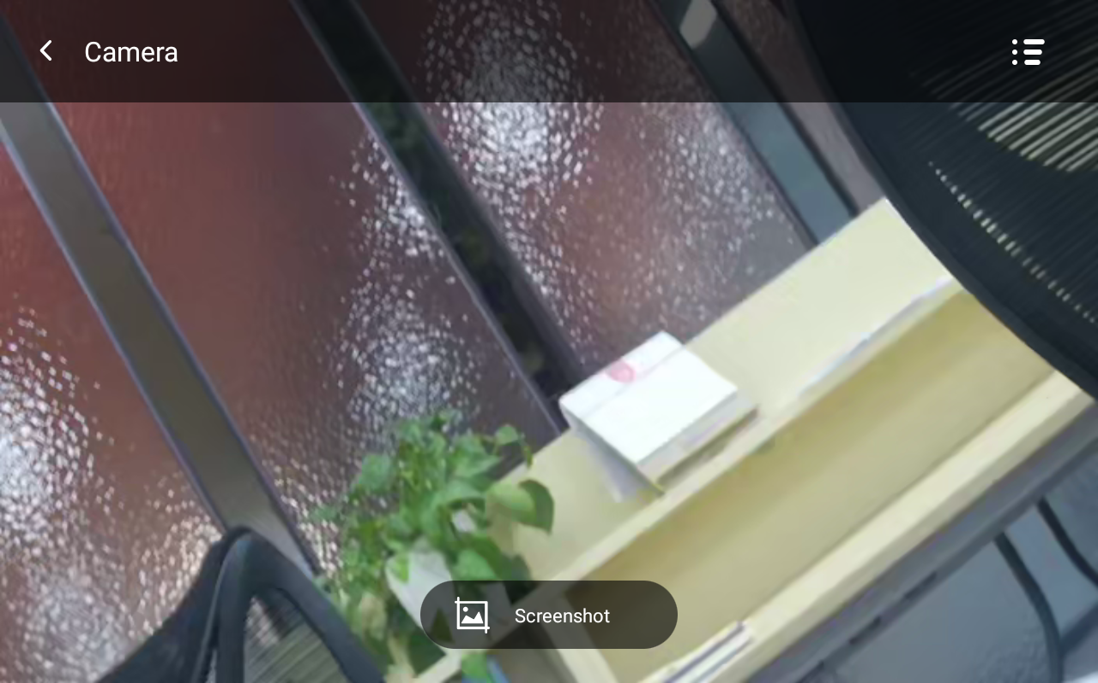
Tap the camera card to view the live stream.
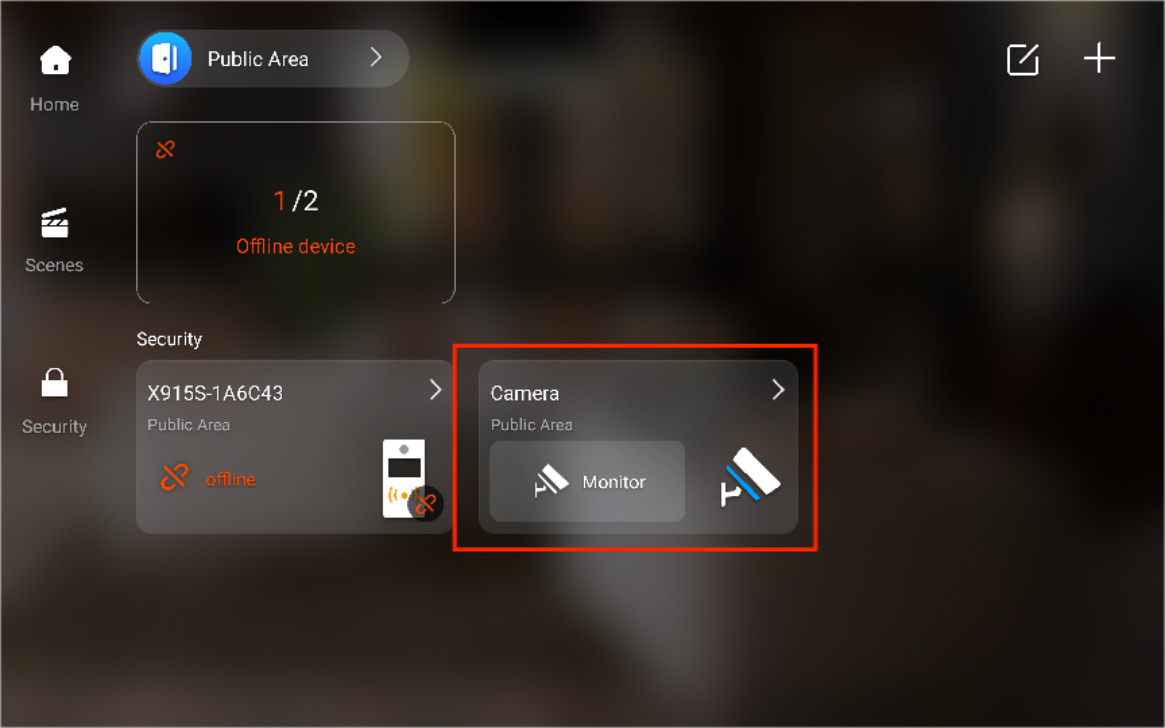
Tap Screenshot to capture an image.
On BaleHome App
Tap the camera card to view the live stream.