You can manage accounts for property managers, Guest Room Management System (GRMS) managers and staff, and family administrators.
Manage Property Manager Accounts
Add Property Manager Accounts
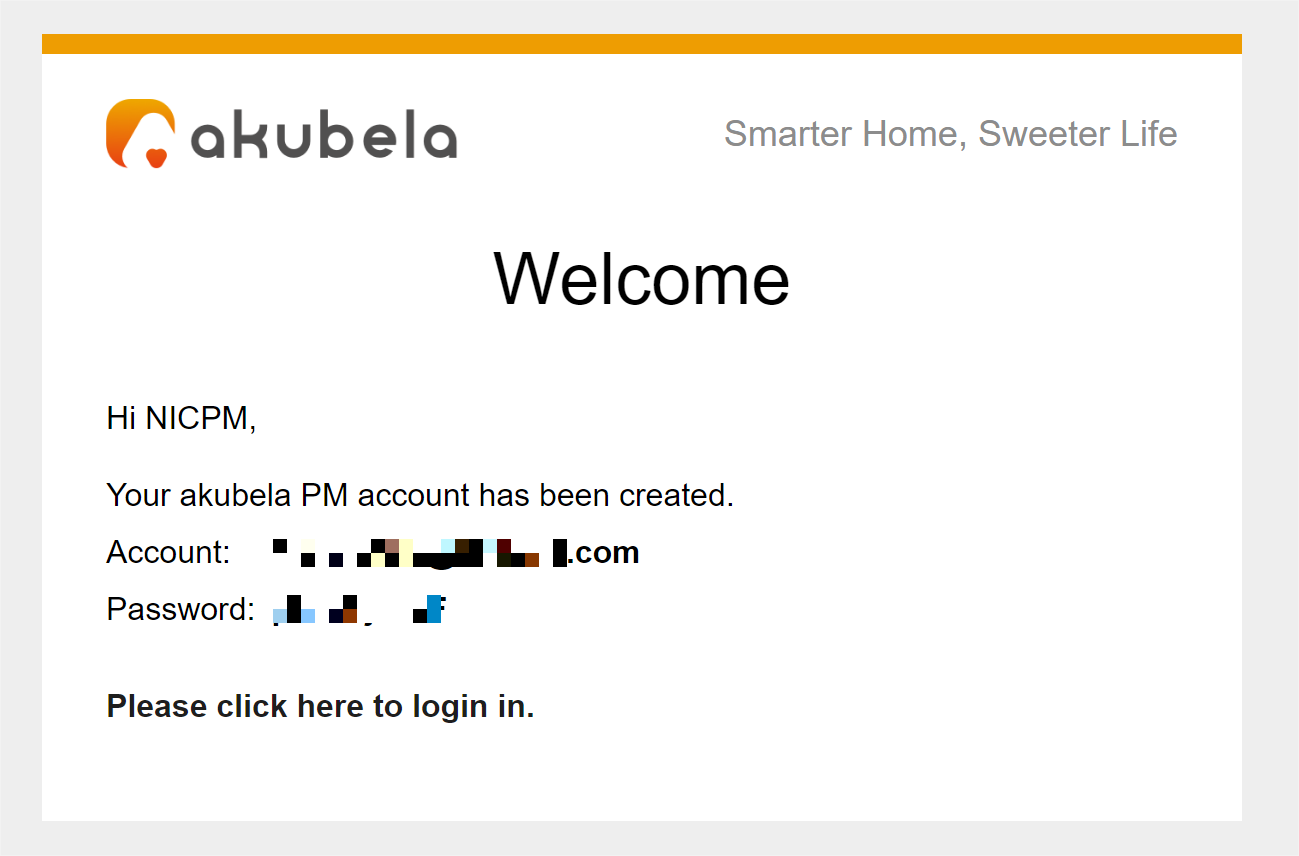
You can create accounts for property managers and assign them to specific community projects. Once added, they’ll receive an email with login credentials to access the PM platform.
To create an account:
Go to Project > Community > Property Manager.
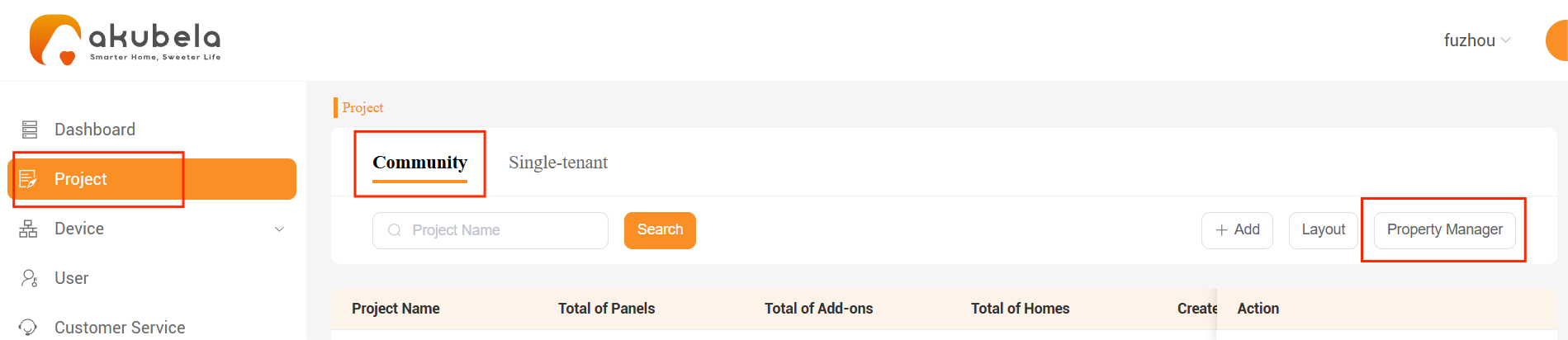
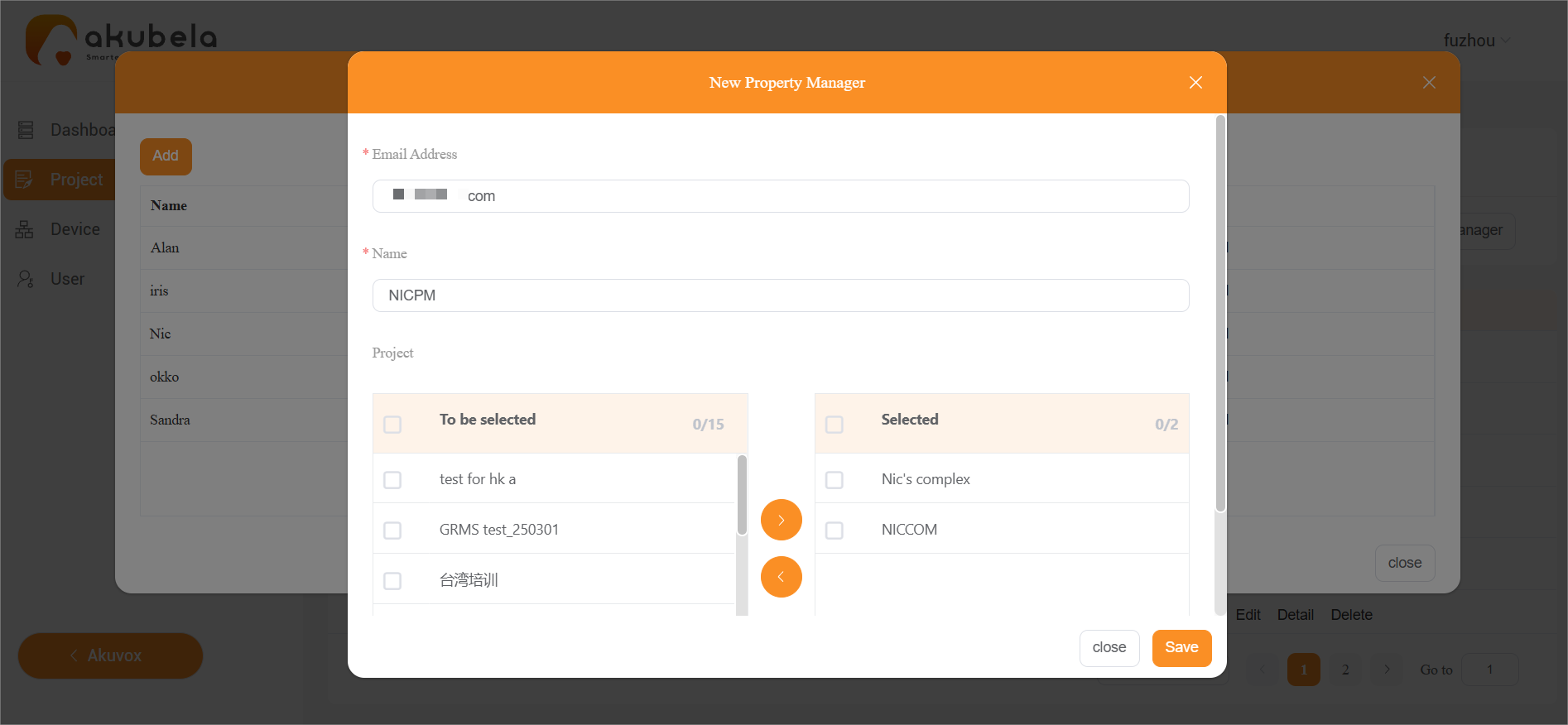
Click Add, then configure the following:
Enter a valid email address
Enter the manager’s name
Select the projects they can manage by moving them from the left to the right pane.
Click Save.
Once created, the property manager will receive an email with login credentials.
Edit or Delete Property Manager Accounts
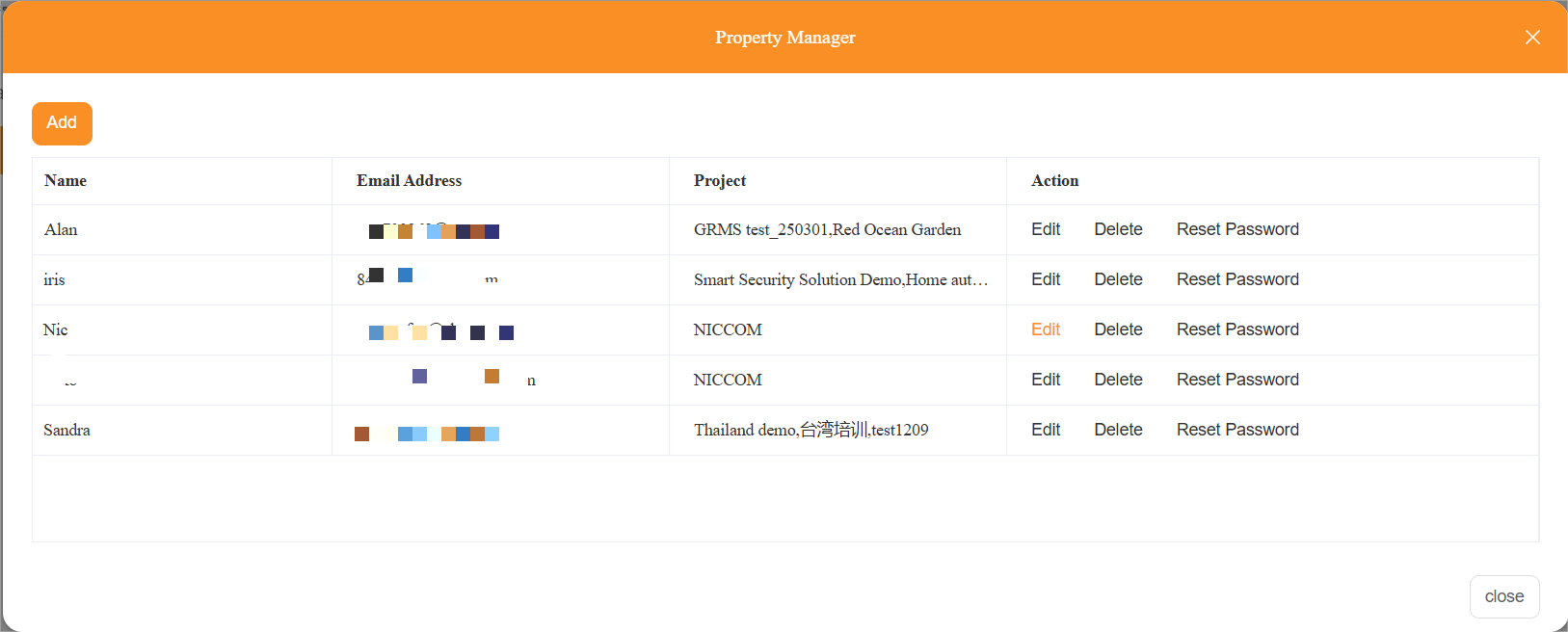
To view or manage existing accounts, go to Project > Community > Property Manager, then do any of the following:
Click Edit to change the manager’s name or update their associated projects.
Click Reset Password to send new login credentials via email.
Click Delete to remove the account.
Manage GRMS Accounts
The GRMS accounts are used to access guest room management platform and manage room reservation and so on. For more information, refer to its user guide.
To create a GRMS manager or staff account:
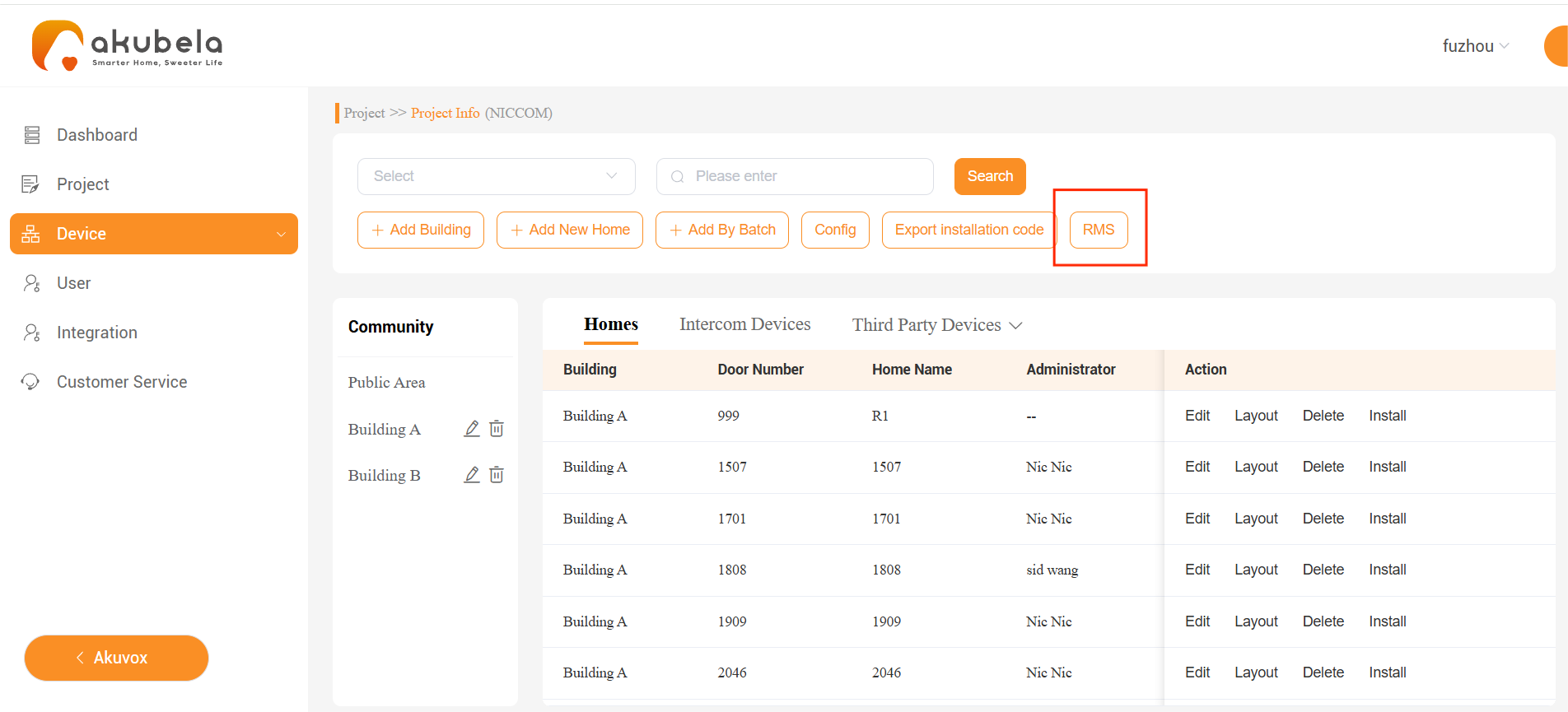
Go to Project > Community > Detail > RMS.
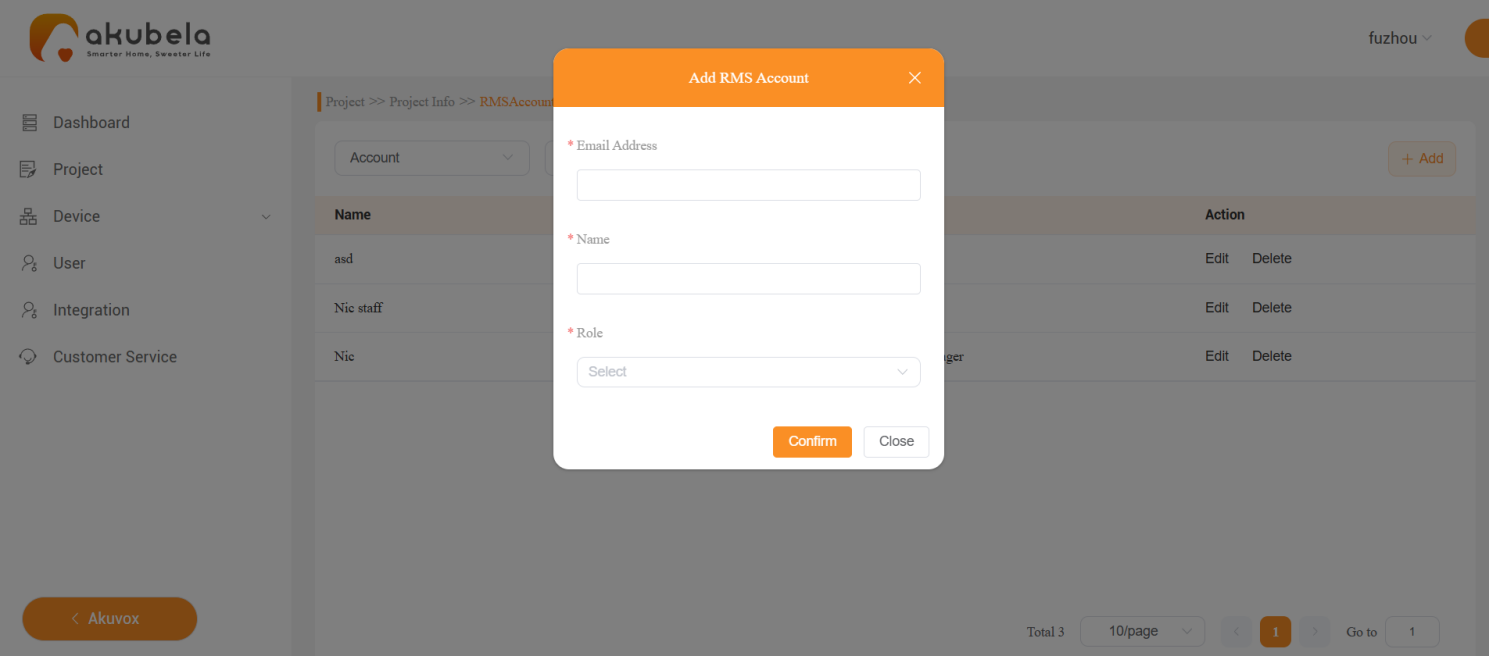
Click Add, enter the required information, and select the user’s role: Manager or Staff.
Click Confirm.
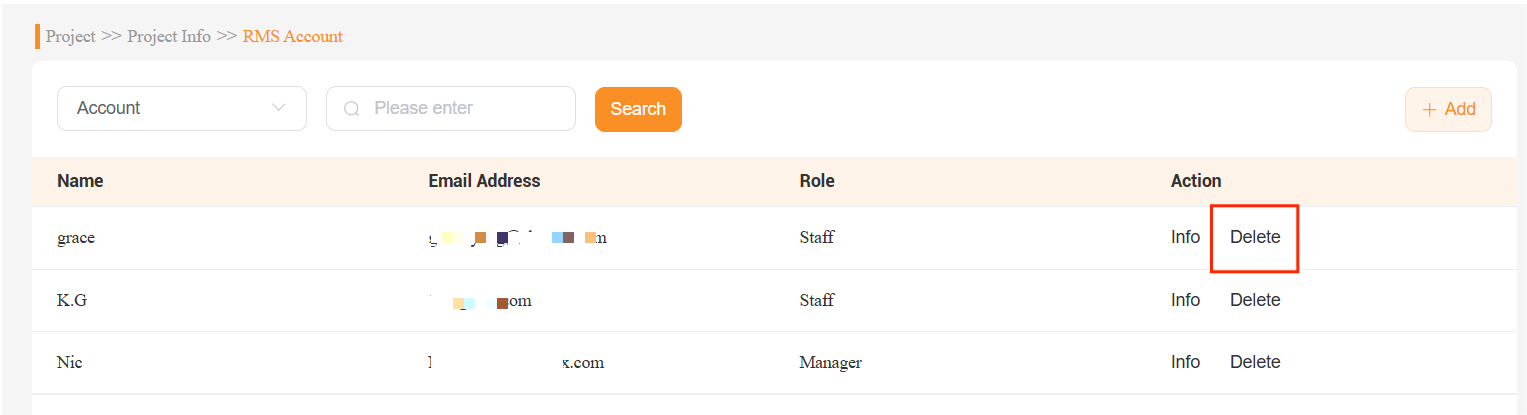
To delete an account, click Delete.
Manage Family Administrators Accounts
The family administrator is the master account in a home, with full permissions to all features and functions. Each home can only have one administrator.
Add Family Administrators
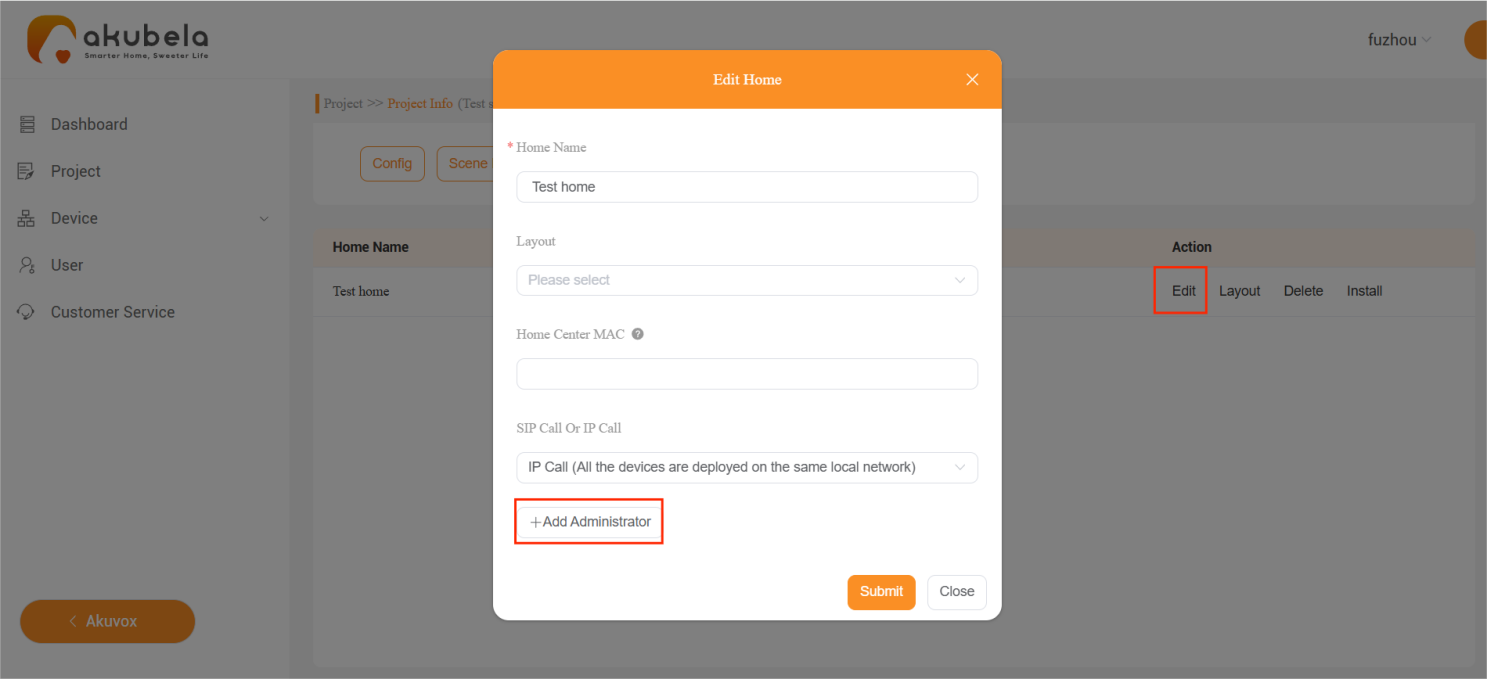
Enter the required information. For community projects, you can also specify which floors the administrator can access.
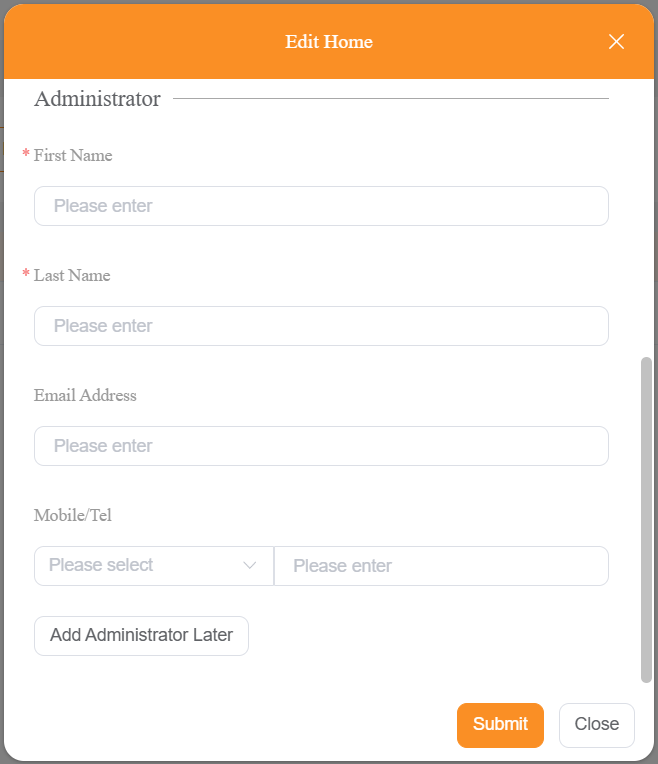
Click Submit. The system will send the login credentials to the registered email address.
Change and Delete Family Administrators
Go to Project > Community/Single-tenant > Detail > Edit.
Scroll down and click Change Administrator or Delete Administrator.
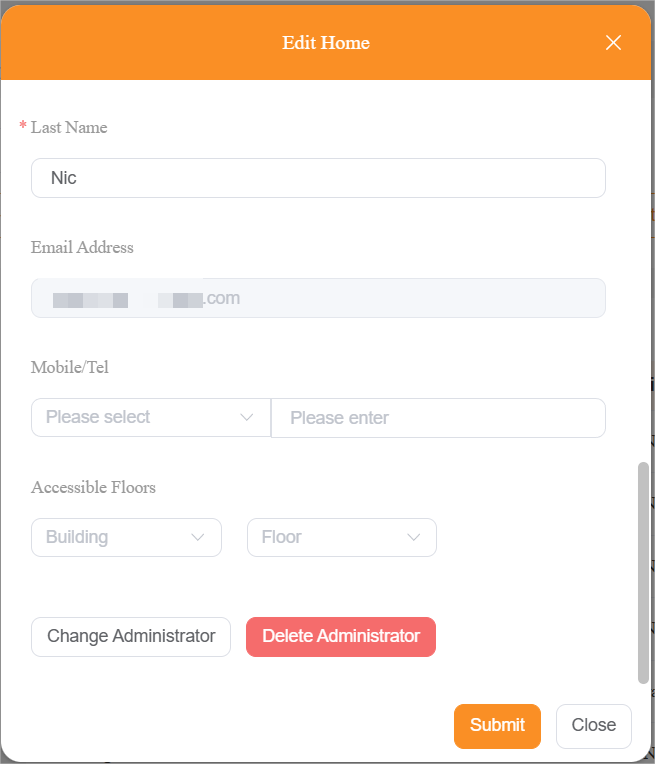
Follow the onscreen instructions to complete the settings.
View Family Administrator List
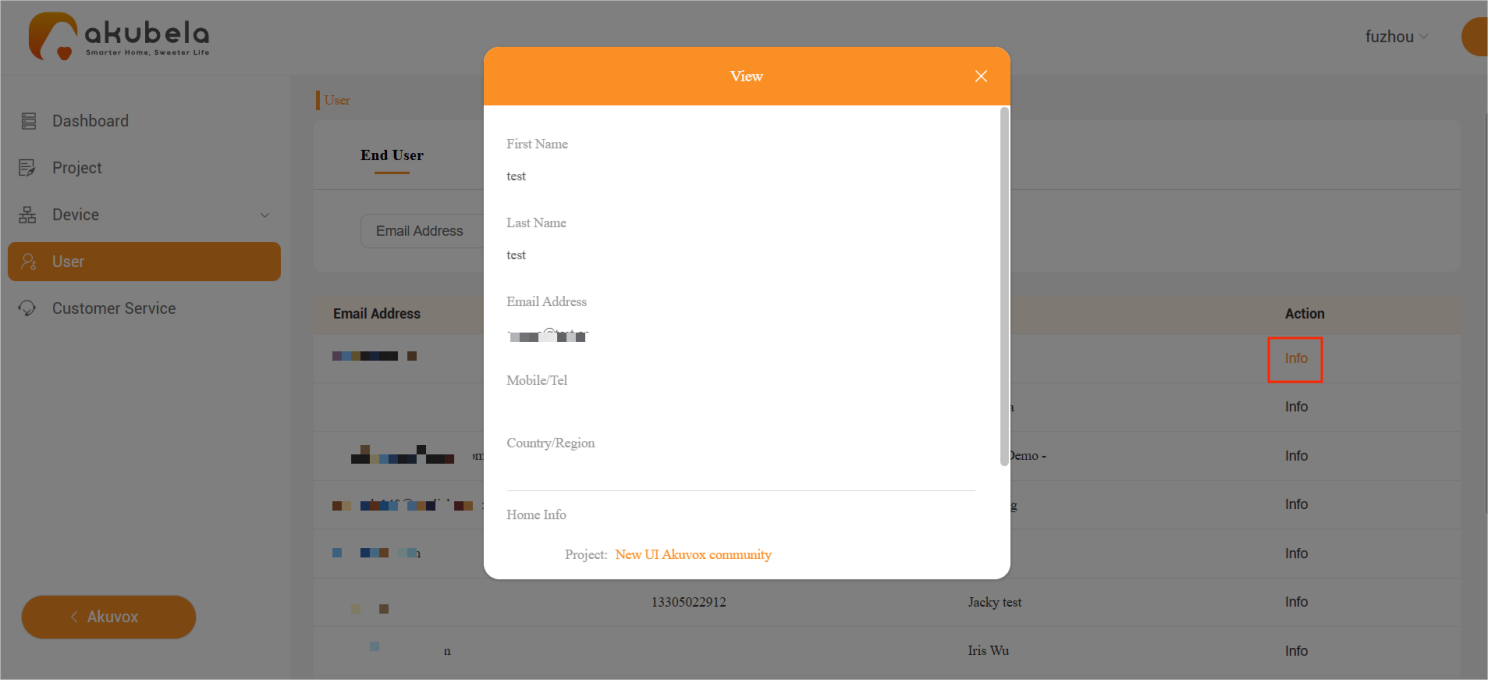
The User interface allows you to view all administrator accounts in your projects. Besides, you can:
Use filters to search for a specific family administrator.
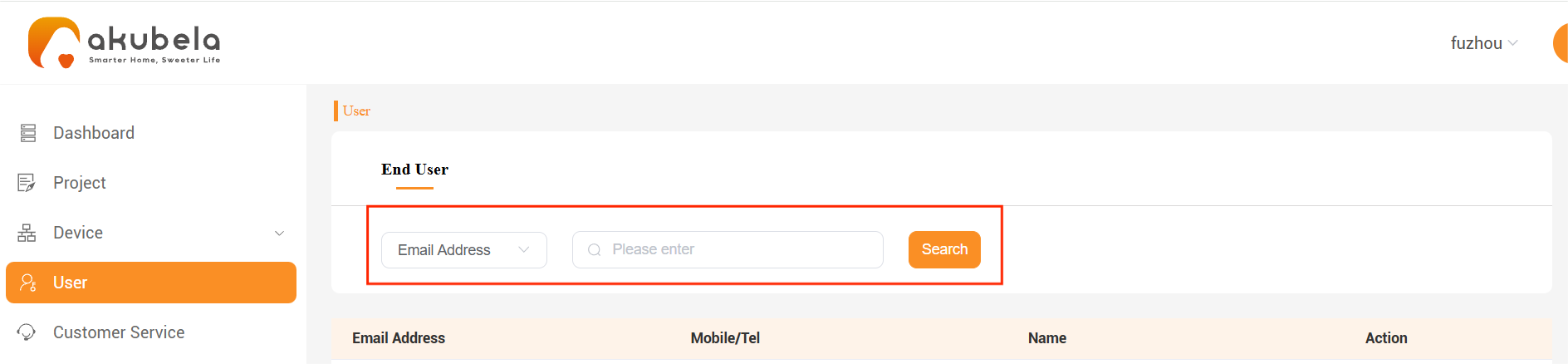
Click Info to view their detailed information.