Press Button to Make a Call
You can set up the call features by pressing  and
and  on the device.
Set up this feature on the Phone > Function Key interface.
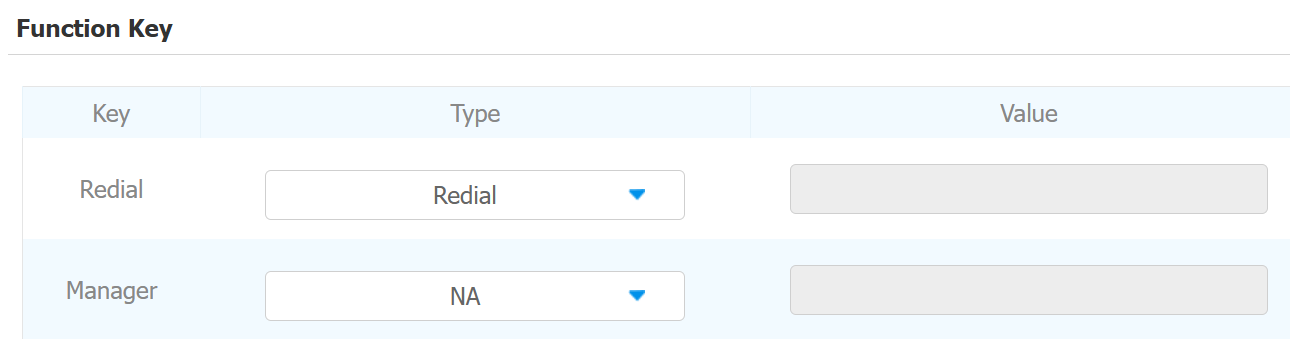
Key:
By pressing the Redial key, the device will call the last called number even in standby mode.
By pressing the Manager key, the device will perform the action you select in the Type field.
Type:
NA: Disable the key.
Unlock: When selected, specify the unlock method available in the Value field, including remote relay by HTTP and remote relay by HTTP command. To learn how to set up the unlock methods, please refer to the Door-opening Configuration chapter.
Action URL: When selected, enter the HTTP URL command sent to other intercom devices. For example, you can enter a door-opening command to a door phone in the format: http://{username}:{password}@{deviceIP}/fcgi/OpenDoor?action=OpenDoor&DoorNum=1, like http://admin:Admin123@192.168.35.123/fcgi/OpenDoor?action=OpenDoor&DoorNum=1. Click here to learn how to choose the format.
Transfer: When selected, enter a SIP number in the value field. When users press the Manager key during a call, the call will be transferred to the number.
Call Manager: When selected, enter an IP or a SIP number. When users press the Manager key, a call will be made to the number.
Speed Dial
Speed dial is a function that allows you to make speedy calls by long pressing the specific tabs without entering any dial numbers.
Set it up on the Phone > Function Key interface. The device supports up to 10 speed dial keys.
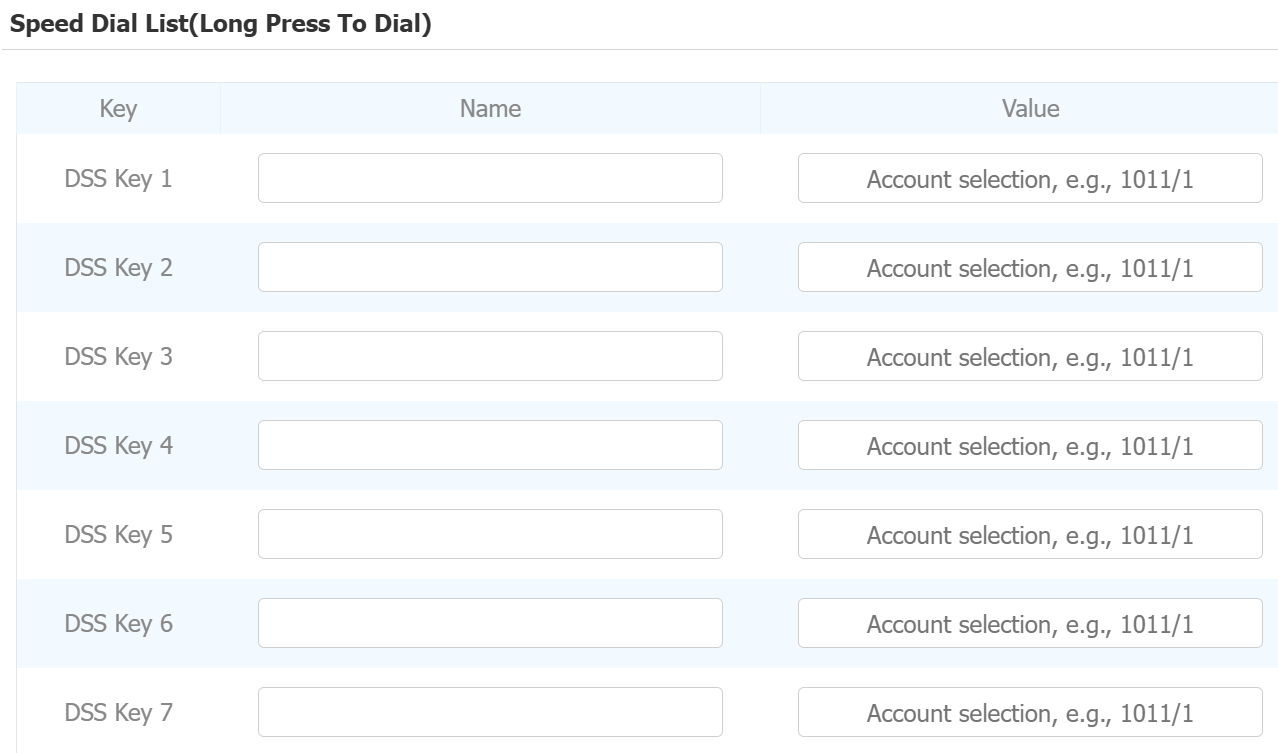
Key: Each DDS Key corresponds to the numeric key on the device from 0-9.
Name: Name the key. It supports up to 63 bytes.
Value:
If you simply enter a SIP number such as 1013, the device will use the default SIP account to make the call. The default account can be chosen on the Phone > Call Feature interface.

To make the call with Account 1, enter the value in SIP Number/1 format such as 1011/1.
To make the call with Account 2, enter the value in SIP Number/2 format such as 1012/2.
Call Forwarding
Call Forward is a feature that allows for transferring incoming calls to another number. Users can set up call forwarding according to different situations, such as always forwarding calls, forwarding calls when the indoor monitor is busy, or when it doesn’t pick up the call.
Set it up on the Phone > Call Feature interface.
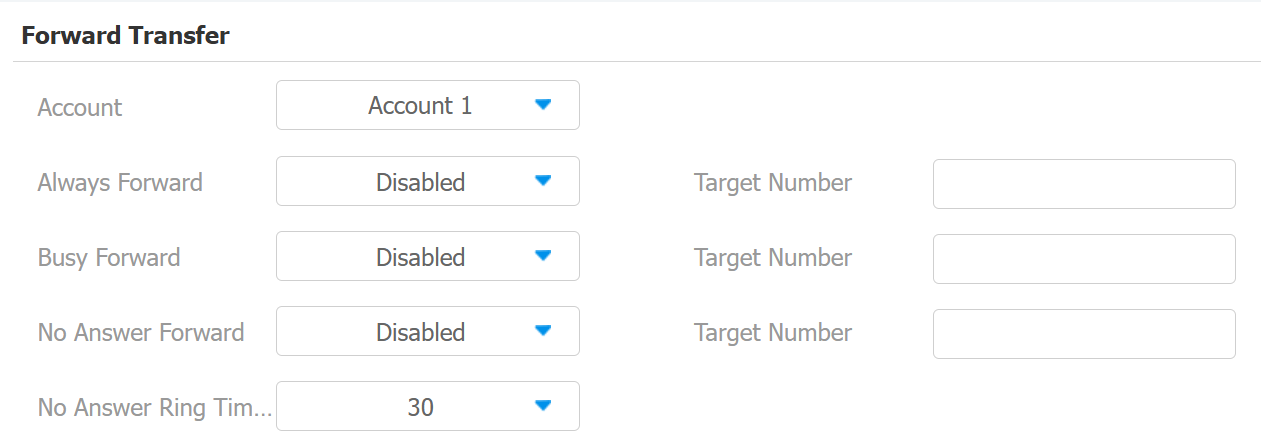
Account: The account or direct IP call to implement the call forwarding feature.
Always Forward: All incoming calls will be automatically forwarded to a specific number.
Busy Forward: Incoming calls will be forwarded to a specific number if the device is busy.
No Answer Forward: Incoming calls will be forwarded to a specific number if the call is not picked up within the no-answer ring time.
Target Number: Specify the forward number when Always Forward, Busy Forward, or No Answer Forward is enabled.
No Answer Ring Time(Sec): The time ranges from 0-120 seconds. This option is available for No Answer Forward.
Pick up the Handle to Call
You can set a designated number to be called when picking up the handle. This saves the effort of entering numbers on the main unit.
To set it up, go to the Contacts > Local Contacts interface.
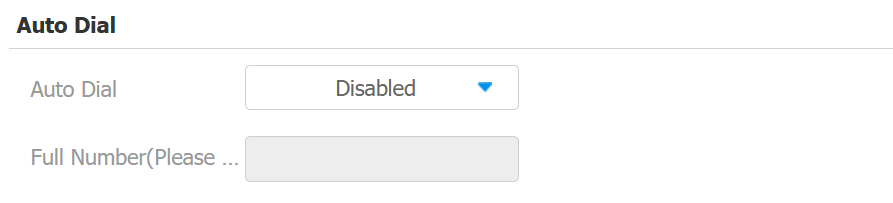
Auto Dial: It is disabled by default.
Full Number: Enter the target IP or SIP number.