Register family administrator account
The first person to register an account becomes the family administrator. Only the administrator can add or manage family members.
TIP:
When the weather forecast appears on the panels, the device is successfully connected to the cloud.
When devices connected to the cloud
When your family’s devices are connected to the cloud, you can register the administrator account in one of the following ways:
Contact your service provider to register and activate your administrator account.
Contact your service provider to connect your devices to the cloud, and self-register your account by following the steps below.
Tap Account Registration on the Home screen, or go to
 > System Settings > About > Family > Family Account. A QR code displays on the screen.
Do one of the following:
If you already have an account associated with other families
Open BelaHome app, and log into your account.
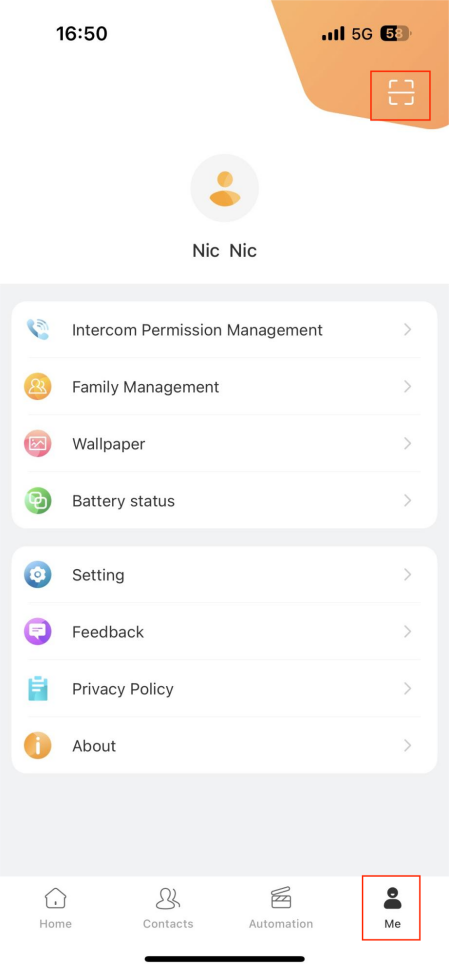
Tap Me > Scan icon, and scan the QR code.
Tap Join the Family.
You can switch the families on the app’s home screen.
If you are a new user
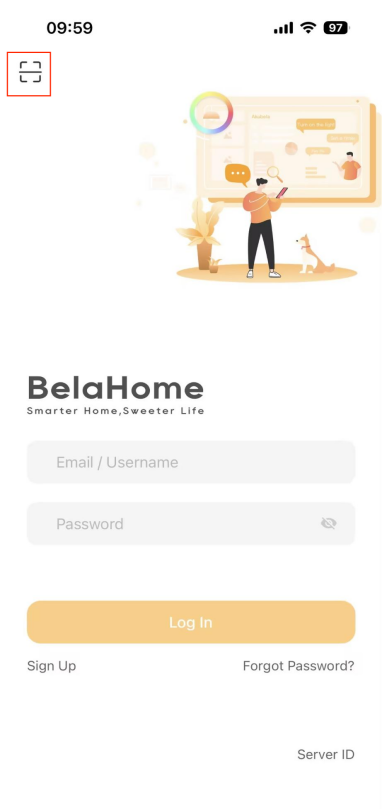
Open BelaHome app, and tap on the scan icon at the upper left.
Scan the QR code.
Enter a valid email address. The login credential will then be sent to this email.
Log into the BelaHome app with the credentials you receive.
When devices running in local mode
When the devices are running in local mode and never connected to the cloud, the temporary administrator account has the default username and password: Admin888.
You can also log into the BelaHome app by scanning QR code:
Ensure that your phone and and devices are in the same local network.
Go to
 > System Settings > About > Family > Family Account. A QR code displays on the screen.
Open BelaHome app, and tap on the scan icon at the upper left.
Scan the QR code.
NOTE:
After setting a new password, the default QR code can no longer be used for login.
Once logged in with the administrator account, you can create family member accounts on the BelaHome app. Click here to see detailed instructions.
Make calls
You can make one-tap or manual calls to family members or devices using their IP address or SIP number.
One-tap quick call
Tap Contacts
 in the upper right corner of the Home screen.
Do any of the following:
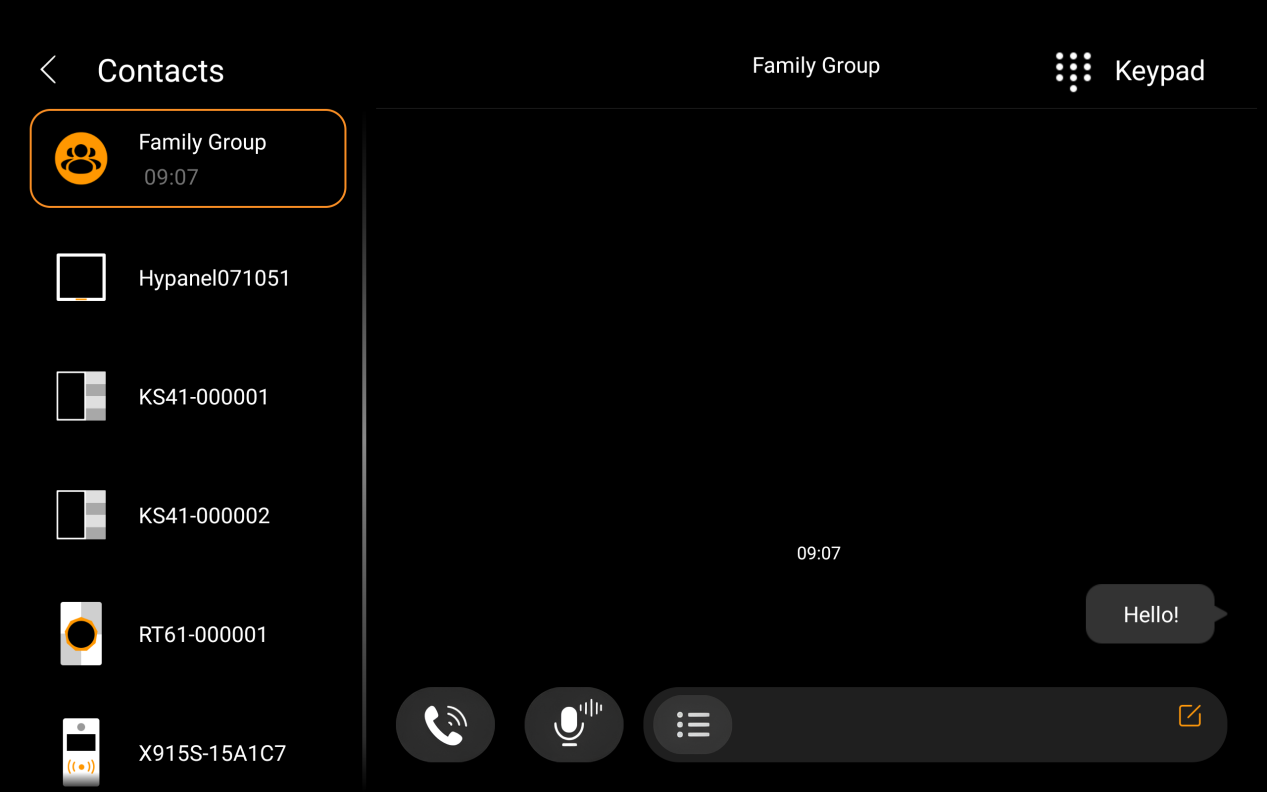
Tap Family Group to call all members and panels. Panels will auto-answer the call.
Select an individual member or device to call.
On the conversation screen, tap
 .
.
Call by IP address or SIP number
To call a specific panel or member by IP or SIP number:
Select the desired contact.
Tap
 in the upper right corner.
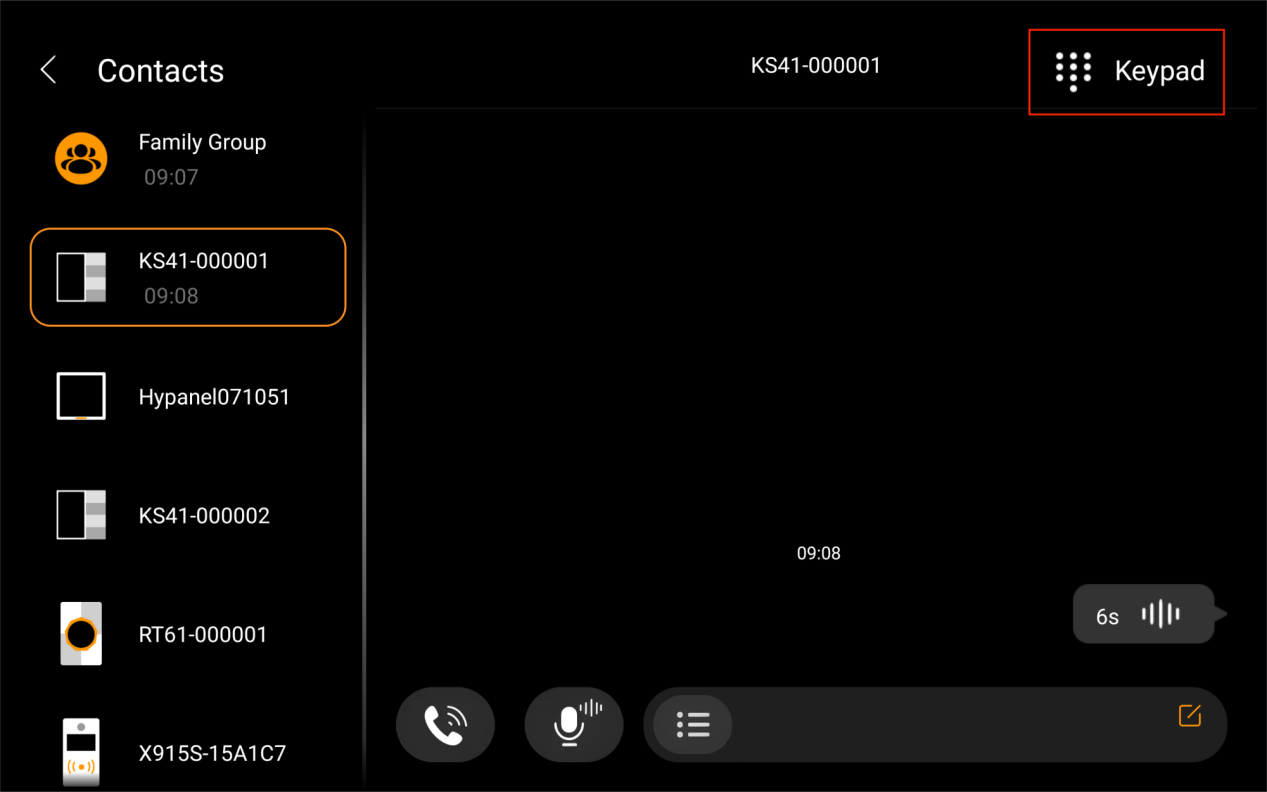
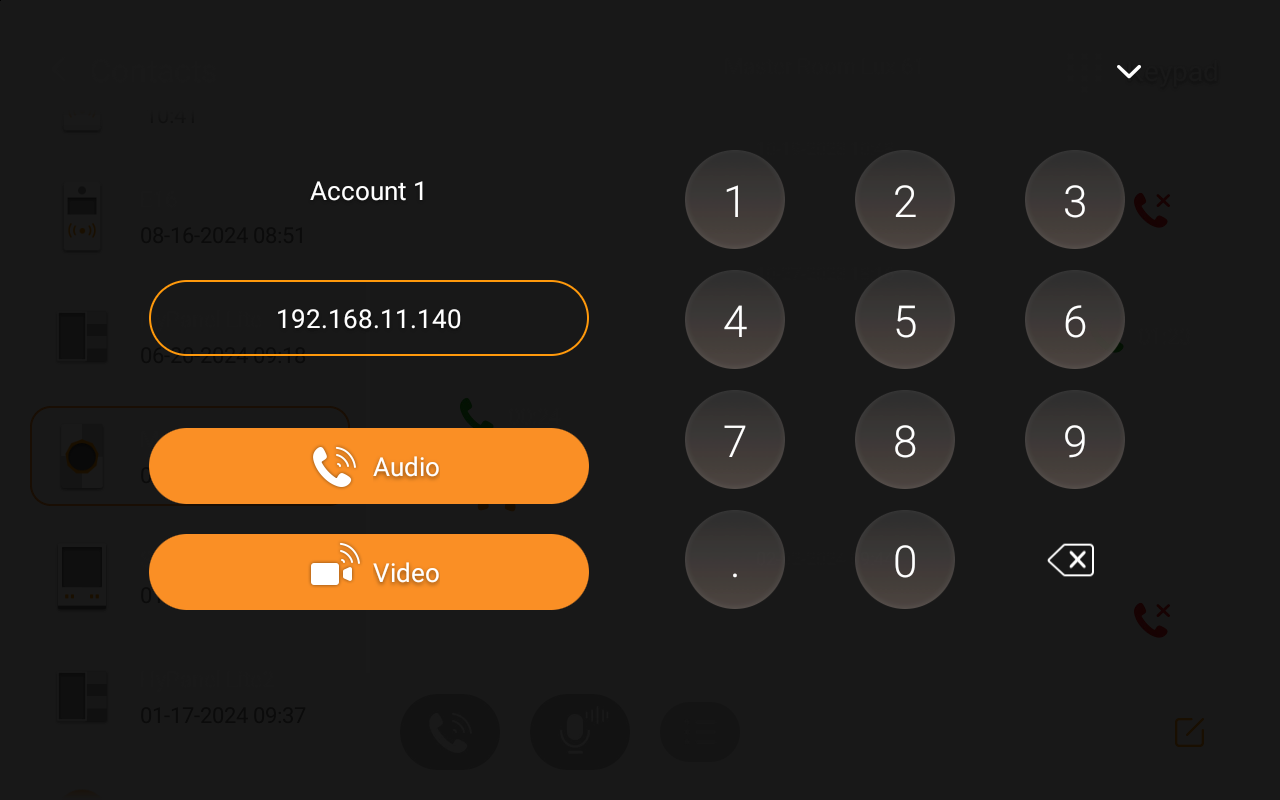
(Optional) Choose the account to make the call:
Account 1: Available when cloud-connected. SIP number is shown in panel’s System Settings > About screen.
Account 2: Available after configuration via the device web portal. The configured SIP number also appears in About screen.
Enter the recipient’s IP address or SIP account, then select audio or video call.
Send audio messages
HyPanel Supreme allows you to send and receive voice messages.
Tap Contacts
 in the upper right corner of the Home screen.
Tap Family Group to send all contacts a message, or select any desired member or device to sent messages to.
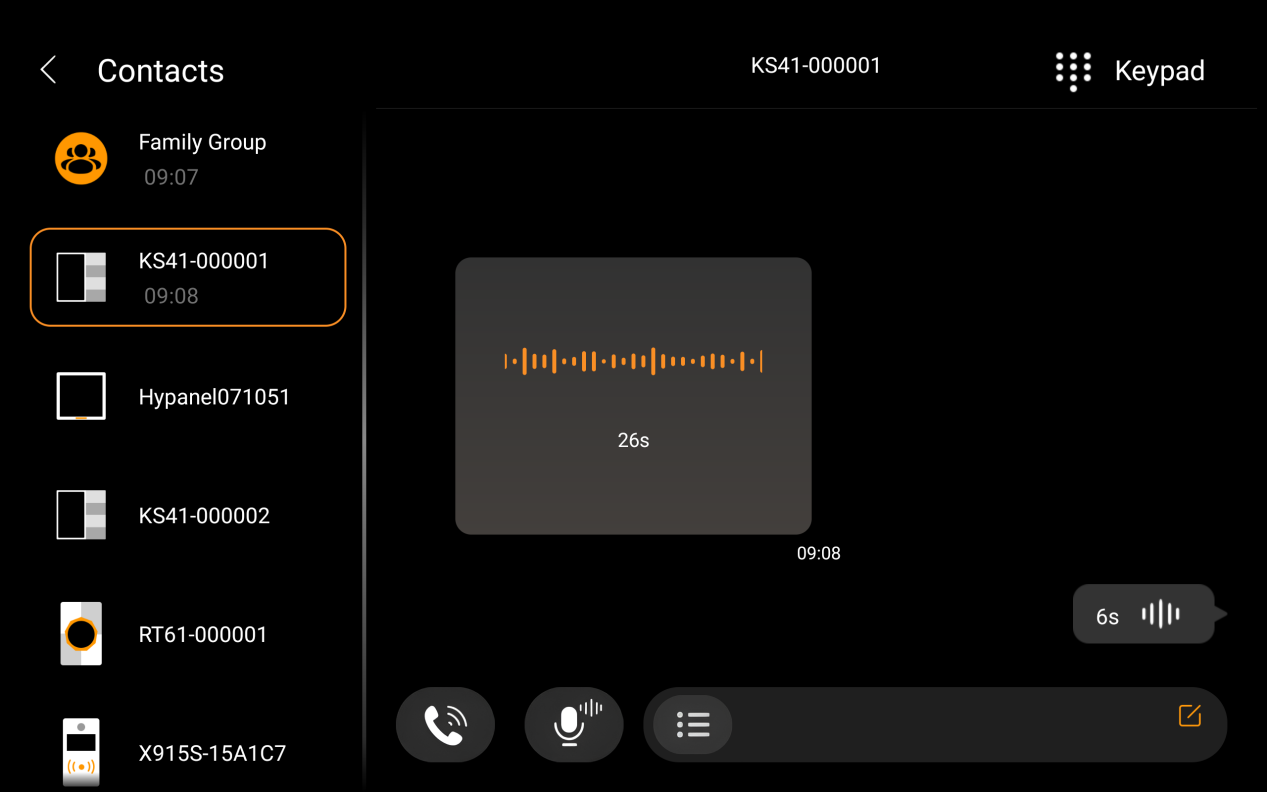
In the conversation, tap and hold
 at the bottom to record an audio message. Each message should be within 30 seconds. To cancel before sending, slide your finger to the left or upwards while you are recording.
Lift your finger when you’re finished recording.
Send text messages
You can also text messages to any panels and family members.
Tap Contacts
 in the upper right corner of the Home screen.
Tap Family Group to send all contacts a message, or select any desired member or panel to sent messages to.
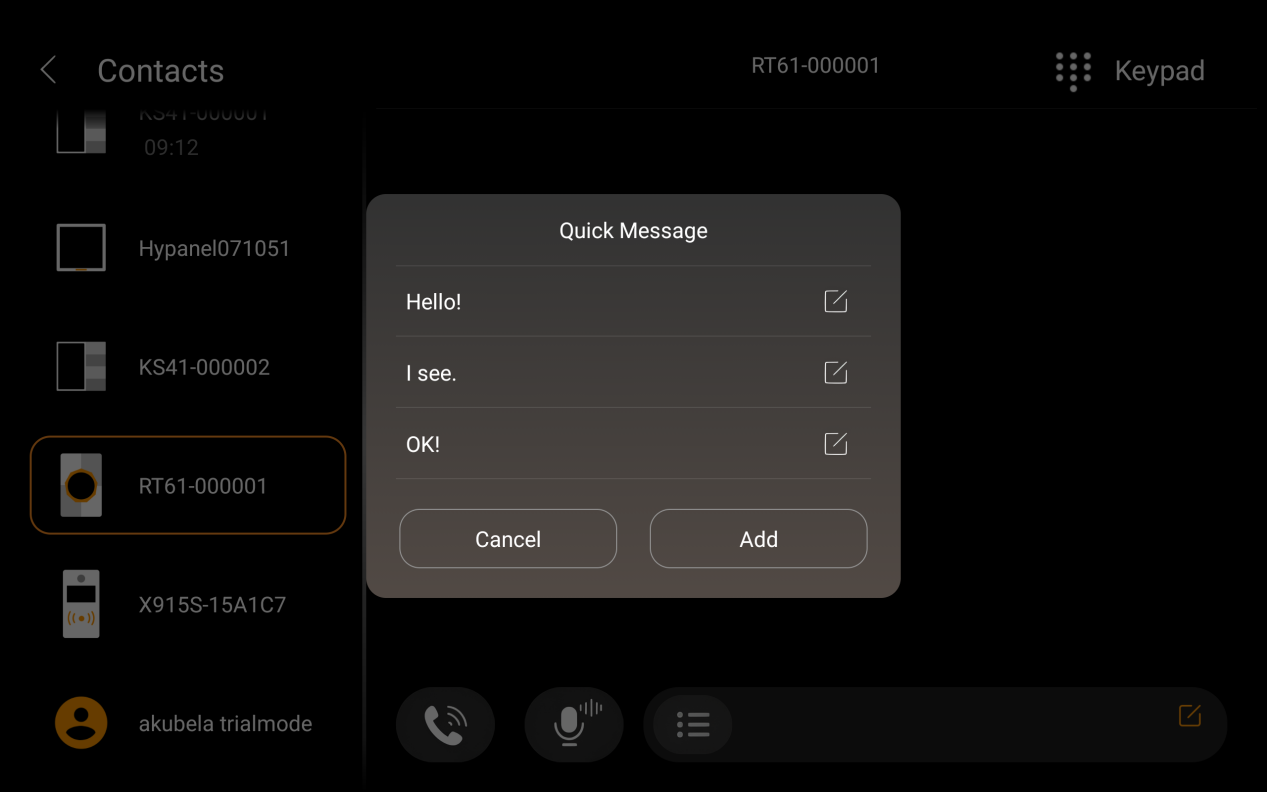
In the conversation, tap the texting box to enter messages. Or use the quick replies by tapping
 .
.