The Parking Restriction feature can be used based on the actual number of spaces rented or purchased. This ensures that parking space allocation matches the user’s actual entitlement.
This feature applies to the Multi-Company projects.
Compatible models and versions(or higher):
Model
Firmware Version
Model
Firmware Version
R29
29.30.10.712
A08
108.30.11.210
R20
320.30.12.16
X915V2
2915.30.10.707
A095
95.30.11.6
A094
92.30.11.106
E18
18.30.11.108
R28V2
228.30.11.17
X916
916.30.10.508
S539
539.30.10.605
A01/A02
101.30.11.109
S535
535.30.11.8
X912
912.30.12.207
S538
538.30.10.705
R25
25.30.10.206
E16V2
216.30.12.7
E16V3
416.30.12.5
A03
103.30.11.105
X910
2910.30.11.104
A05V2
205.30.11.114
E12V2
312.30.11.106
S532
532.30.10.336
A15
1115.30.10.407
WR01
1401.30.11.221
For Installers
Log in to the cloud with your installer account.
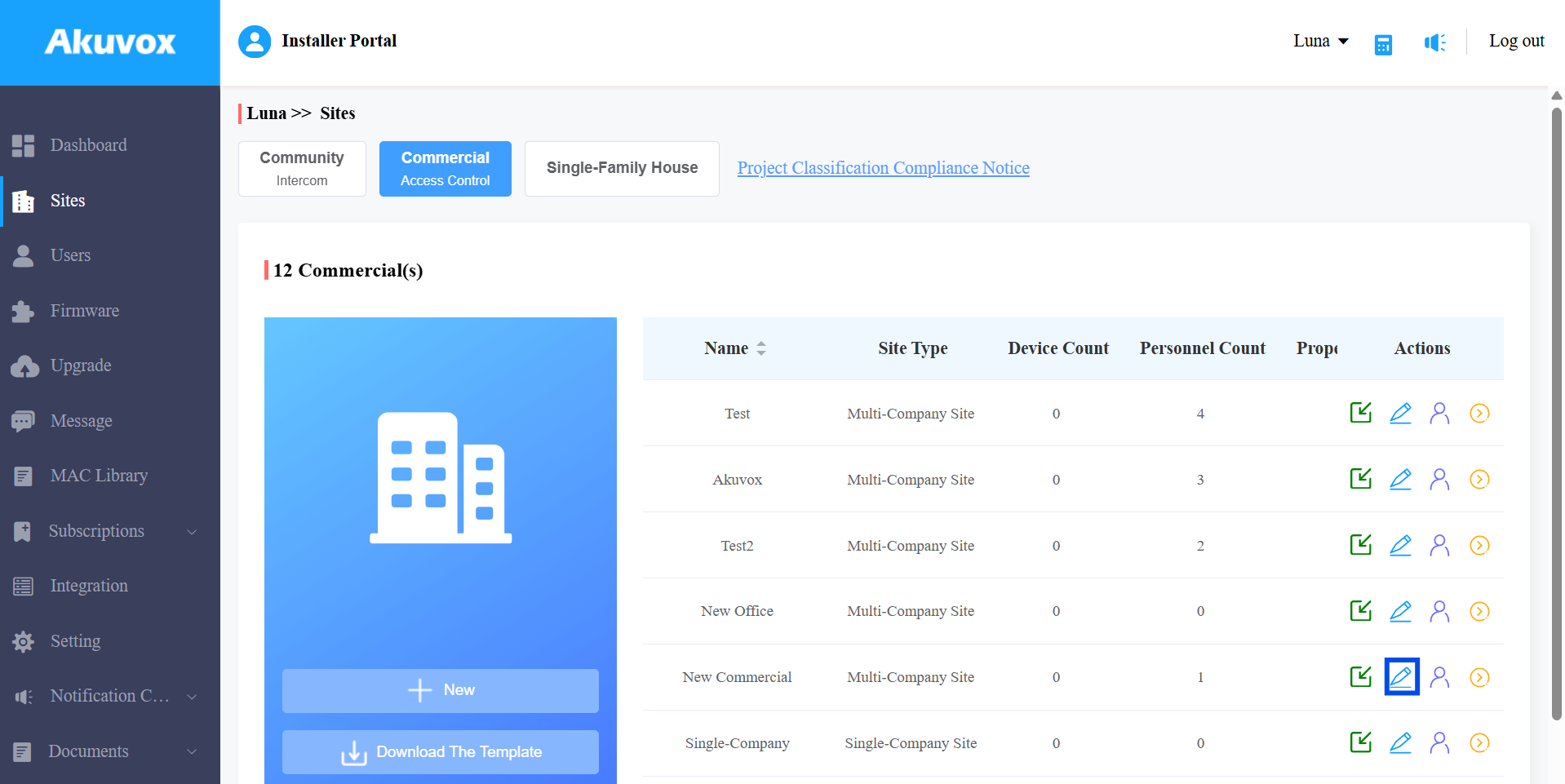
Edit the target commercial project by clicking
 .
.
Enable the Parking Restrictions feature.
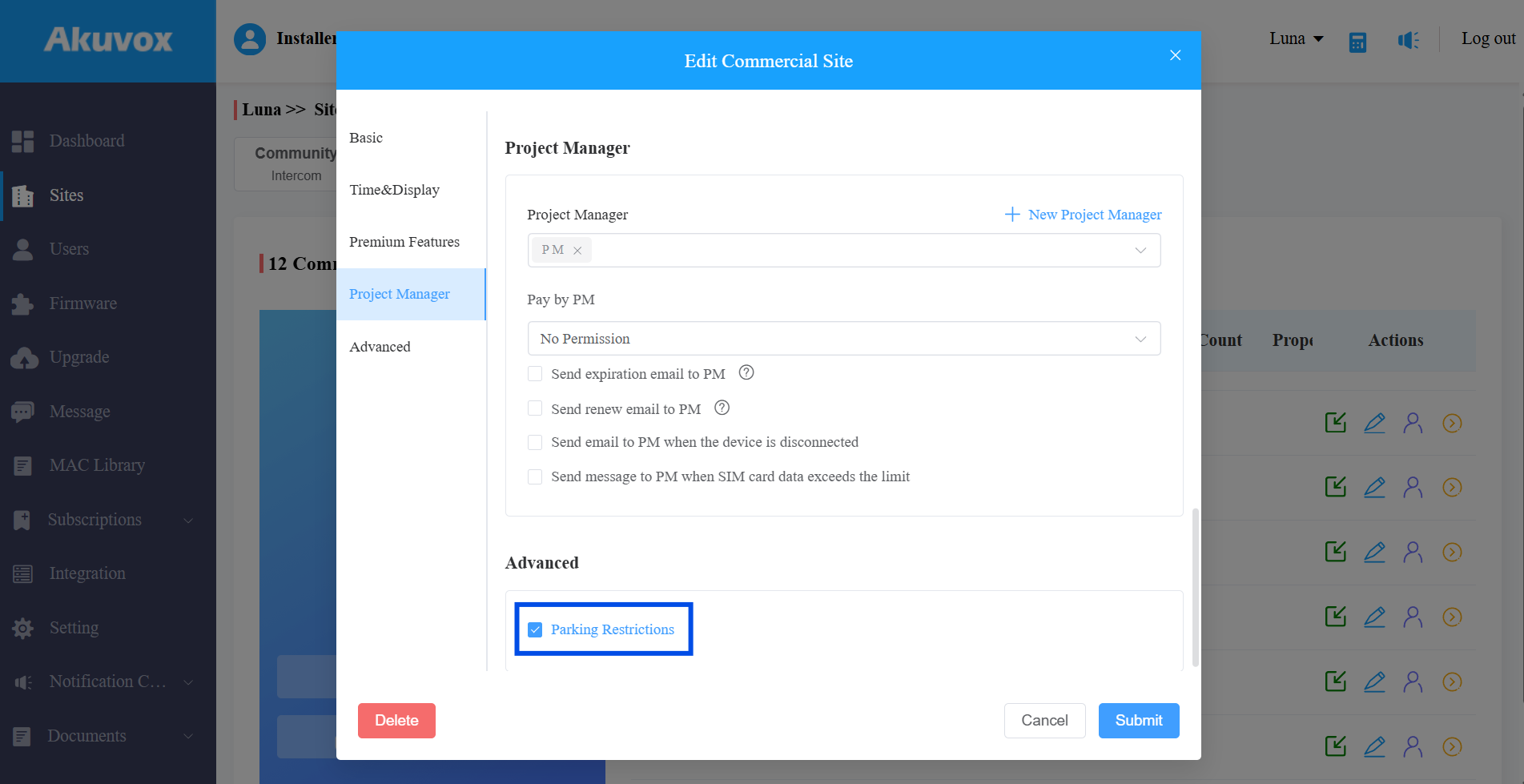
Submit the setting.
For PMs
Log in to the cloud with your PM account.
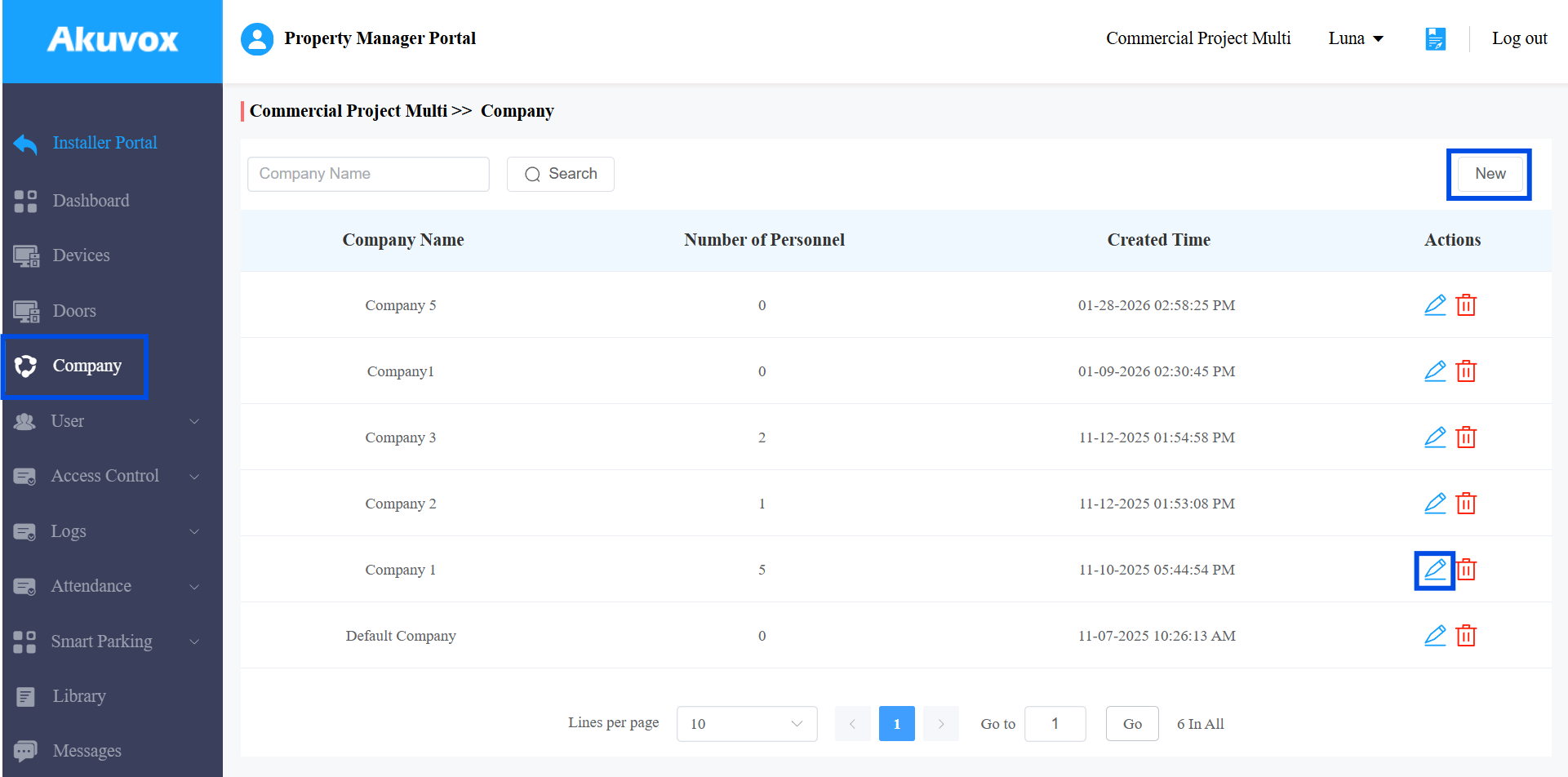
Click Company in the left menu.
Edit a company by clicking
. Or, click New to add a new one.
Find the Parking Restrictions section and enter the value(0~9999).
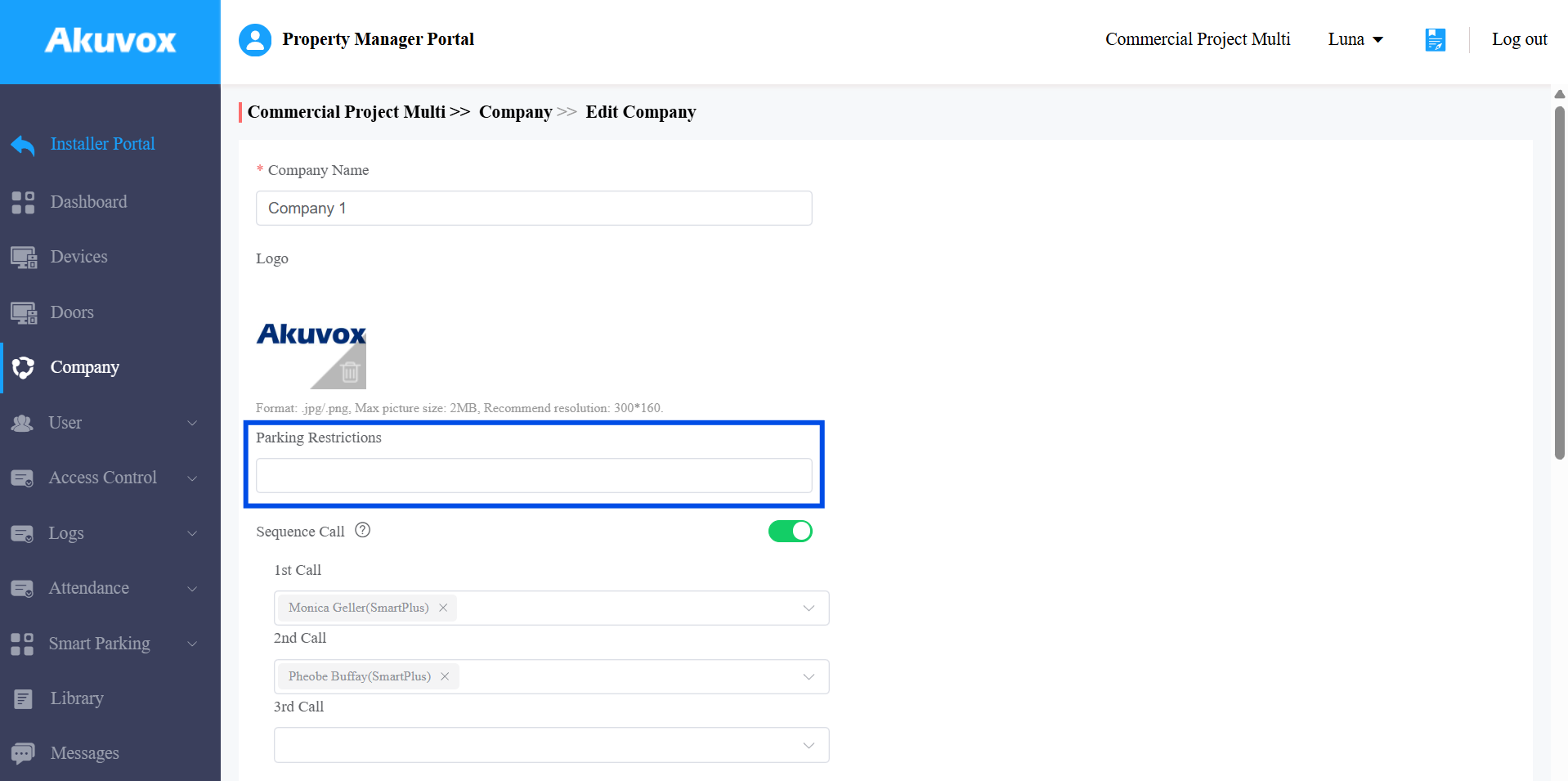
Submit the setting.
When a user drives into the parking lot, the entrance device sends the vehicle identification information to the cloud.
The cloud checks whether the number of vehicles currently associated with the company has reached the allowed limit.
If the limit has been reached, access will be denied.
Note
The Parking Restriction is applied at the project level, not per parking lot. If a company is limited to 20 vehicles, only 20 vehicles can be parked across all parking lots in the project at any given time.
The Parking Restriction is enforced when vehicles enter through online devices. If a device is temporarily offline, the limit check may not apply until the device reconnects and synchronizes data.
Visitor vehicles associated with the company (such as those using temporary keys) are also subject to the Parking Restriction.
Remote unlocking (via the App or indoor monitor during calls) does not enforce Parking Restriction.
If enforcement is required, it is recommended to:
Enable LPR Camera as the only access method when adding or editing the access device.
Hide the Temp Key icon on the device home screen to prevent bypassing the restriction.