akubela supports the integration of Shelly switches and lighting controllers. Once added, both Shelly and akubela devices can be controlled through akubela HyPanels, the web portal, or the app. They can also be included in scenes as triggers or tasks.
Before Getting Started
Check akubela panel compatibility and firmware version:
Supported Device | Required Firmware |
|---|---|
HyPanel | 51.1.39.139 and later |
HyPanel (V2) | 251.1.39.113 and later |
Hypanel Plus | 52.1.39.116 and later |
HyPanel KeyPlus | 53.1.39.119 and later |
HyPanel Pro | 71.1.39.137 and later |
HyPanel Ultra | 281.1.39.128 and later |
HyPanel Supreme | 1001.1.39.125 and later |
SmartPanel | 933.1.39.104 and later |
SmartPanel Elite 10 | 119.1.39.103 and later |
Confirm the supported Shelly devices: Shelly Switch and Lighting Controllers (Gen 1 to Gen 4).
Download the Shelly App and create an account.
Set Up Shelly Devices:
Add and configure Shelly devices in the Shelly App.
Make sure they are connected to the same network as your HyPanel.
Add Shelly Devices to akubela
NOTE:
Once added, Shelly devices can be controlled through HyPanels, the BelaHome app, or the web portal. However, akubela devices cannot be controlled from the Shelly app.
On HyPanels (Large-Screen Panels)
You can directly add Shelly devices on large-screen panels. Here we take HyPanel Pro as an example.
Ensure the HyPanel Pro and Shelly devices are on the same Wi-Fi network.
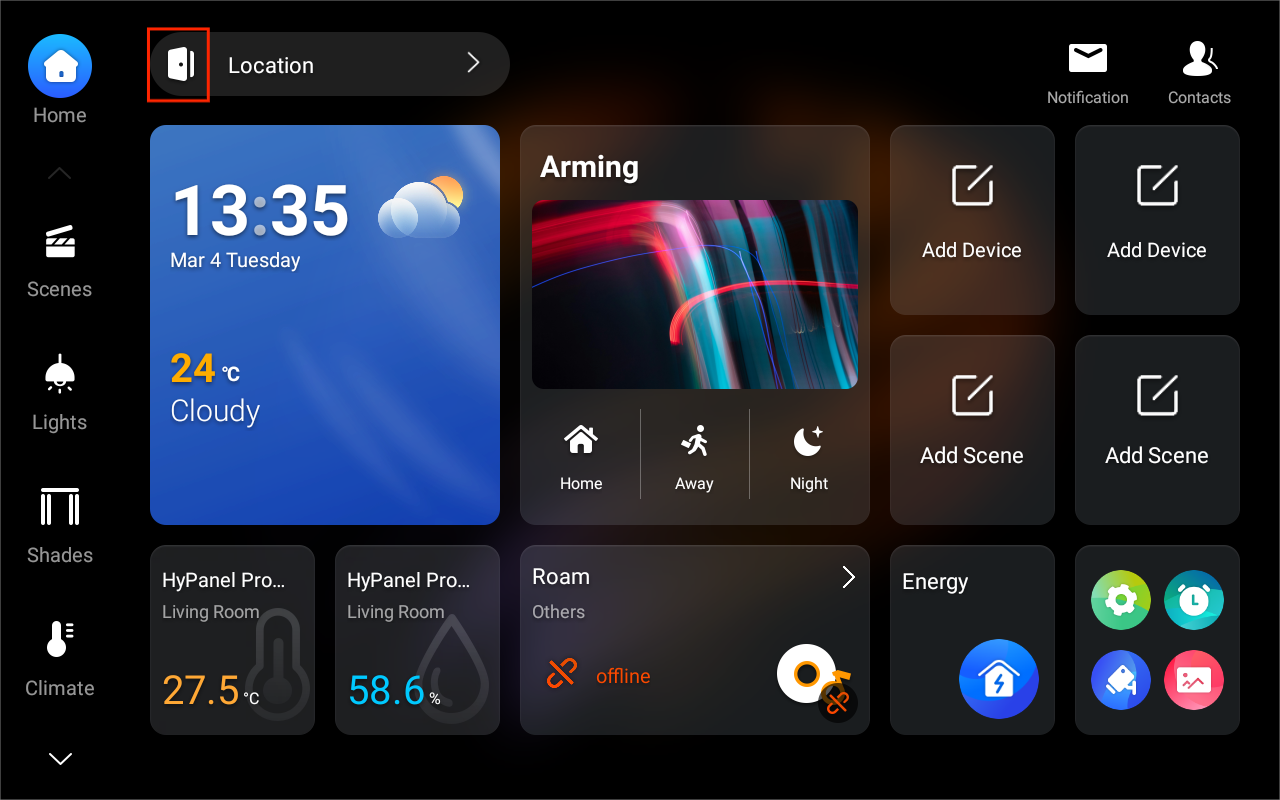
On the Home screen, tap
 at the top.
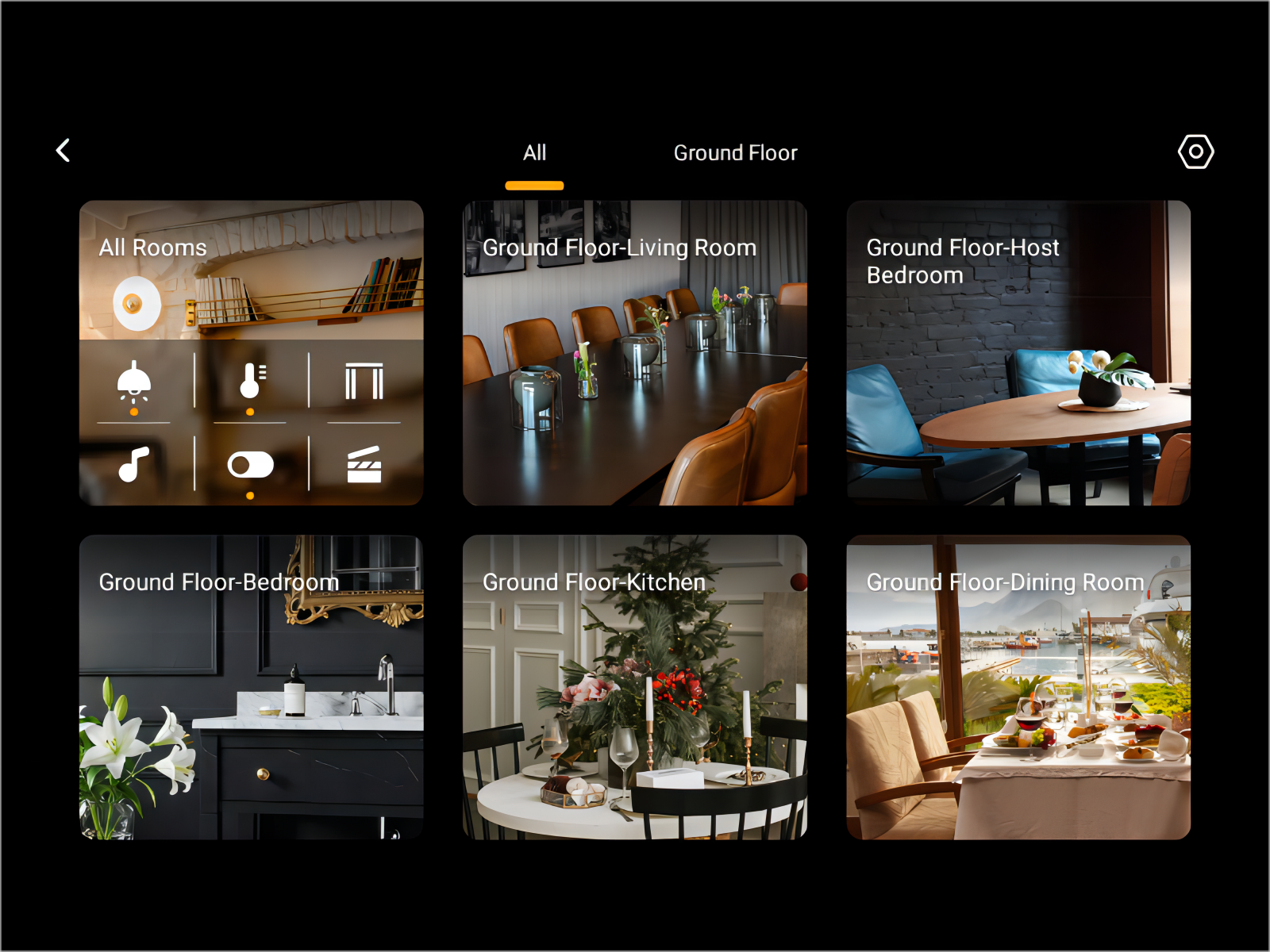
Select the room where you want to add the device.
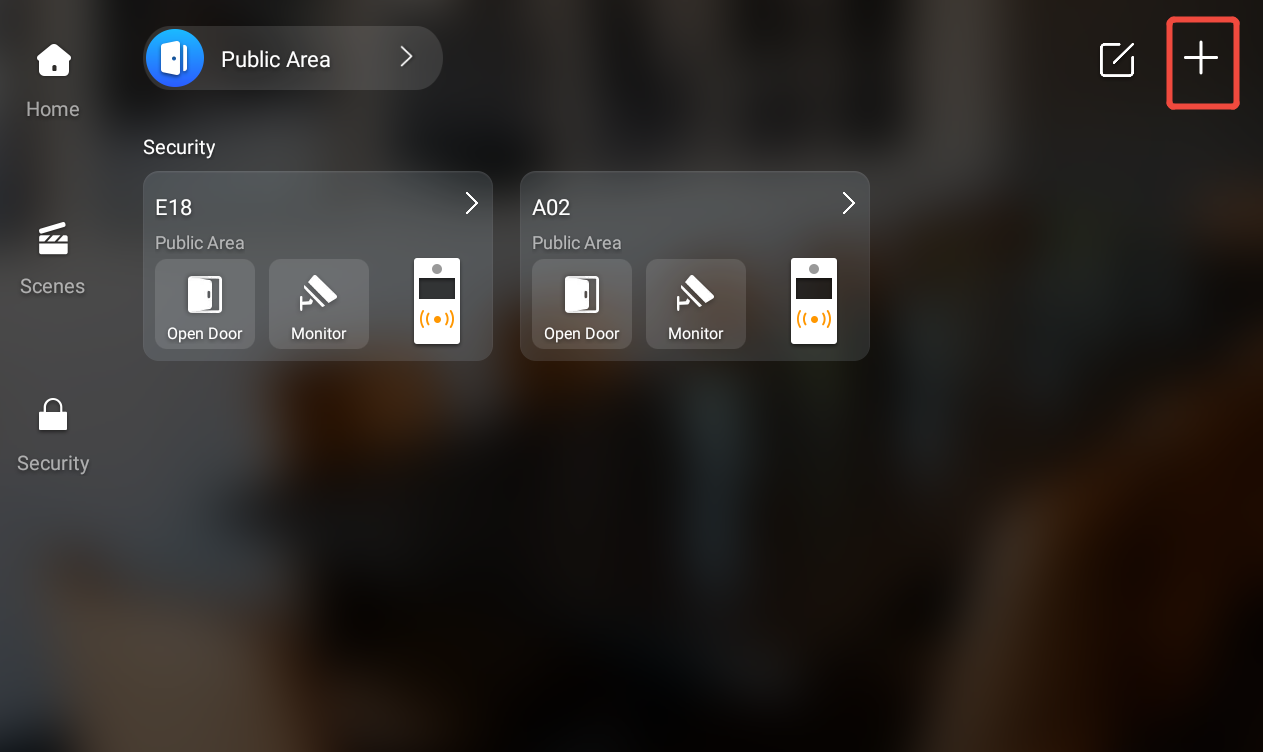
Tap
 in the upper right corner.
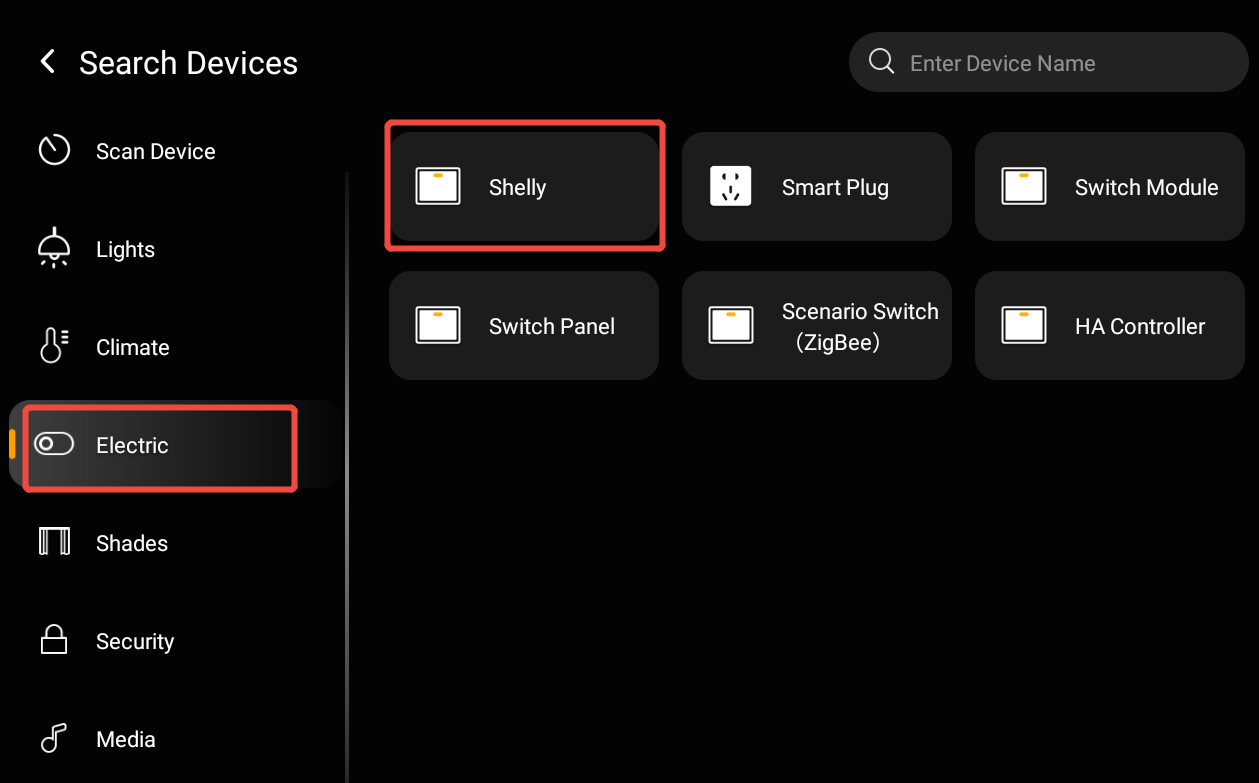
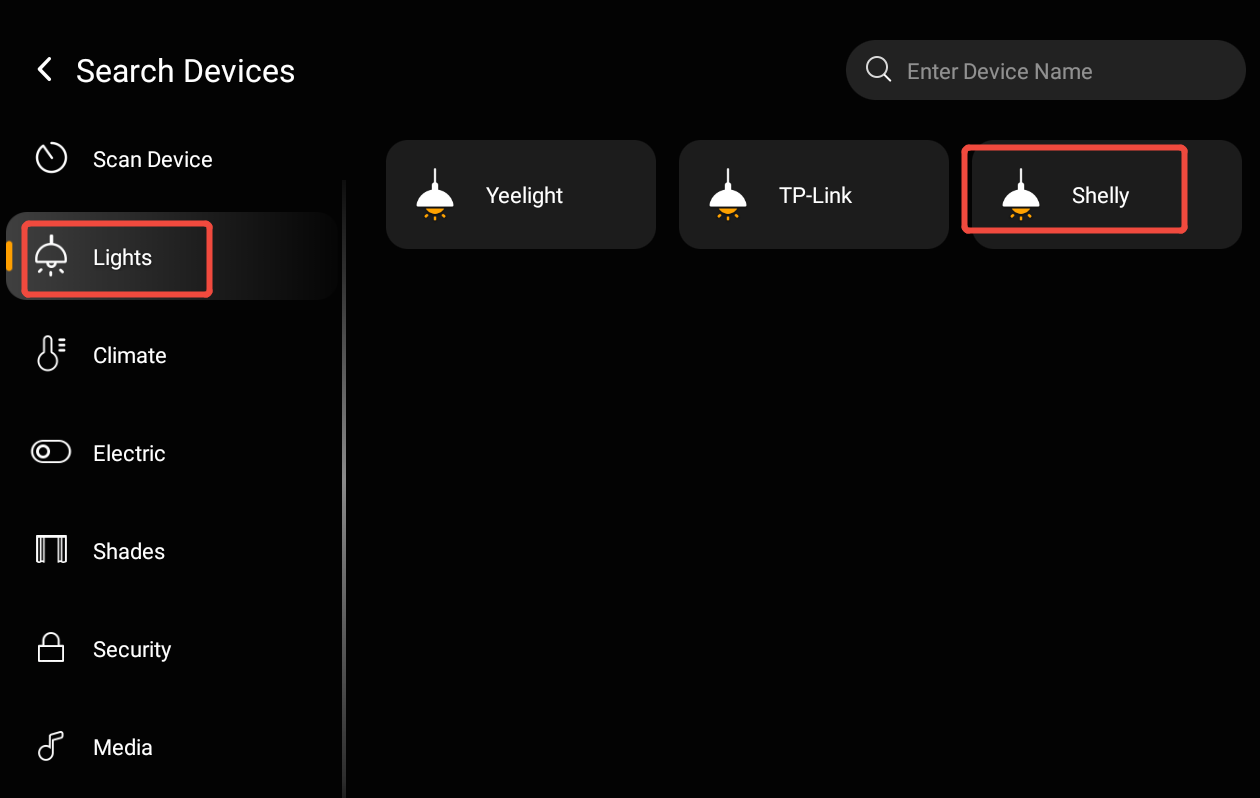
From the list, select the device type. If you select the wrong type, the addition will fail.
Shelly Switches: choose Electric.
Shelly Lighting Controllers: choose Light.
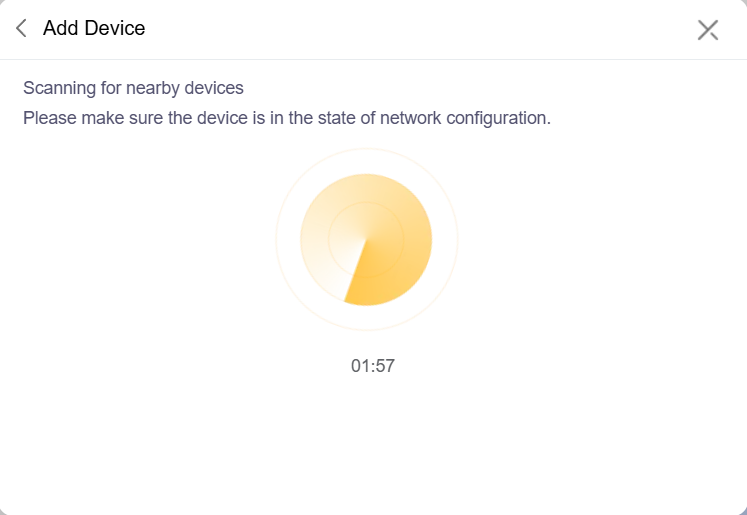
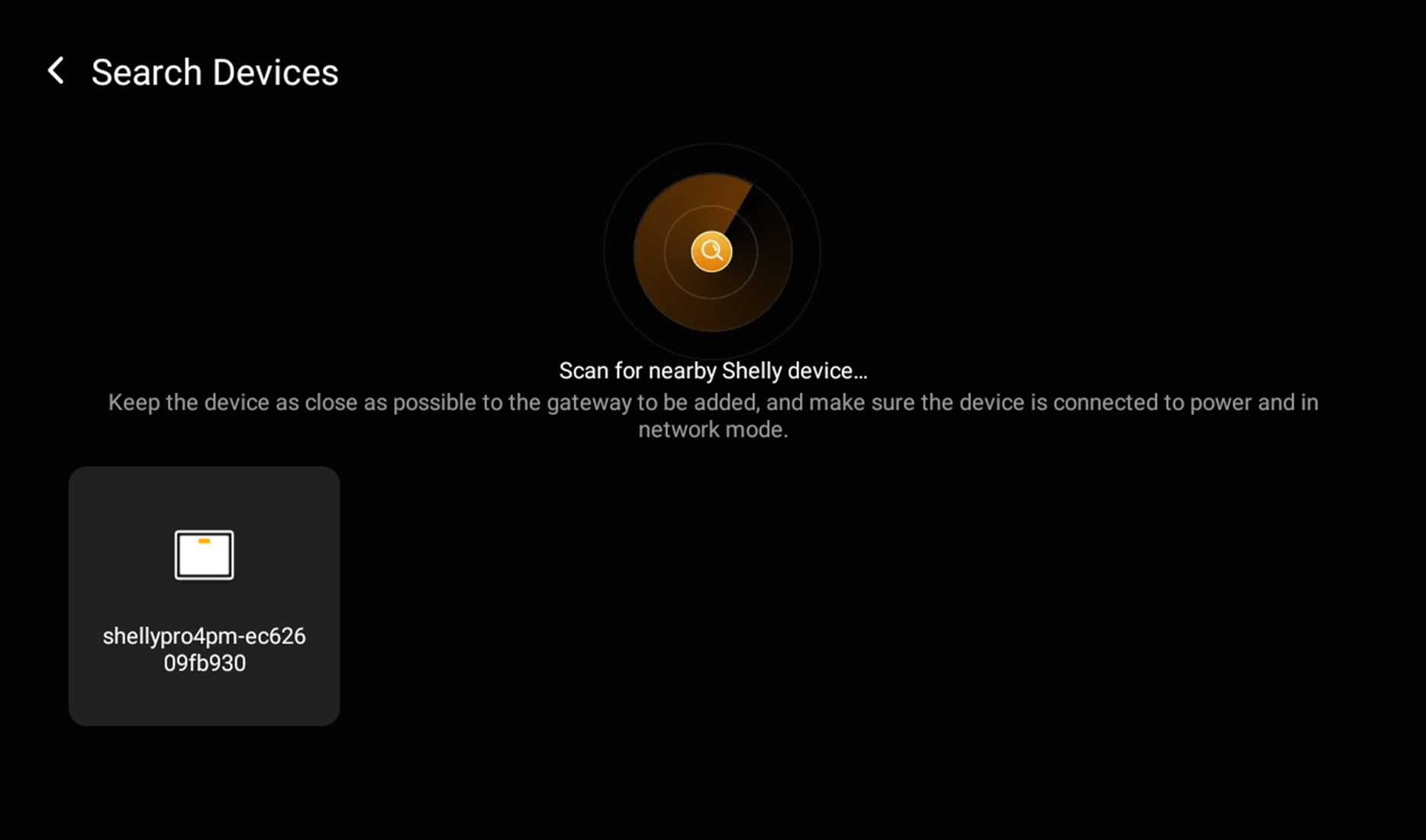
Wait for the HyPanel Pro to detect Shelly devices automatically, then select the device.
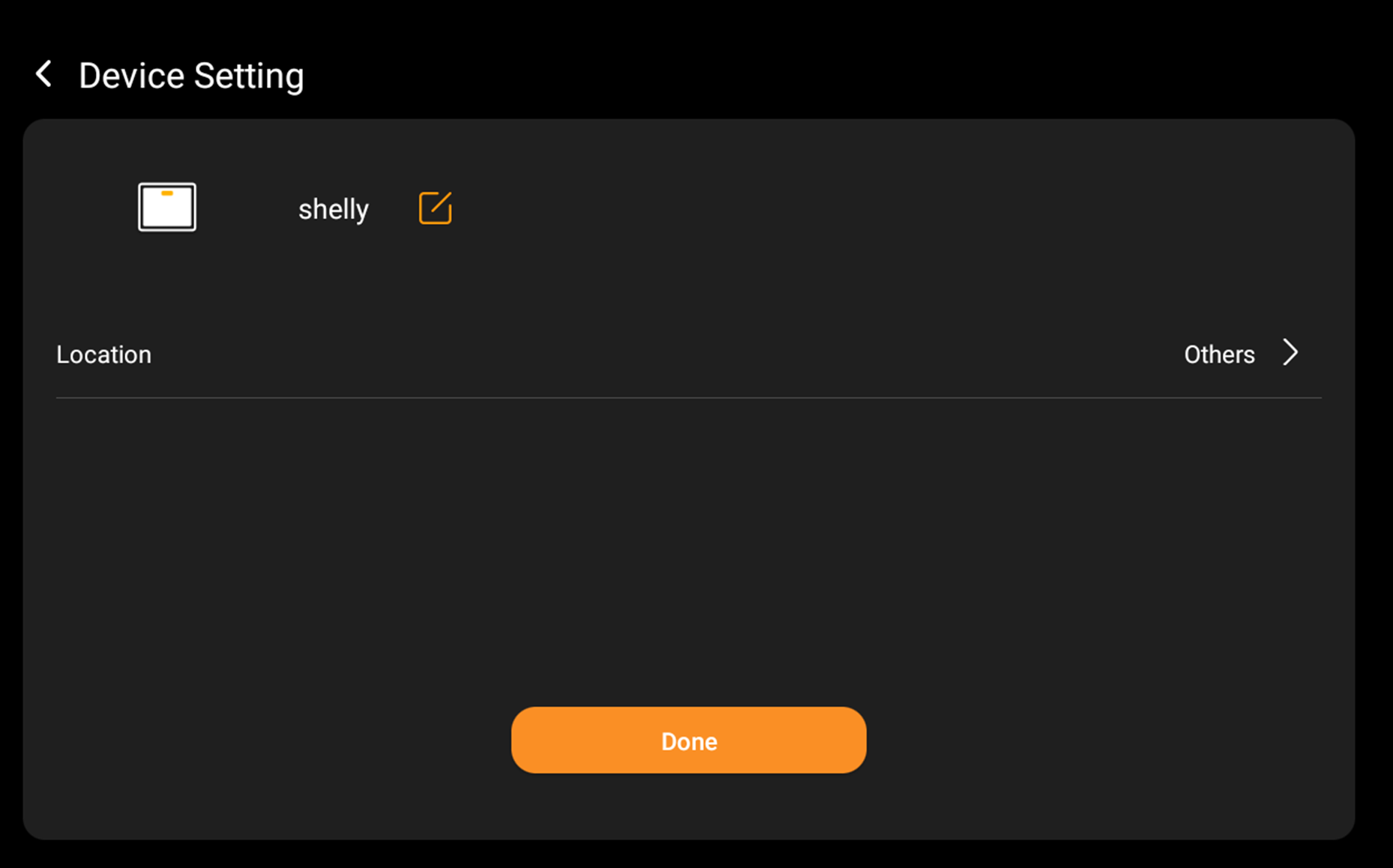
Name the device, assign its location, and tap Done.
Once added, the device will appear in its category. You can manage it on the HyPanel, BelaHome app, or user web portal, and also use it as a trigger or action in scenes.
Via BelaHome App
Open the BelaHome app. Tap
 on the bottom tab bar, then tap
  at the upper right.
Select the panel to which you want to add the Shelly device.
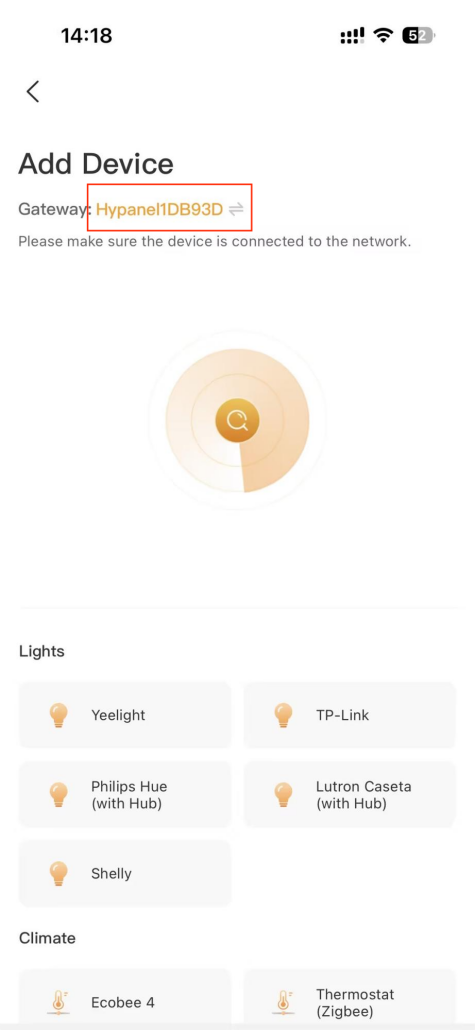
From the list, select the device type:
Shelly Switches: select Electric.
Shelly Lighting Controllers: select Light.
.png)
.png)
Ensure the Shelly devices and the selected panel are on the same network, then follow the onscreen instructions.
.png)
.png)
Via Device Web Portal
Log into the device web portal using the default credentials admin/admin.
Click
 in the upper right corner.
.png)
In the pop-up window, select Add device > Select device type to add.
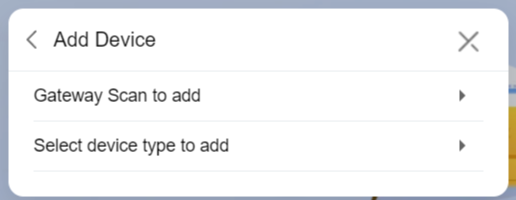
Choose the panel to which you want to add the device.
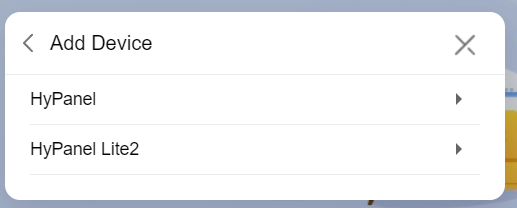
From the list, select the appropriate type.
Shelly Switches: under Electric.
Shelly Lighting Controllers: under Lights.
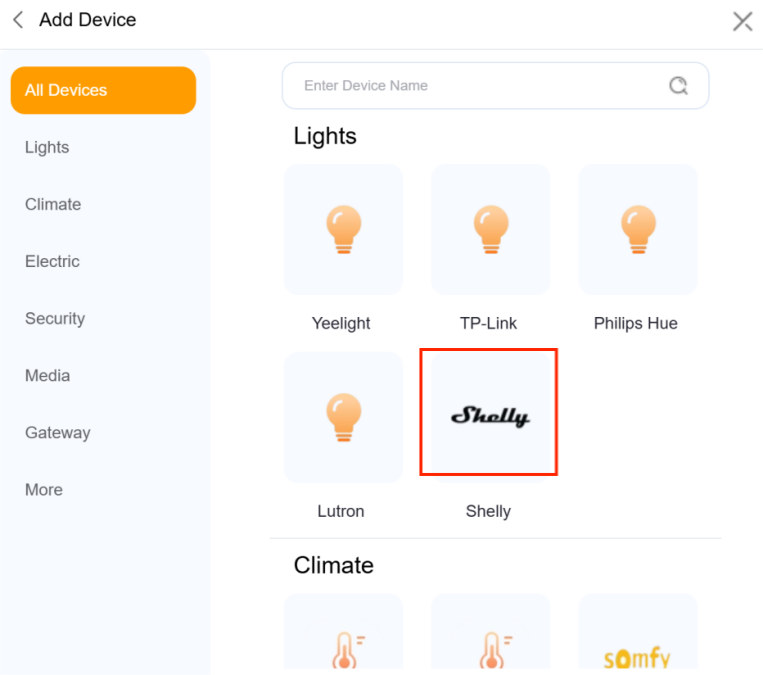
Follow the onscreen instructions to complete the process.