Provisioning Principle
Auto-Provisioning ist eine Funktion, die verwendet wird, um Geräte in Batch über Drittanbieter-Server zu konfigurieren oder aufzurüsten. DHCP, PNP, TFTP, FTP und HTTPS sind die Protokolle , die von den Akuvox-Geräten verwendet werden, um auf die URL der Adresse des Drittanbieterservers zuzugreifen, der Konfigurationsdateien und Firmware speichert, die dann zur Aktualisierung der Firmware und der entsprechenden Parameter auf dem Gerät verwendet werden.
Bitte sehen Sie sich das untenstehende Flussdiagramm an:

Configuration Files for Auto-provisioning
Konfigurationsdateien für die automatische Bereitstellung gibt es in zwei Formaten: allgemeine Konfigurationsdateien und MAC-basierte Konfigurationsdateien.
Unterschiede:
Allgemeine Konfigurationsbereitstellung:
Eine allgemeine Konfigurationsdatei wird auf einem Server gespeichert, sodass alle zugehörigen Geräte dieselbe Datei herunterladen können, um Parameter zu aktualisieren.
MAC-basierte Konfigurationsbereitstellung:
MAC-basierte Konfigurationsdateien sind spezifisch für einzelne Geräte und werden durch ihre eindeutigen MAC-Adressen identifiziert. Dateien, die mit der MAC-Adresse des Geräts benannt sind, werden automatisch abgeglichen, bevor sie zur Bereitstellung heruntergeladen werden.
Anmerkung
Konfigurationsdateien müssen im CFG-Format vorliegen.
Der Name der allgemeinen Konfigurationsdatei für die Batch-Bereitstellung variiert je nach Modell.
Die MAC-basierte Konfigurationsdatei ist nach ihrer MAC-Adresse benannt.
Geräte greifen zuerst auf allgemeine Konfigurationsdateien zu, bevor sie auf die MAC-basierten Zugriff haben, sofern beide Typen verfügbar sind.
Sie können hier klicken, um das detaillierte Format und die Schritte zu sehen.
AutoP Schedule
Akuvox stellt Ihnen verschiedene AutoP-Methoden zur Verfügung, die es dem Gerät ermöglichen, die Bereitstellung selbst gemäß dem Zeitplan durchzuführen.
Set it up on the web System > Auto Provisioning > Automatic AutoP interface.
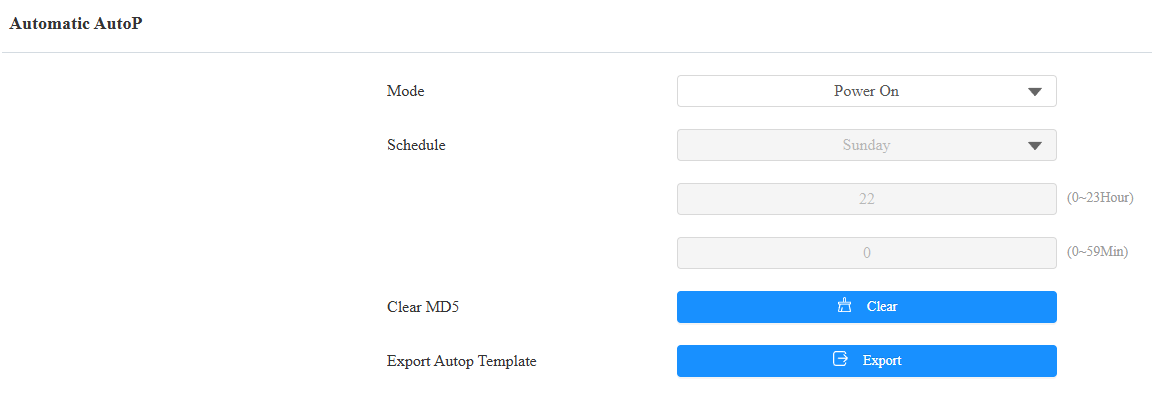
Mode:
Power On: Allow the device to perform Autop every time it boots up.
Repeatedly: Allow the device to perform Autop according to the schedule.
Power On + Repeatedly: Combine Power On and Repeatedly modes, allowing the device to perform Autop every time it boots up or according to the schedule.
Hourly Repeat: Allow the device to perform Autop every hour.
Schedule: When Power On + Repeatedly mode is selected, you can select the specific day and time for the Autop.
Clear MD5: Used to compare the existing autop file with the autop file in the server; if the files are the same, then the provisioning will be stopped, thus avoiding unnecessary auto-provisioning.
Static Provisioning
Du kannst manuell eine bestimmte Server-URL zum Herunterladen der Firmware oder Konfigurationsdatei einrichten. Wenn ein automatischer Bereitstellungsplan eingerichtet wird, führt das Gerät die automatische Bereitstellung zu einem bestimmten Zeitpunkt gemäß dem von dir eingerichteten automatischen Bereitstellungsplan durch. Zusätzlich sind TFTP, FTP, HTTP und HTTPS die Protokolle, die zum Aktualisieren der Geräte-Firmware und -konfiguration verwendet werden können.
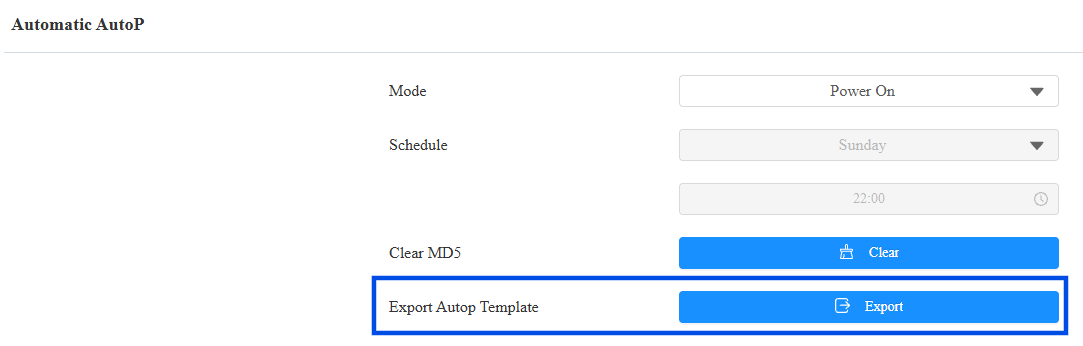
Download the Autop template on the System > Auto Provisioning > Automatic AutoP interface.
Set the AutoP server on System > Auto Provisioning > Manual AutoP interface.
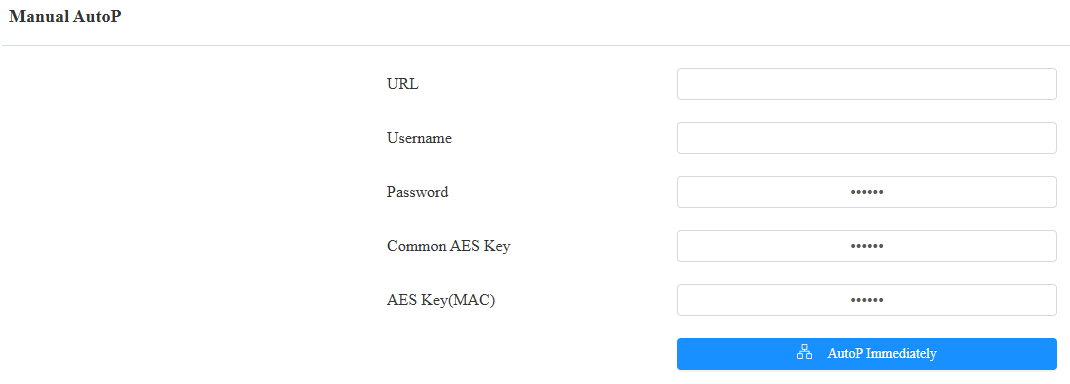
URL: The TFTP, HTTP, HTTPS, or FTP server address for provisioning.
Username: Set up a username if the server requires a username to access.
Password: Set up a password if the server requires a password to access.
Common AES Key: Set up an AES code for the intercom to decipher the general Auto Provisioning configuration file.
AES Key(MAC): Set up the AES code for the intercom to decipher the MAC-based auto-provisioning configuration file.
Note
AES, as one type of encryption, should be configured only when the config file is encrypted with AES.
Server Address Format:
TFTP: tftp://192.168.0.19/
FTP: ftp://192.168.0.19/(allows anonymous login)
ftp://username:password@192.168.0.19/(requires a user name and password)
HTTP: http://192.168.0.19/(use the default port 80)
http://192.168.0.19:8080/(use other ports, such as 8080)
HTTPS: https://192.168.0.19/(use the default port 443)
Tip
Akuvox does not provide a user-specified server. Please prepare the TFTP/FTP/HTTP/HTTPS server by yourself.
DHCP Provisioning
Die automatische Bereitstellungs-URL kann auch über die DHCP-Option erhalten werden, die es dem Gerät ermöglicht, eine Anfrage an einen DHCP-Server für einen bestimmten DHCP-Optionscode zu senden. Wenn Sie CustomOptionwie von Benutzern definiert mit Optionscodes von 128-255 verwenden möchten, müssen Sie die DHCP Custom Option auf der Weboberfläche konfigurieren.

Anmerkung
Der Custom Option-Typ muss eine Zeichenkette sein. Der Wert ist die URL des TFTP-Servers.
Set up DHCP Autop with Power On mode and export the AutoP Template to edit the configuration.
Download the Autop template on System > Auto Provisioning > Automatic AutoP interface.
Set it up on System > Auto Provisioning > DHCP Option interface.

Custom Option: Enter the DHCP code that matches the corresponding URL so that the device will find the configuration file server for the configuration or upgrading.
DHCP Option 66: If none of the above is set, the device will automatically use DHCP Option 66 to get the upgrade server URL. This is done within the software, and the user does not need to specify this. To make it work, you need to configure the DHCP server for option 66 with the updated server URL in it.
DHCP Option 43: If the device does not get a URL from DHCP Option 66, it will automatically use DHCP Option 43. This is done within the software, and the user does not need to specify this. To make it work, you need to configure the DHCP server for option 43 with the updated server URL in it.
PNP Configuration
Plug and Play (PNP) ist eine Kombination aus Hardware- und Softwareunterstützung, die es einem Computersystem ermöglicht, Hardware-Konfigurationsänderungen mit wenig oder keinem Eingreifen des Benutzers zu erkennen und sich daran anzupassen.
Klicken Sie hier , um das Konfigurationsvideo anzusehen.
Enable/disable it on the web System > Auto Provisioning > PNP Option interface.
