As a resident, you can monitor shared spaces in your community directly from the SmartPlus App — whether you want to check the lobby status, see who delivered a package, or review an event you missed.
This guide explains how to view live camera feeds, play back recorded footage, call a camera, and check alarm notifications from cameras you are authorized to access.
Before You Start
The SmartPlus App’s version should be 7.50.0003(Android)/7.50.3(iOS) or higher.
Part 1: Monitor a Camera
Which cameras you can monitor depends on the camera type:
For your own apartment camera, Monitor is available by default.
For public area cameras, Monitor is available only if your property manager or installer has granted monitoring access on the web portal.
How you view the camera’s live video depends on whether the camera is linked to another Akuvox device.
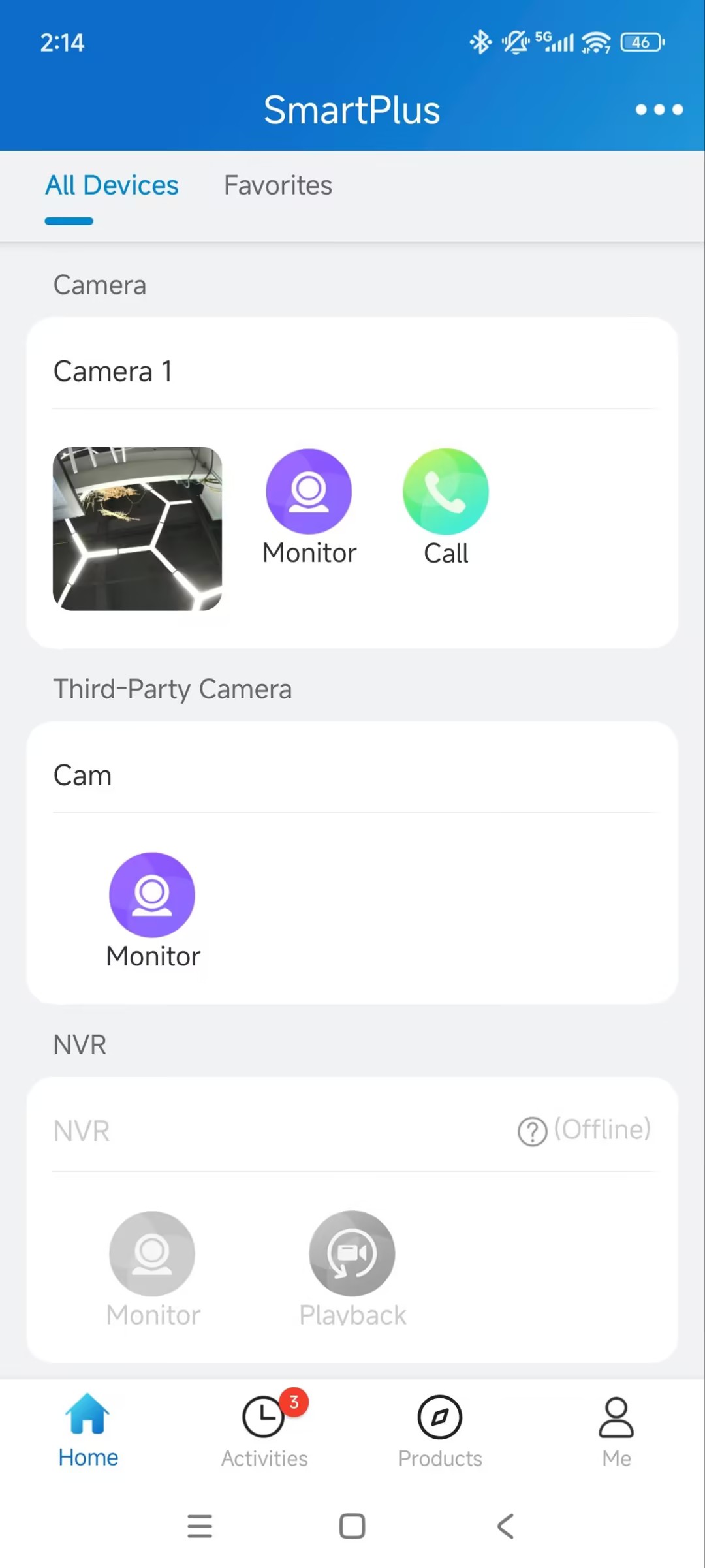
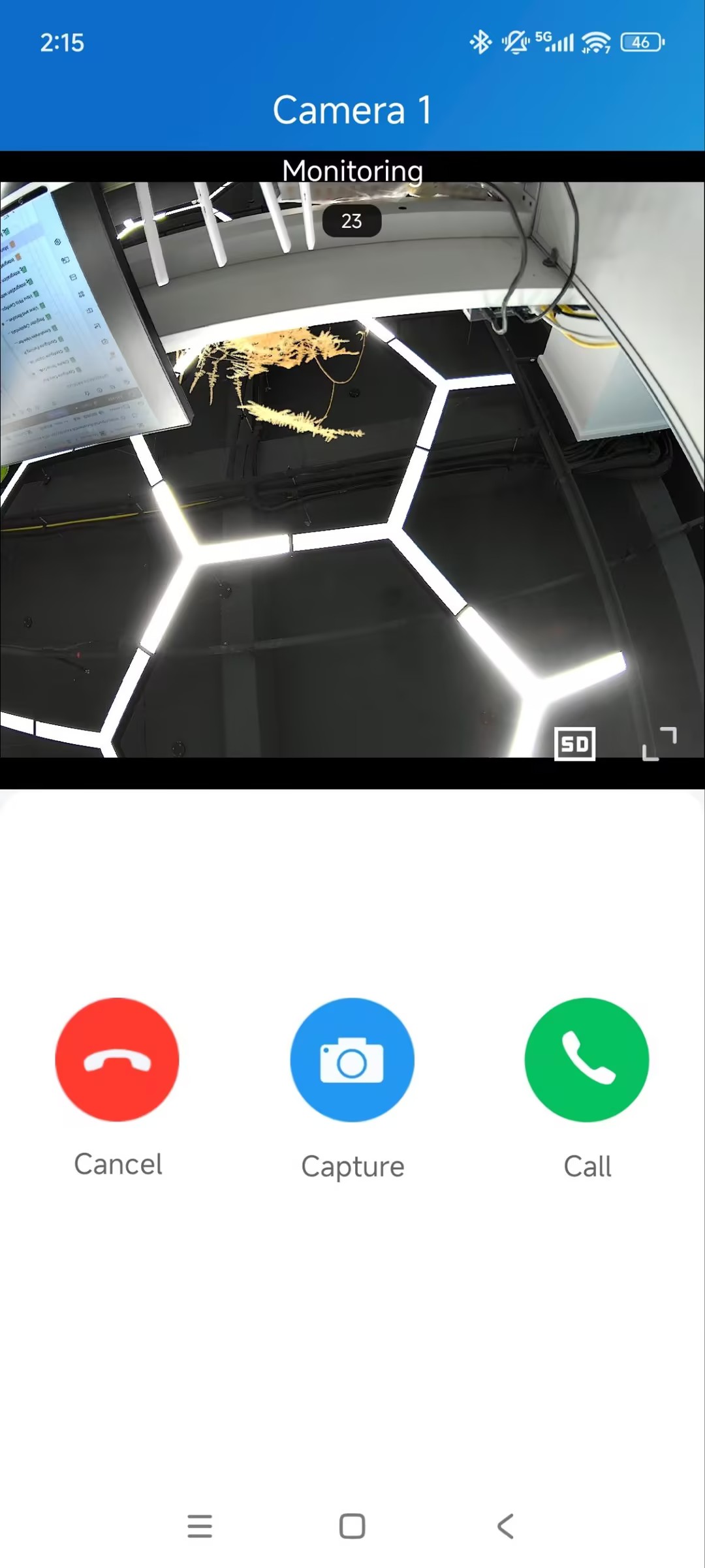
Camera Not Linked
Tap Monitor to open the camera's monitoring page directly.
Camera Linked
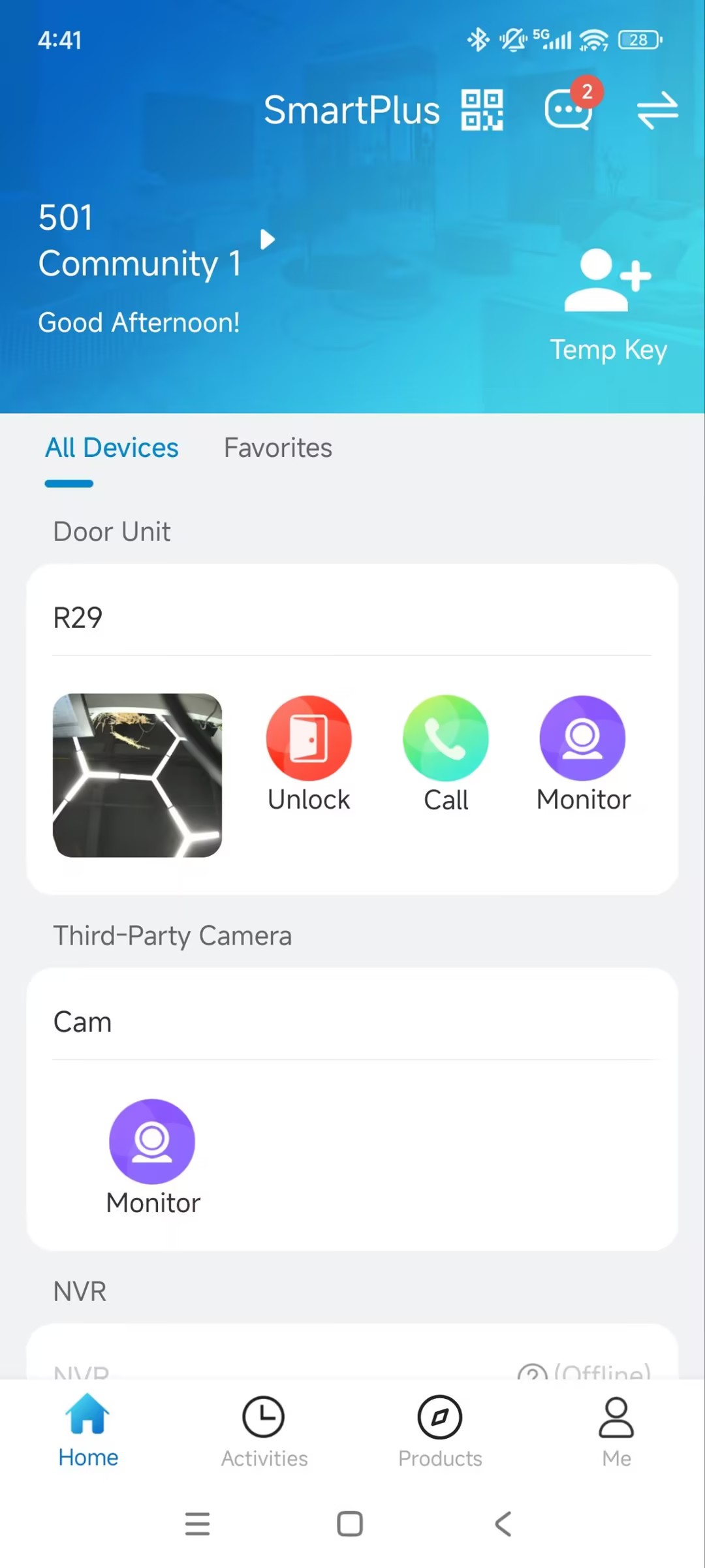
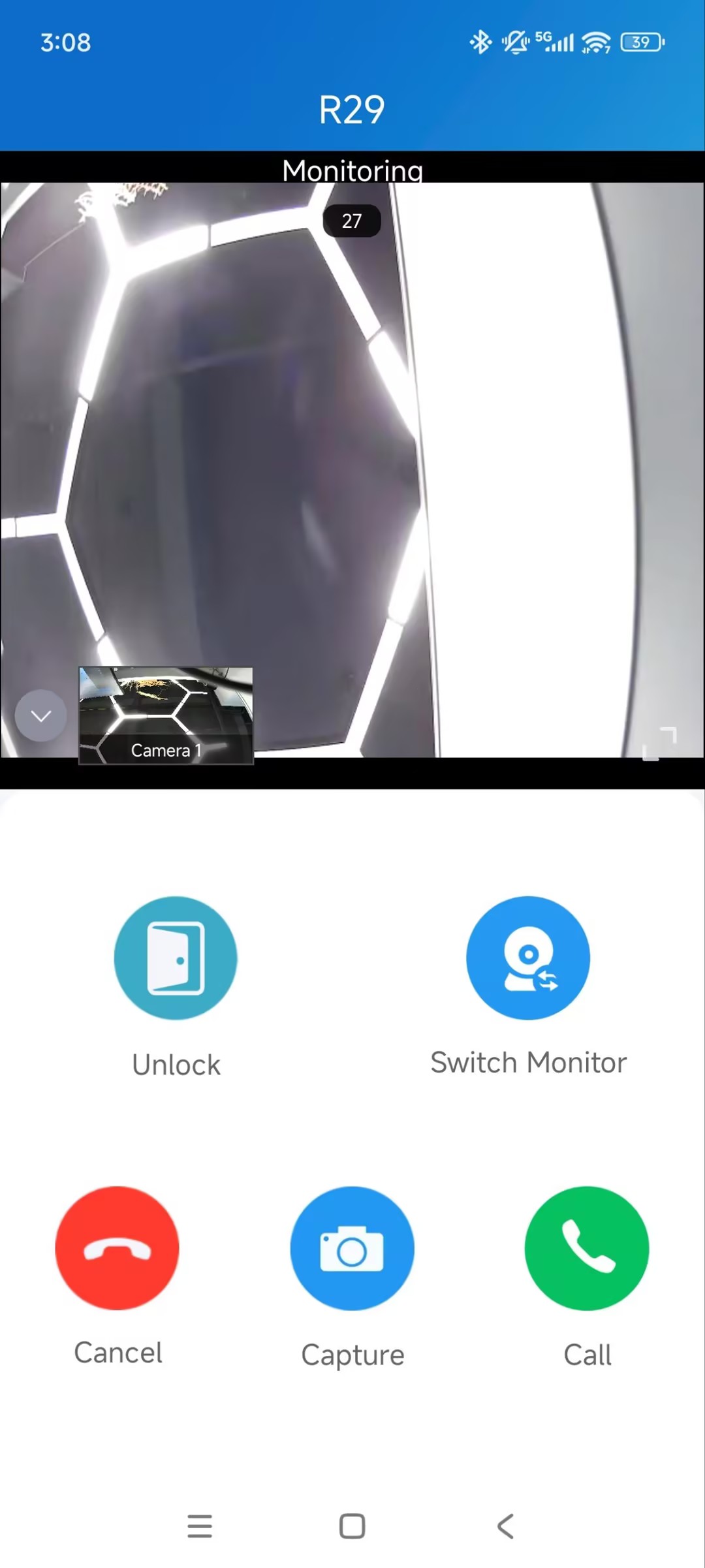
When a camera is linked, it no longer has its own entry in the app — you access it through the linked device instead. A thumbnail on the linked device's card shows a live camera snapshot that refreshes every 10 seconds, indicating the link.
Tap Monitor to open the device’s monitoring page, then tap Switch Monitor to toggle the live video between the device and the camera.
If the linked device has no camera of its own, the app shows the camera's live video directly.
Part 2: Play Back Recorded Video
Playback is available only for your own apartment cameras. Public area cameras do not have a Playback entry.
Note
Recordings are only generated when a detection event is triggered — there's no continuous recording. A recording is only available if Video Storage was enabled for the camera. See How to Use Video Storage in SmartPlus App.
Once a recording is available for a time range, the Playback icon becomes active.
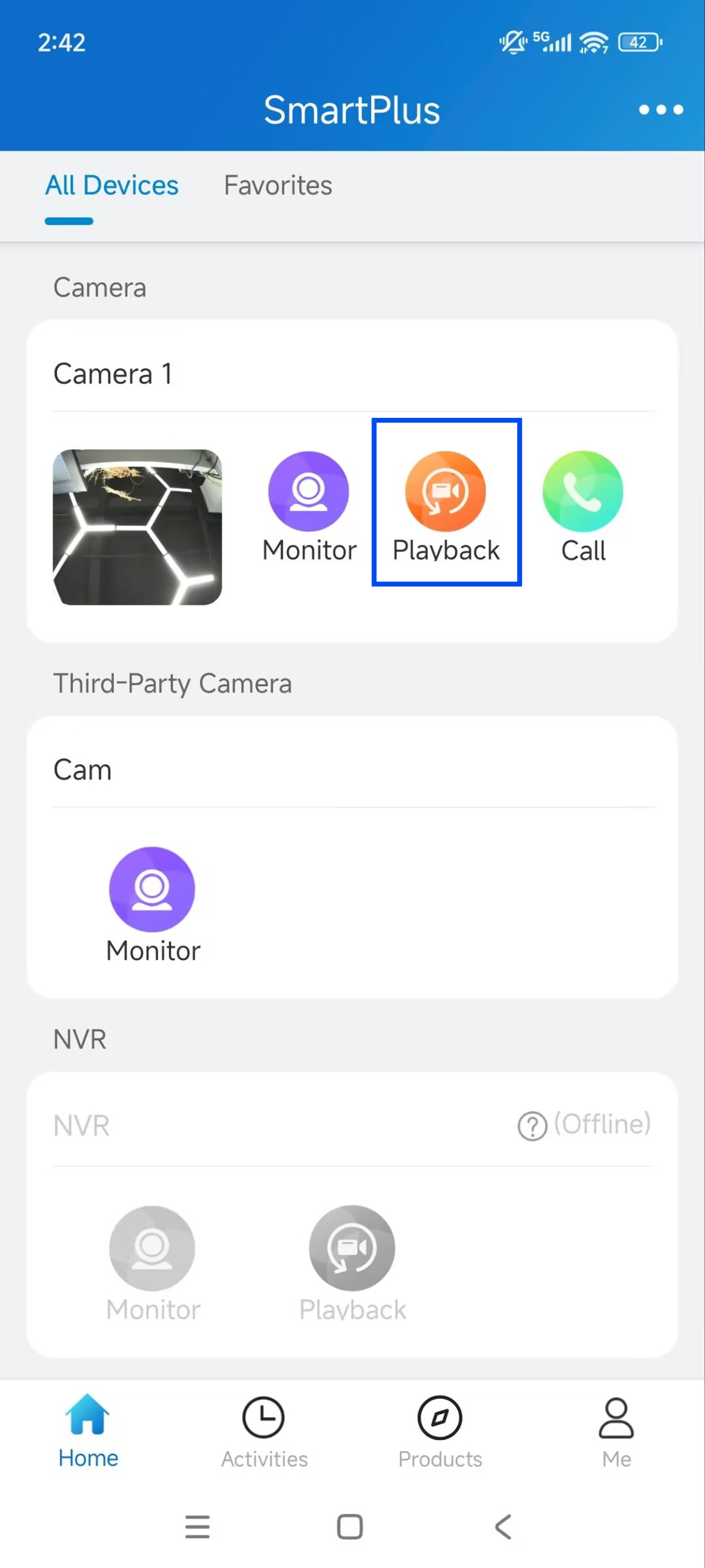
Camera Not Linked
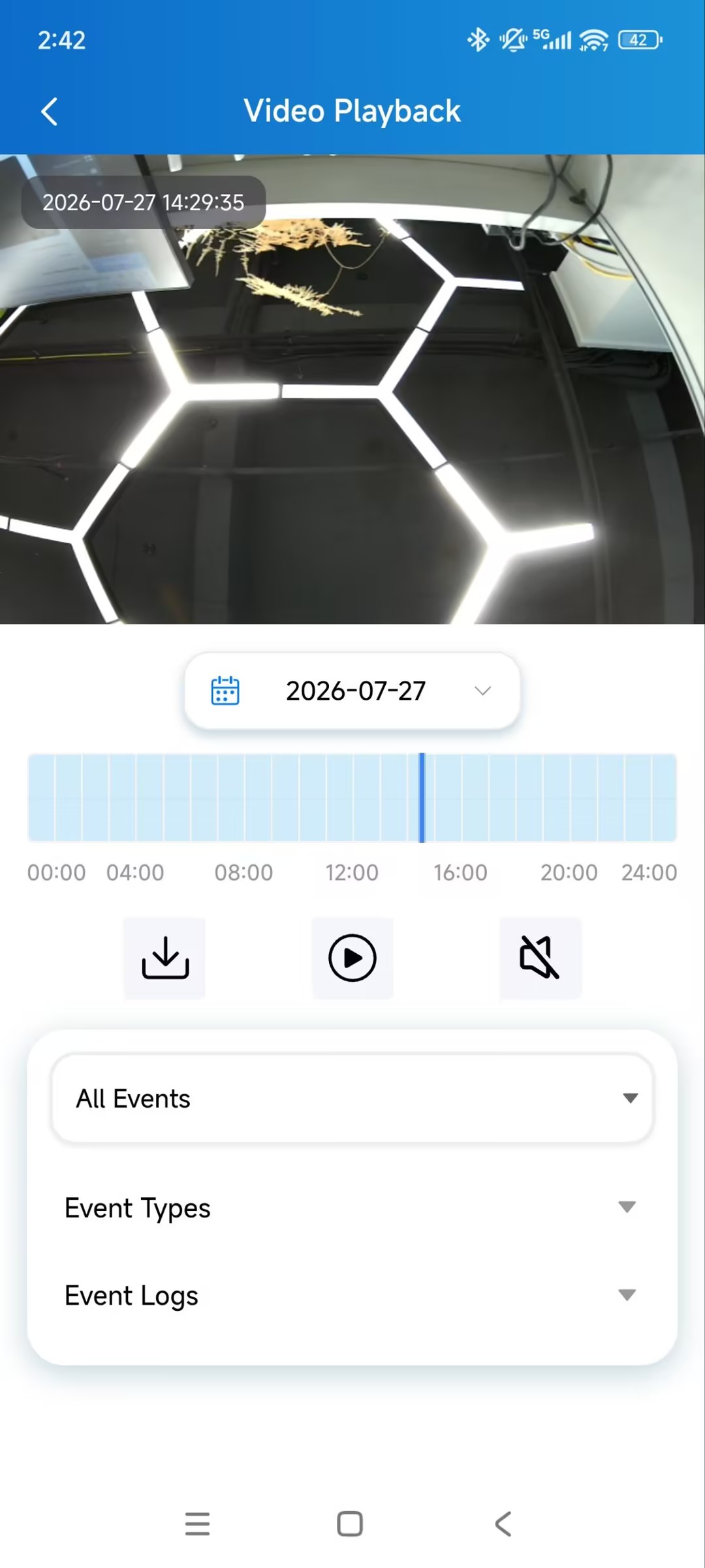
Tap Playback to open the camera’s playback page directly.
Camera Linked
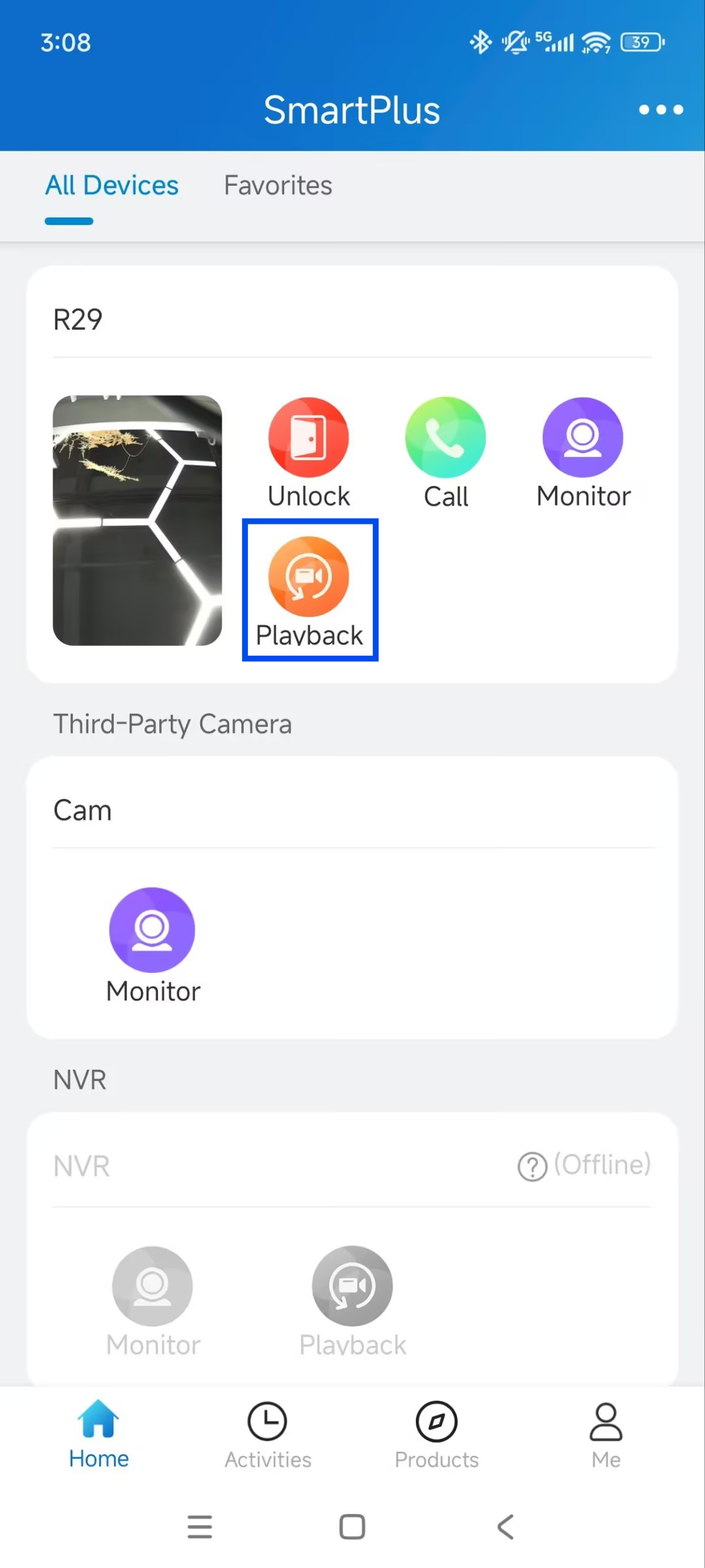
A linked camera has no entry of its own. A thumbnail on the linked device's card shows a live camera snapshot that refreshes every 10 seconds, indicating the link.
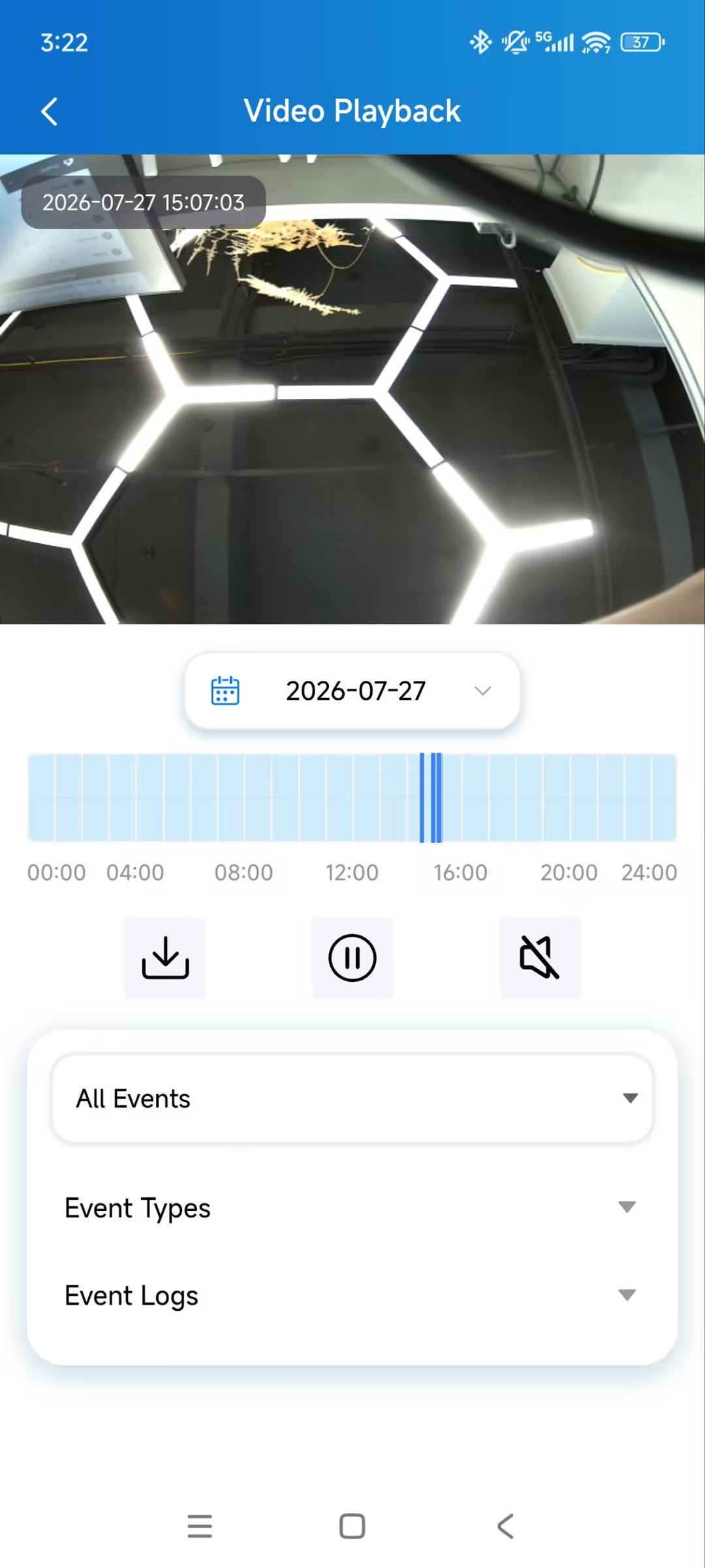
Tap Playback on the linked device to open the camera’s playback page.
Part 3: Call a Camera
Which cameras you can call depends on the camera type:
For your own apartment cameras, Call is available by default.
For public area cameras, Call is available only if your property manager or installer has granted call access on the web portal.
Camera Not Linked
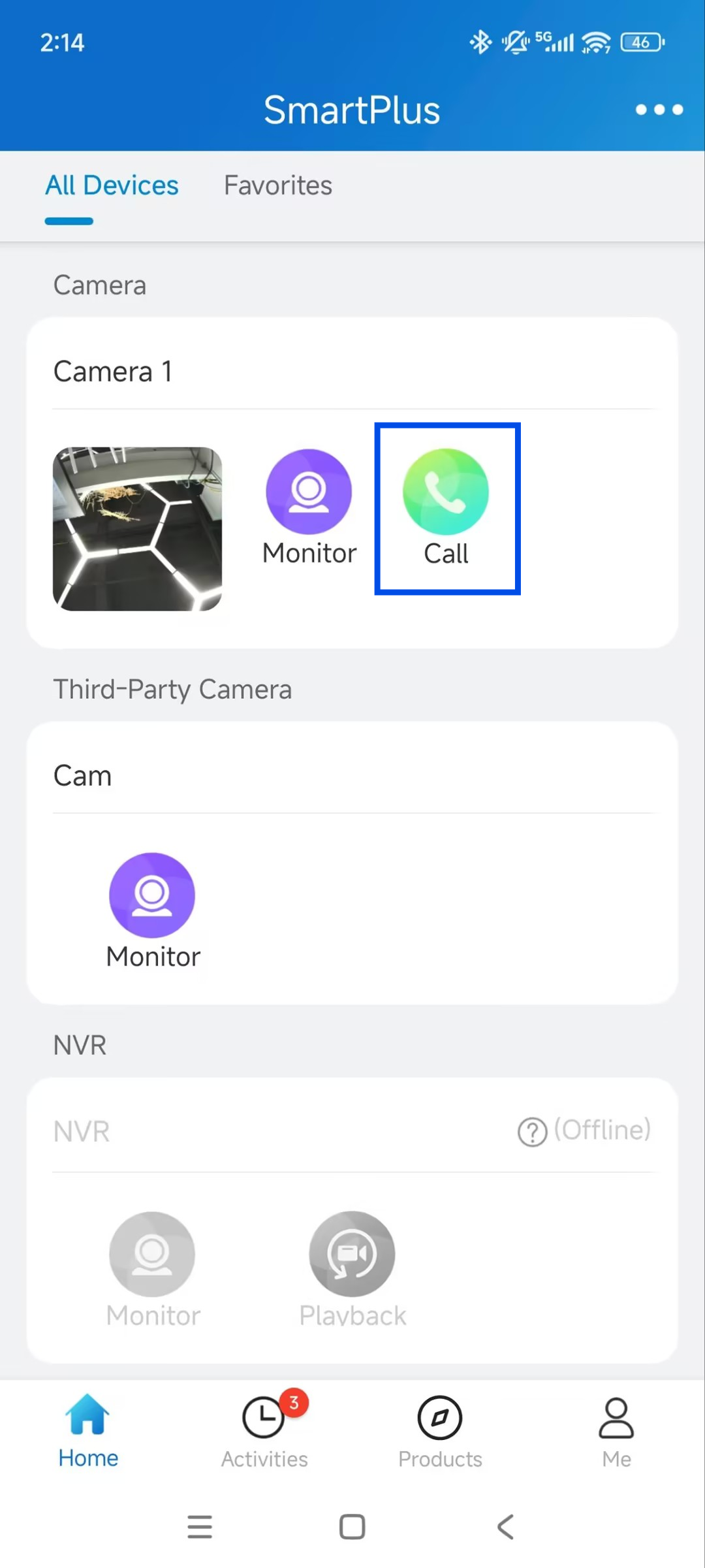
Tap Call to call the camera directly.
Camera Linked
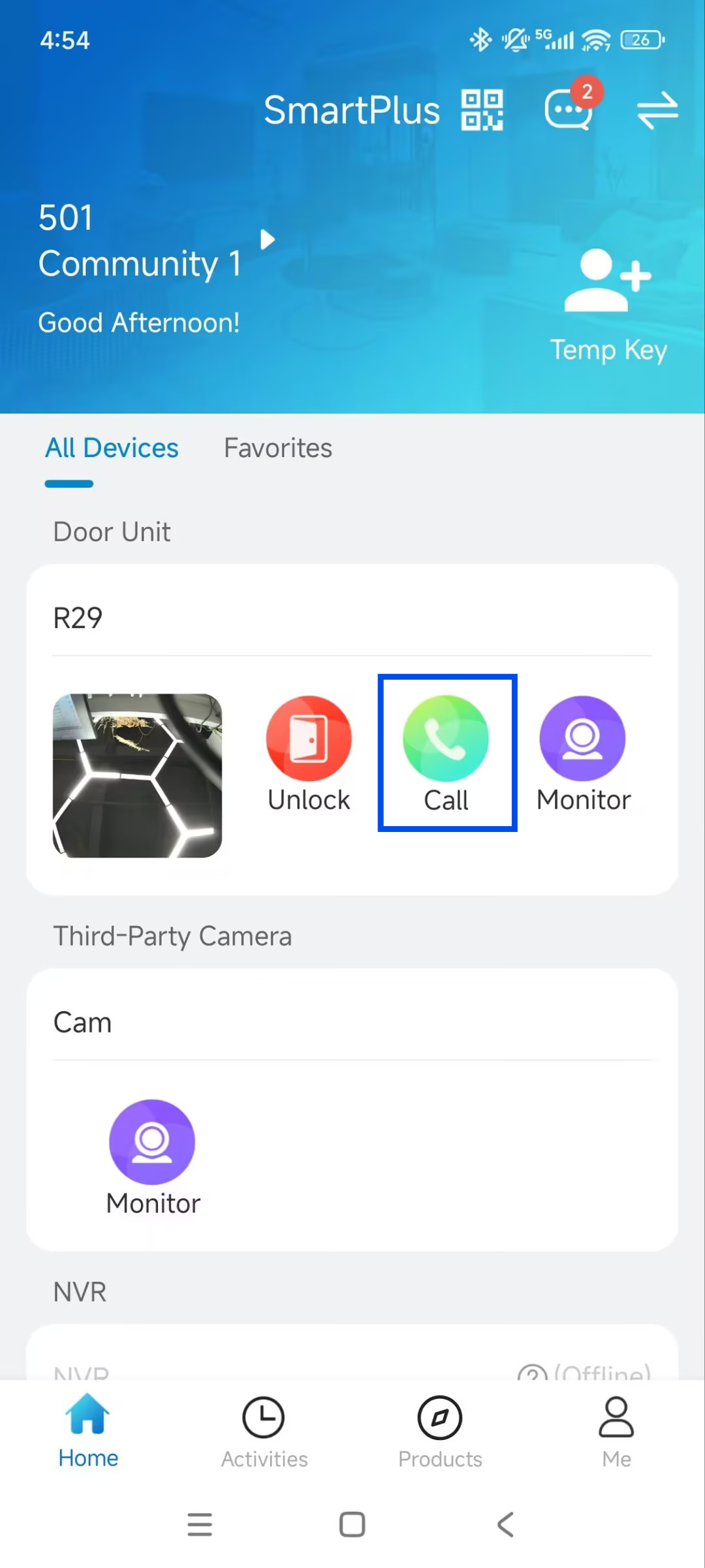
A linked camera has no entry of its own. A thumbnail on the linked device's card shows a live camera snapshot that refreshes every 10 seconds, indicating the link.
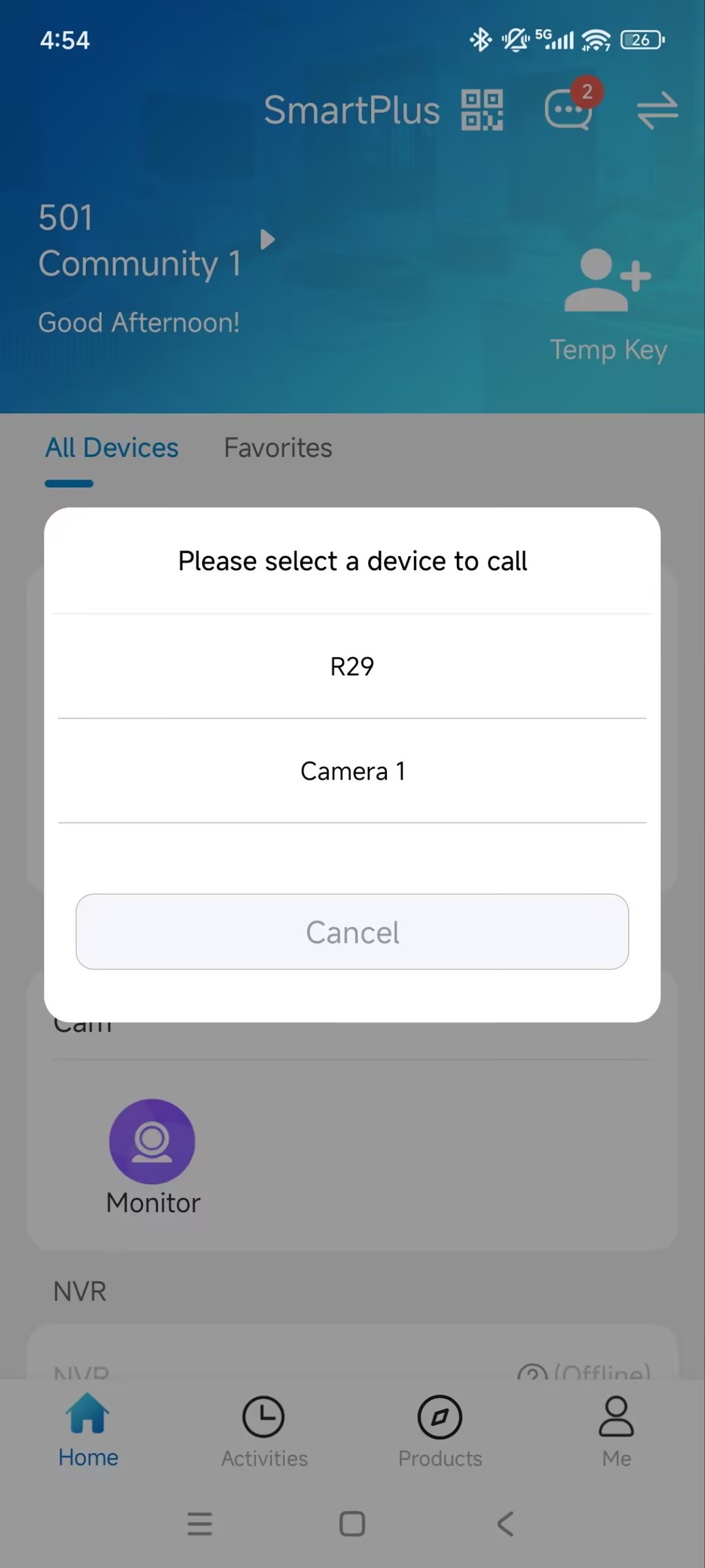
Tap Call on the linked device to select the device.
If the linked device does not support the intercom feature, the app calls the camera directly.
Part 4: Review Alarm Records
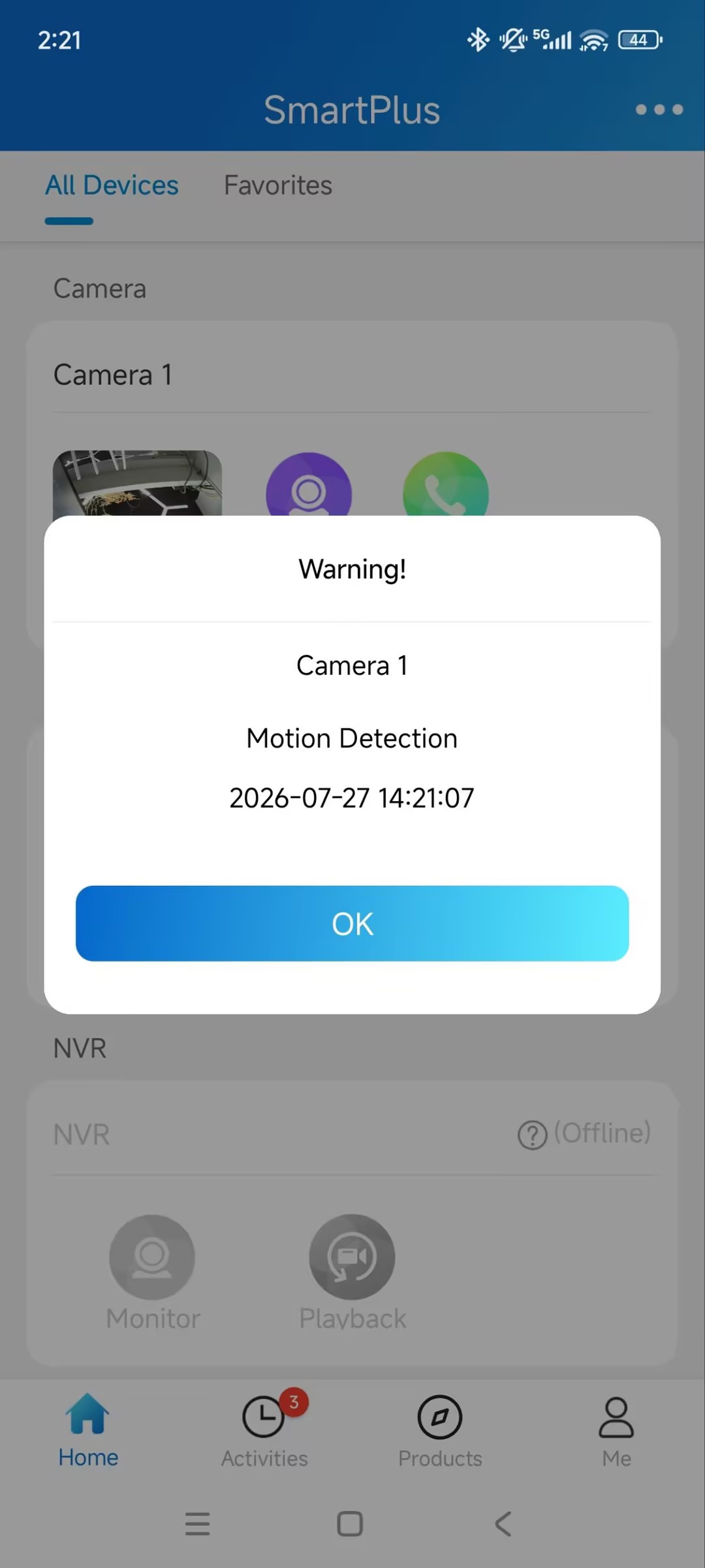
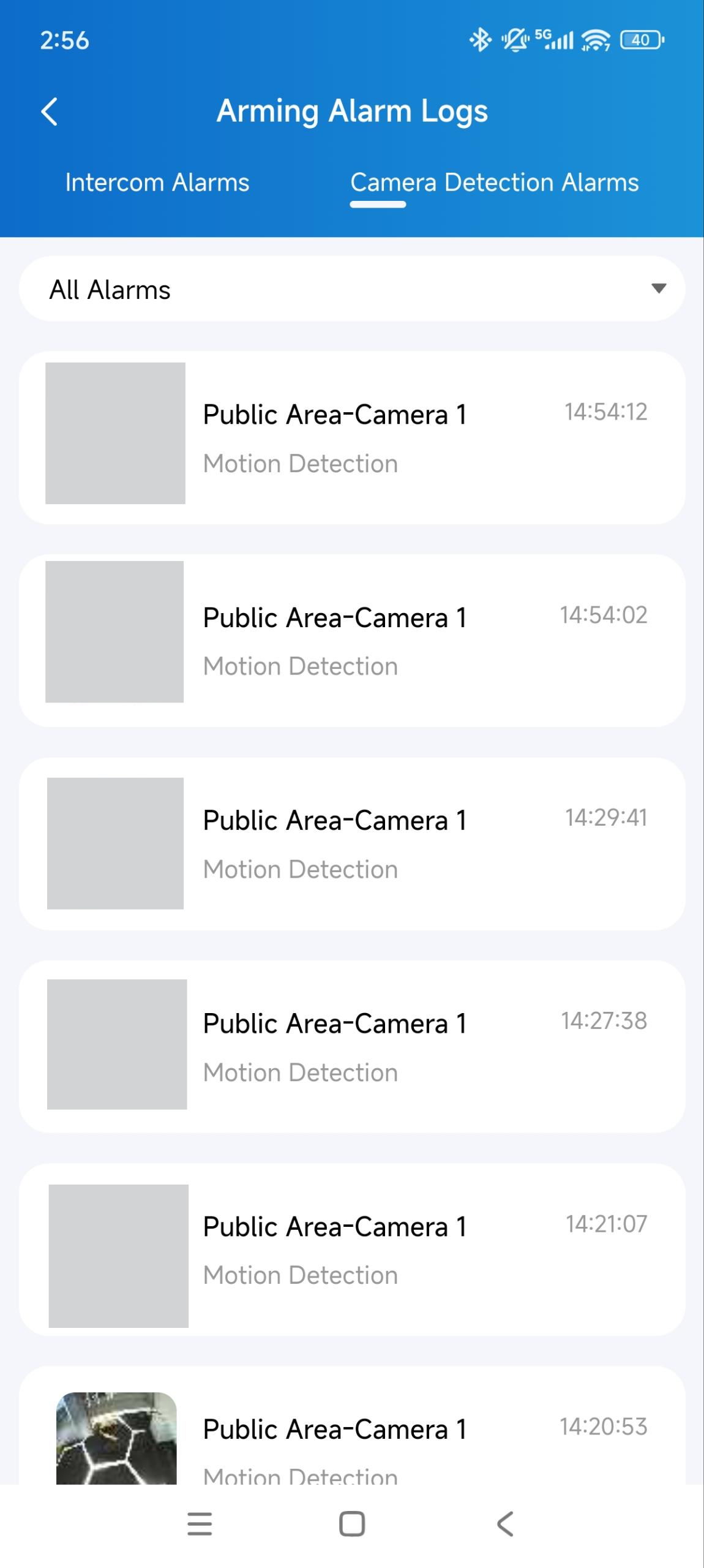
When a detection event is triggered on your apartment camera, you'll receive an alarm notification in the SmartPlus App.
To view all alarms, go to Me > Arming Alarm Logs > Camera Detection Alarms page.
Note
The detection event is configured by your property manager or installer.
Troubleshooting
Issue | Possible Cause | Solution |
|---|---|---|
Monitor button is missing or disabled for a public camera. | Monitoring access has not been granted for this device. | Contact your property manager or installer to confirm monitoring permissions. |
Call button is missing or disabled for a public camera. | Call access has not been granted for this device. | Contact your property manager or installer to confirm call permissions. |
Playback entry is missing for a camera. | The device has no recorded video and video storage is not enabled, or the camera is a public area device. | Playback is only available for your APT camera with recorded video or video storage enabled. |