System Log for Debugging
System logs can be used for debugging purposes.
If you want to export the system log to a local PC or a remote server for debugging, you can set up the function on the web Upgrade > Diagnosis > System Log interface.
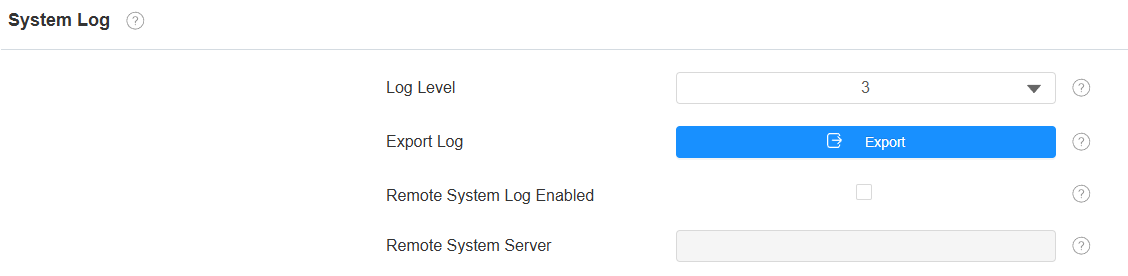
Log Level: Log level ranges from 0 to 7 levels. You will be instructed by Akuvox technical staff about the specific log level to be entered for debugging purposes. The default log level is 3. The higher the level is, the more complete the log is.
Export Log: Click the Export tab to export a temporary debug log file to a local PC.
Remote System Server: Enter the remote server address to receive the system log and it will be provided by Akuvox technical support.
PCAP for Debugging
PCAP is used to capture the data package going in and out of the devices for debugging and troubleshooting purposes.
To set up PCAP, go to the web Upgrade > Diagnosis > PCAP interface.
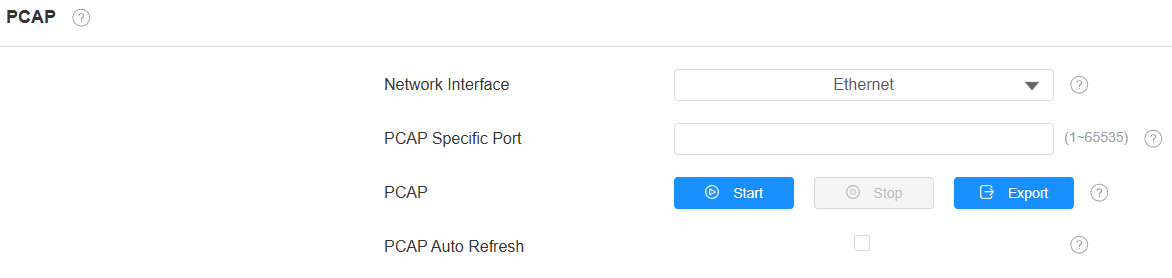
Network Interface: Specify the network interface based on the device’s network connection.
Ethernet: The captured data is from the wired network packets.
WLAN: The captured data is from the wireless network packets.
PCAP Specific Port: Select the specific port from 1-65535 so that only the data packet from the specific port can be captured. You can leave the field blank by default.
PCAP: Click the Start tab and Stop tab to capture a certain range of data packets before clicking the Export tab to export the data packets to your Local PC.
PCAP Auto Refresh: When enabled, the PCAP will continue to capture data packets even after the data packets reach 50M in capacity. When disabled, the PCAP will stop data packet capturing when the data packets reach the maximum capturing capacity of 1 MB.
Remote Debug Server
When the device is having a problem, you can use the remote debug server to access the device log remotely for debugging purposes.
To set it up, go to the Upgrade > Diagnosis > Remote Debug Server interface.
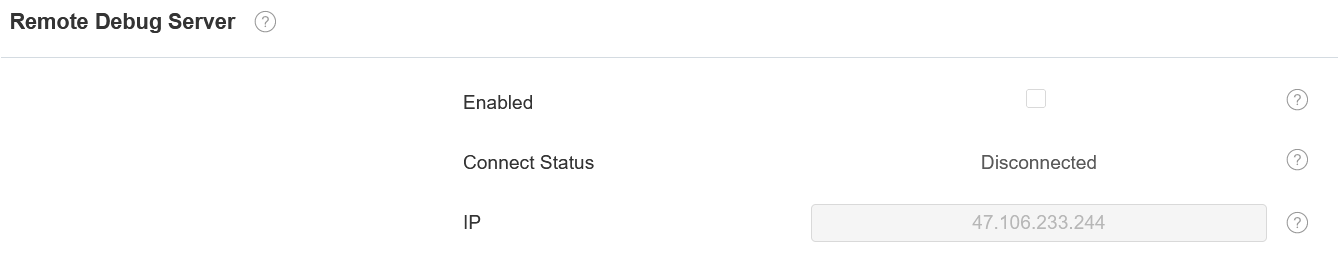
Connect Status: Indicate the remote debug server’s connection status.
IP: Specify the server’s IP address.
User Agent
User agent is used for identification purpose when you are analyzing the SIP data packet.
To set it up, go to the web Account > Advanced > User Agent interface.

Screenshots
You can take a screenshot of the specific device screen to help with the troubleshooting and so on.
To take screenshots, go to Upgrade > Diagnosis > Screenshots interface. Click Screenshots to capture the current screen.

Web Call
The web call feature allows for making calls via the device’s web interface, commonly used for remote call testing purposes.
To set it up, navigate to the Contacts > Local Contacts > Dial Number interface. Enter the target number and select the account to dial out.

Network Detection
The network detection feature allows for troubleshooting network problems quickly.
Go to the Settings > Network Detection screen.
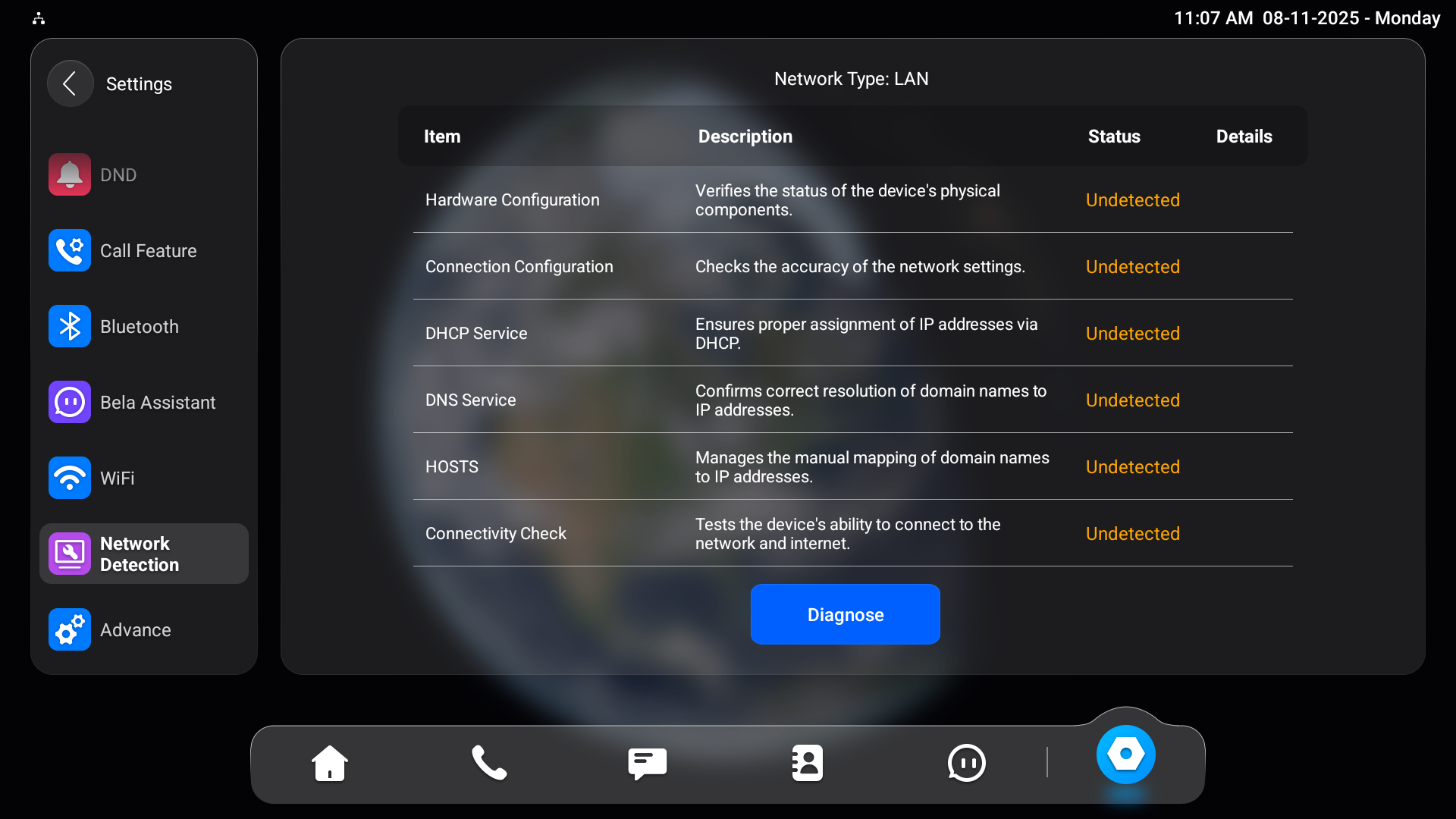
Diagnose: Tap to start detection.
Status: Display a loading icon when the detection starts; display ✔ for normal results and X for abnormal results.
Details: Tap to view the detection details.