System Log for Debugging
System logs can be used for debugging purposes.
If you want to export the system log to a local PC or a remote server for debugging, you can set up the function on the web Upgrade > Diagnosis > System Log interface.
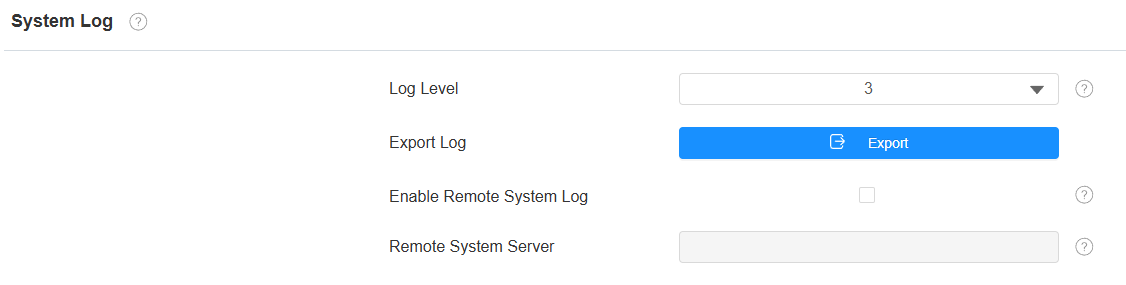
Log Level: Log level ranges from 0 to 7 levels. You will be instructed by Akuvox technical staff about the specific log level to be entered for debugging purposes. The default log level is 3. The higher the level is, the more complete the log is.
Export Log: Click the Export tab to export a temporary debug log file to a local PC.
Remote System Server: Enter the remote server address to receive the system log, and it will be provided by Akuvox technical support.
PCAP for Debugging
PCAP is used to capture the data package going in and out of the devices for debugging and troubleshooting purposes.
To set up PCAP, go to the web Upgrade > Diagnosis > PCAP interface.
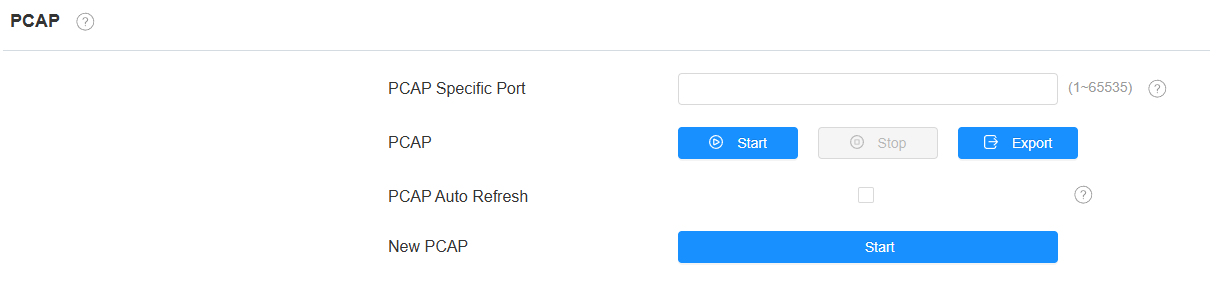
PCAP Specific Port: Select the specific port from 1-65535 so that only the data packet from the specific port can be captured. You can leave the field blank by default.
PCAP: Click the Start tab and Stop tab to capture a certain range of data packets before clicking the Export tab to export the data packets to your Local PC.
PCAP Auto Refresh: When enabled, the PCAP will continue to capture data packets even after the data packets reach 50M maximum in capacity. When disabled, the PCAP will stop data packet capturing when the data packets reach the maximum capturing capacity of 1MB.
Remote Debug Server
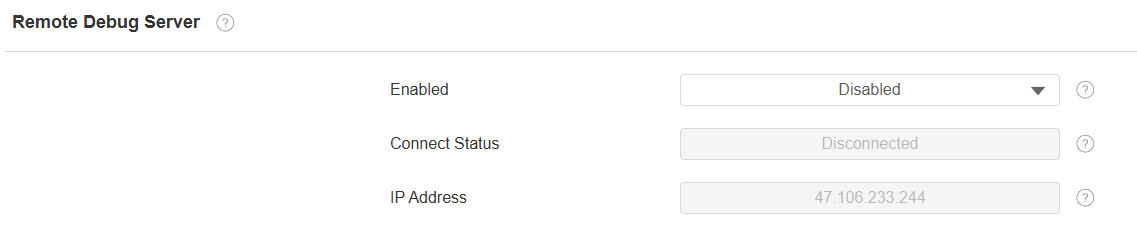
When the device is having a problem, you can use the remote debug server to access the device log remotely for debugging purposes.
To set it up, go to the Upgrade > Diagnosis > Remote Debug Server interface.
Point Cloud Data Export
You can export spatial detection data collected by the radar for technical analysis and troubleshooting purposes.
Export the data on the Upgrade > Diagnosis > Point Cloud interface. Click Start to start the data collection; click Stop to end the collection.
