Through resetting, the tenant information will be deleted, while the device information will be retained after a tenant moves out. This saves time from repeatedly entering the device information.
Installers
Log in to the SmartPlus Cloud platform with an installer account.
Select Single-Family Site(s) on the dashboard.
Click
 to reset the target user account.
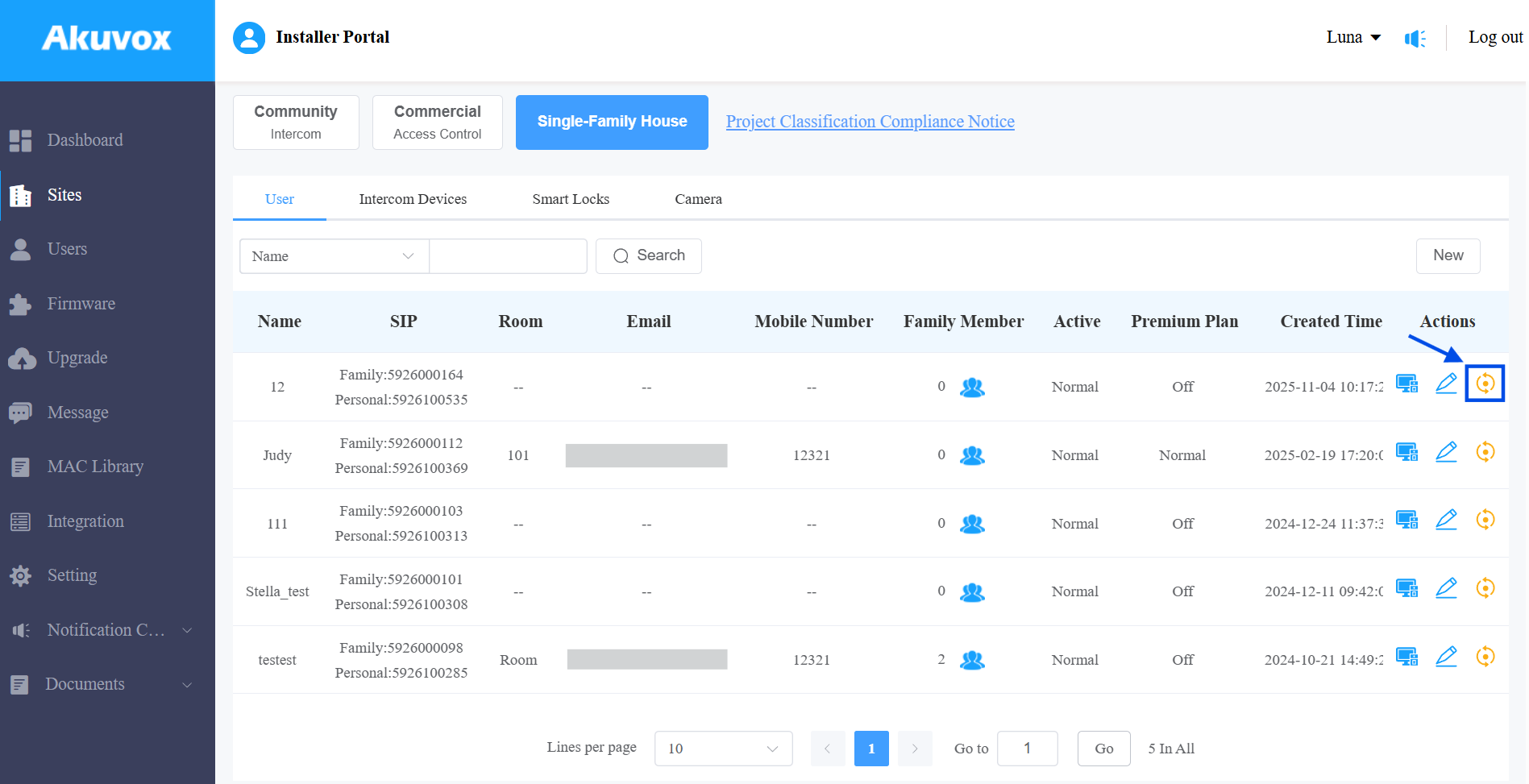
After resetting, the following data will be reset:
Family master account name. A random name will be generated by the system.
Landline Service will be set off.
Landline Status will be set off.
The following data will be kept:
Family master account status, whether it is activated or expired,
Device,
Family SIP and Personal SIP,
Landline Expiration Time,
Created Time,
Settings include IP Call or SIP Call, Time Zone, Language, Home Automation, Premium Plan, and the With Indoor Monitor feature.
The following data will be removed:
Family member accounts,
Emails, mobile numbers, country/region, and landlines,
Logs(audit logs excluded) and call histories,
Messages and alarms,
Accessing settings, including PIN, face data, NFC, Bluetooth, and QR Codes.
Distributors
Distributors can reset the Kit users when the Kit is added directly to the single-tenant projects under the distributor account.
Log in to the SmartPlus Cloud platform with the distributor account.
Click Change Identity in the upper-right corner to manage kit users.
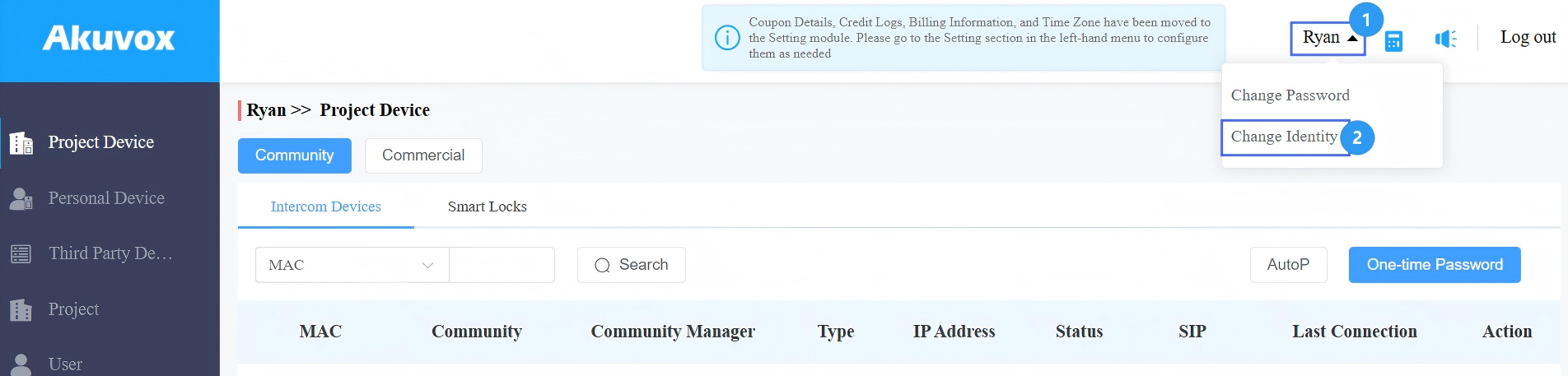
Click
to reset the target user account.
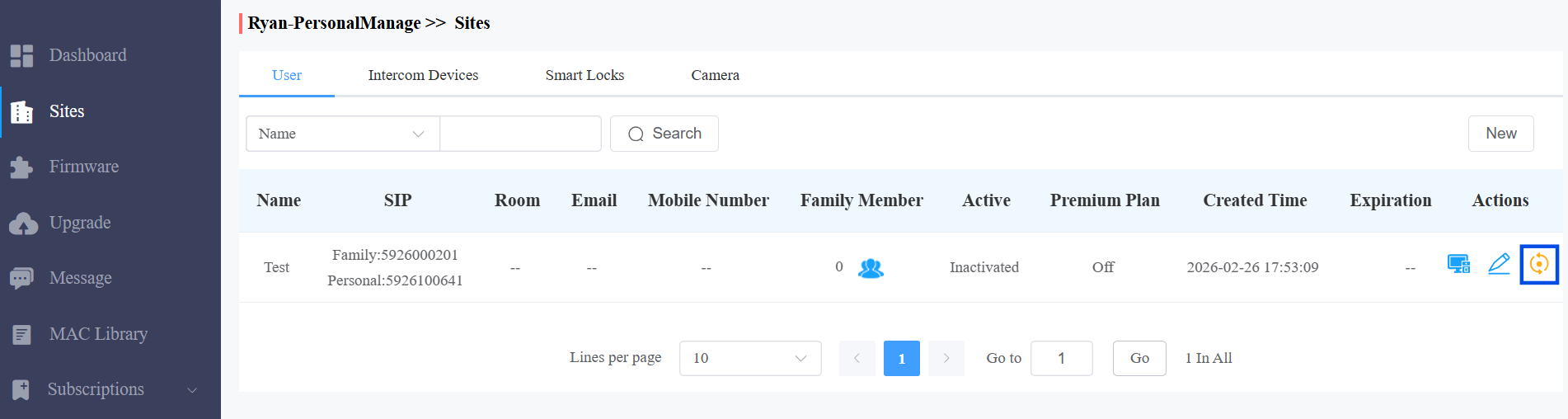
After resetting, the following data will be reset:
Family master account name. A random name will be generated by the system.
Landline Service will be set off.
Landline Status will be set off.
The following data will be kept:
Family master account status, whether it is activated or expired,
Device,
Family SIP and Personal SIP,
Landline Expiration Time,
Created Time,
Settings include IP Call or SIP Call, Time Zone, Language, Home Automation, Premium Plan, and the With Indoor Monitor feature.
The following data will be removed:
Family member accounts,
Emails, mobile numbers, country/region, and landlines,
Logs(audit logs excluded) and call histories,
Messages and alarms,
Accessing settings, including PIN, face data, NFC, Bluetooth, and QR Codes.
End Users
End users can delete the family master account on the indoor monitor.
Tap More > Setting > SmartPlus Account > Account Info.
Tap Delete to delete the master account. All call logs will be deleted.
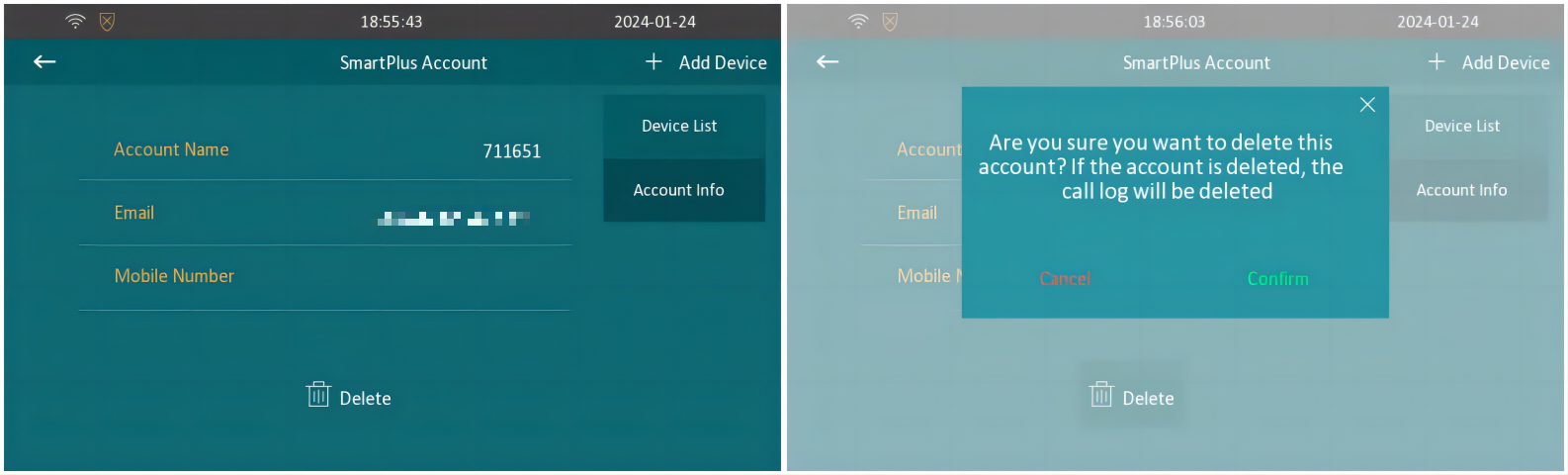
After resetting, a new QR code will be issued to the indoor monitor from the SmartPlus Cloud.
On the SmartPlus Account screen, tenants can scan the QR code to register SmartPlus accounts themselves.
.bmp "Kit1(1).bmp")