Relay Schedule
The relay schedule allows you to set a specific relay to always open at a certain time. This is helpful for situations like keeping the gate open after school or keeping the door open during work hours.
To do the configuration, navigate to Access Control > Relay > Relay Hold Time Setting interface.
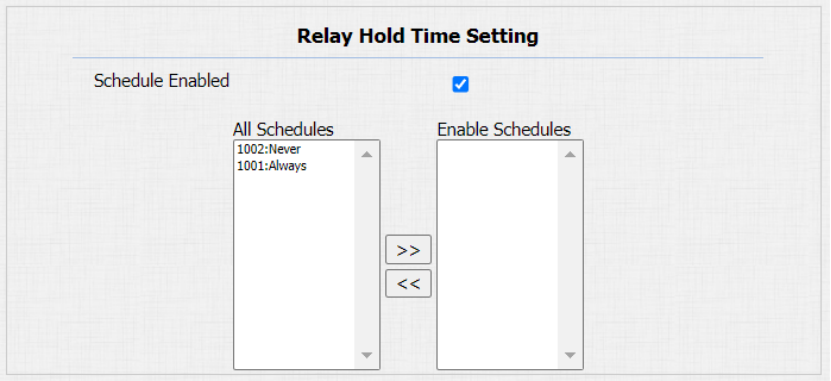
Parameters Set-up:
Schedule Enabled: it is disabled by default. Only choose to enable it, that you can select the schedule. For creating the schedule, please refer to door access schedule configuration.
Configure Door Access Schedule
A door access schedule lets you decide who can open the door and when. It applies to both individuals and groups, ensuring that users within the schedule can only open the door using the authorized method during designated time periods.
Create Door Access Schedule
You can create door access schedules for daily, weekly, or custom time periods.
To do this configuration on web Setting > Schedule interface.
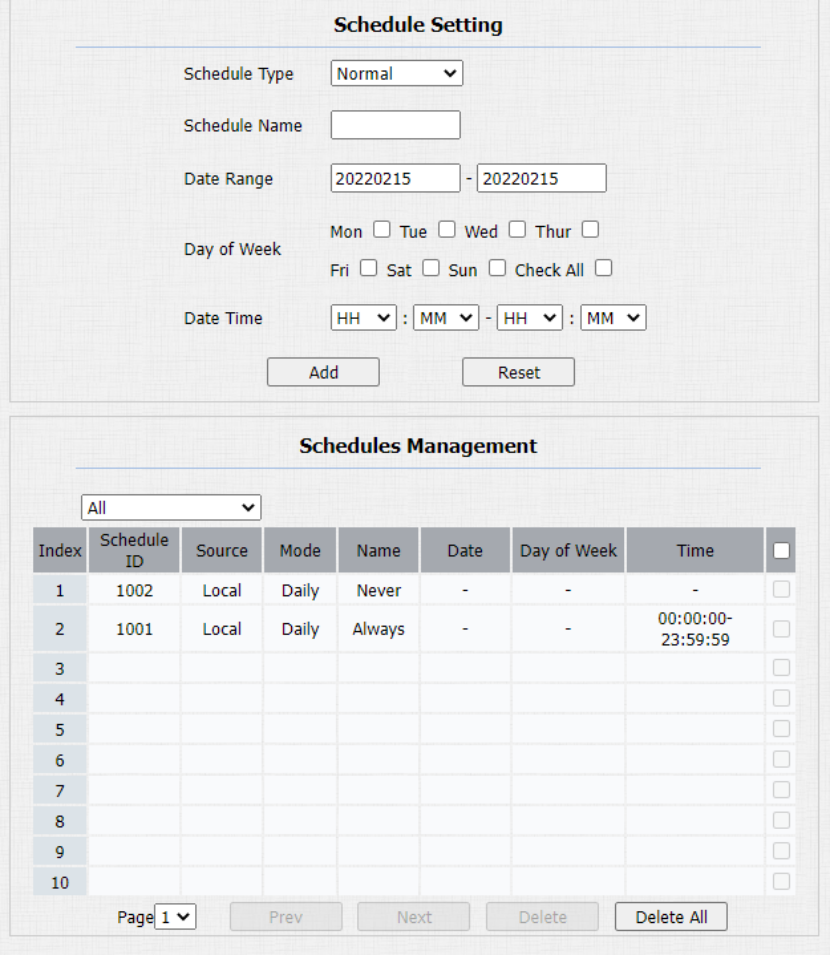
Parameters Set-up:
-
Schedule Type: set the type of time period. There are three types to choose from: Daily, Weekly, and Normal. The default is Daily.
-
Day of Week: select the corresponding day of the week. This field will only be displayed when the Week and Normal types are selected.
-
Date Range: set the corresponding date. This field will only be displayed when the Normal type is selected.
Import and Export Door Access Schedule
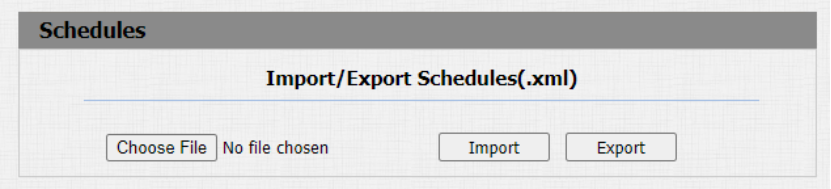
In addition to creating door access a schedule separately, you can also conveniently import or export the schedules in order to maximize your door access schedule management efficiency.
Path: Setting > Schedule > Import/Export Schedule(.xml).
Import and Export User
You can import and export the user in batch. You can navigate to Access Control > User.

Parameters Set-up:
- AES Key For Import: enter the AES code before importing the AES-encrypted .tgz file to the door bell.