Palm vein recognition allows users to unlock doors using their unique palm vein pattern. During enrollment, the device captures the vein structure beneath the skin and securely stores it for identity verification during access.
Palm vein credentials can be enrolled either locally on the device or through the cloud platform, depending on your deployment.
Before You Start
For cloud projects, make sure the enrollment device is connected to the cloud and online.
Compatible Model and Minimum Version
Model | Minimum Firmware Version |
|---|---|
E16P | 416.30.12.20 |
X915P | 2915.30.10.803 |
Watch the Video Guide
Prefer a visual walkthrough?
Watch: [Video]Enroll Palm Vein for Door Access
Palm Vein Enrollment Methods
Palm vein credentials can be enrolled using one of the following methods.
Method | Description |
|---|---|
On-Premise Enrollment | An operator enrolls the user's palm vein directly on the door phone. |
Cloud Enrollment | An operator initiates enrollment from the cloud platform, and the user completes the enrollment on the assigned door phone. |
On-Premise Configuration
The local enrollment workflow consists of the following steps:
Enable palm vein recognition.
Create or select a user.
Enroll the user's palm vein.
Save the user information.
Verify palm vein access.
Step 1: Enable Palm Vein Recognition
Navigate to the device IP in a browser. Log in with the username and password (admin/admin by default).
Go to Device > LCD > Key In Homepage Of The Default Theme. For X915P, the path is Setting > Key/Display > Key In Homepage Of The Building Theme.
Set the Home Page Recognition Method to Palm Vein or Face & Palm Vein.
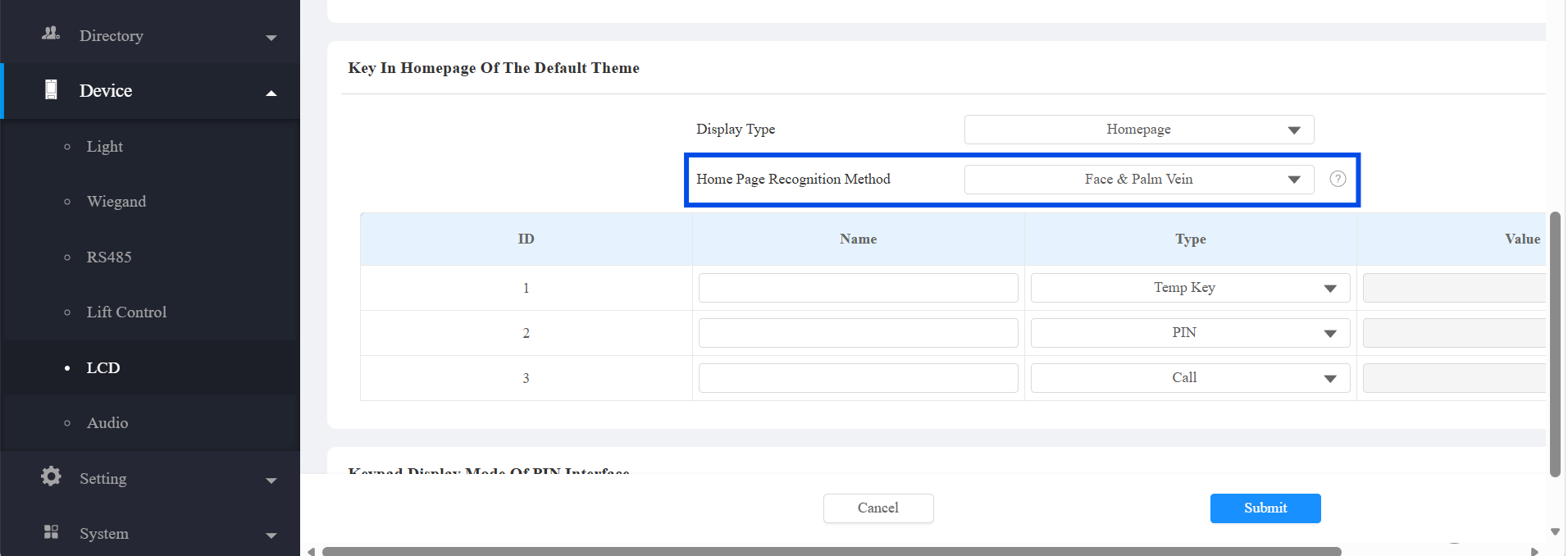
Click Submit.
Step 2: Enroll Palm Vein for the User
Long-press on the device’s home screen.
Enter the system PIN(The default is Admin321.) to access settings. For X915P, enter 9999, then 3888 on the dial screen.
Tap User > User List > Add. Or, select a current user to modify.
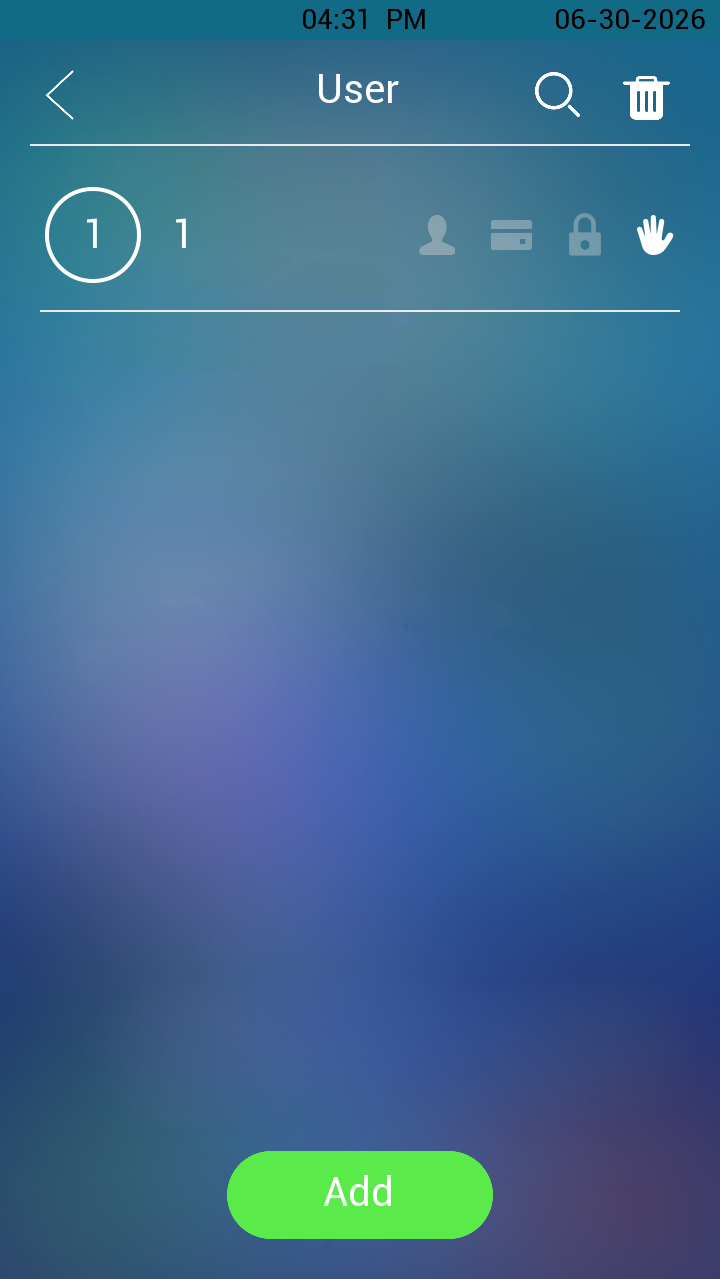
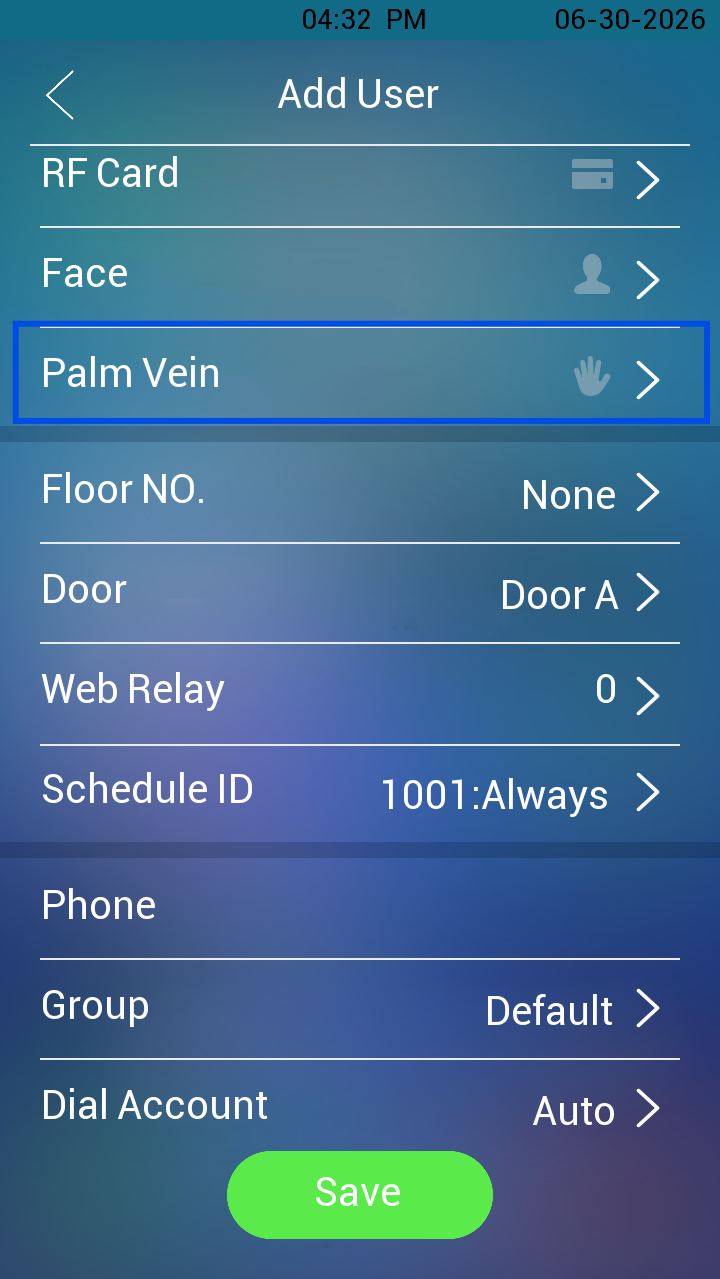
Select Palm Vein to start the enrollment.
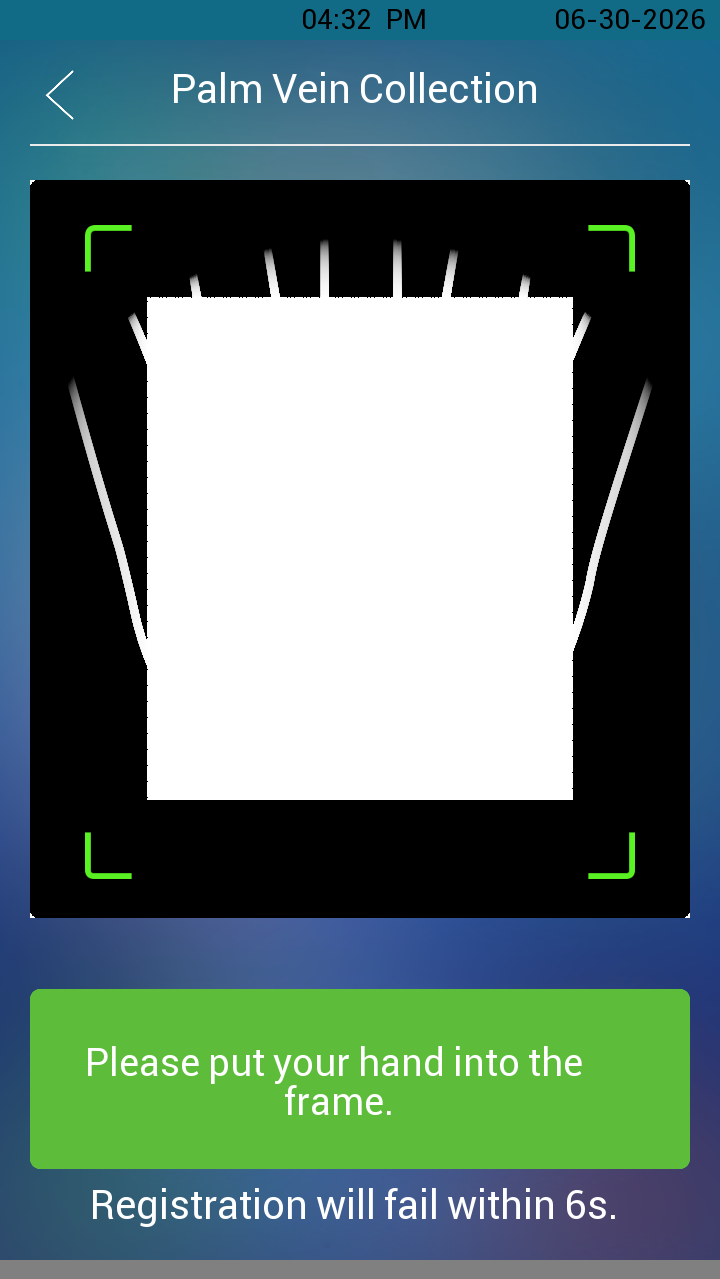
Keep the user’s hand steady within the frame until the device prompts “registration succeeded”.
Tap Save after completing the remaining user settings.
Verification
Ask the user to present the enrolled palm to the door phone.
If the palm vein matches the enrolled credential and the user has valid access permissions, the door unlocks successfully.
Cloud Configuration
Palm vein credentials can also be enrolled through the cloud platform. The enrollment workflow differs depending on the project type.
For Community Projects
For detailed instructions, see Enroll Palm Vein for Door Access in Community Projects.
For Commercial Projects
For detailed instructions, see Enroll Palm Vein for Door Access in Commercial Projects.