Para garantizar un funcionamiento normal, asegúrese de que el dispositivo tenga su dirección IP correctamente configurada o obtenida automáticamente desde el servidor DHCP.
To set it up, go to Network > Basic interface.
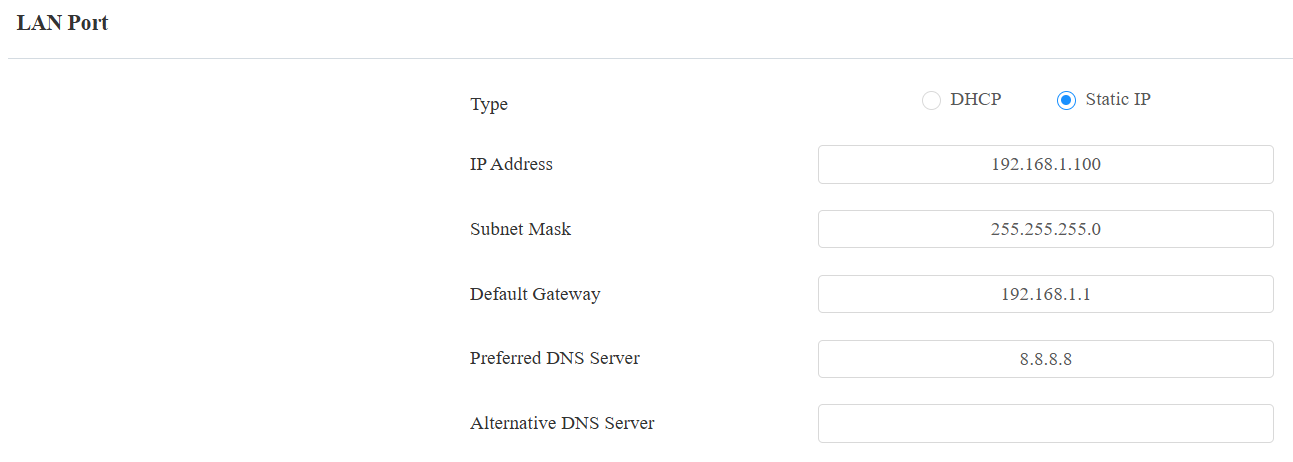
DHCP: DHCP mode is the default network connection. If the DHCP mode is selected, then the device will be assigned by the DHCP server with an IP address, subnet mask, default gateway, and DNS server address automatically.
Static IP: When static IP mode is selected, the IP address, subnet mask, default gateway, and DNS server address have to be manually configured according to the actual network environment.
IP Address: Set up the IP address when the static IP mode is selected. To access the device’s web settings, your computer should be on the same local network as the device.
Subnet Mask: A subnet mask tells your device which IP addresses are part of your local network and which ones are not. For example, if the subnet mask is 255.255.255.0, it means that devices with similar starting IPs (like 192.168.1.x) are in the same network.
Default Gateway: The gateway is like a bridge between your device and other networks, such as the internet. Usually, it’s the IP address of your router.
Preferred/Alternative DNS Server: Domain Name System(DNS) is the overall system or network that handles the translation of domain names (like www.example.com) into IP addresses (like 192.0.2.1), which computers use to identify each other on a network. The device connects to the alternate DNS server when the primary one is unavailable.
LTE Wireless Connection
The LTE module enables cellular network connectivity for the device in areas where wired networks are unavailable, particularly beneficial for installations in older buildings.
Only WR01-L has an LTE module.
Set this feature up on the Network > Basic interface. It is disabled by default.
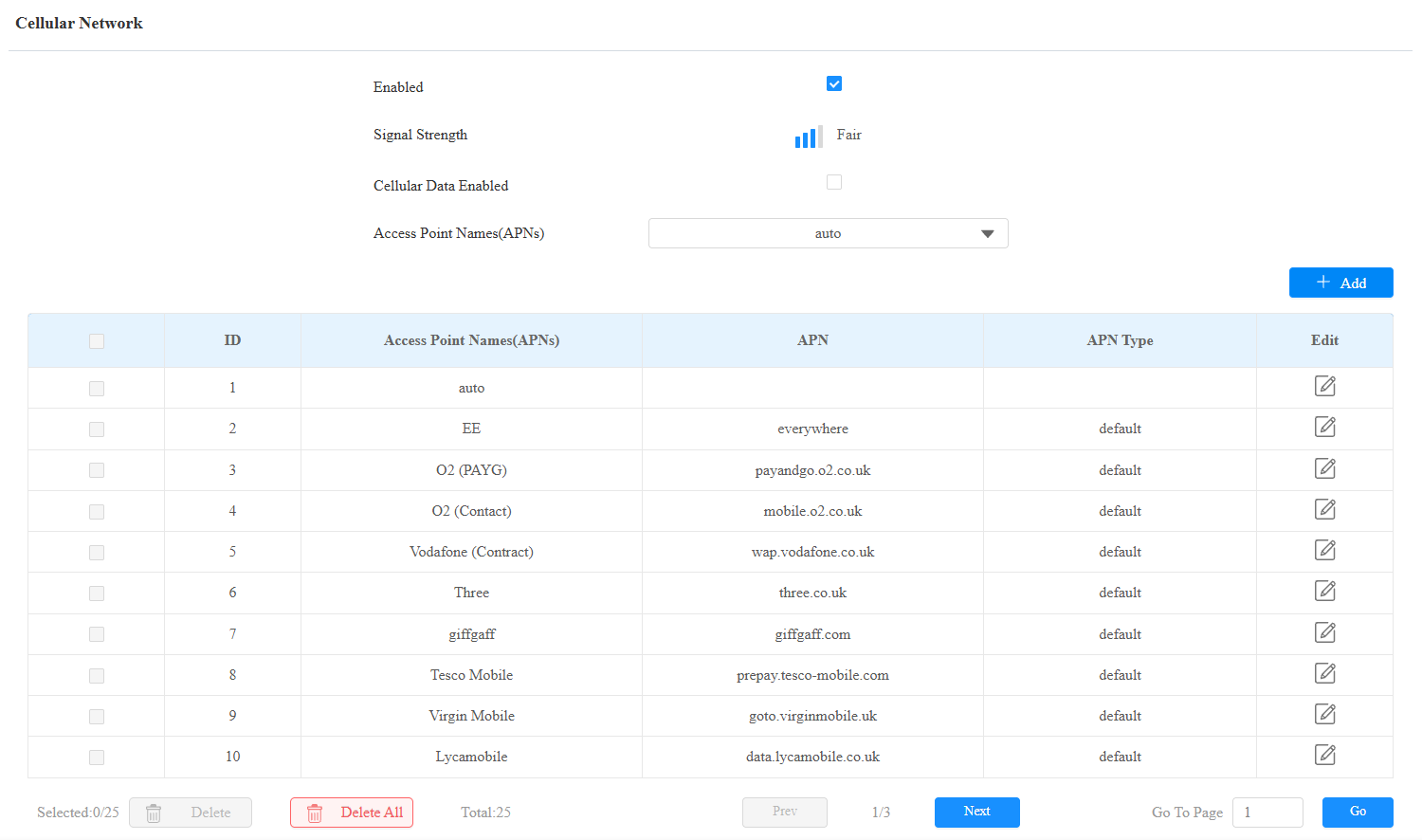
Enabled: The function is enabled by default.
SIM Card Status: Display whether a SIM card is inserted.
Signal Strength: Indicate the network connection.
None: No SIM card inserted or the SIM card is not properly inserted, unable to detect signal.
Weak: The network signal is poor, typically when the signal strength is below -100 dBm.
Fair: The network signal is average, usually when the signal strength is between -90 and -100 dBm.
Good: The network signal is good, generally when the signal strength is between -70 and -90 dBm.
Excellent: The network signal is excellent, typically when the signal strength is between -50 and -70 dBm.
Cellular Data Enabled: Set whether to enable the use of LTE mobile data. This option is only available when LTE Enabled is turned on. When disabled, the device will not use APN data for network access.
Data Usage: Available only when cellular data is enabled. It shows the total mobile data usage for the current month, calculated from the 1st day to the last day of the month.
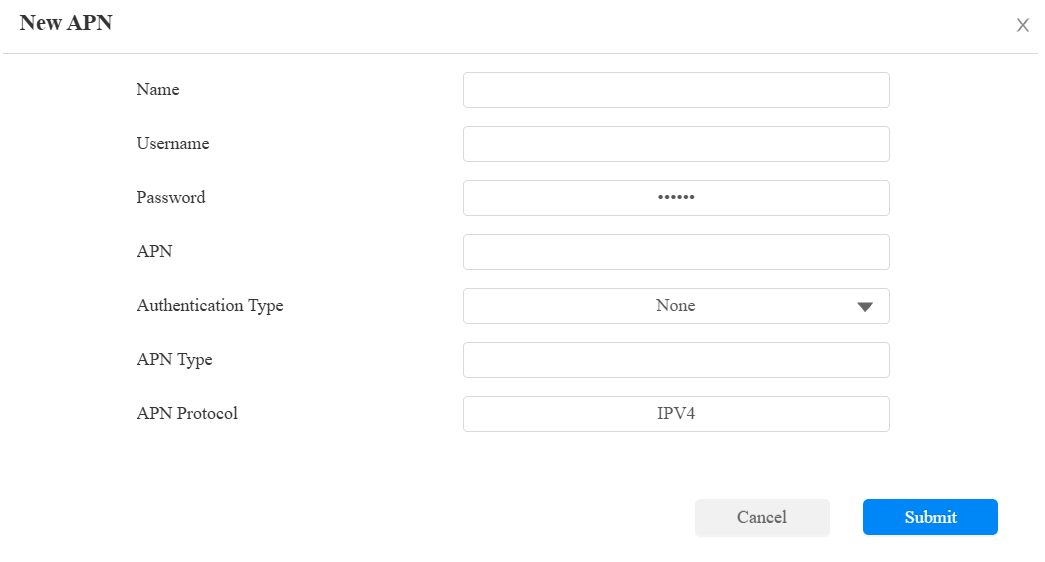
Access Point: Select the access point or click Add to add a new one.
Fill in the following information before clicking Save. These can be found from the network provider of your SIM card.
SNMP Setting
El Protocolo Simple de Gestión de Red (SNMP) es un protocolo para gestionar dispositivos de red IP. Permite a los administradores de red monitorizar dispositivos y recibir alertas para condiciones que llamen la atención. SNMP proporciona variables que describen la configuración del sistema, organizadas en jerarquías y descritas por Bases de Información de Gestión (MIBs).
To set it up, go to the Network > Advanced > SNMP interface.

Trusted IP: The allowed SNMP server address. It can be an IP address or any valid URL domain name.
Device Web HTTP Setting
Esta función gestiona el acceso a los sitios web del dispositivo. El dispositivo soporta dos métodos de acceso remoto: HTTP y HTTPS (cifrado).
To set it up, go to the Network > Advanced > Web Server interface.

HTTP Redirect: It is enabled by default, which means all HTTP requests will automatically be redirected to HTTPS. If it is disabled, the device's web interface can be accessed using HTTP directly.
VLAN Setting
Una Red de Área Local Virtual (VLAN) es un grupo lógico de nodos del mismo dominio IP, independientemente de su segmento físico de red. Separa el dominio de difusión de capa 2 mediante switches o routers, enviando paquetes etiquetados solo a puertos con IDs VLAN coincidentes. El uso de VLANs mejora la seguridad al limitar los ataques ARP a hosts específicos y mejora el rendimiento de la red al minimizar tramas de difusión innecesarias, conservando así ancho de banda para aumentar la eficiencia.
Set it up on the Network > Advanced > VLAN Setting interface.

Priority: The VLAN priority for the designated port.
VLAN ID: The VLAN ID for the designated port.