Device Network Configuration
Para garantizar un funcionamiento normal, asegúrese de que el dispositivo tenga su dirección IP correctamente configurada o obtenida automáticamente desde el servidor DHCP.
Check the network status on the web Status > Info > Network Information interface.
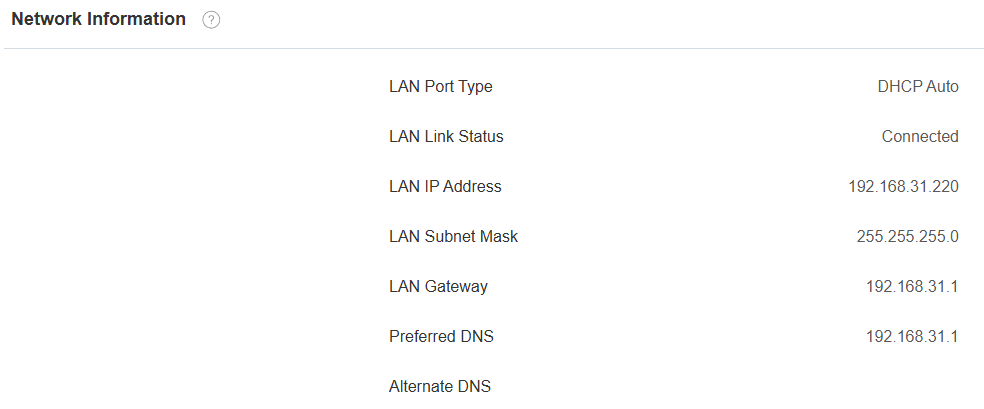
Set the network connection on the web Network > Basic interface.
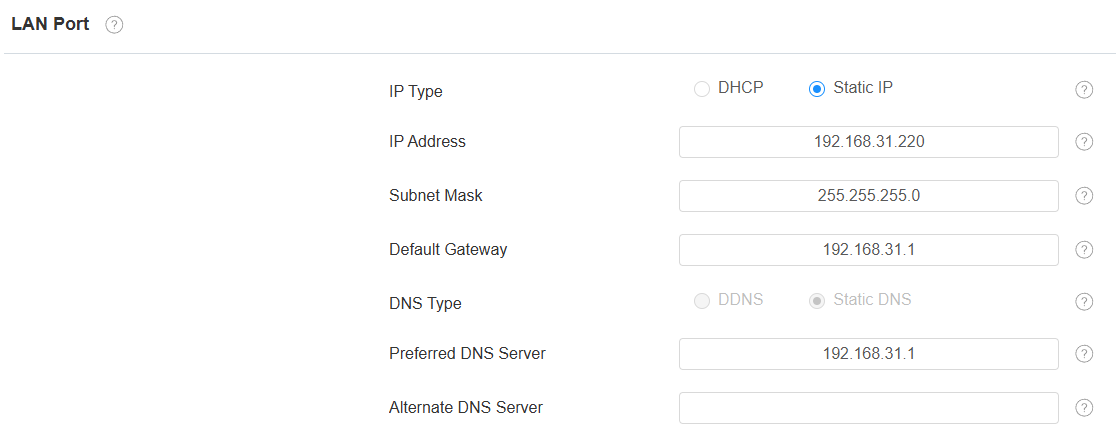
DHCP: DHCP mode is the default network connection. If the DHCP mode is selected, then the device will be assigned by the DHCP server with an IP address, subnet mask, default gateway, and DNS server address automatically.
Static IP: When static IP mode is selected, the IP address, subnet mask, default gateway, and DNS server address have to be manually configured according to the actual network environment.
IP Address: Set up the IP address when the static IP mode is selected. To access the device’s web settings with the IP, your computer should be on the same local network as the device.
Subnet Mask: A subnet mask tells your device which IP addresses are part of your local network and which ones are not. For example, if the subnet mask is 255.255.255.0, it means that devices with similar starting IPs (like 192.168.1.x) are in the same network.
Default Gateway: The gateway is like a bridge between your device and other networks, such as the internet. Usually, it’s the IP address of your router.
DNS Type: Domain Name System(DNS) type.
DDNS: Dynamic DNS. It is obtained automatically through the DHCP server.
Static DNS: When selected, you need to enter the DNS manually.
Preferred/Alternate DNS Server: Domain Name System(DNS) is the overall system or network that handles the translation of domain names (like www.example.com) into IP addresses (like 192.0.2.1), which computers use to identify each other on a network. The device connects to the alternate DNS server when the primary one is unavailable.
Device Local RTP Configuration
El Protocolo de Transporte en Tiempo Real (RTP) permite a los dispositivos transmitir datos de audio y vídeo a través de una red en tiempo real.
Para usar RTP, los dispositivos necesitan una variedad de puertos. Un puerto es como un canal de datos en una red. Configurando puertos RTP en tu dispositivo y router, puedes evitar interferencias de red y mejorar la calidad de audio y vídeo.
Set it up on the web Network > Advanced interface.

Starting RTP Port: Set the port value to establish the start point for the exclusive data transmission range.
Max RTP Port: Set the port value to establish the endpoint for the exclusive data transmission range.
Device Web HTTP Setting
Esta función gestiona el acceso a los sitios web del dispositivo. El dispositivo soporta dos métodos de acceso remoto: HTTP y HTTPS (cifrado).
Set it up on the Network > Advanced interface.

HTTPS Port: Specify the web server port for accessing the device web interface via HTTPS.
Device Deployment in Network
Para facilitar el control y la gestión de dispositivos, configura dispositivos de intercomunicación Akuvox con detalles como ubicación, modo de operación, dirección y números de extensión.
Set it up on the Network > Advanced interface.
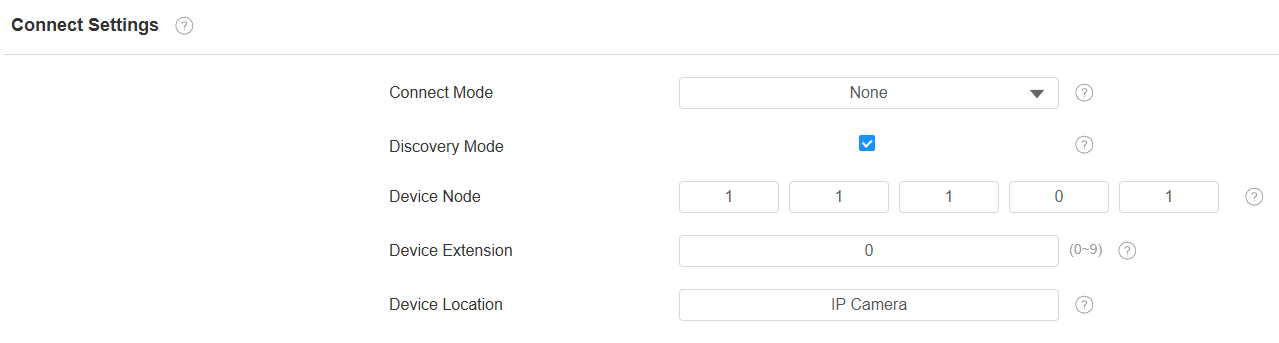
Connect Type: It is automatically set up according to the device connection with a specific server in the network, such as SDMC, Cloud, or None.
Ninguno: Ninguno es la configuración predeterminada de fábrica, lo que indica que el dispositivo no está en ningún tipo de servidor. Los dispositivos se conectan directamente entre sí o dentro de una red local (LAN) sin depender de servidores externos.
Nube: El dispositivo está conectado a SmartPlus Cloud, un sistema basado en la nube que simplifica la gestión del acceso a la propiedad. El modo Cloud permite que los dispositivos interactúen inteligentemente entre sí y con la aplicación móvil SmartPlus, haciendo copias de seguridad diarias y en diferentes hosts. Se adapta a proyectos que requieren un despliegue y gestión inteligentes, flexibles y seguros.
SDMC: El dispositivo está conectado al SDMC, una plataforma de gestión diseñada para proyectos locales. El modo SDMC gestiona y hace copias de seguridad de datos de forma remota en una red local. También cuenta con muchas características adecuadas para proyectos que requieren alta privacidad, menor coste y gestión centralizada.
Discovery Mode: Enabled by default. Available for None server mode. The device can be discovered by other devices in the network. When disabled, the device will be concealed and not discovered by other devices.
Device Node: Available for None server mode. It can be used to call the device. Specify the device address by entering device location information from left to right: Community, Building, Unit, Floor, and Room in sequence.
Device Extension: Available for None server mode. The device extension number ranges from 0 to 10.
Device Location: The location where the device is installed and used.
Allowed Scanning Whitelist
You can limit devices from scanning the camera on the same LAN to enhance security.
Set it up on the Network > Advanced interface.

NAT Setting
La Traducción de Direcciones de Red (NAT) permite a los dispositivos en una red privada usar una única dirección IP pública para acceder a internet u otras redes públicas. NAT guarda las direcciones IP públicas limitadas y oculta las direcciones IP internas y los puertos del mundo exterior.
Para registrar cuentas SIP en servidores de terceros en una Red de Área Amplia (WAN), necesitas activar la función RPort en los dispositivos de intercomunicación para establecer una conexión estable.
Set it up on the web Account > Advanced > NAT interface.

Enable RPort: Enable RPort when the SIP server is in a WAN.