Reboot
Reboot the device on the System > Upgrade interface. Click Reboot.
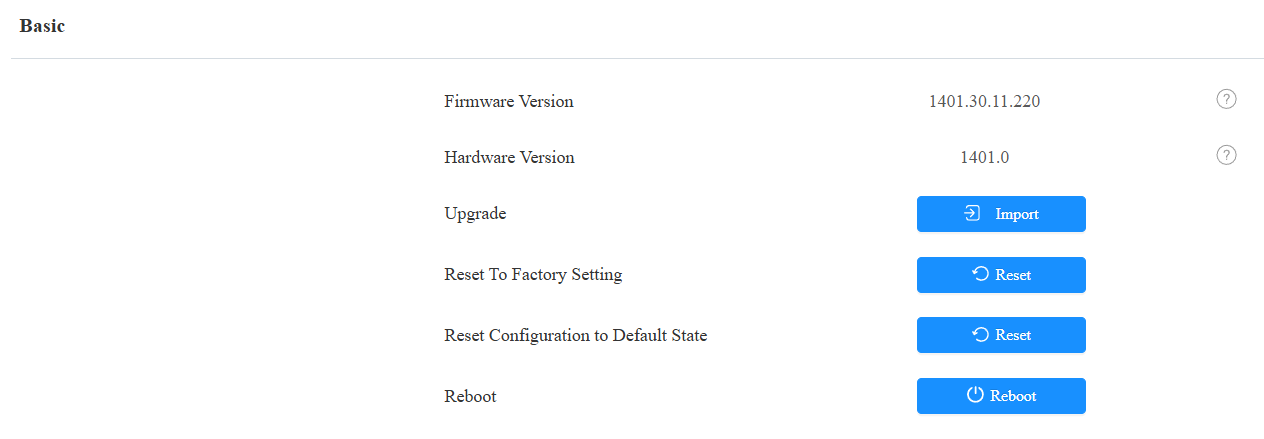
You can set up the reboot schedule on the System > Auto Provisioning > Reboot Schedule interface.

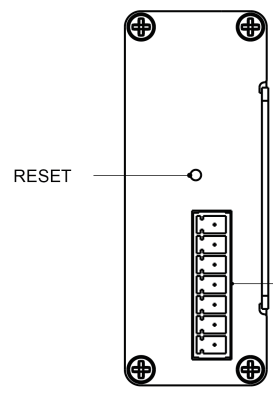
You can also reboot the device via a physical button.
Use a pin to press the button for about 6 seconds. The Status indicator light will turn off, and the device will enter reboot.
Reset
The device provides two reset options:
Reset to Factory Setting: Reset all data to the factory default.
Reset Configuration to Default State: Retain the user data, such as the RF cards, schedules, and door logs.
Reset the device on the System > Upgrade interface.
You can also reset the device via a physical button.
Use a pin to press the button for about 15 seconds. The Status indicator light will turn off, and the device will enter factory reset and reboot.