System Log for Debugging
Les journaux système peuvent être utilisés à des fins de débogage.
you can set up the function on the web Upgrade > Advanced > System Log interface.
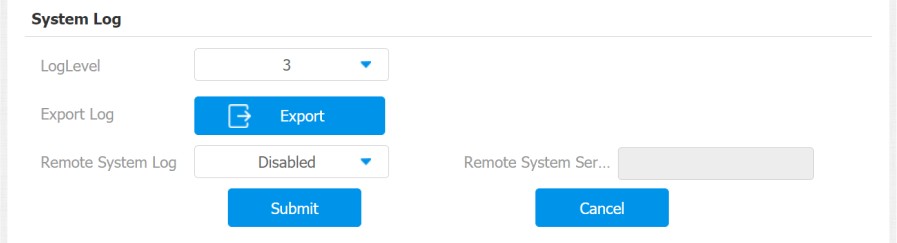
Parameter Set-up:
- LogLevel: select log levels from 1 to 7 levels. You will be instructed by Akuvox technical staff about the specific log level to be entered for debugging purpose. The default log level is 3, the higher the level is, the more complete the log is.
- Export Log: click the Export tab to export the temporary debug log file to a local PC.
- Export Debug Log: click the Export tab to export debug log file to a local PC.
- Remote System Log: select Enable or Disable if you want to enable or disable the remote system log.
- Remote System Server: enter the remote server address to receive the device. And the remote server address will be provided by Akuvox technical support.
PCAP for Debugging
Le PCAP est utilisé pour capturer le paquet de données entrant et sortant des appareils à des fins de débogage et de dépannage.
You can set up the PCAP on the device web Upgrade > Advanced > PCAP interface properly before using it.
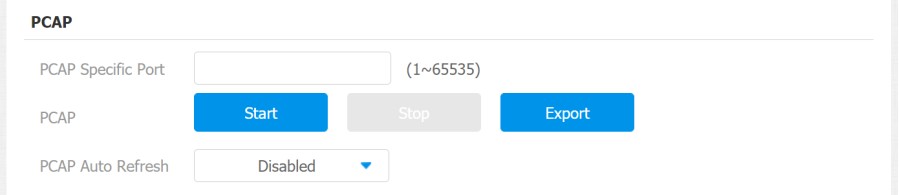
Parameter Set-up:
- Specific Port: select the specific ports from 1-65535 so that only the data packet from the specific port can be captured. You can leave the field blank by default.
- PCAP: click Start tab and Stop tab to capture a certain range of data packets before clicking Export tab to export the data packets to your Local PC.
- PCAP Auto Refresh: select Enable or Disable to turn on or turn off the PCAP auto fresh function. If you set it as Enable then the PCAP will continue to capture data packets even after the data packets reached their 50M maximum in capacity. If you set it as Disable the PCAP will stop data packet capturing when the data packet captured reaches the maximum capturing capacity of 1MB.
User Agent
L’agent utilisateur est utilisé à des fins d’identification lorsque vous analysez le paquet de données SIP.

Screenshots
Vous pouvez prendre une capture d’écran de l’écran spécifique de l’appareil pour aider au dépannage, etc.
To take screenshots, go to Upgrade > Advanced > Screenshots, then click Screenshots.
