Access Logs
You can search and check door logs on the device web Status > Access Log interface. You can also export door logs in CSV or XML files.
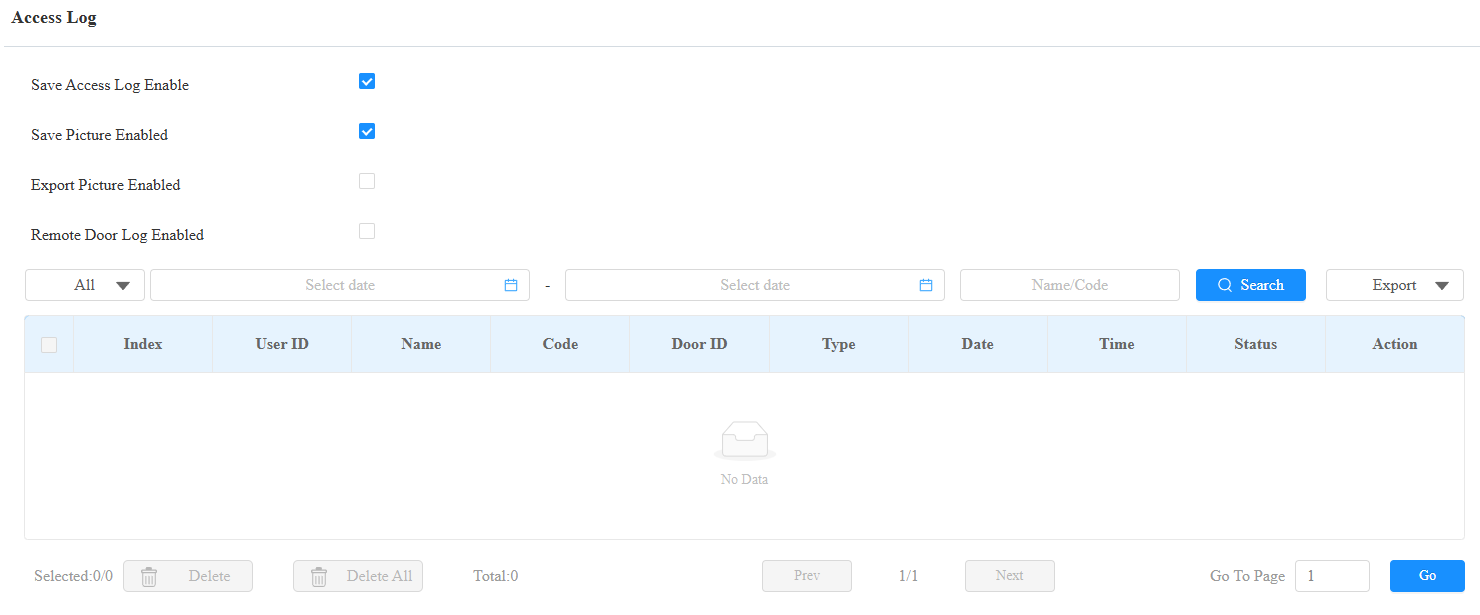
Save Picture Enabled: When enabled, the device will capture pictures of the door opening and you can click Picture in the Action column to view the screenshot.
Export Picture Enabled: Set whether to export the captured images when exporting the door logs.
Remote Door Log Enabled: Set the remote server to store the door logs.
Status: Success and Failed options represent successful door accesses and failed door accesses respectively.
Time: Select the specific period of the door logs you want to search, check, or export.
Name/Code: Search the log by the username or the PIN code.
Door ID: Display the door name.
Type: Display the access type such as Card.
Temperature Logs
You can search the check temperature logs on the Status > Temperature Log interface. You can also export temperature logs in CSV or XML files.
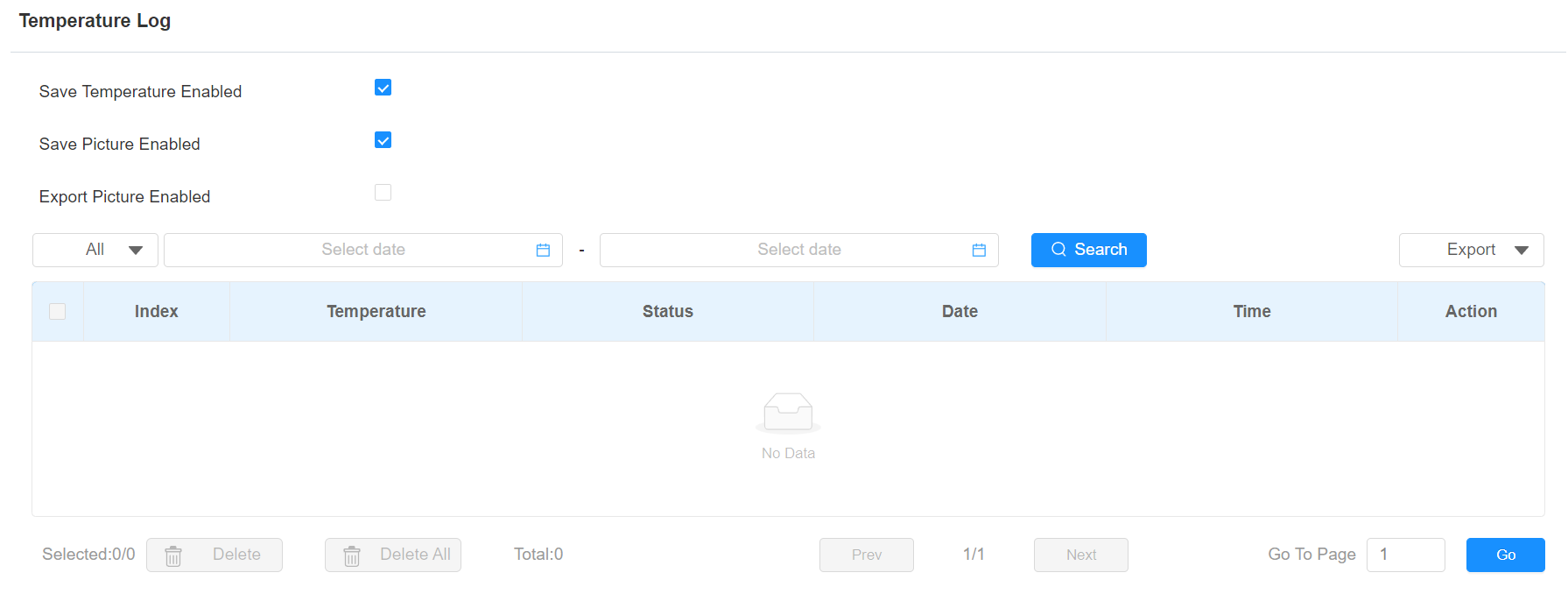
Save Picture Enabled: When enabled, the device will capture pictures of the temperature detection and you can click Picture in the Action column to view the screenshot.
Export Picture Enabled: Set whether to export the captured images when exporting the temperature logs.
Status: Display the normal, abnormal, or low-temperature status.
Temperature: Display the temperature data.
Event Logs
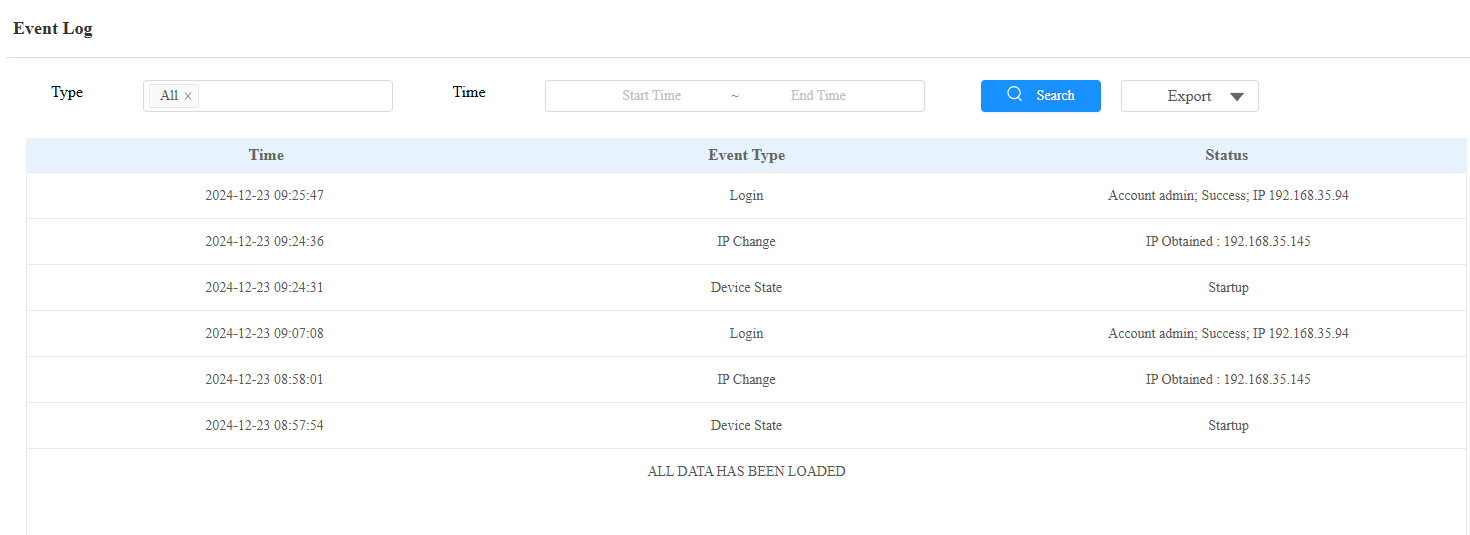
Les journaux d’événements enregistrent les événements clés tels que le changement de statut de l’entrée, le relais, l’alarme de manipulation, etc. Cela aide à suivre l’état et les changements de l’appareil.
You can check the event logs on the Status > Event Log interface. You can export the log in CSV format.