Your HyPanel Lux
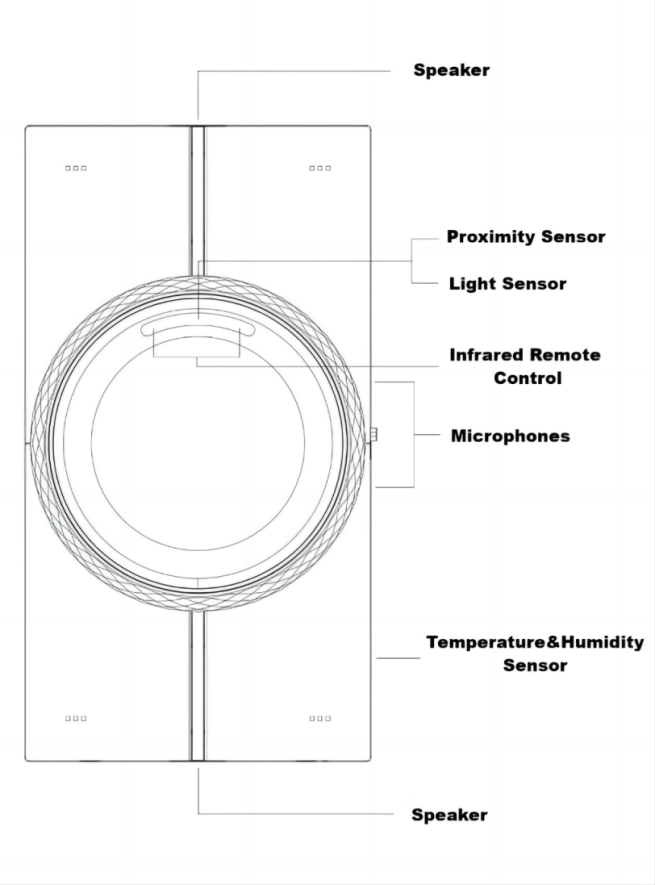
Knob
HyPanel Lux features a multifunctional knob designed for interactive control. Rotate the outer rim to navigate between screens, select options, and even control desired connected relay or automation scene. To customize its function, swipe down from the top edge of any screen, and tap  > System Settings > Button Control > Knob.
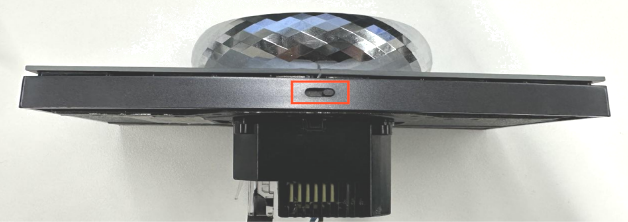
You can customize the rotating mode: a stepless, smooth rotation or a stepped, click-based rotation. To change between these options, toggle the physical switch on the device's long bottom edge.
RGB light ring
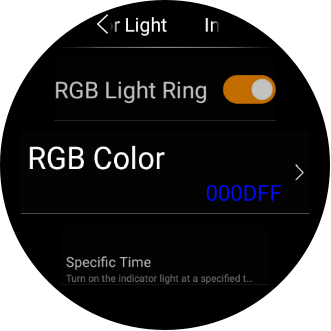
The display is surrounded by an RGB light ring that dynamically shifts its color to reflect device interactions. For example, it illuminates blue when you receive a call and changes to orange when an automation scene is activated.
To set the RGB light ring color in certain control scenarios, or to disable the color display of the light ring, swipe down from the top edge of any screen, and tap  > Display > Indicator Light > RGB Light Ring.
Physical buttons
Functions
The four physical buttons allows you to:
Open/close the desired relay or device connected to the HyPanel Lux.
Activate scenes with the manual condition.
Make SOS calls when your family’s emergency numbers are added and SOS feature are enabled.
For unconfigured buttons, simply press them to quickly access the button control screen.
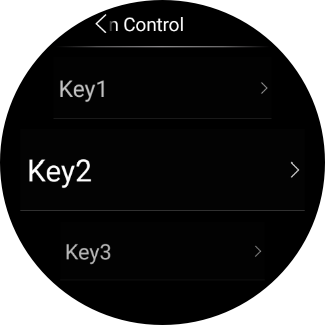
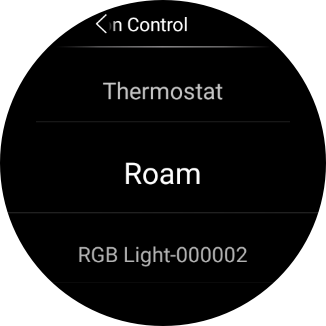
To customize or change the function of a key, swipe down from the top edge of any screen, tap > System Settings > Button Control, tap the desired key and select its function.
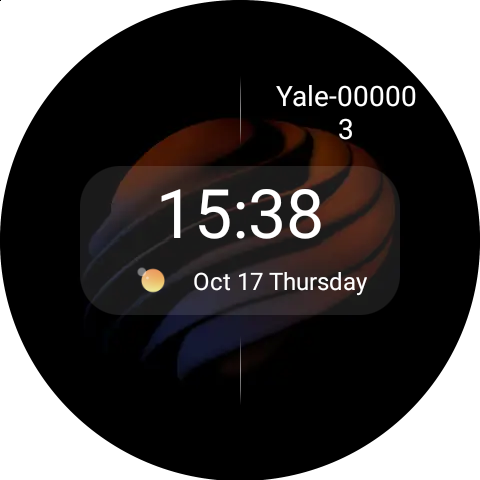
Once configured, a button function guide will appear and displays the configured functions.
Indicator lights
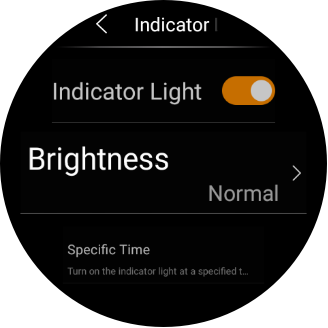
The indicator lights on the four buttons can be turned off, set to automatically turn on at a preset time, or have their brightness adjusted. To configure the indicator lights, tap > Display > Indicator Light.
The indicator light status varies according to different actions:
When pressed to open the designated device, the specific light shines brighter than others.
When pressed to close the designated device, the specific light dims to match the brightness of others.
When pressed to run the designated scene or when not configured, the specific light flashes twice slowly.
Home screen
If you’d like to control some frequently used devices and scenes quickly and easily, you can enable the HomePage function by accessing > System Settings > HomePage Settings. Here you can add up to 7 shortcuts for the quick control.
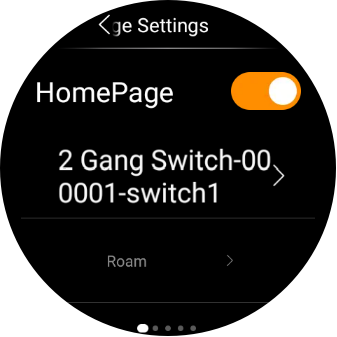
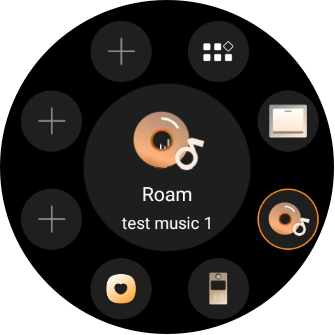
Functions screen
By default, the category tabs - Contacts, Devices, and Scenes - are visible on the Functions screen. When an application or a new type of device is added, a corresponding category appears here. Here are some examples:
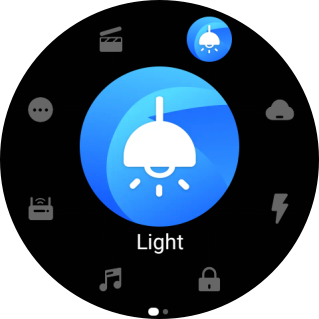
Lights: Lighting devices.
Climate: Shades, curtains, air quality monitors, air conditioners, thermostats, cooling/heating system, and more.
Electric: Switches, relays, and more.
Security: Sensors such as motion sensors, door phones, locks, cameras, and more.
Media: Speakers, TV, and more.
Gateway: akubela panels.
More: IR controllers, customized remotes, and more.
Control center
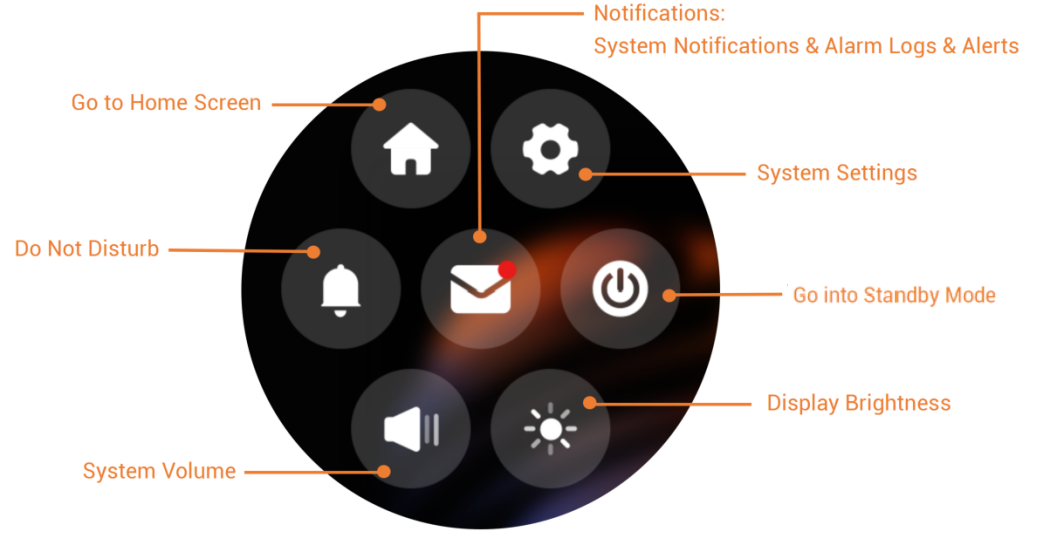
To open the Control Center (see below) for quick control, swipe down from the top edge of any screen.
Check the server status
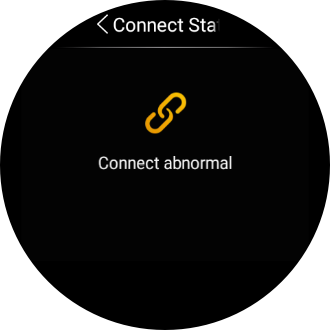
When you find some features do not work, you can firstly check if the server connection is normal.
Swipe down from the top edge of any screen, and tap
> System Settings > Connect Status.The status of your server connection will display in the center.
The screen that displays the following image indicates that your device is connected to the server already.
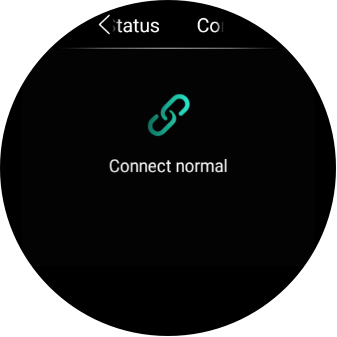
If it shows connection error, contact your service provider or akubela technical team for help.