Akuvox SmartPlus Cloud supports integration with the Dormakaba lock, allowing users to conveniently unlock the lock on their SmartPlus Apps.
To realize the integration, installers need to create the Dormakaba App account first, then add locks on the Dormakaba App, and assign locks to the desired projects on the SmartPlus platform.
Note
Currently, ONLY SmartPlus Ucloud(American Cloud) supports the integration.
For Installers
Create Dormakaba App Account
Log in to the SmartPlus platform with an installer account.
Click Integration on the left column.
Click User Guide on the right, and you can see the steps for adding the locks.
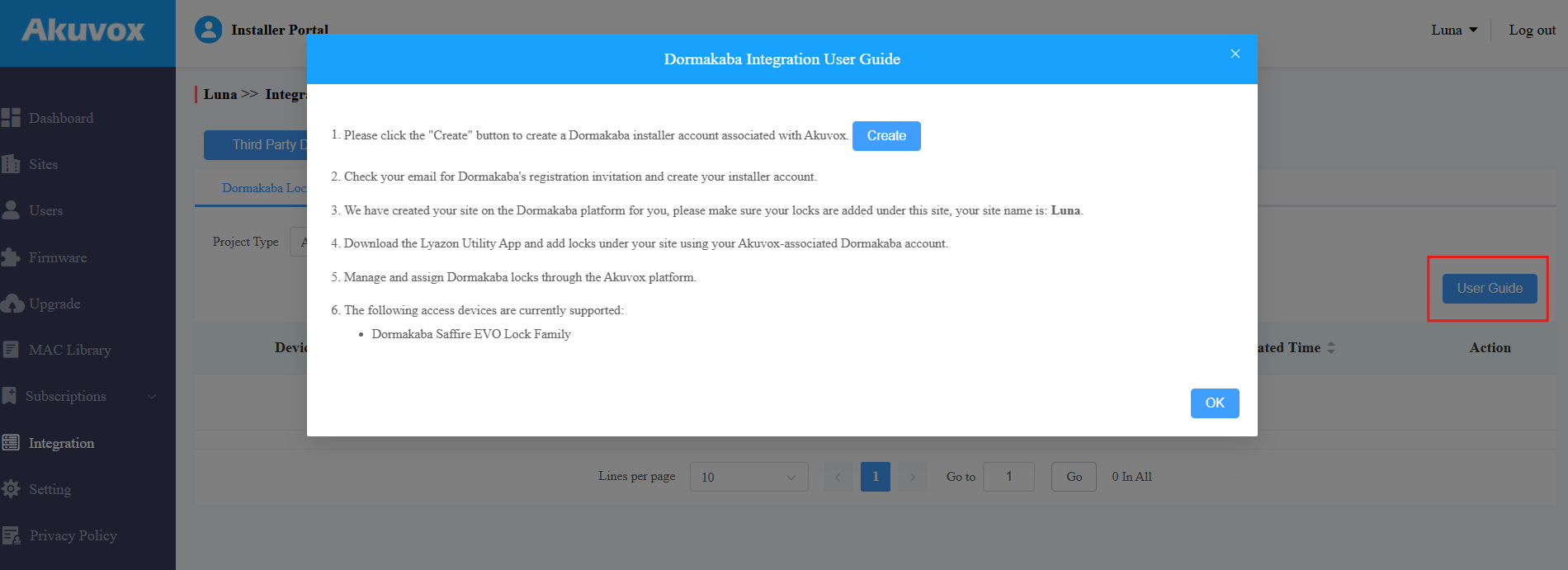
Click Create to create the Dormakaba installer account. Fill in the information. The email address is used to receive emails from Dormakaba.
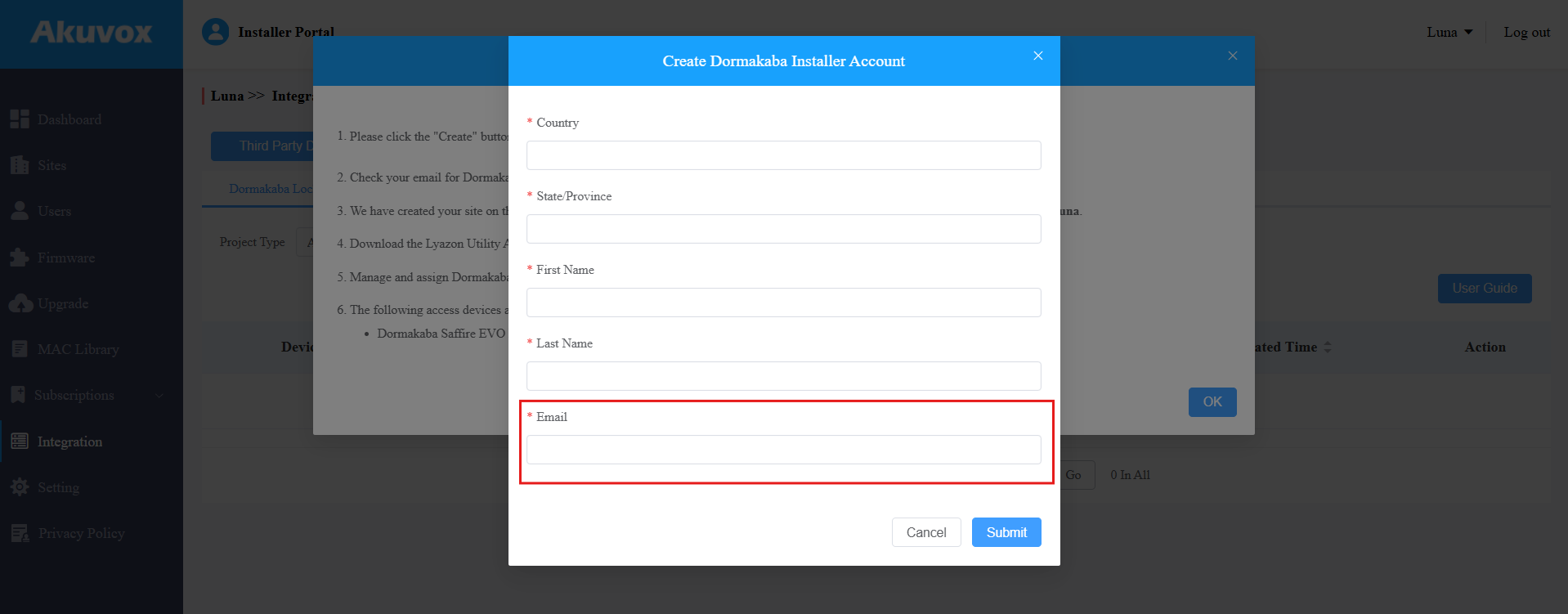
Click Submit, and you will receive the registration invitation email from Dormakaba.
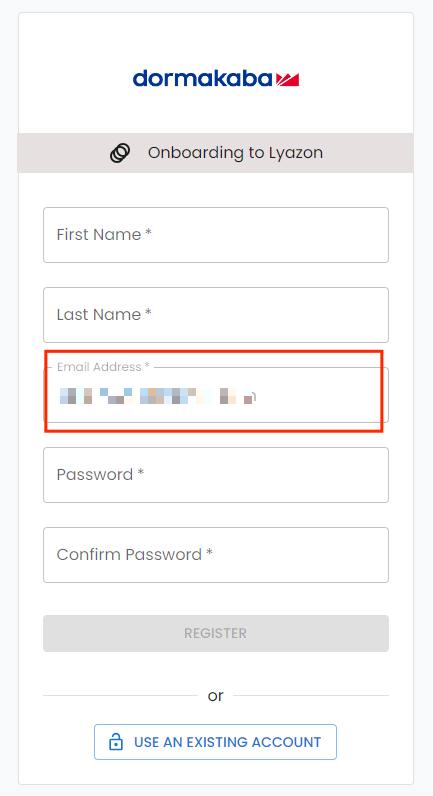
Enter the information to sign up for an account.
Note
The email address should be the same as the one used to apply for Dormakaba account on SmartPlus platform.
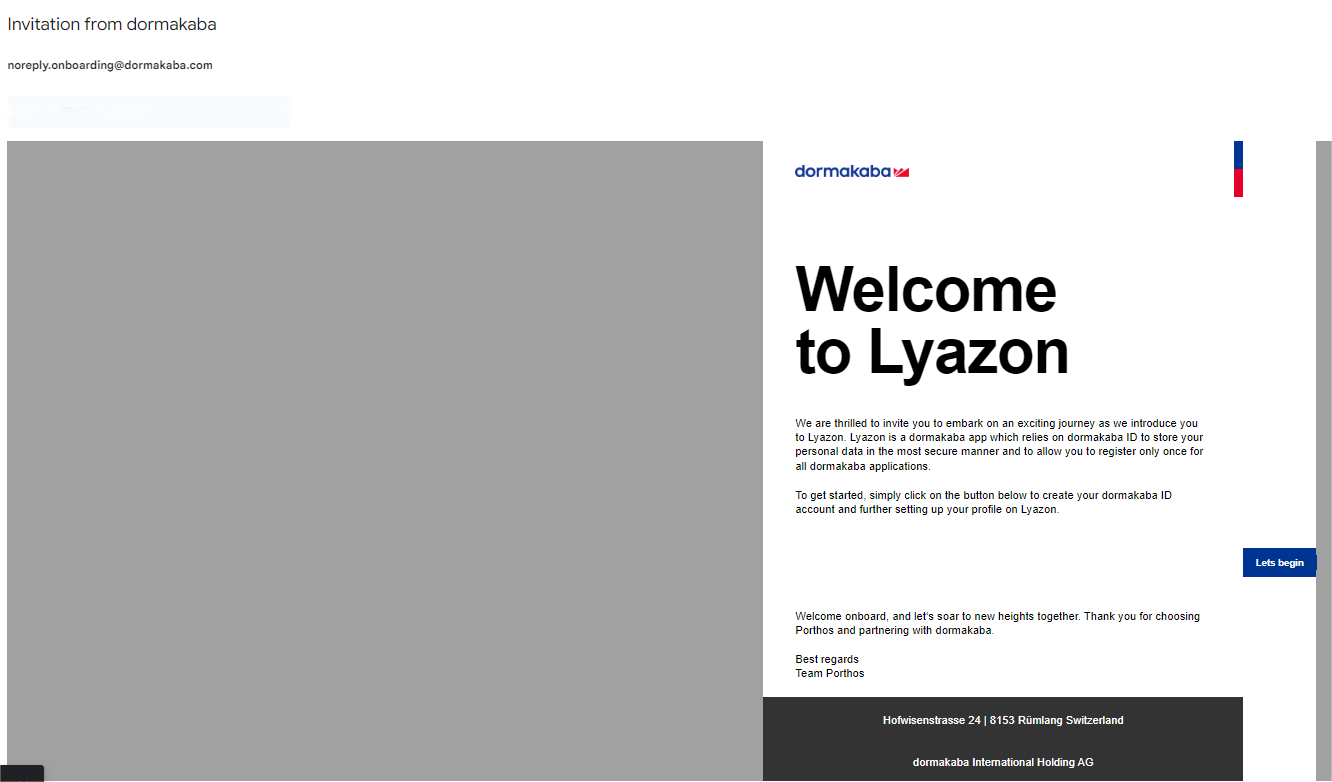
After registration succeeds, you will be informed to download the Dormakaba Layzon Utility App for locks management.
Enable Dormakaba Integration
After binding your installer account with the Dormakaba account, enable the integration on the project adding or editing interface.
For single-family project, after you create the Dormakaba account, a site named Single Family Site will be automatically created on the Dormakaba app.
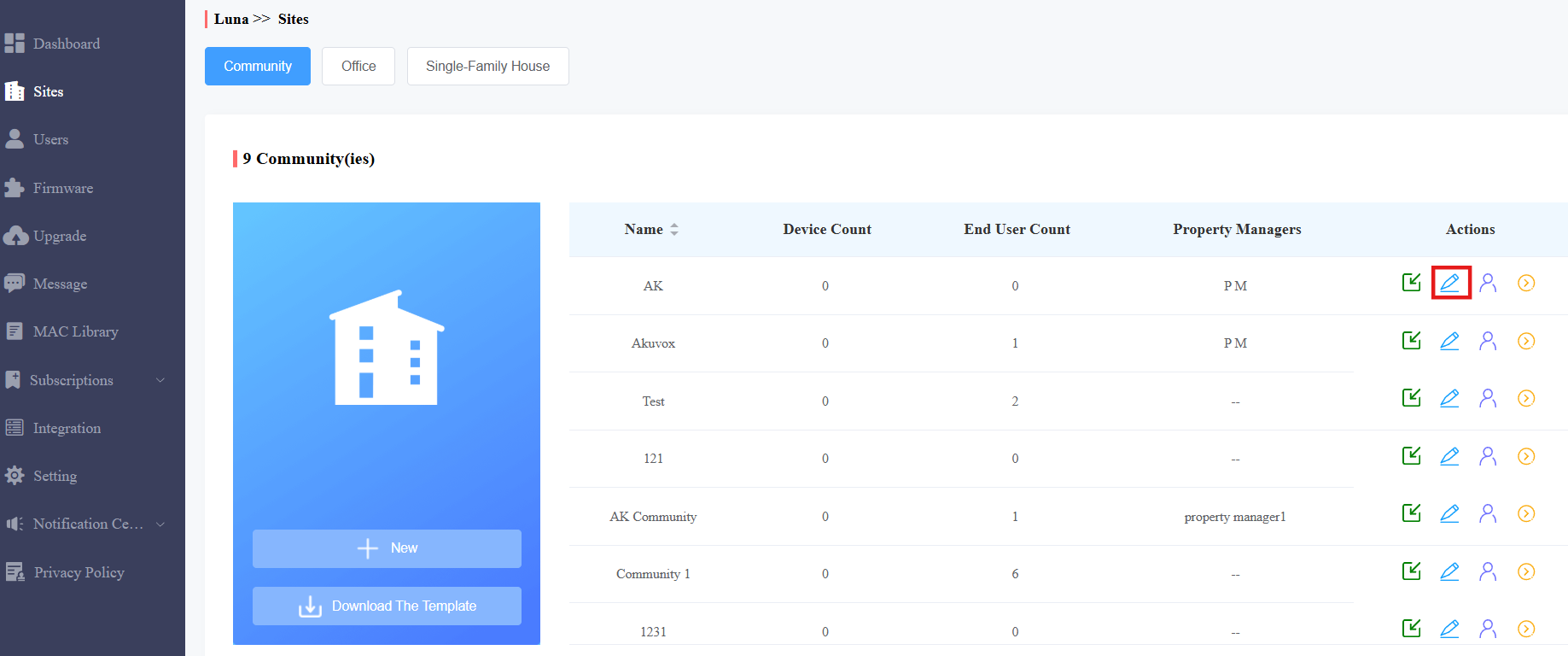
Click
 of the target project or click +New to create a new project.
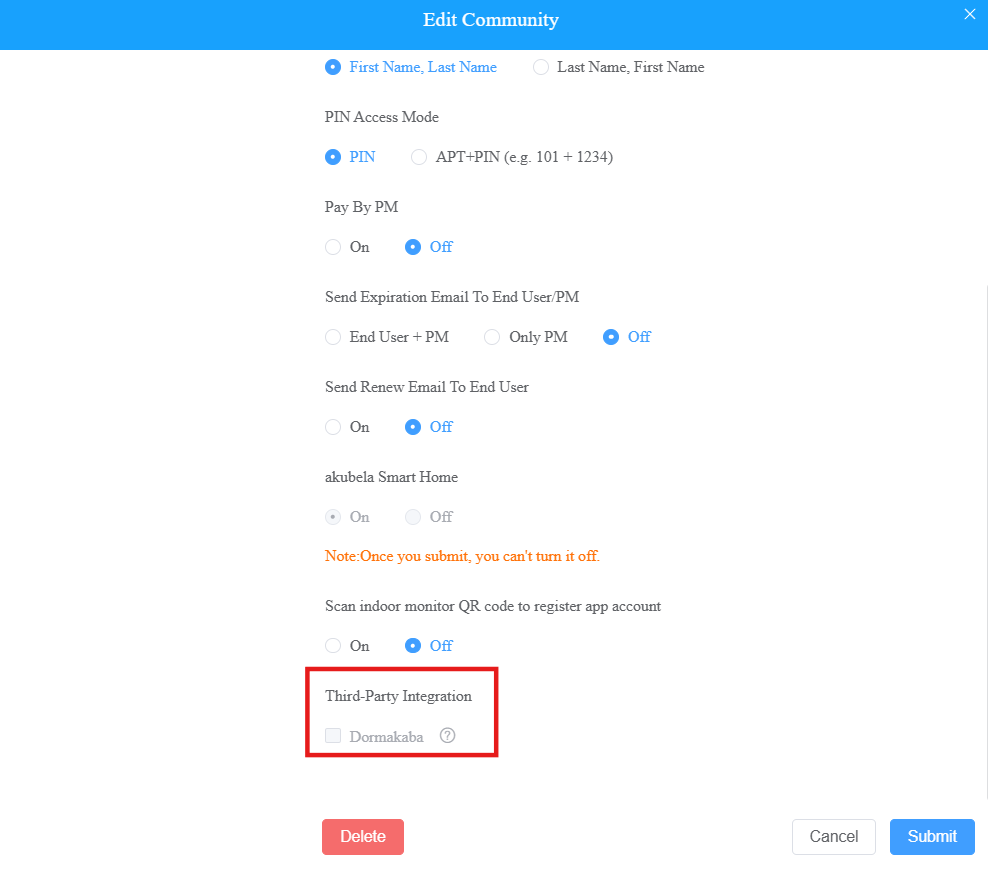
Scroll to the bottom on the Advanced Info page.
Check the Dormakaba option.
Click Submit.
After turning on the integration, a site with the same name as the community will be added automatically to your Dormakaba account.
Add Locks on Dormakaba App
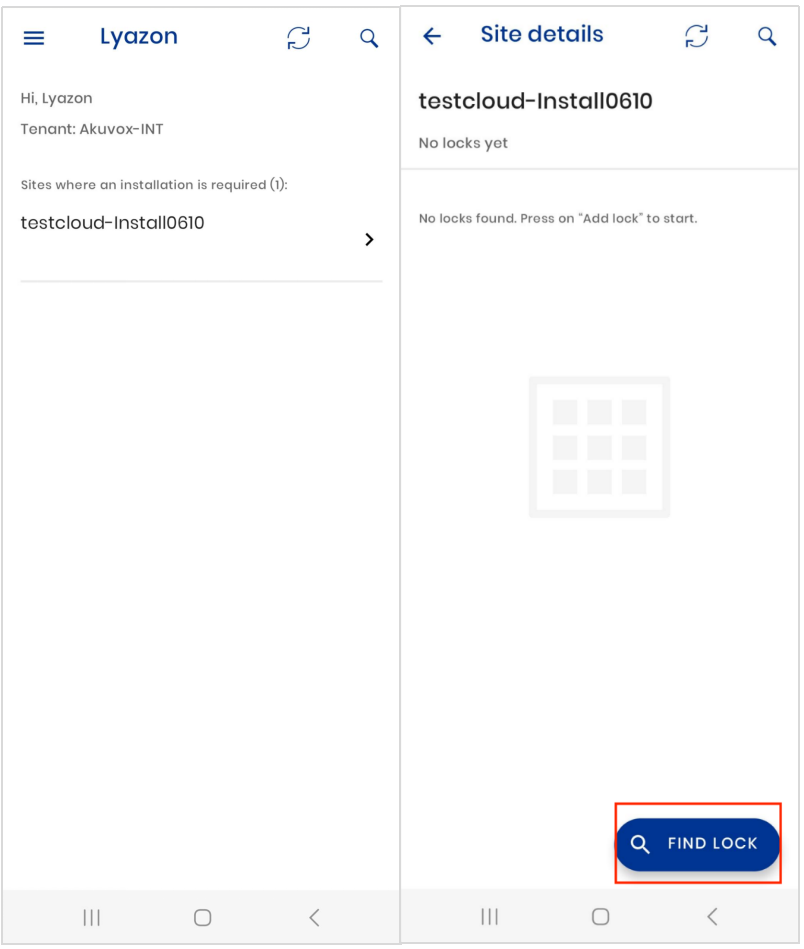
Log in to the Dormakaba Layzon Utility App with the account that is registered.
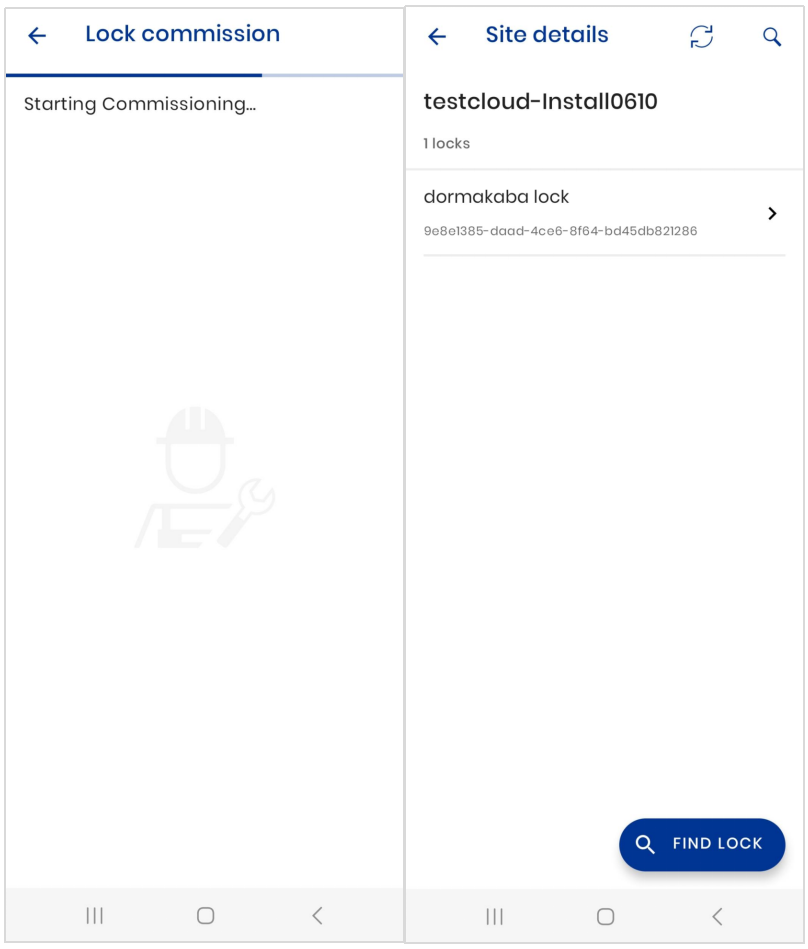
Find the site with the same name as the target community or the Single Family Site.
Tap Find Lock to add locks.
Enter *#*# on the target lock, and it will be searched by the App and displayed in the list. Or, you can tap Show All to display all locks via Bluetooth detection.
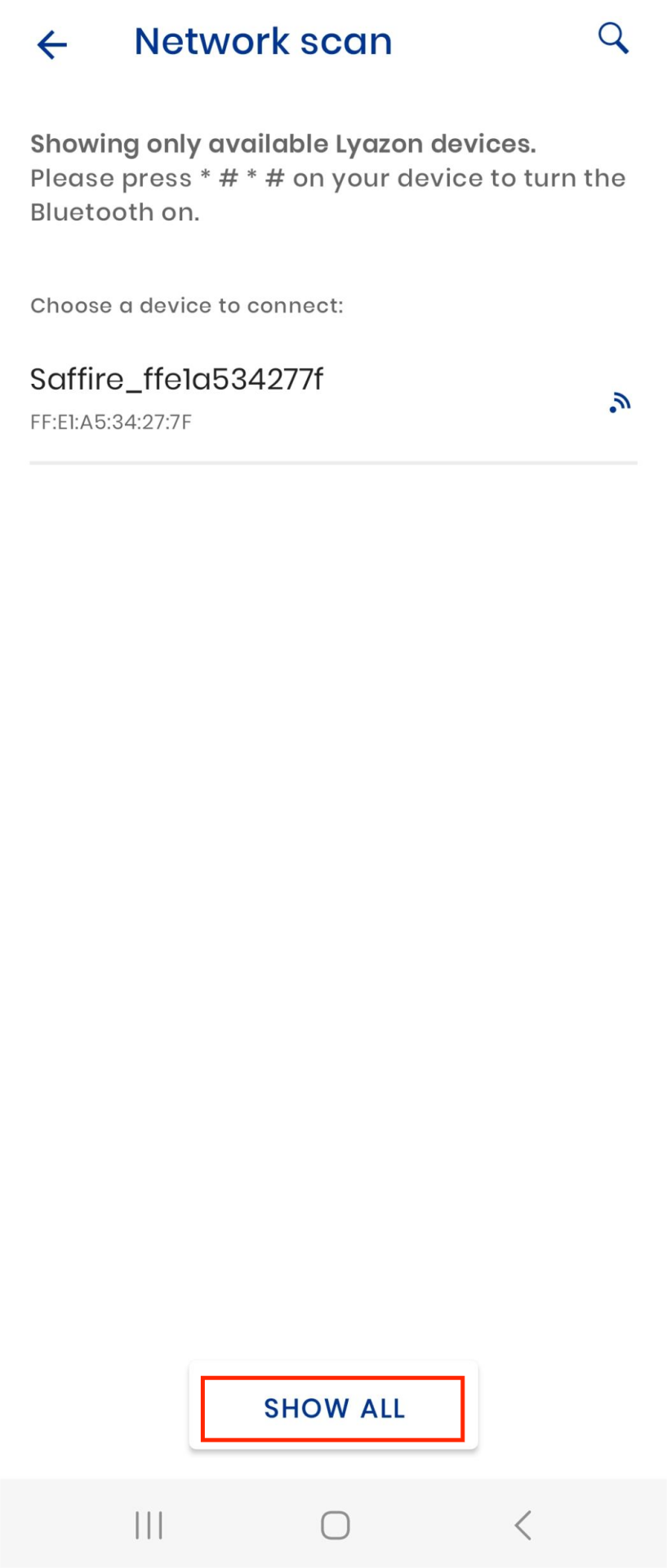
Follow the on-screen instructions to finish adding locks.
Assign Locks on the SmartPlus Platform
Click Integration on the left column.
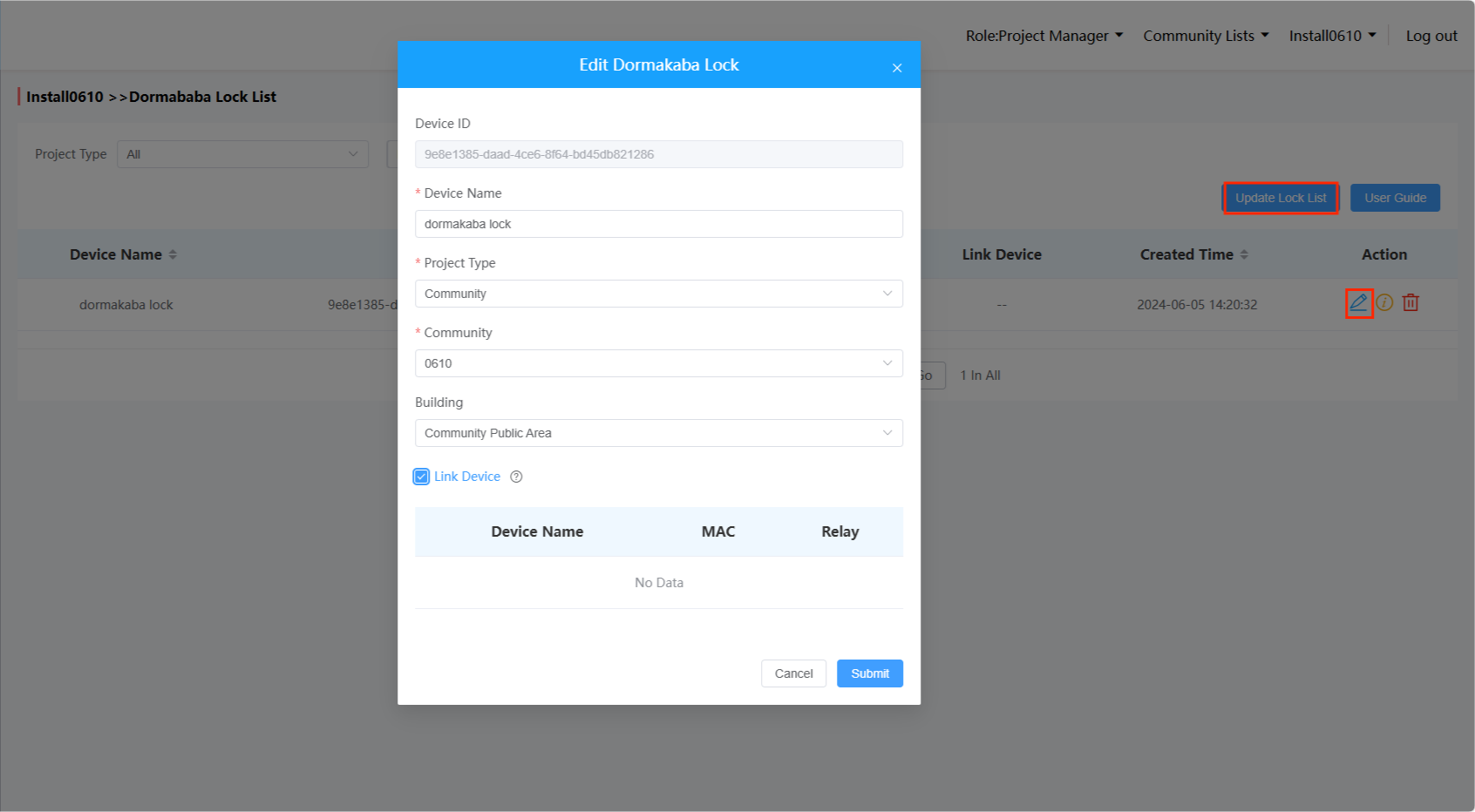
Click Update Lock List to display the latest added locks.
Click
 to assign the lock to a specific apartment, building, or area.
 You can also link the lock to an Akuvox door phone. After linking, the lock will be displayed on the door phone’s Relay list instead of the homepage of the SmartPlus App. It will be unlocked each time with the relay trigger.
See the compatible model and version chart below.
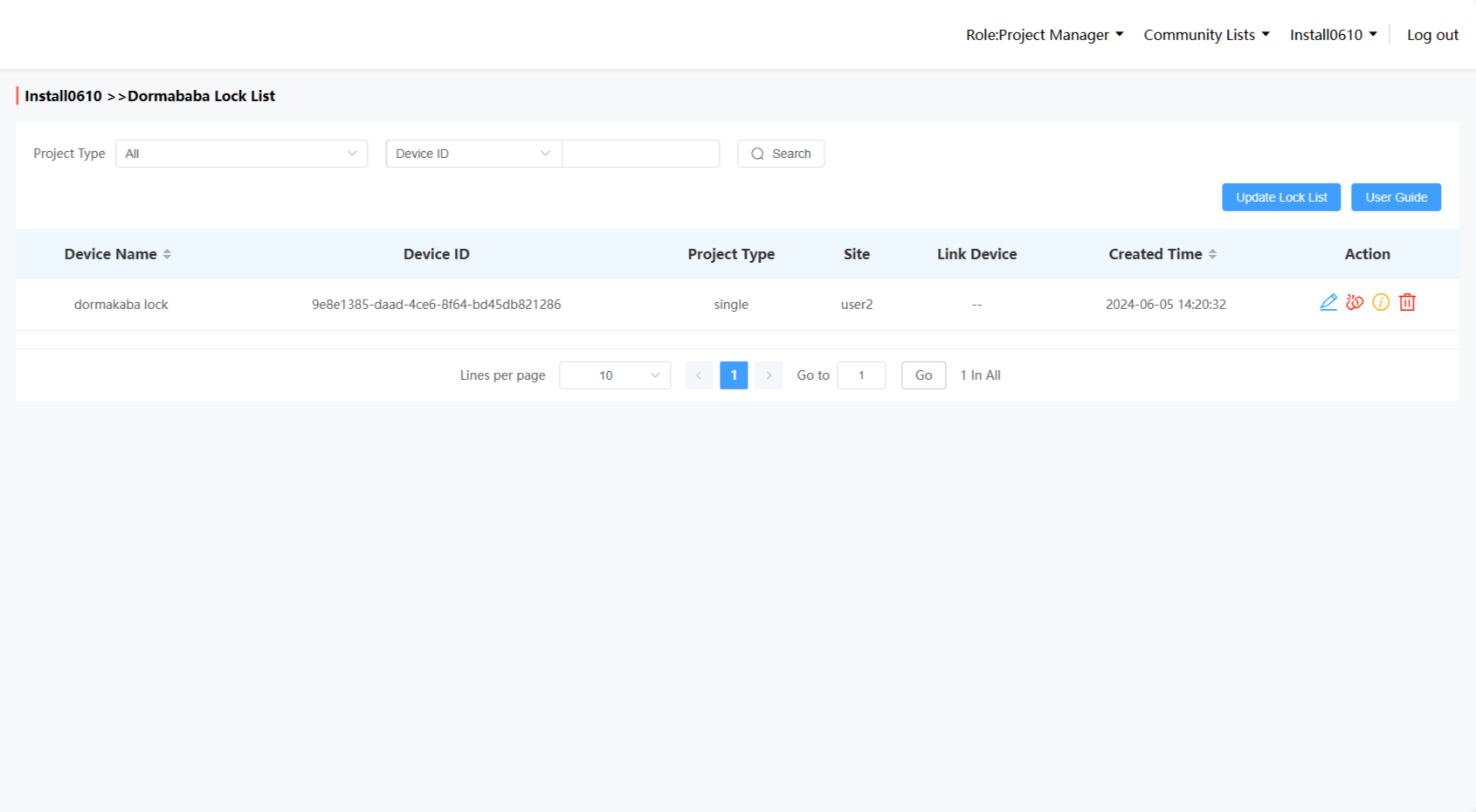
After assigning the lock to a project, you can
click
 to unbind it from the project.
click
 to delete the lock. It will also be deleted from the Dormakaba App. You need to add the lock again for using it.
click
 to view the lock’s information.
Compatible Model and Minimum Version
Model | Firmware Version | Model | Firmware Version |
|---|---|---|---|
S539 | 539.30.10.213 | S532 | 532.30.10.228 |
X912 | 912.30.11.49 | X915 V2 | 2915.30.10.202 |
X916 | 916.30.10.210 | R29 | 29.30.10.306 |
R28 V2 | 228.30.10.135 | R25A | 25.30.10.22 |
E16 V2 | 216.30.0.48 | E16 V3 | 416.30.11.206 |
R20 V5 | 320.30.10.125 | E18 | 18.30.4.29 |
A094 | 92.30.10.112 | E12 V2 | 312.30.2.104 |
A05 V2 | 205.30.10.104 | A08 | 108.30.10.120 |
A02/A01 | 101.30.10.108 | A03 | 103.30.10.111 |
S535 | 535.30.10.233 | X910 | 2910.30.11.28 |
R25K | 25.30.10.117 | A095 | 95.30.10.110 |
S538 | 538.30.10.705 | A15 | 1115.30.10.407 |
Check the Assigned Locks
After adding the Dormakaba lock, you can check its information and unbind it in a specific project.
In a Single-tenant Project
Go to a specific single-family site and click
 of the desired user.
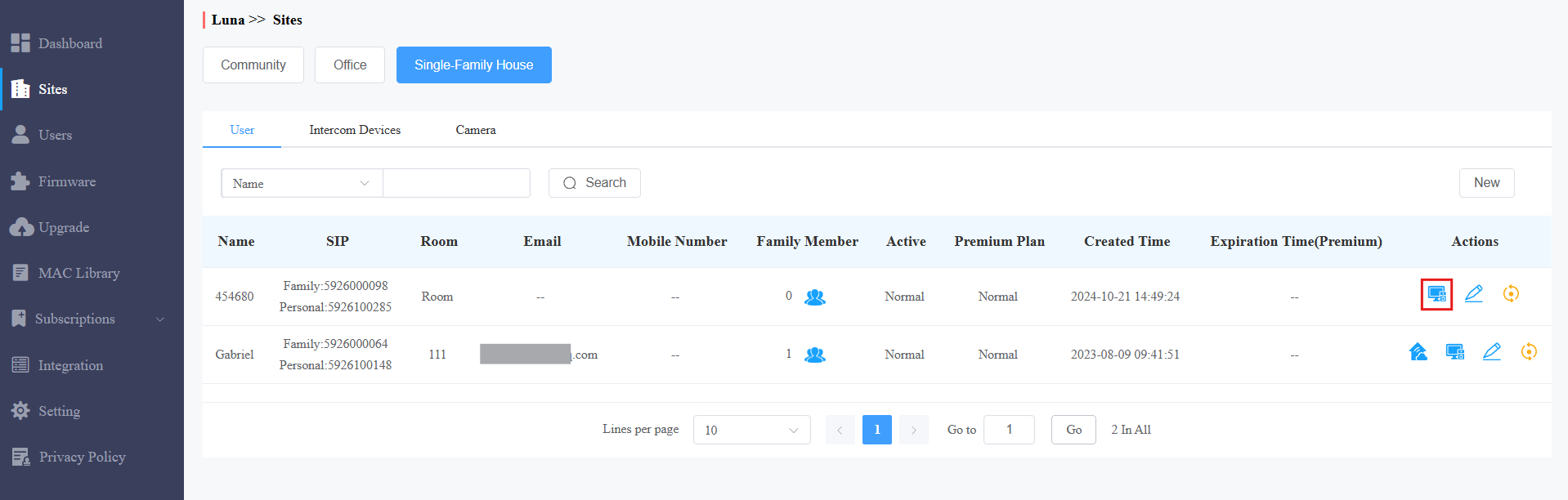
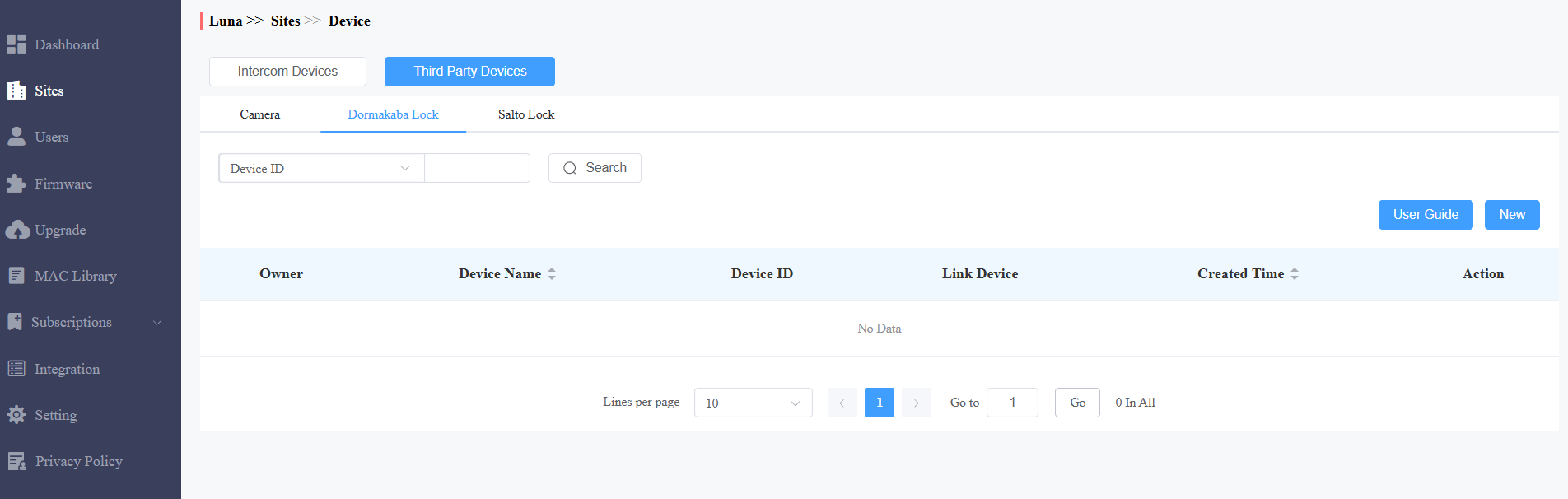
Click Third Party Devices.
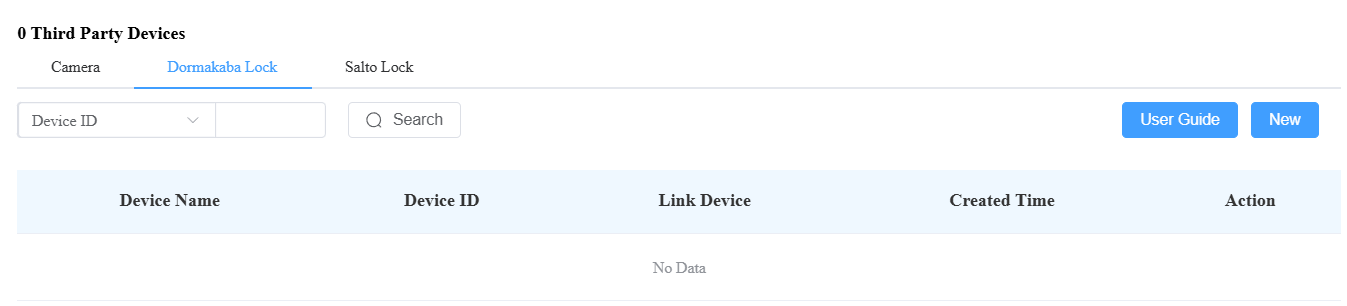
Click Dormakaba Lock where the assigned locks will be displayed.
You can click New to assign the added lock to the site.
In a Community Project
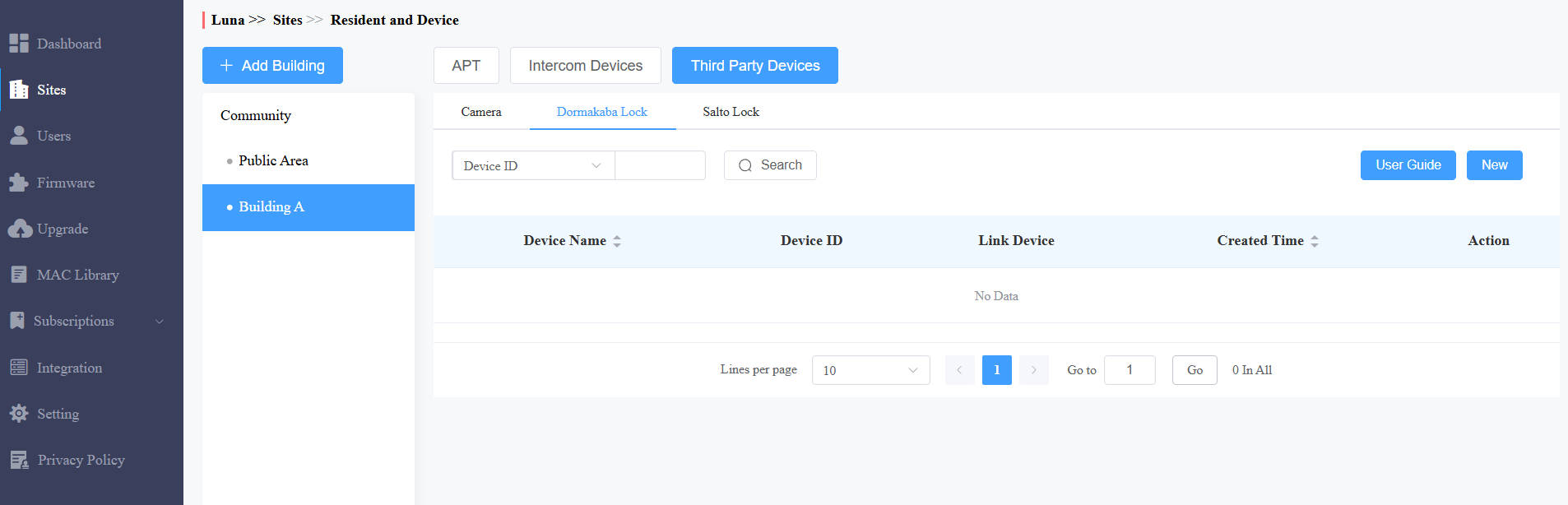
Click the desired area or building.
Click Third Party Devices and select Dormakaba Lock where the assigned locks will be displayed.
You can click New to assign the added lock to the area/building.
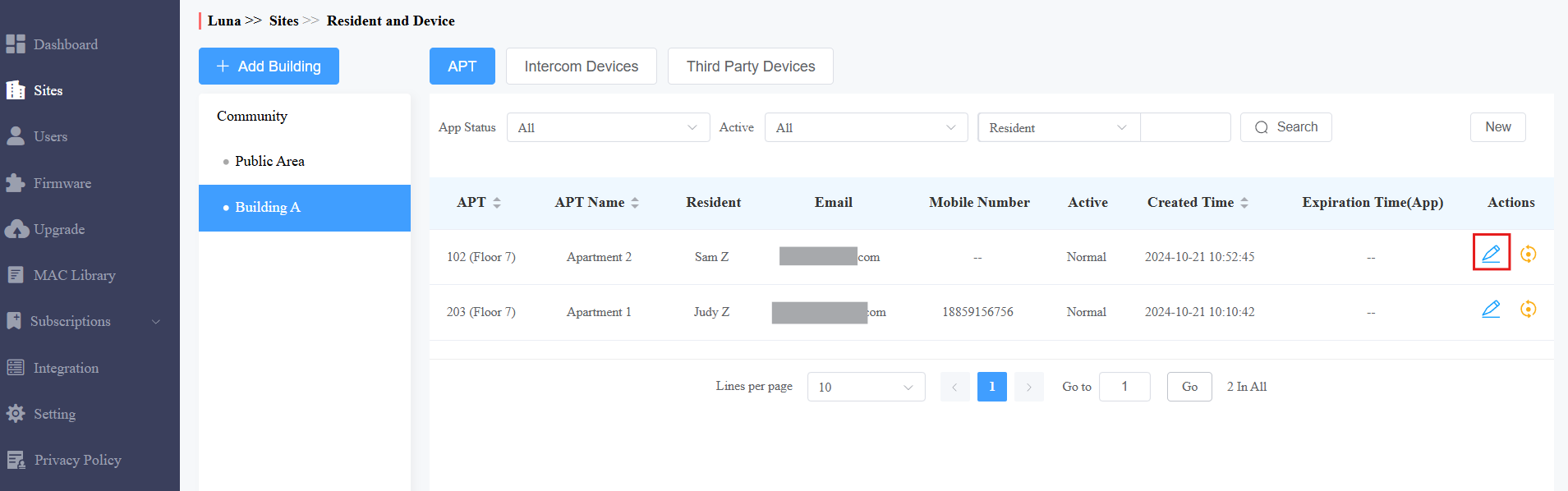
If the lock is assigned to a specific user, click
of the user and scroll to the Third Party Devices section.
Pay for the Integration
The integration requires payment.
For community projects, you can pay for it if the project charge mode is By Installer which is selected when you create the community.
For single-house family projects, you need to be granted permission by your distributor to pay fees.
Click Subscription on the left column.
Select the project type and click Activate.
Select the target project and choose Third Party Lock service type.
Check the desired item.
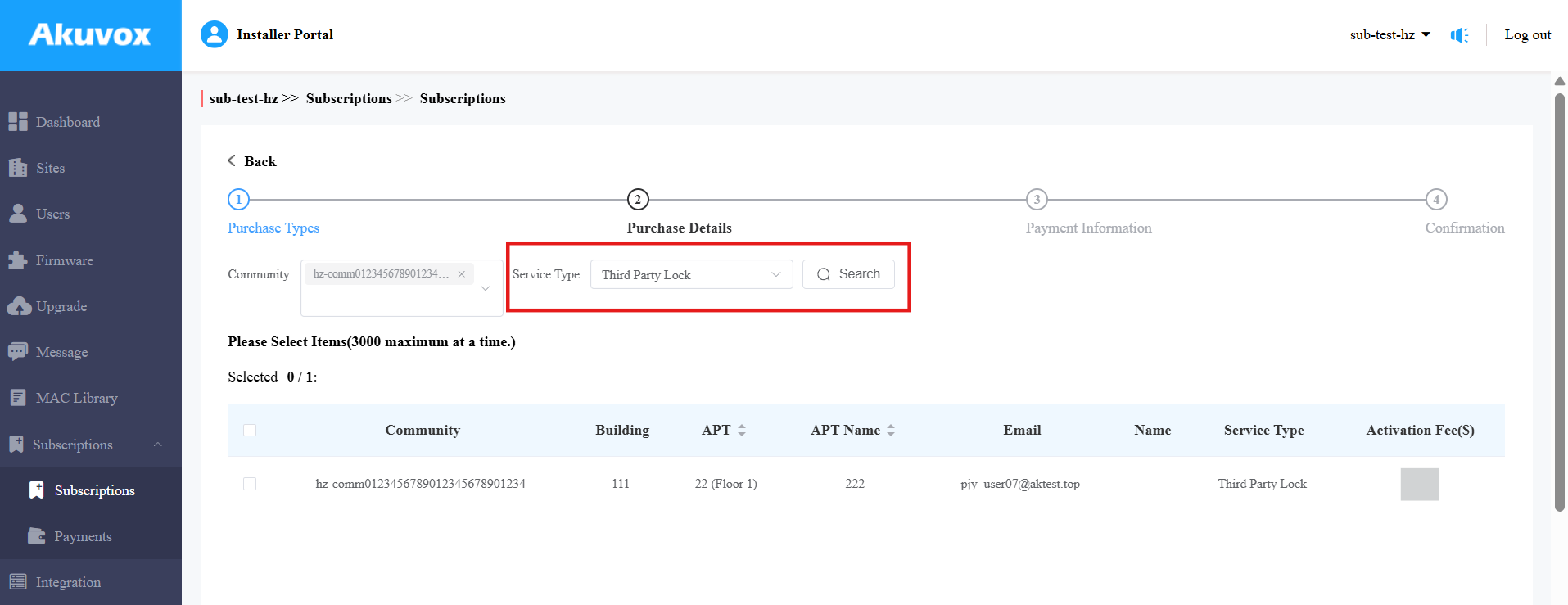
Click Next and complete the billing information.
Click Pay, and follow the on-screen instructions to finish the payment.
After the activation, a notification email will be sent to property managers(community projects) or end users(single-house family project).
For Property Managers
After installers assign locks to projects, you can manage locks.
Pay for the Integration
If your installers have set the Charge Mode to By Property Managers, you need to pay for the integration before using the locks.
If the Charge Mode is By Installer, the Subscription module will be hidden on the SmartPlus property manager web portal.
Log in to the SmartPlus platform with a property manager account.
Click Subscription on the left column.
Click Activate.
Choose Third Party Lock service type.
Check the desired item.
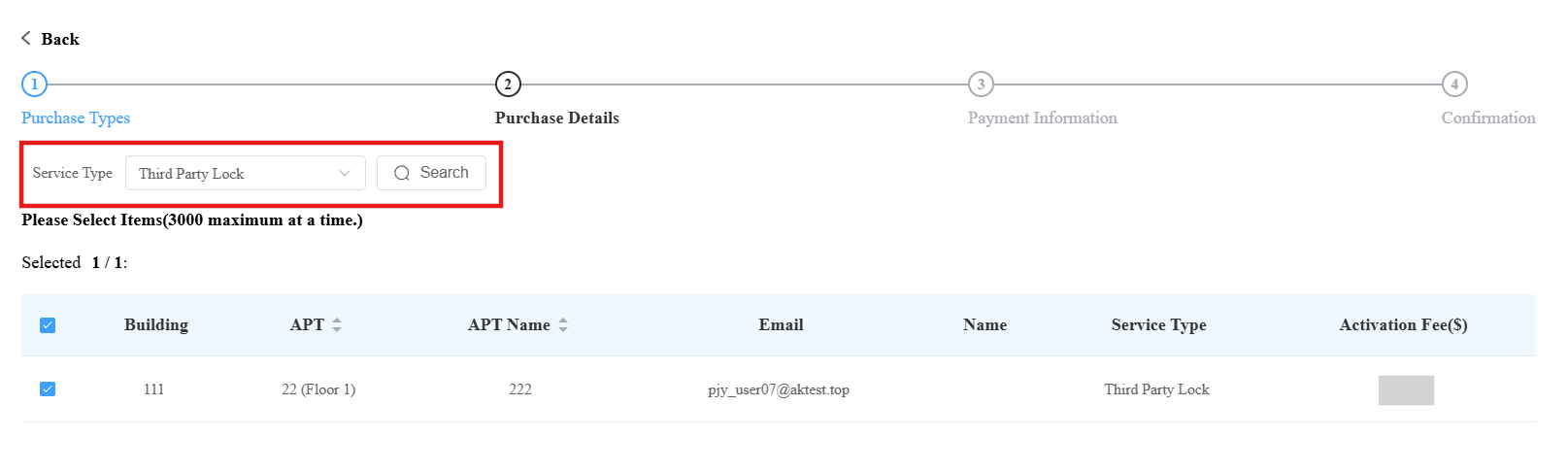
Click Next and complete the billing.
Click Pay, and follow the on-screen instructions to finish the payment.
After the activation, a notification email will be sent to you.
Check and Set up Locks
Click Devices on the left column.
Click Third-party Devices > Dormakaba Lock.
You can:
check the lock’s information;
view the details by clicking
 ;
;modify the lock name by clicking
 .
.

Sync User PIN and RF Card to Open Locks
You can control whether to synchronize user PIN and RF card to open Dormakaba locks. Once enabled, users can directly open locks with their PINs and RF cards created by you on the SmartPlus Cloud.
To enable the feature, click Settings on the left column.
Click Advanced Setting.
Check the Dormakaba option.
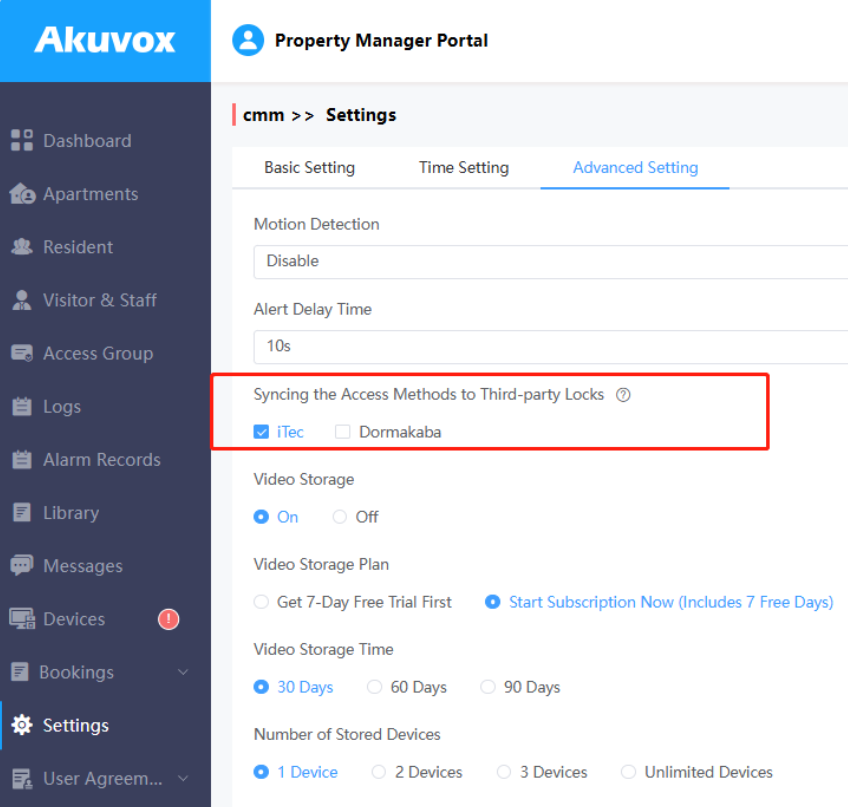
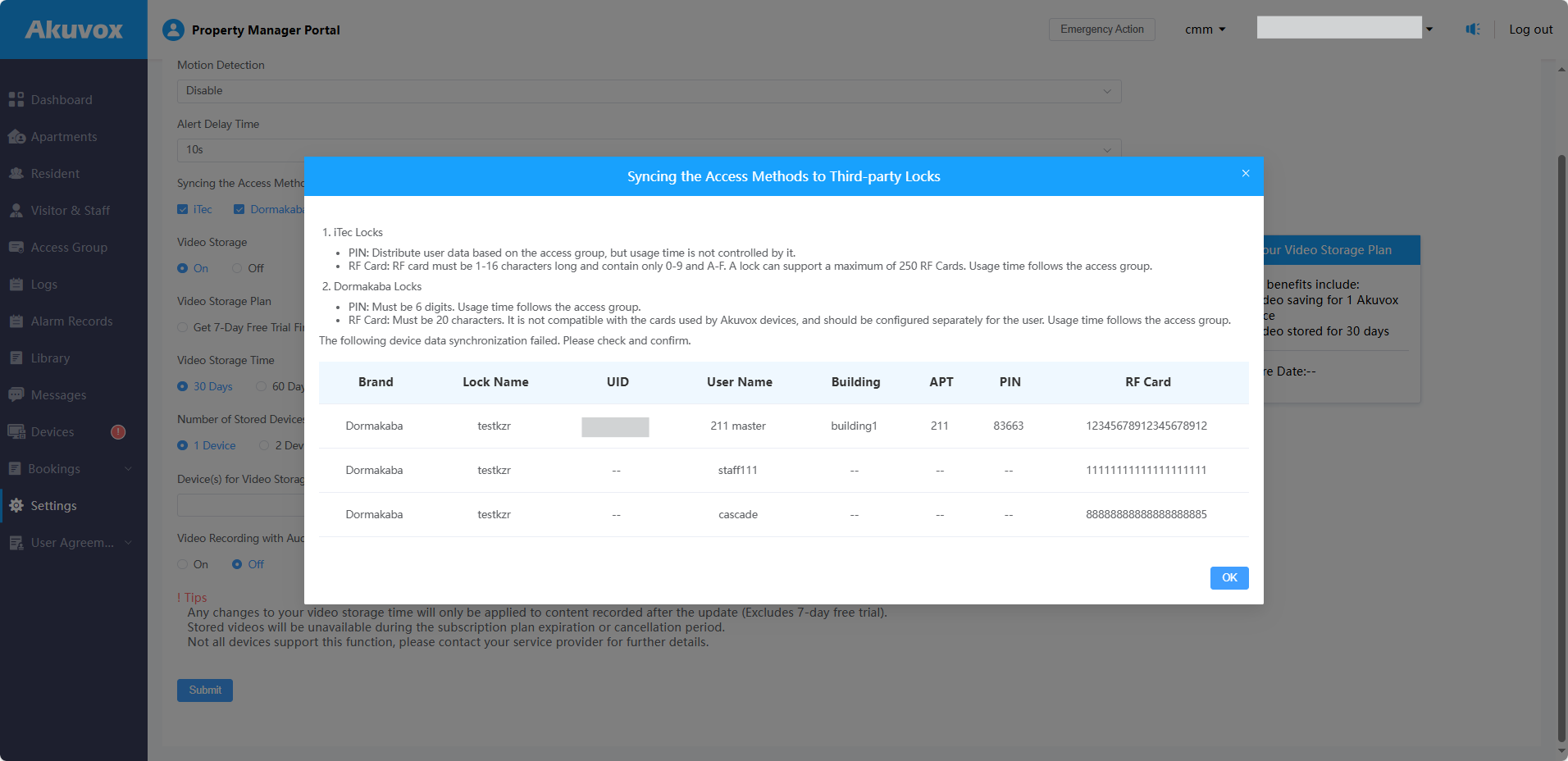
Click Submit to start the synchronization. It may take a few seconds.
After the progress reaches 100%, the failed synchronization will display.
Note
PIN: Must be 6 digits.
RF Card: Must be 20 characters.
Open Locks with the SmartPlus App
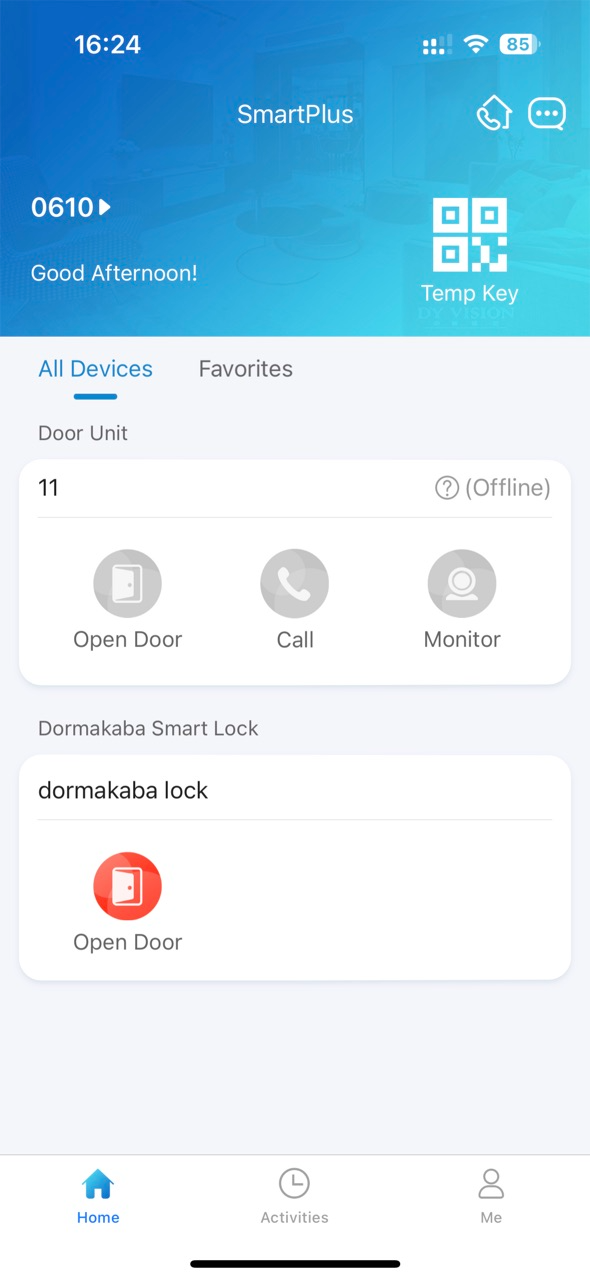
You can open locks that are used in the public area.
Tap Open Door on the homepage when it is not linked to a door phone.
When it is linked, tap Open Door of the linked door phone to open the lock. The lock can also be opened when you tap Unlock during monitoring and calling.
For End Users
You can unlock and manage Dormakaba locks with SmartPlus Apps after installers assign the locks.
Note
SmartPlus App with the version 7.10.0008(Android)/7.10.9(iOS) or higher support the feature.
Unlock the Lock
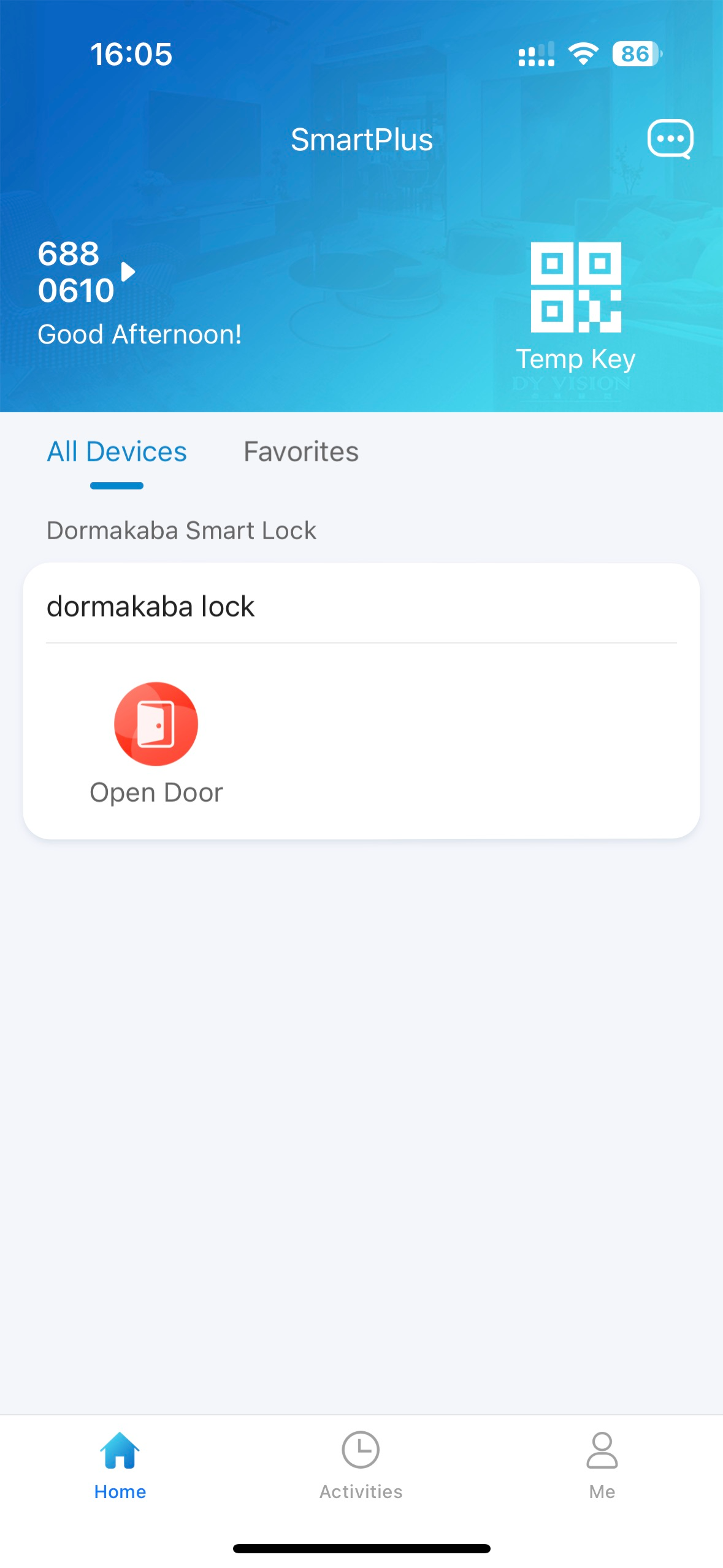
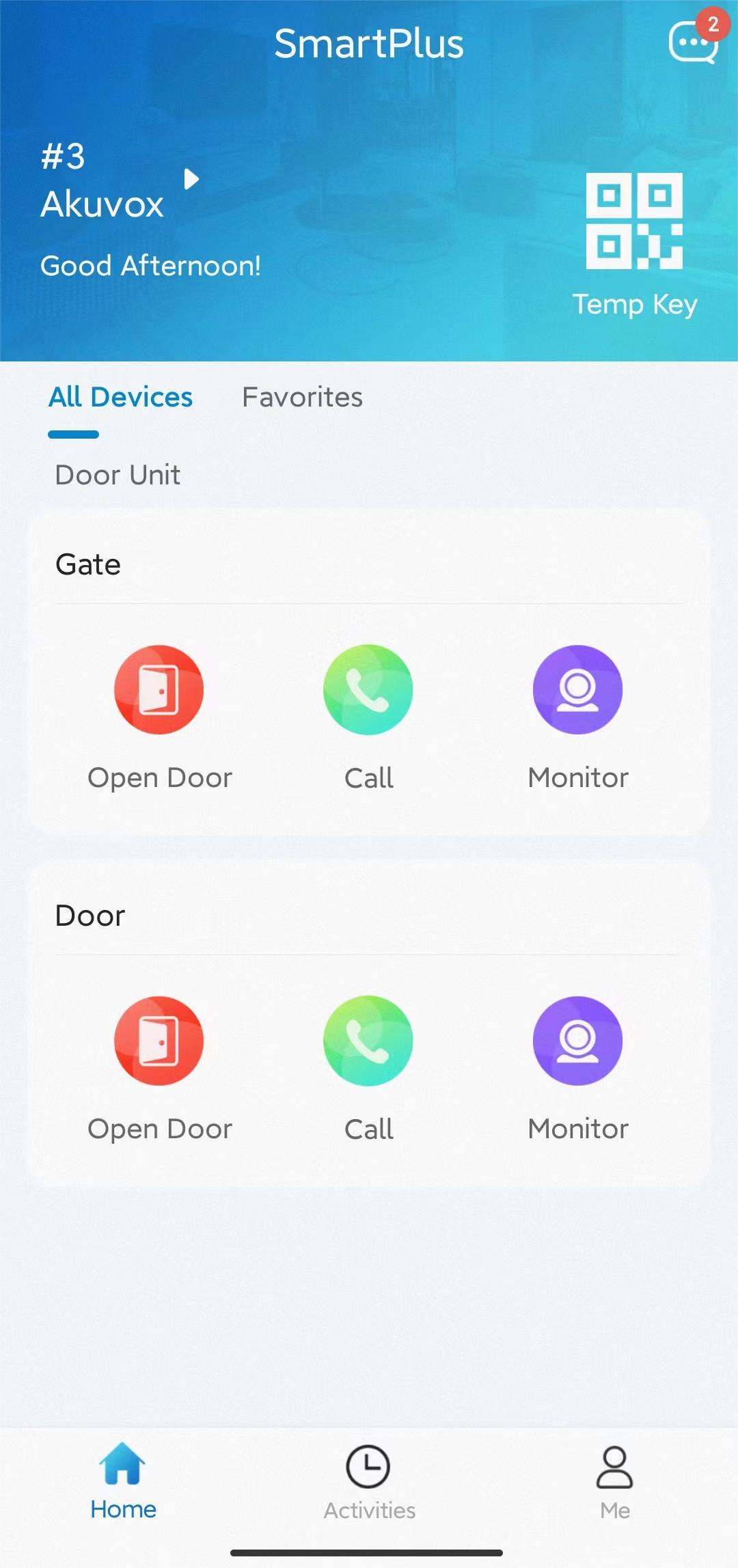
Unlock the lock on the homepage when it is not linked to a door phone.
When it is linked, tap Open Door of the linked door phone to open the lock. The lock can also be opened when you tap Unlock during monitoring and calling.
Set up the Lock
When the lock is assigned to your apartment, you can set it up. For locks used in public areas, you cannot make modifications.
Go to the Me > Device Management > Third-Party Devices page.
Tap Dormakaba and select the specific lock to be configured.
On the Settings page, you can:
change the lock’s name.
link the lock to a door phone’s relay. When triggering the relay, the lock will be unlocked simultaneously.
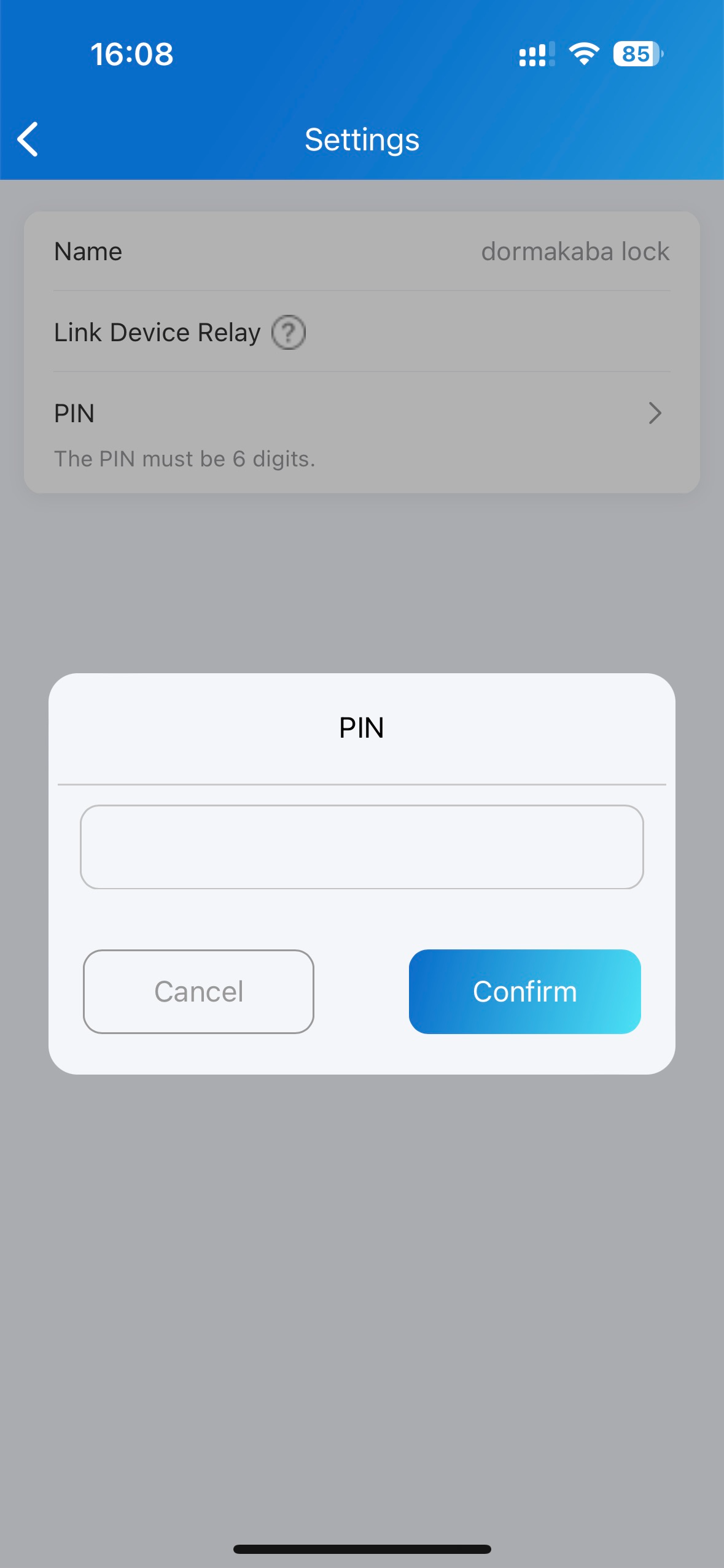
set up a PIN to unlock the lock. The PIN is entered on the lock. When the lock is linked to a door phone, the PIN setting is unavailable.
Sync PIN and RF Card to Open Locks
You can control whether to synchronize your PINs and RF cards to open Dormakaba locks. Once enabled, you can directly use PINs and RF cards created on the SmartPlus App to open Dormakaba locks.
Note
PIN: Must be 6 digits.
RF Card: Must be 20 characters.
Tap Me > Authorization.
Select Door Release PIN or RF Card.
Enable Dormakaba.
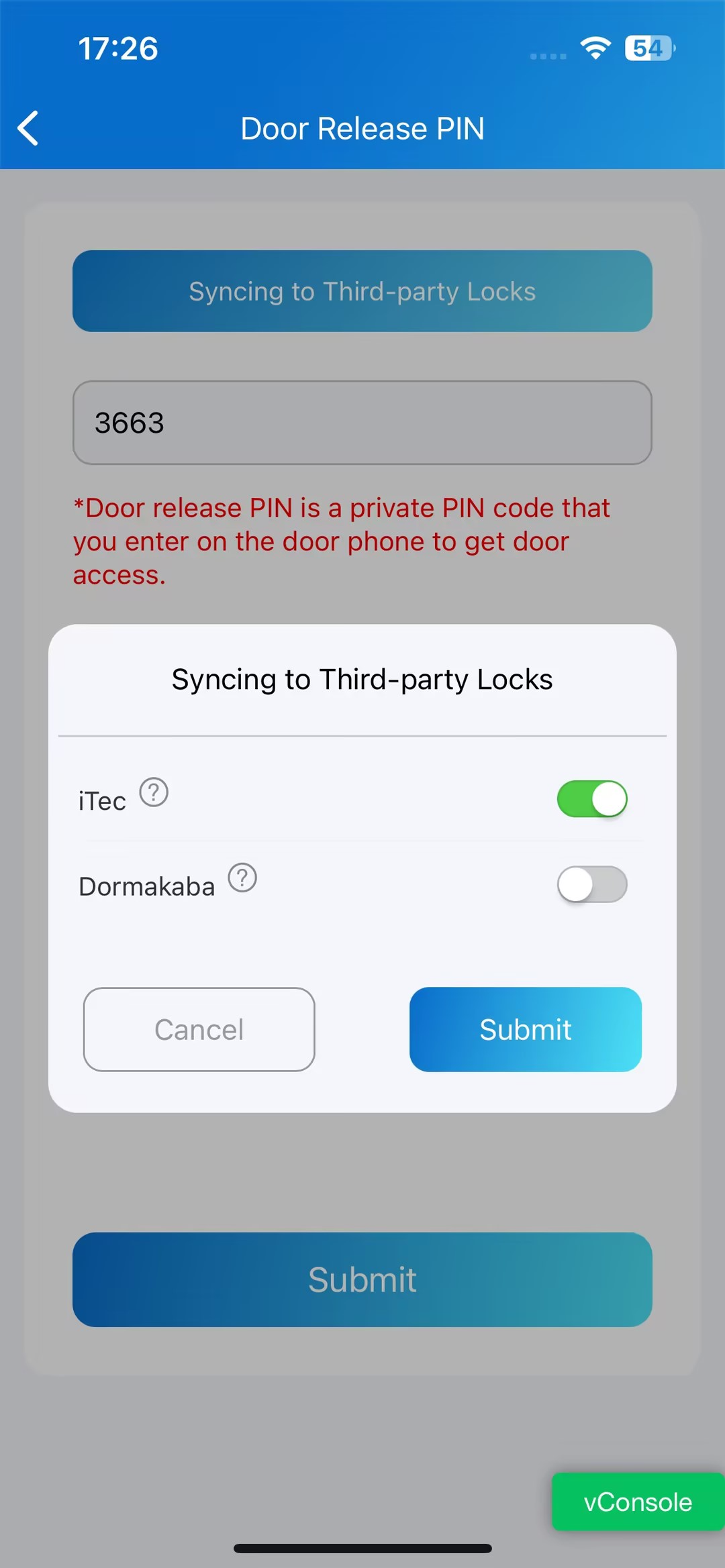
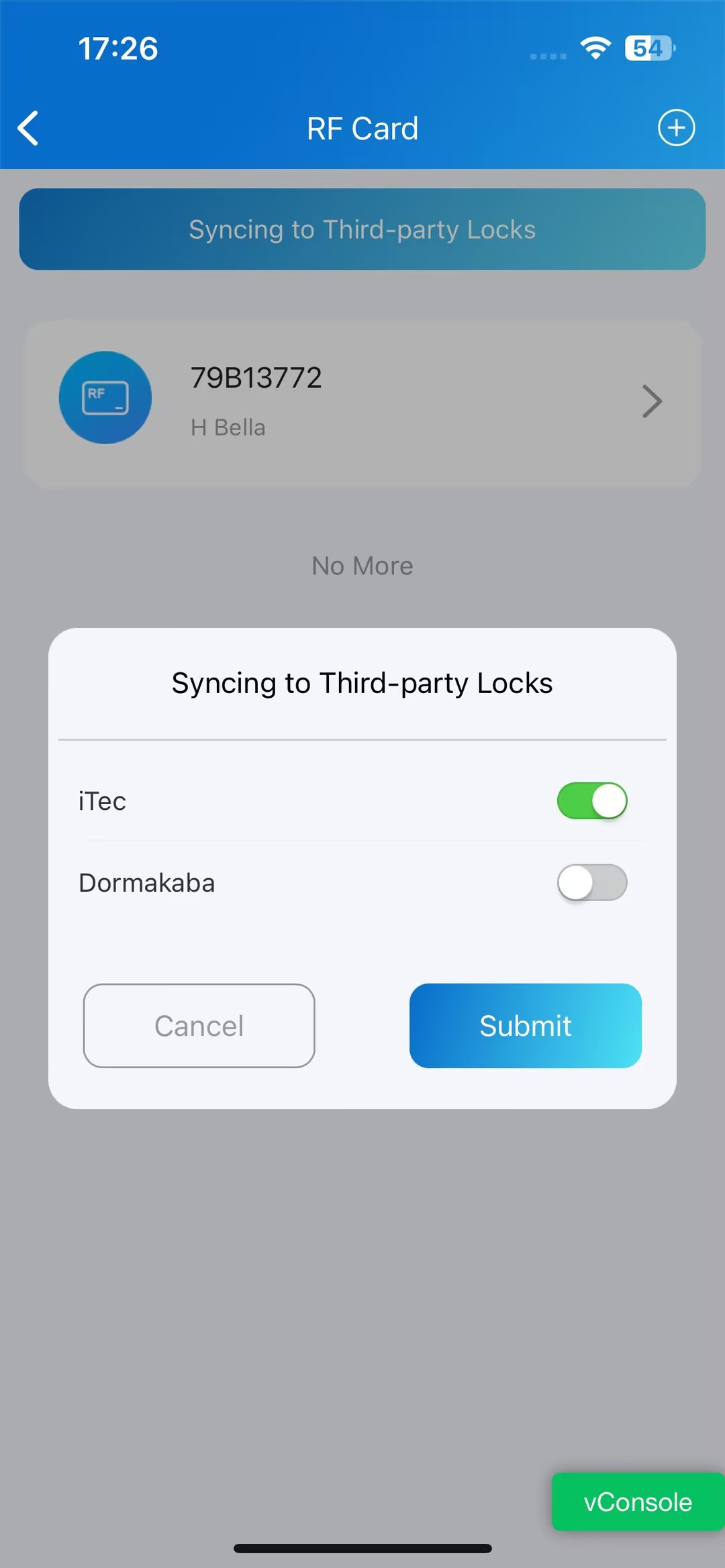
Click Submit.