IP Call Configuration
An IP call is a direct call between two intercom devices using their IP addresses, without a server or a PBX. IP calls work when the devices are on the same network.
Make IP Calls
Make a direct IP call on the device Call > Keypad screen.
Enter the IP address on the soft keyboard, select the account to make the call, and press the Audio or Video tab to call out.
.bmp "keypad(1).bmp")
In addition, you can also make IP calls on the Contacts > Local Contacts screen.
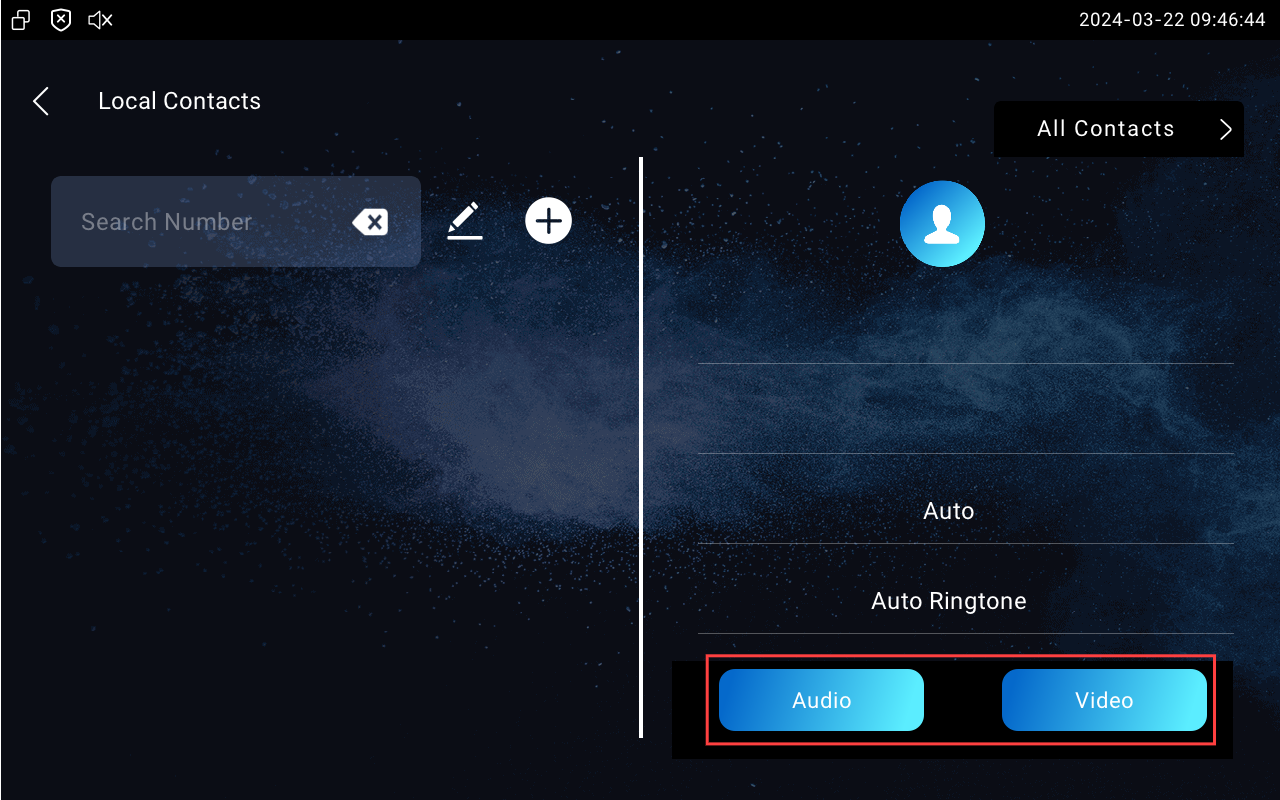
IP Call Setup
To configure the IP call feature and port, go to the web Device > Call Feature > Others interface.

Direct IP: To disable direct IP calls on the device, uncheck the box to turn off the function.
Direct IP Port: Set the port for direct IP calls. The default is 5060, with a range from 1-65535. If you enter a value within this range other than 5060, ensure consistency with the corresponding device for data transmission.
SIP Call Configuration
Session Initiation Protocol(SIP) is a signaling transmission protocol used for initiating, maintaining, and terminating calls.
A SIP call uses SIP to send and receive data between SIP devices, and can use the internet or a local network to offer high-quality and secure communication. Initiating a SIP call requires a SIP account, a SIP address for each device, and configuring SIP settings on the devices.
SIP Account Registration
Each device needs a SIP account to make and receive SIP calls.
Akuvox intercom devices support the configuration of two SIP accounts, which can be registered under two independent servers.
Click here to view the SIP account registration example.
To set it up, navigate to the web Account > Basic > SIP Account interface.
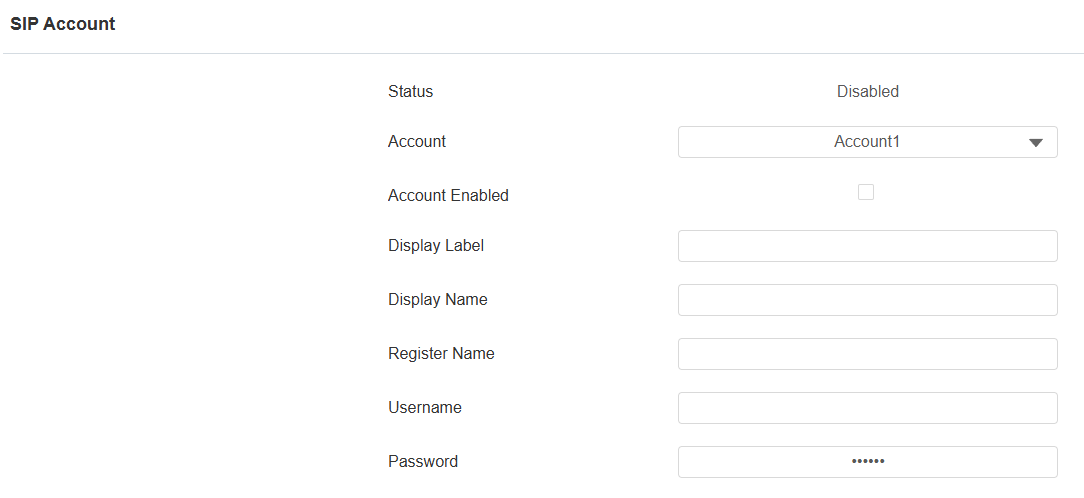
Status: Indicate whether the SIP account is registered or not.
Account: Choose the account for configuration.
- Account 1 is the default account for call processing. Also, it will be utilized when the Akuvox SmartPlus Cloud service is activated.
- The system switches to Account 2 if Account 1 is not registered.
Display Label: The label of the device.
Display Name: The designation for Account 1 or 2 to be shown on the device itself on the calling screen.
Register Name: Same as the username from the PBX server.
Username: Same as the username from the PBX server for authentication.
Password: Same as the password from the PBX server for authentication.
Tip
When the device is connected to the SmartPlus Cloud, the display label, register name, and username will show its SIP number.
The SIP account can also be configured on the device Settings > Advance Settings > Account screen.
.bmp "account(1).bmp")
Account 1/Account 2: The device supports 2 SIP accounts.
- Account 1 is the default account for call processing. Also, it will be utilized when the Akuvox SmartPlus Cloud service is activated.
- The system switches to Account 2 if Account 1 is not registered.
Active: Check to activate the registered SIP account.
Label: The label of the device.
Display Name: The designation for Account 1 or 2 to be shown on the device itself on the calling screen.
Register Name: Same as the username from the PBX server.
Username: Same as the username from the PBX server for authentication.
Password: Same as the password from the PBX server for authentication.
SIP Server Configuration
SIP servers enable devices to establish and manage call sessions with other intercom devices using the SIP protocol. They can be third-party servers or built-in PBX in Akuvox indoor monitor.
To set it up, go to Settings > Advance Settings > Account screen or navigate to the web Account > Basic > SIP Account interface.
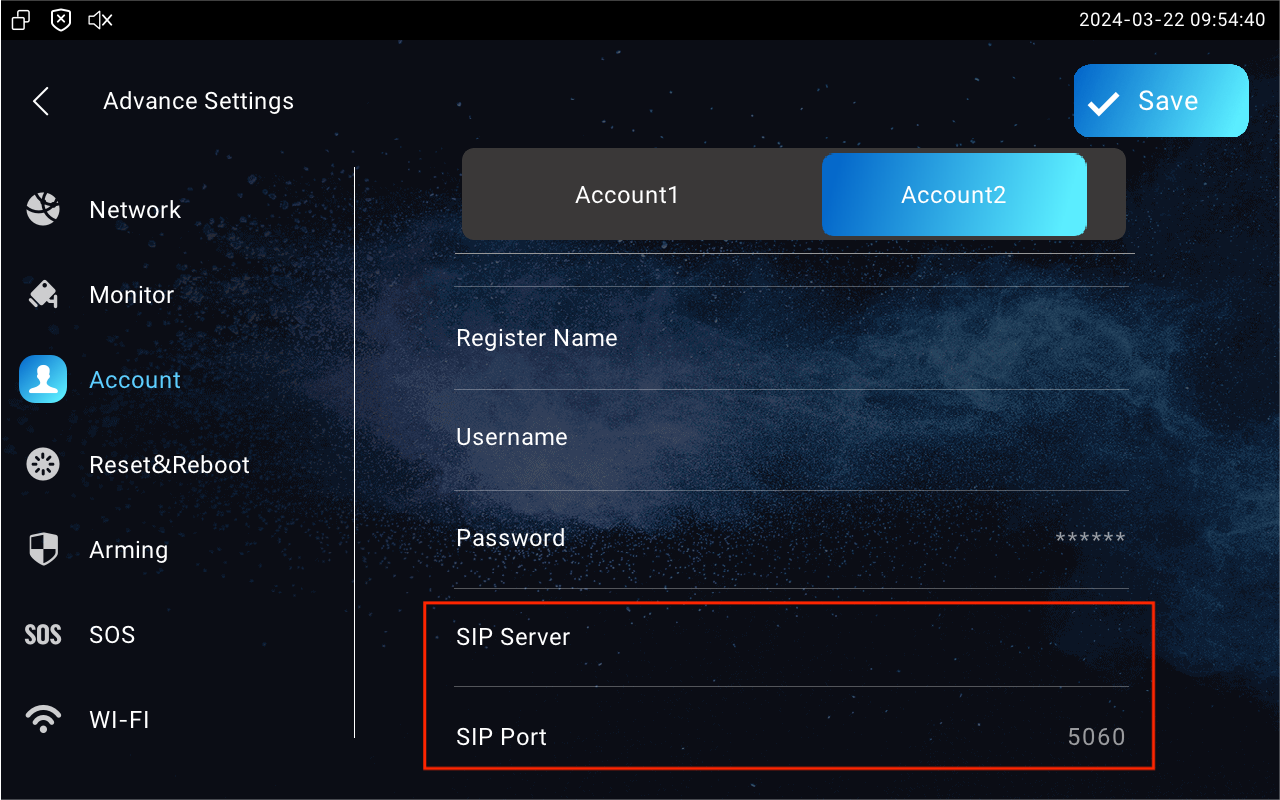
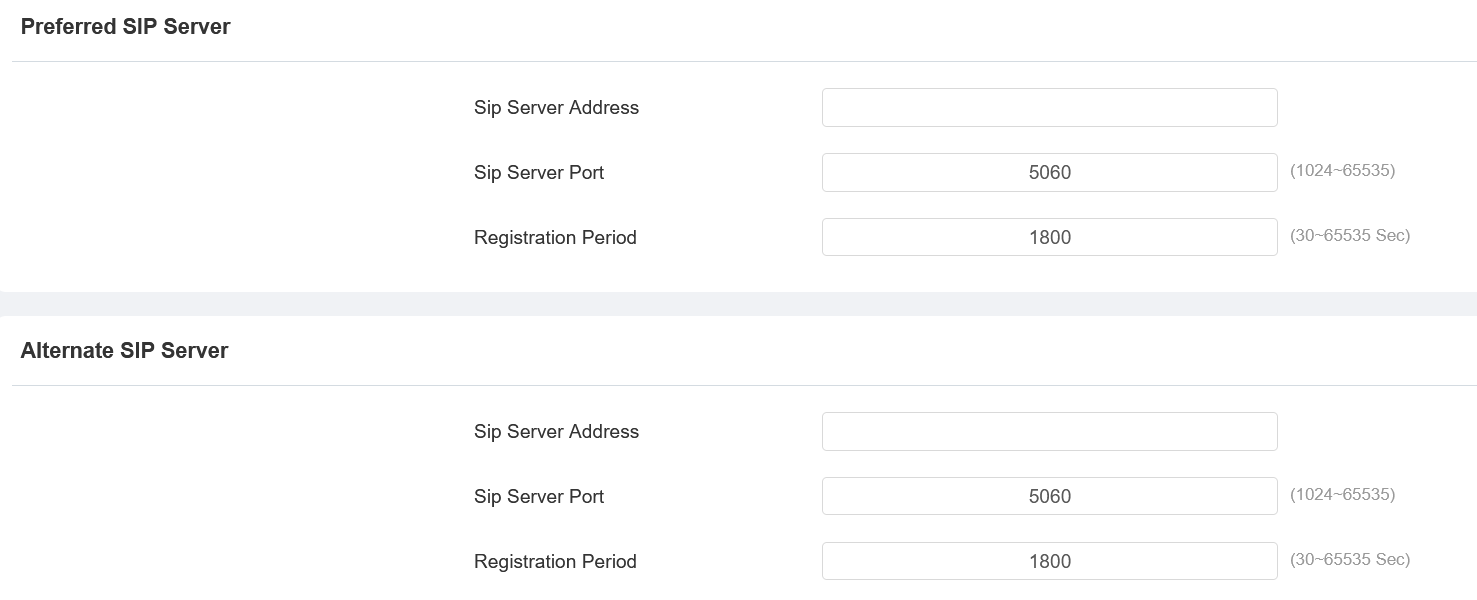
SIP Server Address: Enter the server’s IP address or its domain name.
SIP Server Port: Specify the SIP server port for data transmission.
Registration Period: Define the time limit for SIP account registration. Automatic re-registration will initiate if the account registration fails within this specified period.
SIP Call DND & Return Code
The Do Not Disturb(DND) feature prevents unwanted incoming SIP calls, ensuring uninterrupted focus. It also allows you to set a code to be sent to the SIP server when rejecting a call.
To set it up, navigate to Device > Call Feature interface.
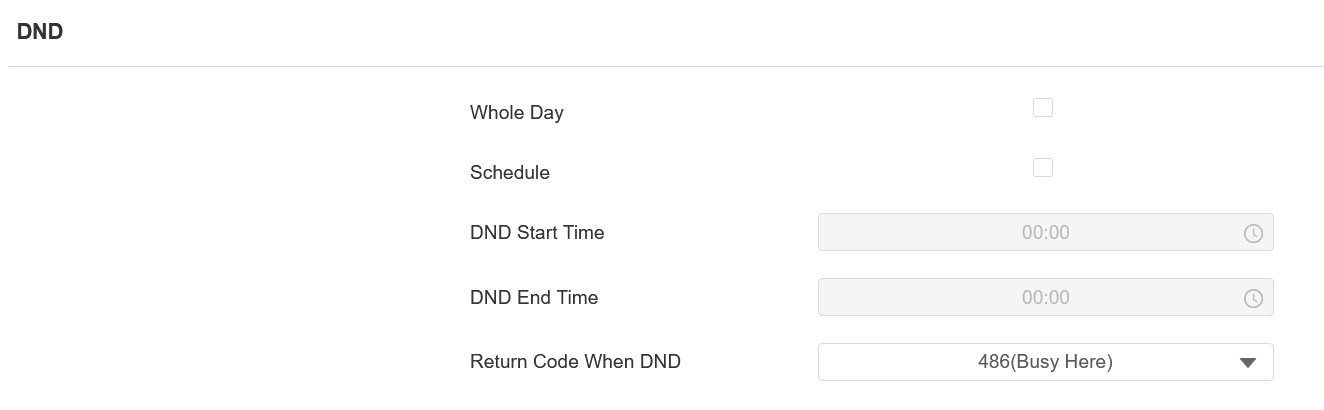
DND: Check Whole Day or Schedule to enable the DND function. The DND function is disabled by default.
Schedule: Determine the DND period by selecting DND Start Time and DND End Time.
Return Code When DND: Specify the code sent to the caller via the SIP server when rejecting an incoming call in DND mode.
DND can also be set up on the device Settings > DND screen.
.bmp)
Outbound Proxy Server
An outbound proxy server receives and forwards all requests the designated server. It is an optional configuration, but if set it up, all future SIP requests get sent there in the first instance.
To set it up, navigate to Account > Basic interface.
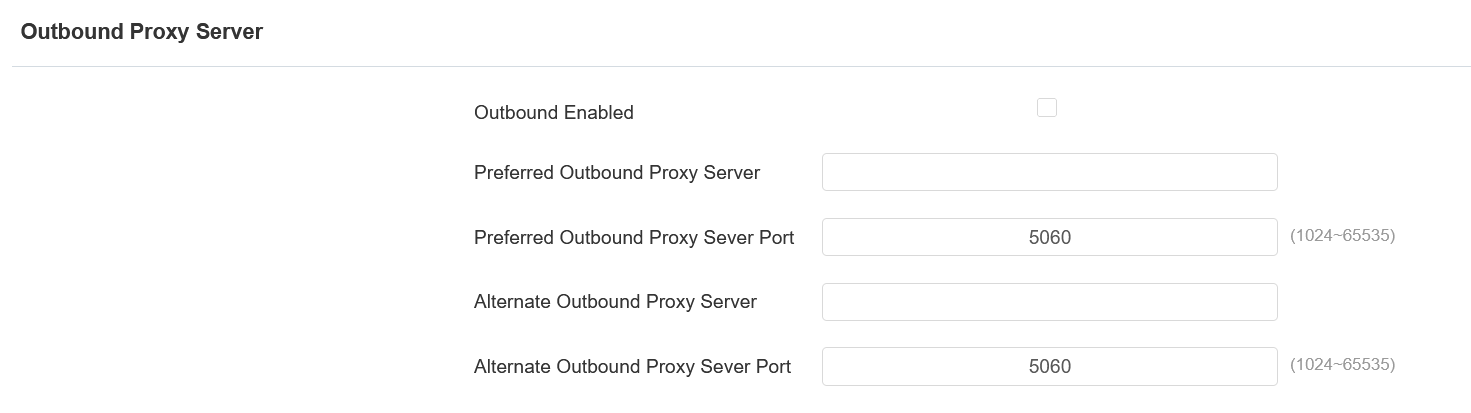
Preferred Outbound Proxy Server: Enter the SIP proxy IP address.
Preferred Outbound Proxy Server Port: Set the port for establishing a call session via the outbound proxy server.
Alternate Outbound Proxy Server: Enter the SIP proxy IP address to be used when the main proxy malfunctions.
Alternate Outbound Proxy Server Port: Set the proxy port for establishing a call session via the backup outbound proxy server.
Device Local RTP
Real-time Transport Protocol(RTP) lets devices stream audio and video data over a network in real time.
To use RTP, devices need a range of ports. A port is like a channel for data on a network. By setting up RTP ports on your device and router, you can avoid network interference and improve audio and video quality.
To set it up, go to the web Network > Advanced > Local RTP interface.

Starting RTP Port: The port value to establish the start point for the exclusive data transmission range.
Max RTP port: The port value to establish the endpoint for the exclusive data transmission range.
Data Transmission Type
The device supports three data transmission protocols: User Datagram Protocol(UDP), Transmission Control Protocol(TCP), and Transport Layer Security(TLS).
To set it up, go to the web Account > Basic > Transport Type interface.

UDP: An unreliable but very efficient transport layer protocol. It is the default transport protocol.
TCP: A less efficient but reliable transport layer protocol.
TLS: An encrypted and secure transport layer protocol. Select this option if you wish to encrypt the SIP messages for enhanced security or if the other party’s server uses TLS. To use it, you need to upload certificates for authentication.
SIP Hacking Protection
Internet phone eavesdropping is a network attack that allows unauthorized parties to intercept and access the content of the communication sessions between intercom users. This can expose sensitive and confidential information to the attackers. SIP hacking protection is a technique that secures SIP calls from being compromised on the Internet.
To set it up, go to the web Account > Advanced > Call interface.
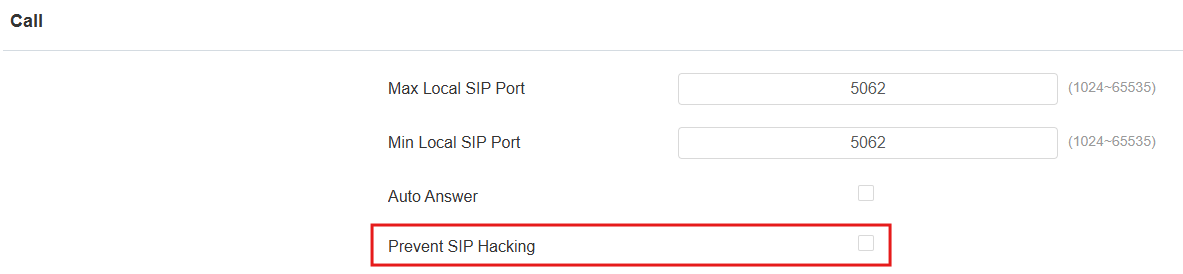
Prevent SIP Hacking: Activate this feature to only receive calls from contacts in the whitelist. This protects users’ private and secret information from potential hackers during SIP calls.