Quick Start: This section provides quick access to the device’s key settings, such as network, user, relay, etc.
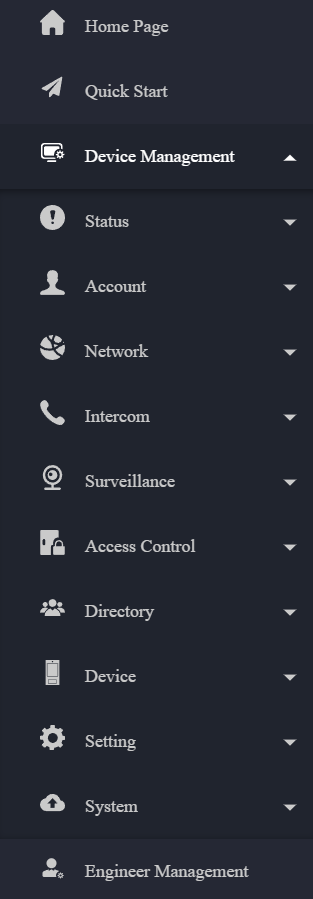
Device Management:
Status: This section gives you basic information, such as product information, network information, account information, etc.
Account: This section concerns the SIP account, SIP server, proxy server, transport protocol type, audio and video codec, DTMF, session timer, etc.
Network: This section mainly deals with DHCP & Static IP settings, RTP port settings, device deployment, etc.
Intercom: This section covers intercom settings, call logs, etc.
Surveillance: This section covers motion detection, RTSP, MJPEG, ONVIF, live stream, etc.
Access Control: This section covers input control, relay, card settings, facial recognition, private PIN codes, Wiegand connection, etc.
Directory: This section involves tenant management.
Device: This section includes light settings, tab&button display, LCD settings, and voice settings.
Setting: This section includes time & language, action settings, door settings, and schedule management for access control.
System: This section includes firmware upgrade, automatic auto-provisioning, device maintenance, etc.
Engineer Management: This section provides quick access to upgrading, maintaining, and debugging the device.
Introduction to Quick Start Module
The Quick Start module allows you to configure the device’s core features on a single interface, instead of switching between different interfaces.
You can redirect to the feature detail interface by clicking Details in the upper right corner.
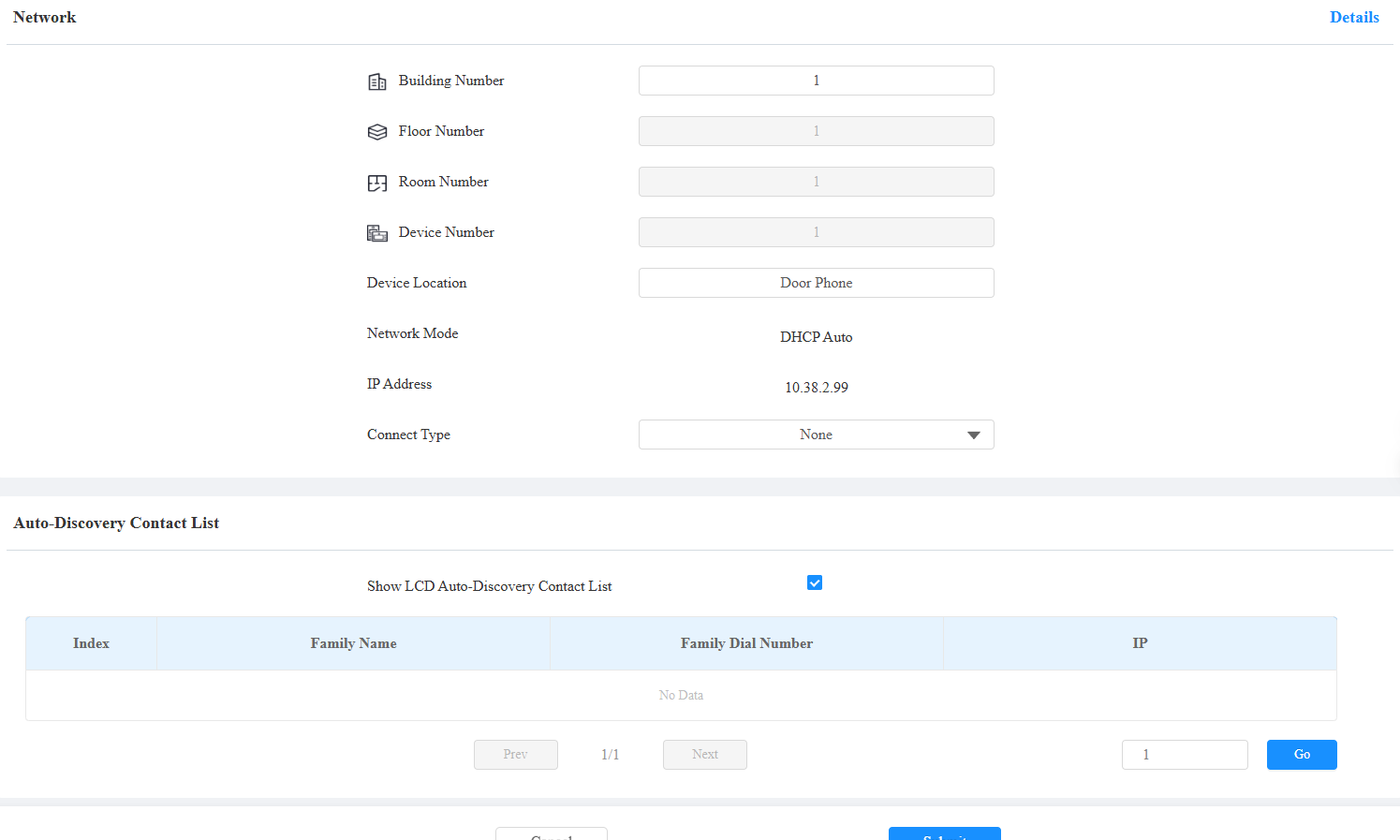
Network: Display the location information of the device.
Device Location: Enter the device’s location to distinguish it from others. By default, it is [the device name_the last 4 characters of its MAC address].
Connect Type: It is automatically set up according to the actual device connection with a specific server in the network, such as SDMC, Cloud, or None.
Auto-Discovery Contact List: Display the contacts, such as indoor monitors, in the Self-organizing Network Solution.
Show LCD Auto-Discovery Contact List: Set whether to display these contacts on the device screen.
Directory: Contact Display Mode sets how contacts will be displayed.
All Contacts: Display all the contacts.
Groups Only: Display contact groups. Press the desired group on the device screen to make a group call.
Contact Display by Group: Display contacts by groups. Press the group, and users can see the contacts in it.
Session Check: When enabled, the HTTP unlock requires logging into the device’s web interface. Or, the door opening may fail.
Username: Set a username for authentication in HTTP command URLs.
Password: Set a password for authentication in HTTP command URLs.