.jpg "akuvox-v6.6.0-smartplus-property-manager-guide-image-5x0nba8h(1).jpg")
Update Time: Sept.2024
About This Manual
This manual is intended for property managers who need to manage office projects including companies, personnel, and devices on the Akuvox SmartPlus platform (Version: 7.0.0).
For more information, please visit http://www.akuvox.com/ or consult Akuvox technical support.
Note
The office created before the version 7.0.0 still remains the old settings. To learn about the setup, please refer to Akuvox V6.8.1 SmartPlus Property Manager Guide - Office.
You can use the SmartPlus property manager web portal for free, but using the app requires a monthly fee. Please contact the service provider for the pricing details.
The brand-new office management system includes the following highlights:
Optimized management portal layout;
System Overview
Akuvox SmartPlus is a cloud-based platform where the installer can conduct integrated management of office projects, companies, personnel, devices, and relays, as well as remote maintenance service for all the devices deployed.
Installers can:
Add, edit, and delete the office, companies, administrators and personnel accounts, devices, etc.
Deploy and set up devices and relays for access control.
Check and upgrade device firmware.
Check and manage the MAC library.
Conduct remote operations such as auto-provisioning, device reboot, transmission type modification, and remote maintenance.
Subscribe and renew Akuvox SmartPlus service.
Manage sub-installer accounts.
Log into the SmartPlus Platform
You can log into the SmartPlus platform using the account obtained from your distributor or installer.
Open the web browser, enter the address (URL) of the SmartPlus server location in your area, and click Enter.
Enter your username and password.
Click Login.
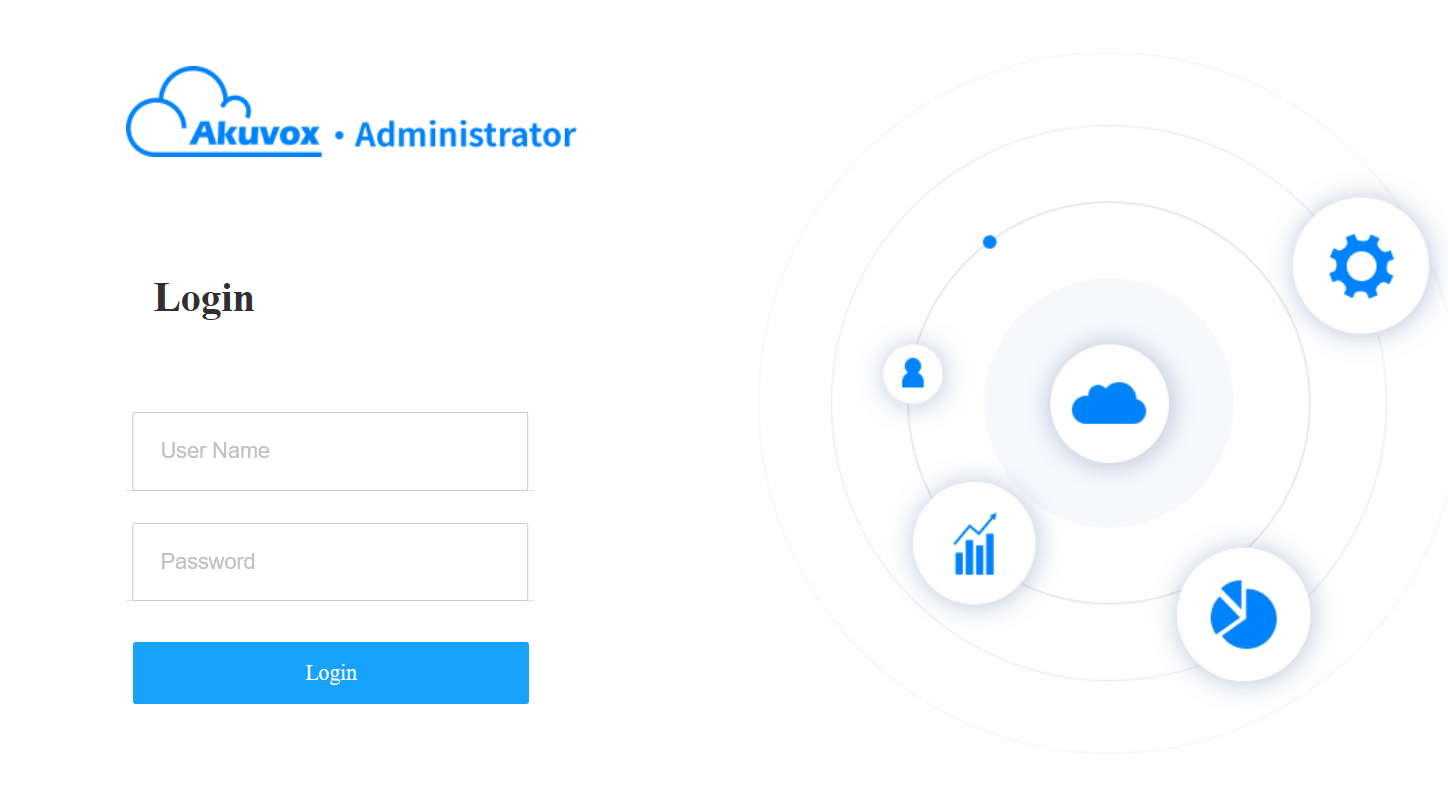
You can click on Log out in the upper right corner to log out of the SmartPlus platform.

Prior to the Management
It is advised that you go through what is listed below before you start your management.
Check if all of the device MAC addresses have already been registered by your distributor.
Check if the firmware in your devices supports cloud mode with no connection to SDMC.
Check if your device is powered on and is connected to the internet and make sure that the network is normal.
Check and make sure that the user information and device information are correct.
Dashboard
After logging, you will see the property management dashboard that gives you an overview of the office project. The dashboard consists of 11 functional columns on the left.
Note
If you redirect to the property manager portal from the installer portal, you cannot set up billing information, link sites and perform Emergency Action.
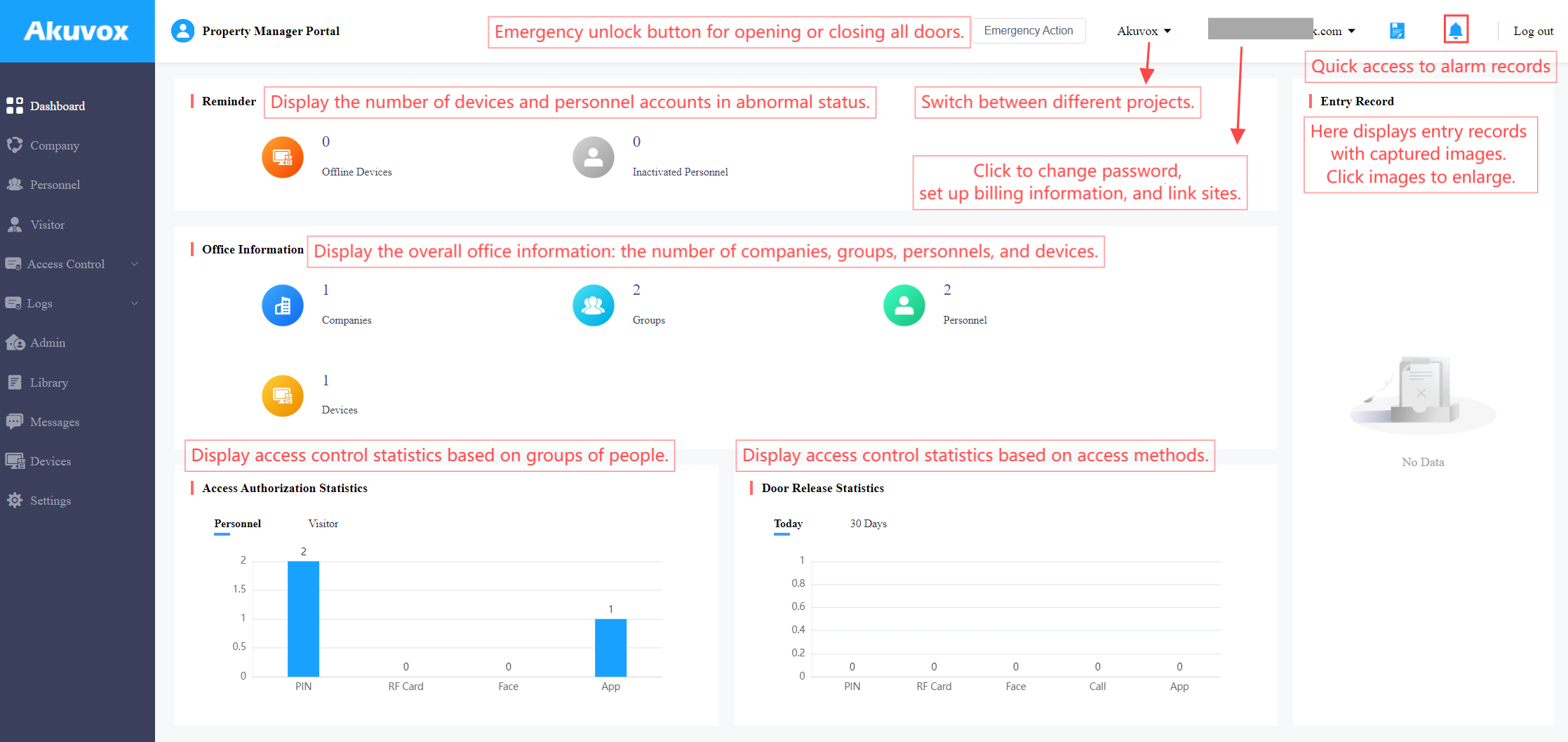
Module Description:
No. | Modules | Description |
1 | Dashboard | You can have a quick grasp of the property manager portal. |
2 | Company | You can add new companies and edit existing companies by changing the company name, assigning doors, and checking the holiday schedule. |
3 | Personnel | You can manage groups and personnel. |
4 | Visitor | You can create access credentials for visitors and couriers. |
5 | Access Control | The module contains:
|
6 | Logs | Check various logs including door logs, call history, captured images, and alarm records. |
7 | Admin | You can create and edit administrator accounts. |
8 | Library | The storage of PIN codes and RF cards for quick and integrated management. |
9 | Messages | You can create and send messages to specific personnel and devices. |
10 | Devices | You can add, edit, and delete devices. |
11 | Settings | This module includes:
|
Company Management
Wizard
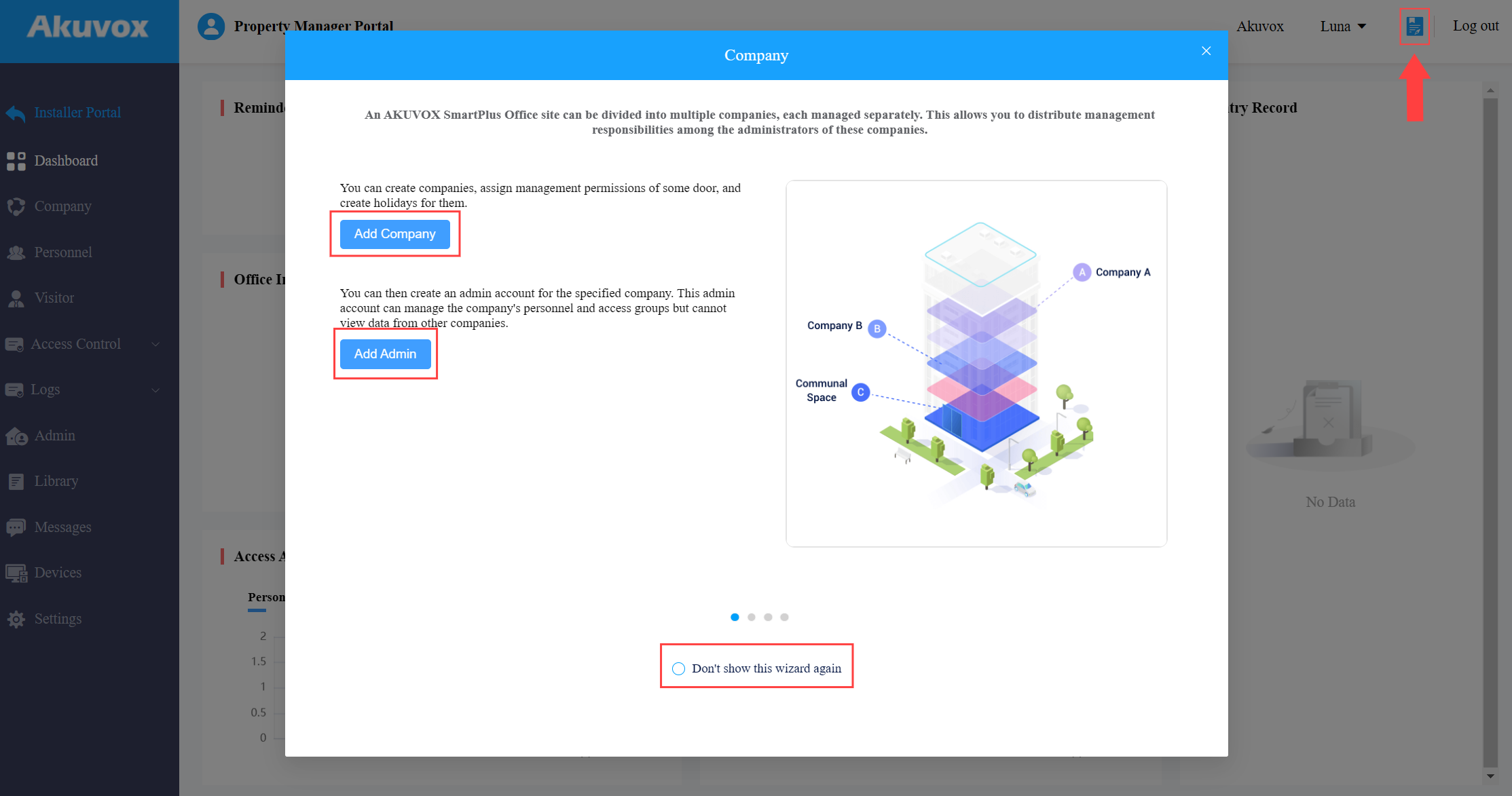
Wizard will guide you through adding companies, administrators, groups, and personnel, and setting up access control. It will pop up when you log into the platform. (For installer accounts, the Wizard will display when clicking  of the target office.)
Through Wizard, you can have a quick grasp of the office management system. Furthermore, you can click the tab on the Wizard page to access the settings directly.
Not to display the Wizard anymore, check Don’t show this wizard again.
To view the Wizard, you can click the Icon in the upper right corner.
Create Companies
You can create multiple companies in an office project.
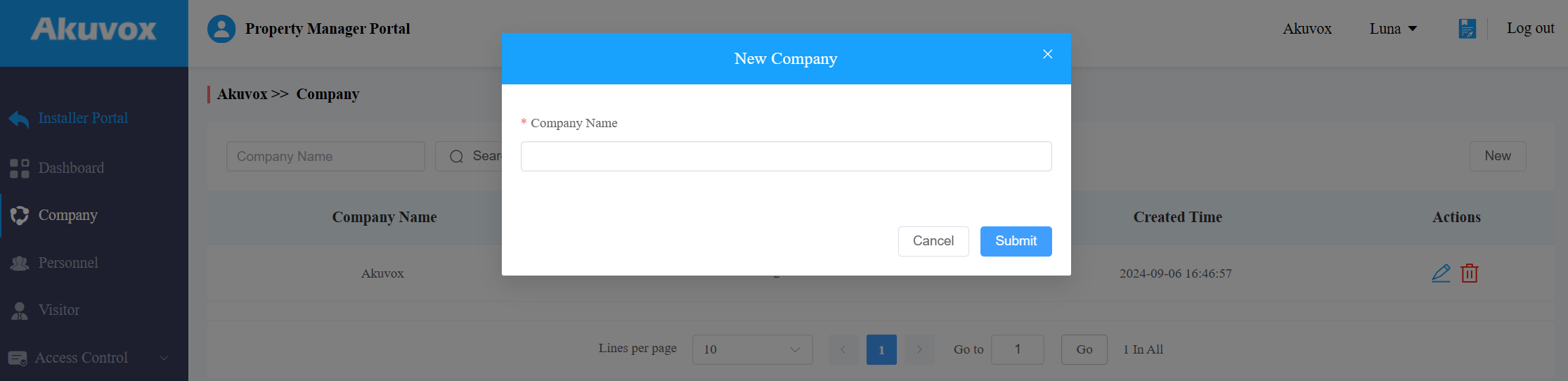
Click Company on the left column.
Click New on the left and name the company.
After adding the company, you can change the company’s name by clicking
 and delete the company by clicking
  .
.
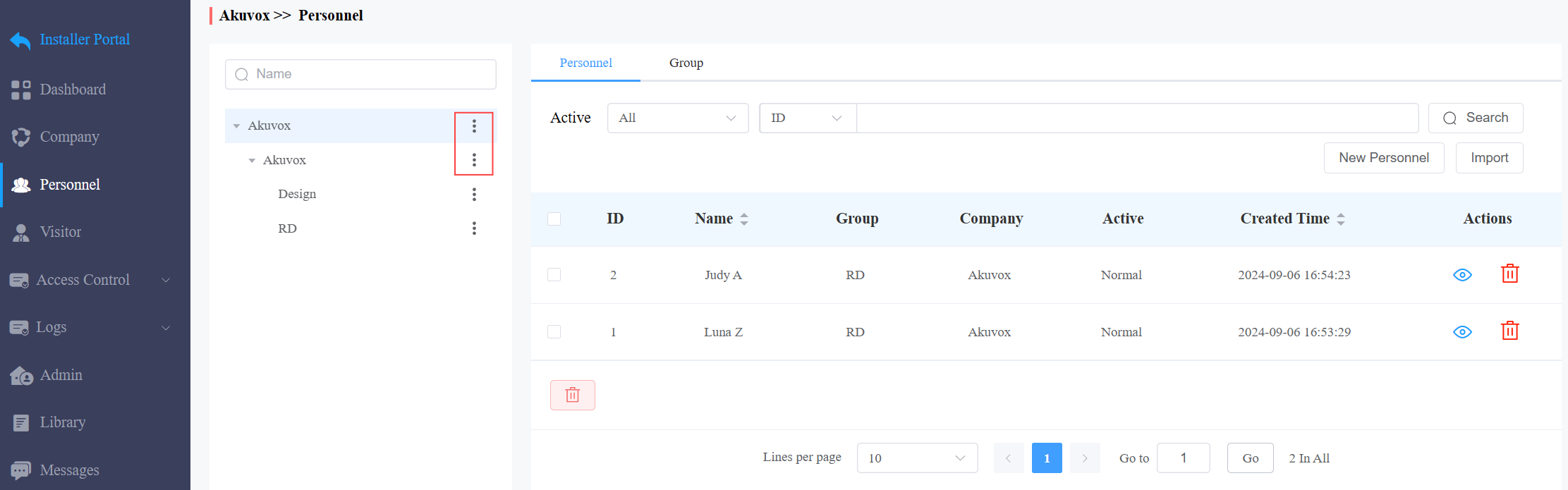
You can also set up the office structure on the Personnel module.
Click
 next to the office name. Then, click +New Company and enter the company’s name.
Click
next to the company name. You can rename the company, assign doors to the company, view its holiday access control schedule by clicking Edit, add groups to the company, and delete the company.
Assign Doors to Specific Companies
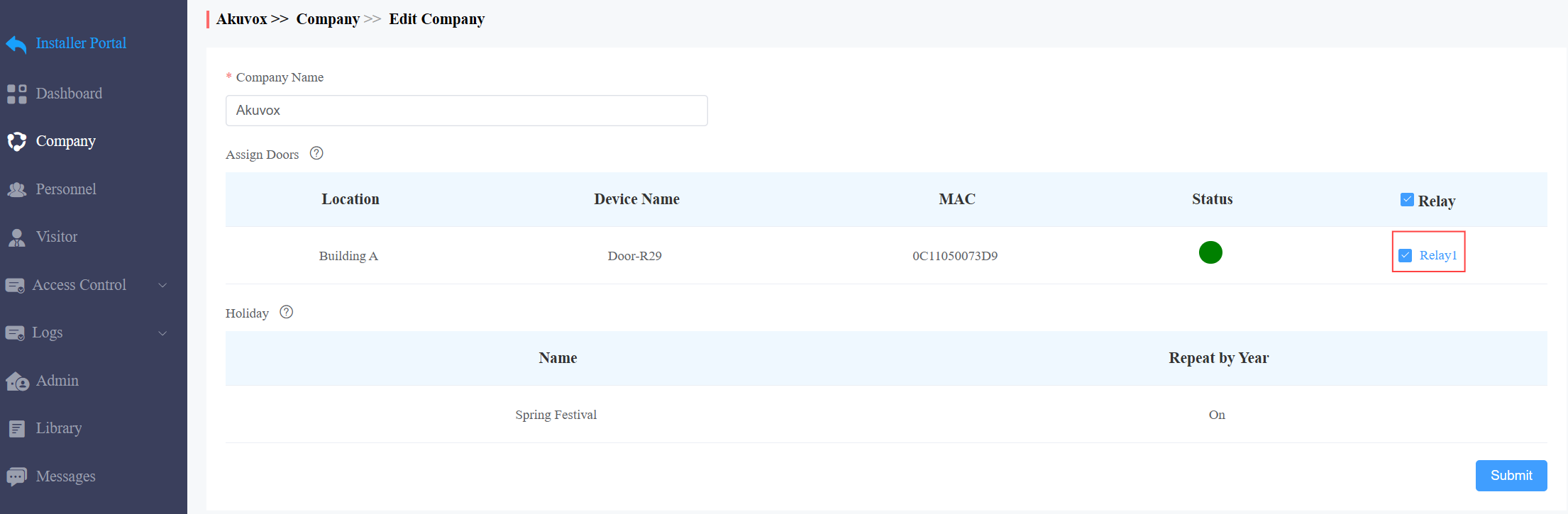
You can assign doors to specific companies and view the holiday access control schedule(s).
On the Company module, click of the target company.
Assign the relay to the company by checking its box. For instructions on configuring relays, please refer to Add a Single Device chapter.
Add/Edit Groups in a Company
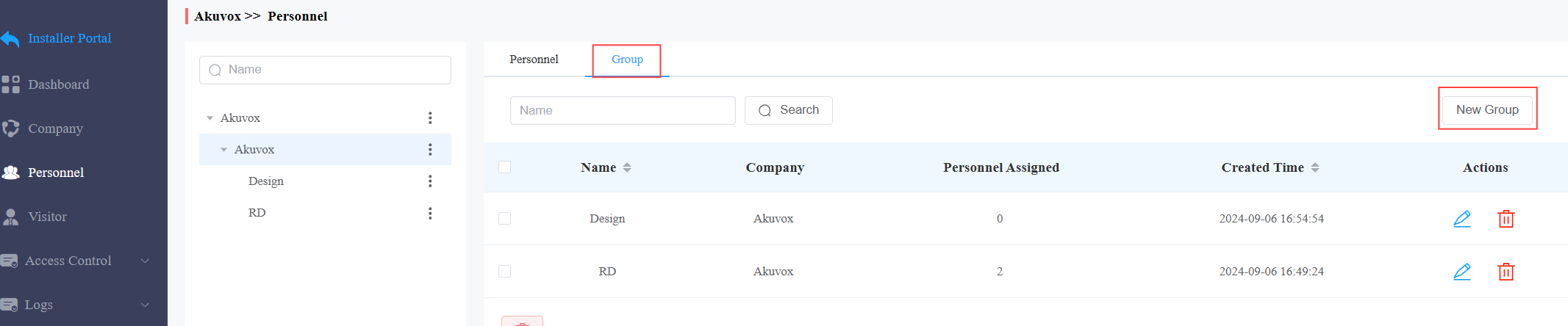
On the Personnel module, click
next to the desired company name and click +New Group.Or, you can click Group in the target company directory and click New Group.
Enter the group name and select the company it belongs to.
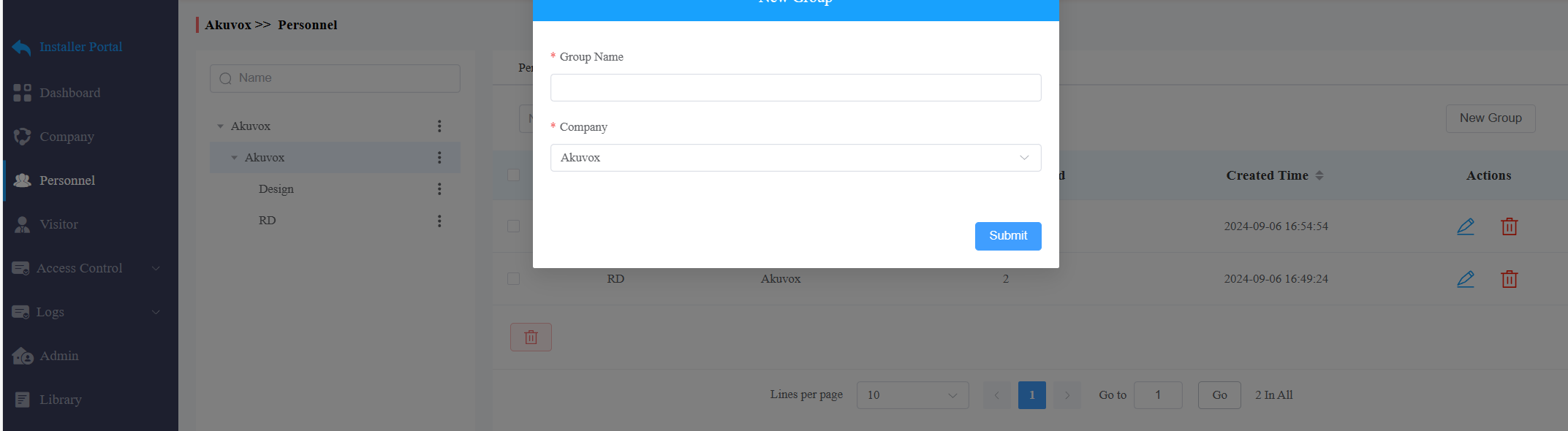
Click Submit.
You can click  to edit the desired group and its settings. See the description of each item in the below chart.
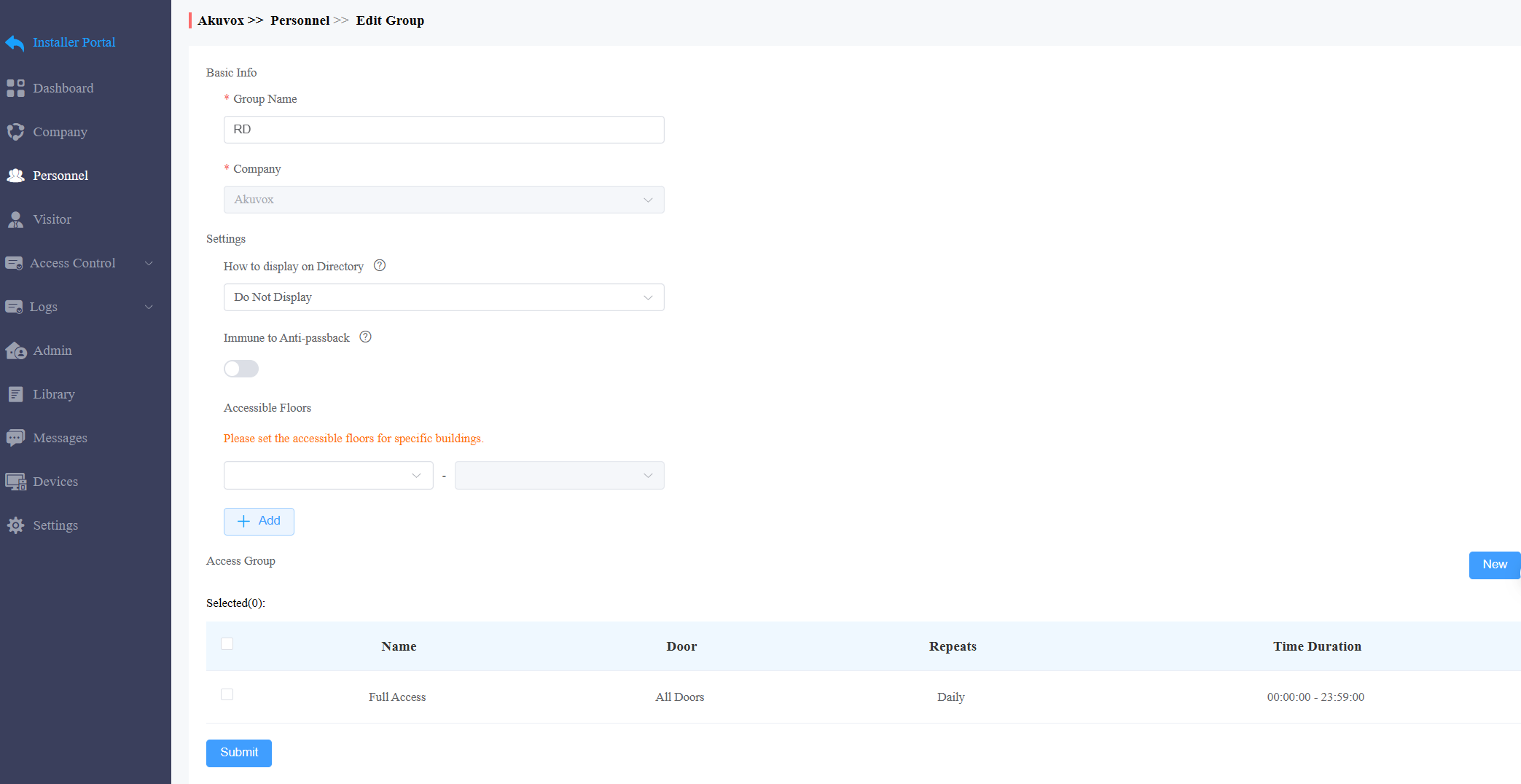
No. | Settings | Description |
1 | Group Name | Name the group. |
2 | Company | Display the company the group belongs to. |
3 | How to Display on Directory | Set the directory display.
|
4 | Immune to Anti-passback | When enabled, the personnel in this group will not be limited to the anti-passback rules. |
5 | Accessible Floors | Set the accessible floors. The personnel can take lifts to the specified floors using access control credentials. You can select 10 floors in a building at maximum. |
6 | Access Group | Select the access control schedule. You can click New to create a new access group. |
Personnel Management
You can add personnel one by one or in a batch to a company.
Add Personnel One by One
On the Personnel module, click New Personnel in the target company directory.
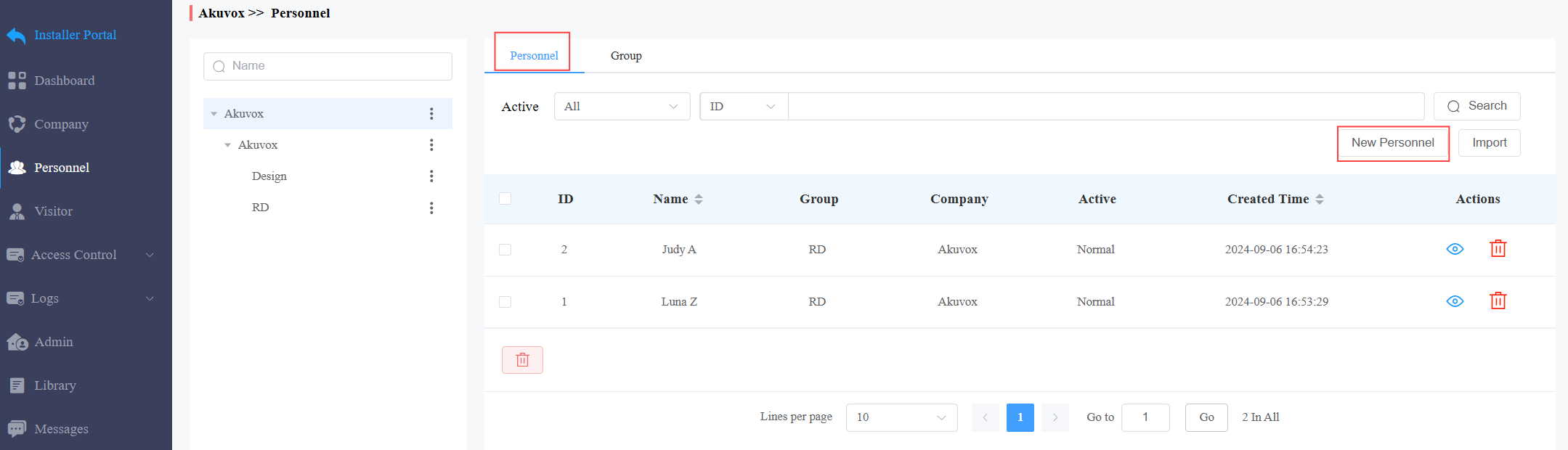
Enter the personnel’s information and set up relevant settings. See the description of each item in the below chart.
Click Next to set up the access control credentials.
PIN: Enter the PIN code.
RF Card: Enter the RF card code.
Face ID: Upload the front face photo in JPG, PNG, or BMP format.
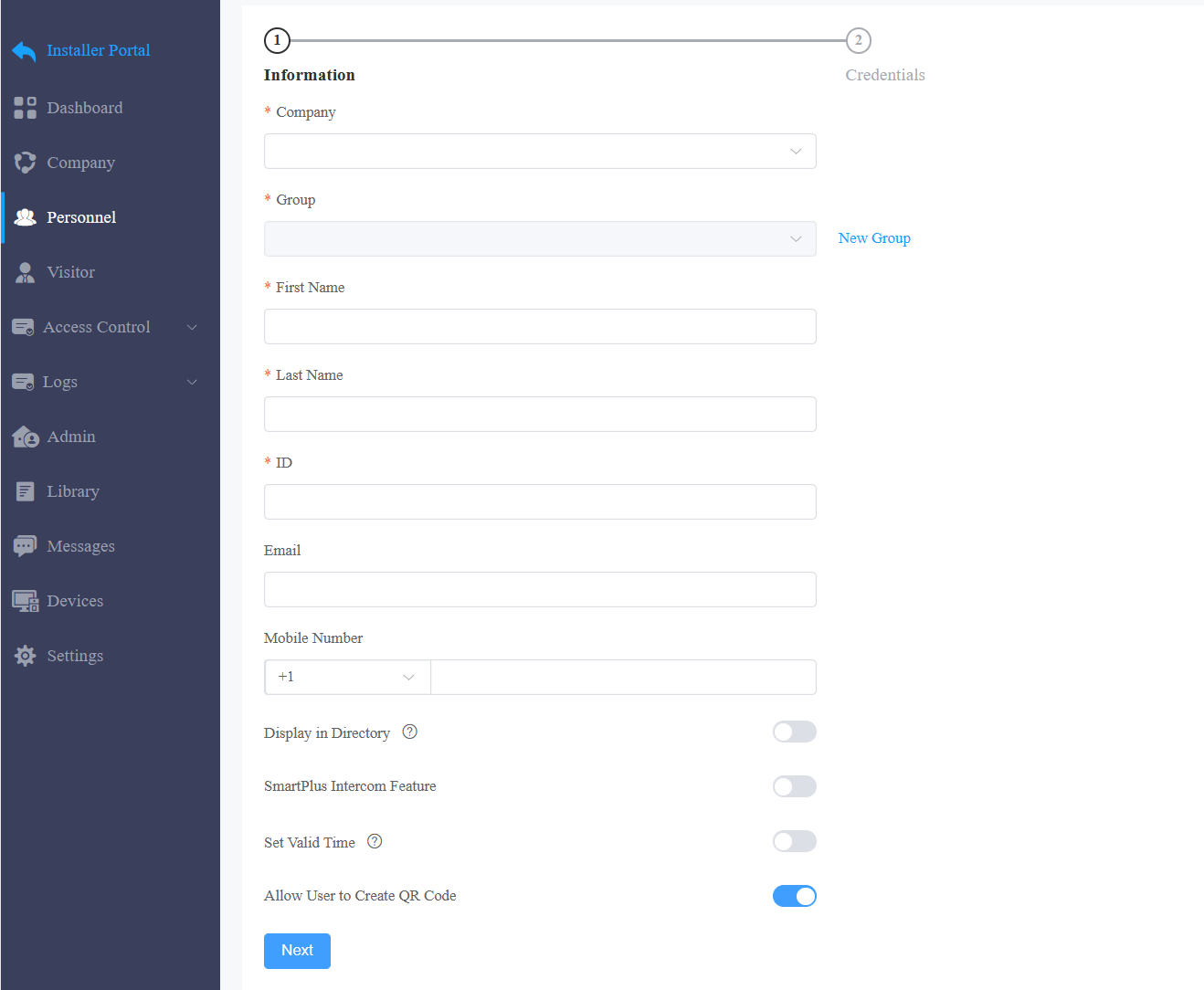
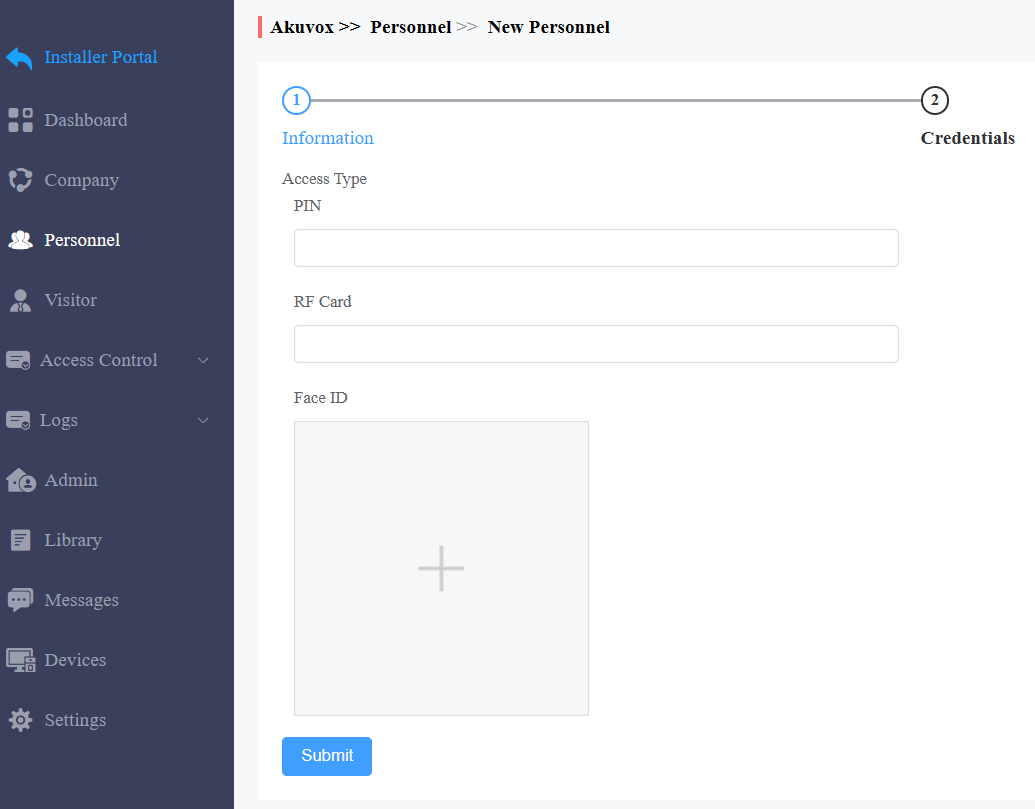
Click Submit.
Information:
No. | Item Name | Description |
1 | Company | Select the company where the personnel works. |
2 | Group | Select the group of the personnel. You can click New Group to create a group. |
3 | First Name | Enter the user’s first name. |
4 | Last Name | Enter the user’s last name. |
5 | ID | Enter a unique ID number for the user. |
6 | Enter the user’s email. | |
7 | Mobile Number | Enter the user’s mobile phone number. |
8 | Display in Directory | Set whether to display the personnel’s name on the door phone’s contacts list. Note:
|
9 | SmartPlus Intercom Feature | If enabled, the user is allowed to use the SmartPlus App. |
10 | Call Type | When the SmartPlus Intercom Feature is enabled, set the Call Type.
|
11 | Set Valid Time | Limit the personnel from opening doors and logging into the SmartPlus App in a certain period. This setting has the highest priority over other access permission settings. |
12 | Start Time - End Time | When Set Valid Time is enabled, specify the time range. |
13 | Allow Users to Create QR Code | Set whether personnel can issue temporary QR codes for visitors or couriers on their SmartPlus App. |
Add Personnel in a Batch
You can import a batch of personnel data to a company for quick setup.
On the Personnel view, click Import in the target office or company directory.
Download and open the template. Click Import Personnel to upload the file after editing it and click Import Face Data to upload the face photos. Please follow the upload instructions on the pop-up window.
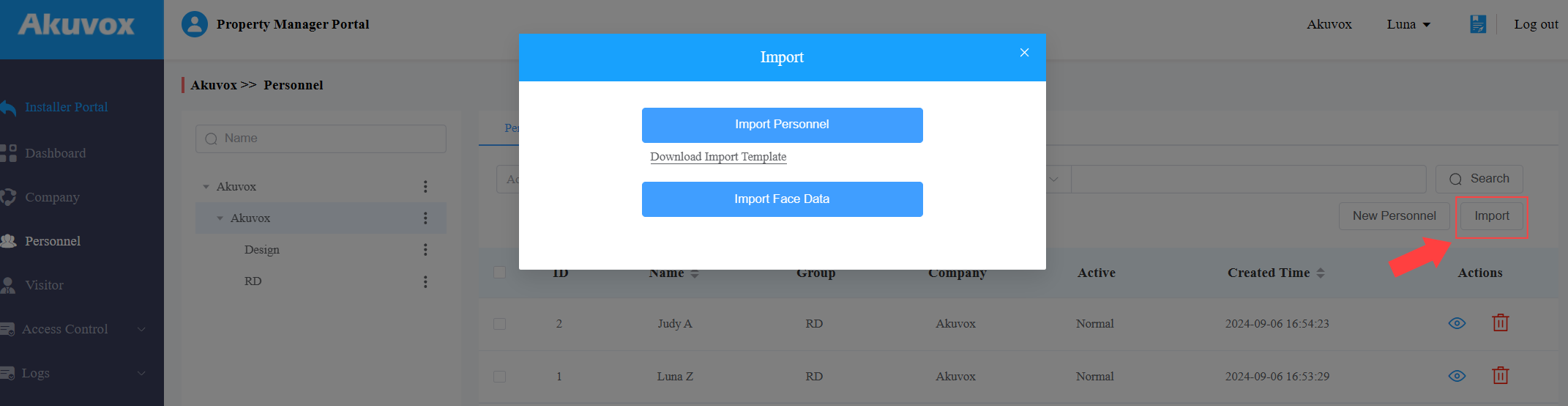 In the template, you can see the instructions by moving the mouse cursor to a specific column name.
See the description of each item in the below chart.

No. | Column Name | Description |
|---|---|---|
1 | Company | The company of the personnel. |
2 | Group | The group of the personnel. |
3 | First Name | The first name of the personnel. |
4 | Last Name | The last name of the personnel. |
5 | ID | Assign a unique ID to the personnel. |
6 | The email address of the personnel that is used to receive SmartPlus App-related emails. | |
7 | Mobile Number | The mobile phone number of the personnel. |
8 | Telephone Calling Code | The telephone code for phone calls. For example, the code is 1 for the United States. |
9 | SmartPlus Intercom Feature | If enabled, the user is allowed to use the SmartPlus App. 0: Disabled; 1: Enabled. |
10 | Call Type | Set which devices can receive a call. For example, if you select 0, the SmartPlus App will receive the call first, then the indoor monitor or the guard phone. 0: SmartPlus and indoor monitors/guard phones; 1: Phone and indoor monitors/guard phones; 2: SmartPlus and indoor monitors/guard phones, with phone as backup; 3: Indoor monitors/guard phones with SmartPlus as backup; 4: Indoor monitors/guard phones with phone as backup; 5: Indoor monitors/guard phones with SmartPlus as backup, and finally the phone. |
11 | RF Card | The RF card code is used to open doors. If one user has multiple cards, separate the codes by “;”. |
12 | PIN | The PIN code is used to open doors. The length should be within 2 to 8 digits. |
13 | Access Group ID | Assign the access group ID to the user. |
Edit Personnel
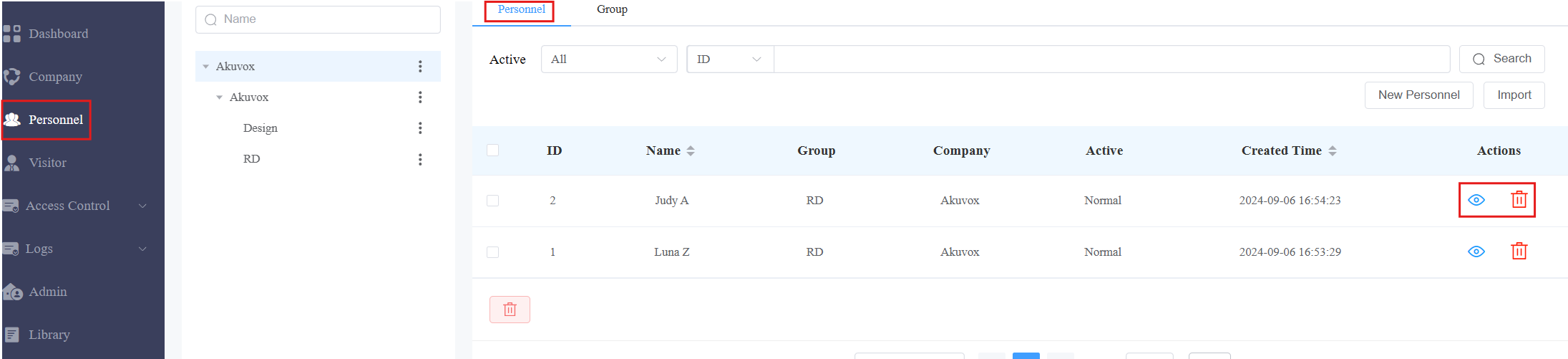
After adding the personnel, you can edit and delete them on the Personnel module.
Click
 to delete the personnel.
Click
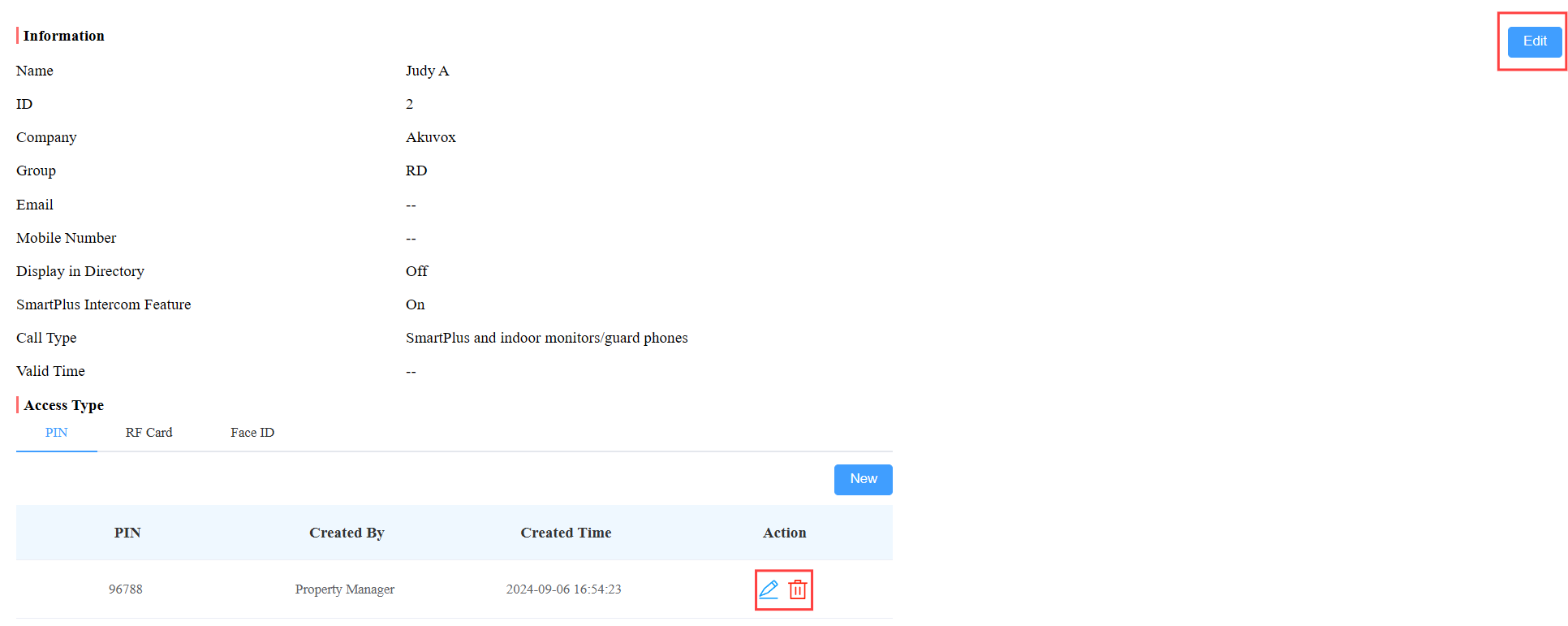
 to view and edit the personnel’s information.
Change the access settings and click Edit to modify the personnel’s information.
Administrator Management
You can create administrator accounts, with which users can log into the SmartPlus Administrator platform to manage companies, personnel, access groups, etc.
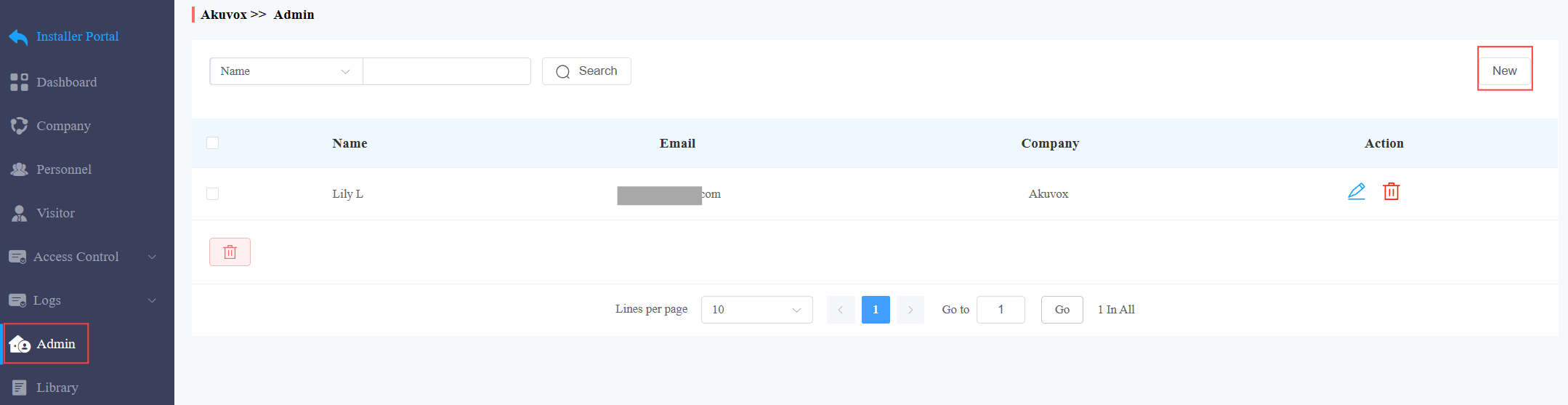
On the Admin module, click New on the right.
Select the company the administrator can manage.
Enter the administrator’s first name and last name.
Enter the email address to receive the account login password.
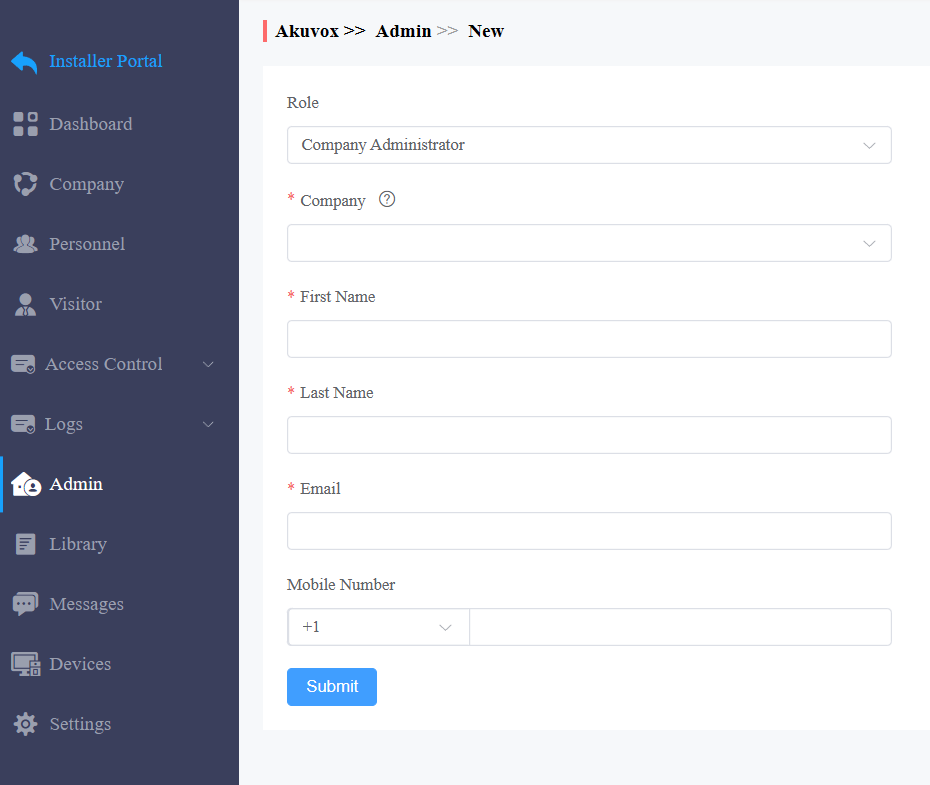
Click Submit.
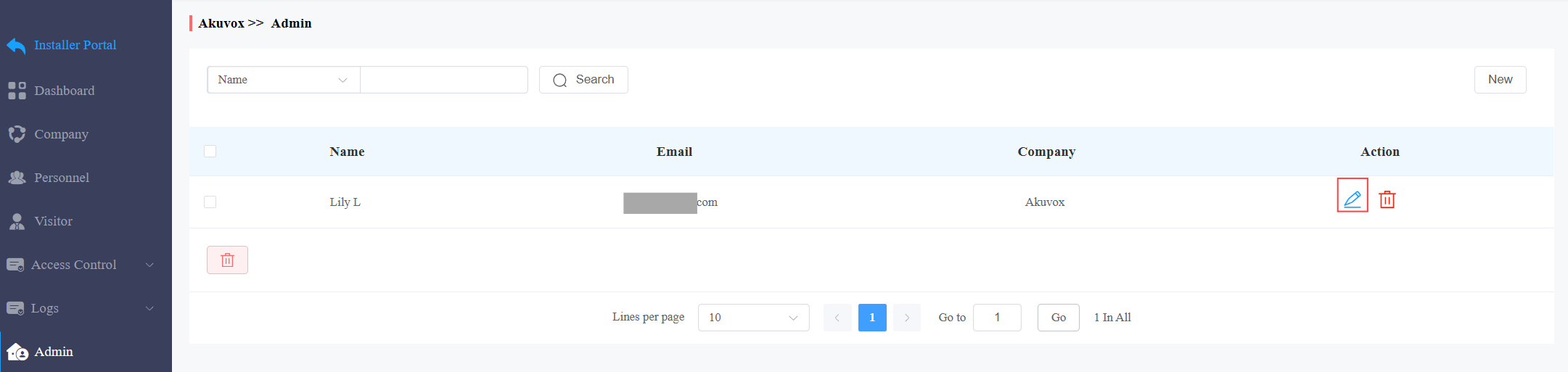
After adding the accounts, you can click to change the settings and reset the account’s password.
Device Management
You can manage devices for specific companies.
Note
With the property manager account, you can view and edit the device’s settings but not add or delete a device.
With the installer account redirecting from the installer portal, you can add, edit and delete devices.
Add a Single Device
On the Devices module, click Public Area or select the desired building based on where the device is installed. You can click +Add Building to create new buildings.
Click New on the right.
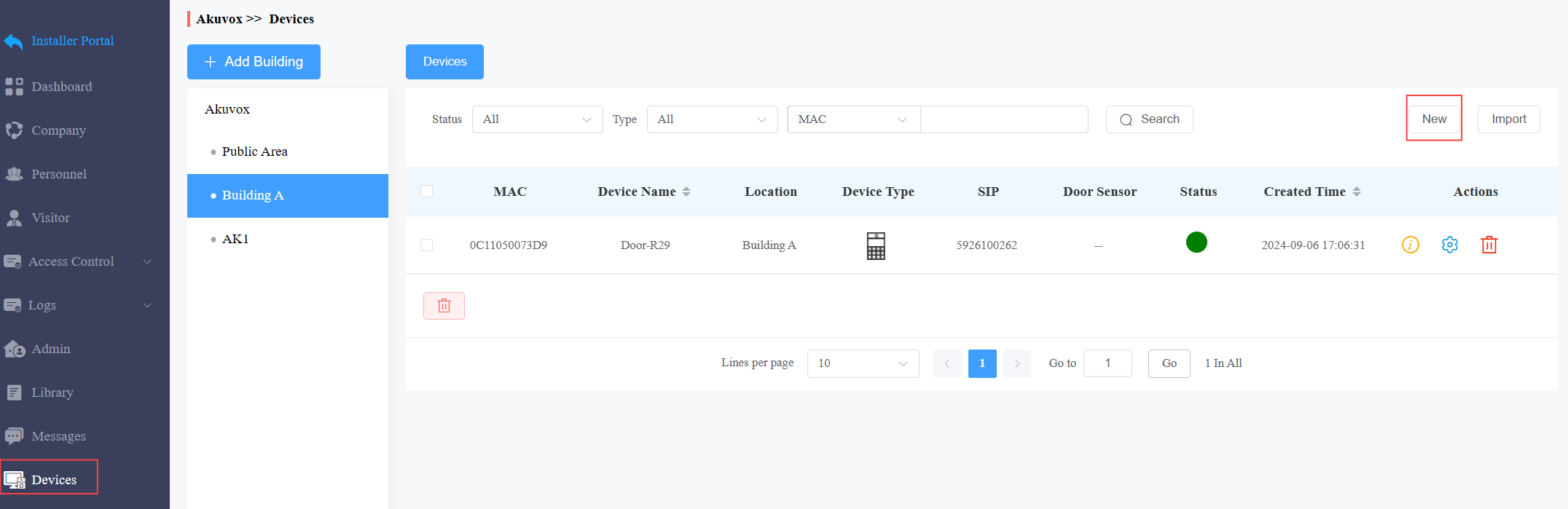
Enter the device’s information. See the description of each item in the below chart.
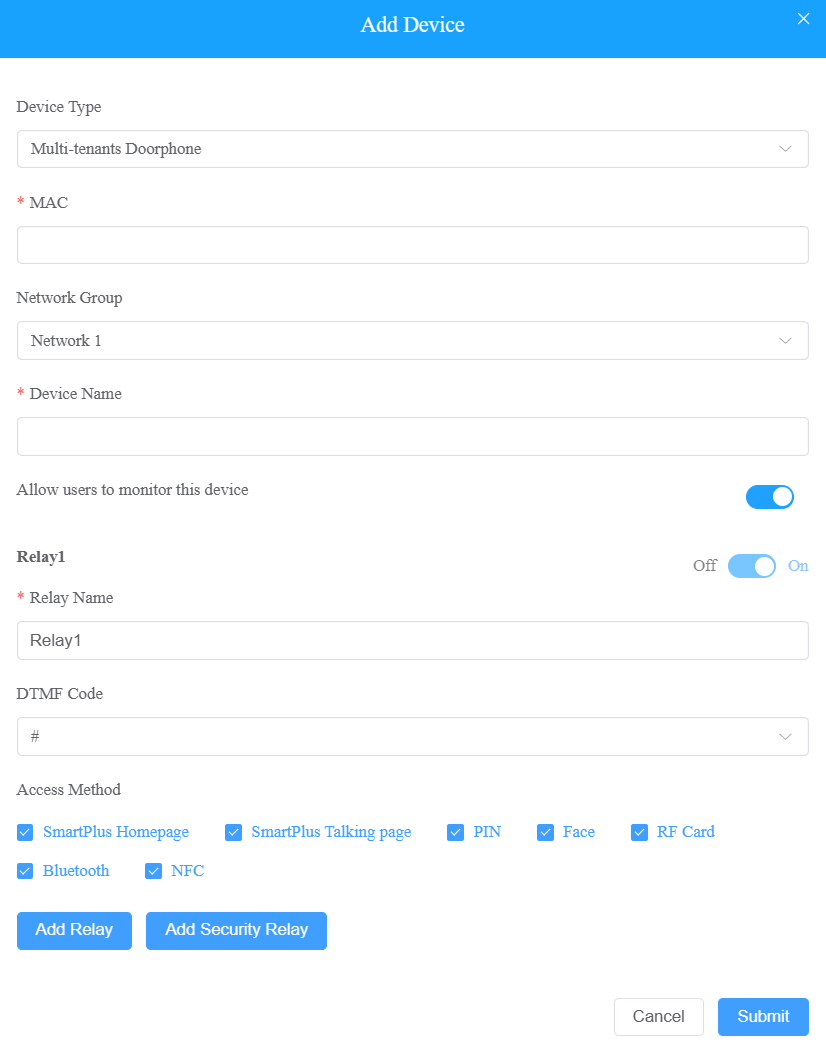
Click Submit to save the settings.
Regardless of what type of the device is, device type, MAC address, network group, and device name need to be set up. | ||
No. | Field Name | Description |
1 | Device Type | Select your device type. |
2 | MAC | Type in the device's MAC address. |
3 | Network Group | Select the network group. You can select the same network group as that of other devices if the devices are deployed in the same local network. (in this case, communicate via IP) Note: Do not select the same network group if the device is not deployed with other devices in the same local area network(in this case, communicate via SIP). Otherwise, it will lead to communication failure. |
4 | Device Name | Name the device to distinguish it from others. |
To add a door phone or an access control terminal, the following options should be additionally configured. | ||
1 | Allow users to monitor this device |
|
2 | Relay Name | Enter the relay name, which can be the device location. |
3 | DTMF Code | Enter the DTMF code for the door access. |
4 | Access Method | Select specific unlock methods to trigger the desired relay. For example, if you select PIN in Unlock type for Relay1 and select RF Card for Relay2 when users enter PIN codes on the door phone, only Relay1 will be triggered and vice versa. The following models with specific firmware versions or higher support this feature:
Note: If the SmartPlus Homepage or SmartPlus Talking page is not checked, the corresponding icons will not appear on the app home page. |
5 | Add Relay | You can add more relays. |
6 | Add Security Relay | Add the security relay if the door phone is connected to an Akuvox SR01 for the door-opening control. |
To add an indoor monitor/guard phone, the following options should be additionally configured. | ||
1 | Arming Function | When enabled, the arming icon will be available on users' SmartPlus Apps for arming and disarming. |
2 | Belongs To | You can link the device to a specific personnel.
|
3 | Relay | This option is for indoor monitors. Turn on or off the device's built-in relay and name the relay. |
Add Devices in a Batch
On the Devices module, click Public Area or select the desired building based on where the device is installed.
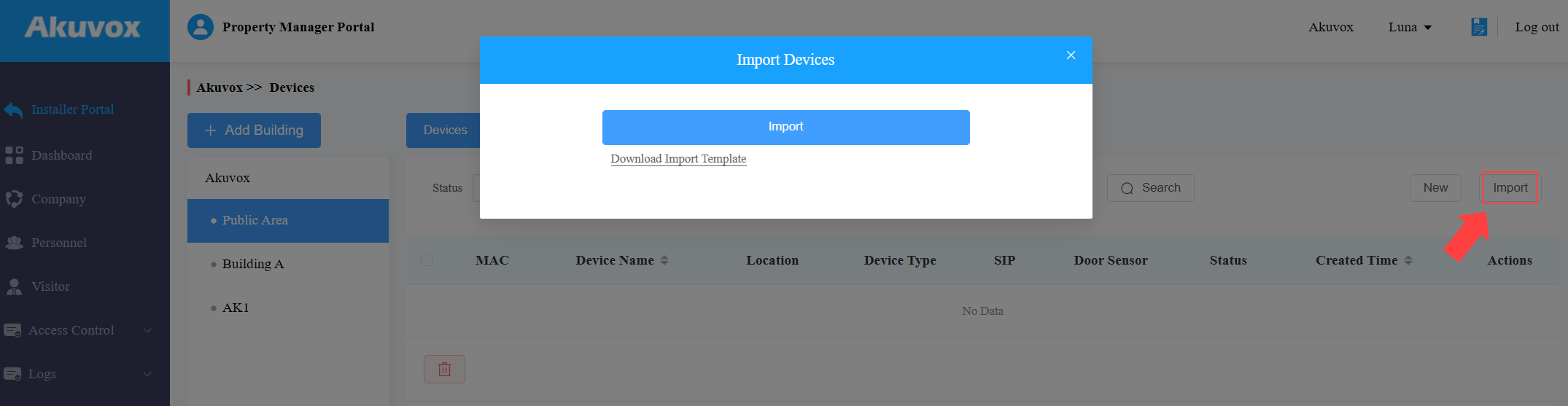
Click Import on the right.
Download and open the template. Click Import after editing the file.
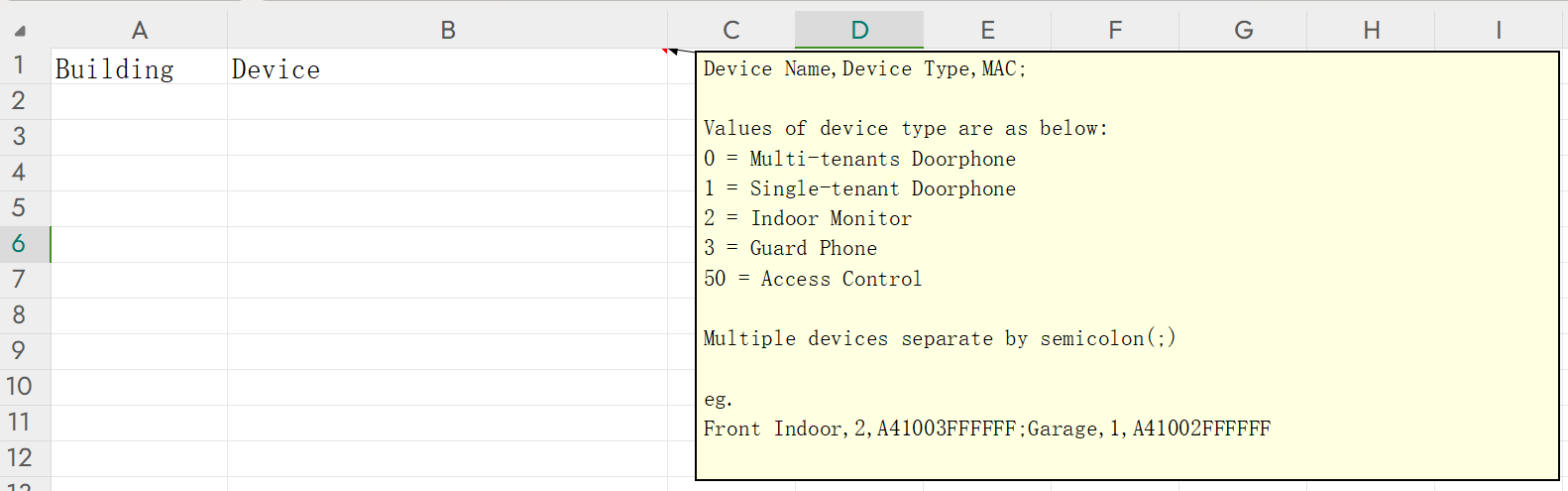
In the template, assign the device to a building and enter the device name, type, and MAC address as instructed.
Edit/Delete Devices
On the Devices module, click of the target device to change the device’s settings and click
 to delete the device.
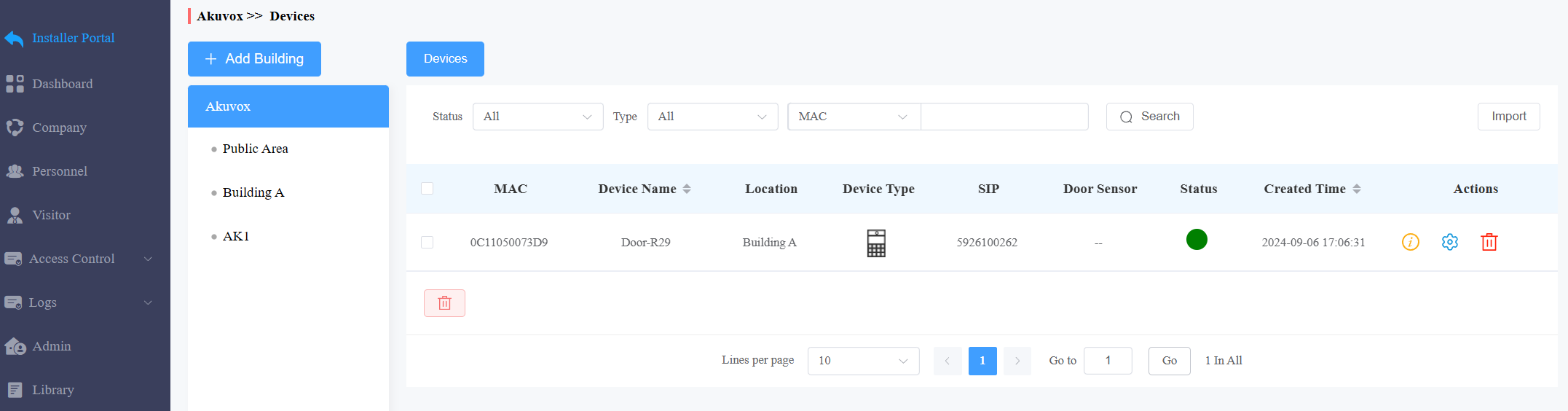
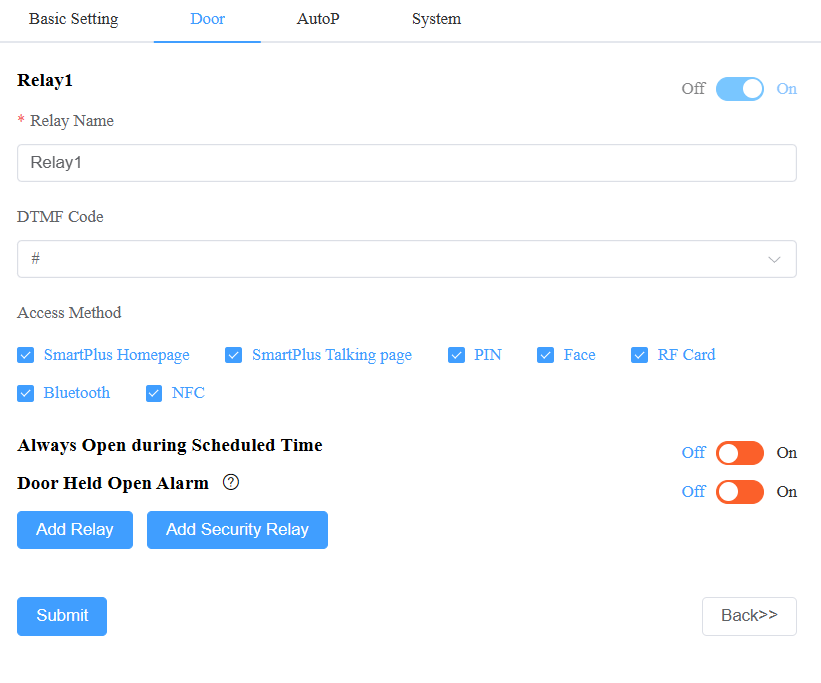
Apart from the basic settings including device name and network group, you can set up the device’s relay(s).
Always Open During Scheduled Time: When enabled, assign an access control schedule to the relay to limit its triggering.
Note
The following devices with specific firmware versions or higher support this feature:
A01/A02: 101.30.10.33;
A08: 108.30.1.16;
E16 V2.0: 216.30.10.106;
S539: 539.30.10.213;
X915 V2.0: 2915.30.10.202.
Door Held Open Alarm: This feature allows the device to sound an alarm when the door-opening time exceeds a certain limit.
Connect Sensor to Input: Specify the Input that is connected to the door sensor.
Door Opened Timeout: Set the door-opening time beyond which the alarm will be triggered.
Device Remote Maintenance
You can manage devices remotely in terms of automatic provisioning(AutoP), reboot, reset, connection type selection, etc.
On the Devices module, clickof the target device. Or, click and click Settings.
Click AutoP and enter the commands. Click One Time AutoP and enter the commands if you just want to implement the AutoP once.
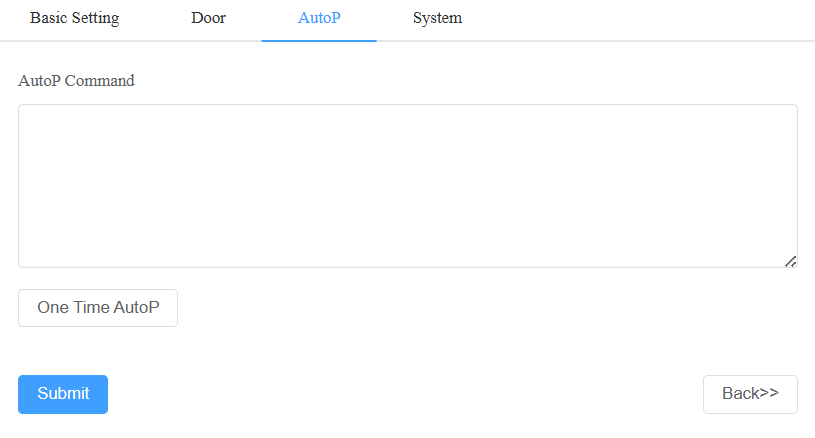
Click System where you can select the connection type, reboot or reset the device, and access the device’s web interface by clicking Remote Control.

Note
The Auto-provisioning command can be exported out of the devices. For the device AutoP command, go to:
https://knowledge.akuvox.com/docs/autop-command-1?highlight=autop
Duplicate commands will not be retained.
Access Group Management
The Access Group module allows you to create an inventory of ready-made access control schedules, which can be readily pulled out and applied for the door access control, targeting specific groups and personnel.
Create an Access Group
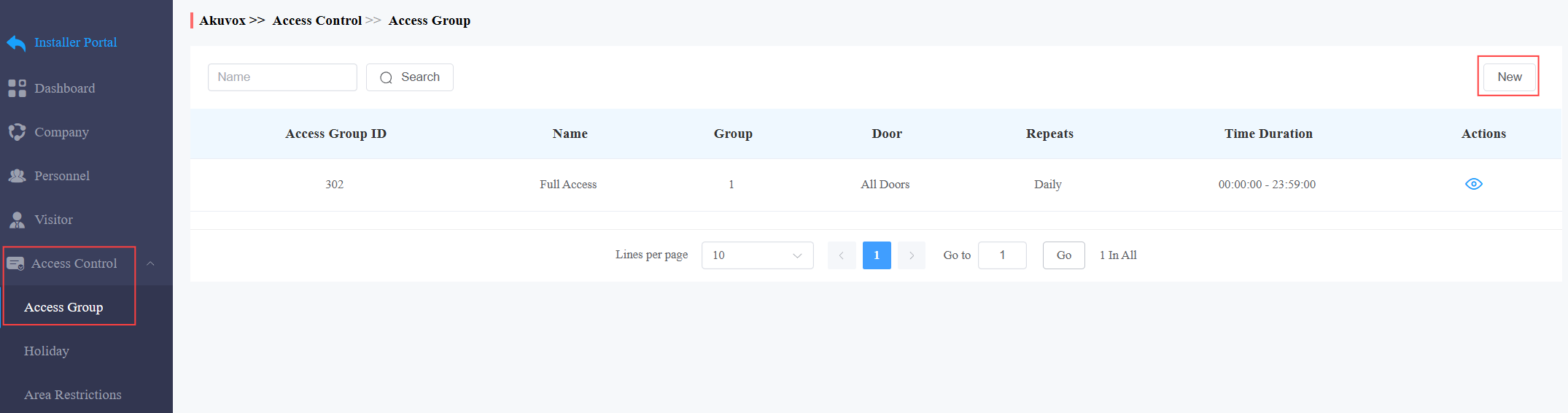
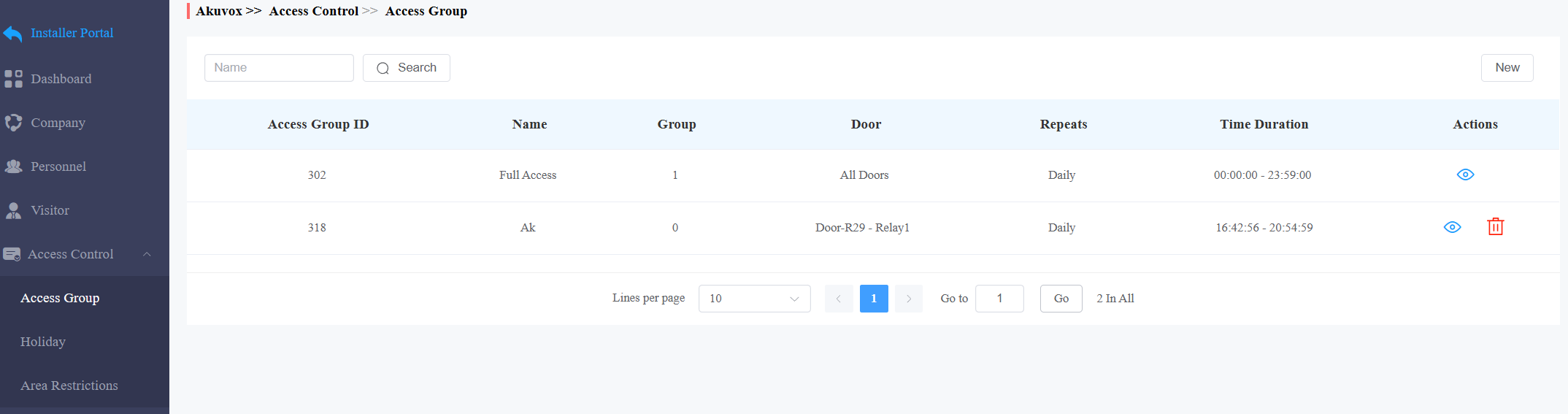
On the Access Control module, click Access Group. Click New to create a new access group.
You can click
 to view the details of the default access group generated by the system.
Name the access group and select the Repeats mode from Daily, Weekly, and Never. Daily and Weekly mean the schedule will repeat every day and week.
Specify the time within which users can open doors with their credentials.
Check the relay to be triggered.
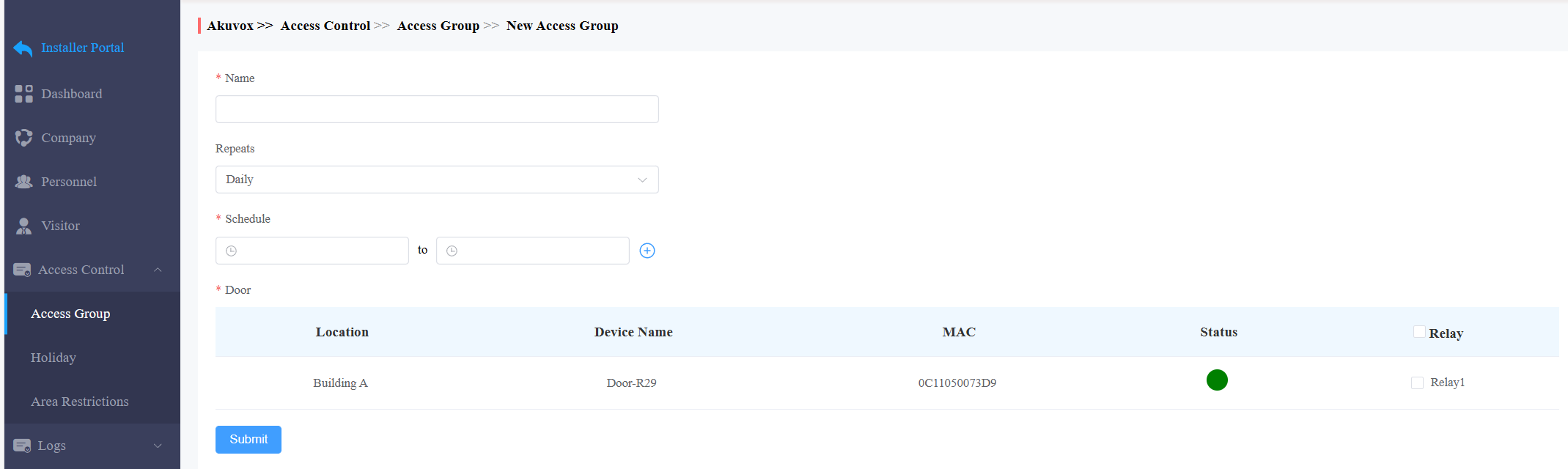
Click Submit.
Edit/Delete Access Groups
On the Access Group interface, click
of the target access group to edit its settings and clickto delete the access group.
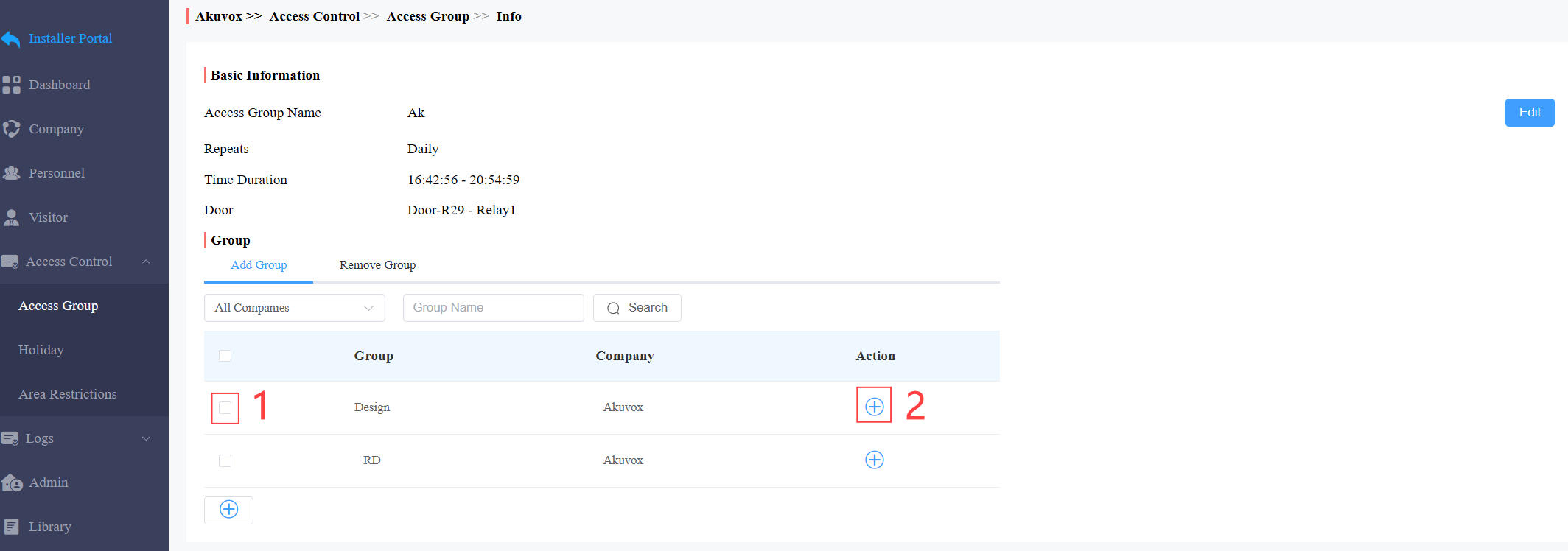
On the Access Group’s Info interface, you can:
check the access group’s information.
apply the schedule to specific groups by checking the groups and clicking
 . You can quickly find the desired group by narrowing the search scope by selecting the specific company and entering the group name.
remove the schedule that applies to the group by checking the group and clicking
 .
.
Click Edit on the right to modify the access group’s settings including name, repeats mode, and relays.
Holiday Access Control
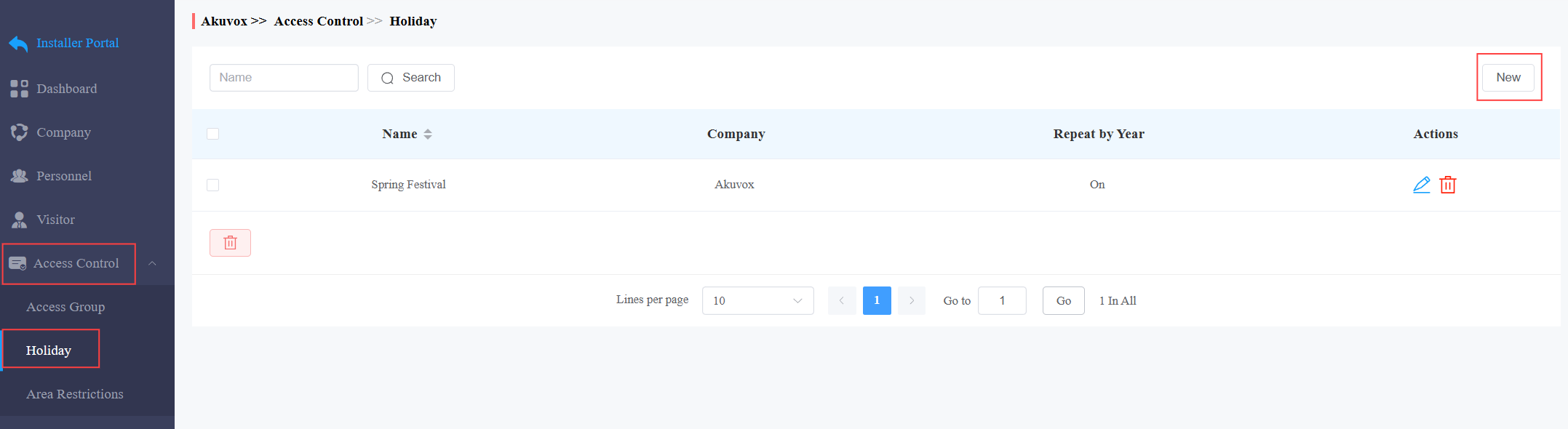
You can define the holidays when personnel cannot open doors to enhance access control security.
On the Access Control module, click Holiday and click New on the right.
Select the company that adopts the schedule.
Enter the holiday name.
You can set the Working Hours to allow authorized personnel to open doors. When enabled, specify the time.
You can enable Repeat by Year to repeat the schedule every year.
Select the year and day(s) of the holiday schedule.
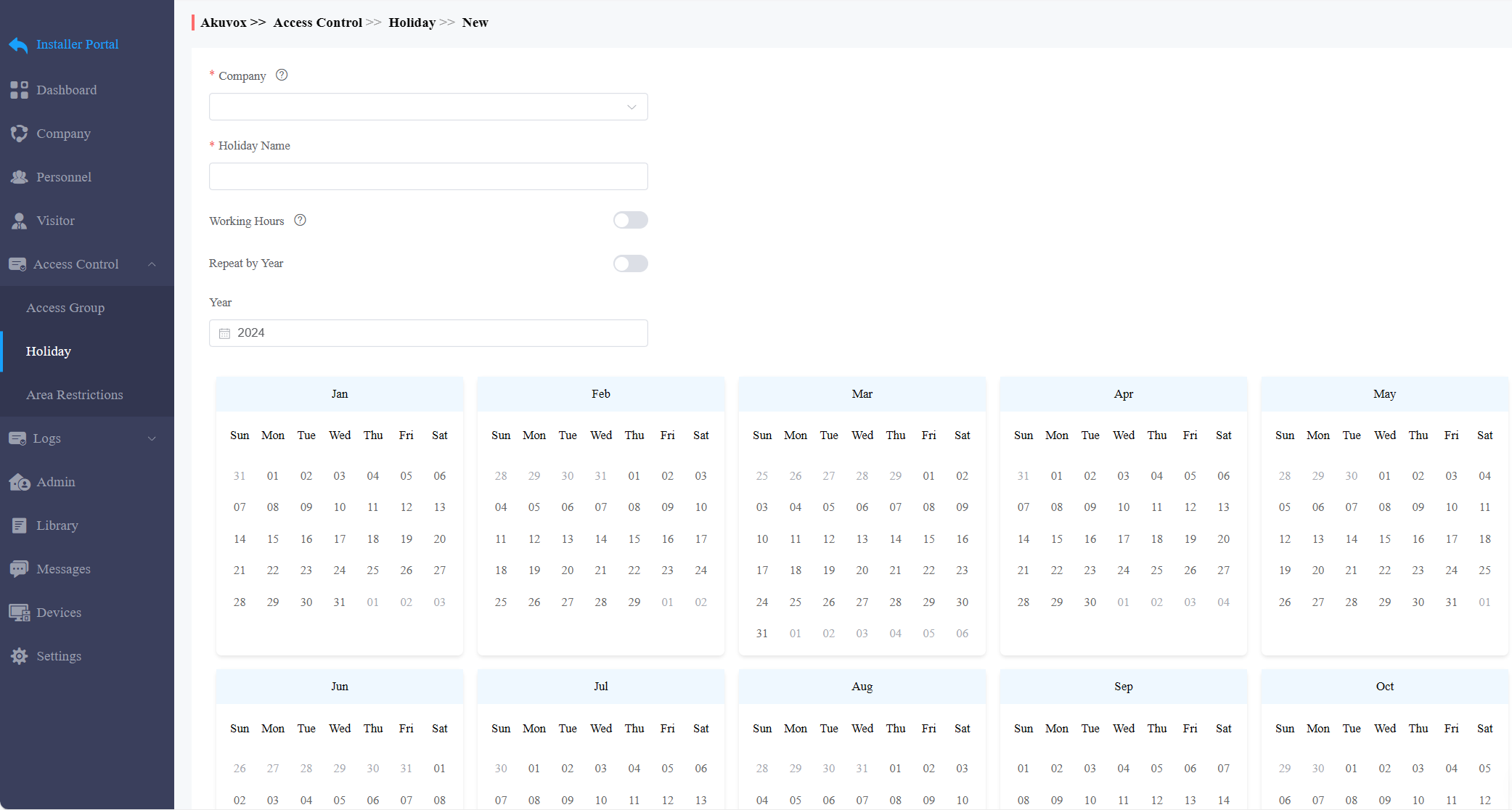
Click Submit.
Area Restrictions
This feature strictly controls users’ entry and exit. Users can only enter and exit the specific area through the designated doors.
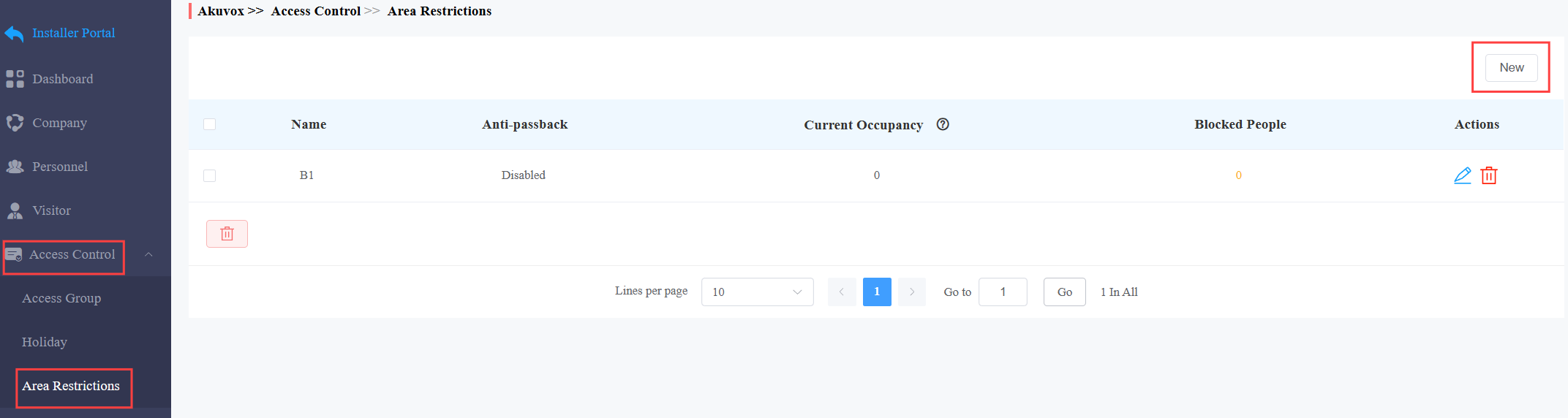
On the Access Control module, click Area Restrictions.
Click New on the right to set up the restriction rule. See the description of each column in the below chart.
Enter the area name.
Select the entry and exit doors. With anti-passback disabled, there is no strict control over users exiting through the exit door. Users can exit through the entry door.
When the anti-passback feature is enabled, users must first enter, and then exit the area through designated doors.
Note
Anti-passback also prohibits users from entering the area by following others. Users can only use their credentials to open the entry and exit doors once respectively.
For example, if the user follows someone else through the door, the next time he/she cannot swipe his/her card to open the Entry/Exit door.
a. Set the time when the anti-passback feature is effective.
b. Select the action taken by the door phone when the user tries to open the same entry or exit door twice.
-Deny Access: The user cannot open the door.
-Log violations only: The door can be opened and the door opening will be recorded in the door log.
Set the User Timeout within which users cannot open the same door twice. Only after the time limit, can users open the door again.
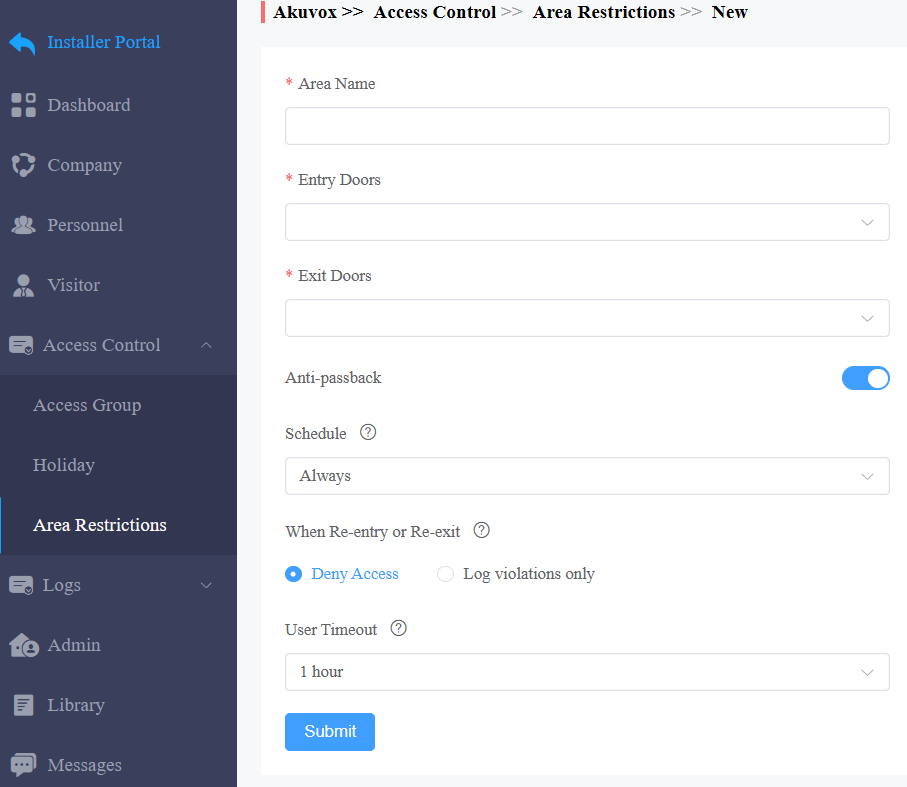
Click Submit.
No. | Column Name | Description |
|---|---|---|
1 | Name | The area name. |
2 | Anti-Passback | Display whether the anti-passback feature is enabled. |
3 | Current Occupancy | Display the number of personnel entering the area, only effective when the anti-passback feature is enabled. |
4 | Blocked People | Display the number of personnel and couriers that are denied access in the area. It is only effective when the anti-passback feature is enabled and Deny Access is selected as the action for When Re-entry or Re-exit. |
5 | Actions | You can edit the rule or remove it. |
Visitor Management
You can set up access credentials for visitors and delivery personnel.
Access Credentials for Visitors
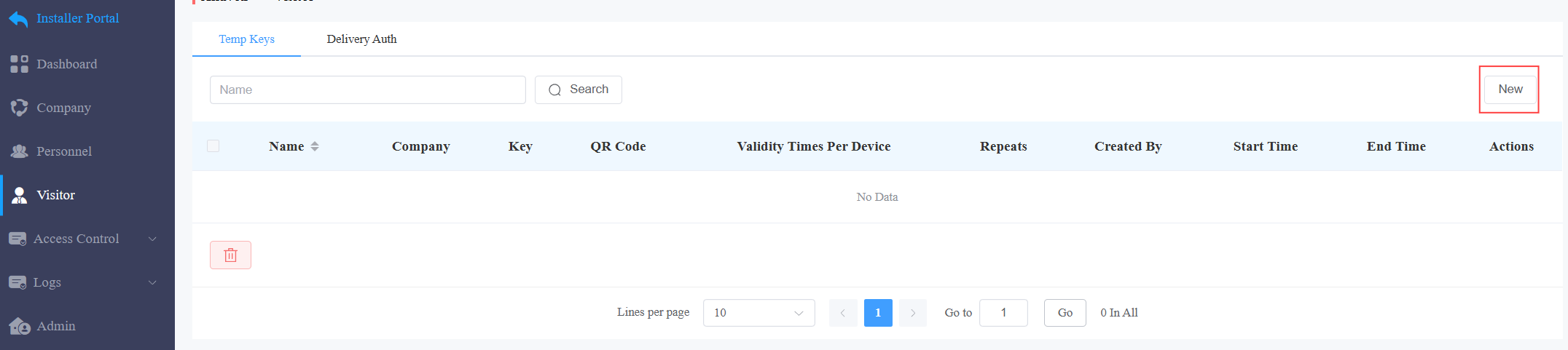
You can create temporary PIN codes along with QR codes for visitors, set the time when the credentials are valid, and select the door to be opened.
On the Visitor module, click New on the right.
Select the Company and enter the visitor’s name.
[Optional]Set a unique ID for the visitor.
Specify the time within which visitors can open doors by selecting the Repeats mode from Daily, Weekly, and Never.
Daily and Weekly means the schedule will repeat every day and week.
Set the Validity Times Per Device when you select the Never Repeats mode.
For example, if you enter 1 and check three door phones, the visitor can use the credential to open doors three times.
In other words, the validity times of credentials = Validity Times Per Device x The number of door phones selected.
Enter the visitor’s email address in the Delivery Method to receive the temporary key.
Check the door(s) to be opened by the visitor.
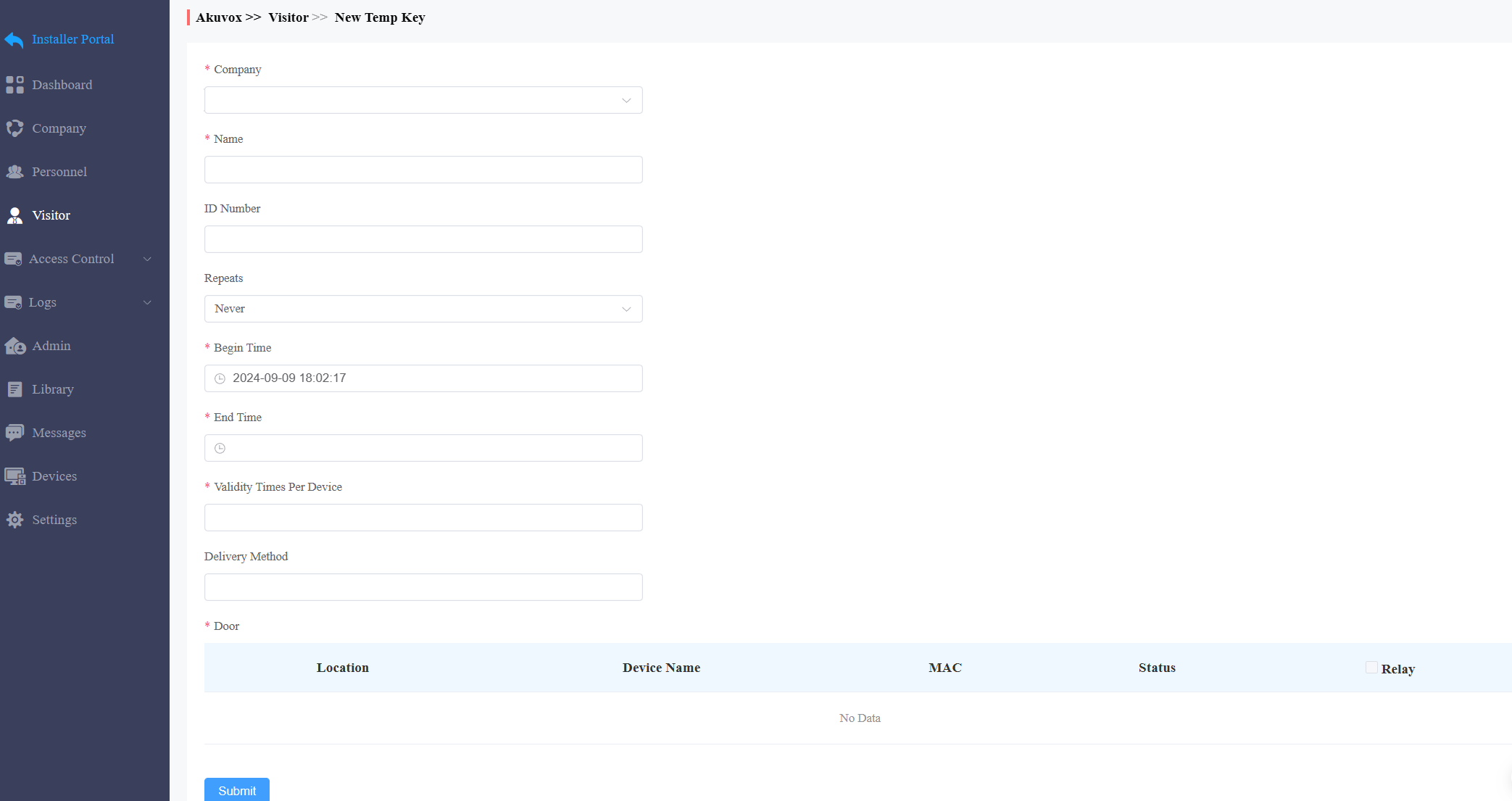
Click Submit.
After creating the temp key, you can check the details of the temp key by clicking  and delete it by clicking
 .
.
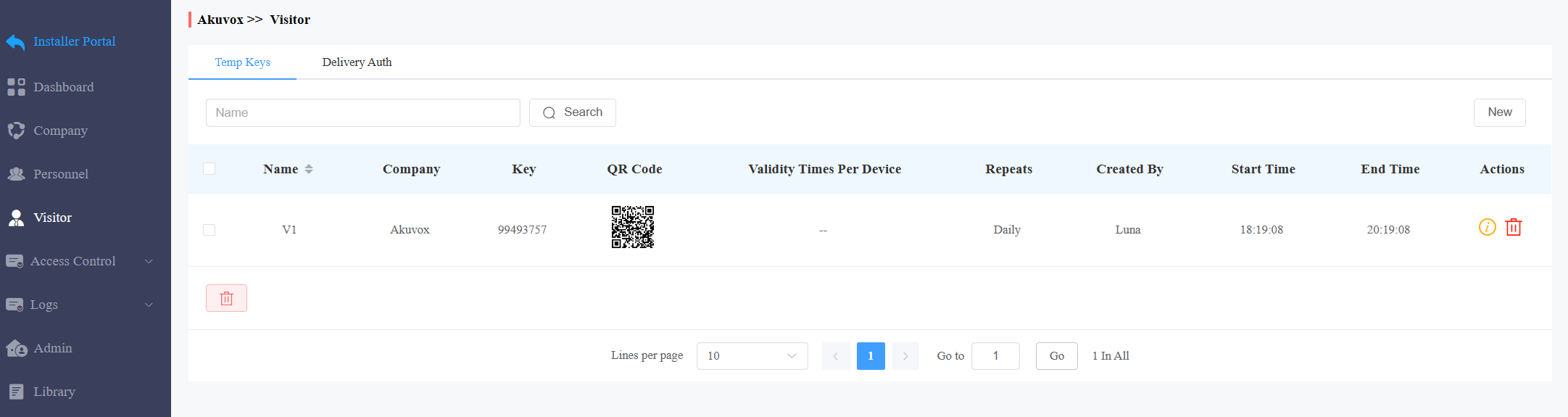
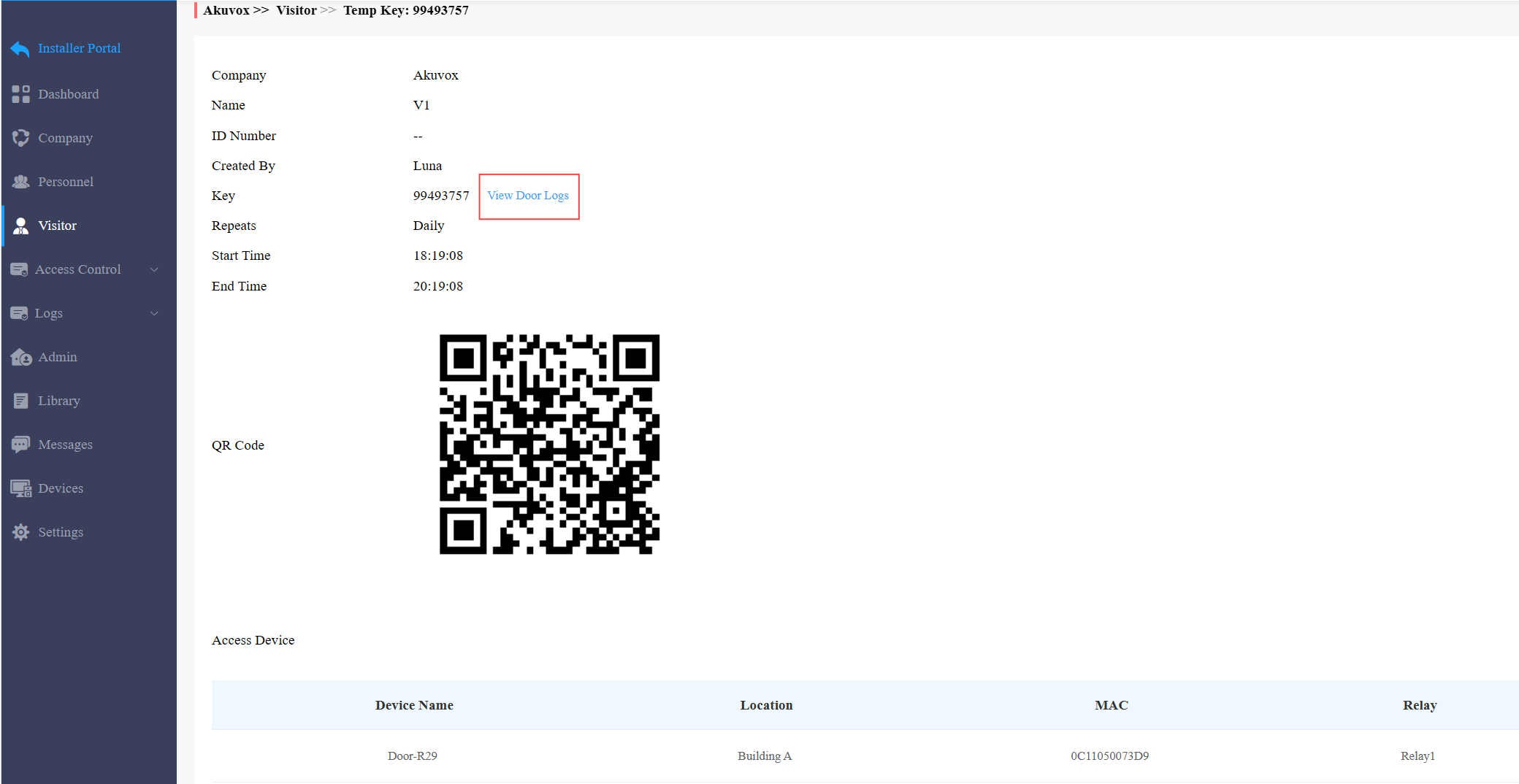
On the temp key’s information interface, you can click View Door Logs to check the door-opening record.
Access Credentials for Delivery Personnel
You can create PIN codes and RF card credentials for delivery personnel, with which they can access the designated place such as a package room.
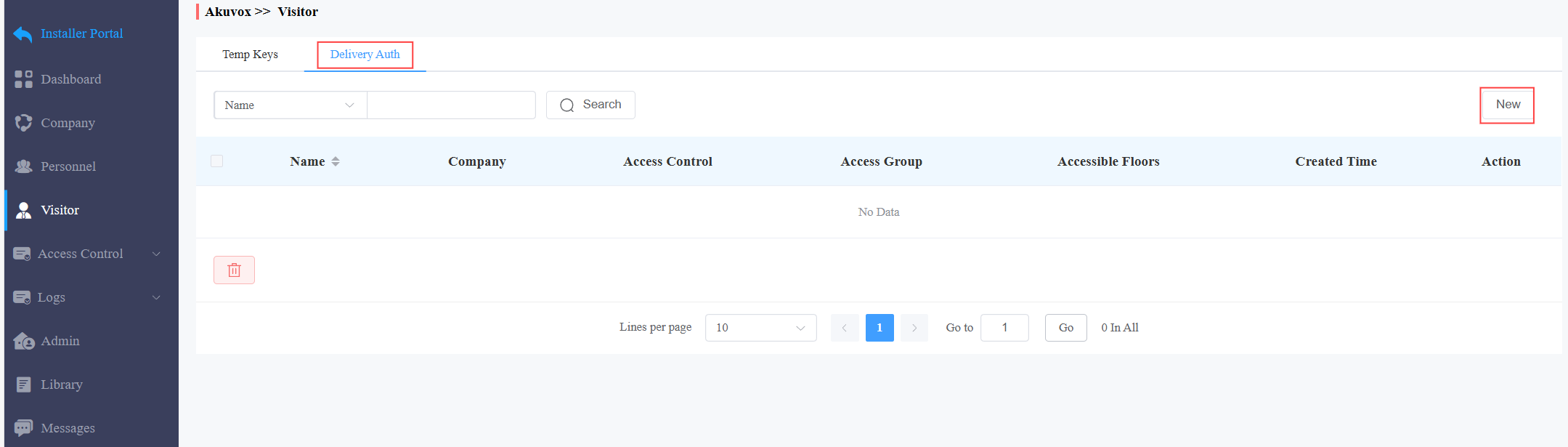
On the Visitor module, click Delivery Auth and click New on the right.
Select the company and enter the deliveryman’s name.
Enter the PIN code and/or the RF card code. The PIN code should be within 2 to 8 digits not starting with “9”.
Set the accessible floors. The deliveryman can take lifts to the specified floors using access control credentials. You can select 10 floors in a building at maximum.
Check the schedule for when the deliveryman can open the door. You can also click New to create a new schedule.
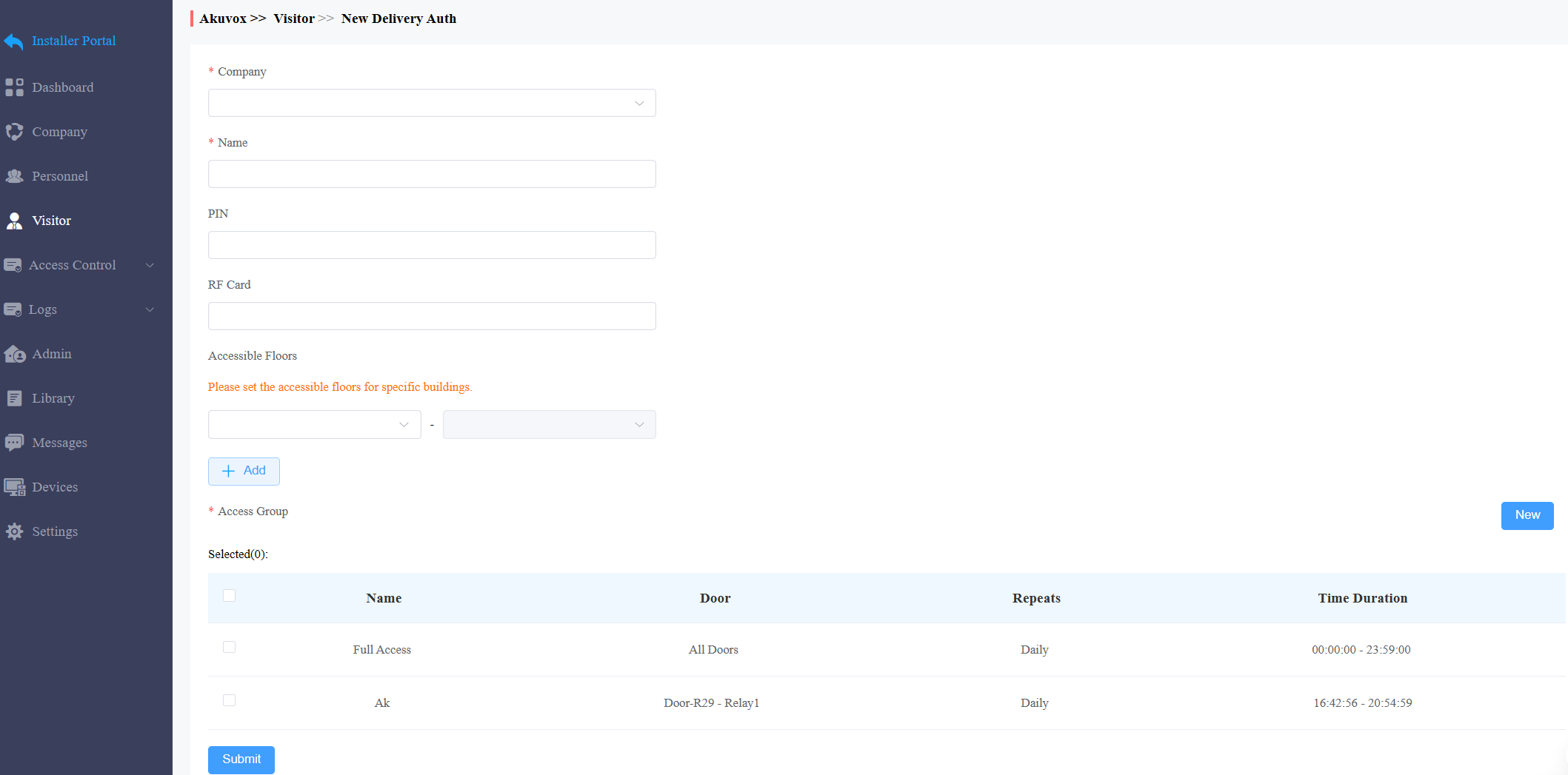
Click Submit.
After creating the credential, you can modify it by clickingand delete it by clicking.

Logs
You can check door logs, call history, images captured, alarm logs, and door opened timeout logs in the Logs module.
Door Logs
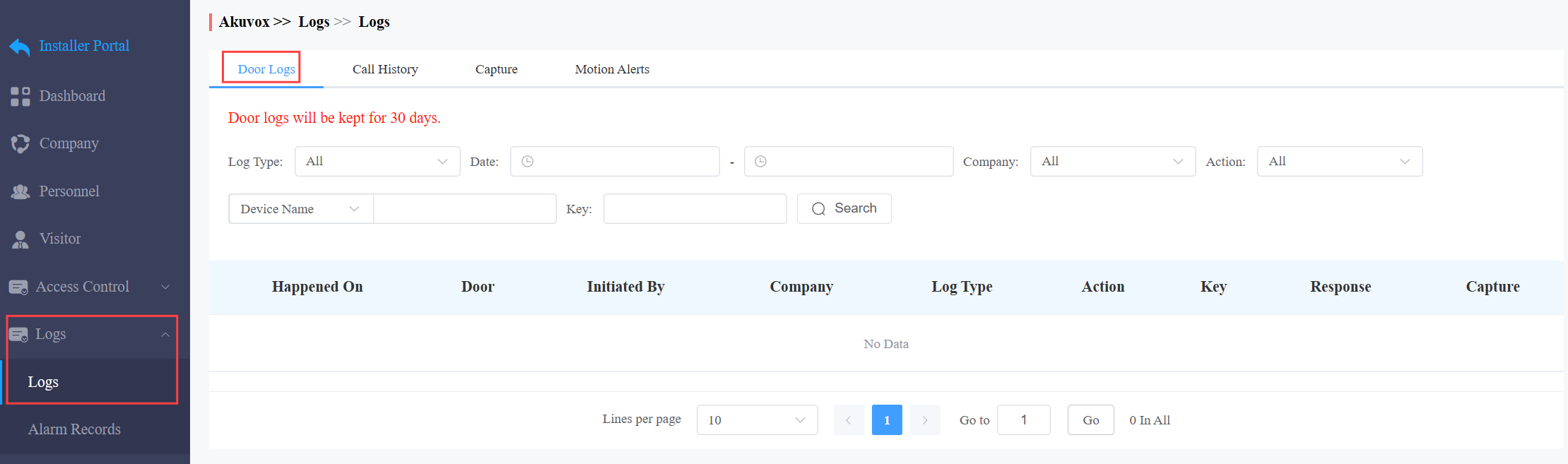
Door logs have 7 types. You can narrow your log check by the specific time range with parameters: Device Name, Initiated by, Access Methods, and Company for the targeted search.
All: Display all door logs;
Call: Display the SIP/IP-based calls initiated on the door phone, indicating when, where, and to whom the calls are made.
Door Release: Display when, where, and by whom the door openings are made (be it failure or success).
Entry: Display the valid door-opening records of entering without disobeying the area restriction rules.
Exit: Display the valid door-opening records of exit without disobeying the area restriction rules.
Entry Violation: Display the door-opening records of entering that violate the area restriction rules.
Exit Violation: Display the door-opening records of exits that violate the area restriction rules.
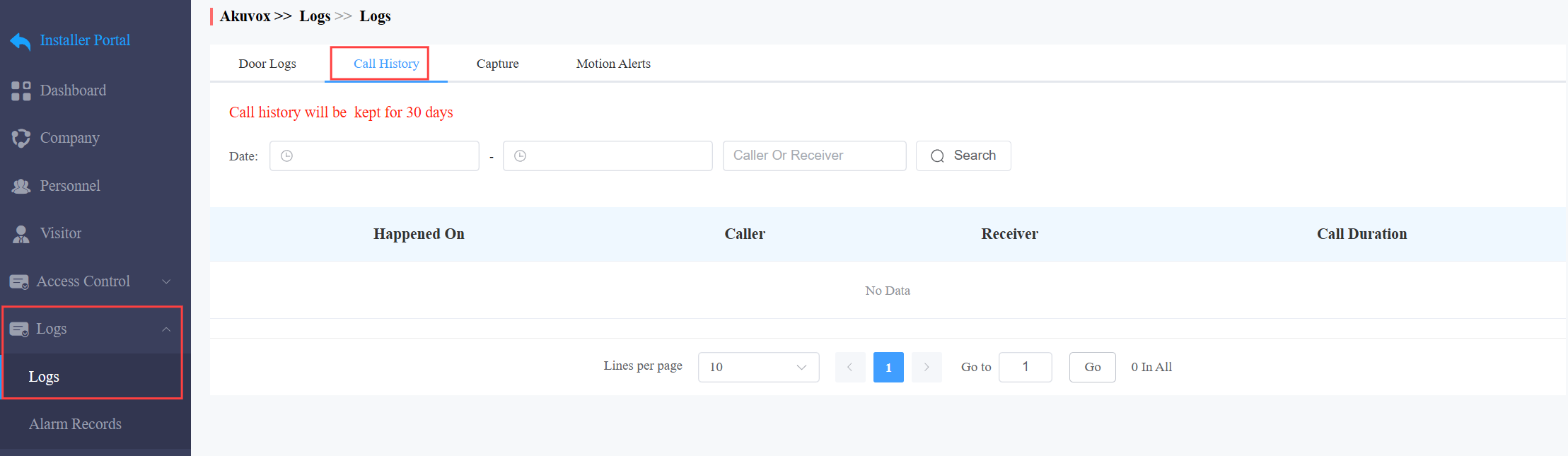
Call Logs
You can check when and by whom the SIP calls are made and received. Moreover, you can set the time range or enter the caller or receiver to check the targeted call information.
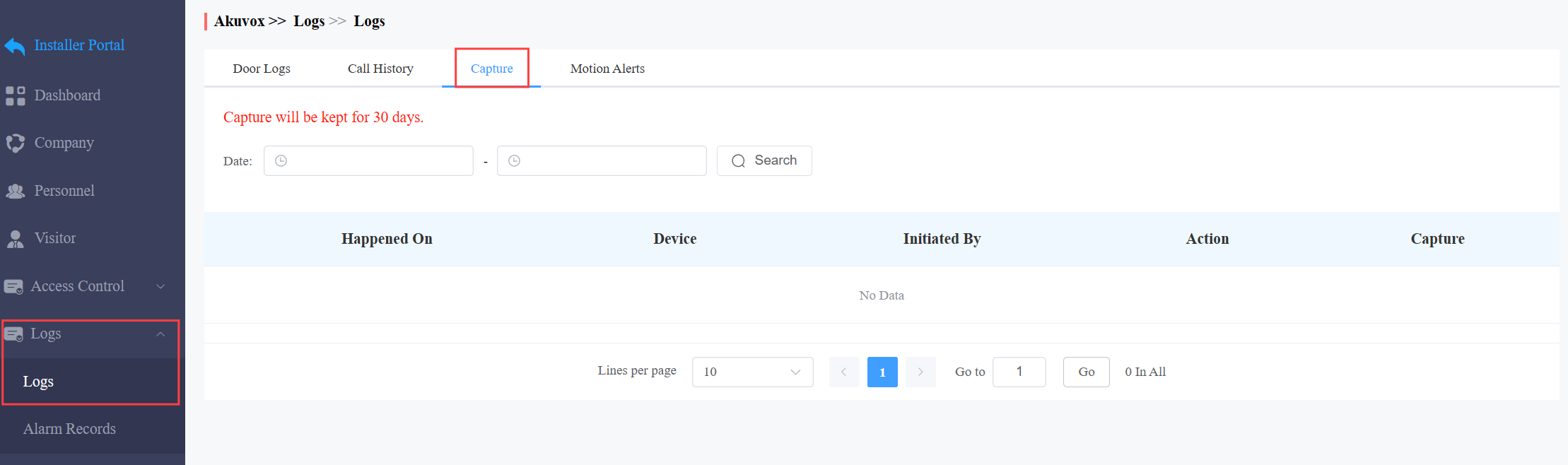
Captured Images
Image capturing is either initiated manually by users or by the property management staff. You can check when, where, how, and by whom the images are captured. You can click the image in the Capture column to see a larger picture.
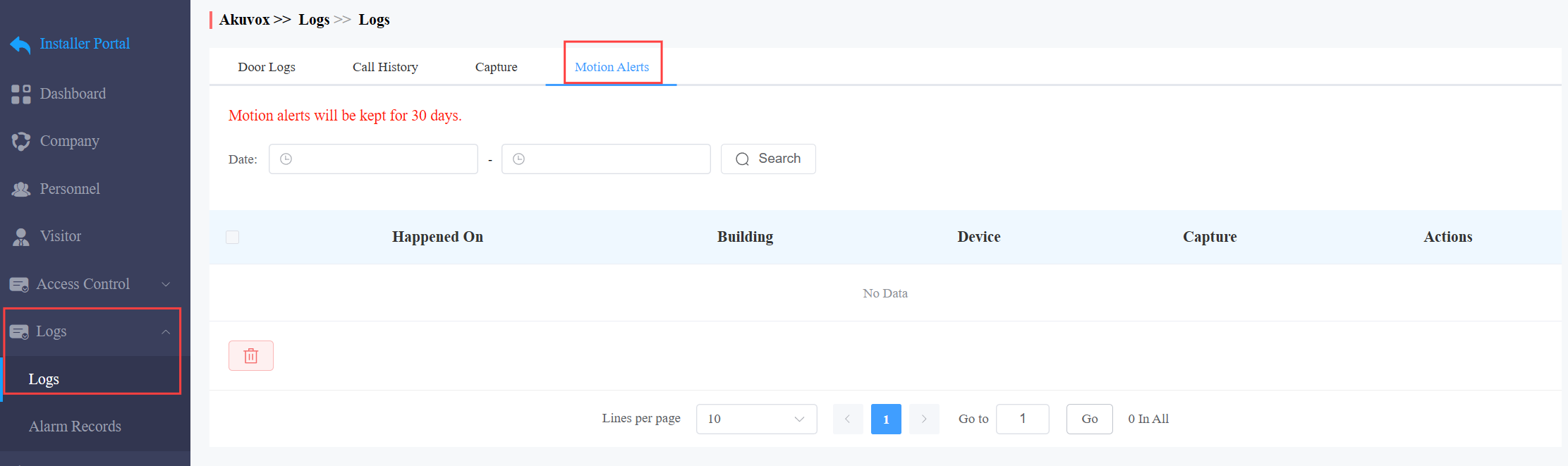
Motion Alerts
Motion alerts allow you to check the captured image of people whose movement has triggered the motion detection in the door phones (door phones with motion detection function).
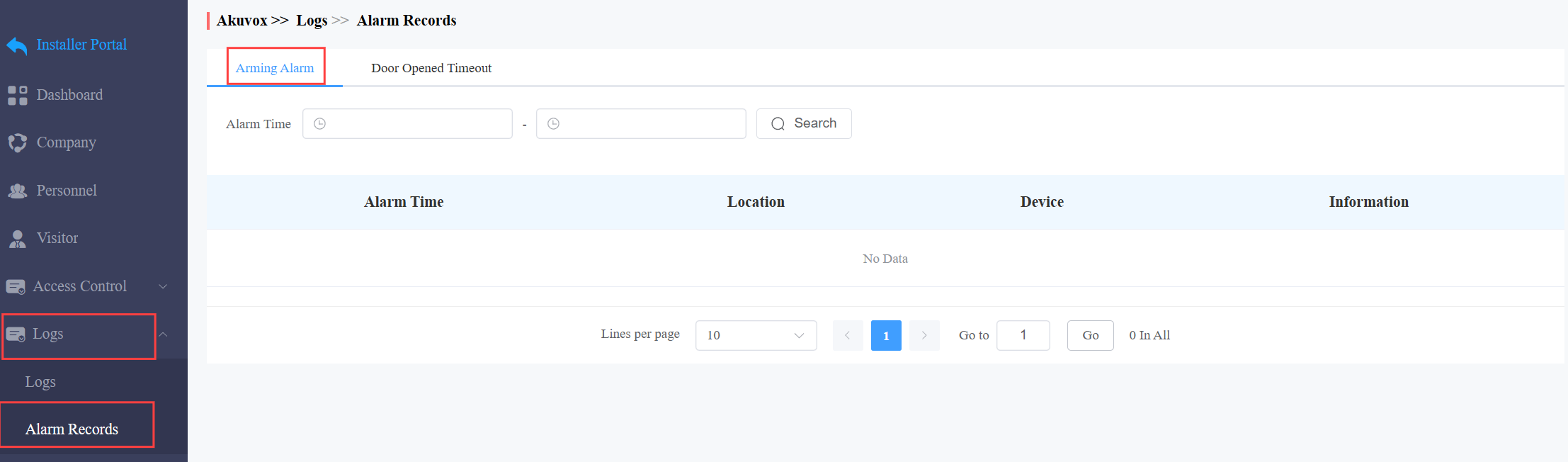
Arming Alarms
You can check the alarm logs in the sub-module Alarm Records of Logs. Narrow the search by entering a specific time.
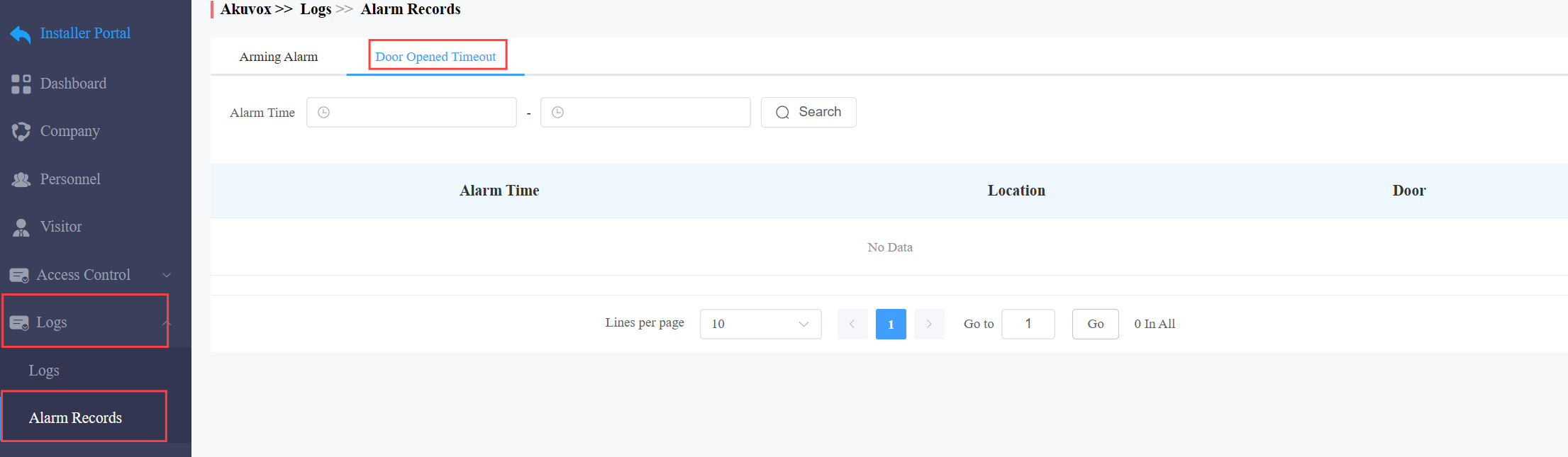
Door Opened Timeout Logs
When the door-opening time exceeds a certain limit, the alarm will be triggered and recorded.
You can check the logs in the sub-module Alarm Records of Logs. Narrow the search by entering a specific time.
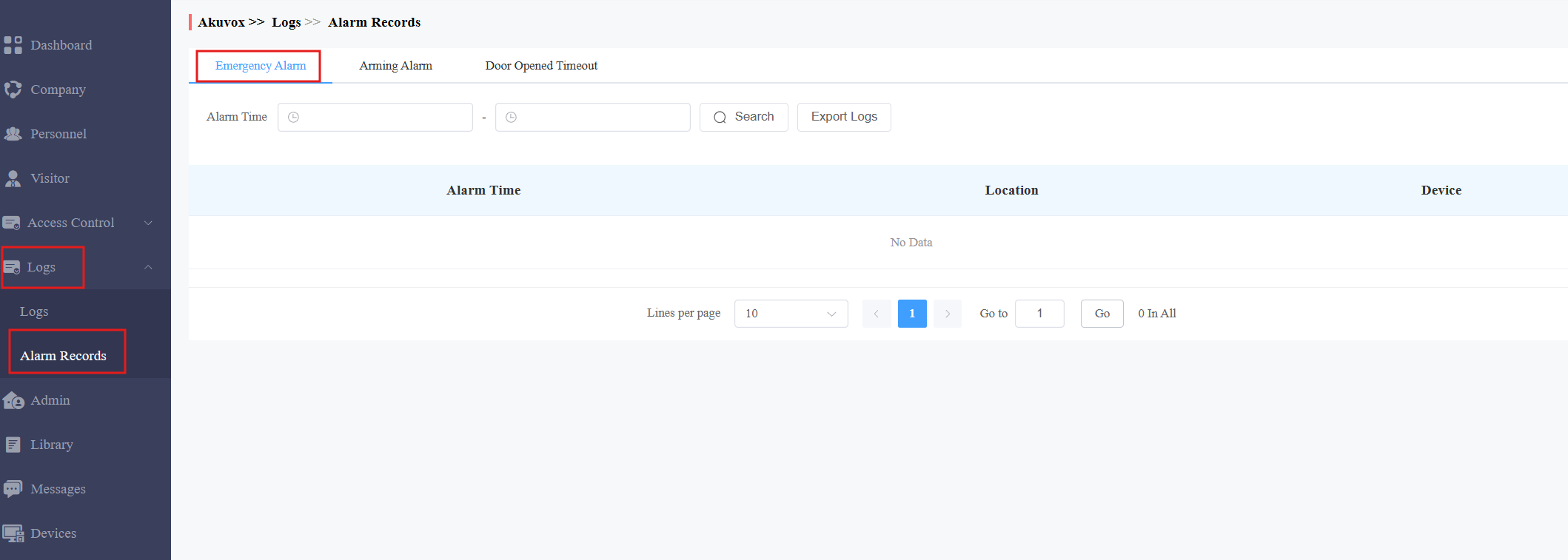
Emergency Alarm
With the property manager account, you can check logs of emergency unlock in the sub-module Alarm Records of Logs.
Narrow the search by entering a specific time.
Messages
You can create, send, and check messages.
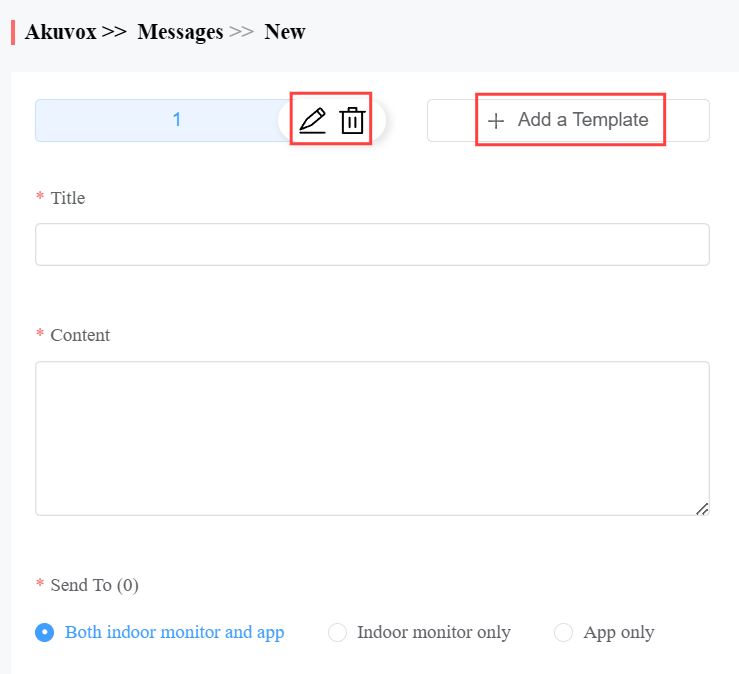
You can create one-time messages or reusable message templates for your convenience.
On the Messages module, click New on the right.
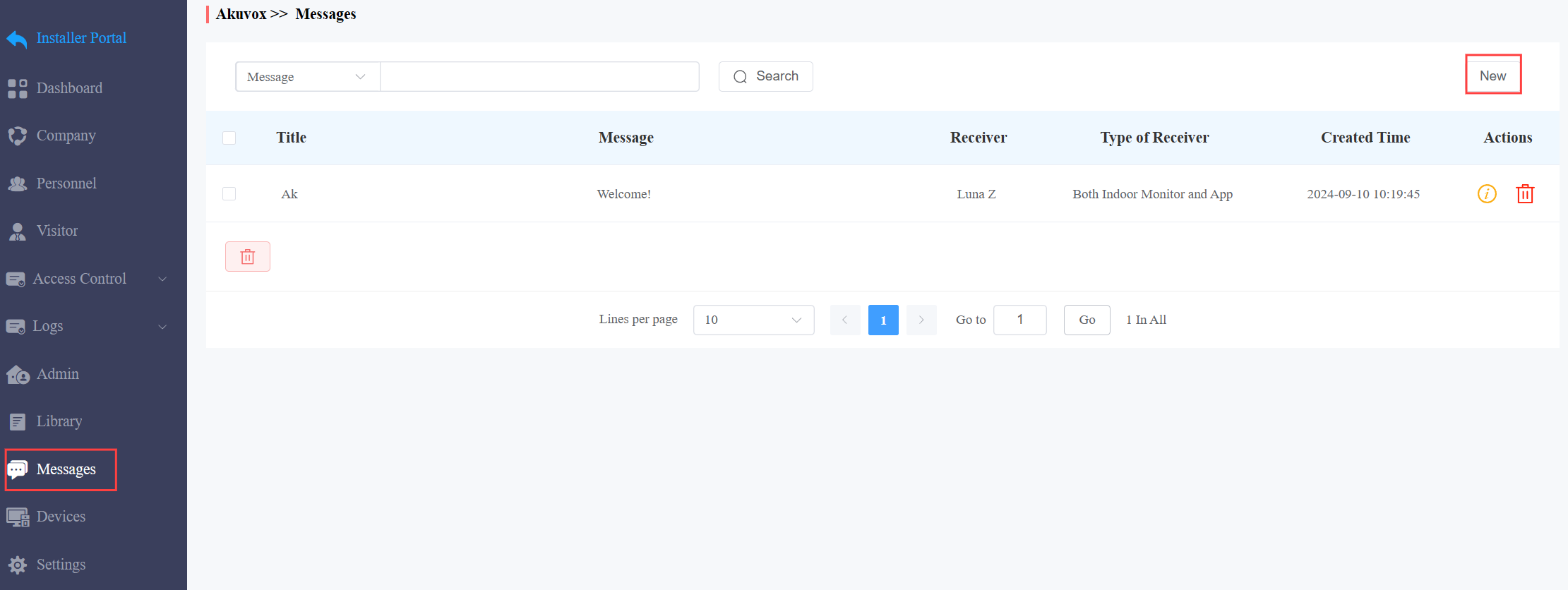
2. Enter the message title and content directly to create one-time messages. Select the receiver type.
To create reusable message template(s), you can click Add a Template and enter the template name, title, and content.
You can edit or delete the template after creating it.
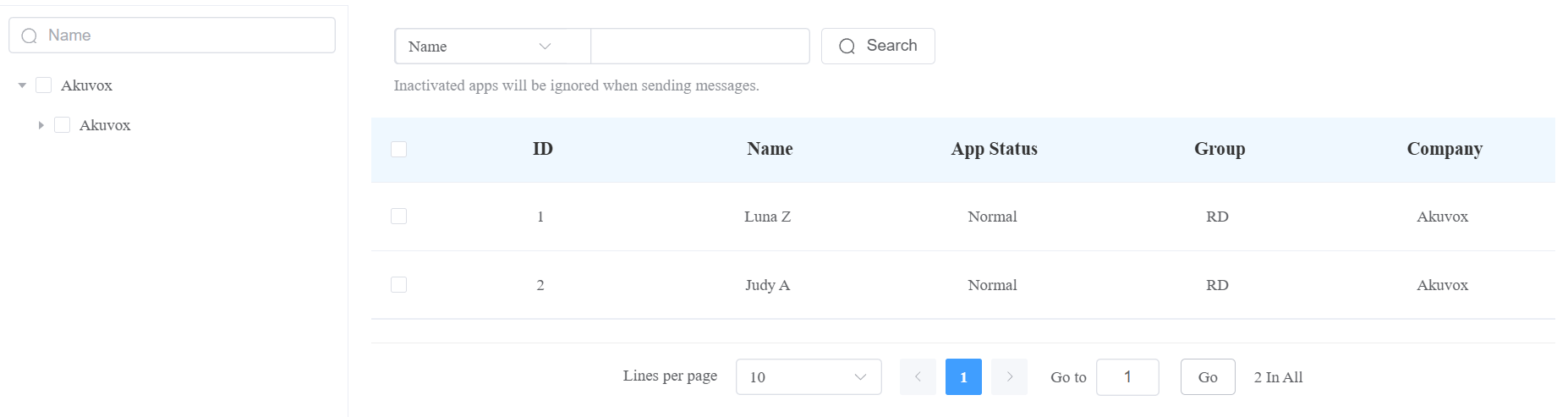
Select the personnel to receive the message.
Click Submit.
After the message is created, you can click  to check the message details and click to remove it.

Library
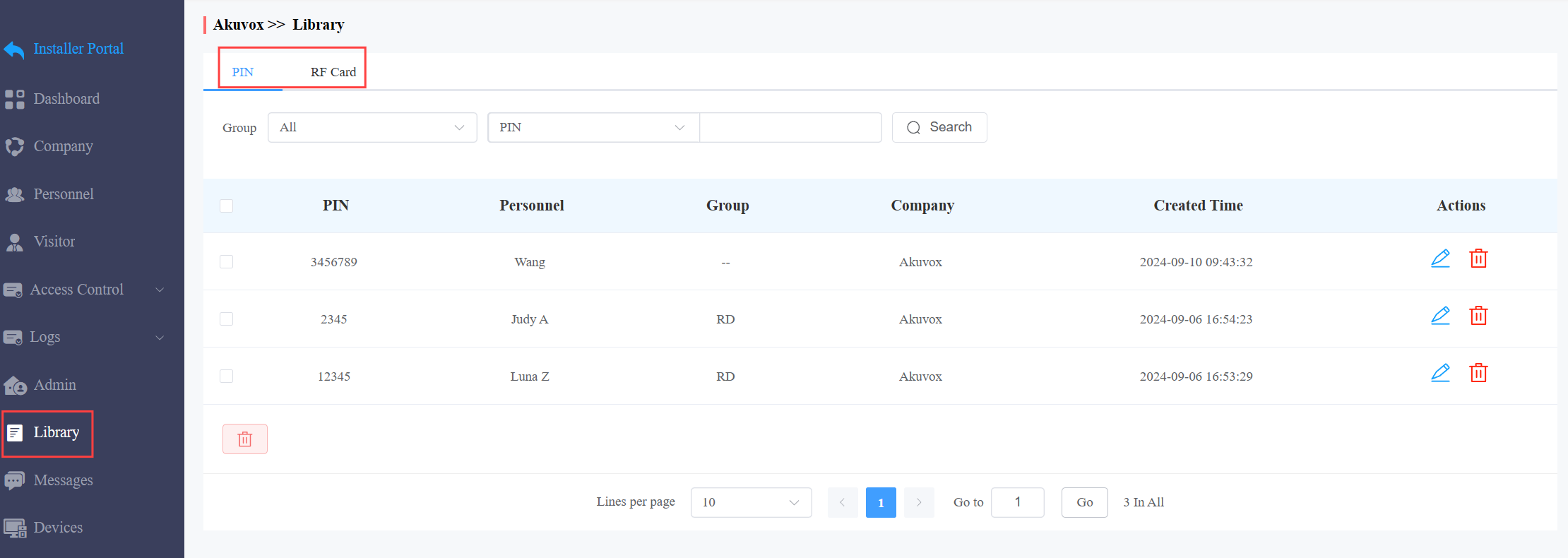
You can check, modify, and delete all types of created PIN codes and RF Cards conveniently at one stop.
On the Library module, clickto modify the PIN code or RF card code. Clickto remove the code.
Settings
Settings include the basic settings(office name, address, permissions, emergency unlock, etc), time settings, and motion detection settings.
Basic Settings
See the description of each item in the below chart.
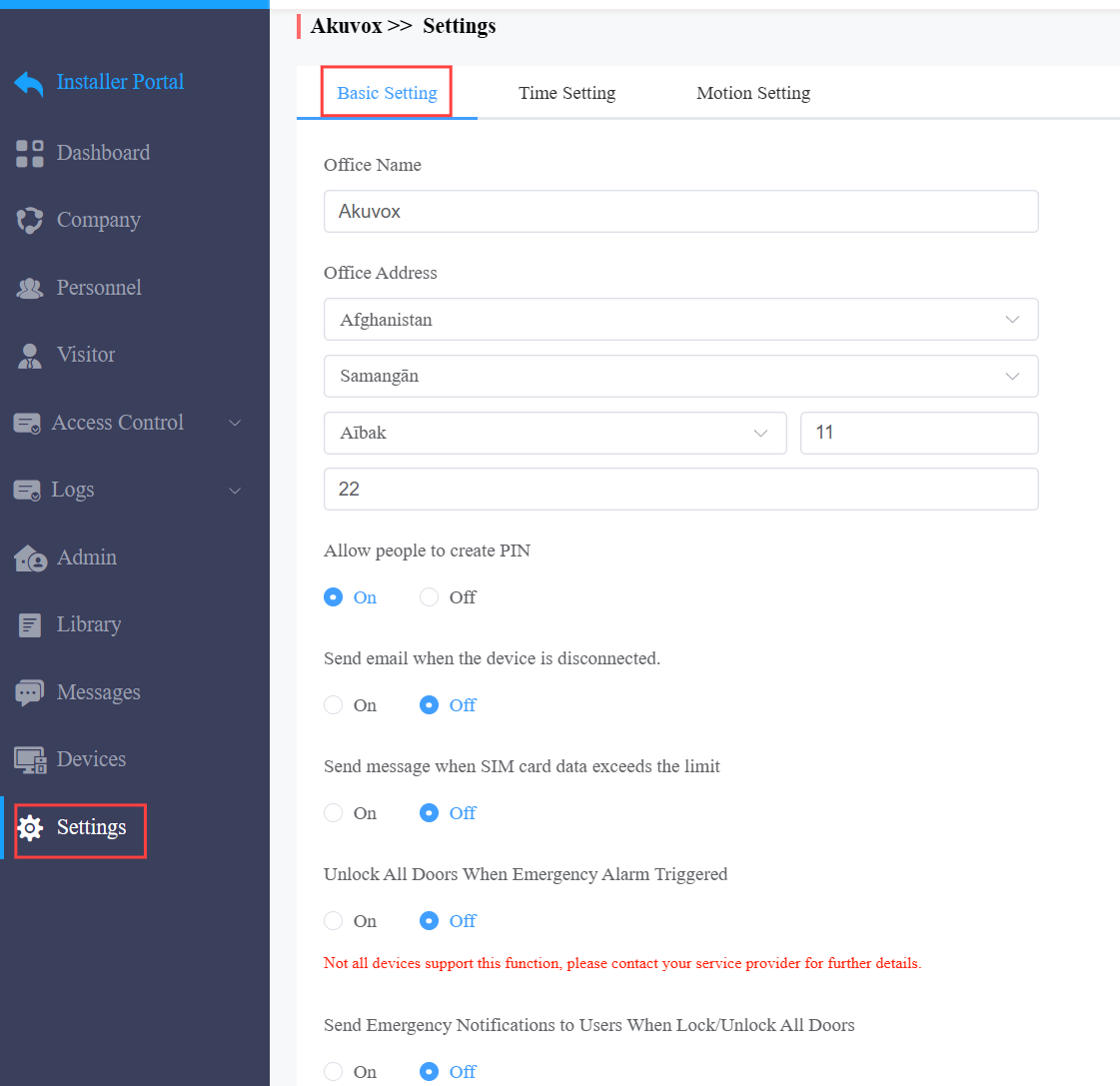
No. | Item Name | Description |
|---|---|---|
1 | Office Name | Name the office. |
2 | Office Address | Enter the office address. |
3 | Allow people to create PIN. | Set whether users can create PIN codes on their SmartPlus Apps. |
4 | Send email when the device is disconnected. | Set whether to receive email notifications when devices are offline. |
5 | Send message when SIM card data exceeds the limit | Set whether to receive email notifications when door phones with LTE function exceed the (SIM card) data package limit. |
Emergency Unlock
You can make all doors open or close automatically or manually during emergencies. For example, the doors can be opened automatically once an emergency alarm is triggered on any one of the door phones during a fire emergency so that people can be quickly evacuated to a safer place. Also, you can open all the doors manually.
Note
With the installer accounts, you can only enable/disable the emergency unlock feature but not perform the action.
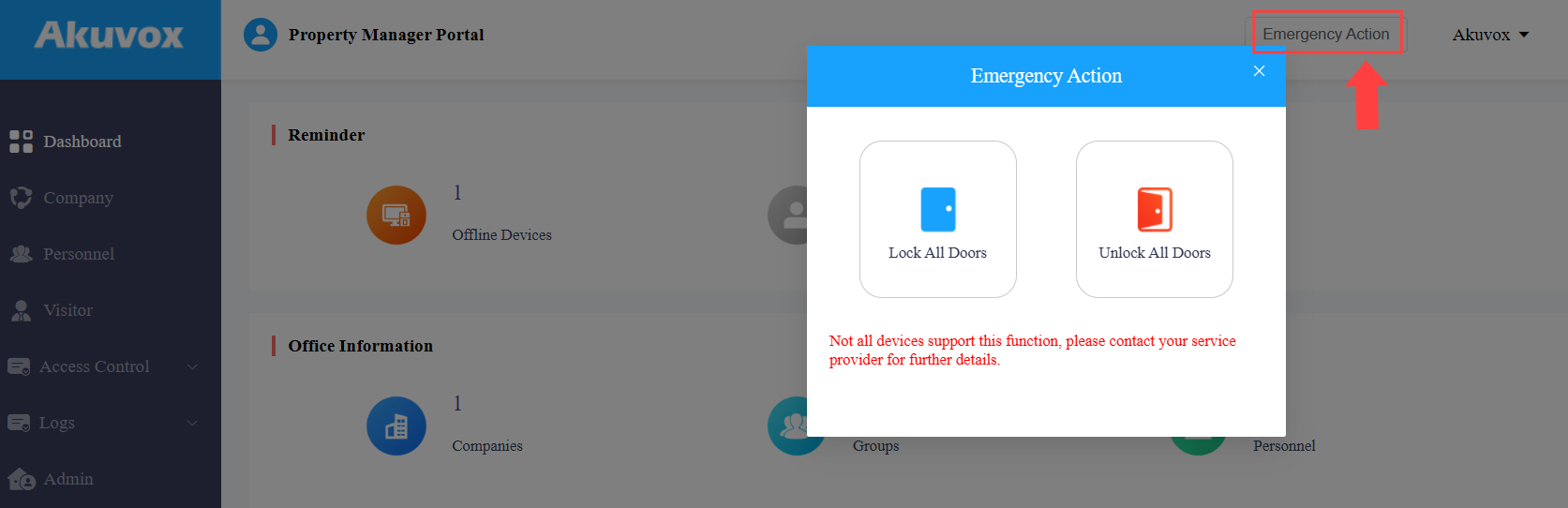
With the property manager account, you can click the Emergency Action button to open or close all doors.
The following models with specific firmware versions or higher support office emergency unlock:
R29: 29.30.3.214
X915 V1: 915.30.10.211
X916: 916.30.10.116
X912: 912.30.10.108
S539: 539.30.1.105
E16 V2: 216.30.0.67
E18: 18.30.6.19
E12 V2: 312.30.2.105
R20 V5.0: 320.30.10.125
A094/A092: 92.30.10.17
A01/A02: 101.30.10.106
A03: 103.30.4.18
A08: 108.30.10.108
EC33: 33.30.1.2
Currently, ONLY C313 with the firmware version 212.30.13.25 or higher support receiving the emergency unlock notification.
The SmartPlus App with version 6.81.0.3(Android)/6.81.3.(iOS) or higher supports receiving notifications.
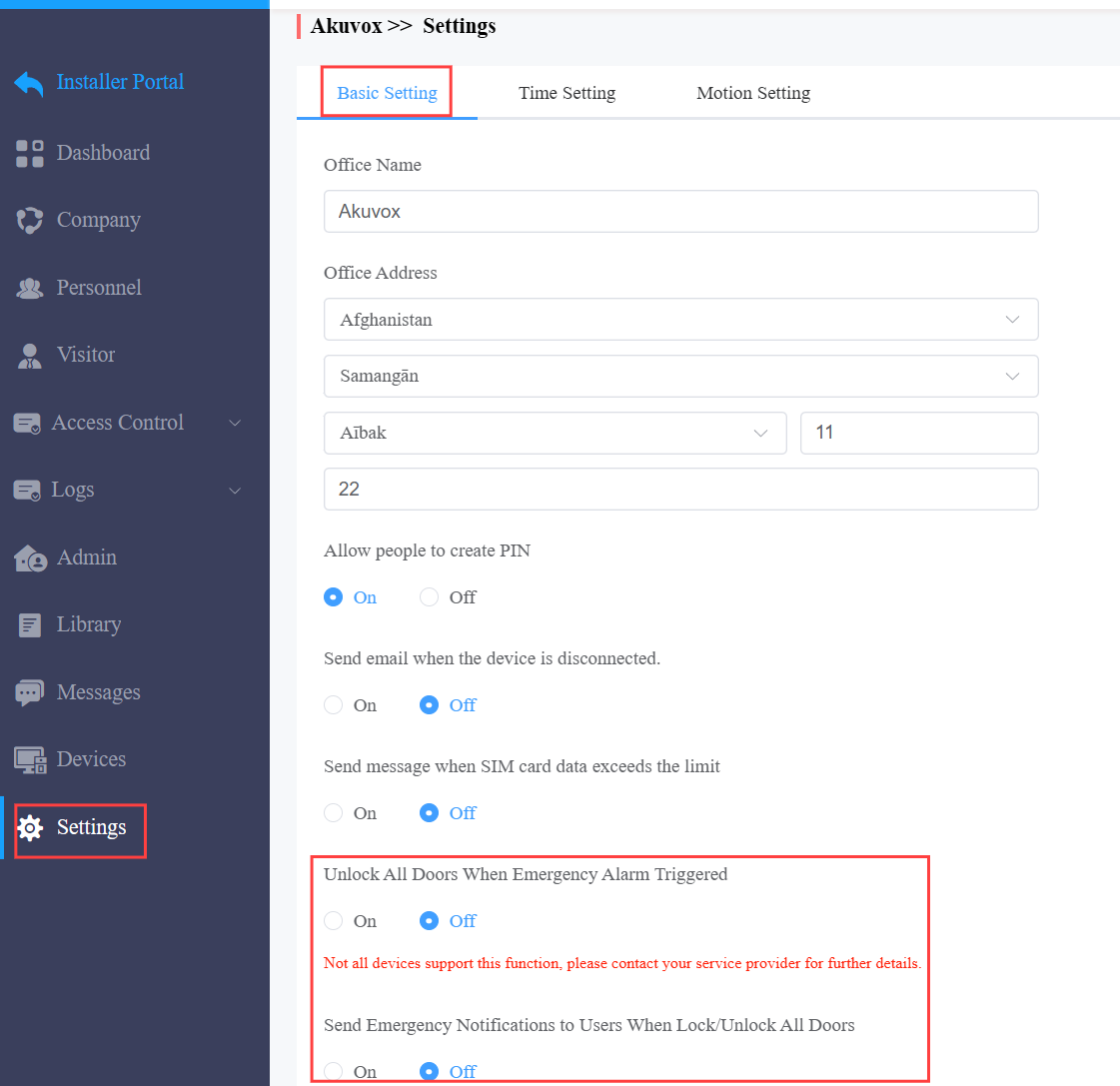
Go to Settings > Basic Settings. Select automatic door unlock or manual unlock.
Select On, if you want the doors to be unlocked automatically when an emergency occurs.
Select Off, if you want to unlock the doors manually on the SmartPlus web portal. You can click
 near the top of any page to open or close the doors manually.
3. Select whether to send notifications to users' SmartPlus Apps and indoor monitors. When enabled, both devices will sound an alert when the emergency unlock happens.
Time Settings
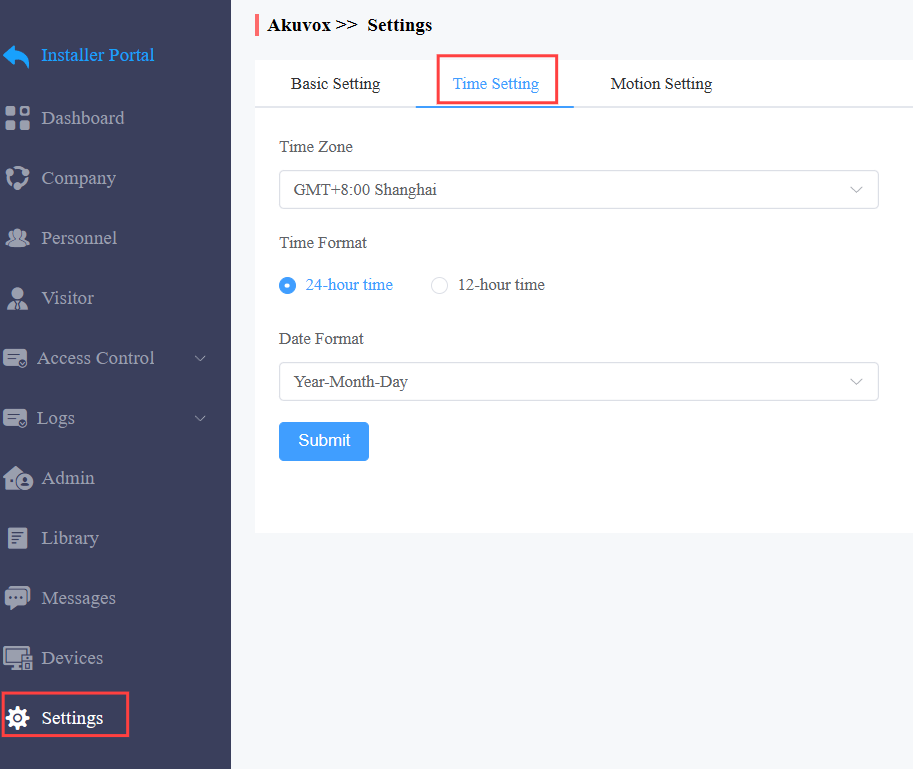
You configure and modify the time setting based on the office’s location and time zone.
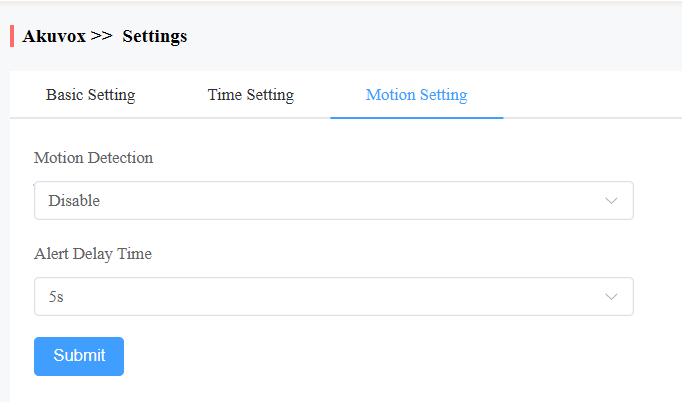
Motion Detection Settings
You can enable/disable motion detection but also set up the device motion detection type and alert trigger delay.
Go to Settings > Motion Setting.
Set the motion detection:
Disable: Turn off the function.
IR Detection: When the infrared sensor detects moving objects, alerts will be triggered.
Video Detection: When the video camera detects moving objects, alerts will be triggered.
Set the Alert Delay Time from 5 to 60 seconds.
Contact Us
For more information about the product, please visit us at www.akuvox.com or feel free to contact us by
Sales email: sales@akuvox.com
Technical support email: support@akuvox.com
Telephone: +86-592-2133061 ext.7694/8162
We highly appreciate your feedback about our products.