Users can summon a lift via the lift control feature.
Configure Lift Control
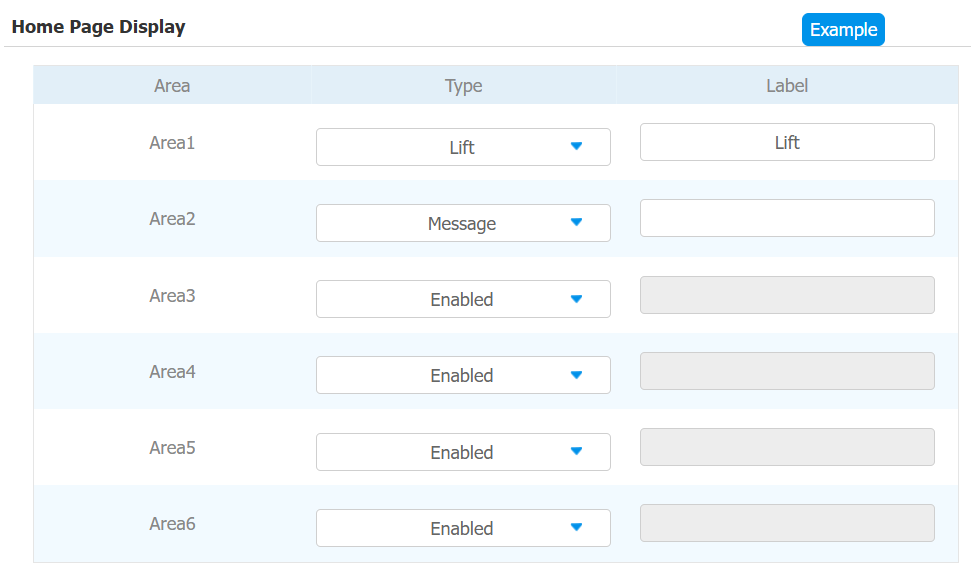
To enable and set the display status Lift icon on the device web Device Before setting the Lift icon, you need to display it on the Home or More screen.
To display the icon, go to the Device > Key/Display interface.
To set the Lift icon, go to the web Device > Lift > Lift Control interface.
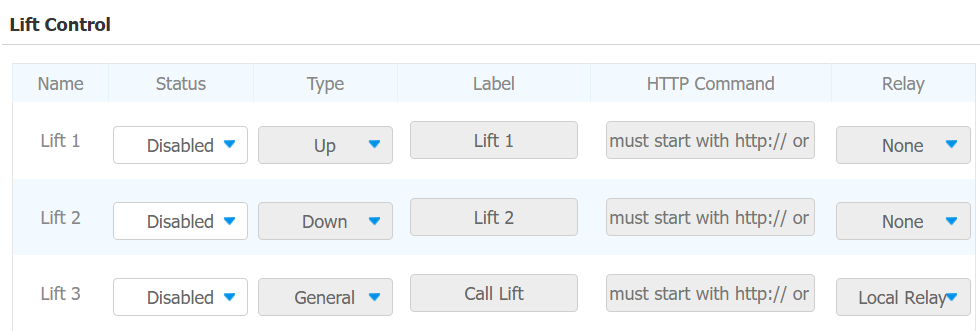
Status: Enable or disable the lift button.
Type: Decide the button icon.
Label: Name the button.
HTTP Command: Select http:// or https:// for the head of the HTTP command and enter the HTTP command.
Local Relay: Set whether to trigger the local relay with the lift control.
Note
Click here to view the detailed configuration of lift control on indoor monitors.
Configure Lift Control Prompt
When the lift controller receives the HTTP command, it will give feedback on the current lift status with a prompt.
To set it up, go to the web Device > Lift > Hints interface. Check the hint before editing it.
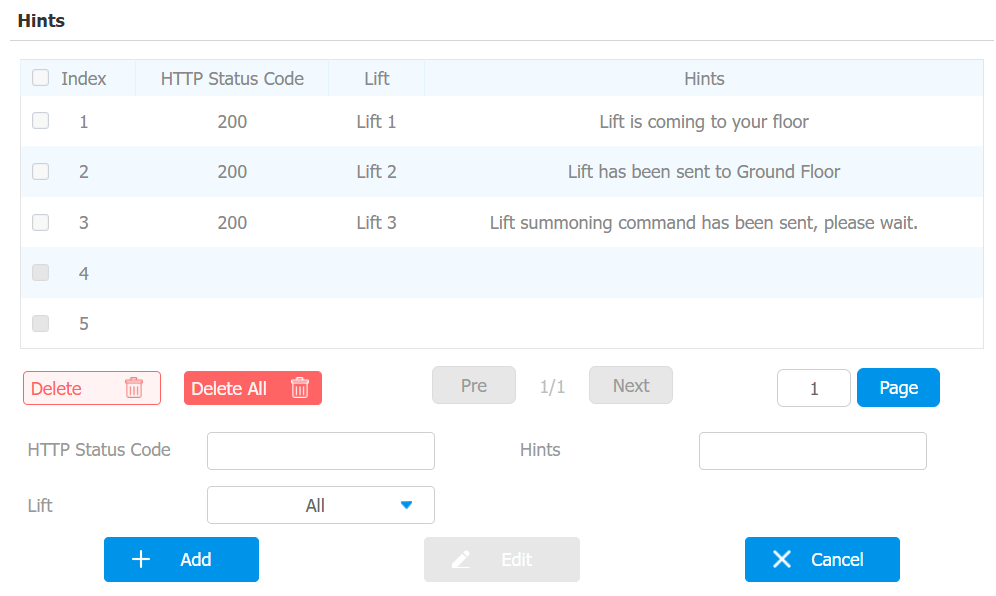
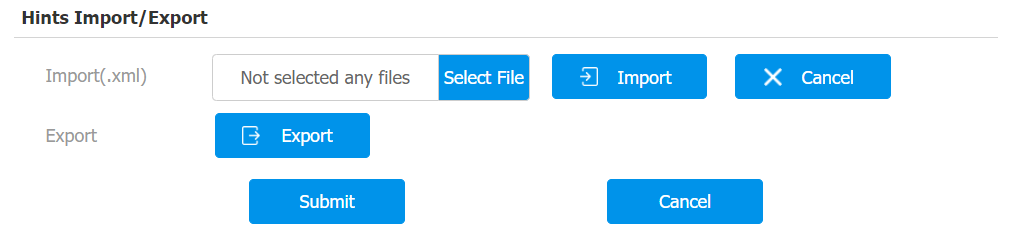
If there are huge amounts of prompts that need to be added, you can click the Export tab to export a template and import the file after editing. The import file should be in XML format.