Access Logs
You can search and check door logs on the device web Status > Access Log interface. You can also export door logs in CSV or XML files.
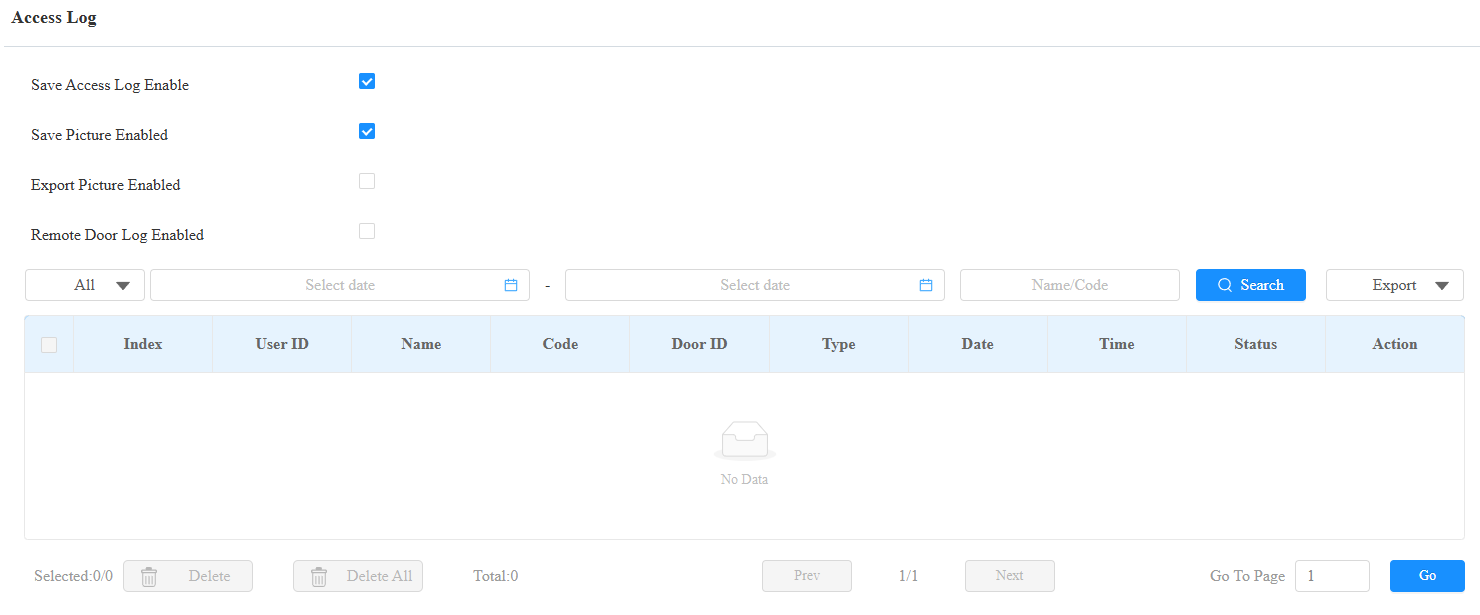
Save Picture Enabled: When enabled, the device will capture pictures of the door opening and you can click Picture in the Action column to view the screenshot.
Export Picture Enabled: Set whether to export the captured images when exporting the door logs.
Remote Door Log Enabled: Set the remote server to store the door logs.
Status: Success and Failed options represent successful door accesses and failed door accesses respectively.
Time: Select the specific period of the door logs you want to search, check, or export.
Name/Code: Search the log by the username or the PIN code.
Door ID: Display the door name.
Type: Display the access type such as Card.
Temperature Logs
You can search the check temperature logs on the Status > Temperature Log interface. You can also export temperature logs in CSV or XML files.
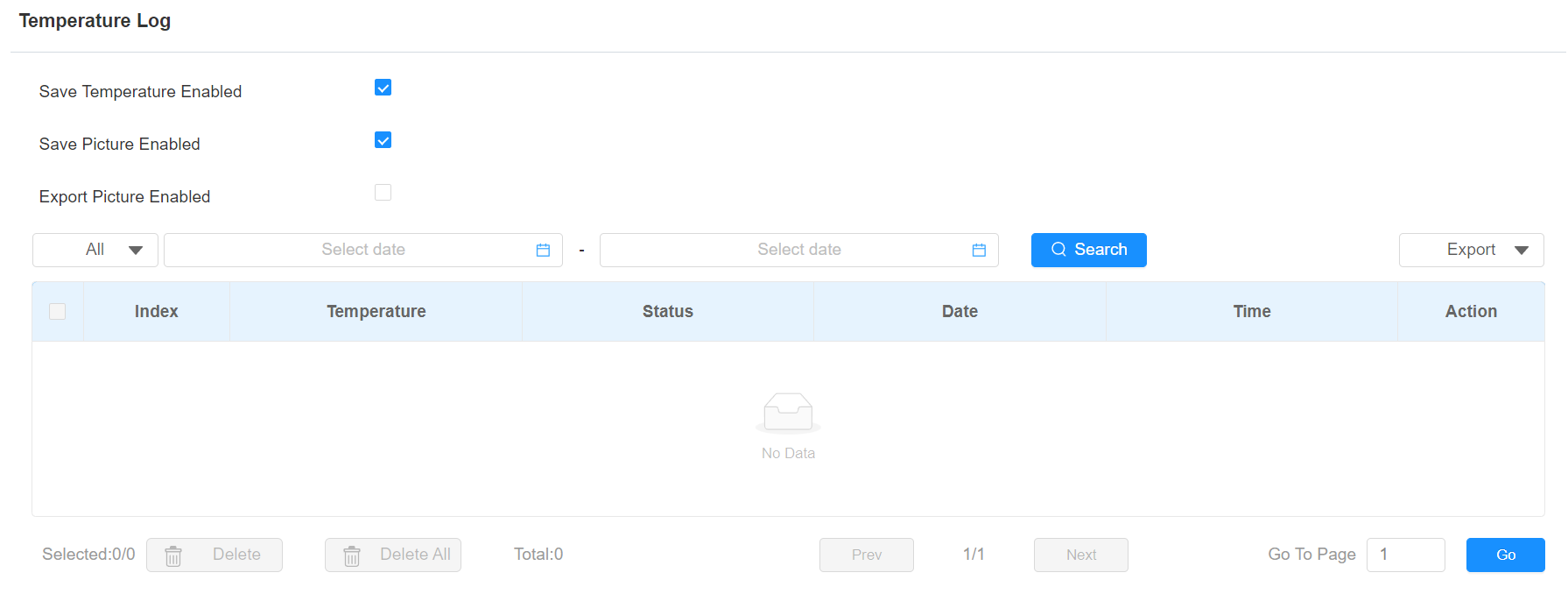
Save Picture Enabled: When enabled, the device will capture pictures of the temperature detection and you can click Picture in the Action column to view the screenshot.
Export Picture Enabled: Set whether to export the captured images when exporting the temperature logs.
Status: Display the normal, abnormal, or low-temperature status.
Temperature: Display the temperature data.
Event Logs
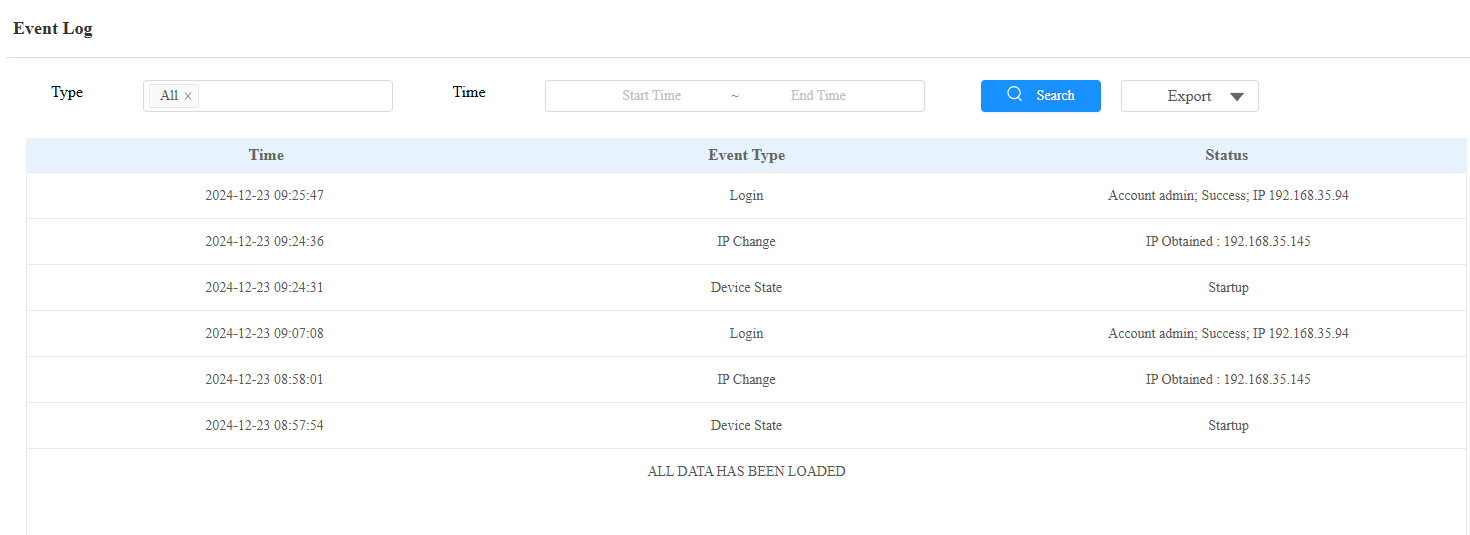
The event logs record the key events such as the status change of input, relay, tamper alarm, etc. This helps track the status and changes of the device.
You can check the event logs on the Status > Event Log interface. You can export the log in CSV format.