Configure Screensaver
You can conduct the await screen configuration on the web interface, where you can set the screen saver duration as well as the timing for the screen to be turned off for both screen protection and power reduction.
To set it up, go to Device > LCD > Standby Interface Display interface.
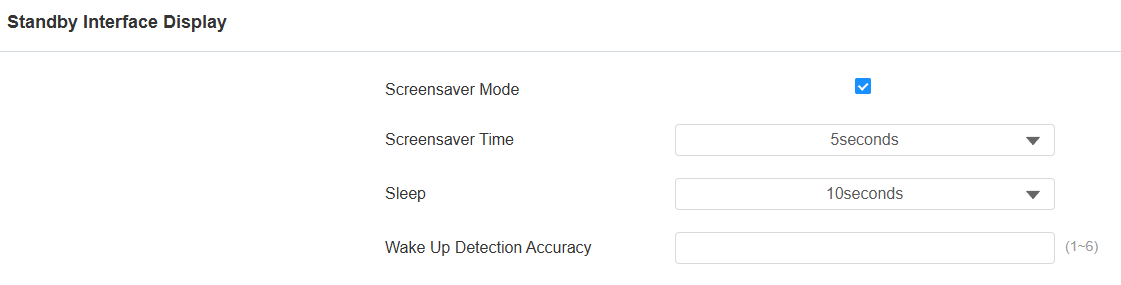
Screensaver Mode: Turn on or off the screensaver.
Screensaver Time (Sec): Set the screen saver duration time from 5 seconds up to 2 hours. The device will enter the screensaver mode when no one approaches or operates for the Sleep time.
Sleep: Set the time for the device screen to turn off or go into the screensaver mode when no one approaches or operates on the device.
Wake Up Detection Accuracy: Set the accuracy to wake up the screen. The higher the value is, the greater the sensitivity.
Upload Screensaver
You can upload screen-saver images individually or in batches to the device via the web interface, enhancing visual experience or serving publicity purposes.
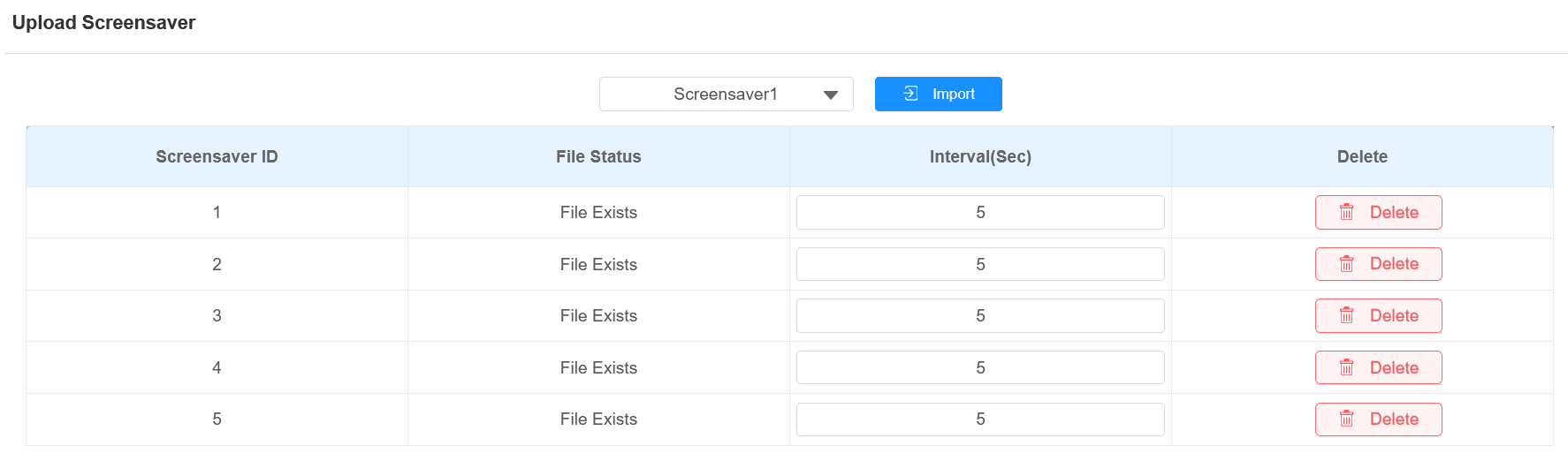
To set it up, go to Device > LCD > Upload Screensaver interface. Click Import to upload the file and click Delete to remove the existing one.
Note
The pictures uploaded should be in JPG or PNG format with 2M pixels maximum.
Recommended resolution: 720x1280.
If the uploaded image duplicates an existing image ID, the existing image will be overwritten.
Screen Display Mode
You can select the Default or QR Code display mode for facial recognition and QR code scanning, respectively.
To set it up, go to Device > LCD > Theme interface.

QR Code Recognition Interval(Sec): Set the recognition interval between QR code scans when the QR Code mode is selected.
Screen Display Style
You can enable or disable the gradient mask on the device screen for the desired screen display style.
Set it up on the Device > LCD > UI interface.

Open Door Text Prompt
You can enable the open door text prompt for both door-opening success and failure.
To set it up, go to Access Control > Relay > Door Setting General interface.
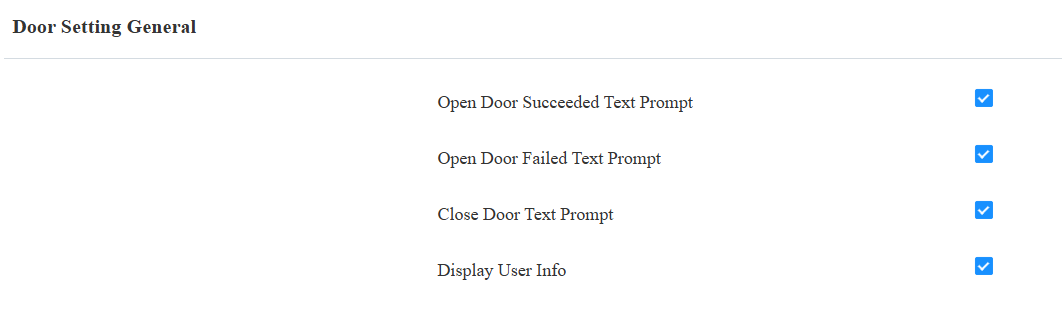
Open Door Succeeded Text Prompt: Display a text prompt after the door is opened.
Open Door Failed Text Prompt: Display a text prompt after opening the door fails.
Close Door Text Prompt Enable: The door-closing text prompt works for the relay(s) set to the Bistable mode. When users close the door with their credentials, the prompt will be displayed on the device’s screen.
Display User Info: Display the user information after facial recognition. If facial recognition succeeds, the text prompt “Access Granted” with the user ID and name will pop up on the device screen. If it fails, the text prompt “Access Denied” with “Stranger, Name: Unknown” will be displayed.