On the Device
You can configure a variety of features of the screen display in terms of brightness, screen saver and font size, etc.
Set up the screen display on the Settings > Display screen.
.bmp)
Brightness: Move the blue bar to adjust the screen brightness. The default brightness is 145.
Sleep Time: Set the sleep timing based on the screen saver (15 seconds to 30 minutes).
If the screen saver is enabled, the sleep time here is the screen saver start time. For example, if you set it to 1 minute, the screen saver will start automatically when the device has no operation for 1 minute.
If the screen saver is disabled, the sleep time here is the screen turn-off time. For example, if you set it to 1 minute, the screen will be turned off automatically when the device has no operation for 1 minute.
Screen Saver Time: The time for displaying the screensaver.
Screen Saver: Determine whether to display the screensaver when the device goes into sleep mode.
Screen Saver Type:
SDMC Pictures: Display pictures uploaded to the SDMC.
Local Pictures: Display pictures uploaded to the indoor monitor as the screen saver.
SDMC + Local Pictures: Display pictures uploaded to the SDMC or the indoor monitor as the screen saver.
Clock: Display the clock as the screen saver.
Screen Lock: Lock the screen after the screen is turned off(turn dark). You are required to enter the code to unlock the screen. The initial password is empty. Tap ✔ to unlock the screen.
Screen Clean: Allow users to wipe the screen clean without triggering unwanted changes in the settings.
Wallpaper: It is for local wallpaper selection.
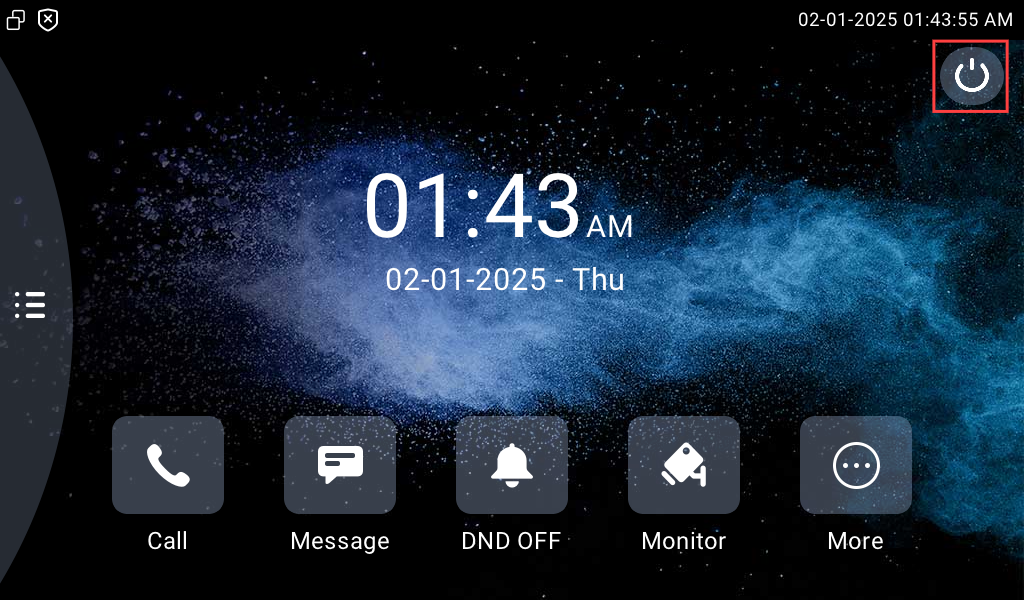
You can also turn off the screen manually.
On the Web Interface
You can configure the screen display on the Device > Display Setting > Screen Saver Setting interface.

Screen Saver Type:
SDMC Pictures: Display pictures uploaded to the SDMC.
Local Pictures: Display pictures uploaded to the indoor monitor as the screen saver.
SDMC + Local Pictures: Display pictures uploaded to the SDMC or the indoor monitor as the screen saver.
Clock: Display the clock as the screen saver.
You can set the screen sleep time on the Device > Display Setting > Display Settings interface.

Sleep Time: If the screen saver is enabled, the sleep time is the screen saver's start time. For example, if you set it as 1 minute, the screen saver will start automatically when the device has no operation for 1 minute. If the screen saver is disabled, the screen will be turned off automatically when the device has no operation for 1 minute.
Upload Screen Saver
You can upload screen-saver images to the device via the web interface, enhancing the visual experience or serving publicity purposes.
Set it up on the web Device > Display Setting > Screen Saver Setting interface.
You can click Delete to delete the existing files.

Screen Saver Pictures: Max size: 256K; Format:1024x600 jpg; File name can only contain digits, letters, and “_”.
Note
Previous pictures with the same ID will be overwritten if they are designated again.
The file name should not exceed 127 characters.
Upload Wallpaper
You can customize your screen background picture on the device web to achieve the visual effect and experience for users.
Navigate to Device > Display Setting > Wallpaper interface.

Wallpaper: Max size: 256K; Format:1024x600 jpg; File name can only contain digits, letters, and “_”.
Upload Device Booting Image
You can upload the booting image to be displayed during the device’s booting process.
Navigate to Device > Display Setting > Boot Logo interface.

Boot Logo: Max size:100K; Format:1024*600 jpg; File name can only contain digits, letters, and “_”.
Home Screen Display
You can select the Default or Call List home screen display.
Go to Device > Display Setting > Theme interface.
 Classic Home Screen:
.bmp)
Call List Home Screen:
.bmp)
Home Screen Tab Display
Akuvox indoor monitor allows you to customize icon display on the Home screen and More screen for the convenience of users' operation.
To set it up, navigate to Device > Display Setting interface.
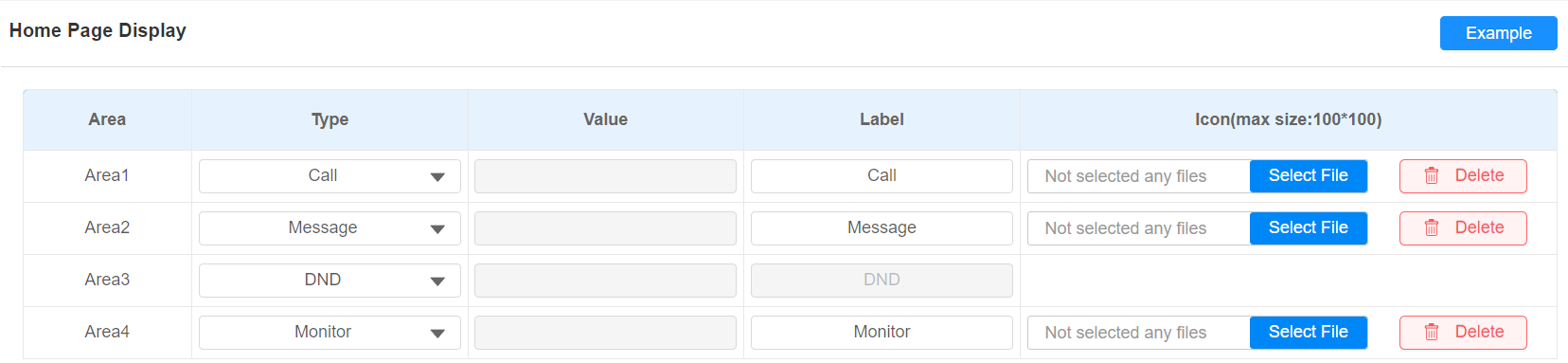
Type: Select the functional icon to be displayed on the home screen.
All Calls/All Calls 1-3: Tap to initiate multicast calls. When All Calls is selected and more than one multicast group is configured, users can choose the desired group after tapping All Calls. All Calls 1-3 correspond to the multicast groups 1 to 3.
Label: Name the icon. The DND icon cannot be renamed.
Type: Click to upload the icon picture. The maximum icon size is 100*100. The picture format can be JPG, JPEG, or PNG.
You can click Example to see the icon layout.
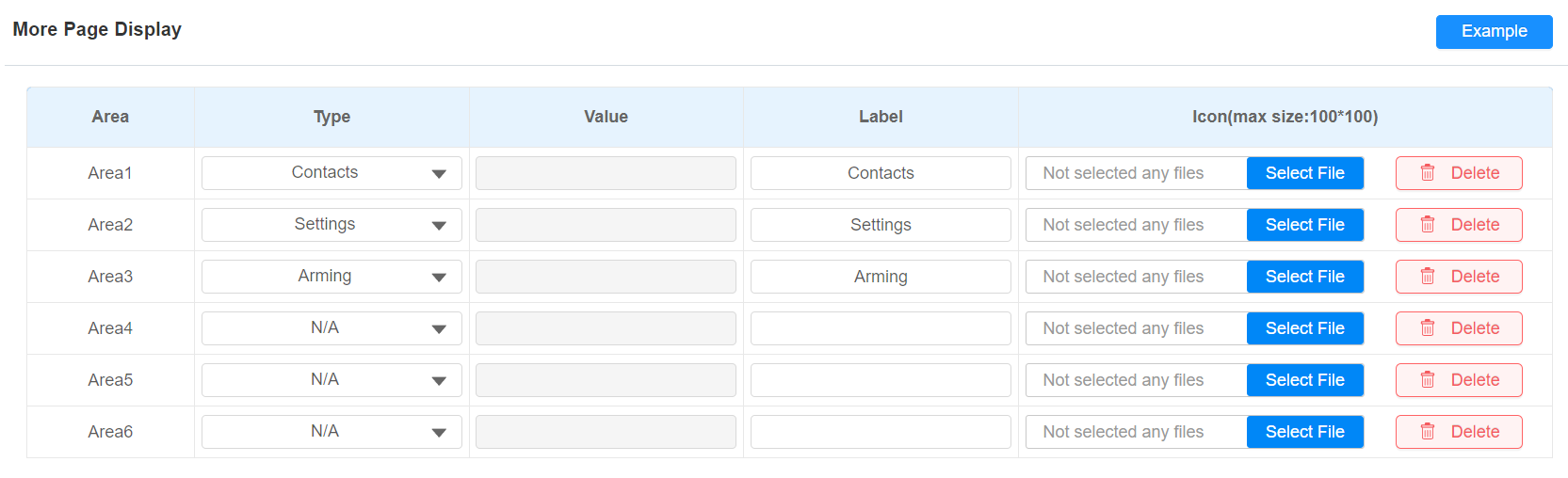
Configure the icons displayed on More Page Display on the same interface.
Unlock Tab Configuration
You can customize the unlock tab and select the relay type on the talking, monitor, and call preview screen for the door opening.
To set up the unlock tab on the talking screen, go to Device > Relay > SoftKey In Talking Page interface.

Status: With it enabled, the unlock tab will be displayed on the talking screen.
Display Name: Name the unlock tab.
Type: Select the relay trigger type according to the actual setup.
Scroll down to set up the unlock tab on the Call Preview screen.

Status: With it enabled, the unlock tab will be displayed on the call-preview screen.
Display Name: Name the unlock tab.
Type: Select the relay trigger type according to the actual setup.
Scroll down to set up unlock tabs on the home screen and more screens.

Status: It is enabled by default.
Display Name: Name the unlock tab.
Type: Select the relay trigger type according to the actual setup.
Scroll down to set up unlock tabs on the Monitor screen.

Status: With it enabled, the unlock tab will be displayed on the monitoring screen.
Display Name: Name the unlock tab.
Type: Select the relay trigger type according to the actual setup.
Note
Please refer to the Access Control Configuration chapter for different unlock type setup.
In Softkey In Talking Page, Softkey In Monitor Page, and Softkey In Call-Preview Page, when an Unlock button is configured with a Web Relay-related type, the command handling differs depending on the selected type:
Web Relay Action 1–10: The indoor monitor sends the corresponding Web Relay command directly without verifying the remote device's IP address or SIP information.
Web Relay Action: The indoor monitor verifies the remote device's IP address and SIP information before sending the corresponding command. In this case, the IP/SIP configured in Web Relay Action Settings refers to the door phone and is used for verification.
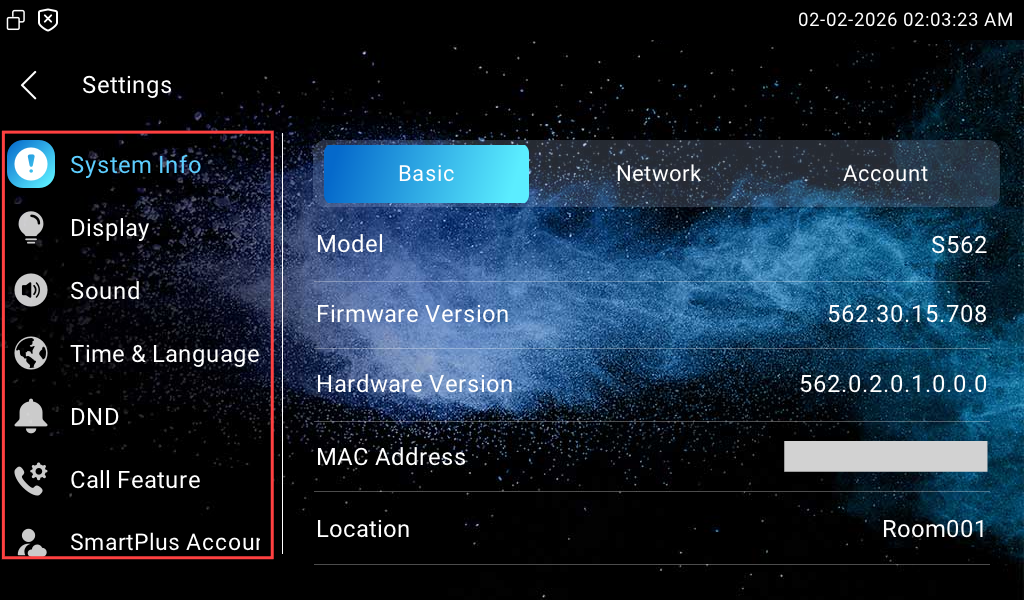
Function Display on the Settings Screen
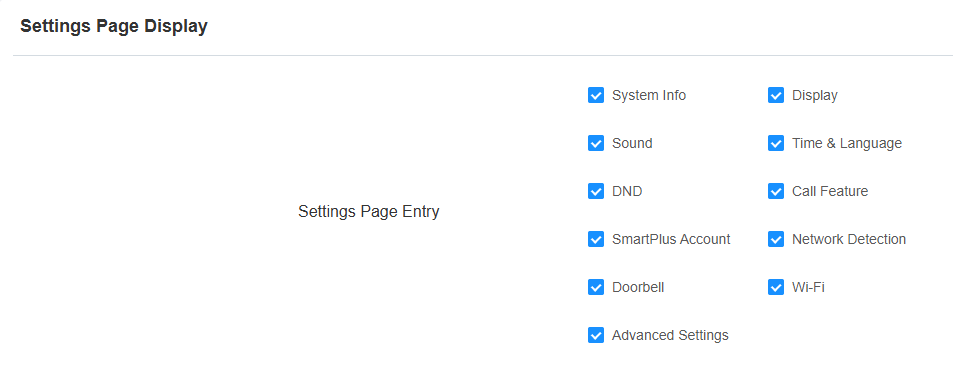
You can set the functions to be displayed on the Settings screen.
Set it up on the Device > Display Setting > Settings Page Display interface.
Temperature Display Setting
When the device is connected to the SmartPlus Cloud, temperature information will be displayed on the device's Home screen.
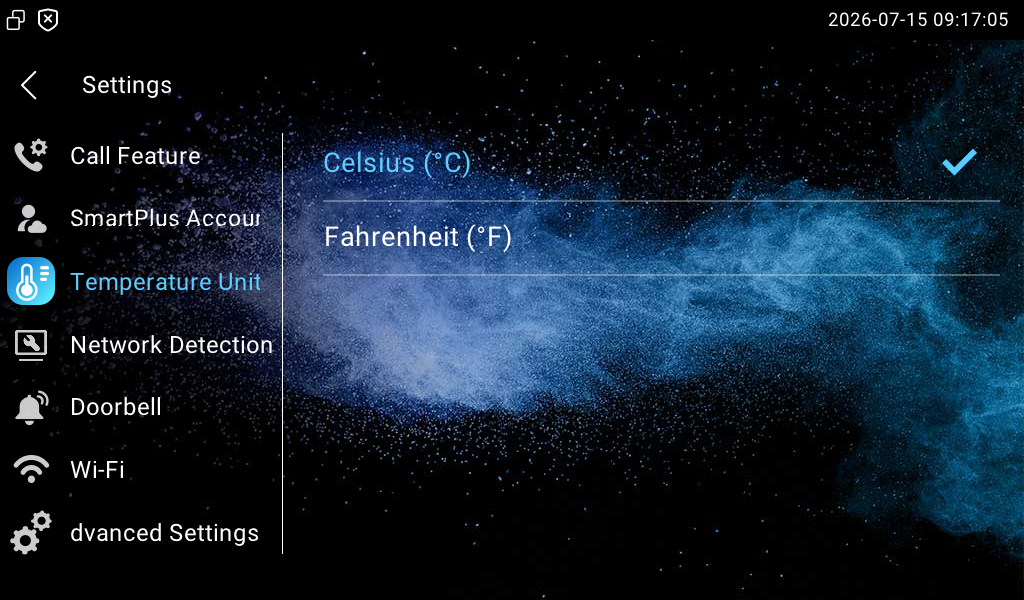
You can switch the temperature unit between Fahrenheit and Centigrade on the device.
To set it up, go to Settings > Temperature Unit screen.
Note
Please refer to Configure Weather Display on Indoor Monitors for configuration details.