Use security modes to easily manage and protect your home. The system includes three default modes and allows you to create custom ones to fit your needs.
Make sure to configure or create modes before arming the system.
Configure security modes
NOTE:
To prevent unauthorized changes to security modes on the panel, you can disable configuration permissions via the user web portal. ( Go to Devices > [Desired panel] >
> Device Permissions > Security > Security Settings.)
To set up or customize a mode directly on the HyPanel Supreme:
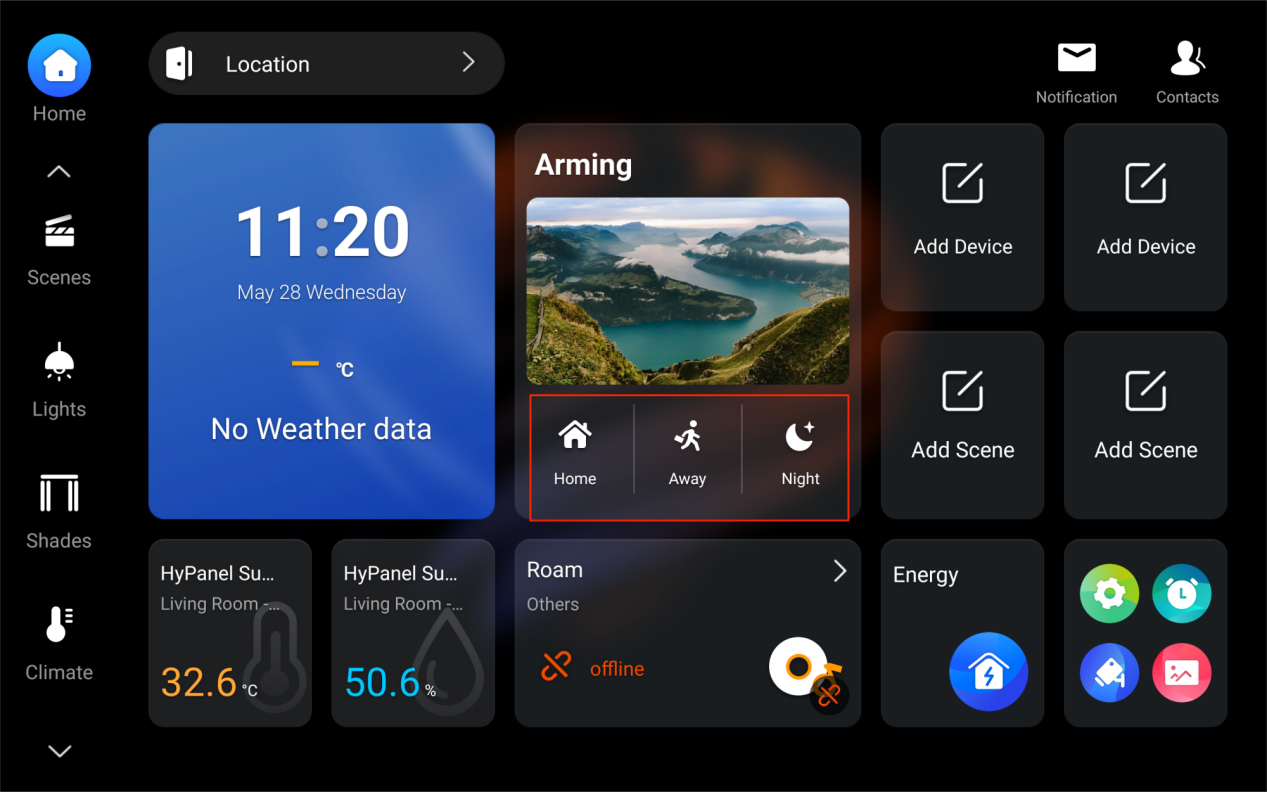
Tap the Arming card on the Home screen.
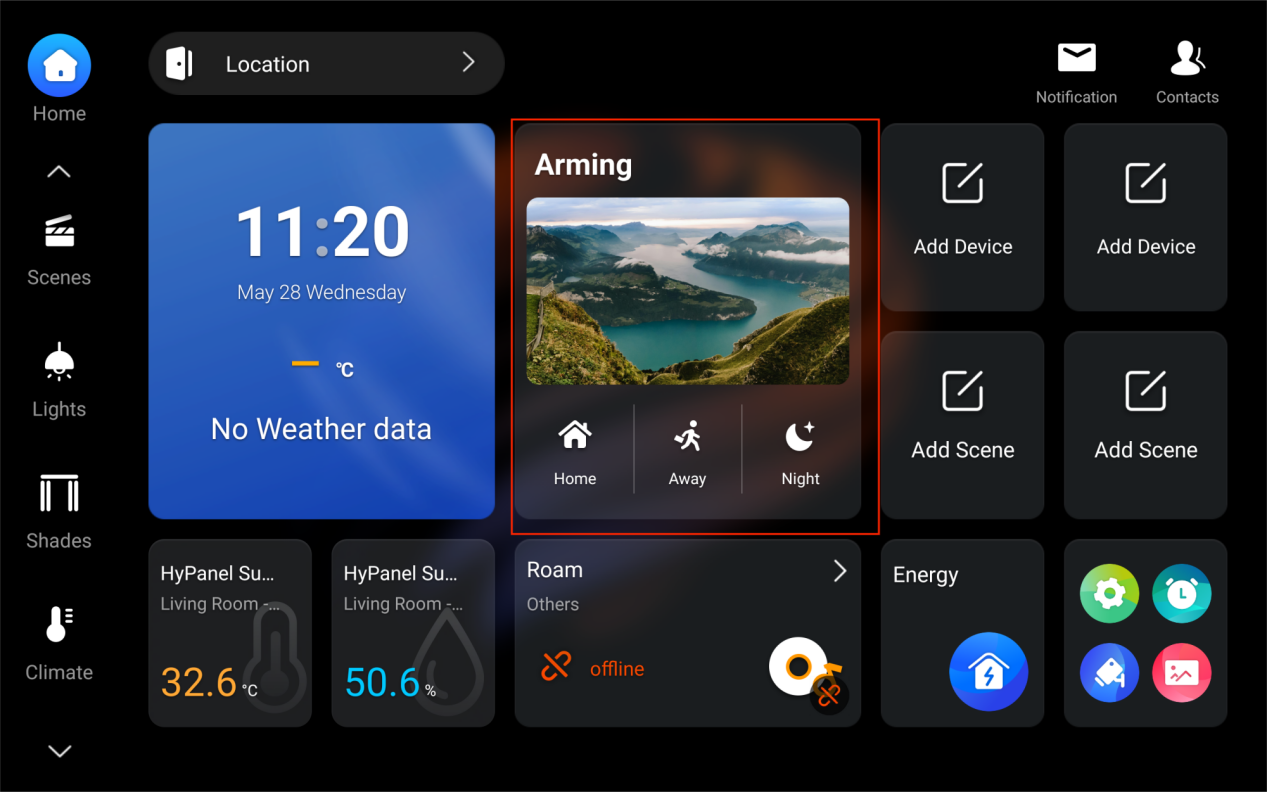
Enter the arming/disarming code. The default is 000000.
Do any of the following:
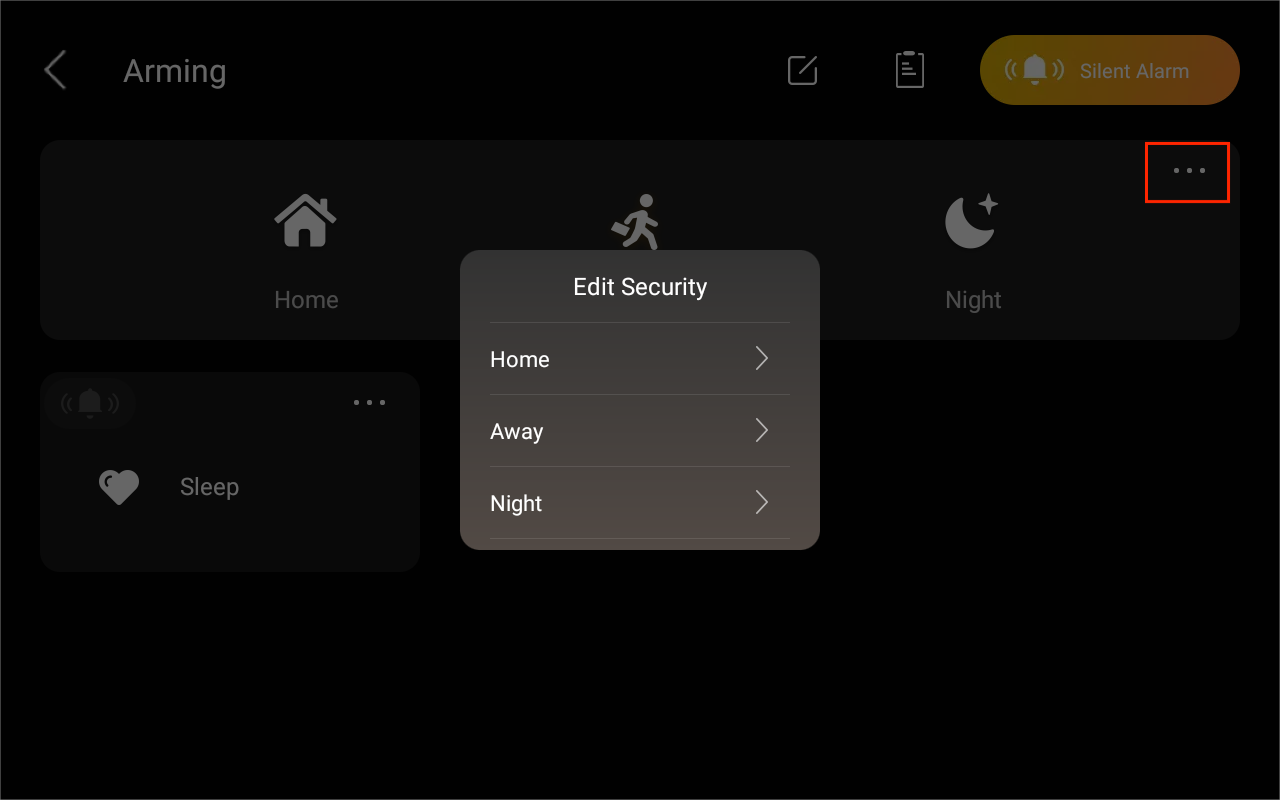
Edit a default mode: Tap
 , then select desired mode you want to configure.
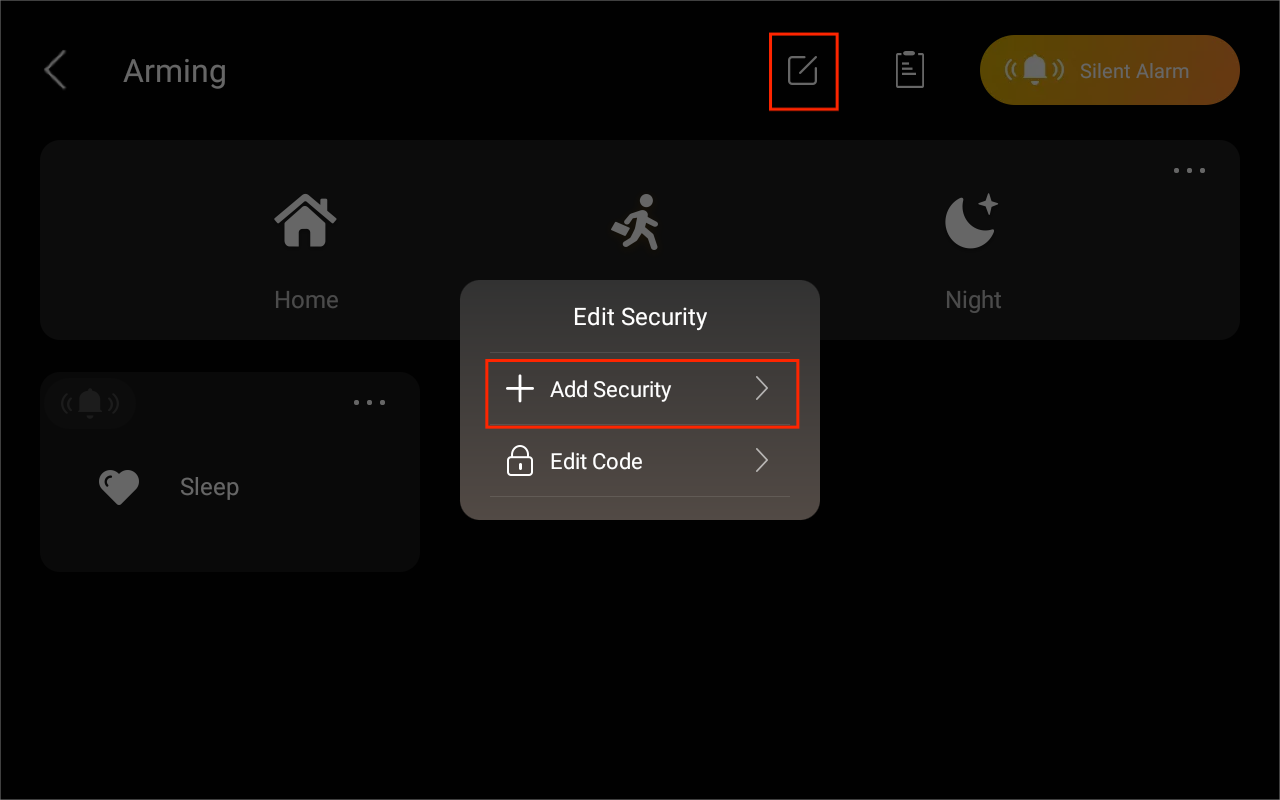
Create a custom mode: Tap
 > Add Security.
Configure the mode settings:
Alarm Delay: Set how long the system waits before sounding the alarm.
Defense Delay: Set the delay before the security mode activates.

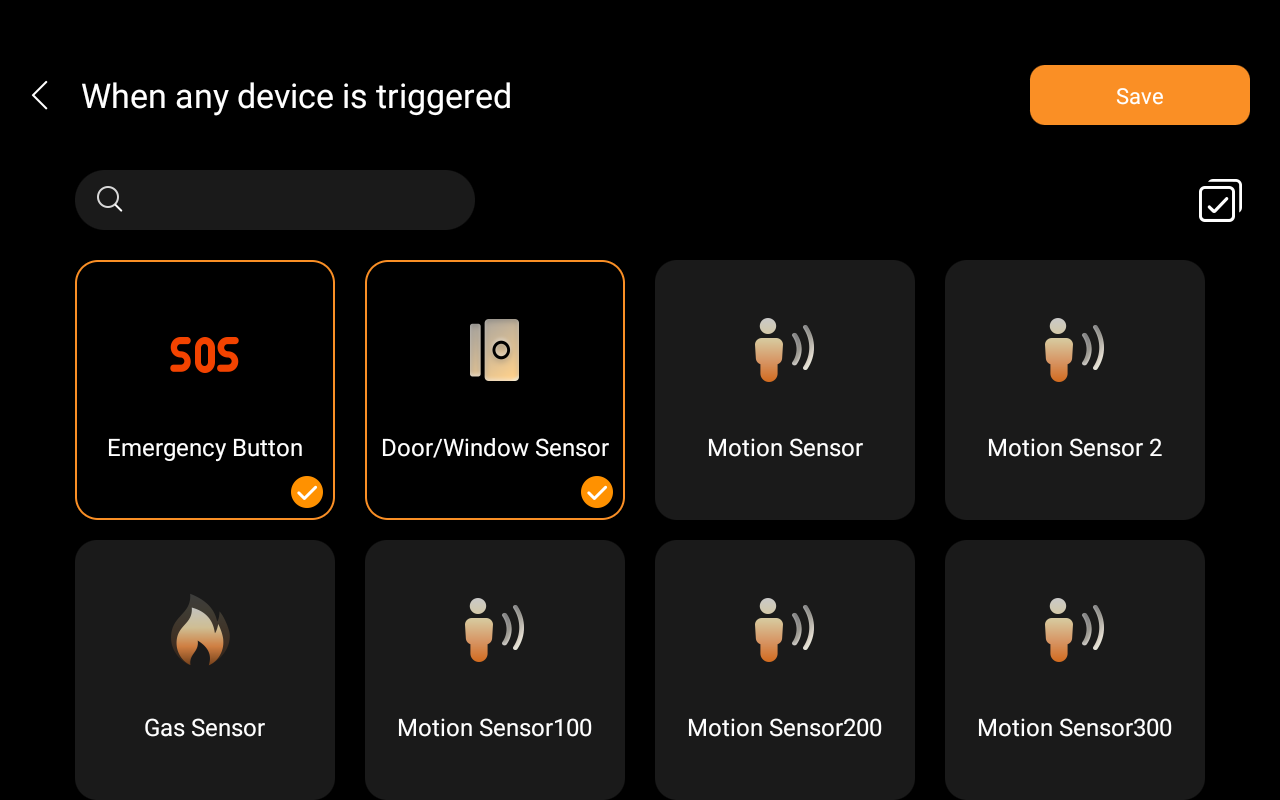
Conditions: Tap
 to select one or more sensors that will trigger the mode, then tap Save.

Tasks:
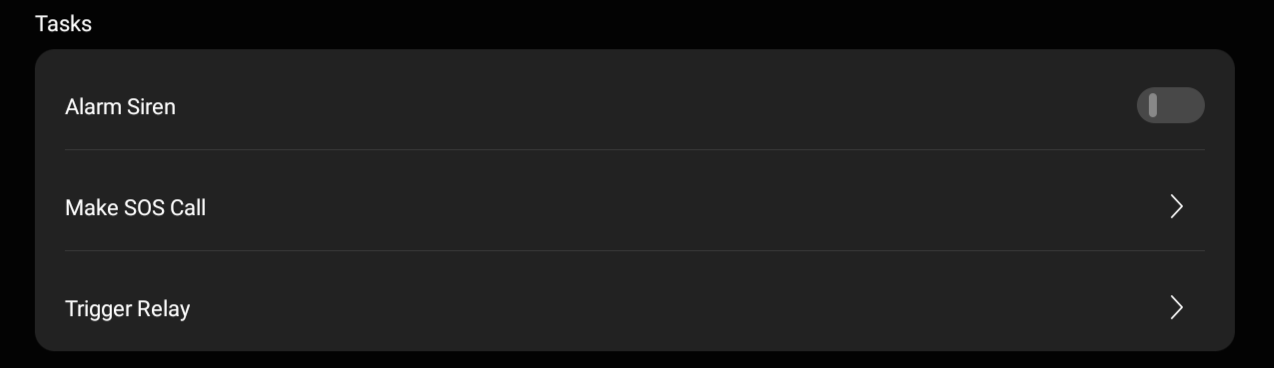
Turn the alarm siren on or off (controls both sound and push alerts).
Choose preset SOS numbers to be called (must be configured via the web portal or cloud).
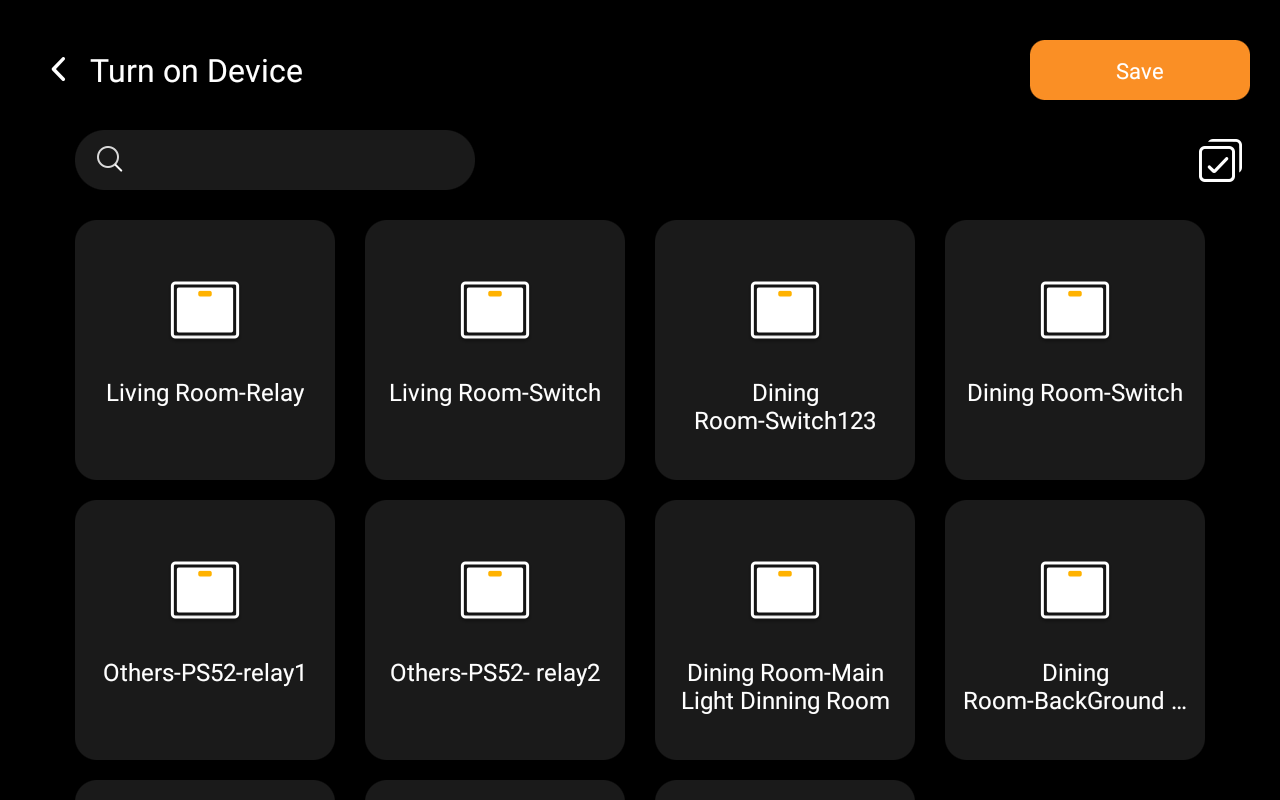
Select devices to be turned on or off when security mode is triggered, then tap Save.
Arm your system
You can arm your system by activating security modes.
TIP:
You can activate one default mode along with multiple custom modes at the same time. However, two default modes cannot be active simultaneously.
Quick arm
To arm the system quickly: Tap the desired mode on the Home screen, then enter the arming code (default: 000000).
Step-by-step arming
Tap the Arming card on the Home screen.
Enter the arming/disarming code. The default is 000000.
Select the mode you want to activate.
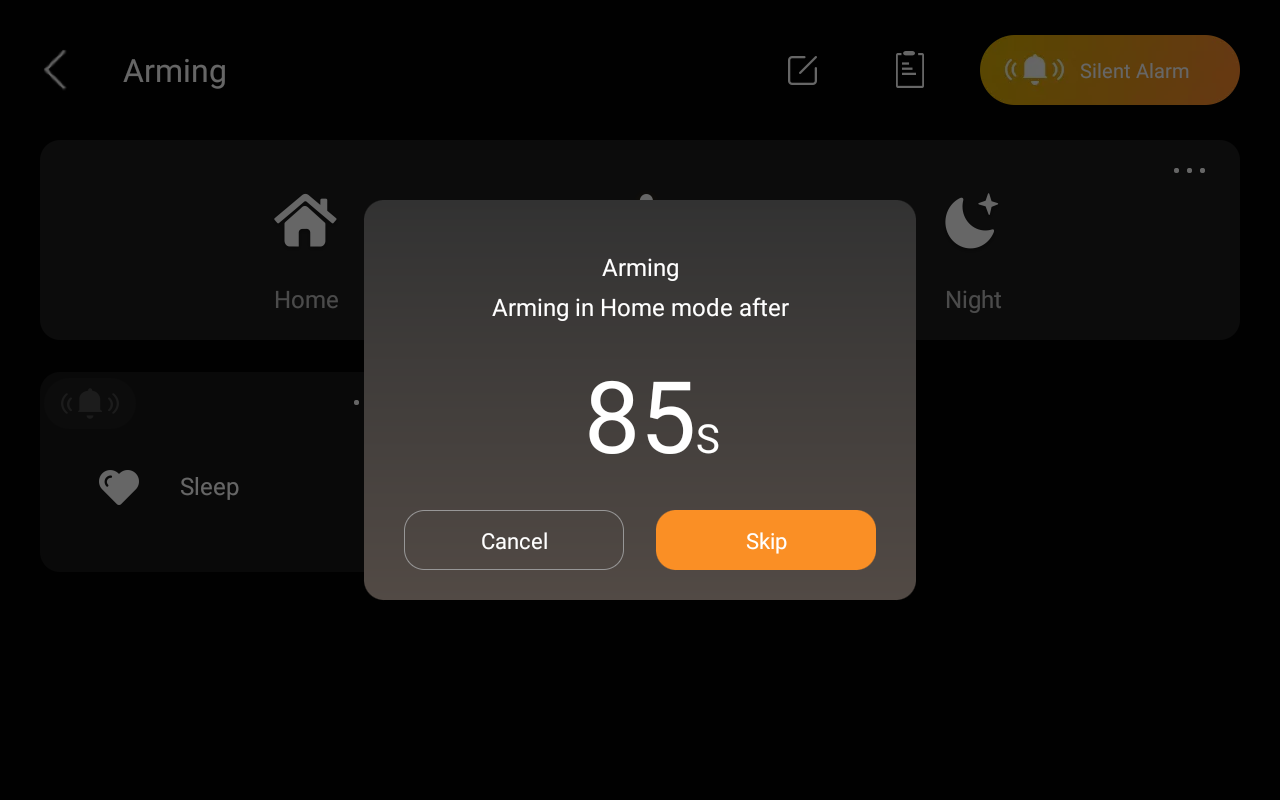
Wait for the countdown to finish, or tap Skip to arm immediately.
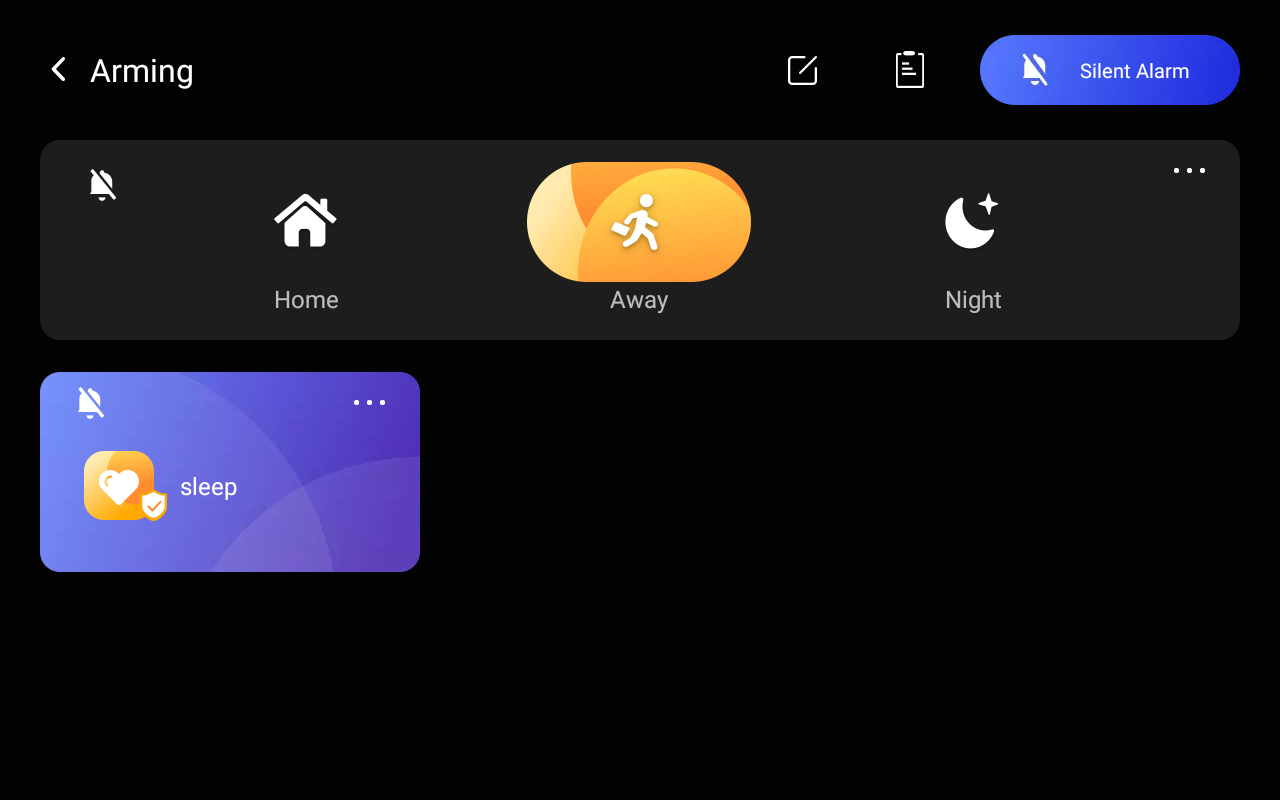
Once armed, the active security mode will be highlighted.
TIP:
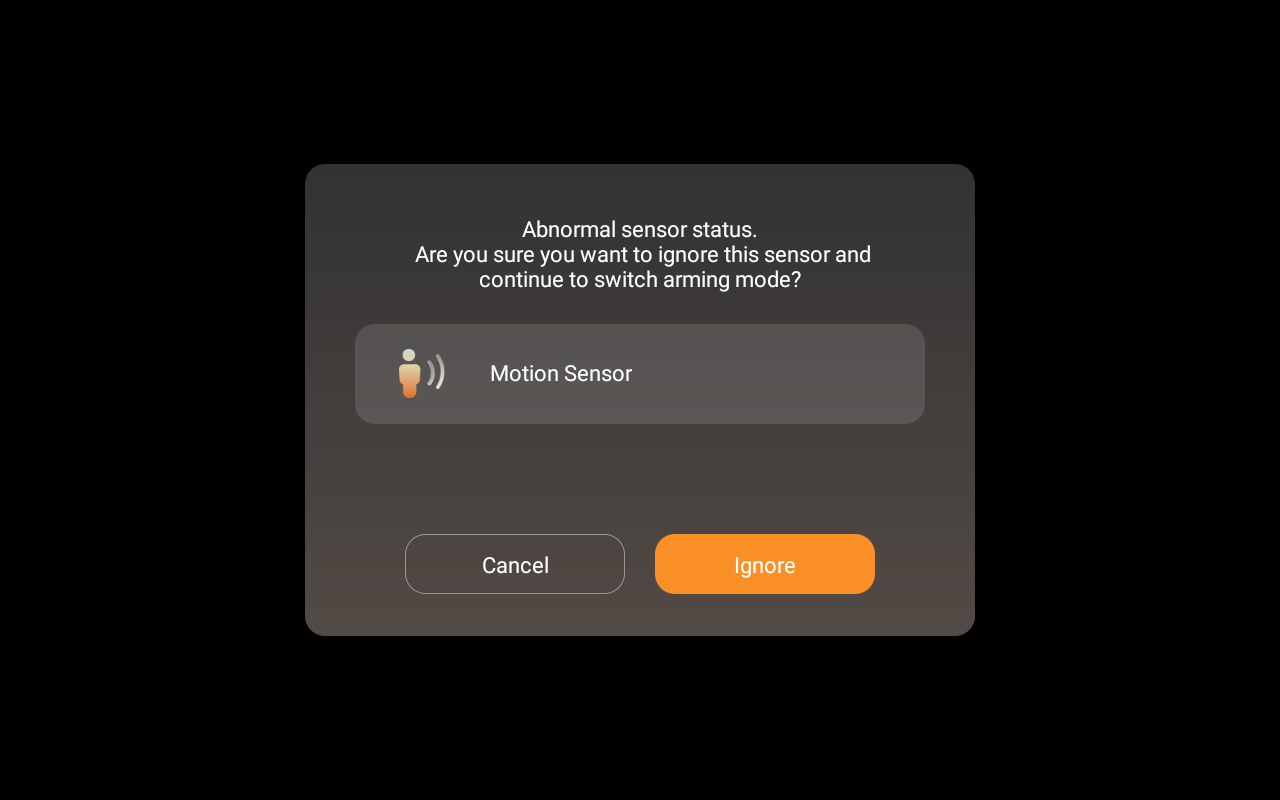
If any associated sensor is detected as abnormal during arming, a prompt will appear.
To continue without that sensor, tap Ignore. The bypassed device will not trigger alarms even if it detects activity.
Disarm your system
To disarm your system, tap the highlighted mode image again, and enter the disarm code which is 000000 by default. You’ll know the system is disarmed when the mode image turns back to be dim.
Deal with an alert push
When your system is armed in a security mode and any included sensor triggered(except the bypassed ones), the system will sound an alarm and send a notification to the panel and BelaHome app.
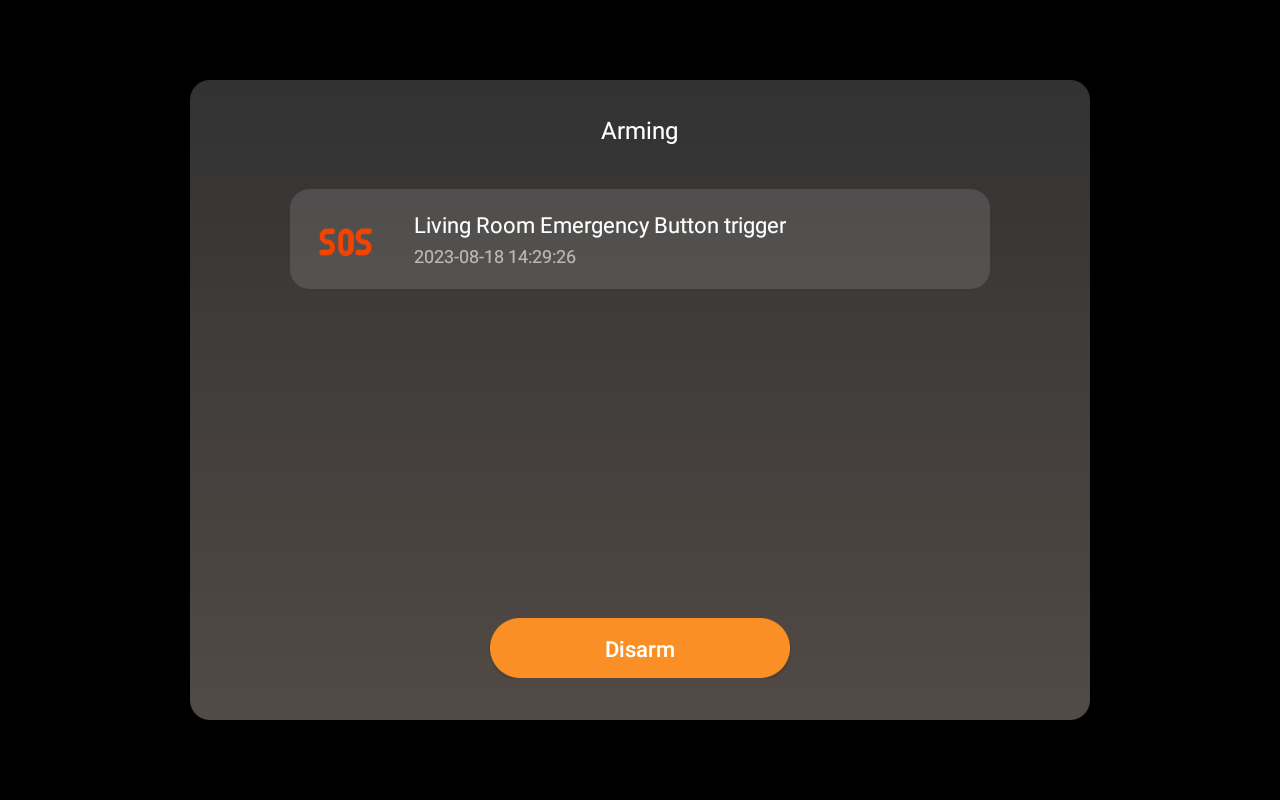
To stop the alarm once you make sure your home and family are safe, tap Disarm and then enter the preset code (By default is 000000). Your system is still armed in the security mode after the alarm is dealt with.
Disable siren and alerts
By default, your device emits a siren and sends a push notification when any sensor is triggered while in the armed mode. You can silence the siren and disable push alerts from all the panels.
Tap the Arming card on the Home screen.
Enter the arming/disarming code. The default is 000000.
Tap the bell icon
 on the left, or tap
  at the upper right.
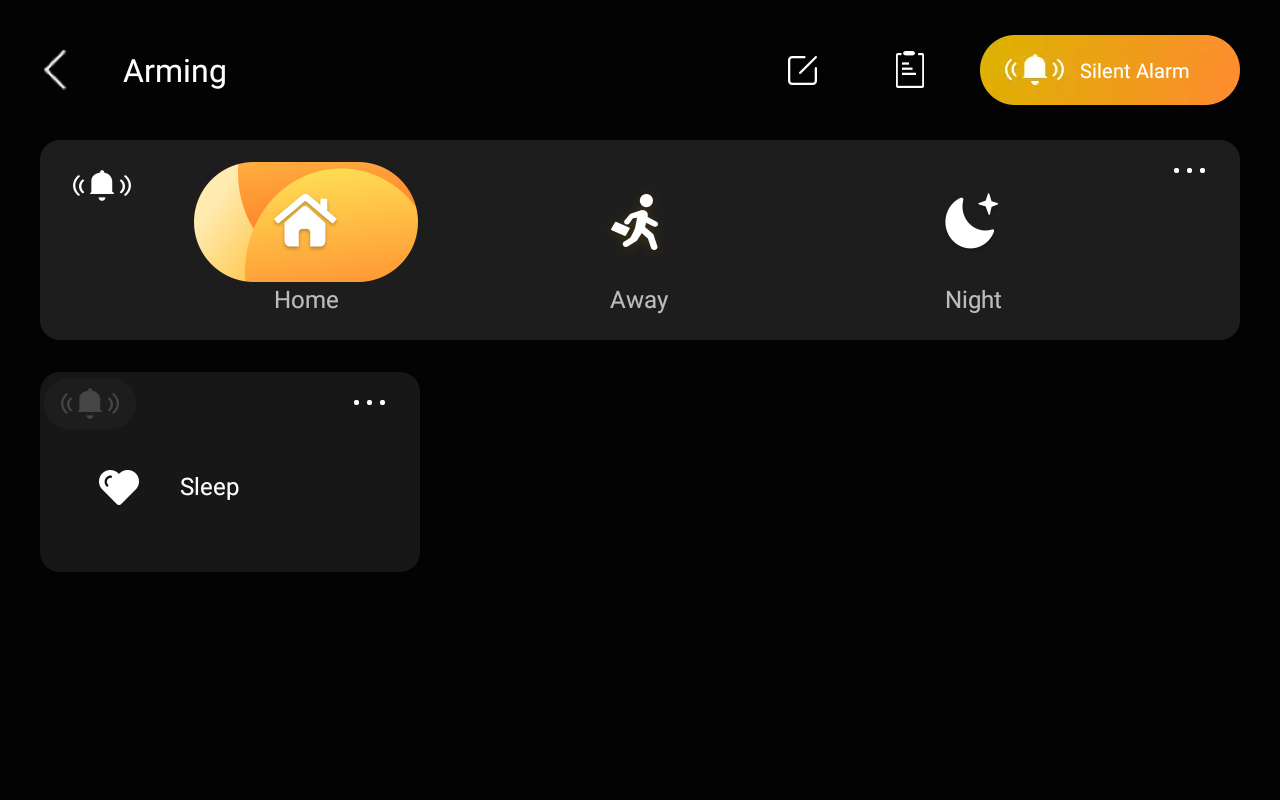
The siren feature is disabled when you see the icon turns to
 . Please note that in this case, all panels will not activate a siren and send push alarms.
To enable the siren, tap  or
or  again. The icon turns to be
  indicating that the siren function is on.
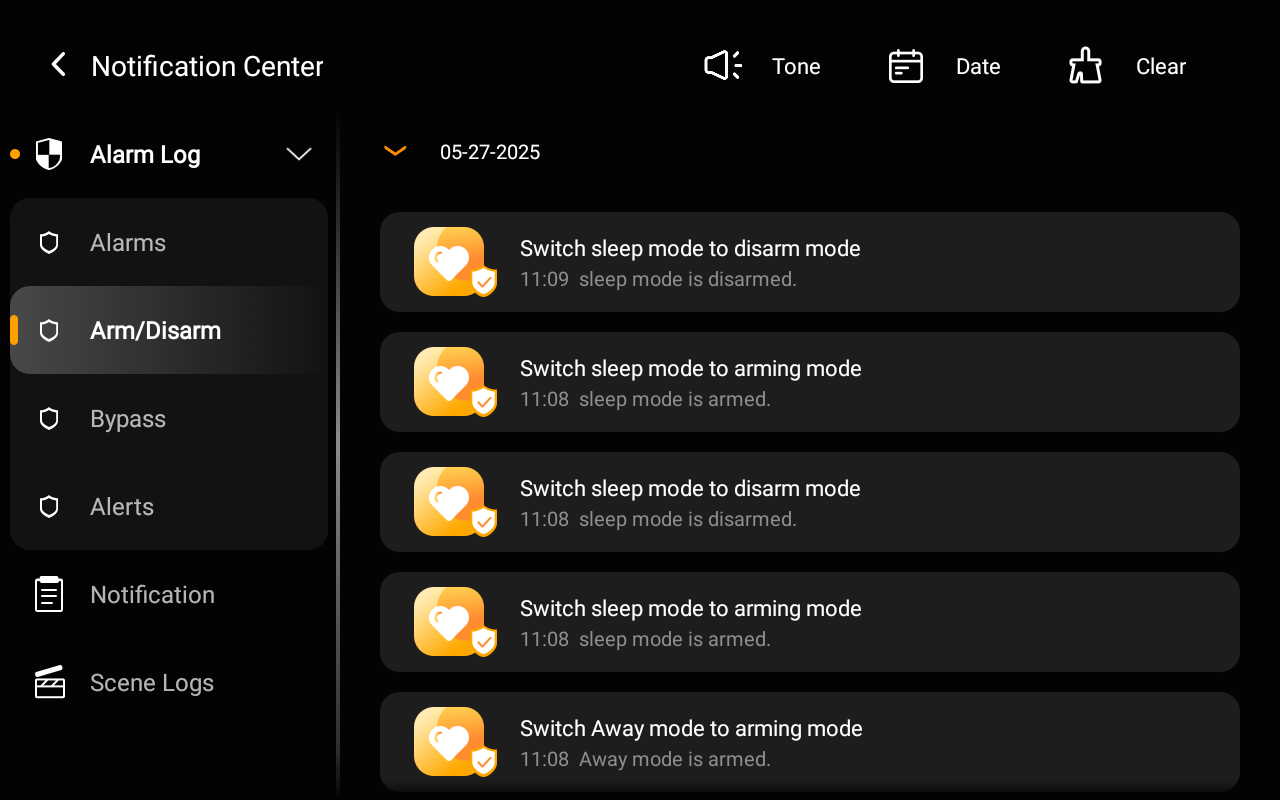
See security logs
To see all scenes running logs, swipe down from top of any screen, tap  or directly tap
  at the top of the Home screen to enter the Notification Center, and select Arm/Disarm.
Modify and reset arming/disarming code
Change arming/disarming code
Tap the Arming card on the Home screen.
Enter the arming/disarming code. The default is 000000.
Tap
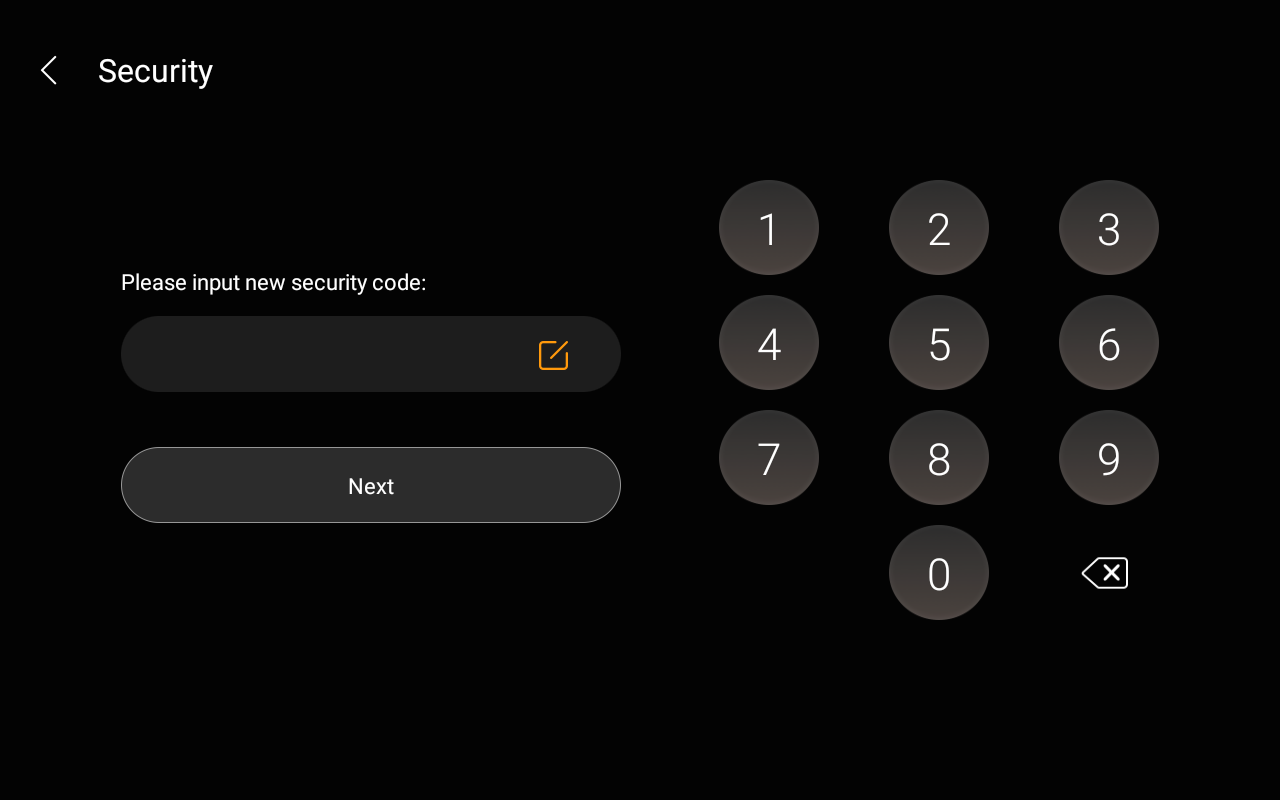
 > Edit Code.
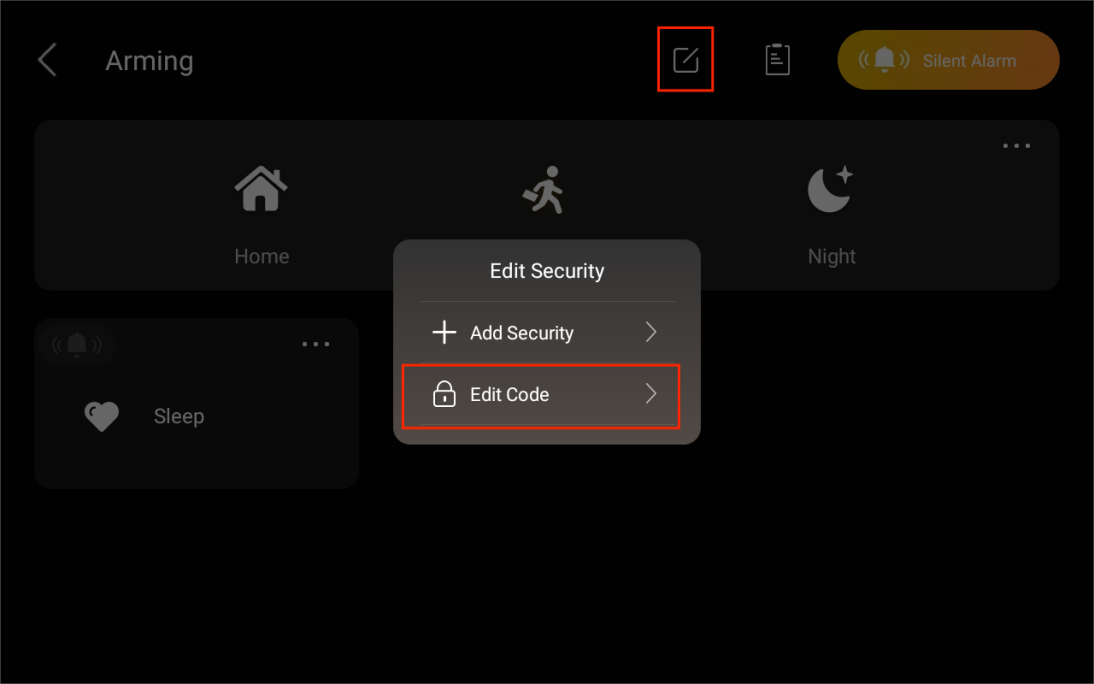
Enter the new code twice.
Forgot arming/disarming code
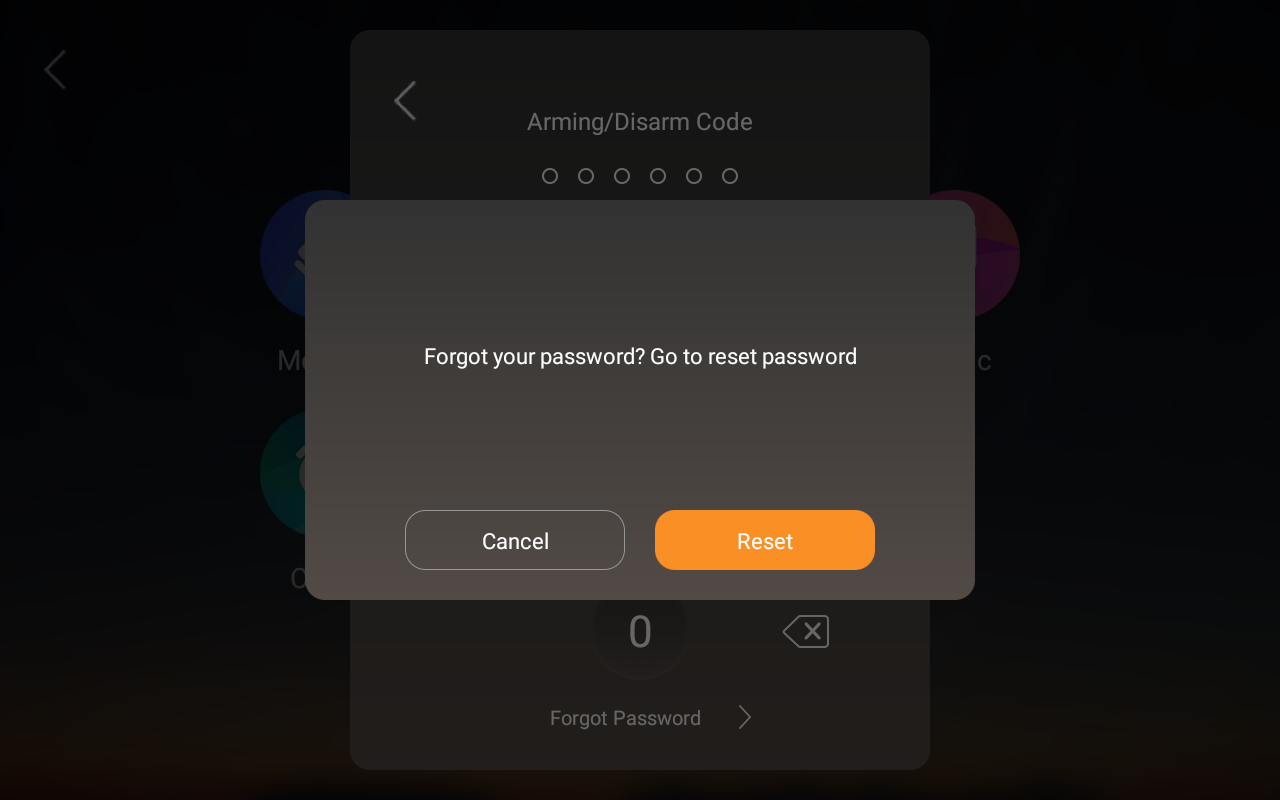
To restore the default password, 000000, tap Forgot Password on the password required screen, and follow the onscreen instructions.
Two resetting options are provided based on your cloud connection status.
Via reset email
If you’ve registered the administrator account and ensure that the devices are connected to the Internet, a code reset email will be sent to the family’s administrator email address once you tap Forgot Password. Follow the instructions included to restore the default password.
On the user web portal
Visit the user web portal, and click Settings > Change Security Code.
Configure security zones
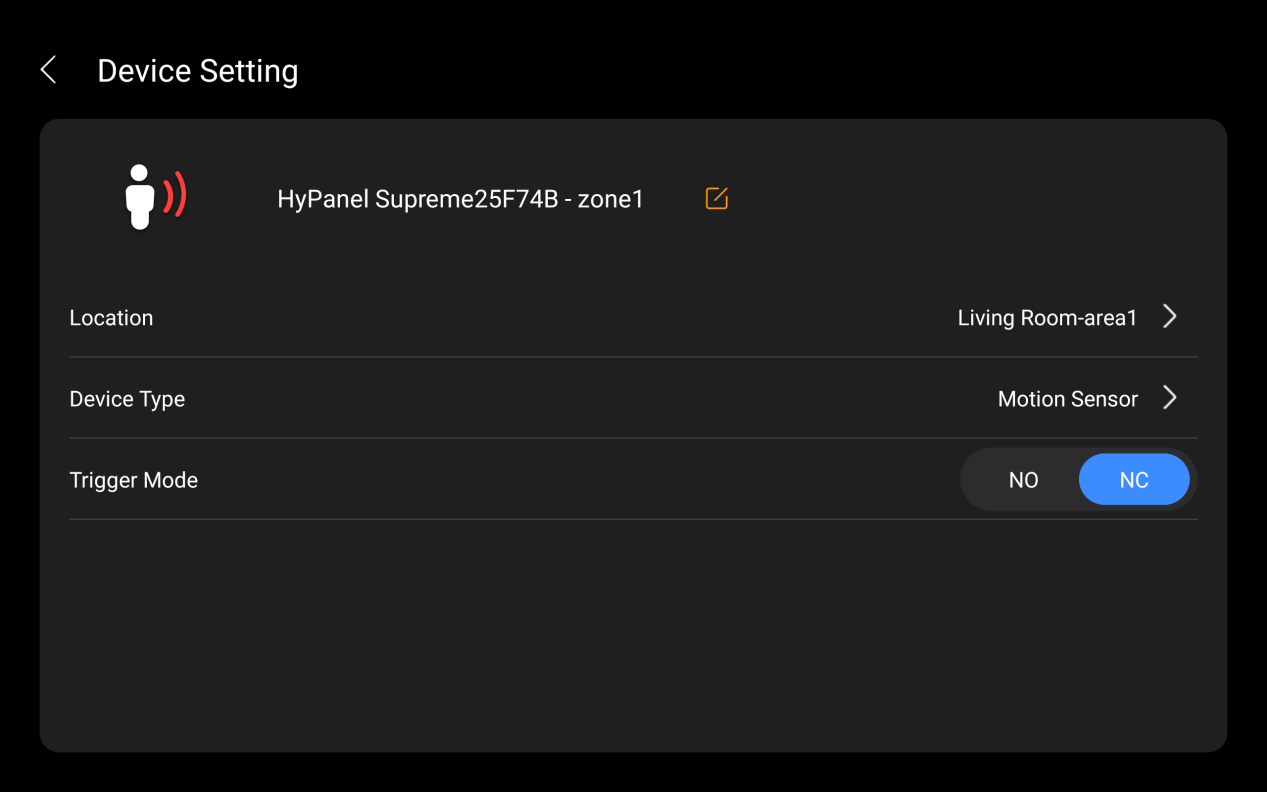
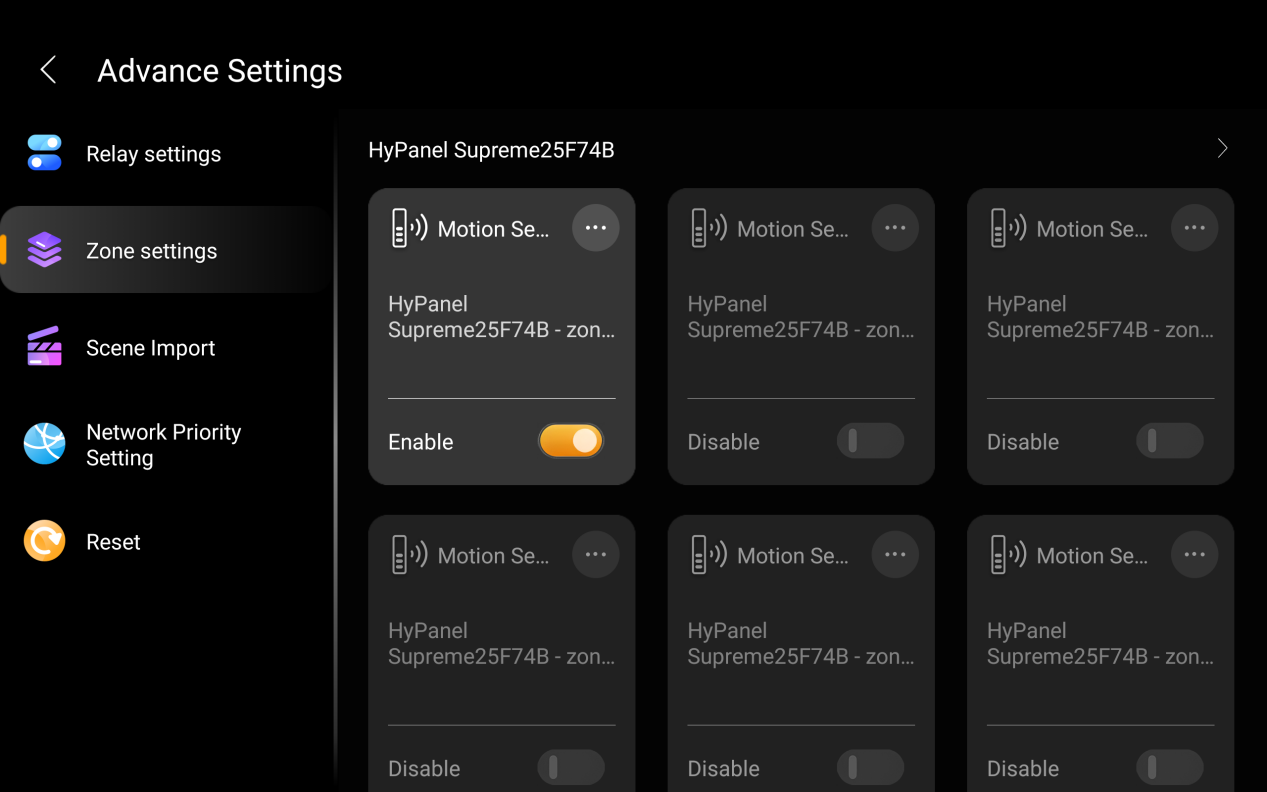
HyPanel Supreme supports configuring 8 IO ports for connecting wired sensors or doorbells. After wiring the devices, you need to enable the relevant zone and configure settings like device type and location.
Go to
 > Advance Settings > Zone Settings.
Enable the zone that corresponds to the IO port the device is connected to.
Tap
 at the upper right corner of the zone to enter the detailed configuration screen.