Akuvox devices support the on-premise and cloud anti-passback feature. It prevents unauthorized access by ensuring that a user cannot enter an area by following others.
Typically, the anti-passback feature is used with Wiegand connections. For non-cloud projects that are unable to connect devices via Wiegand, Akuvox integrates the feature with door opening via HTTP commands.
The authentication device sends the HTTP URL to the door-opening device, carrying fields of anti-passback mode, unlock type, and code.
The door-opening device receives the URL, decides whether to open the door, and saves the log.
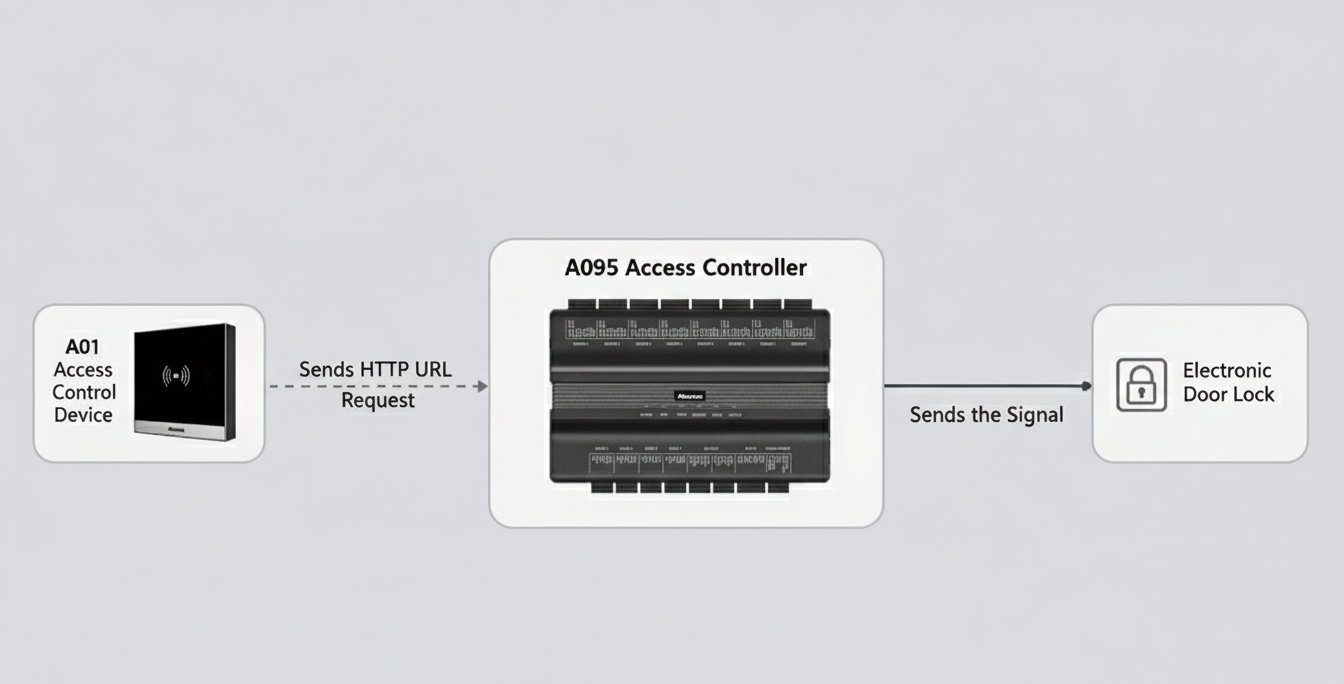
This article takes A095(the door-opening device) and A01(the authentication device) as examples.
Compatible models and versions:
A095: 95.30.10.110(Only works as the door-opening device)
A094: 92.30.10.104(Only works as the door-opening device)
A05V2: 205.30.10.157
A01/A02: 101.30.10.103
A03: 103.30.10.105
Enable Door-Opening via HTTP
Enable the feature on the A095’s web interface.
1. Use the device IP(scanned by IP Scanner) to log in to its web interface. The initial username and password are admin.
2. Go to the Access Control > Door interface. Find the Open Relay via HTTP section.
3. Enable the feature and customize the authentication username and password.
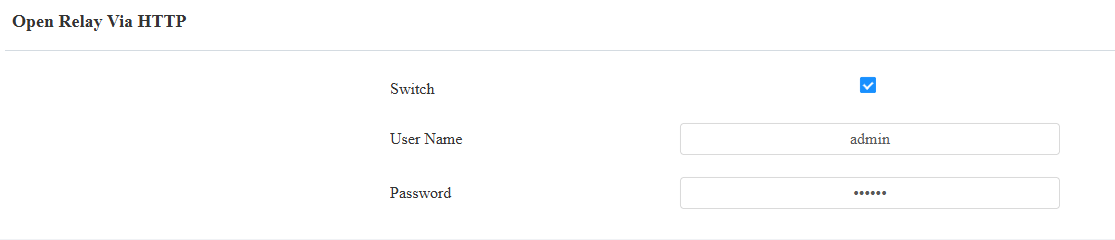
4. Submit the setting.
Add Users
Add the same user to both the A095 and A01.
1. Go to the Directory > User interface.
2. Click +Add to add a user.
3. Enter the username and set up the user’s credentials, such as the RF card.
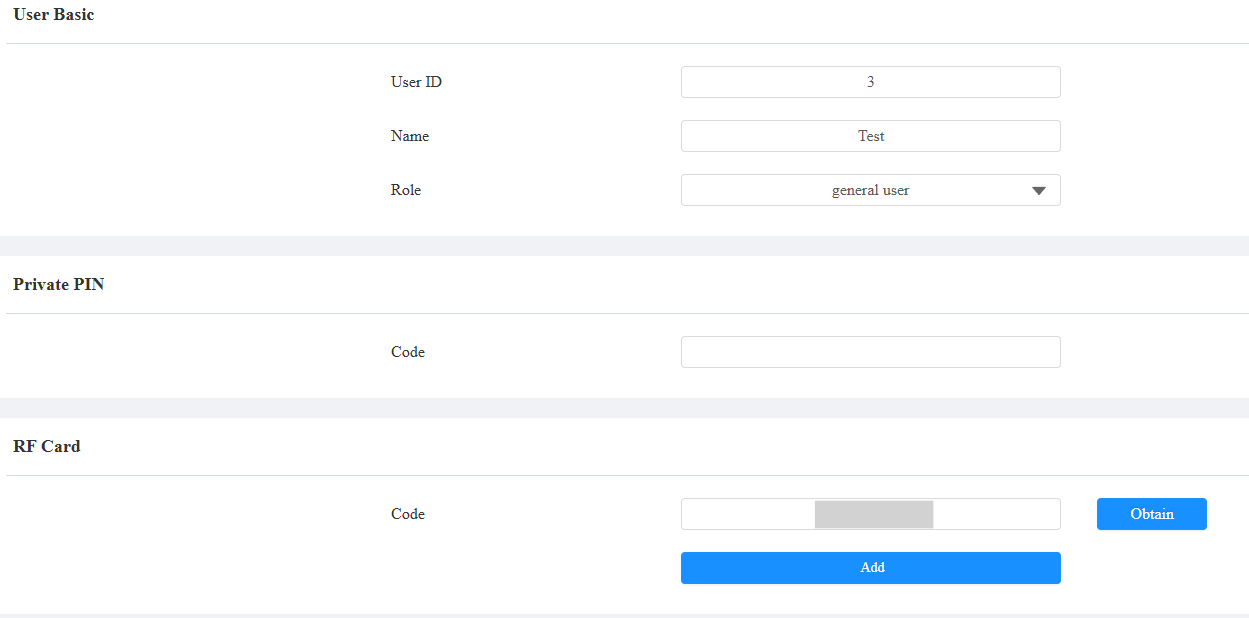
4. For A095, check the door(s) to be opened and submit the setting.
5. For A01, enter the HTTP URL. You can click Add to add up to 10 URLs for more door control.
http://{username}:{password}@{target device IP}/fcgi/OpenDoor?action=OpenDoor&DoorNum={DoorNum}&AntiPassbackMode=$antipassbackmode&Name=$name&UnlockType=$unlocktype&Code=$codeFor example, http://admin:Admin123@192.168.31.35/fcgi/OpenDoor?action=OpenDoor&DoorNum=1&AntiPassbackMode=$antipassbackmode&Name=$name&UnlockType=$unlocktype&Code=$code
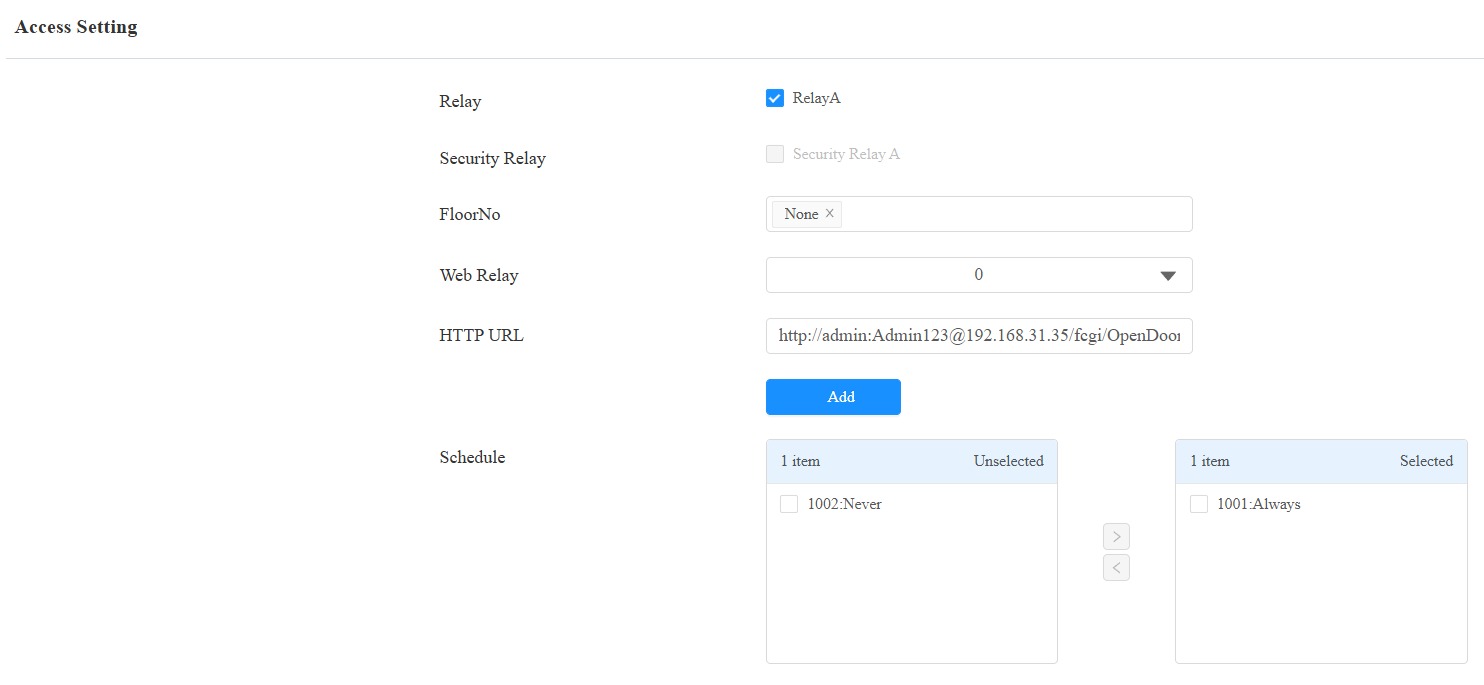
6. Submit the setting.
Enable Anti-Passback Mode
Set up the feature on the A01’s web interface.
1. On the Directory > User interface, select the desired anti-passback mode: Entry or Exit.
For example, if the user swipes their card to enter the area, then follows someone else out. They cannot swipe their card to enter.

2. Submit the setting.
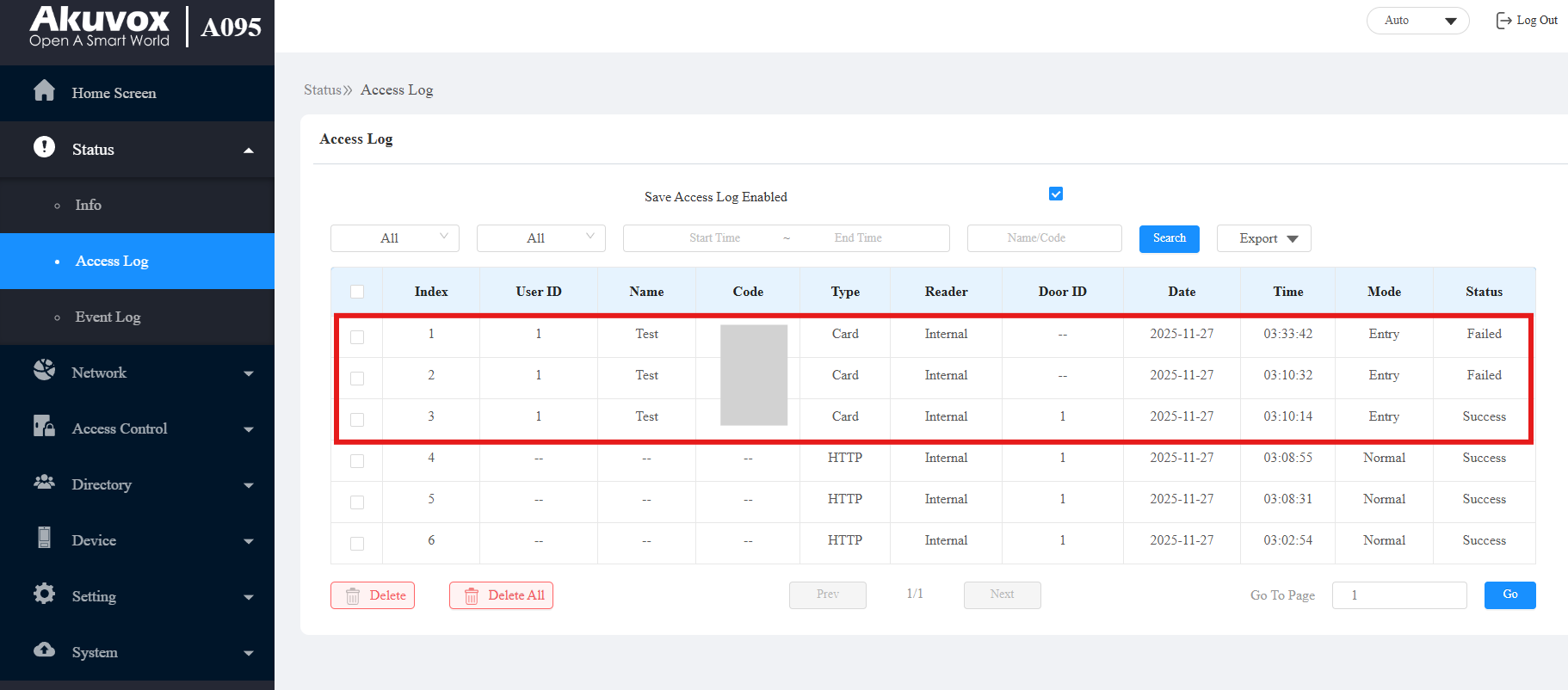
After configuration, swipe the card on A01, and A095 opens the door.
Swiping the card again on the A01 will fail to open the door.
Check the access log on the Status > Access Log interface.