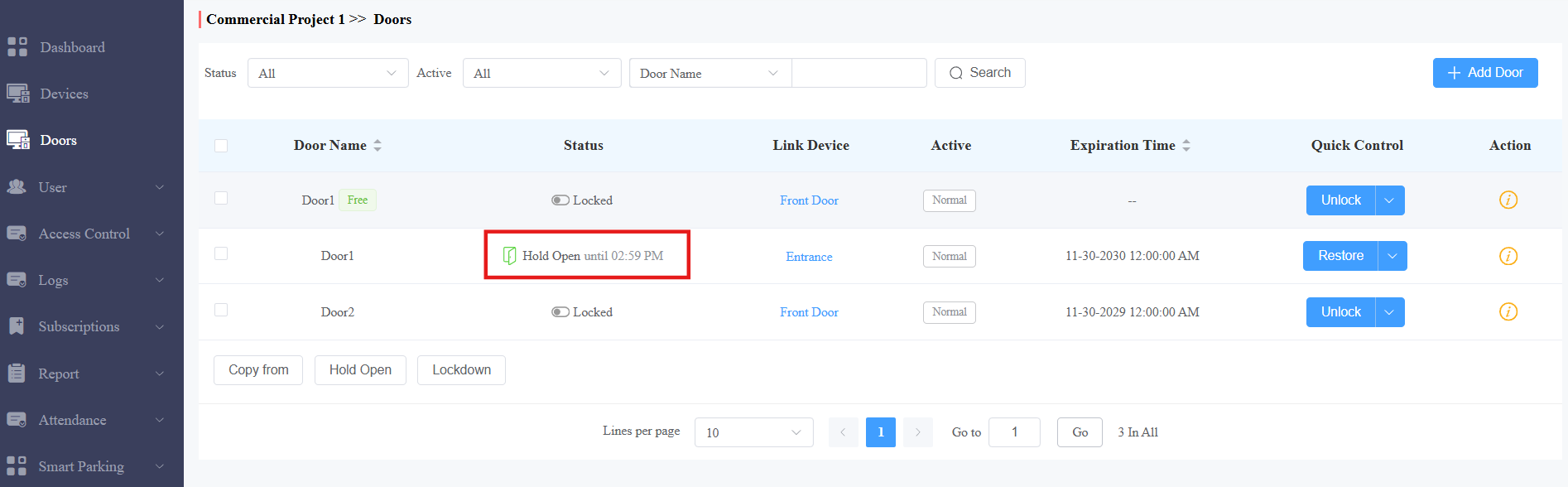
This feature allows a specific user to keep a door open after using their credentials.
For instance, if a door phone is installed at a supermarket and set to open the door from 8:00 a.m. to 5:00 p.m., the door will remain closed until the user accesses it, such as by swiping a card. Once accessed, the door will stay open during the scheduled hours.
Installers, project managers, and administrators can configure this feature.
Log in to Smart Access Cloud with your account.
Compatible models and versions(or higher):
Model
Version
Model
Version
X910
2910.30.11.104
X912
912.30.12.22
X915V2
2915.30.10.619
X916
916.30.10.508
R29
29.30.10.507
R28V2
228.30.11.6
R25
25.30.10.206
R20
320.30.11.206
E16V2
216.30.11.107
S539
539.30.10.507
E16V3
416.30.11.206
S535
535.30.11.8
S538
538.30.10.705
A01/A02
101.30.11.12
A08
108.30.11.110
A05V2
205.30.11.114
A03
103.30.11.6
A094
92.30.11.8
A095
95.30.10.203
E12V2
312.30.11.106
S532
532.30.10.336
E18
18.30.11.136
A15
1115.30.10.407
WR01
1401.30.11.221
Watch the Video Guide
Prefer a visual walkthrough?
Watch: [Smart Access][Installer]Set up First Credential In Permission
Add a User
Take a project manager account as an example.
1. Click User > Personnel.
2. Click New Personnel to add a new user; click  to modify a current one.
3. Enter the username and find the Privileges section.
4. Ensure First Credential In Permission. It is enabled by default.
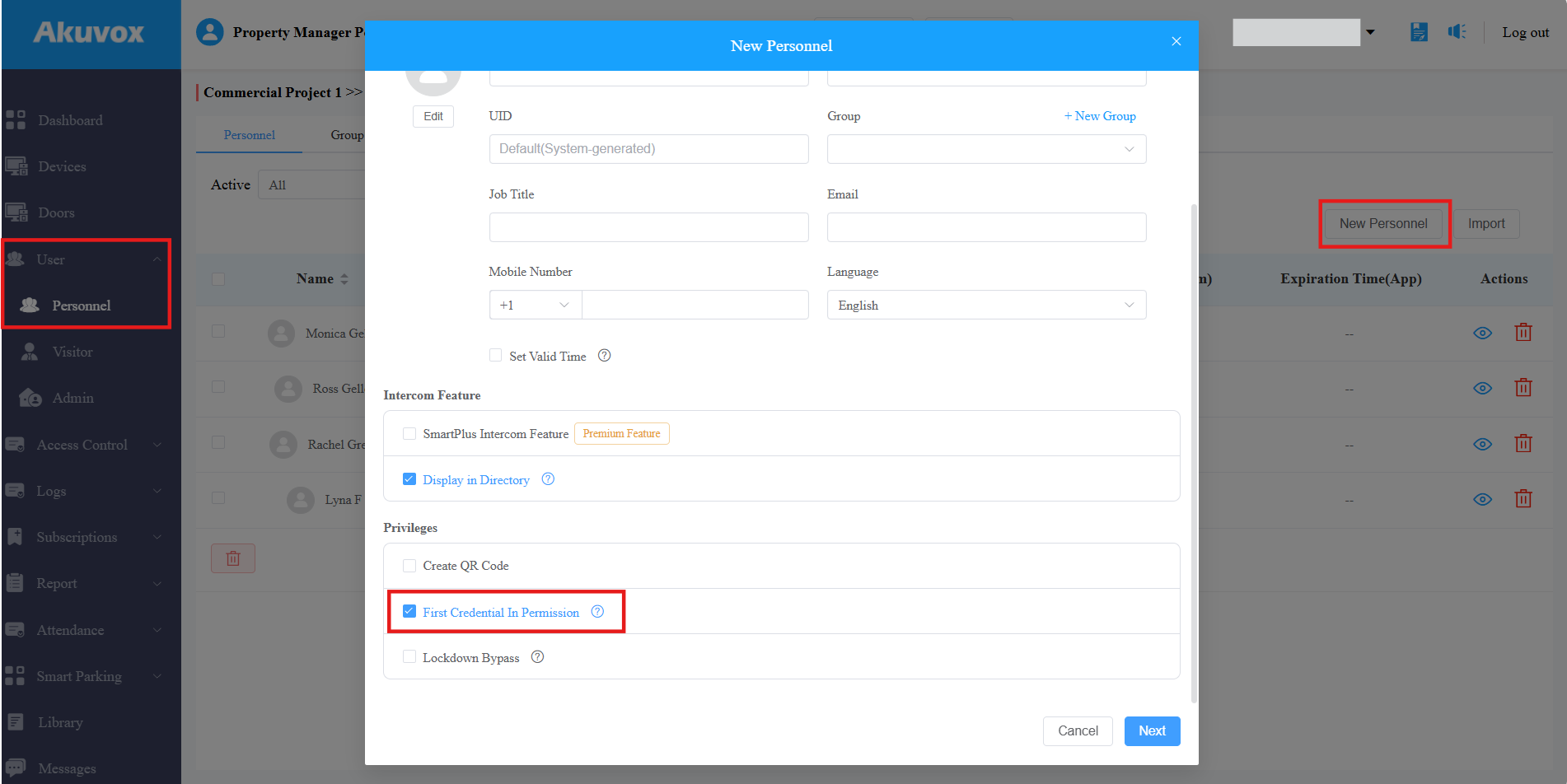
5. Click Next to set up the user’s credentials.
ONLY PIN, RF card, Face ID, Fingerprint, NFC, and Bluetooth can be used as the first credential. NFC and Bluetooth are configured on the user’s SmartPlus App by themselves.
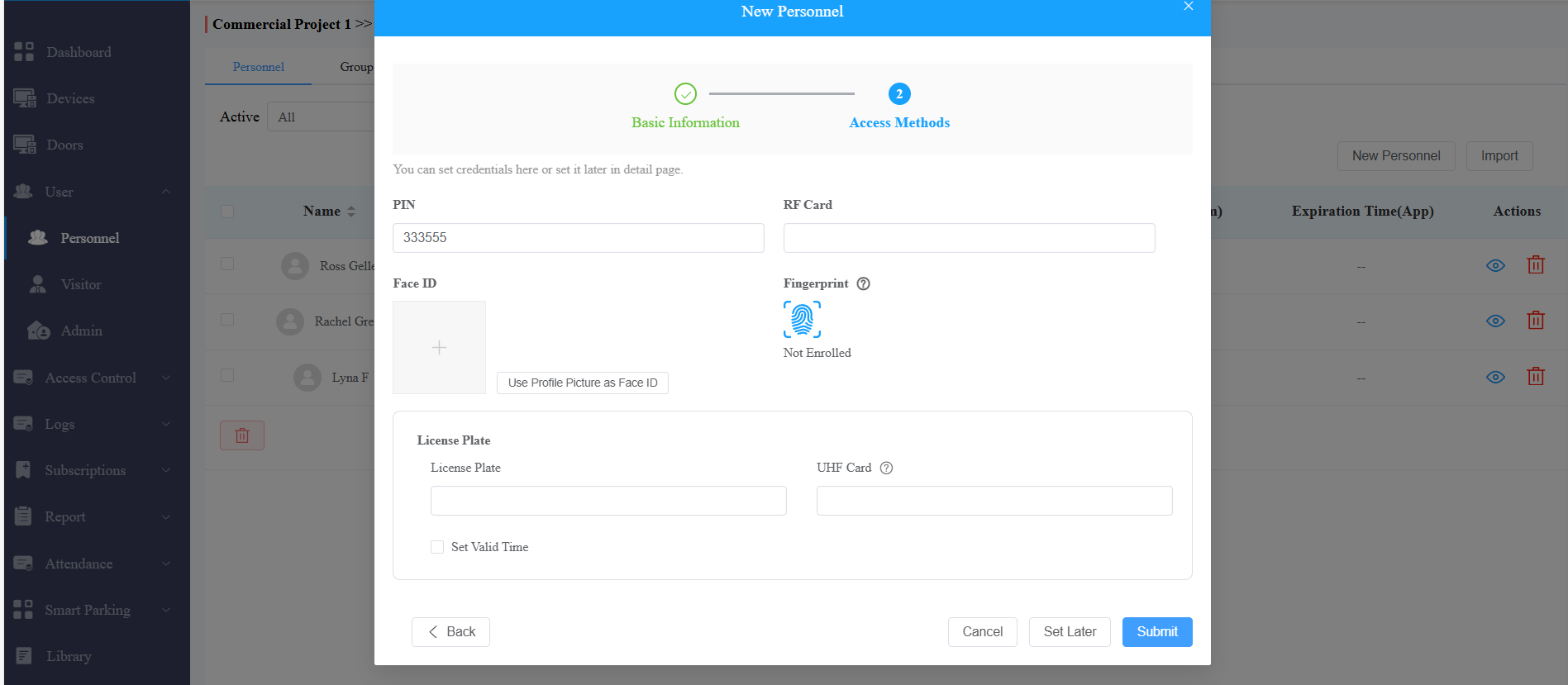
6. Submit the setting.
Set up First Credential In Schedule
1. Click Doors >  of the desired door.
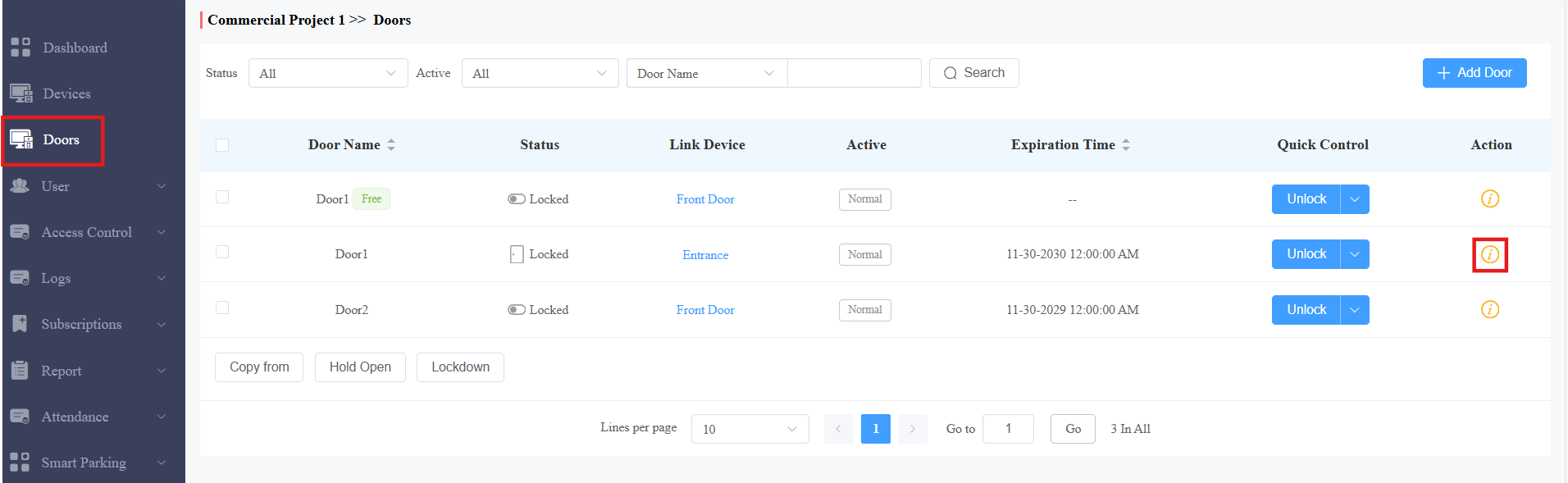
2. Click Edit on the Door Schedule section.
3. Select the time block when the first credential is effective.
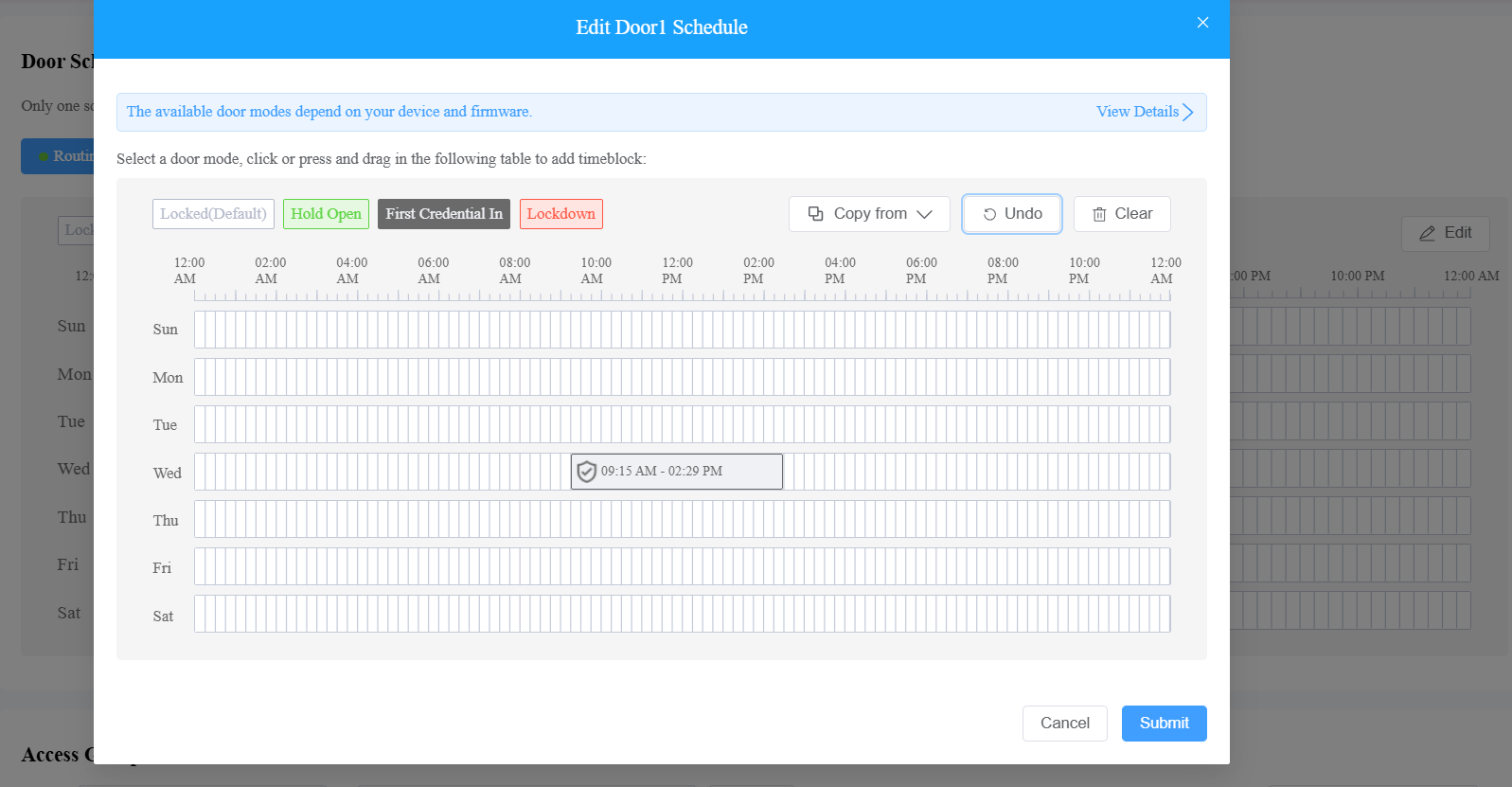
4. Click the block to adjust the time and enable Allow Manual Termination. This allows users to use their credentials again to close the door.
5. [Optional]Apply the schedule to the whole week, weekdays, or weekends by clicking Copy to.
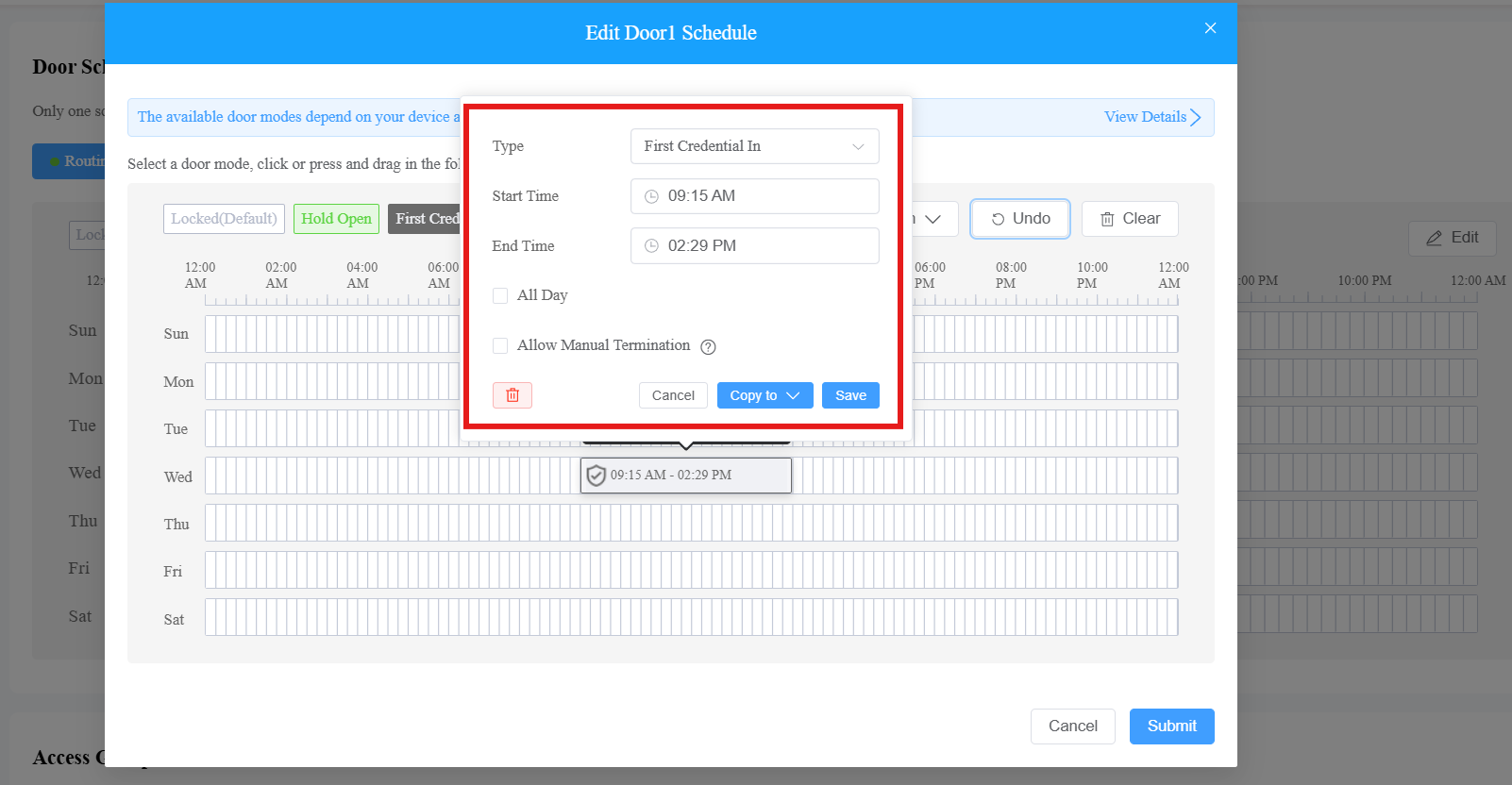
6. Save and submit the schedule.
When users use their credentials to open the door, the door remains open during the scheduled time.
With Allow Manual Termination enabled, when users use their credentials again, the door will be closed.