akubela Hypanel Ultra(PH81) supports Scene configuration, allowing you to automate actions based on time, dates, or special occasions.
All Scene settings are fully synchronized between the PH81 device and the SmartPlus App.
Note
Only when you room has the PH81 installed, will the feature available.
Compatible device version:
PH81: 581.30.14.506.
Compatible SmartPlus App’s version: 7.35.0002(Android)/7.35.2(iOS).
Scene List in Your App
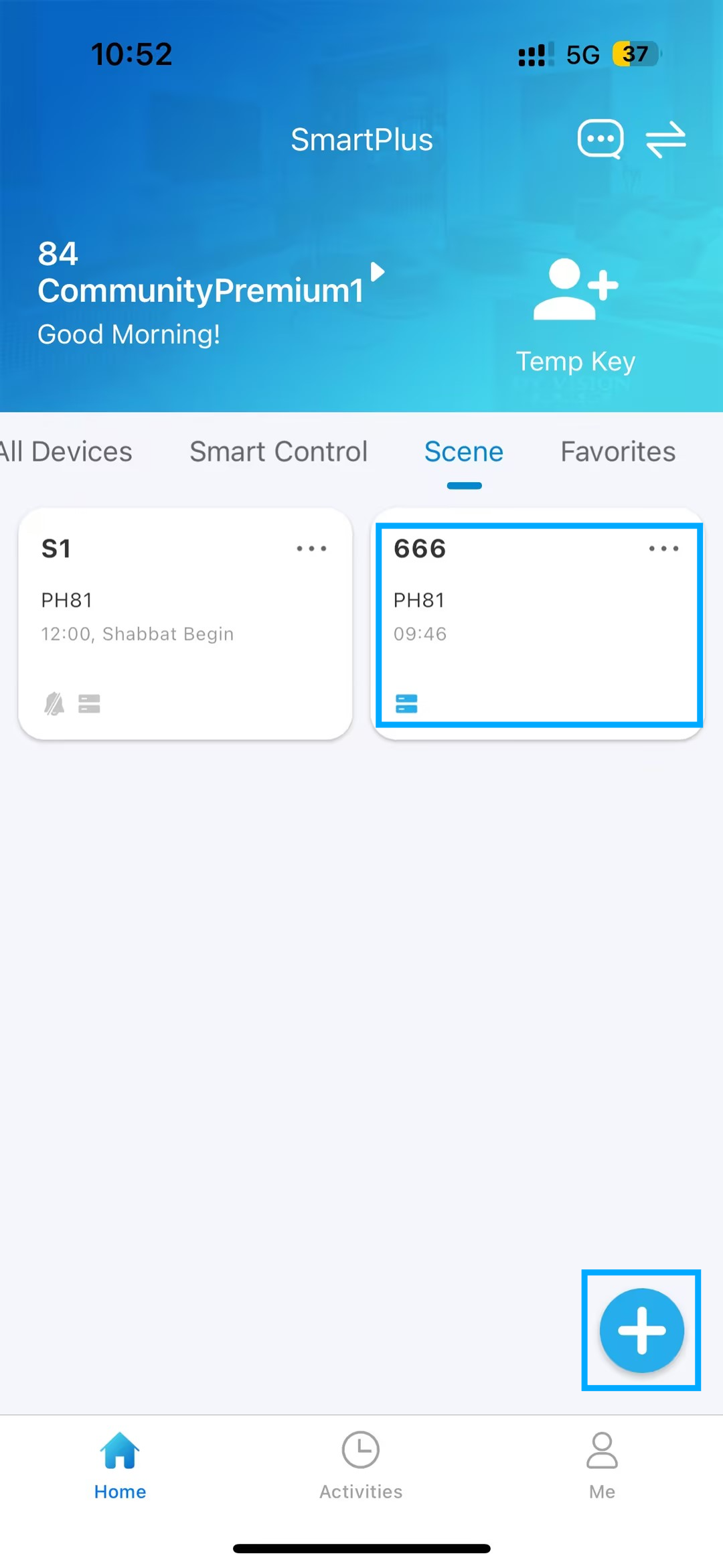
When a PH81 device is added to your room, the Scene module appears on the app’s homepage.
Each Scene card shows:
Top-left: Scene name
Top-right: Settings icon (tap to edit the Scene)
Second row: Selected device
Third row: Trigger time
Bottom-left: Task icons configured for the Scene
Available Actions
Tap the blank area of a Scene card: Manually trigger the Scene
Tap “+” in the bottom-right corner: Create a new Scene
Long-press a Scene card: Enable batch deletion
Configuration
Step 1: Create a Scene
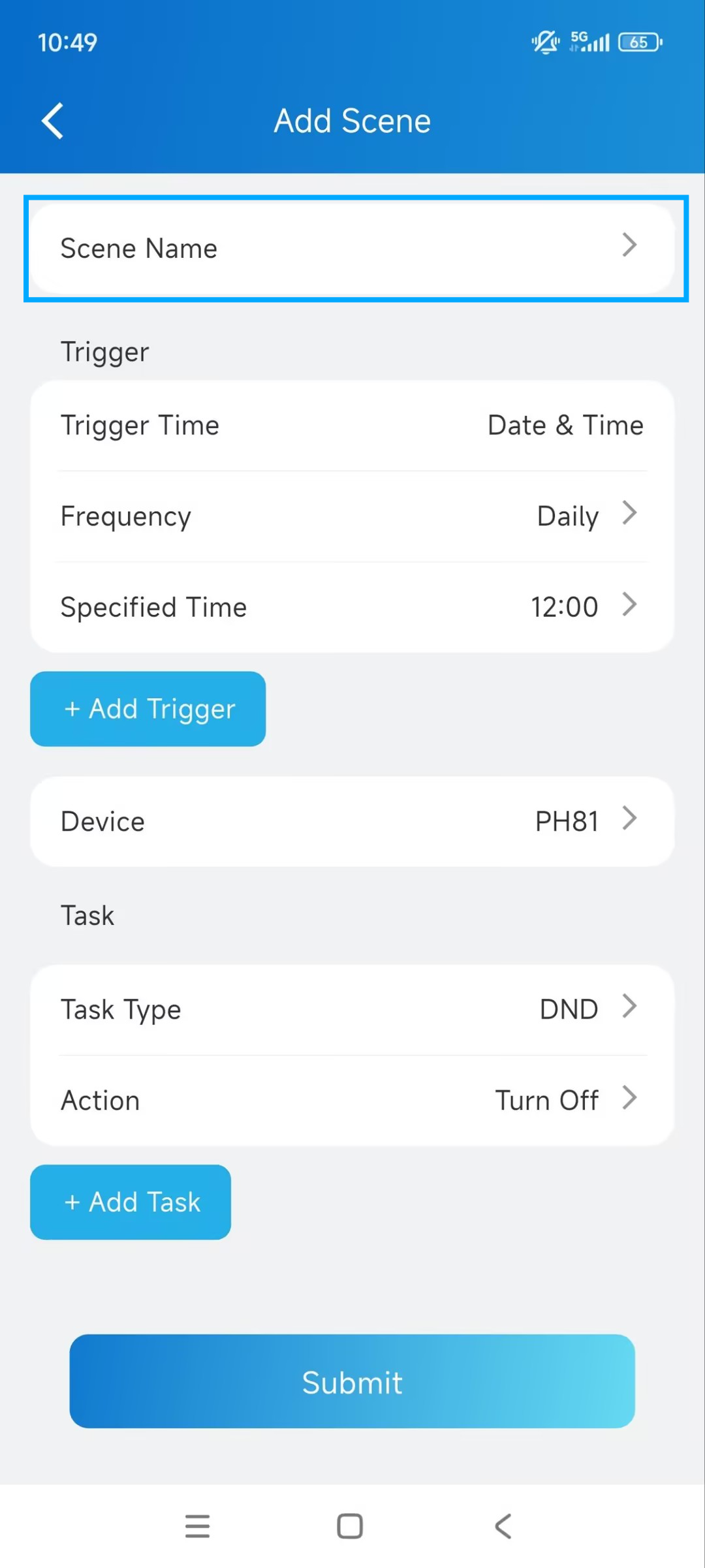
Tap the “+” button in the bottom-right corner of the Scene section.
Enter the scene name.
Choose a name that reflects the scenario, such as Morning Routine or Shabbat Mode.
Turn Enable ON if you want the Scene to run automatically(Only for the holiday or religious events Scene). You can trigger the Scene manually when Enable is OFF.
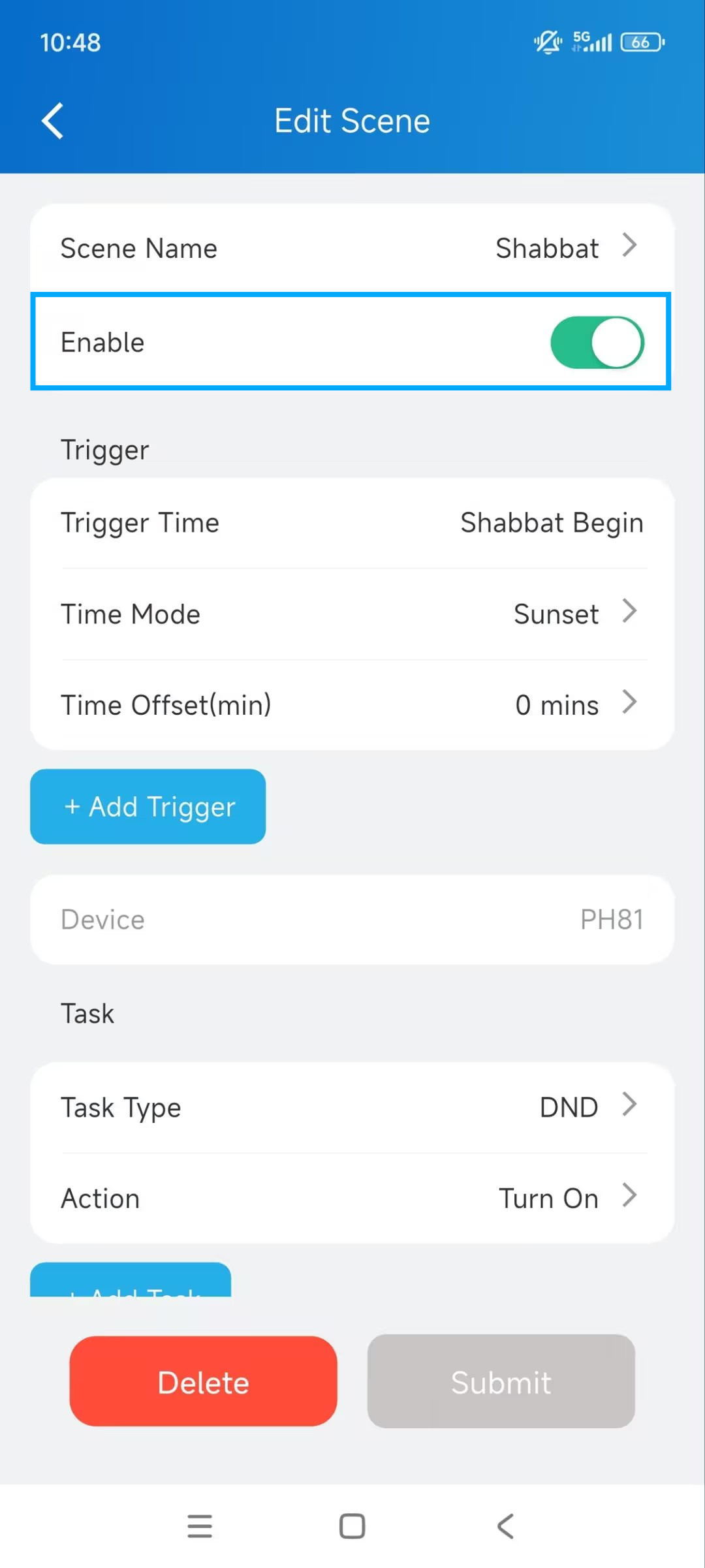
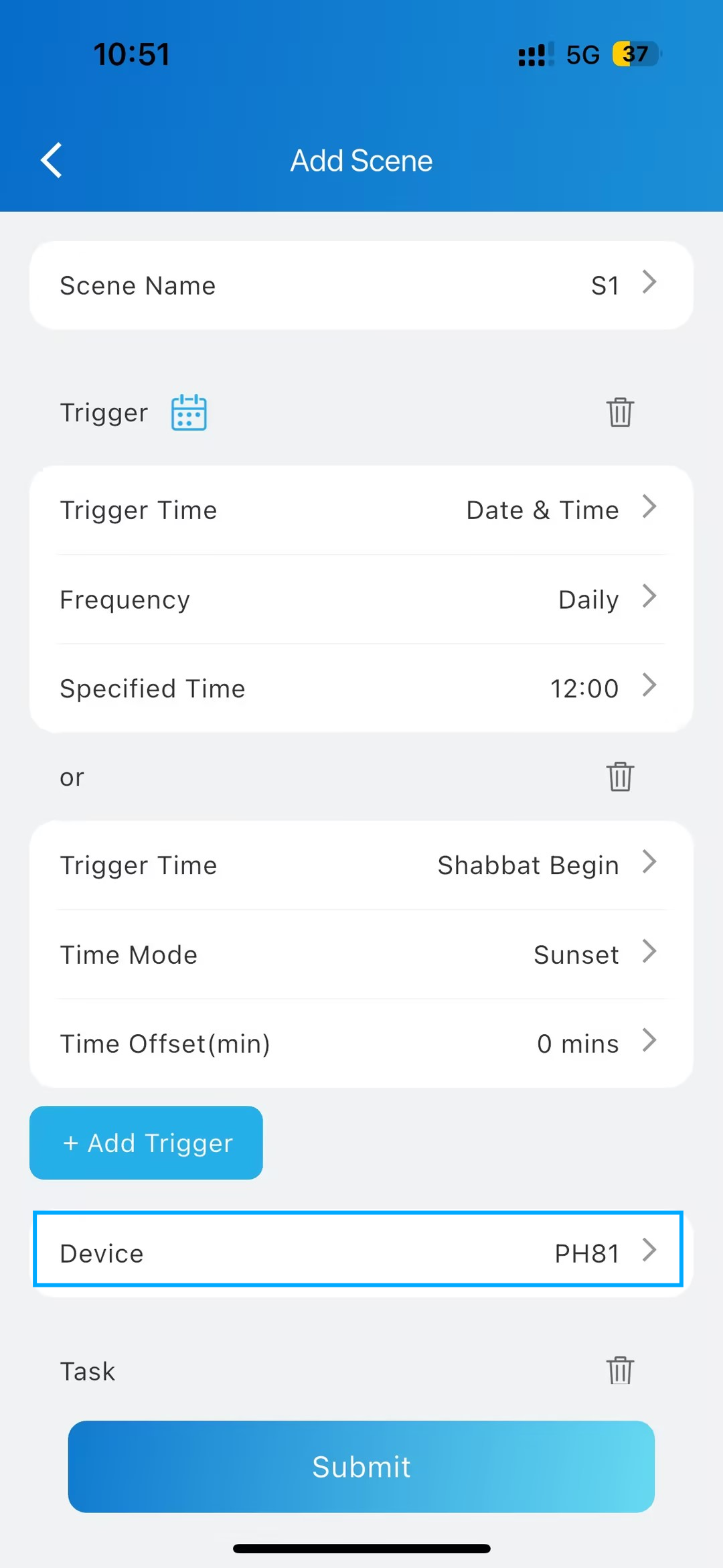
Then, you can set up to 10 triggers for a scene. The Scene runs when any one trigger is met.
Step 2: Choose When the Scene Runs (Trigger)
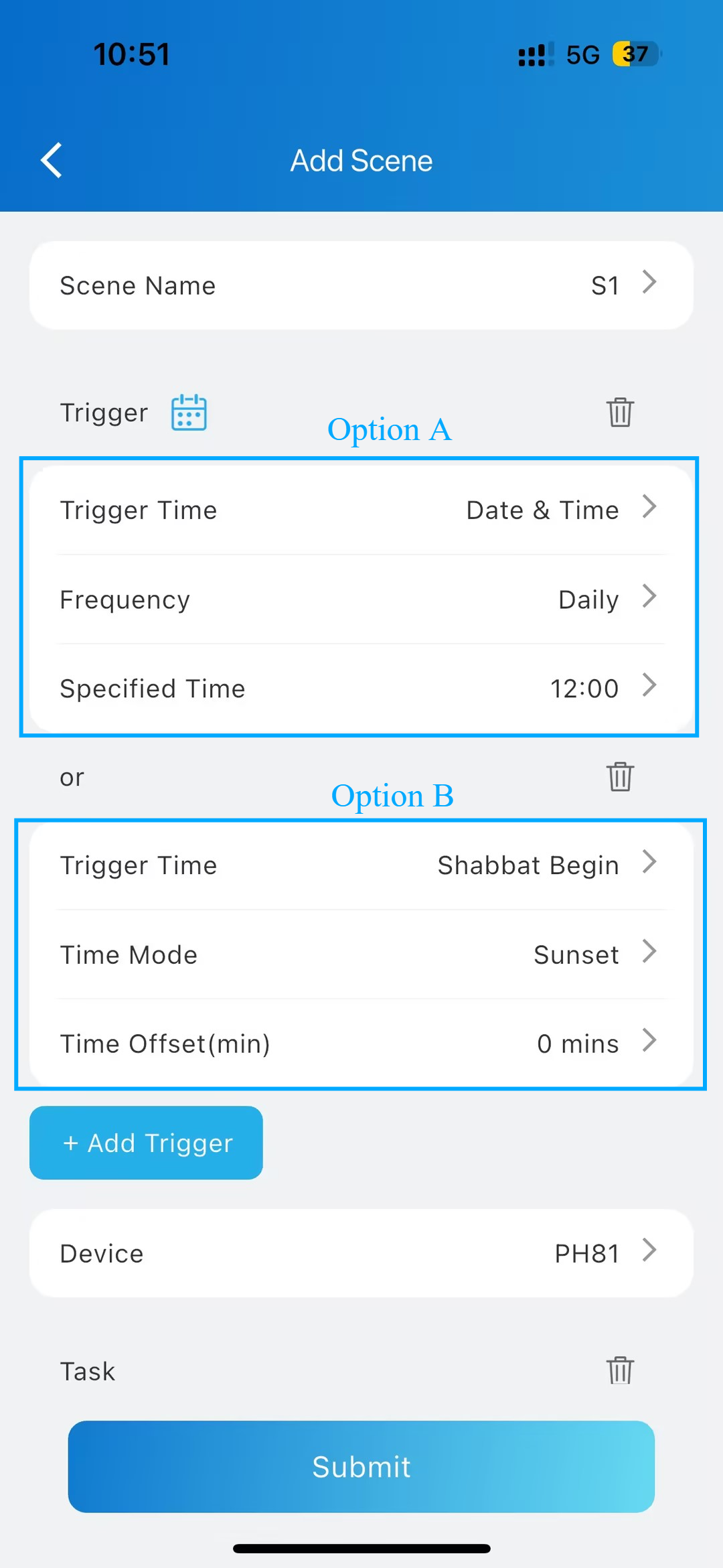
Option A: Run at a Specific Date and Time
Best for daily or weekly routines.
Select Trigger Time → Date & Time
Choose how often it runs:
Daily
Weekly (select one or more weekdays)
Monthly (select one or more dates)
Set the Specified Time.
Option B: Run Based on Holidays or Religious Events
Best for Shabbat or major holidays.
Select a holiday trigger, such as:
Shabbat Begin / End
Yamim Tovim Begin / End
Yom Kippur Begin / End
Choose Time Mode:
Sunset
(Optional) Adjust with a time offset from –720 to +720 minutes
Custom
Select a specific time on that date
(Optional) Tap the calendar icon to preview holiday dates and times.
Note
Holiday triggers are available only in supported time zones. If your time zone is not supported, only specified time triggers can be used.
Step 3: Select the Device to be Controlled
Choose the device for this Scene. Only one device can be selected
If the device is offline, all settings are disabled.
Once a Scene is created, the selected device cannot be changed.
Each device supports up to 30 Scenes.
Step 4: Define What the Scene Does (Tasks)
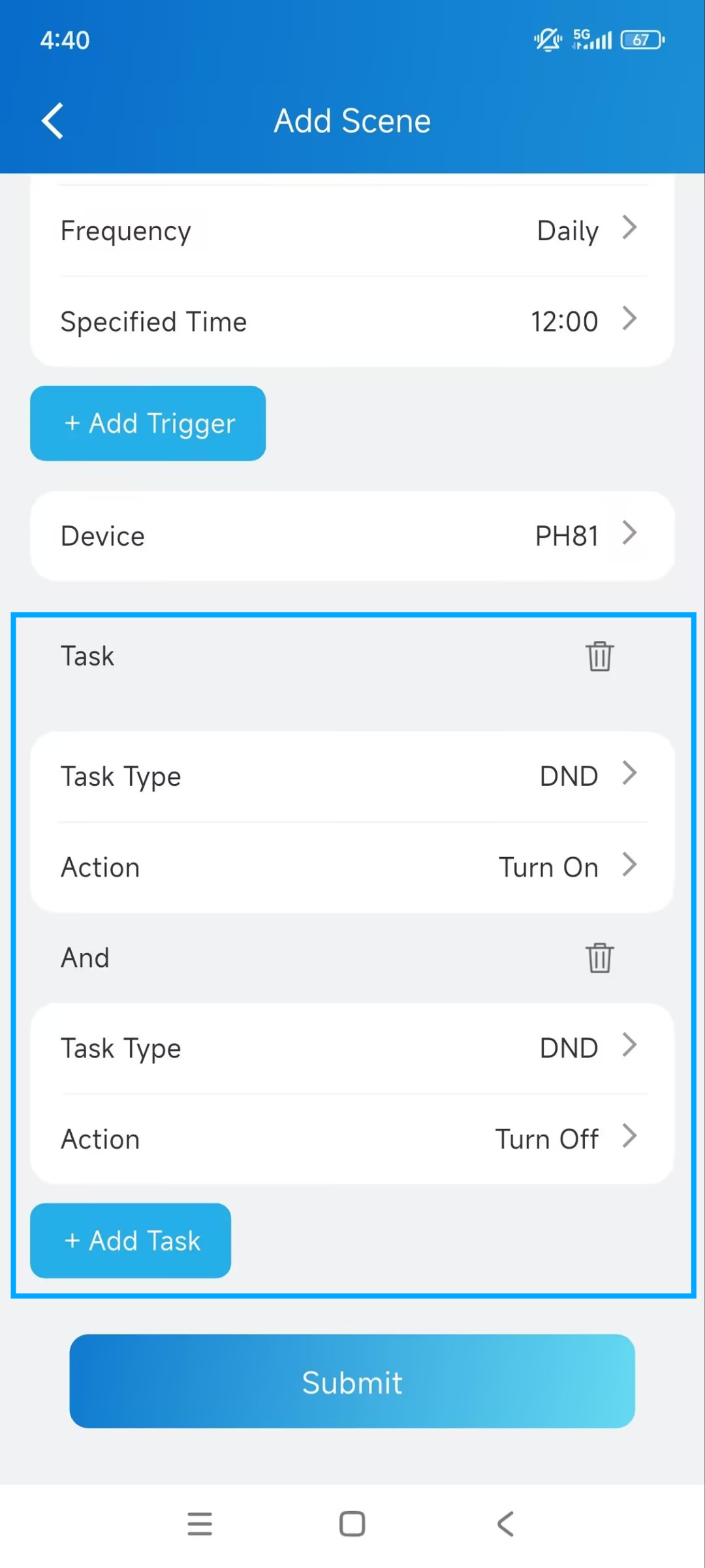
You can add up to 10 tasks.
All tasks run together when the Scene is triggered.
Task Options
Do Not Disturb (DND)
Use this to silence the device automatically.
Action: Turn On / Turn Off
Smart Control (Zigbee Devices)
Control connected Zigbee devices.
Select all devices or specific Zigbee modules (multi-select supported).
Action: Turn On / Turn Off
Maximum: 30 Zigbee devices per Scene
Wake Up Mode
Control how the device wakes up.
Action: Manual / Auto
Step 5: Save and Test the Scene
After saving the scene, return to the Scene list.
Tap the blank area of the Scene card to manually test it
Manage Existing Scenes
Edit a Scene: Tap the settings icon on the Scene card
Manually trigger: Tap the blank area of the card
Delete multiple Scenes: Long-press a card to enter batch delete mode
How Scenes Work Across Devices
Scenes created in the SmartPlus App are synchronized with devices in the same room.
Other indoor devices in the same room can manually trigger Scenes, but NOT create or edit Scenes.
Other Compatible Indoor Monitors and Versions(or higher)
S567G: 567.29.14.603.
X937: Coming soon.