Smart Lock SL50 User Guide
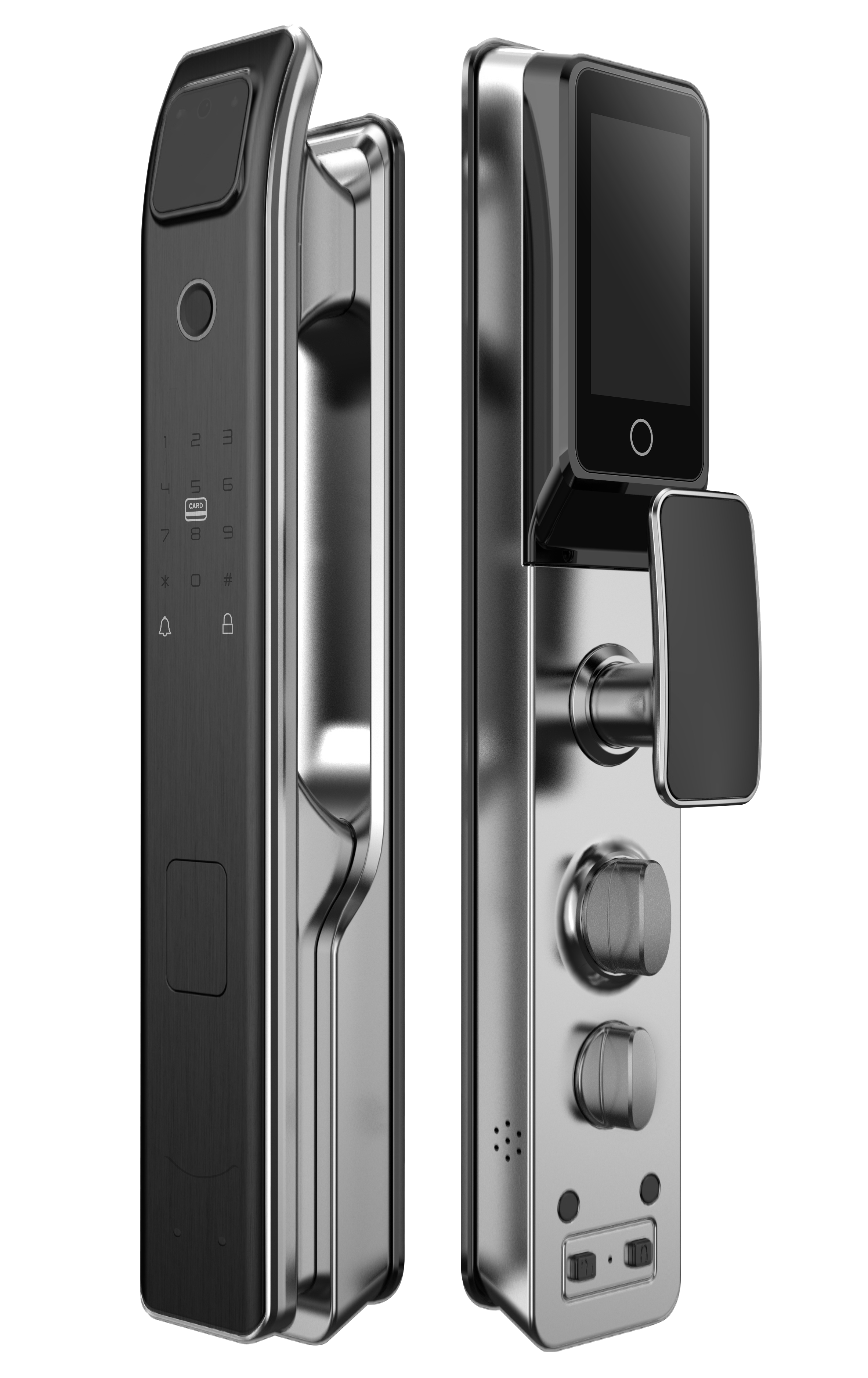
Before using the product, please read through and fully understand all instructions.
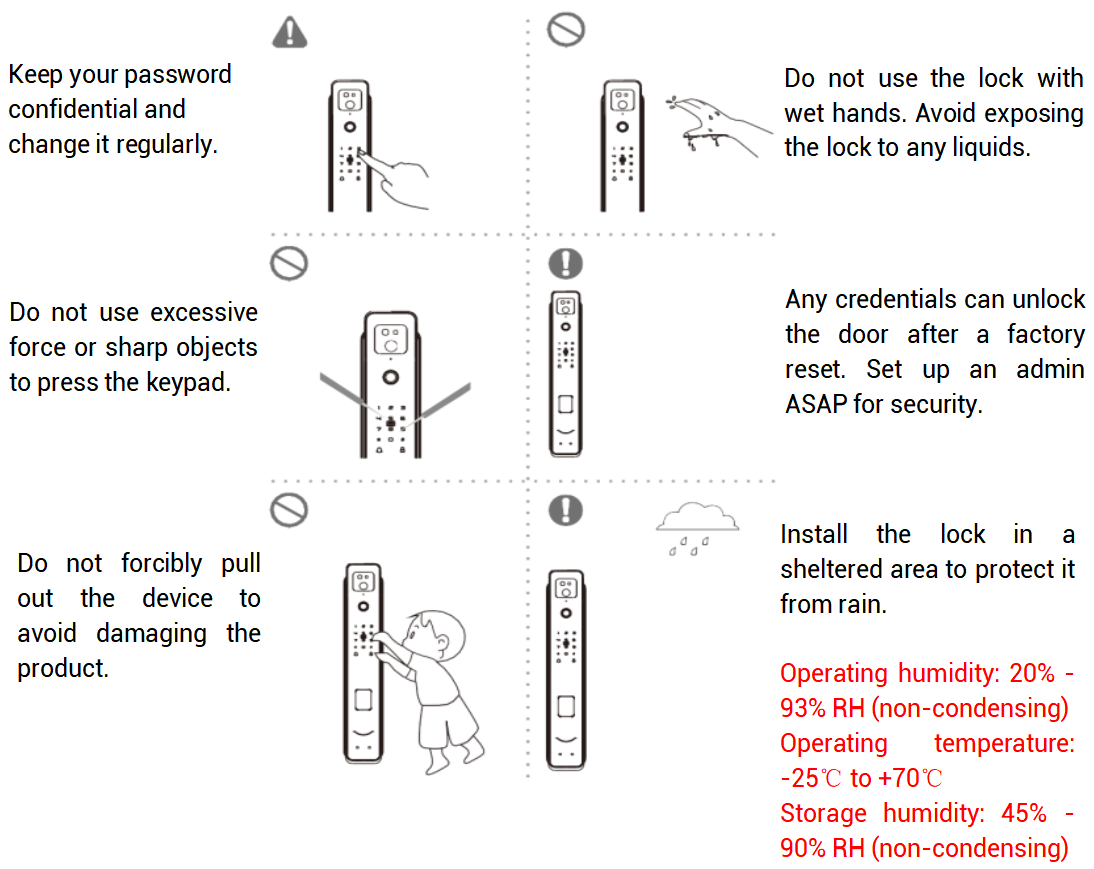
Important notes for use
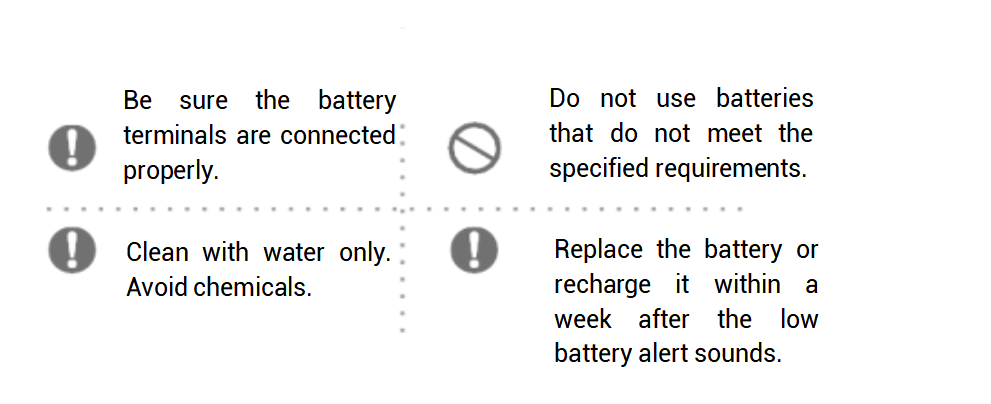
Important notes for maintenance
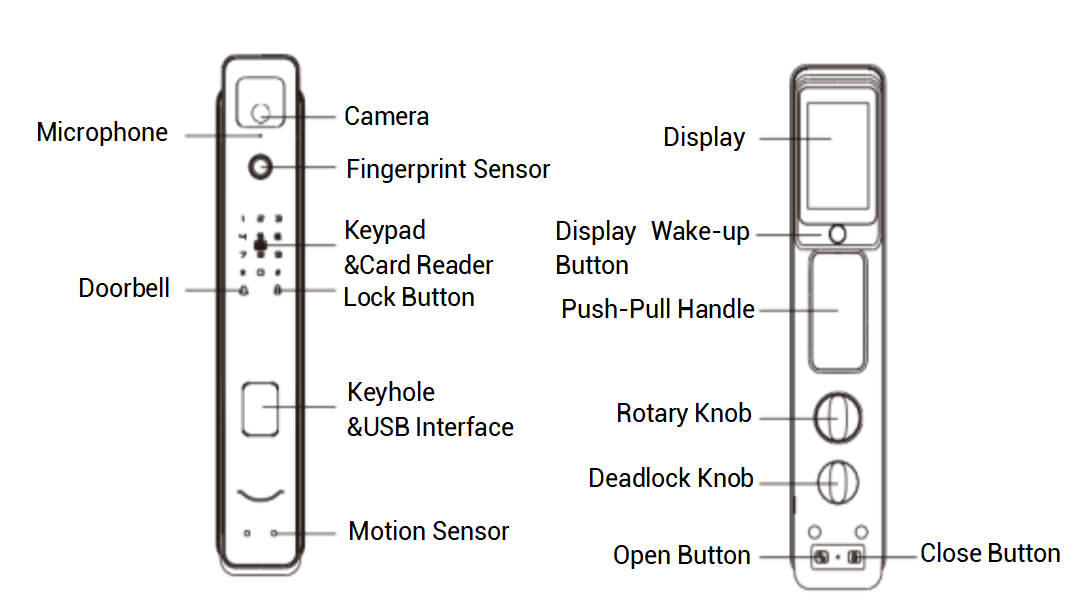
Product overview
Instructions before setting
1.
User Type | Access Method | Quantity | User Code | Authority |
Admin | Fingerprint, password, or card | 10 | 000-009 | Door access and management |
User | Fingerprint, password, or card | 240 | 010-249 | Door access |
The access card is a standard M1 card. The pass is a numerical combination of 6 to 8 digits.
When pressing a button, slightly press and hold it for more than 1 second.
Press “*” and “#” keys to enter the setting menu. Press “*” to delete or return to the previous menu. Press “#” to confirm.
Fake PIN code: To enhance security, enter any number before or after entering a password (e.g., "XXX password XXX") , then press “#” to confirm. Note that the password must be consecutive within the 16 digits.
To ensure accurate human body detection, do not placing any objects in front of the motion sensor.
Doorbell
Press the  doorbell button, and it will emit a chime sound.
Failure alert
Unlocking with an unregistered fingerprint, card, or password will trigger a beeping sound, indicating a failed attempt.
Fingerprint reading tips
Make sure your finger is clean and dry.
Place your finger at the center of the fingerprint sensor. Placing it close to the edge may affect recognition.
If your finger is too dry for recognition, try moistening it by placing it on your forehead or blowing on it.
Step 1 Power the lock
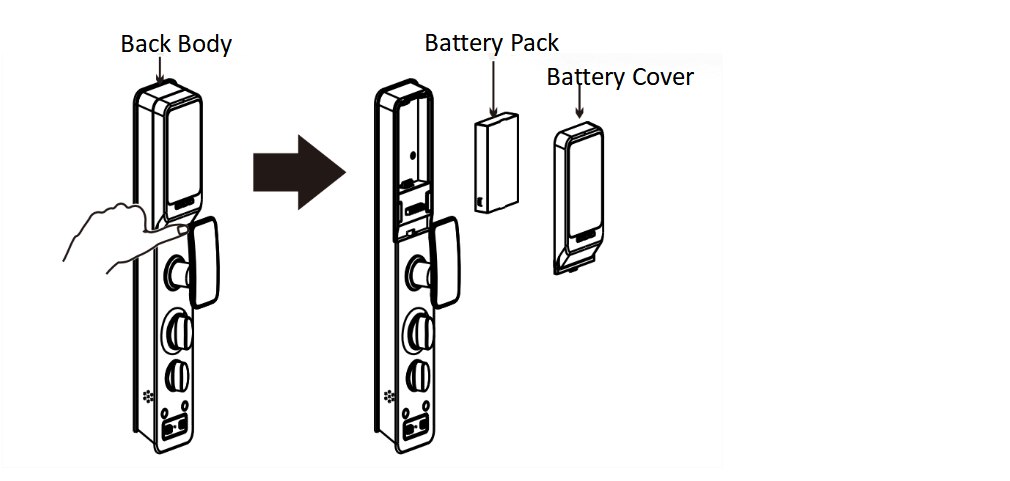
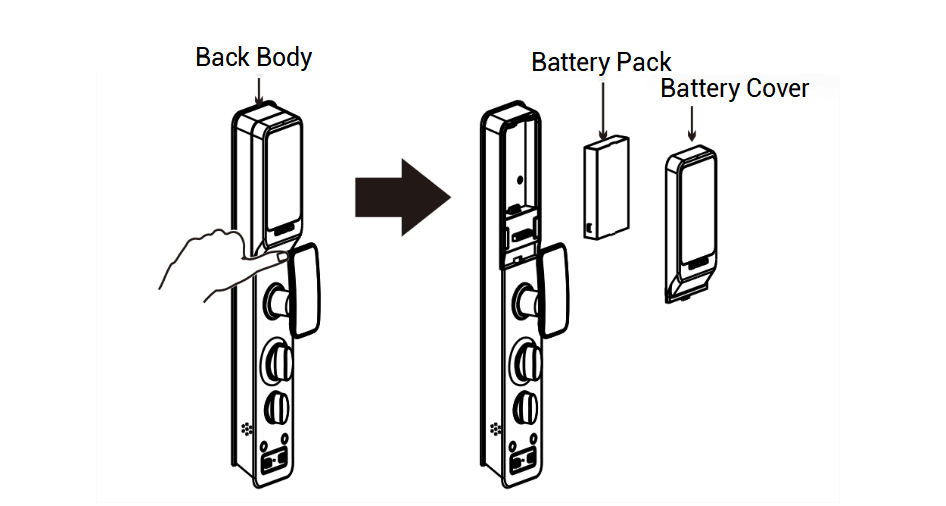
Press the bottom of the battery cover and slide the cover up to open it. Insert the battery pack. Then, slide the battery cover back down to close it.
Step 2 Factory reset the lock
Performing a factory reset will delete all your saved fingerprints, cards, passwords, and network connections. Please proceed carefully.
After the reset, any fingerprint, card, or password can unlock the door. To ensure security, set up an administrator as soon as possible to exit factory mode.
If you've previously paired with this smart lock, please delete it and then re-add it after the reset.
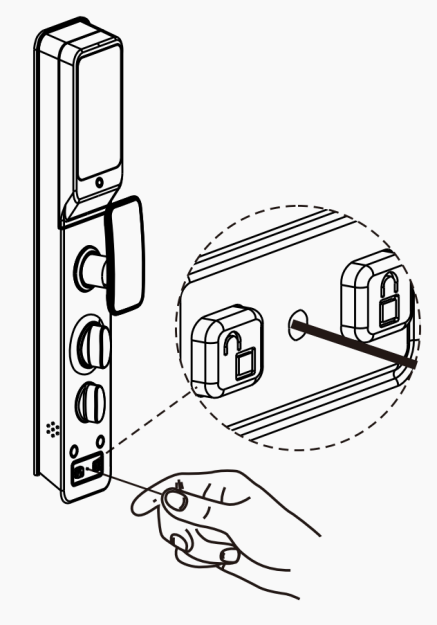
Use a paper clip or similar item to press and hold the reset button on the back body for about 6 seconds. Then, press the "#" key to confirm. You’ll hear a voice prompt of "Clear successfully" when the reset is finished.
Step 3 Setting door opening direction/voice prompt
Light or Voice Guide | Instructions |
When the device is reset to factory settings, enter the function code settings. | Wake up the keypad and enter“888#”. |
3000: Chinese 3001: English | To set the voice prompts to Chinese, enter "3000". To set the voice prompts to English, enter "3001". |
Step 4 Adding administrator
Light or Voice Guide | Instructions |
When the device is reset to factory settings, enter the management settings. | Wake up the keypad and enter “*”and “#”. (Or press the reset button.) |
Voice prompt: “Add the administrator” | Enter 6-8 digits PIN code, and press “#”. |
Voice prompt: “1. Add user 2. Delete user 3. System settings 4. Information query” | Press “1” |
Voice prompt: “1. Add administrator 2. Add user” | Press “1” |
Voice prompt: “Please enroll the password, fingerprint, or card” | Enroll the password, fingerprint, or card Card: Swipe once Password: Enter twice Fingerprint: Enroll five times |
Step 5 Add a user
Light or Voice Guide | Instructions |
Enter the management settings. | Wake up the keypad and enter “*”and “#”. (Or press the reset button.) |
Voice prompt: “Please verify the administrator’s identity.” | Use admin credentials (fingerprint, card, or password) to authenticate. |
Voice prompt: “1. Add user 2. Delete user 3. System settings 4. Information query” | Press “1” |
Voice prompt: “1. Add administrator 2. Add user” | Press “2” |
Voice prompt: “Please enroll the new user password, fingerprint, or card” | Enroll the new user password, fingerprint, or card Card: Swipe once Password: Enter twice Fingerprint: Enroll five times |
Door opening
Simply use the enrolled fingerprint, password, or card for outdoor unlock. For indoor unlock, press the open button on the back body of the lock.
Door locking
Press the lock button on the front body for outside locking, and press the close button on the back body for inside locking.
Delete a user (By identity verification or by user code)
The administrator currently using the system cannot be deleted.
Light or Voice Guide | Instructions |
Enter the management menu. | Wake up the keypad and enter “*”and “#” (Or press the reset button). |
Voice prompt: “Please verify the administrator’s identity.” | Use admin credentials (fingerprint, card, or password) to authenticate. |
Voice prompt: “1. Add user 2. Delete user 3. System settings 4. Information query” | Press “2” |
Voice prompt: “1. Verify user for deletion 2.Delete user by number” | Press “1” |
Voice prompt: “Please verify the user to be deleted” | Verify the user to be deleted using their fingerprint, card, or password. |
Voice prompt: “1. Verify user for deletion 2.Delete user by number” | Press “2” |
Voice prompt: “Please enter the user code to delete” | Enter the user code to be deleted, and press "#" to confirm. |
Network settings
Light or Voice Guide | Instructions |
Enter the management menu. | Wake up the keypad and enter “*”and “#” (Or press the reset button). |
Voice prompt: “Please verify the administrator’s identity.” | Use admin credentials (fingerprint, card, or password) to authenticate. |
Voice prompt: “1. Add user 2. Delete user 3. System settings 4. Information query” | Press “3” |
Voice prompt: “1.Time settings 2.Installation settings 3.Function settings 4.Restore to factory settings” | Press “3” |
Voice prompt: “1.Network settings 2.Volume settings 3.Dual-verification” | Press “1” to enter network settings, and follow the voice guide. (Please refer to the “Wi-Fi connection” instructions ) |
Time settings
Light or Voice Guide | Instructions |
Enter the management menu. | Wake up the keypad and enter “*”and “#”(Or press the reset button). |
Voice prompt: “Please verify the administrator’s identity.” | Use admin credentials (fingerprint, card, or password) to authenticate. |
Voice prompt: “1. Add user 2. Delete user 3. System settings 4. Information query” | Press “3” |
Voice prompt: “1.Time settings 2.Installation settings 3.Function settings 4.Restore to factory settings” | Press “1” and enter the time in the following format: YY/MM/DD/HH/MM (e.g., 22/05/01/08/05 for May 1, 2022, 8:05 AM). Note that a leading zero must be added before a single-digit number. |
Volume settings/Dual verification
Light or Voice Guide | Instructions |
Enter the management menu. | Wake up the keypad and enter “*”and “#” (Or press the reset button). |
Voice prompt: “Please verify the administrator’s identity.” | Use admin credentials (fingerprint, card, or password) to authenticate. |
Voice prompt: “1. Add user 2. Delete user 3. System settings 4. Information query” | Press “3” |
Voice prompt: “1.Time settings 2.Installation settings 3.Function settings 4.Restore to factory settings” | Press “3” |
Voice prompt: “1. Network settings 2. Volume settings 3.Dual-verification” | Press “2” to adjust the volume level to high, medium, or low level, or mute it. Press “3” to enable/disable the dual-verification mode. |
Installation settings(Door swing/Delayed locking)
Light or Voice Guide | Instructions |
Enter the management menu. | Wake up the keypad and enter “*”and “#” (Or press the reset button). |
Voice prompt: “Please verify the administrator’s identity.” | Use admin credentials (fingerprint, card, or password) to authenticate. |
Voice prompt: “1. Add user 2. Delete user 3. System settings 4. Information query” | Press “3” |
Voice prompt: “1.Time settings 2.Installation settings 3.Function settings 4.Restore to factory settings” | Press “2” |
Voice prompt: “1. Door swing direction 2.Delayed locking 3. Lock settings” | Press “1” to set the door opening direction to left-handed or right-handed. Press “2” to set the door delayed locking time to 10, 15, 20, 25 seconds, or off. |
Lock settings
(Tamper alarm/Motor torque/Auto-lock time/Loitering alert)
Light or Voice Guide | Instructions |
Enter the management menu. | Wake up the keypad and enter “*”and “#”(Or press the reset button). |
Voice prompt: “Please verify the administrator’s identity.” | Use admin credentials (fingerprint, card, or password) to authenticate. |
Voice prompt: “1. Add user 2. Delete user 3. System settings 4. Information query” | Press “3” |
Voice prompt: “1.Time settings 2.Installation settings 3.Function settings 4.Restore to factory settings” | Press “2” |
Voice prompt: “1.Door opening direction 2.Delayed locking 3.Lock settings” | Press “3” |
Voice prompt: “1.Door swing 2.Delayed locking 3.Auto-lock time 4.Loitering alert” | Press “1” to enable/disable the tamper alarm. Press “2” to set the motor torque level to high, medium, or low. Press “3” to set the auto-lock time between 2-9 seconds. Press “4” to set the loitering alert trigger time to 10, 15, 20, 25 seconds, or off. |
Operation logs
Light or Voice Guide | Instructions |
Enter the management menu. | Wake up the keypad and enter “*”and “#” (Or press the reset button). |
Voice prompt: “Please verify the administrator’s identity.” | Use admin credentials (fingerprint, card, or password) to authenticate. |
Voice prompt: “1. Add user 2. Delete user 3. System settings 4. Information query” | Press “4” |
Voice prompt: “1. User quantity 2. Operation logs” | Press “2” |
Voice prompt: “1. Query by order 2. Query by date” | Press “1” to check logs in order, and then press “2” and “8” to scroll up and down through the records. Press “2” and enter the desired date for the log search, and then press “2” and “8” to scroll up and down through the records. |
User quantity query
Light or Voice Guide | Instructions |
Enter the management menu. | Wake up the keypad and enter “*”and “#” (Or press the reset button). |
Voice prompt: “Please verify the administrator’s identity.” | Use admin credentials (fingerprint, card, or password) to authenticate. |
Voice prompt: “1. Add user 2. Delete user 3. System settings 4. Information query” | Press “4” |
Voice prompt: “1. User quantity 2. Operation logs” | Press “1” to check the current number of administrators and regular users. |
Factory reset
Light or Voice Guide | Instructions |
Enter the management menu. | Wake up the keypad and enter “*”and “#” (Or press the reset button). |
Voice prompt: “Please verify the administrator’s identity.” | Use admin credentials (fingerprint, card, or password) to authenticate. |
Voice prompt: “1. Add user 2. Delete user 3. System settings 4. Information query” | Press “3” |
Voice prompt: “1.Time settings 2.Installation settings 3.Function settings 4.Restore to factory settings” | Press “4” and then press "#" to confirm. |
Unlocking with mechanical key
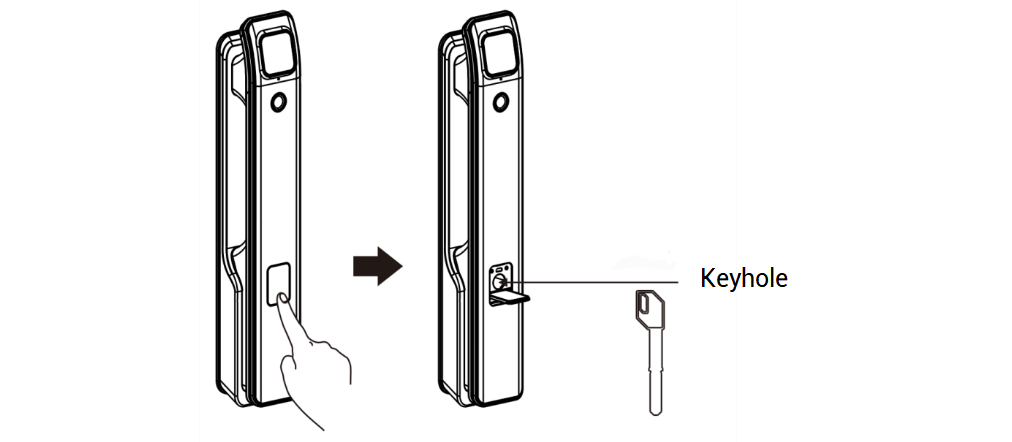
When the electronic components fail or the door cannot be unlocked using a password, fingerprint, or card, use the mechanical key. Press the lower part of the keyhole cover to flip it open, insert the mechanical key, and turn it to unlock.
NOTE:
Always have at least one spare mechanical key stored somewhere outside your home.
Unlocking with emergency power supply
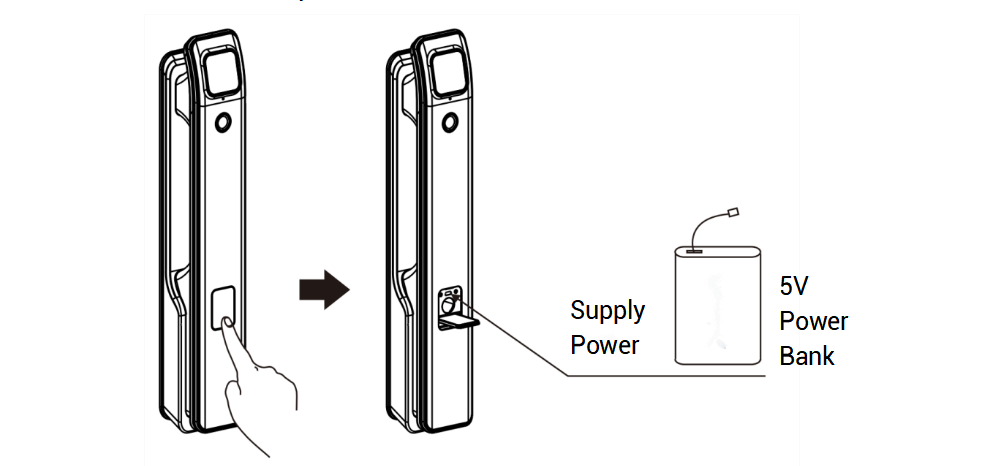
If the battery voltage is insufficient to unlock the door from outside, you can use an external power supply. Press the lower part of the keyhole cover to flip it open, then connect a 5V/2A power bank to the USB interface
NOTE:
Use the external power supply for emergency unlocking only. Do not keep it connected for extended periods.
Low battery alert & Battery replacement
When you try to unlock and hear the voice prompt of “Low battery”, it indicates that the battery is insufficient. You can still unlock the door over 50 more times, but should charge or replace the battery in time.
If the battery is completely dead and the door cannot be opened, connect a 5V/2A power bank as the external power supply for unlocking.
TIP:
To replace the battery, press the bottom of the battery cover and slide it upwards, and remove the cover to replace or charge the battery.
Unauthorized unlock alarm and lockout
When an unauthorized fingerprint, card, or password is used to unlock the door, the system will emit a "beep" sound with a voice prompt saying "Verification failed".
After 3 to 5 consecutive incorrect attempts, the alarm will sound once, with a voice prompt of “Unauthorized user, illegal intrusion. Owner notified.”
After 5 incorrect attempts, the system will sound the alarm, then lockout for 90 seconds. During this period, no further attempts can be made.
Tamper alarm
If someone attempts to forcibly remove the front body of the lock, the alarm will sound with a voice prompt of “Unauthorized user, illegal intrusion. Owner notified.” During the alarm, if correct credentials is provided, the door can be unlocked, which will also clear the alarm.
Fake PIN code
To prevent others from seeing your password, you can add random numbers before and after it. For example, enter "XXXPasswordXXX" and then press "#" to confirm. The actual password must be included within the input and cannot exceed 16 characters; the system will only recognize the first 16 digits.
Deadlock
Rotate the inside rotary knob 90 degrees to activate the deadbolt.
Troubleshooting
If the lock fails to work, please check the following. If the issue persists, contact your service provider.
Issue | Solution |
Power not working | - Check if the battery has any quality problems or if the positive and negative poles are installed correctly. - Ensure the battery is properly seated and has power. |
Unable to set password | - Confirm the keypad backlight is on and enter the next digit within 6 seconds of the first. - Refer to the user manual for the correct password setting procedure. |
Fail to unlock with fingerprint | - Ensure your fingerprint is enrolled and not been deleted. - Keep your finger clean and dry. Clean the fingerprint sensor and try again. |
Fail to unlock with password | - Confirm the keypad backlight is on and enter the next digit within 6 seconds of the first. - Verify that you have entered the correct enrolled password. - When entering a fake PIN code, make sure to input the entire correct password. |
Fail to unlock with fingerprint, password, and card | - The lock may be in deadlock mode. You will need to ask someone inside to unlock it. |
Correct operation but still cannot unlock | - Try using the emergency power supply or mechanical key. - If it still doesn't work, there may be a malfunction of the lock. - Contact your service provider |
Unlock successfully but low battery alert sounds | - Replace or charge the battery promptly. |
Alarm sounding and no response | - The lock has been locked out for 90 seconds due to multiple unauthorized unlock attempts. |
Enrolled fingerprint cannot unlock suddenly | - Restore the lock to factory settings. - Re-enroll your fingerprint after resetting the lock. |
Wi-Fi connection(AP Mode)
To configure the AP hotspot, do as the following:
Download and install BelaHome app on your phone.
Open the app and log in to your account. If it's your first time login, you'll need to create an account.
If you do not have a family set up, create a new one.
Go to the app home screen, tap the "+" icon in the upper right corner to add the device. Select "SL50" to access the SL50 device adding screen.
Connect your phone to the Wi-Fi named as “SL50xxxxxxxxxxxx” (xxxxxxxxxxxx is the MAC address of the SL50 lock). Once connected, return to the app to proceed to the next step.
Connect to the 2.4G Wi-Fi network, and tap “Next”.
Wait for the configuration to complete. The app will display device information, confirming that the device has been added successfully. Tap “Completed Adding” to return; the door lock will voice prompt “Operation successful.”
User code chart
For better management, you can record the user information in the following chart or or create your own customized version.
Name | Password no. | Fingerprint no. | Card no. | Enroll Date | Signature | Remark |
NOTE:
Lock functionality may vary by version, and discrepancies with the user guide may occur. The final interpretation rights belong to our company.