Introduction
This guide provides an overview of the features and functions of akubela SmartPanel Elite 10 (version 119.30.207.7). Topics covered by this guide include but not limited to:
An overview of akubela Home Center.
Personalizing the system your way.
Managing and controlling add-on Zigbee and third-party devices.
Creating and using Scene function to automate your home.
Communicating with devices or family members using SmartPanel Elite 10.
For more information about the products and operations, see appropriate guides at https://ticket.akubela.com.
Before You Start
akubela allows you to configure and control your home on SmartPanel Elite 10 devices, or via the Home Center web interface or BelaHome app. The features and capabilities vary among SmartPanel Elite 10, Home Center, and BelaHome app.
This section gives you an insight into what the Home Center is, and the functional differences between Home Center and SmartPanel Elite 10 devices.
What the Home Center is
The akubela device that is selected to be the superior controlling hub within a family, is called Home Center. Each Home Center has an online web interface for advanced settings. With the Home Center and its web interface, you are empowered to:
Manage all family members accounts.
Add devices and manage all devices within the family.
Create and personalize your automation scenes.
Configure the default security modes and create custom modes.
Only One akubela device can be in the Home Center at the same time. The following are the devices that can be the Home Center:
X933H and PH58, which are SmartPanel and Smart Panel Elite 10.
HyPanel.
Note
If you have both a SmartPanel and a HyPanel in your home, the SmartPanel will become the Home Center automatically when added to the akubela Cloud.
If you have several devices from the same series, e.g., 3 SmartPanel Elite 10, the first one of them to be added to the akubela Cloud would be the Home Center.
Log in to Home Center web interface
To log in to the home center web interface, do one of the following based on the connection mode:
In the Cloud mode. Log in to the family’s administrator account at https://my.akubela.com.
In the Off-Cloud mode.
Make sure your computer and the devices are on the same local network.
Type in the device’s IP address into the browser.

Log in with the family’s administrator account.
3. In the Trial mode.
Make sure your computer and the devices are on the same local network.
Type in the device’s IP address into the browser.
Log in with the user name, Admin888, and the password, Admin888.
How to get the family administrator account?
Contact your service provider, and provide a valid email address and other required information. Once the installation of your akubela devices is completed, the administrator will receive a Welcome to akubela email with login account and password.
You can see Features and Functions of Home Center web interface to learn more about what you can do on the Home Center web interface.
Get started
Your SmartPanel Elite 10 PH58
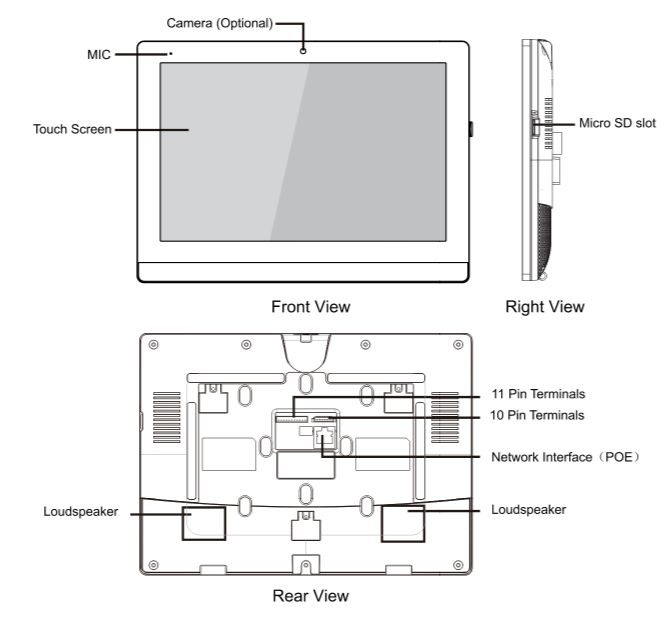
Wake and Unlock SmartPanel Elite 10
You can quickly wake up your SmartPanel Elite 10 from standby mode when you want to use it again.
Wake SmartPanel Elite 10
To wake your SmartPanel Elite 10, do one of the following:
Tap anywhere of the screen.
Unlock the Screen
If you’ve set up the screen lock, you need to unlock the screen by drawing a pattern before you can access the device or enter the screen unlock password.
Wake the SmartPanel Elite 10.
Draw the preset pattern or entering the screen unlock password.
If you did not set up the screen lock, see Protect your SmartPanel Elite 10 section in this guide.
Learn the server status
When you find some features do not work or something wrong with the device, you can firstly access the Connect Info to quickly check if your Cloud server connection status is normal.
Swipe down from the top edge of any screen, and tap
 > Connect Info.
The status of your server connection will display in the center.
The screen that displays the icon
 indicates that your device is connected to the server already.
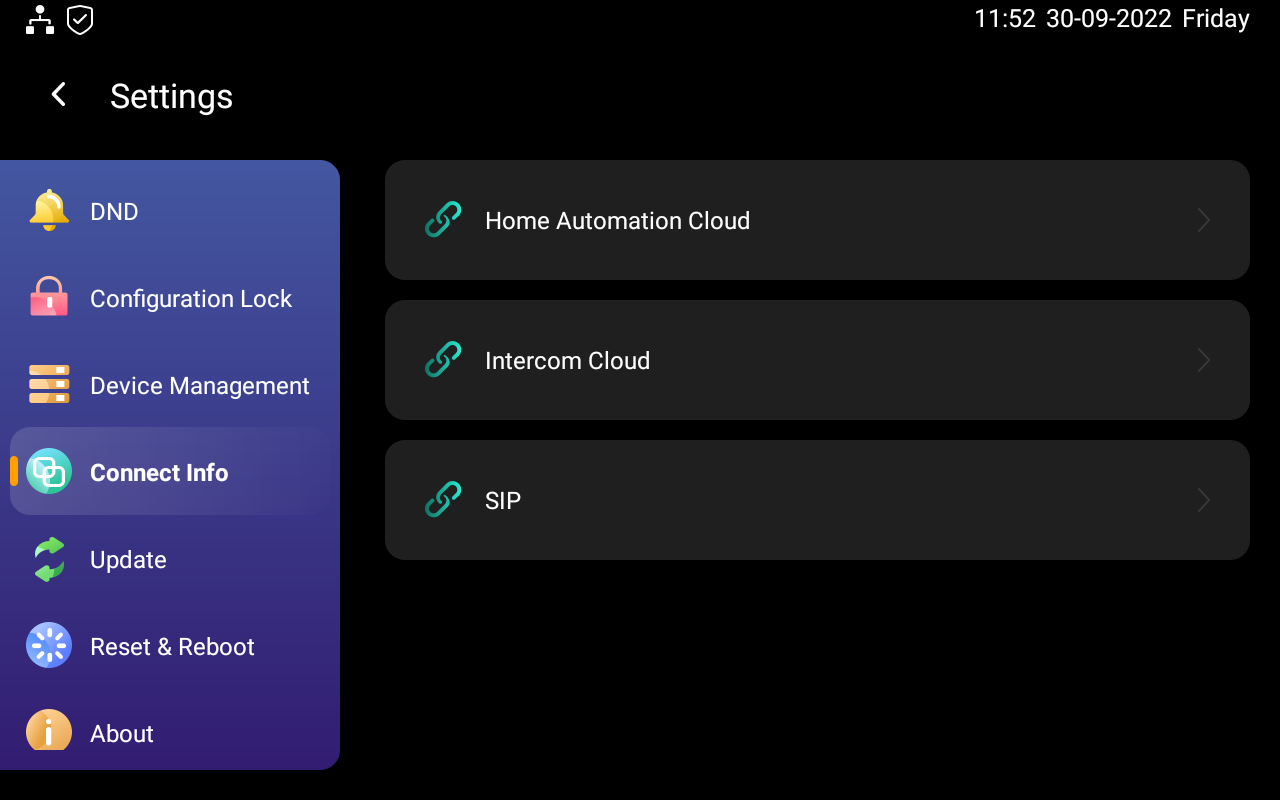
If it shows connection error
 , contact your service provider or akubela technical team for help.
Personalize Your System
Connect to the Internet
The network is usually configured by your service provider during the installation. You may be asked to connect to a network if you restore your SmartPanel Elite 10 to the installer settings. You can change the Wi-Fi network or connect the device to a local area network (LAN) at any time during use.
Change your Wi-Fi network
Swipe down from the top edge of any screen to open Control Center, and tap
 > Wi-Fi.
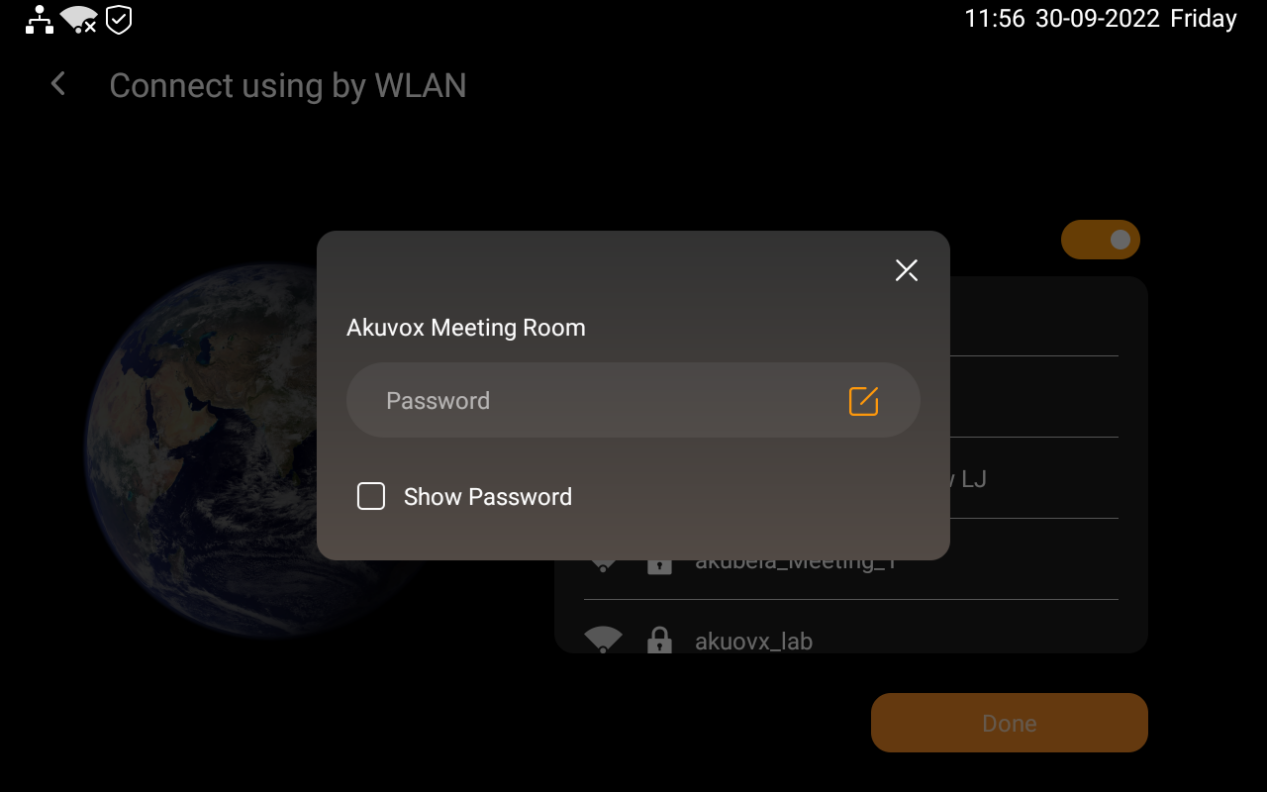
Choose the network you want to join.
Enter the password if required, and tap Return > Join.
Configure LAN network
You can configure a LAN network if needed.
Swipe down from the top edge of any screen to open Control Center, and tap
 > Network.
On the Network view, do any of the following:
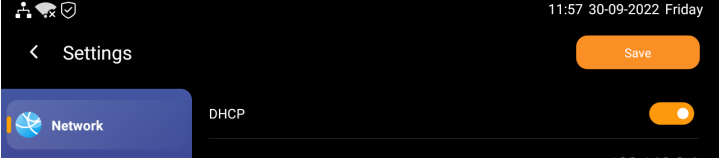
Toggle on DHCP feature, and the device will be assigned IP address automatically.
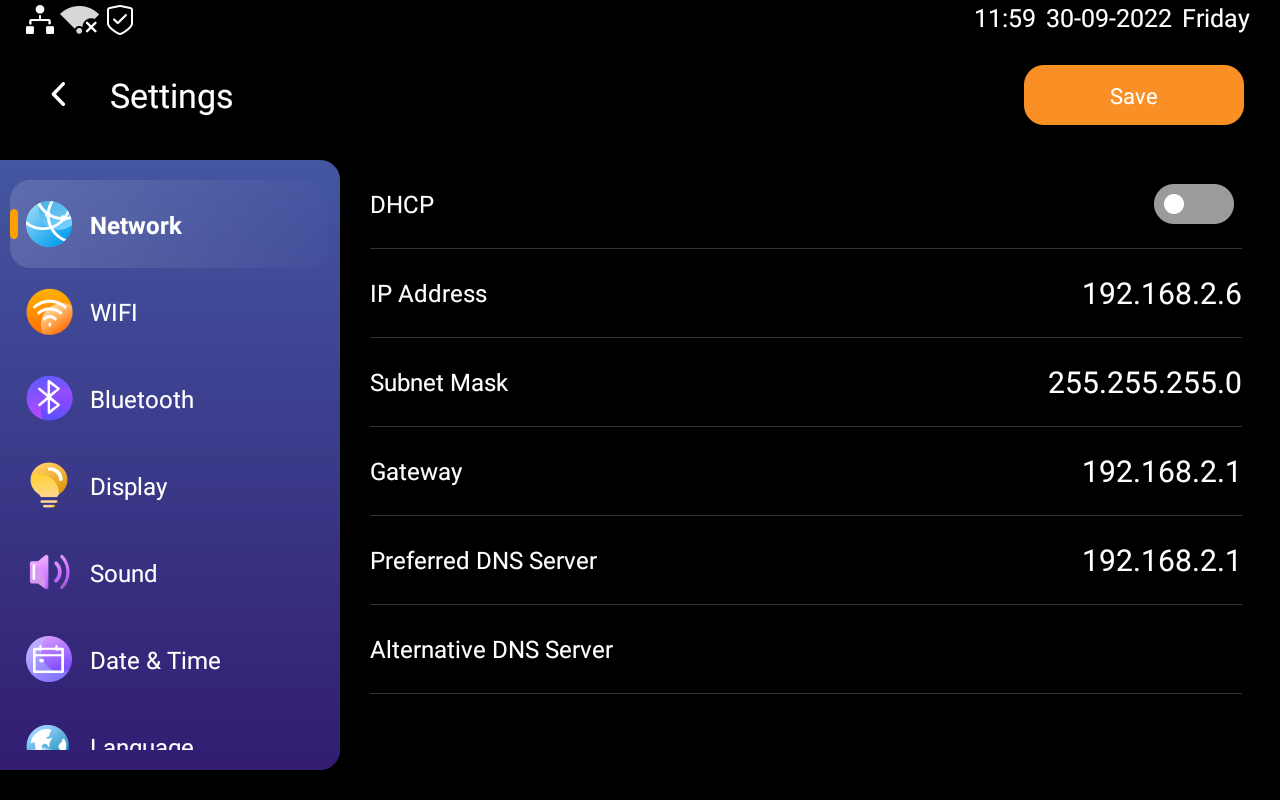
Toggle off DHCP feature, and enter IP Address, Subnet Mask, Gateway, Preferred DNS Server, and Alternate DNS Server manually.
Change system language
The system language is set up by your service provider during the installation. You may be asked to select a language if you restore your SmartPanel Elite 10 to the installer settings. You can change the language to your preferred one at any time.
Swipe down from the top edge of any screen, and tap  > Language.
Note
Now the system language of SmartPanel Elite 10 devices can only be English.

You can also see Chapter Set all devices’ system language on Home Center web interface in here.
Set font size
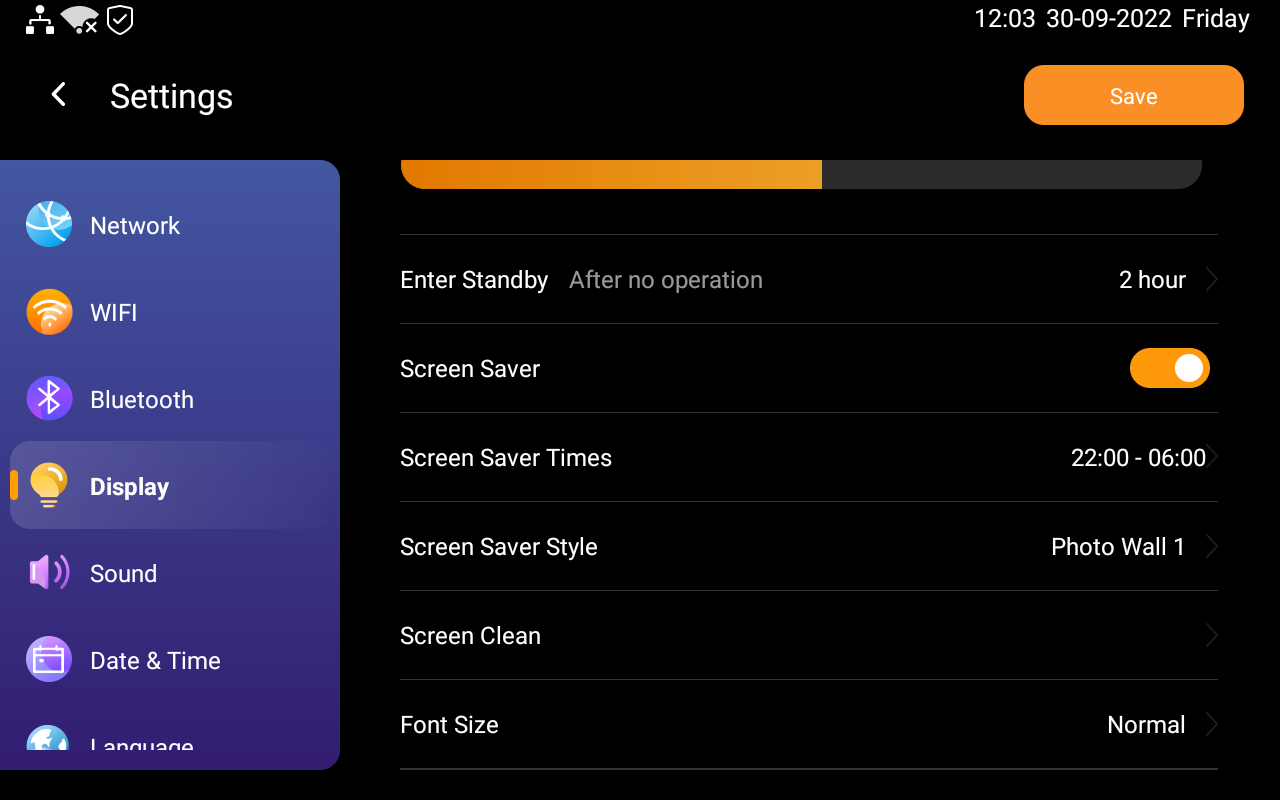
You can select the font size if needed.
Swipe down from the top edge of any screen, then tap
 > Display > Font
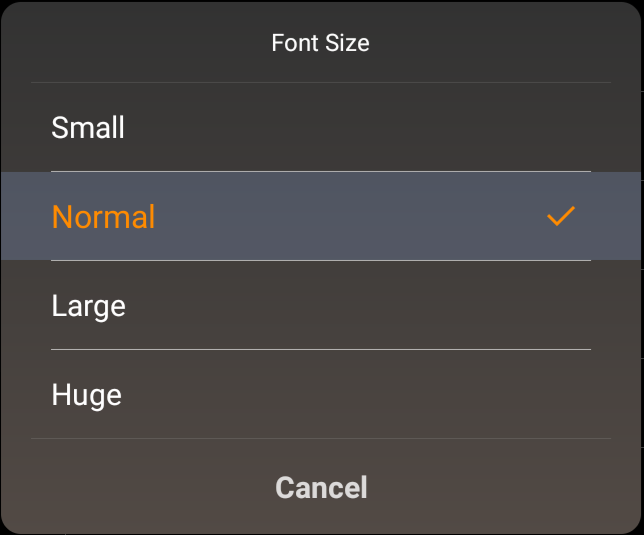
 Select the font size you need.
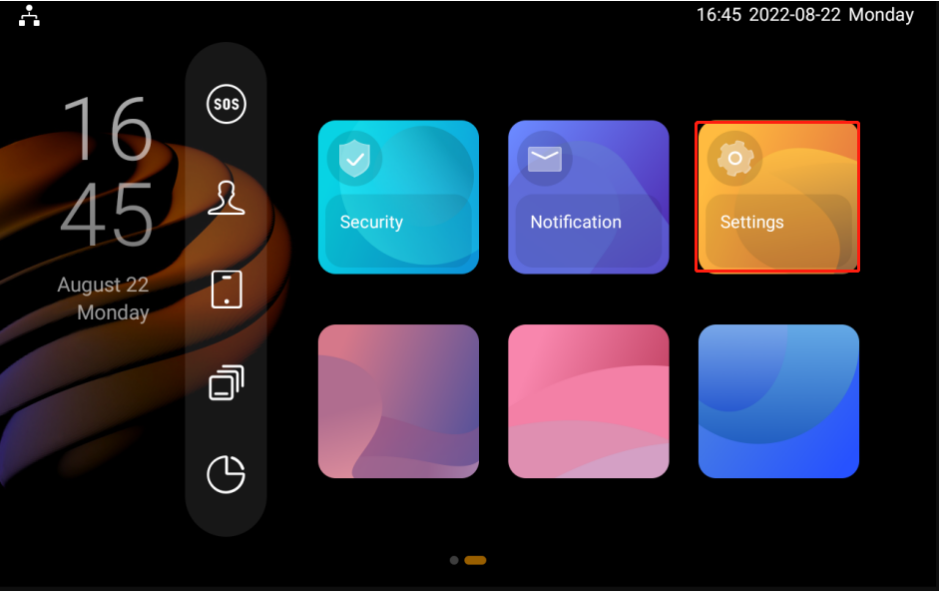
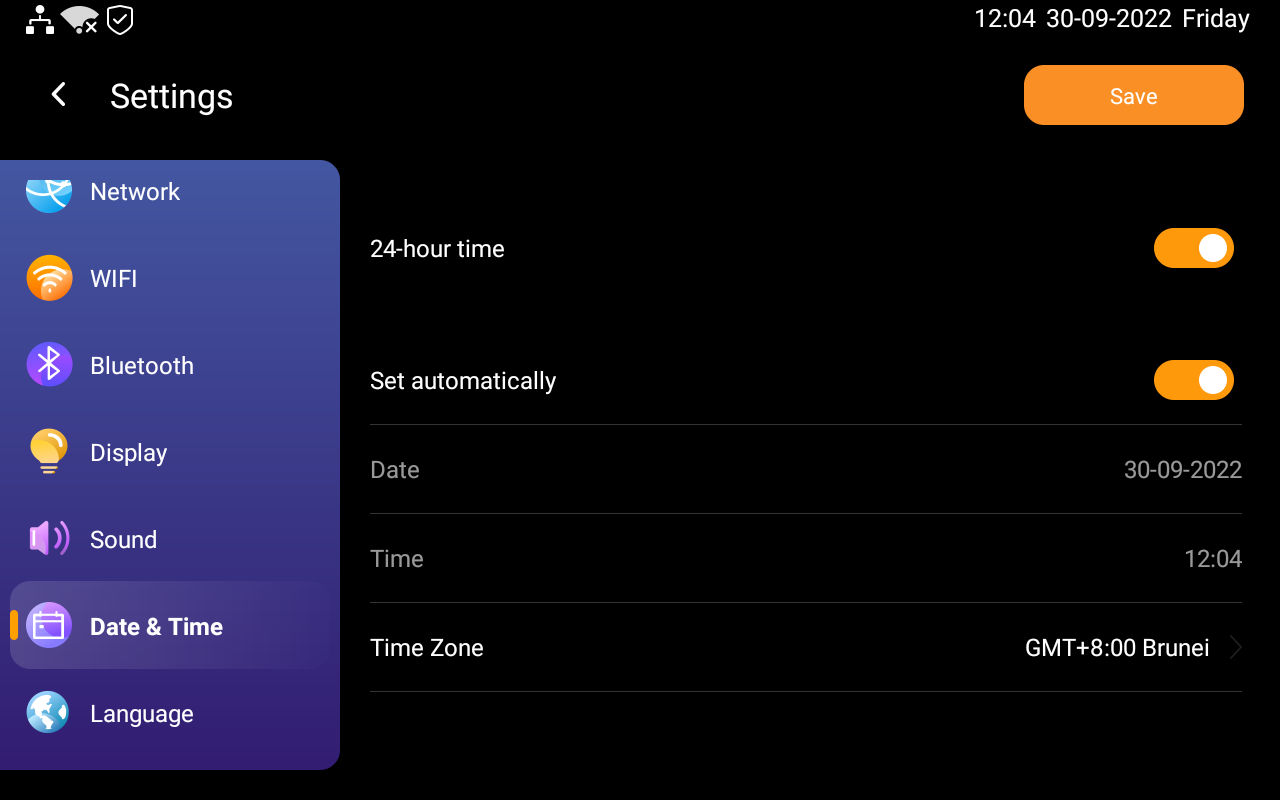
Set your time
You can set up data and time if needed.
 > Date & Time.
Turn on or off the 24-hour time. If it is turned on, the time will be displayed in 24 hours format. If it is turned off, it will be in 12 hours format.
Turn on or off the Set Automatically. If it is turned on both the date and time will be automatically or you can turn it off if you want to set the date and time manually.
Tap Time zone to select your time zone if needed. The default time zone is GMT+0:00.
Set sound and ringtone options
You can change incoming ringtones and information sounds, and adjust the volumes of calls, alerts, clock alarms, touch tone, and notifications.
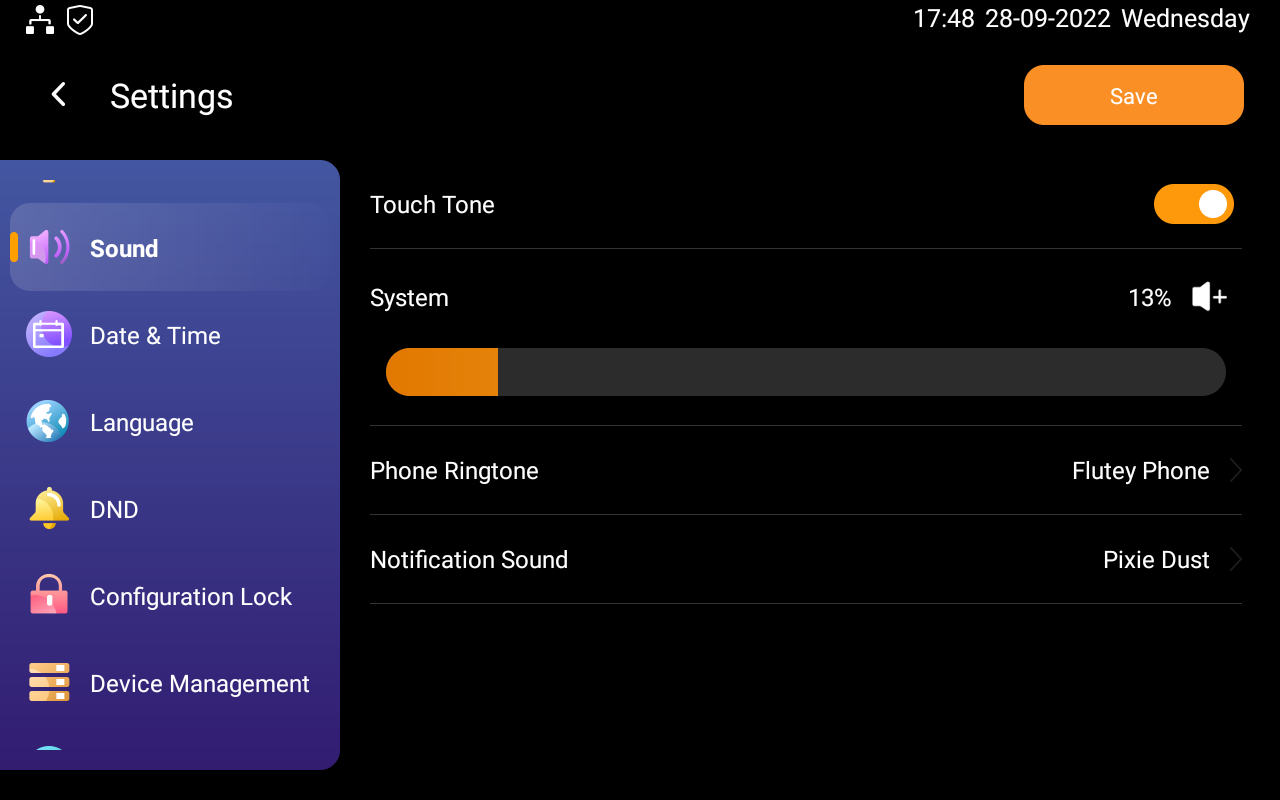
Change sounds and ringtones
Swipe down from the top edge of any screen, then tap
 > Sounds.
On the Sounds screen, do any of the following:
Toggle on or off the touch tone.
Choose an incoming call ringtone.
Choose an information sound.
Adjust system volume
To adjust the volume, swipe down from the top edge of any screen to open Control Center, and do one of the following:
Drag the system volume slider on the right side.
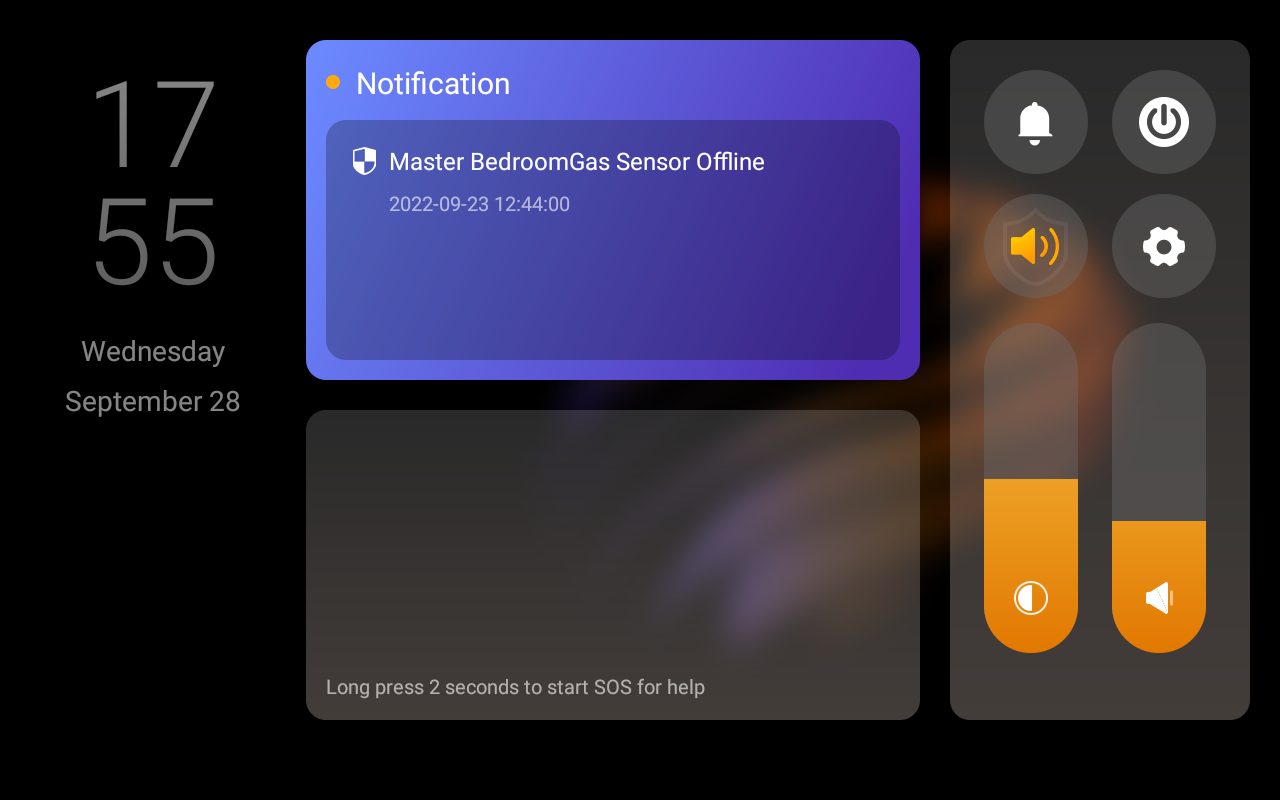
Tap
 > Sounds > System.
Note
If you want to mute all calls and notifications, see Set up Do Not Disturb section in this guide.
Change the screen saver settings
SmartPanel Elite 10 turns off the display, locks the screen, and enters the standby mode when you are not using it. The Standby mode helps to keep your SmartPanel Elite 10 secure and save battery power.
Put SmartPanel Elite 10 in standby mode
To put SmartPanel Elite 10 in standby mode quickly, swipe down from the top edge of any screen to open Control Center, then tap  .
.
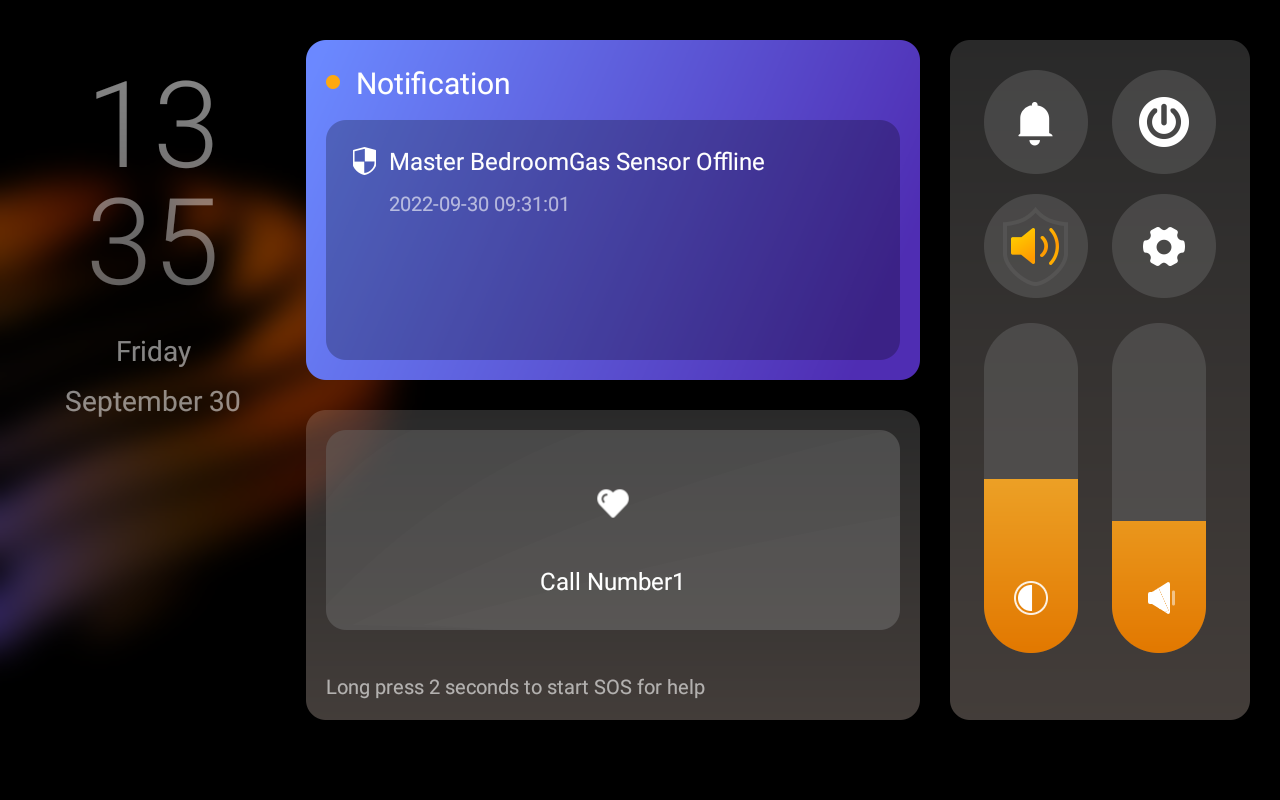
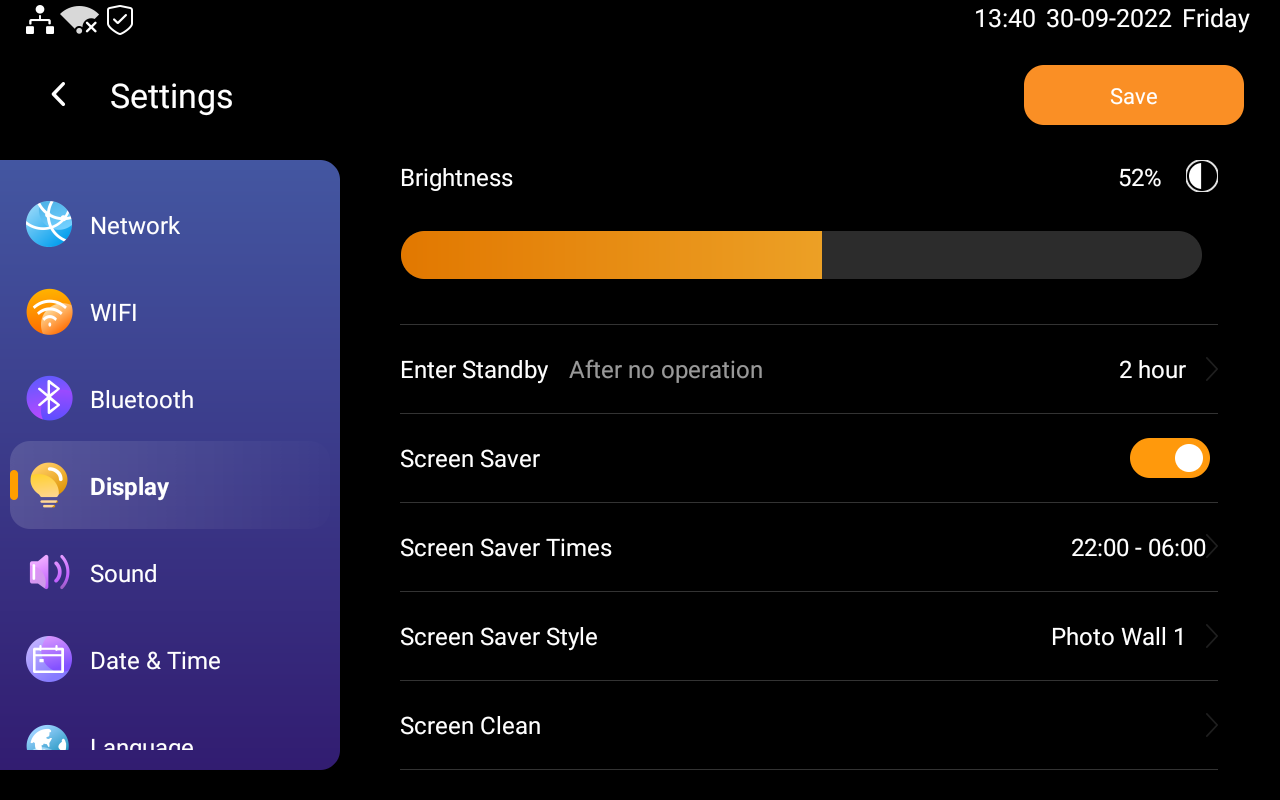
You can customize how long the device takes to enter the standby mode by opening Control Center, and tap  > Display > Enter Standby. For example, if you choose 1 min, then SmartPanel Elite 10 will enter standby mode in 1 minute of inactivity.
Custom the screen saver settings
In Display Settings, you can turn the screen saver on or off, and choose the screen saver style.
Swipe down from the top edge of any screen, then tap
 > Display.
Do any of the following:
Turn on or off the screensaver feature by moving the toggle next to Screensaver On.
If it is on, SmartPanel Elite 10 in standby mode will display photos and images.
Choose a Screen Saver Style.
Schedule the screensaver to turn on automatically by selecting Screensaver Times.
Adjust the screen brightness
You can manually adjust the screen brightness level, or turn on the Auto Brightness feature to let our SmartPanel Elite 10 automatically adjust the brightness based on the current lighting conditions.
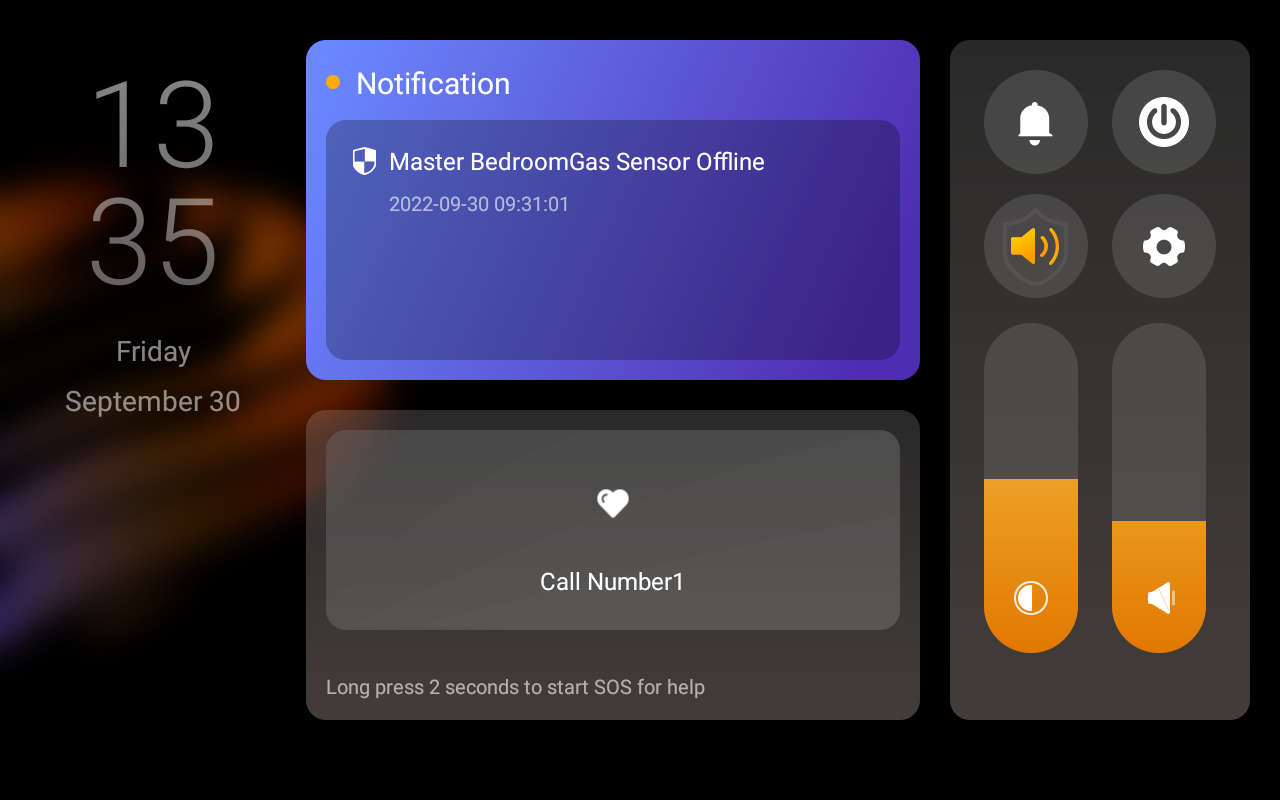
Quickly adjust brightness in Control Center
Swipe down from the top edge of any screen to open Control Center, and drag the Display slider up or down to adjust brightness.
Set up Do Not Disturb
If you do not want to be disturbed by calls or notifications, you can turn on the Do Not Disturb (DND) feature. In this case, except for the alarm clock, you will not hear any call or notification sound.
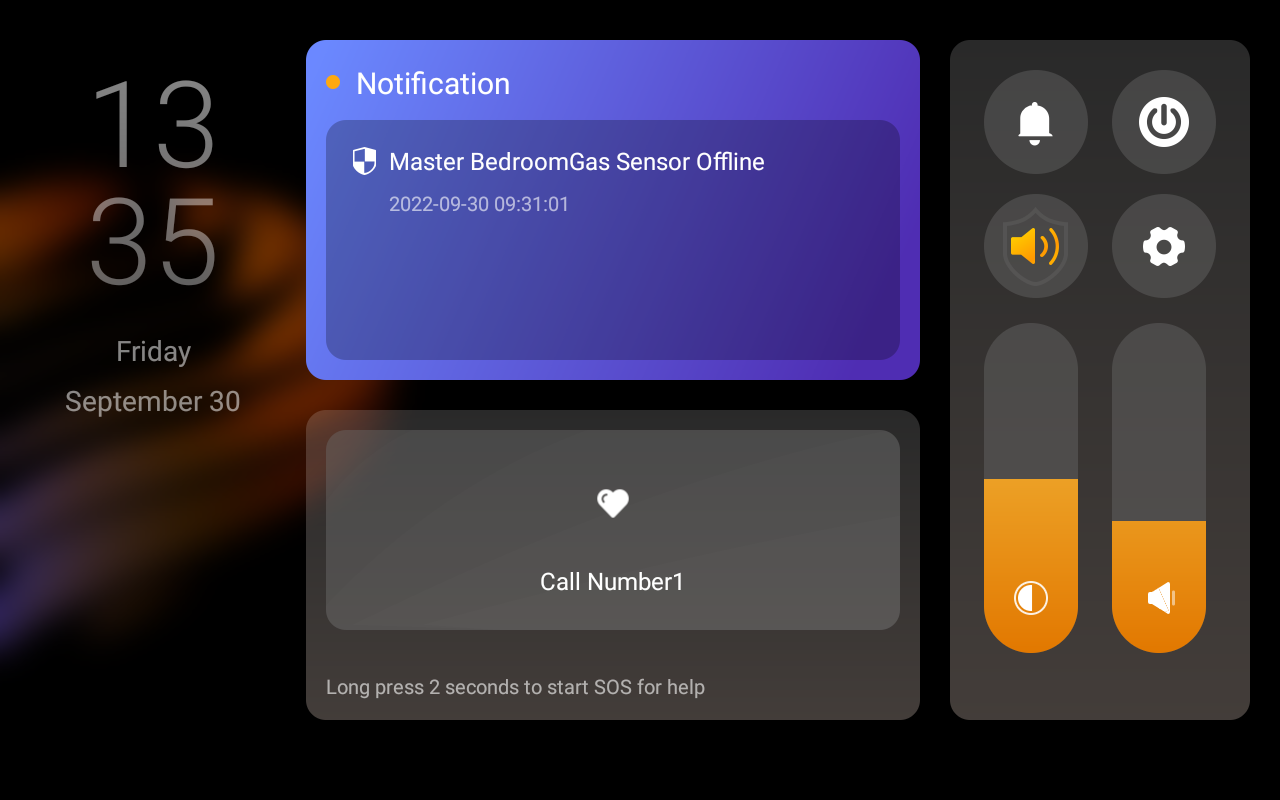
Quickly Turn DND on or off
You can manually turn the DND feature on by swiping down from the top edge of any screen, and tapping  . The icon will turn to
  when the DND is on. Tap the icon again to turn the DND off.
Schedule the DND to turn on automatically
To schedule a DND to turn on automatically at certain times, do as the following:
Swipe down from the top edge of any screen to open Control Center, and tap
 > DND.
Move the toggle next to DND to On.
Toggle on Specific Time, then set the start time and end time.
Once you set the times, all the calls and notifications will be silenced in this period.
Protect your SmartPanel Elite 10
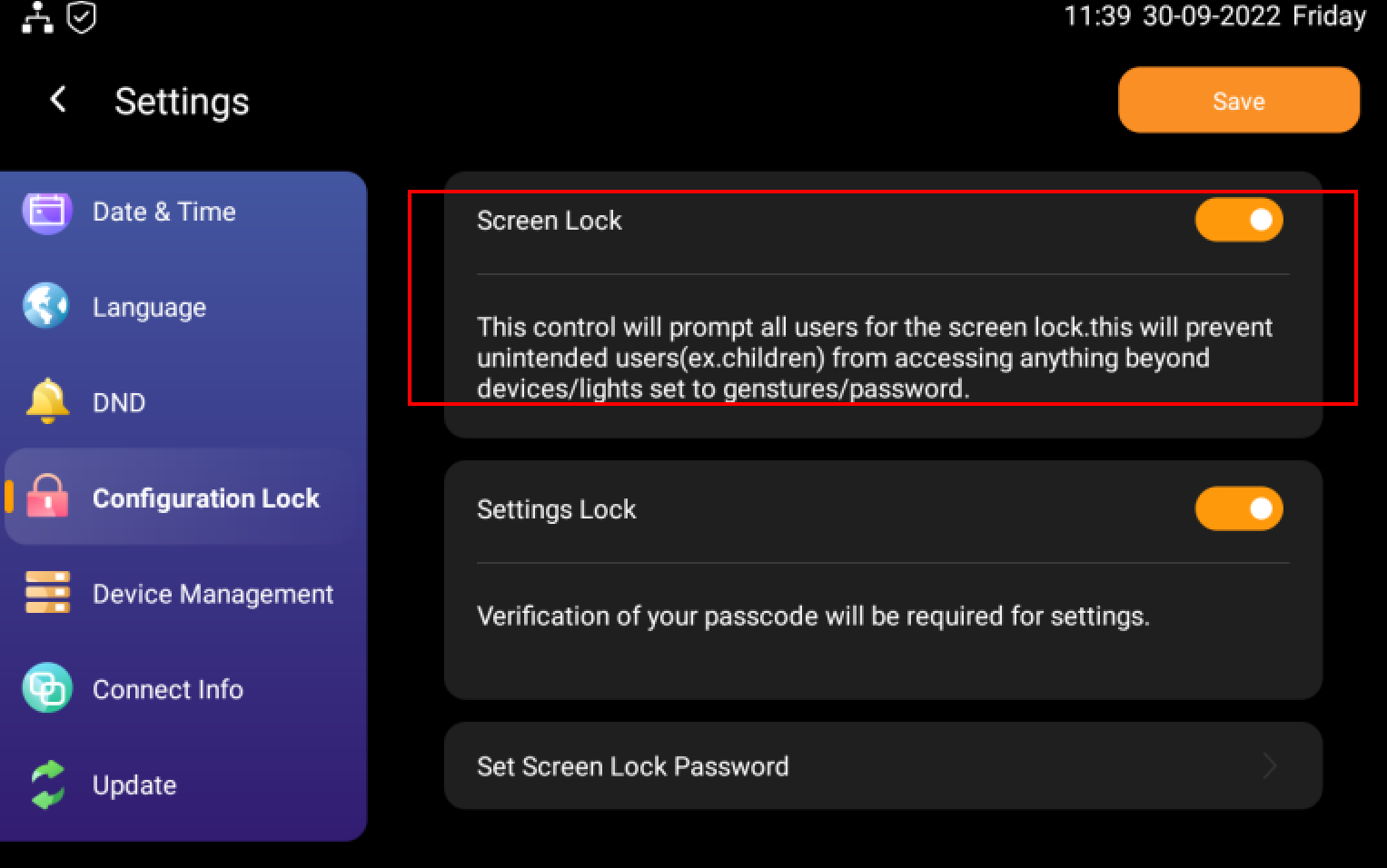
For better security, use screen lock or settings lock to prevent unintended access to your device or the settings screen. The device will require your password to unlock.
Set up screen lock
You can set up screen lock for the SmartPanel Elite 10 to prevent unauthorized user to access your system. When the SmartPanel Elite 10 screen is turned off and you want to operate on device, you need to access the device using the unlock password or pattern to unlock the screen
- Swipe down from the top edge of any screen to open Control Center, and tap
 > Configuration Lock.
 - Enable the screen lock and set the lock.
- Tap Set Screen Lock Password, then follow the onscreen instructions to set up a pattern password.
Set up settings lock
Use settings lock to prevent unwanted access to the Settings screen  .
.
- Swipe down from the top edge of any screen to open Control Center, and tap
 > Configuration Lock.
 - Move the toggle next to Settings Lock to on, and follow the onscreen instructions to set up a pattern password.
Note
The Screen Lock and the Settings Lock share the same pattern password. When both of the locks are enabled, you only need to draw the pattern password once to access the device and the Settings screen.
Installer Code
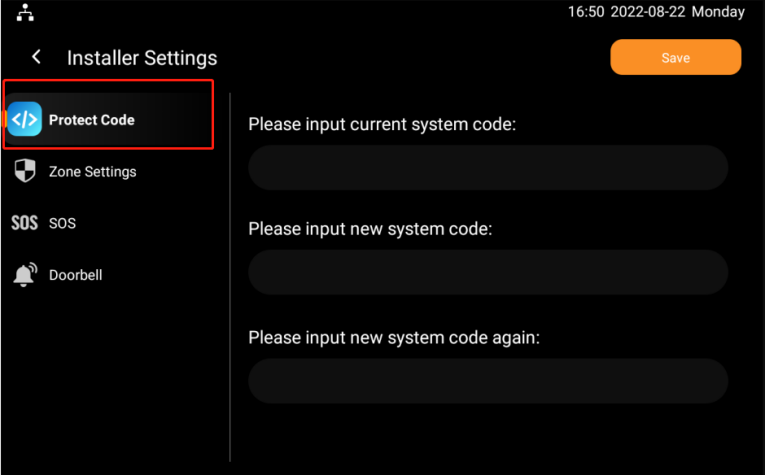
You can set up or change your installer code if needed. With the installer code, you will be able to access the system settings.
Swipe down from the top edge of any screen, tap  > Installer Setting.
Enter the installer system Code, then tap Confirm. The initial default system code is 123456. Then follow the onscreen instruction to set up or change the system password.
Screen Clean
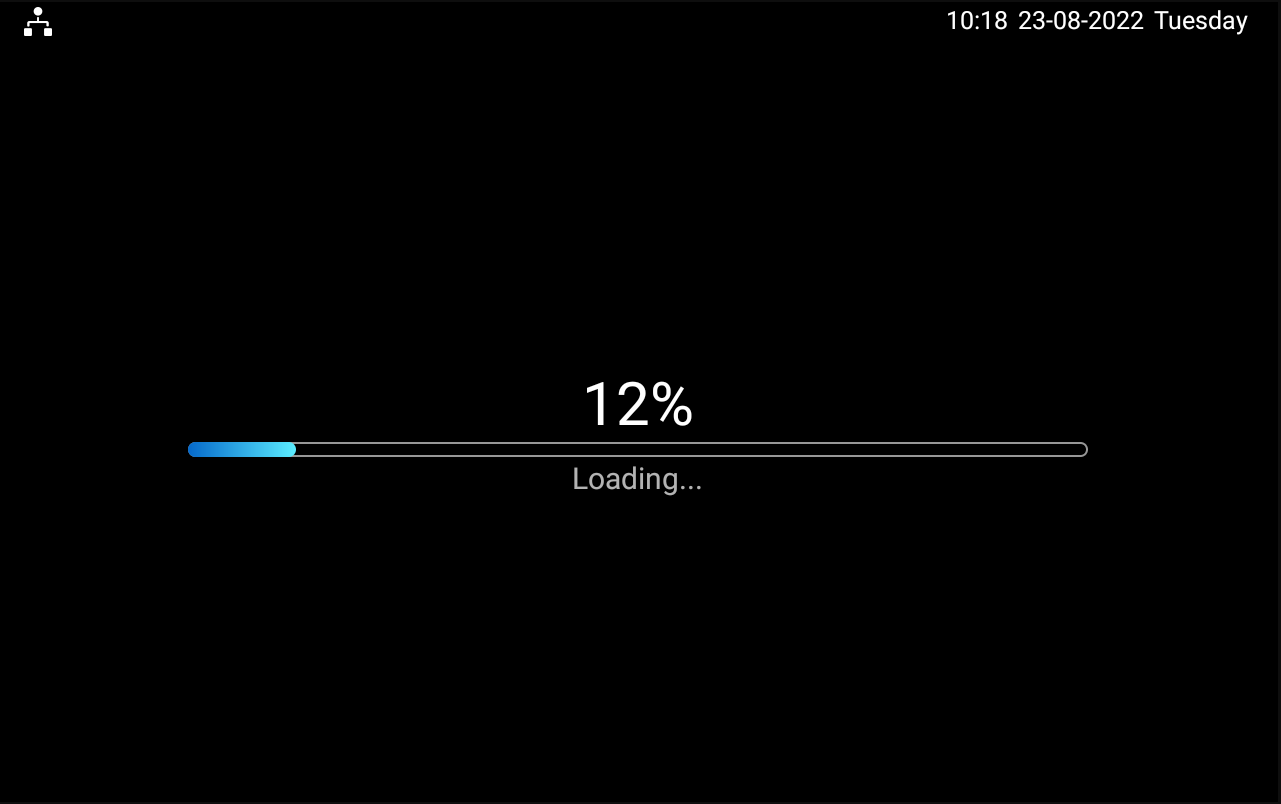
You can enable the screen clean if needed to avoid the unintended app running or system changes that might occur when you are wiping the screen.
Swipe down from the top edge of any screen, tap
 > Display > Screen clean.
Swipe the screen when the following screen appears. The screen clean will be disabled in 60 seconds.
Use SmartPanel Elite 10 without Cloud connectivity
You can use the SmartPanel Elite 10 in a local area network (LAN) by turning on the Off-Cloud mode. In this mode, your data security is enhanced as all data is saved to the device instead of the cloud backup.
While you should note that in the Off-Cloud mode, all devices within your family can not receive updates pushed by the cloud server, and can not be controlled remotely via BelaHome App.
To turn on the Off-Cloud mode from Home Center web interface, see Chapter Turn on the Off-Cloud mode in here.
Manage Devices
Add Zigbee Devices
SmartPanel Elite 10 can connect to many Zigbee devices, such as sensors, emergency buttons, and more, and third-party smart home devices. For example, you can add and fit a CO sensor in your kitchen to identify carbon monoxide leaks.
Put Devices in paring mode
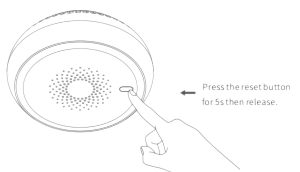
Before pairing the Zigbee devices with the SmartPanel Elite 10, you should know how to put them in pairing mode.
To put devices not listed below in paring mode, you can refer to their manuals.
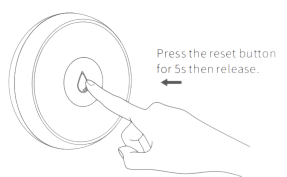
Zigbee device | How to put it into the pairing mode | |
Smart Emergency Button
| Insert a pin into the reset hole at its back cover for 5 - 10s until the green light flashes quickly. |
|
Smart Flood Sensor
| Press and hold the reset button on the front for 5 - 10s until the green light flashes quickly. |
|
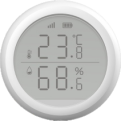
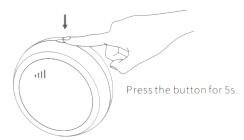
Smart Temperature and Humidity sensor
| Press and hold the reset button on the side for 5 - 10s until the signal icon flashes quickly. |
|
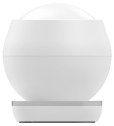
Smart Motion Sensor
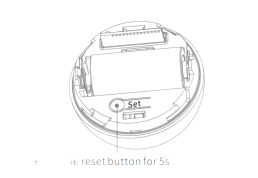
| 1. Rotate the battery cover anticlockwise to open. 2. Press and hold the reset button for at least 5s until the green light flashes quickly. |
|
Smart Gas Sensor
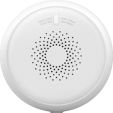
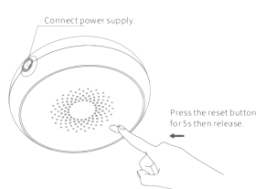
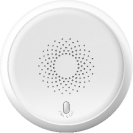
| Press and hold the reset button on the front for at least 5s until the green light flashes quickly. |
|
Smart Smoke Sensor
| Press and hold the reset button on the front for at least 5s until the green light flashes quickly. |
|


Pair devices with SmartPanel Elite 10
Swipe down from the top edge of any screen to open Control Center, and tap
 > Device Management, then tap
  > +Add device.
Put the Zigbee device you want to add in pairing mode.
Do any of the following.
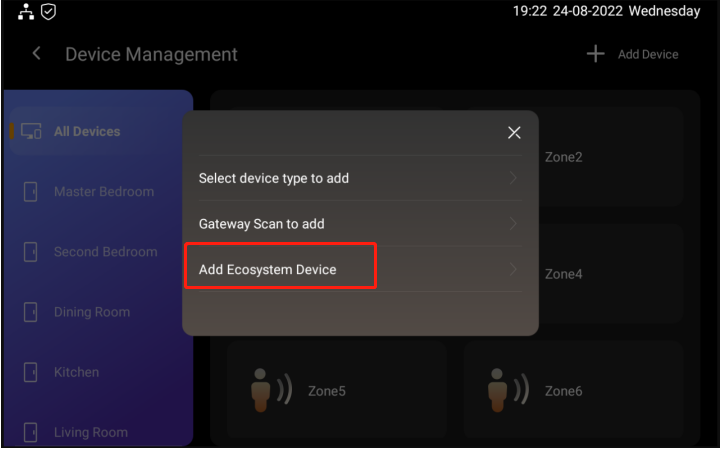
Tap Select device type to add, if you want to add the Zigbee device by device type, then select the sockets or sensors you want to add. And follow the onscreen instructions to add the device.
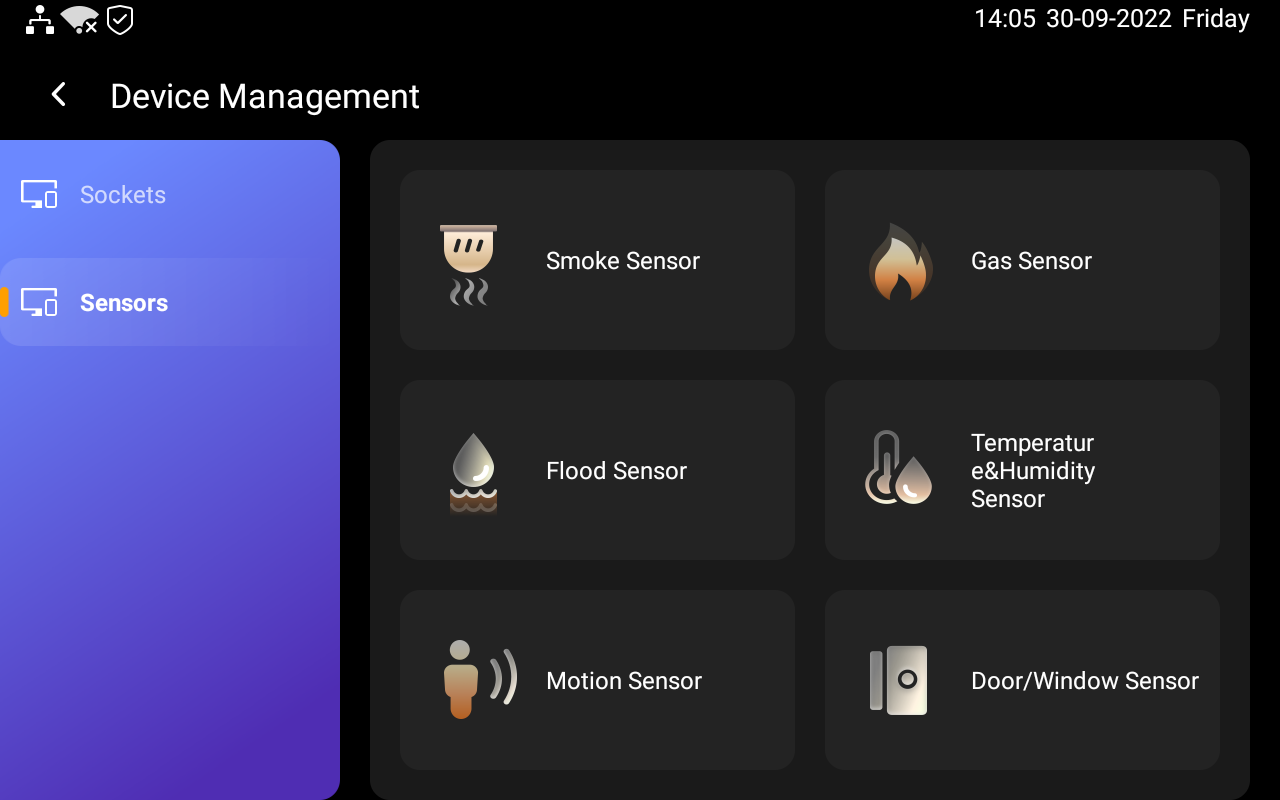
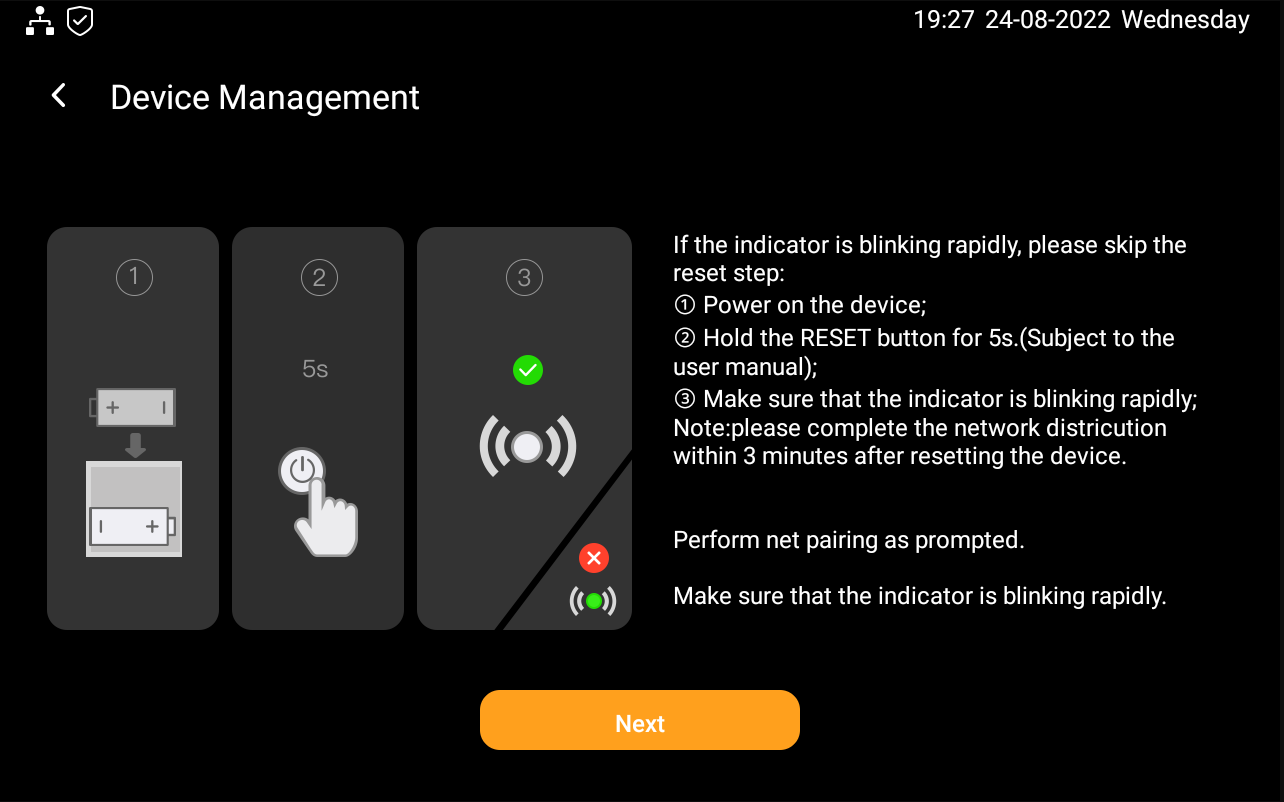
Tap Gateway San to add the device through scanning. Follow the onscreen instruction to add the device.
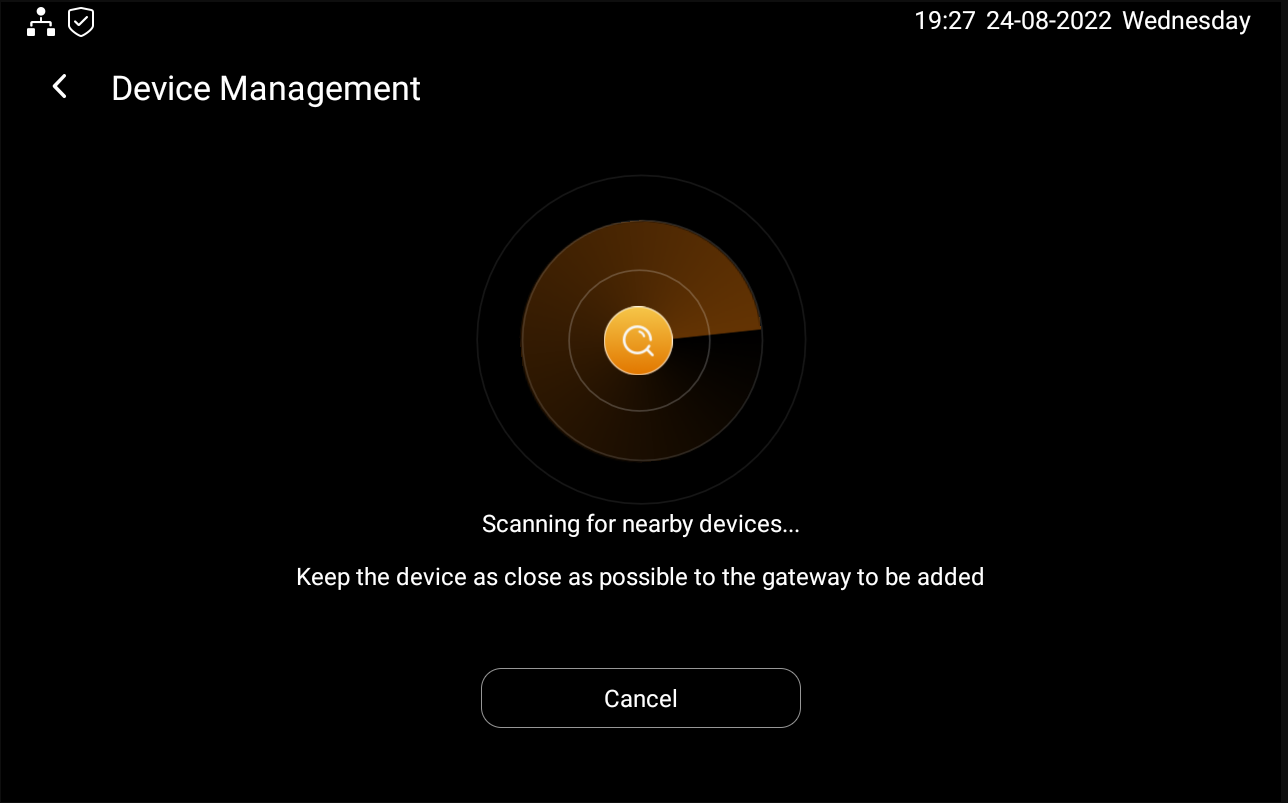
If you want to add Ecosystem device, tap Add Ecosystem Device.
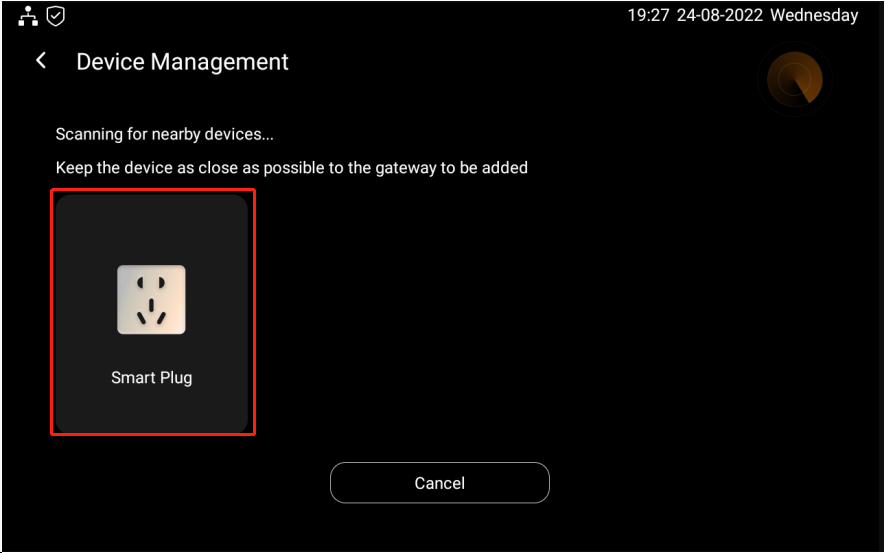
4. The screen displays the searched device. Select it, and tap Next.
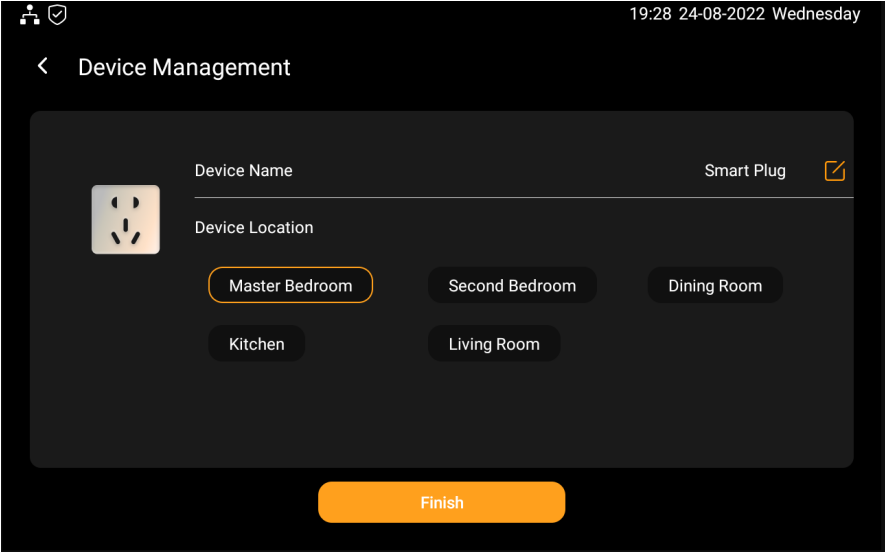
5. Name the device and choose its location
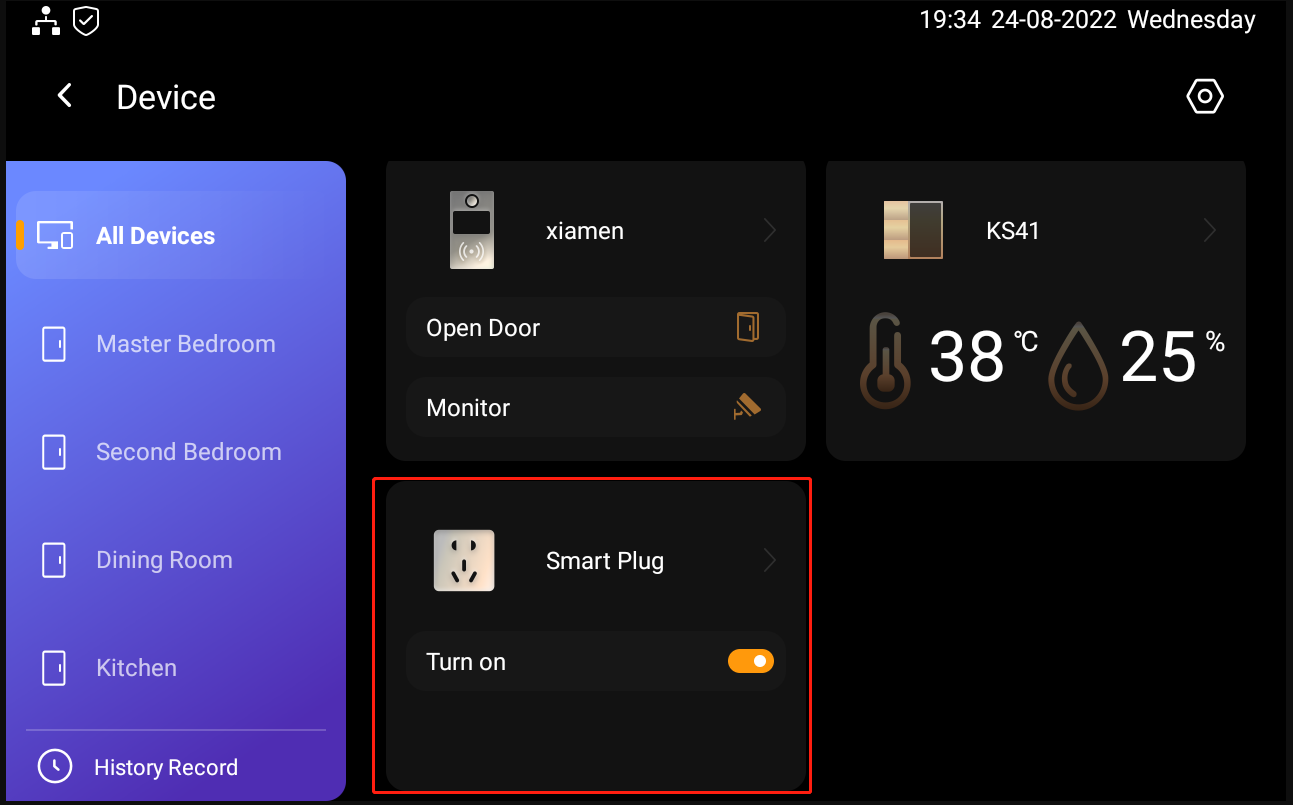
6. The newly added device will be showed on All Devices screen.
You can also add Zigbee devices from Home Center web interface, see Chapter Add Zigbee devices in here.
Add third-party smart home devices
Third-party smart home devices can be added on SmartPanel Elite 10, from the Home Center web interface, or via BelaHome App.
On the left side of home screen, tap
 , then tap
  .
.
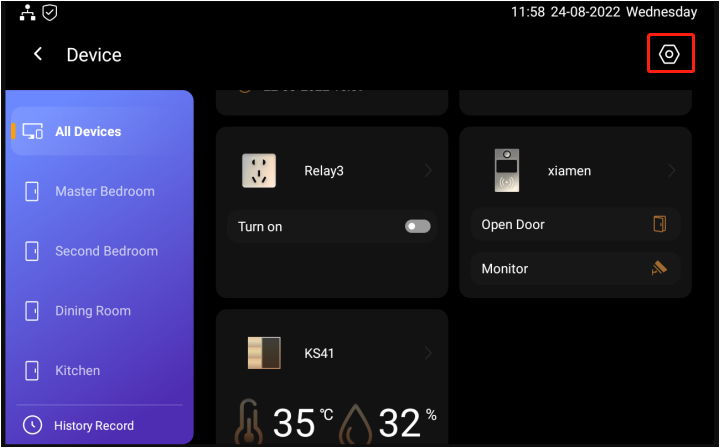
2. Tap  , and select Add Ecosystem Device, then tap the third-party devices you want to add. The system will start automatically scanning third-party devices nearby.
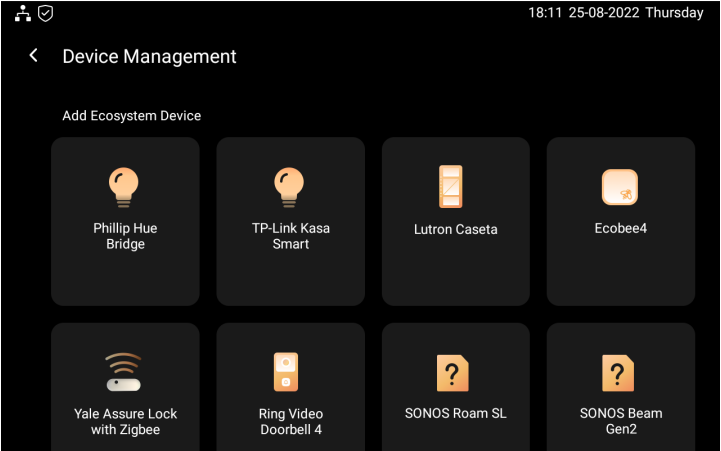
You can see HERE to learn more about adding popular smart home devices from Home Center web interface. Or
If you’d like to add third-party devices via BelaHome app, click HERE (See Chapter How to add third-party devices via BelaHome).
Set up sensors
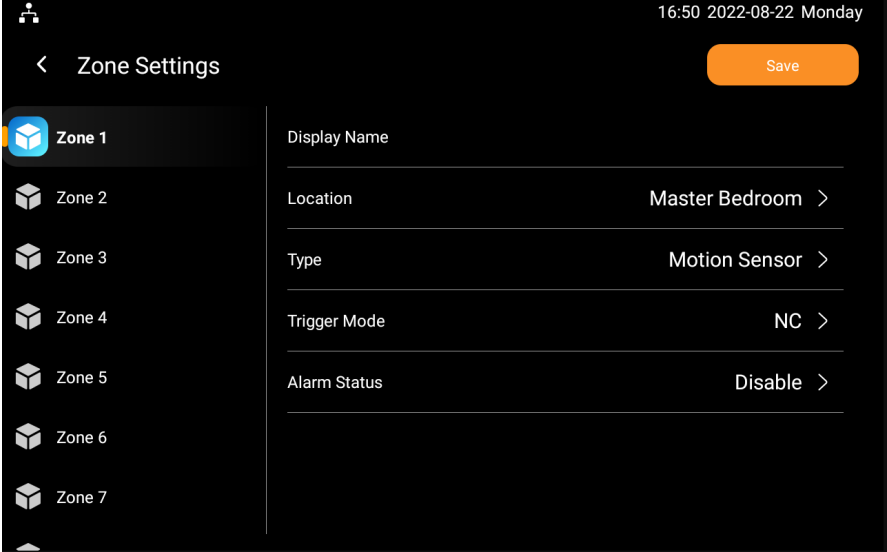
You can set up 8 sensors for the eight arming zones. And arming zone setting is generally synced to your SmartPanel Elite 10 by your installers through akubela Cloud. You can modify the setting if needed.
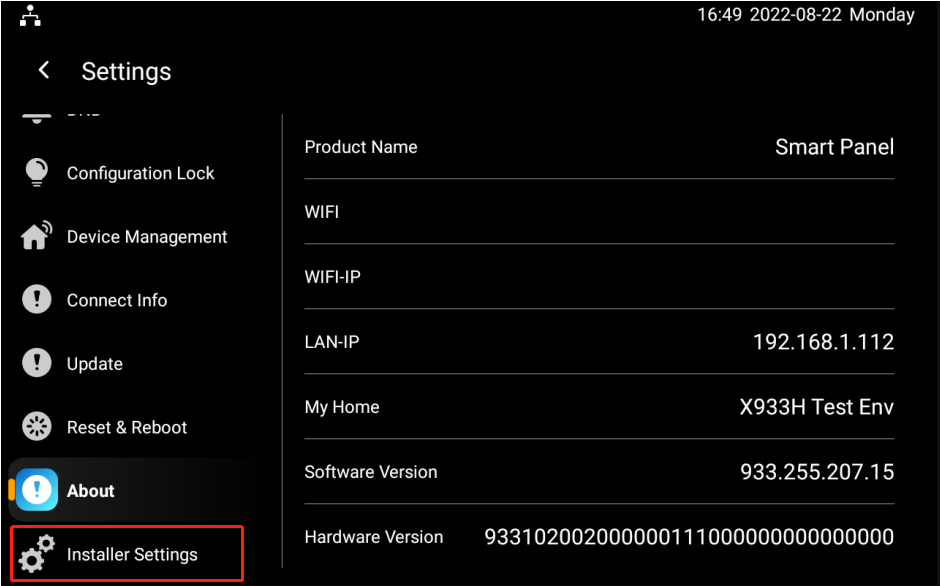
1. Swipe down from the top edge of any screen, tap Setting  > Installer Settings.
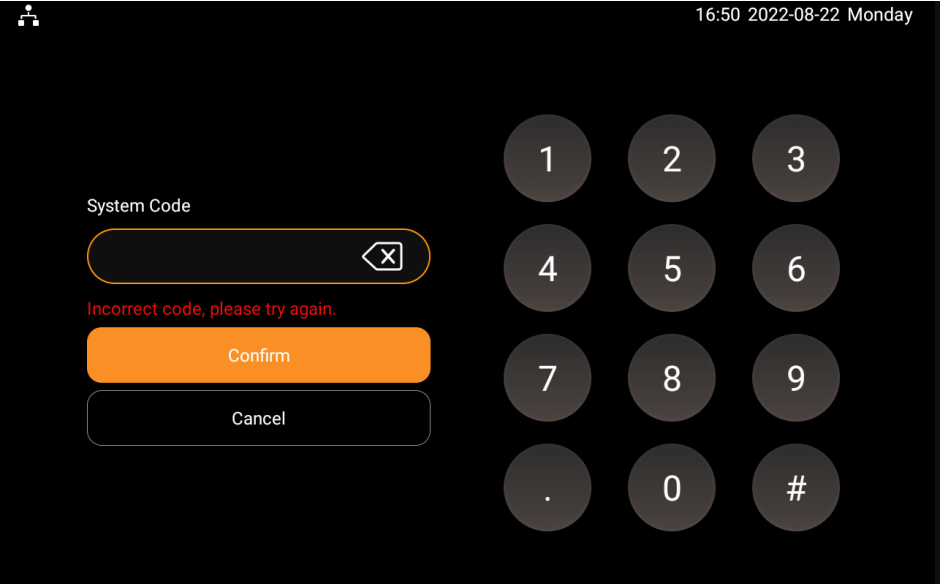
2. Enter the system code, then press Confirm. The default system code is 12345.
3. Select Zone Settings, and select the zone to set up or edit the sensor for the zone.
4. On the Zone Setting Screen, do any of the following:
Select your sensor location for the zone.
Select your sensor type (Gas Sensor, Door/Window Sensor, Emergency Button, Motion Sensor, Smoke Sensor, Flood Sensor).
Select your sensor trigger mode. Your trigger mode is determined by the sensor.
Enable or disable your alarm. If it is disabled, the arming zone will be disabled.
See Device Information
SmartPanel Elite 10 allows you to see all the added devices and check their information, including their connection status and locations.
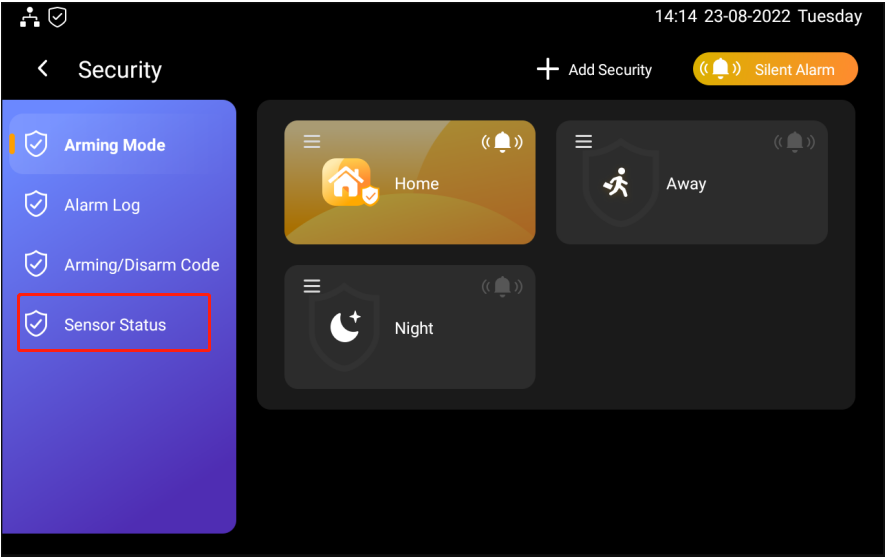
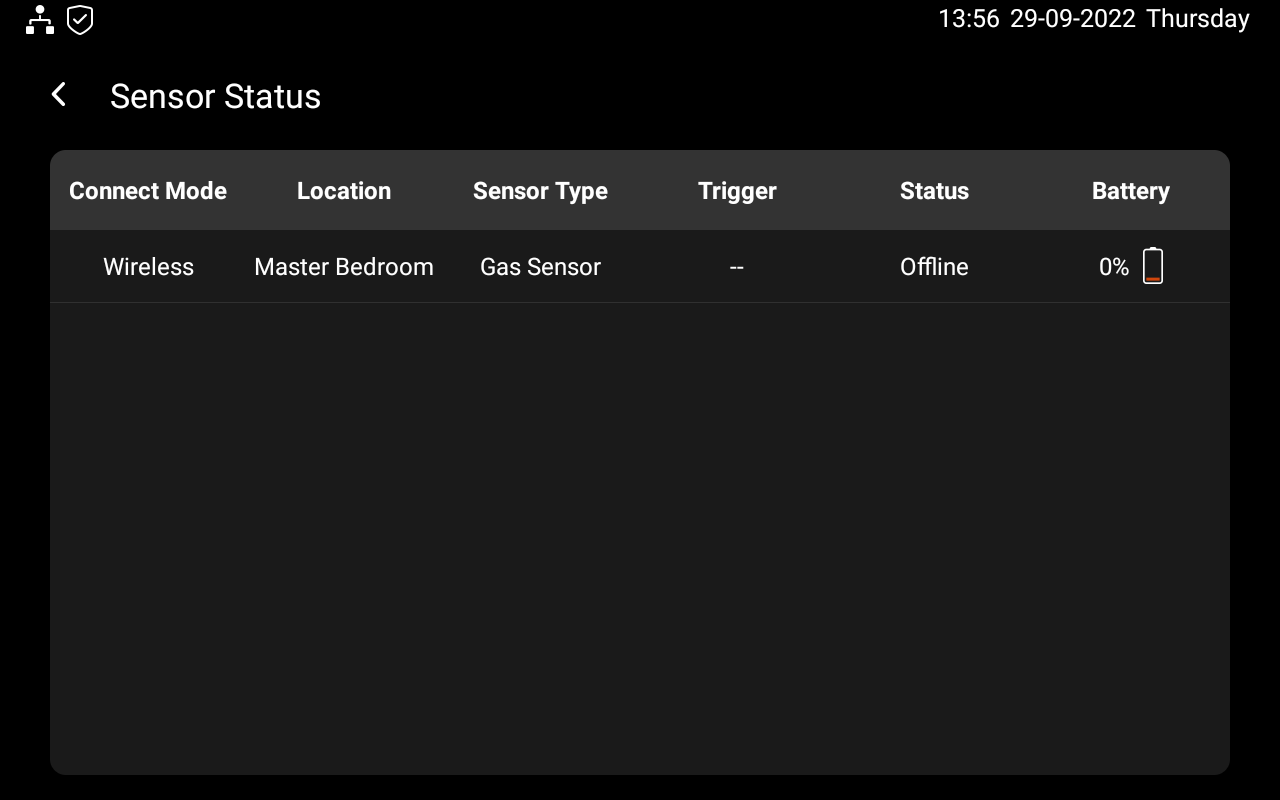
Check sensor status
You can check the status for both the wired sensor and wireless sub-device. On the home screen, swipe left, then tap Security. The sensor status is displayed.
Check if the device is connected
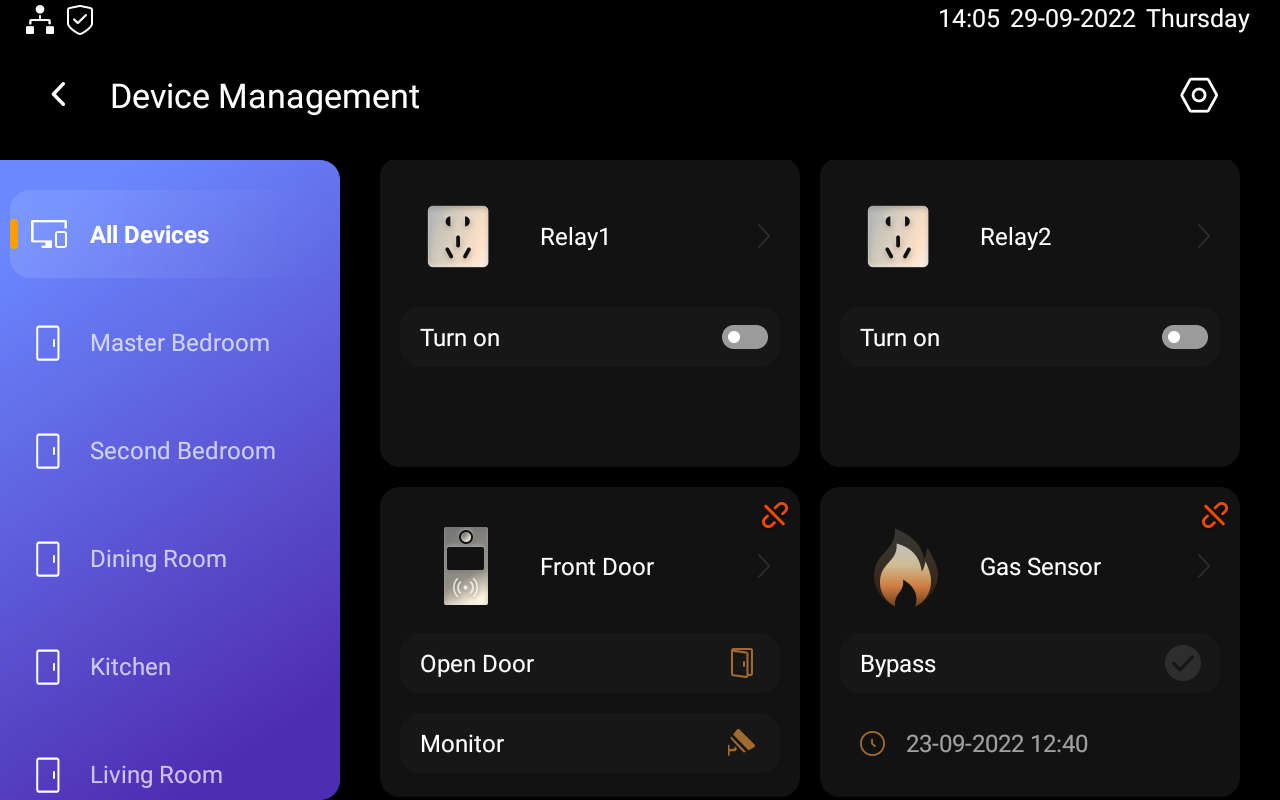
Swipe down from the top edge of any screen, tap Setting  > Device Management
Check the status icon next to the device name. When you see the icon
 , it means the device is offline and can not function. Connected devices have no icon next to their names.
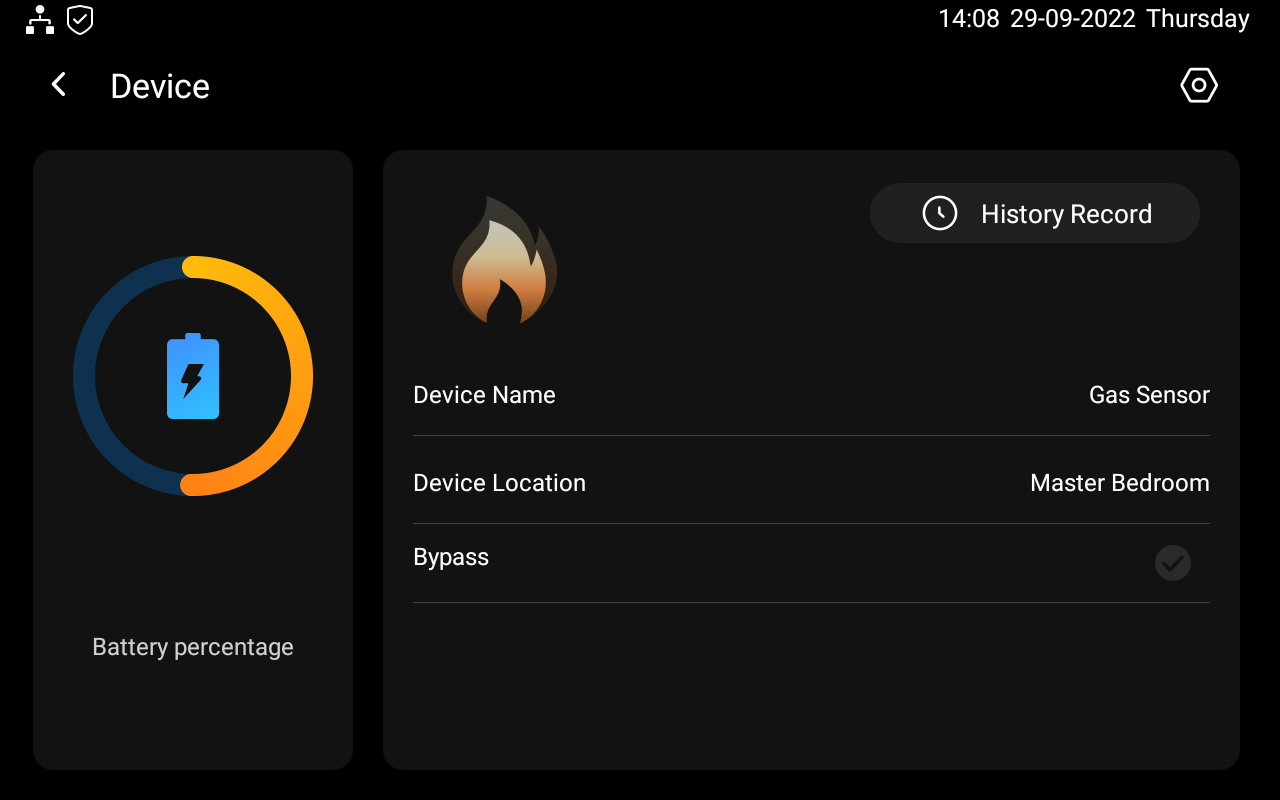
See where the device is located
Swipe down from the top edge of any screen, tap Setting  > Device Management. Tap the sensor you want to check the status for. The sensor location is displayed.
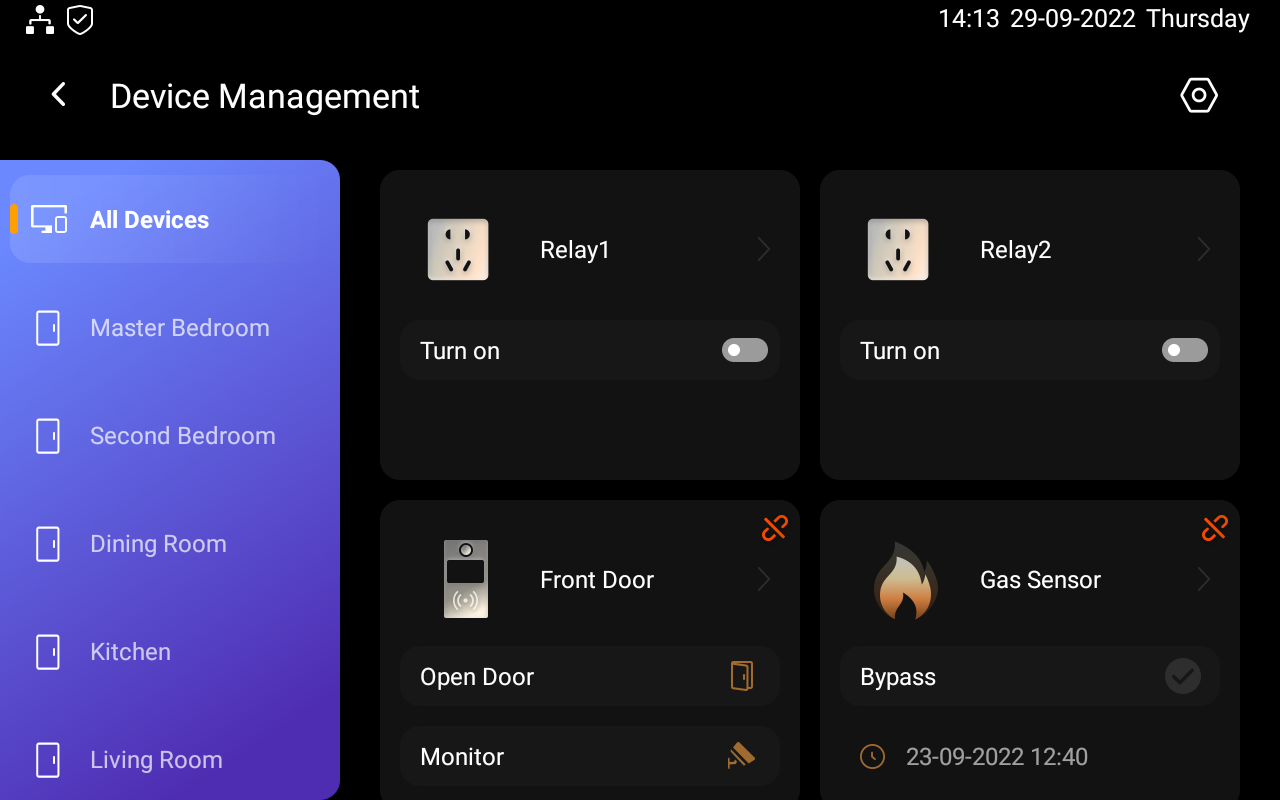
Filter devices by locations
You can see the list of devices in each room easily by using the filter. Swipe down from the top edge of any screen, tap Setting  > Device Management. On the left of the screen, select the desired location.
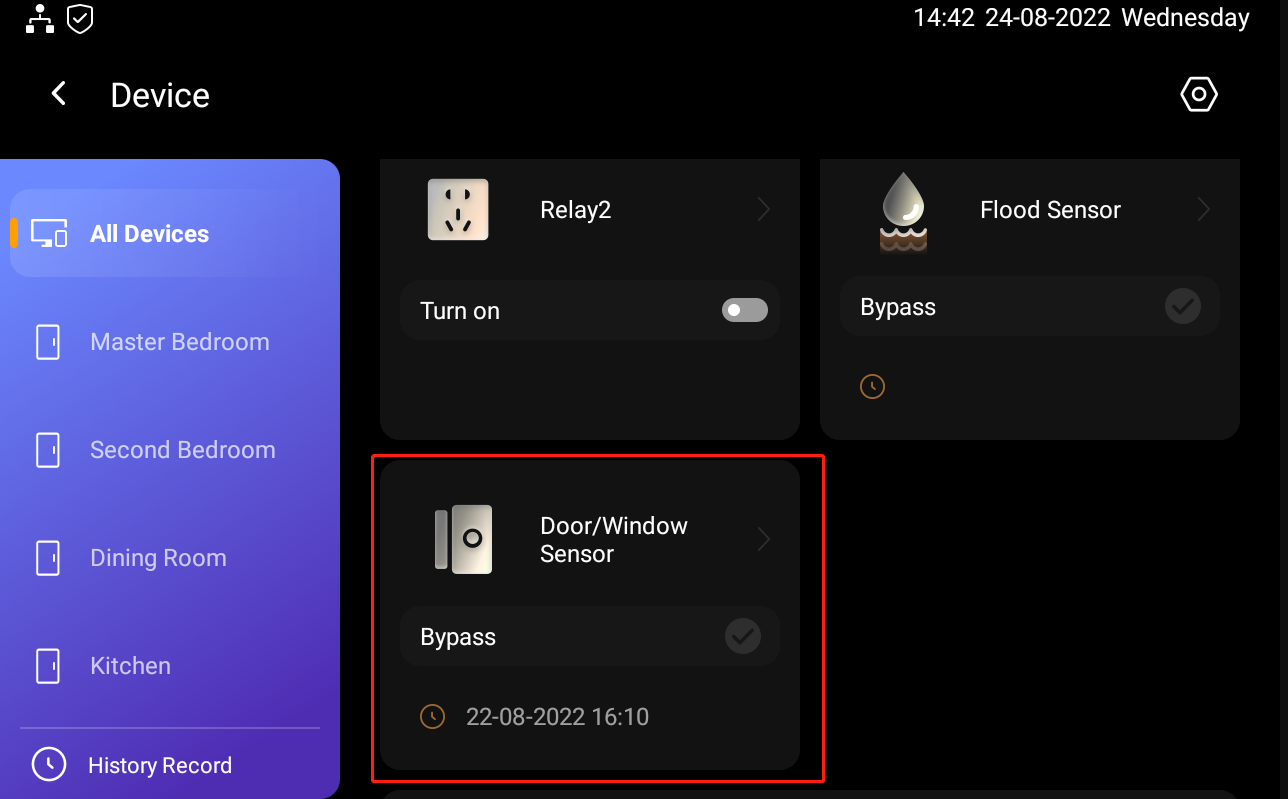
Edit and delete devices
Edit the devices
You can change the device name and location if needed.
Note
The device name and location can also be edited on BelaHome APP
Tap
 , then tap the device you wan to edit.
Tap
 , to edit the device
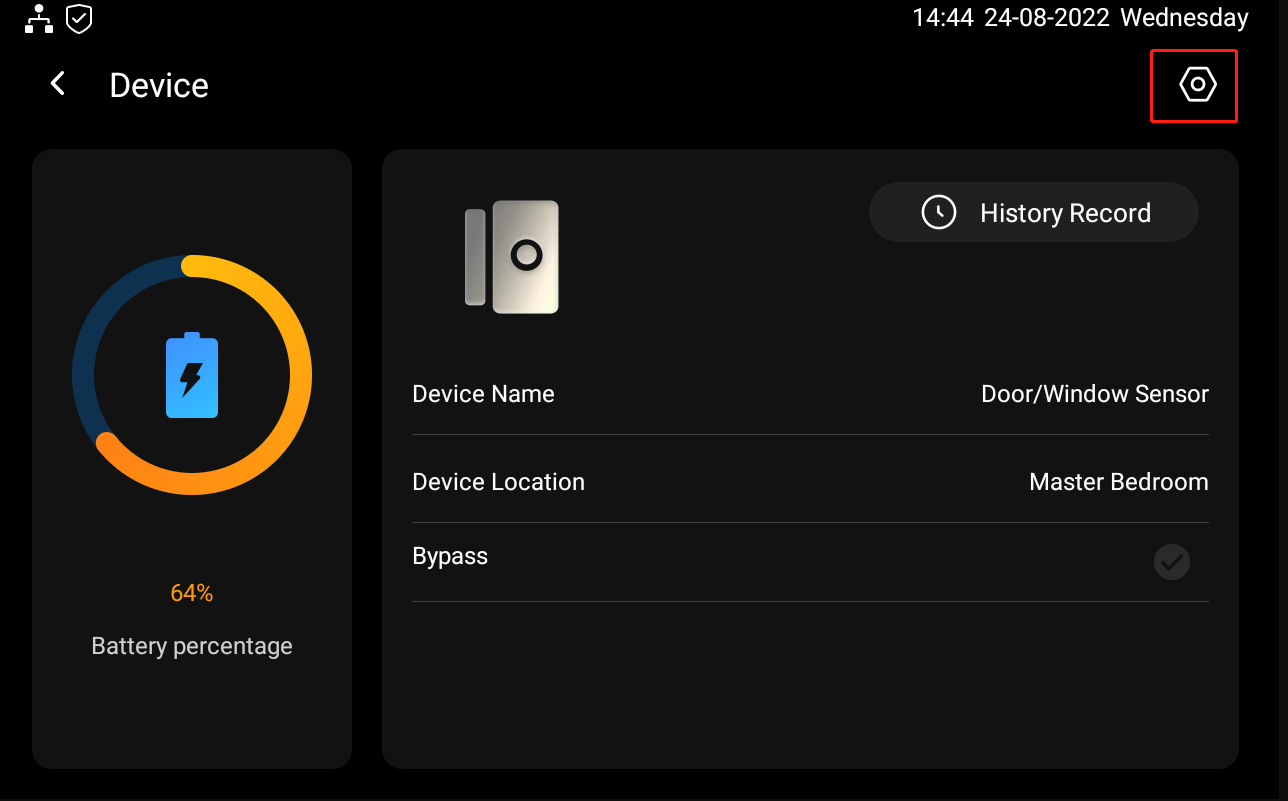
3. Do any of the following.
4. Tap  to edit the device name
5. Tap Device Location to change the device location.
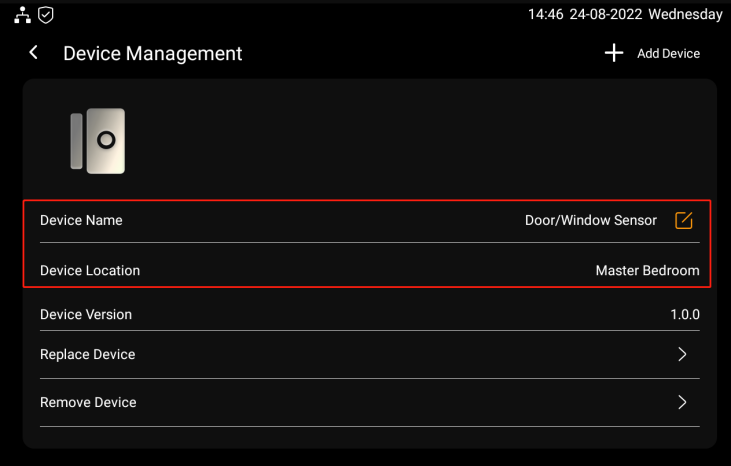
Delete the devices
You can delete the device which is malfunctioning, broken, or no longer needed.
Note
The device can also be deleted on BelaHome APP.
Tap
 , then tap the device you want to edit.
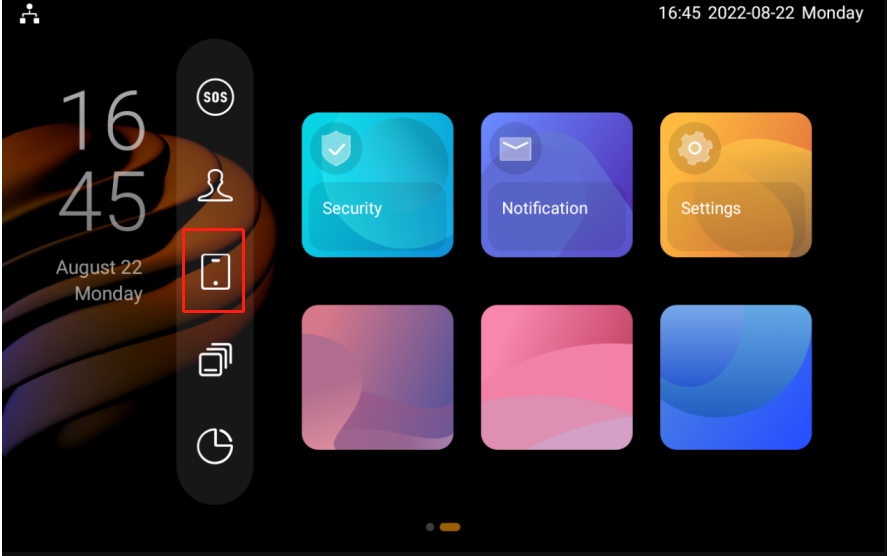
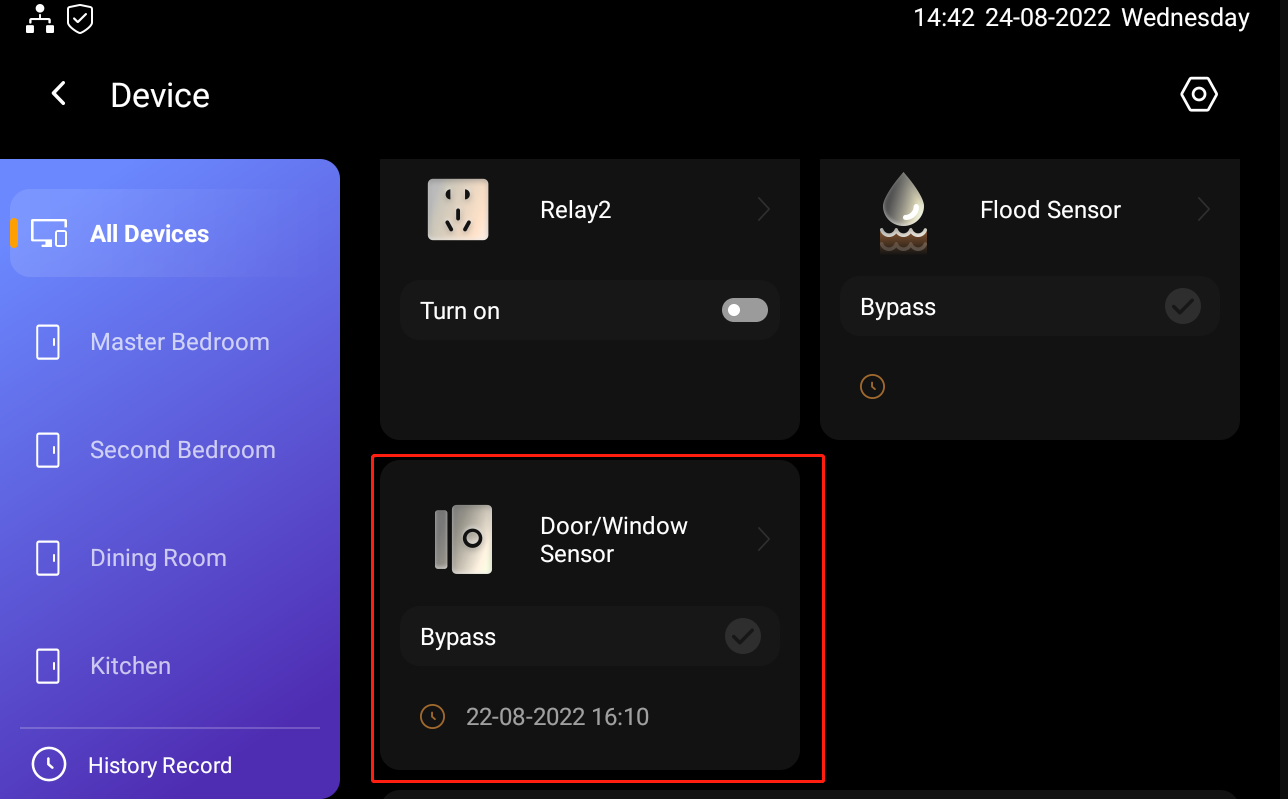
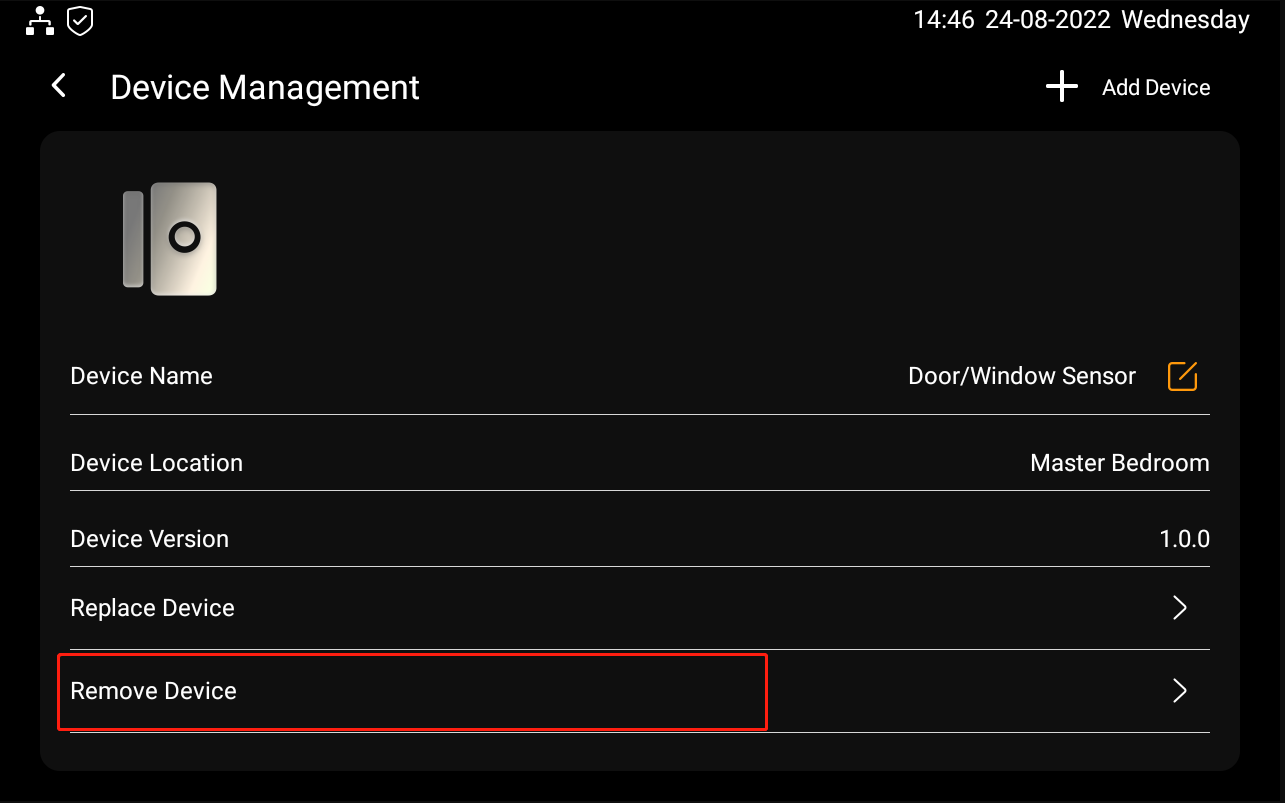
2. Tap  , then tap Remove Device to delete the device. When the device is deleted, its history and configuration will also be deleted.
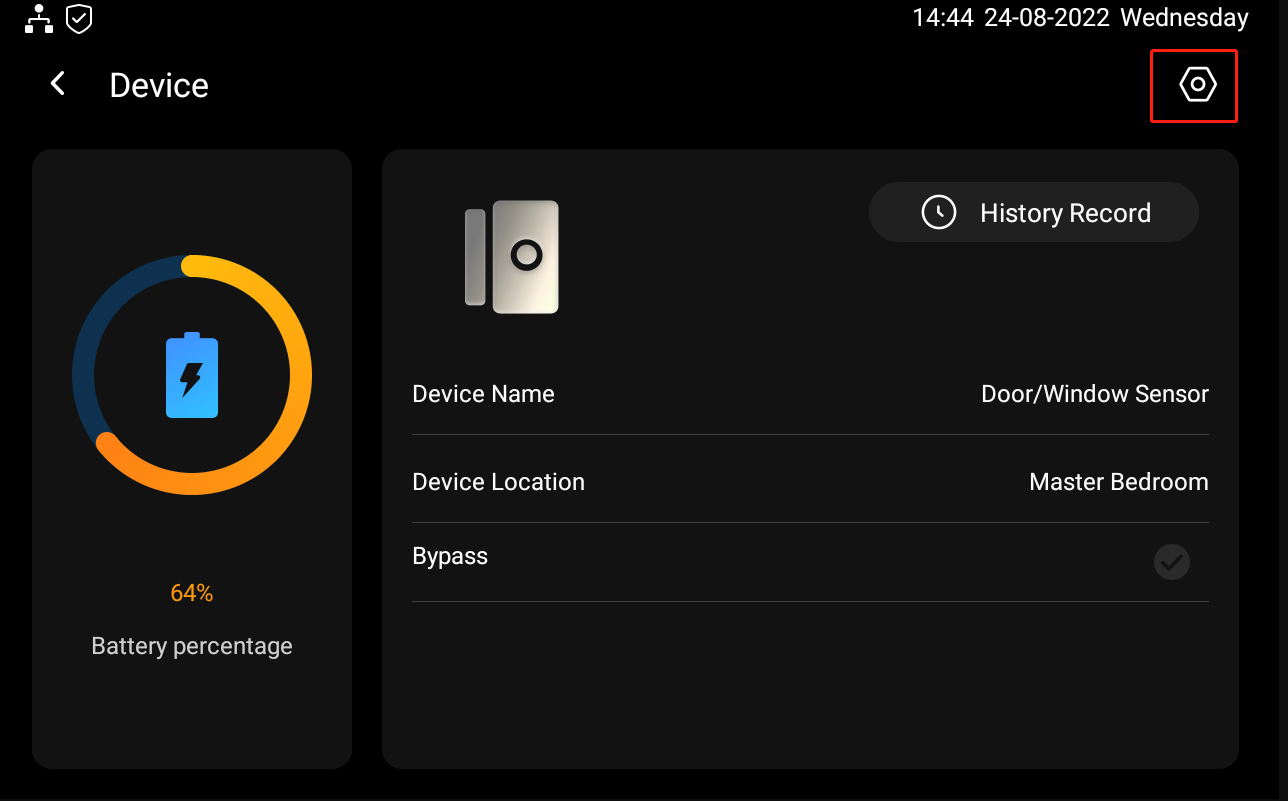
Note
The device can also be deleted on BelaHome APP. If the device you removed had already been added to a scene, then the scene’s performance will be affected.
Customize the All Devices screen
Control devices
Control relays
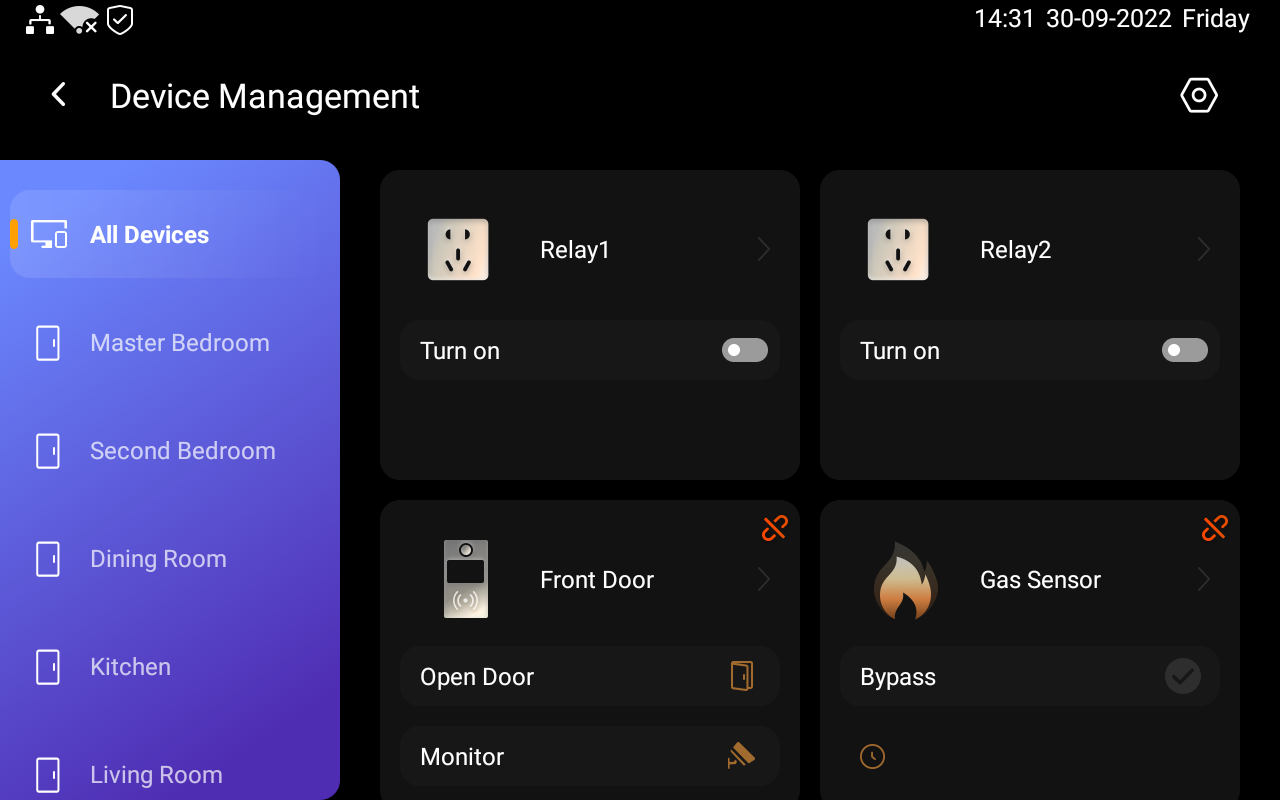
SmartPanel Elite 10 supports for directly wiring 2 devices, e.g., 2 lights, to its flush mounted module. These two devices are displayed as relays on the All Devices screen.
Turn relays on or off with a tap
You can control the relays from All Devices screen.
Control sockets
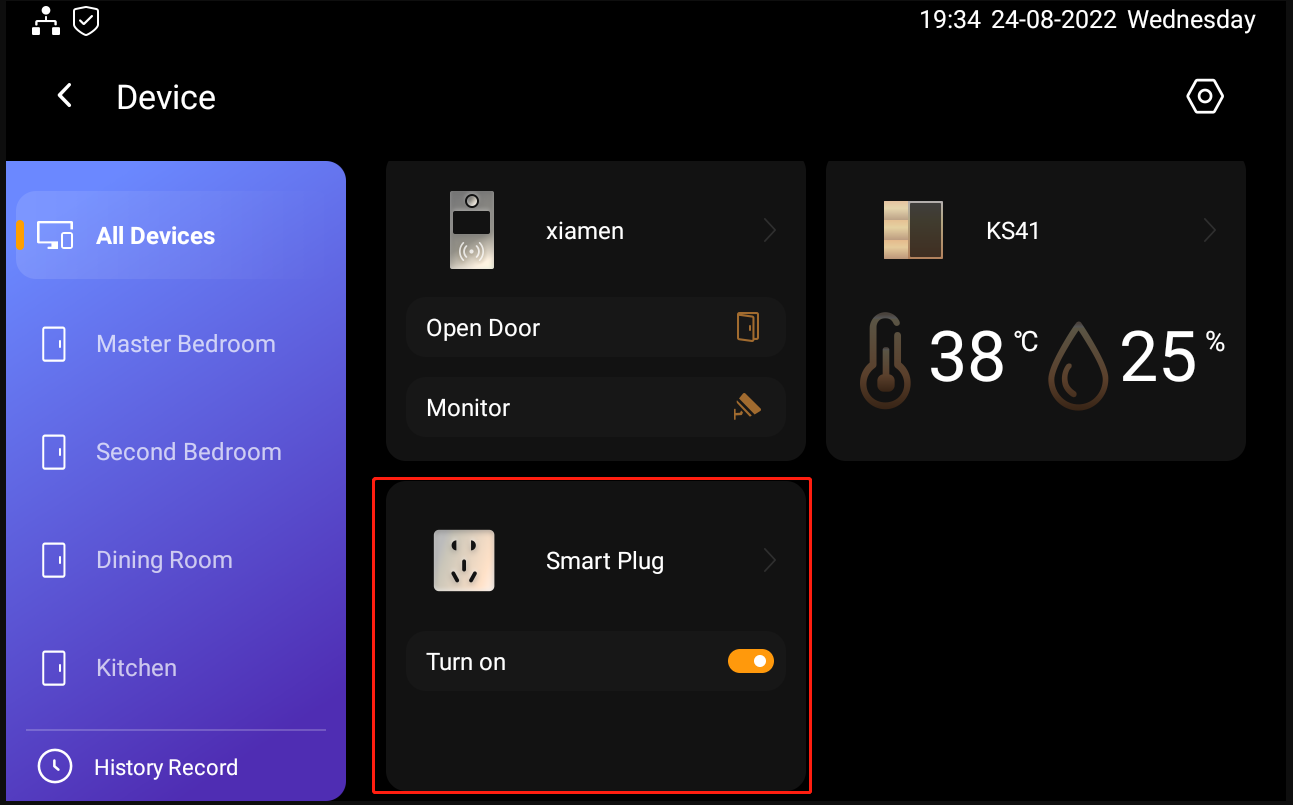
To turn on your smart socket, on All Devices screen, tap the socket.
Control Doorbell
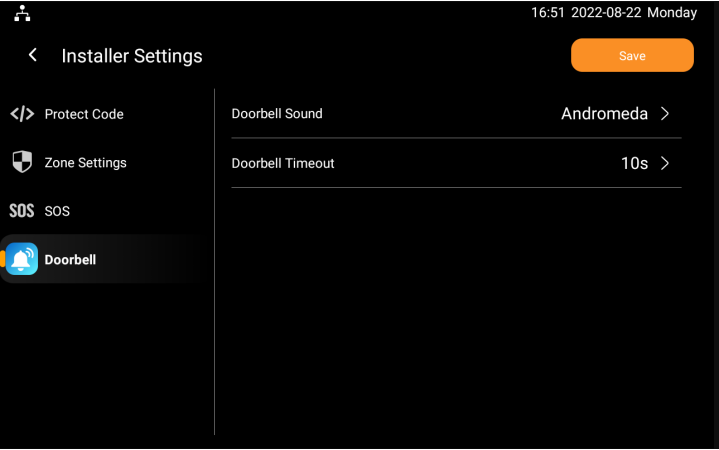
You can select your doorbell sound and doorbell timeout if needed.
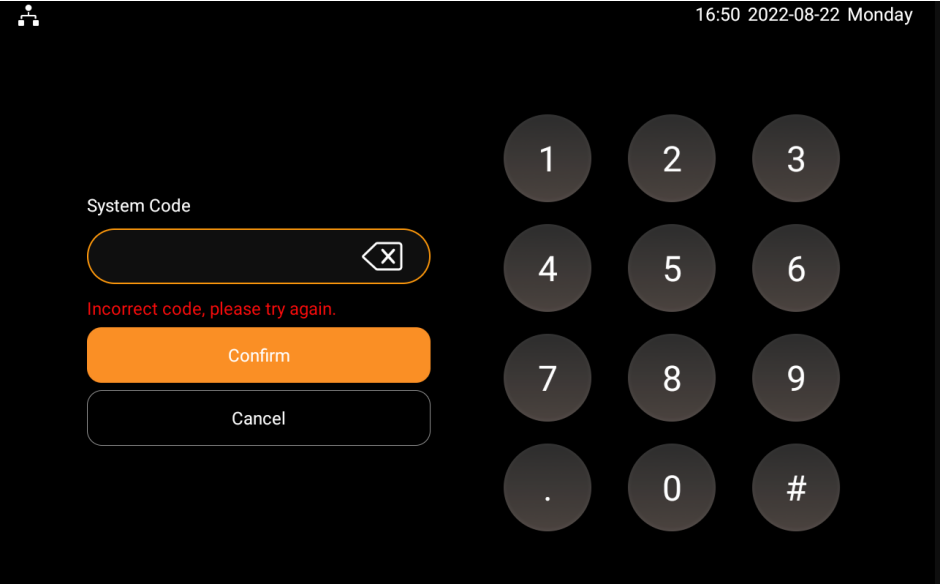
1. Swipe down from the top edge of any screen, tap Setting  > Installer Settings.
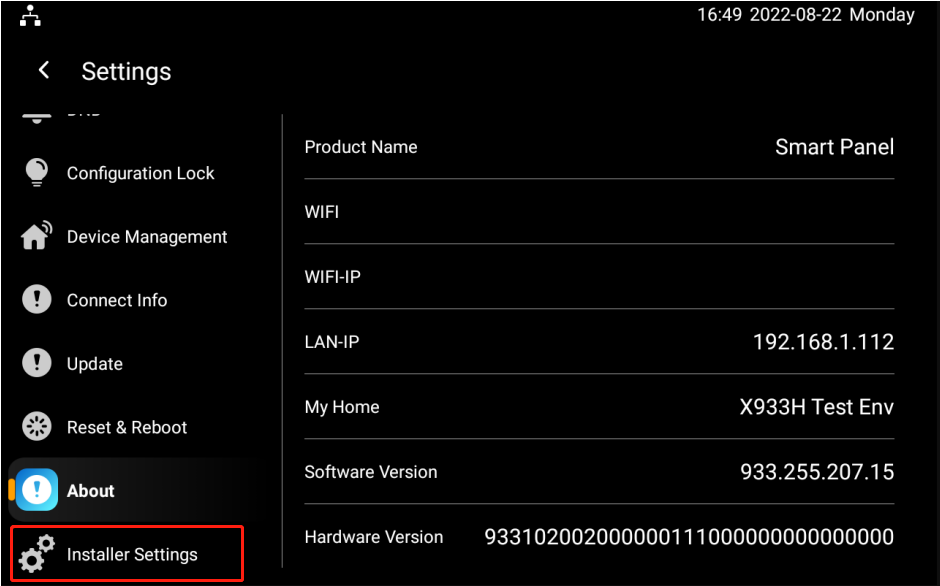
2. Enter the installer’s system code. The default system code is 123456.
3. Set the doorbell sound and doorbell timeout.
Home Automation
Scenes let you control your smart devices based on an action, an event, a schedule, or sometimes with a simple tap. For example, automatically turn off the light when you leave, and play the music when you back home.
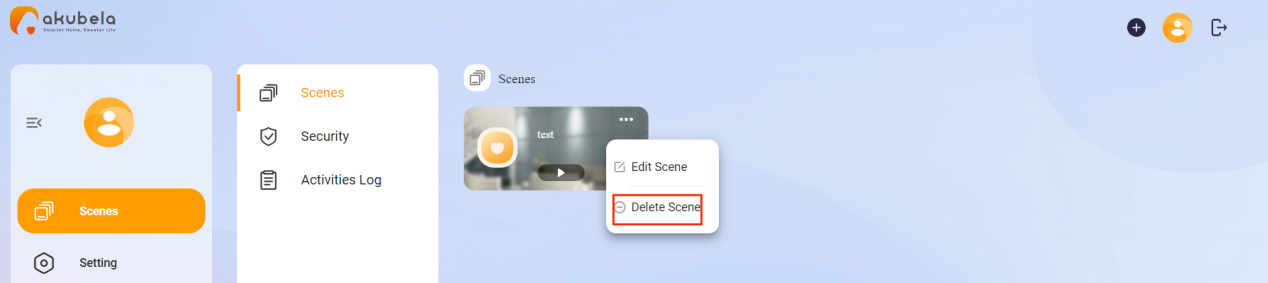
To create, edit, and delete scenes, see Chapter Create and Manage automation scenes in here.
Customize the Scenes screen
You can rearrange your scenes to have them displayed in the order you want.
Wake up your SmartPanel Elite 10, and swipe left or right to access the Scenes screen.
Tap
 at the top. Select, drag, and drop scenes to the order you want them.

Activate your scene
Automation scene types
The Scenes screen displays all scenes within the family.
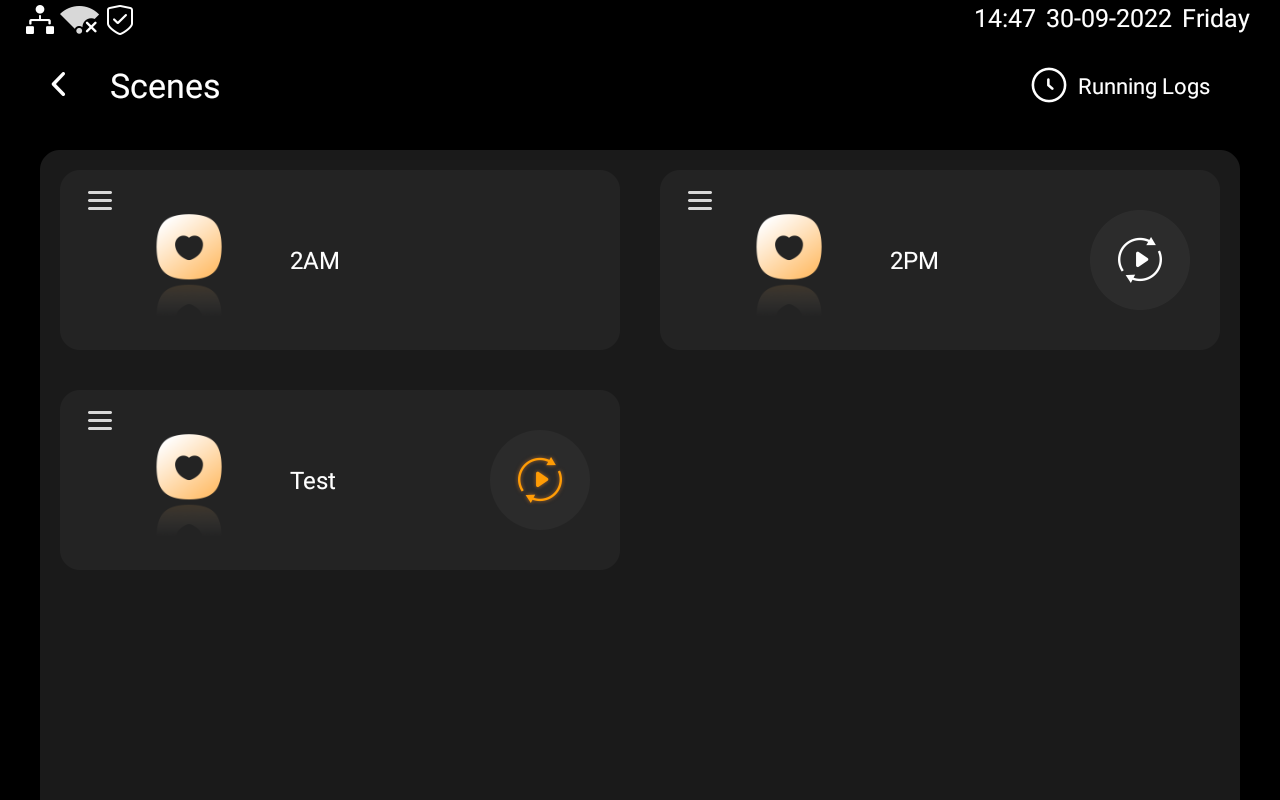
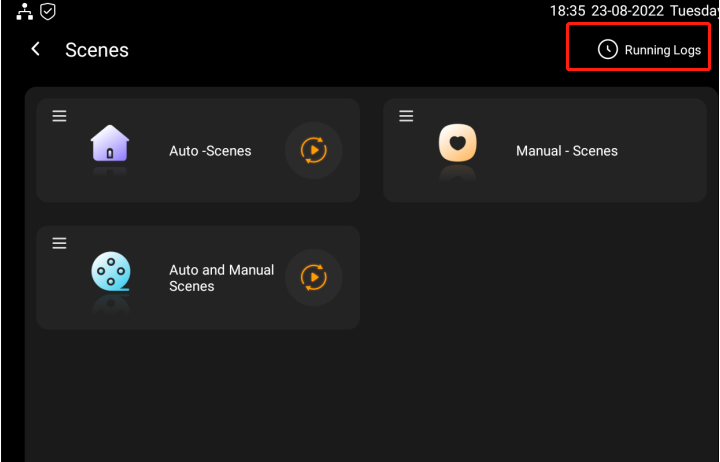
The following are three types of automation scenes and their symbols:
Auto scene
 : a scene set to be activated based on a schedule or an event.
If the scene icon is orange
 , it means the scene is available. As long as its preset conditions are met, the task will be triggered.
If the icon is white
 , it means the scene is not available, and the task cannot be triggered.
Manual scene: a scene set to be activated based on a tap or click on the scene image. This type of scene has no additional symbol.
Auto and manual scene
 : a scene based on a schedule, an event, and a tap or click. When any of the conditions are met, the scene will be activated.
Activate a scene
Run a scene with manual activation conditions
On the Scenes screen, to activate a scene with manual conditions, just tap its image. Its background will be highlighted to show that the scene is activated.
To turn off the automation, tap the scene image again, and its background will be back to dim.
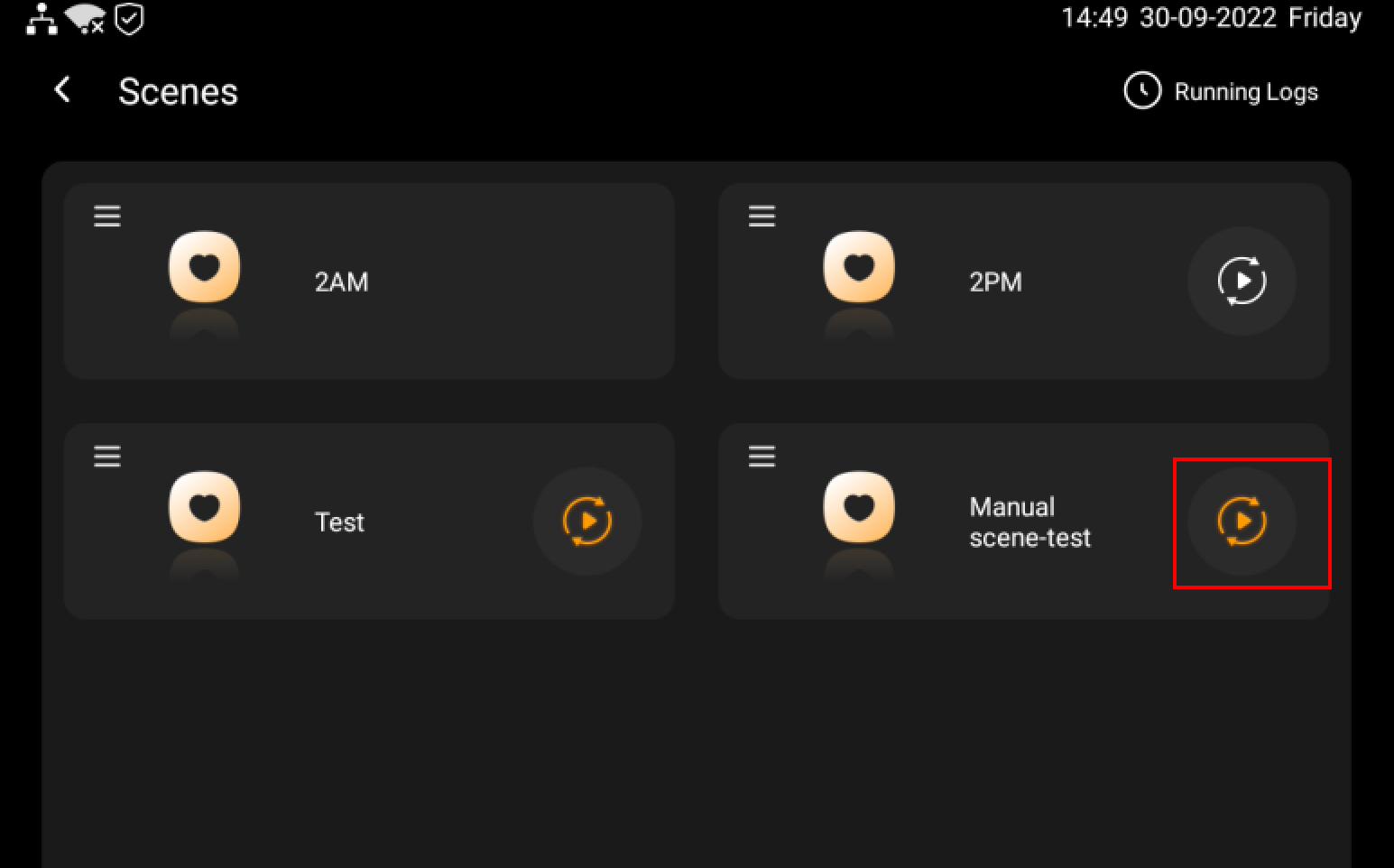
Run a scene with time or action conditions
You do not have to do anything to run an auto scene. Once the preset conditions are met, the scene is activated automatically.
To run a scene on home center web interface, see Chapter Activate your scenes in here.
Check a scene activity
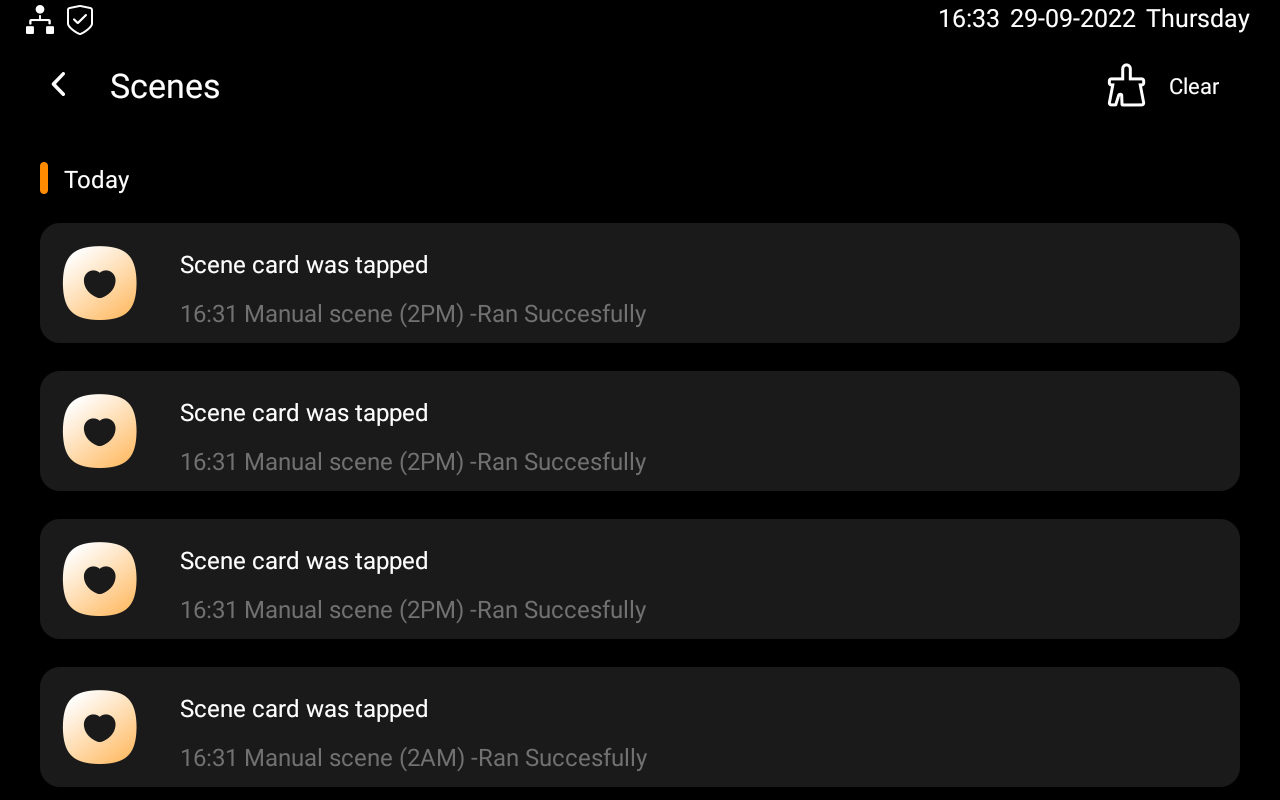
You can check scene activation records on the SmartPanel Elite 10. Also, you can check it on the home center web interface, and the BelaHome App.
Check scene activity on SmartPanel Elite 10
Tap
 on the home screen.
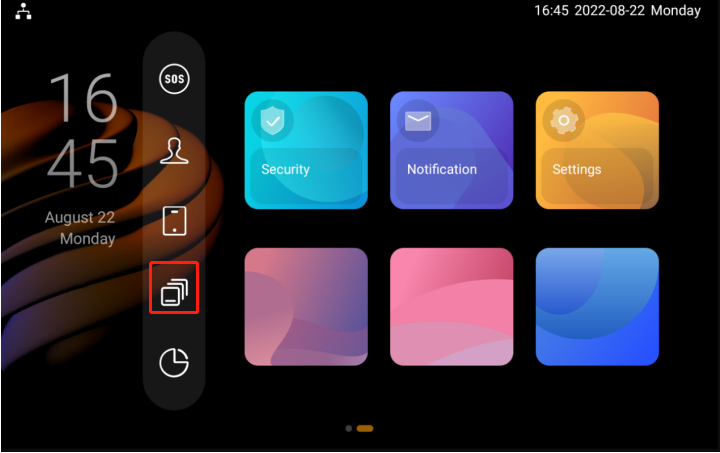
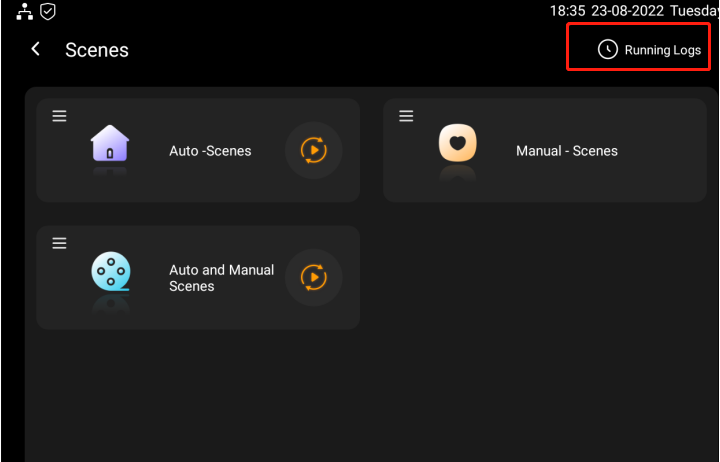
2. Tap Running Logs. The scene action will be displayed.
Delete scene activities on SmartPanel Elite 10
Tap
 on the home screen.
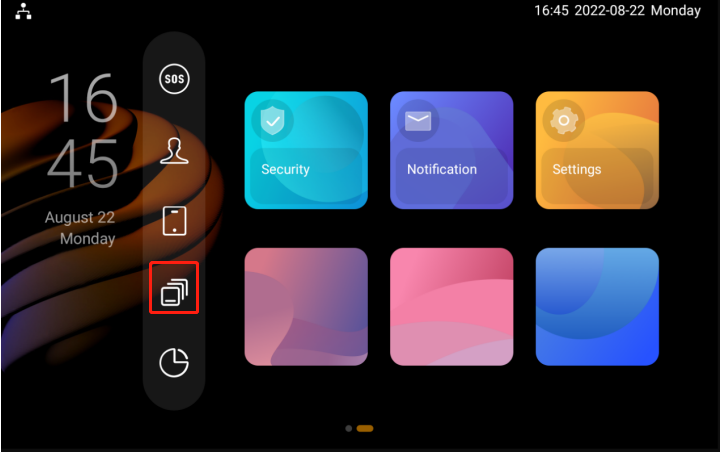
2. Tap Running Logs, and tap Clear.
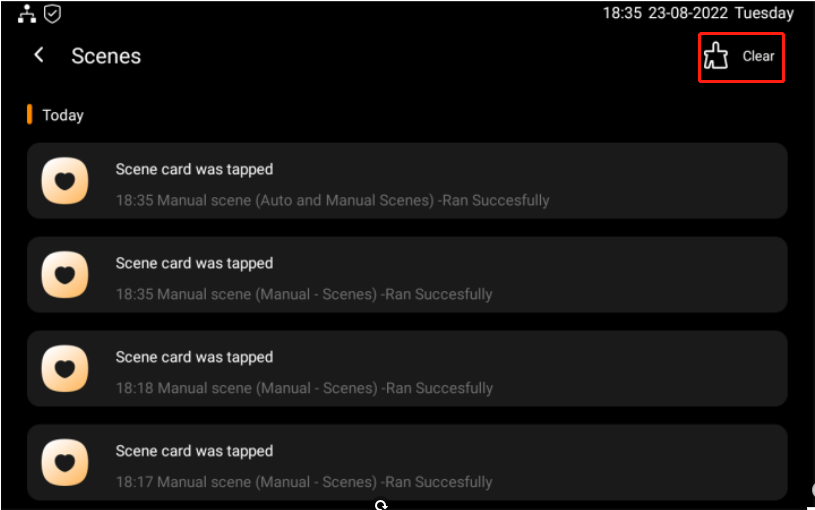
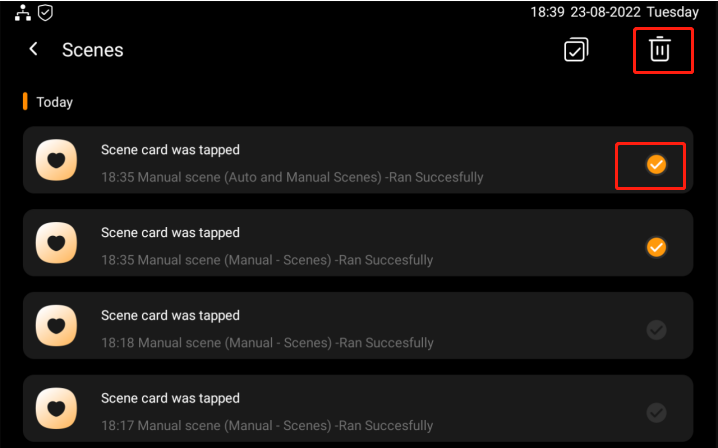
3. Select the scene activities you want to delete.
Make SOS call
You can make SOS call ( SIP-based emergency calls) on the SmartPanel Elite 10 or via the emergency button you added to the SmartPanel Elite 10.
Make SOS call on SmartPanel Elite 10
To make SOS calls , do any one of the following:
Tap
 and hold the icon for 2 seconds. Then the call will be made.
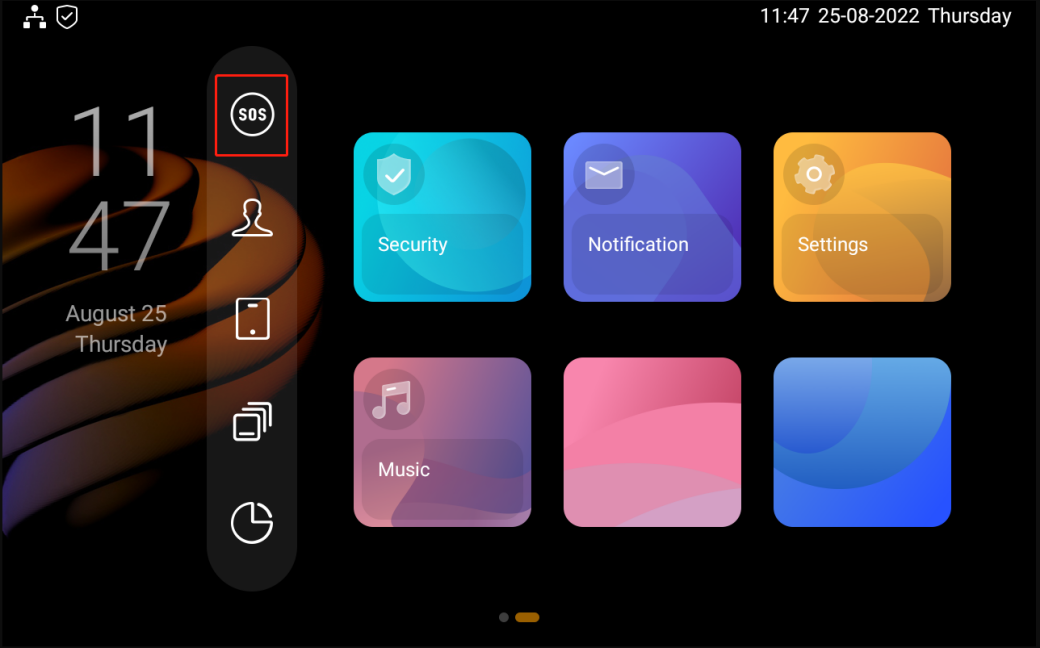
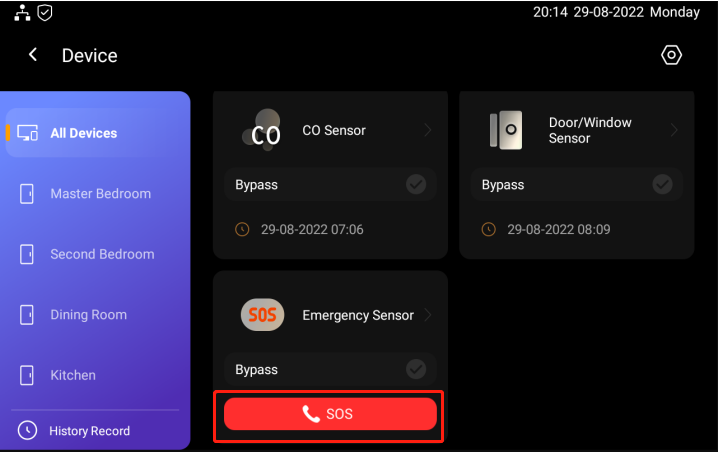
Tap
 and tap on SOS icon to make SOS call. You need to add emergency button to the SmartPanel Elite 10 and preset the SOS number.
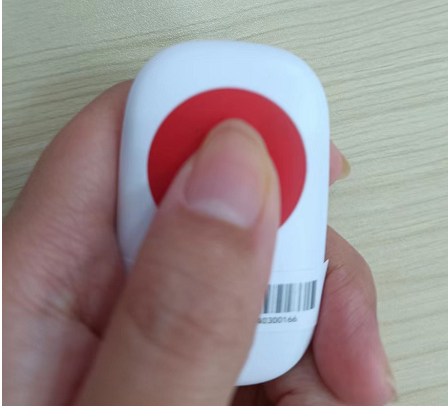
Make SOS by emergency button
The emergency button must be added to your SmartPanel Elite 10 and to a security scene before you can make SOS call by the emergency button.
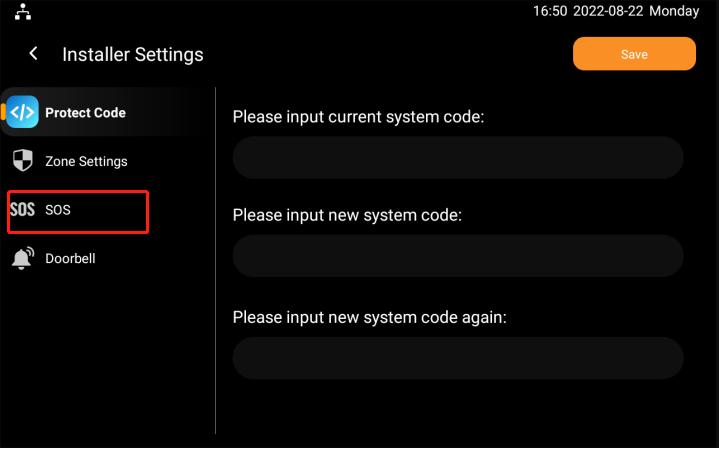
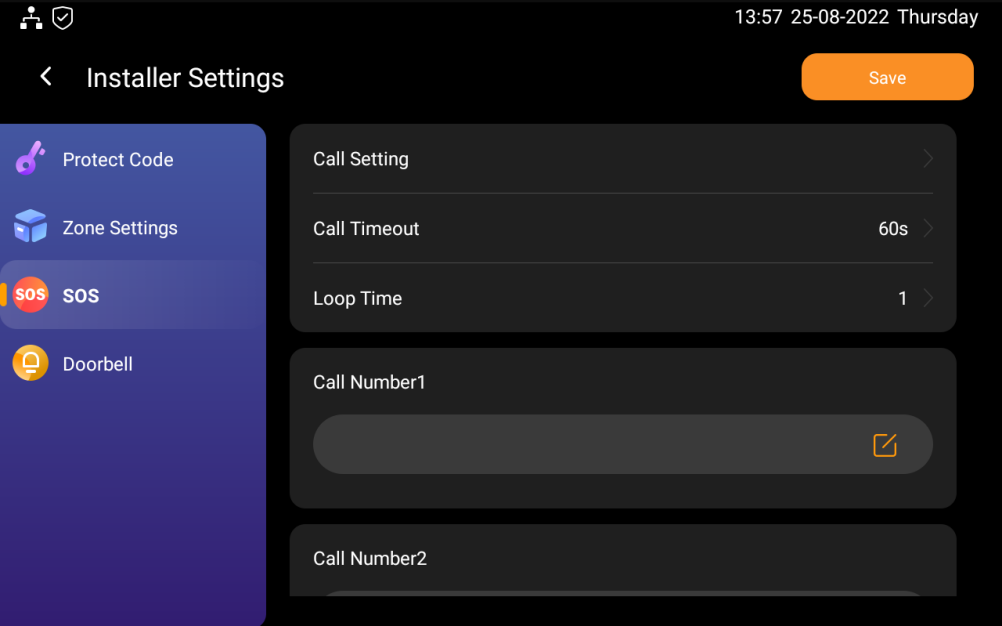
Set up SOS number
You can set up SOS number on the SmartPanel Elite 10. The number is generally set by your installer before syncing to your SmartPanel Elite 10.
Swipe down from the top edge of any screen, tap
 > Installer Setting.
Enter the installer system code, then tap Confirm. The initial default system code is 123456. Then tap SOS.
Do any of the following:
Tap Call setting to set the call sequence of the SOS number.
Tap Timeout to set the timeout. If the call is not answered within the timeout, the call will be terminated and go to the next number.
Tap Loop Times to set the number or the sequence call. For example, if you set it 3 times, then the call be cycled three times.
Tap Call numbers, and type in the SIP number.
Lighting
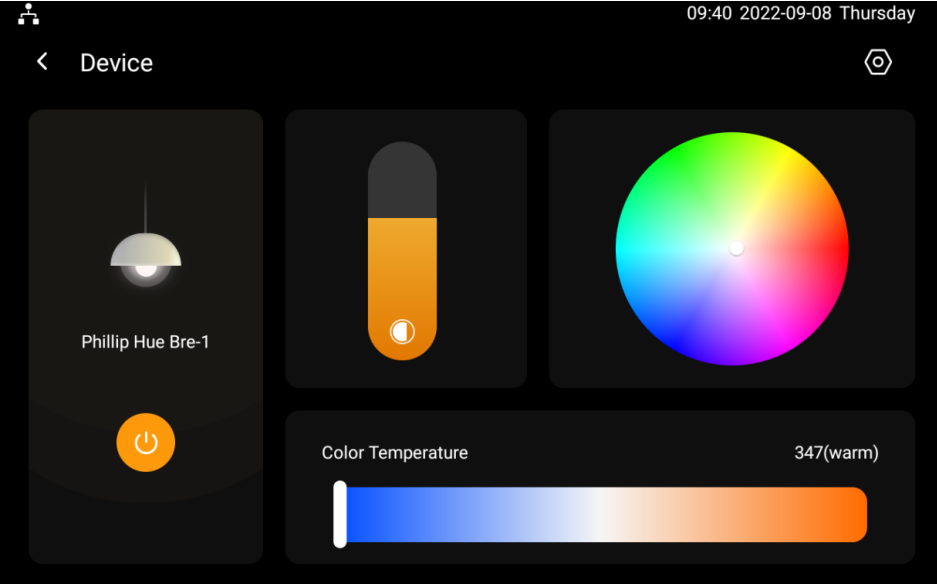
Turn a light on or off
On the All Devices screen, select the light you want to control. Tap the icon to turn the light on. To turn it off, tap this icon again.
Make the light brighter or dimmer
On All Devices screen, select the light you want to control.
Tap
 , then drag the slider.

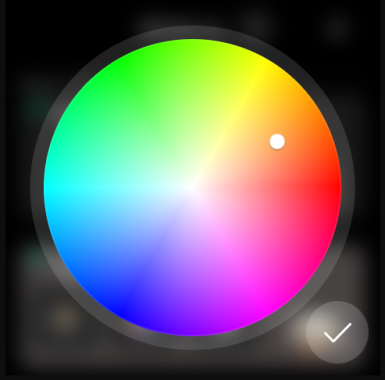
Change the light color
On All Devices screen, select the desired light.
Tap
 , pick the color you like from the palette, then tap
  .
.
Make the light color warmer or cooler
You can adjust your light color temperature. Color temperature refers to how warm or cool light appears.
On All Devices screen, select the desired light.
Tap
 , adjust the slider, then tap
  .
.
Environment
Comfort
Change Ecobee mode
Use SmartPanel Elite 10 to switch Ecobee modes. On the All Device screen, tap your Ecobee device image once to switch the current mode to the next.
Energy
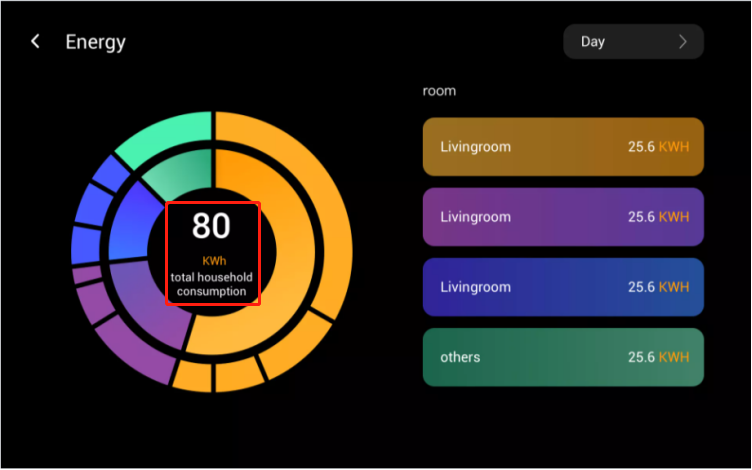
Use the Energy feature to track the power consumption of your devices, rooms, and whole home.
Note
The Energy feature only applies to smart devices that support energy data collection.
 to go to the Energy screen.
The whole home power usage data showed in the center of the circle.
Top 3 power consumers.
Total energy consumption of the rooms excluding the top 3 (Other).
Security
Create and Configure security modes
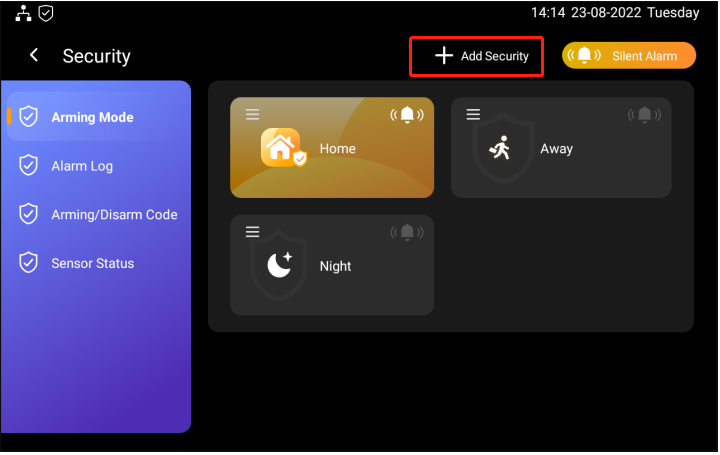
When you create a security scene, you can select triggering sensors and the automated activities to be carried out. You can select the sensors ( already added) to trigger sensors along with automated activities such as enabling alarm, sending messages, sending HTTP commands, triggering relays, making call, and setting up delays. The security scene is preset on the akubela Cloud platform, you can however set it up on the SmartPanel Elite 10 or on the home center web interface.
Default modes
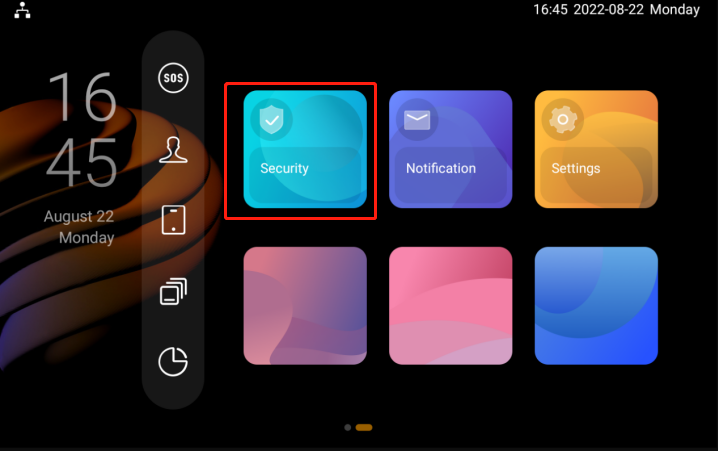
On the home screen, swipe left, then tap Security.
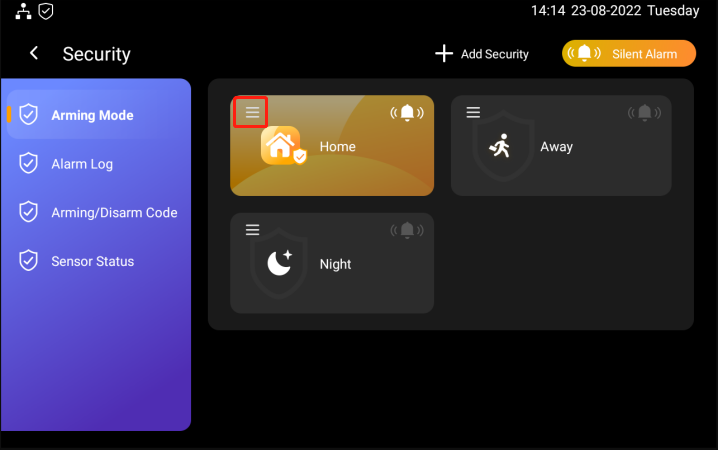
2. Tap  to go to security scene screen.
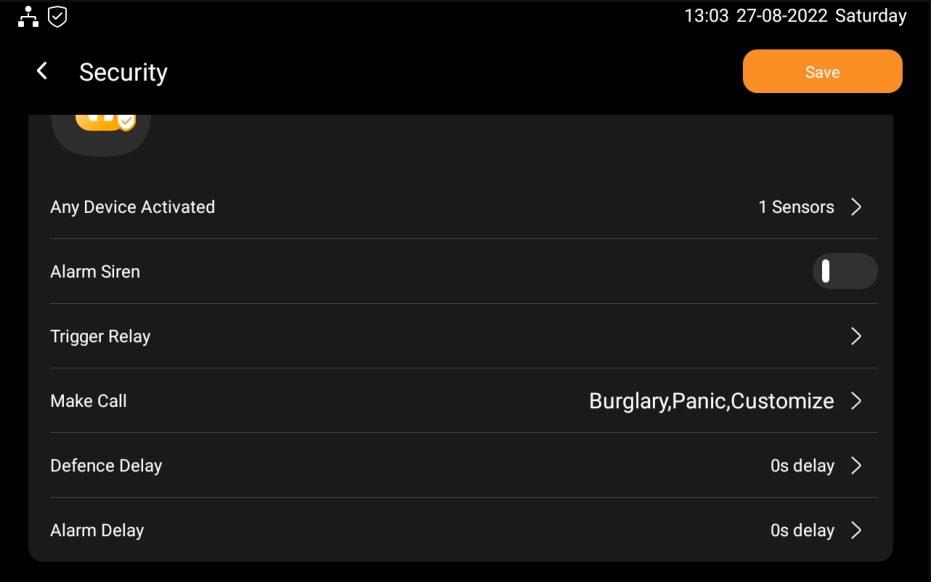
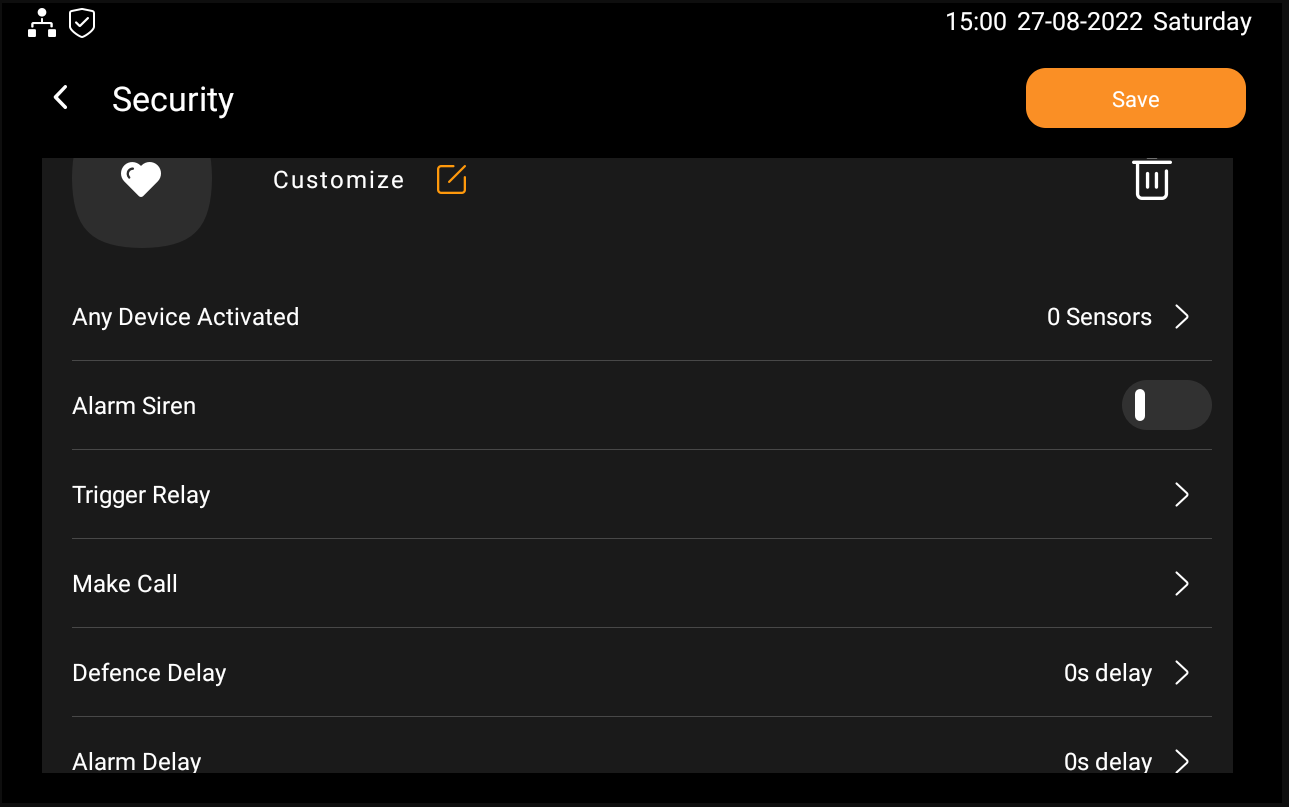
3. Set up your security scene to your liking. Do any of the following:
Select the sensors you added that will trigger along with the activities in a scene.
Enable or disable the alarm siren.
Set Trigger delay (relay 1 or Relay 2)
Select Make Call to set the called party you want to call when the sensor is triggered.
Select arming defence delay. For example, if you select 30 seconds, then the arming mode takes effect 30 seconds after the setting.
Set Alarm Delay. For example, if you set it as 30 seconds, then the alarm will go off 30 seconds after the sensor is triggered.
Customized modes
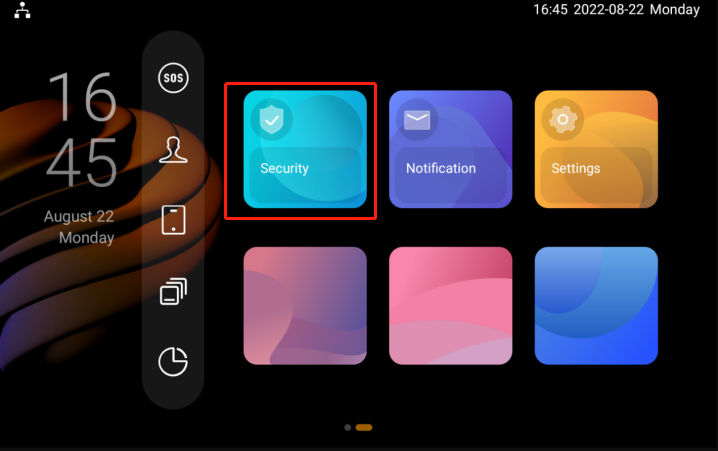
On the home screen, swipe left, then tap Security.
2. Tap to go to the customized security scene setting.
Do any of the followings.
Tap
 to give a name to your customized scene.
Set the rest of setting in the same way as you do for default mode.
Manage security modes
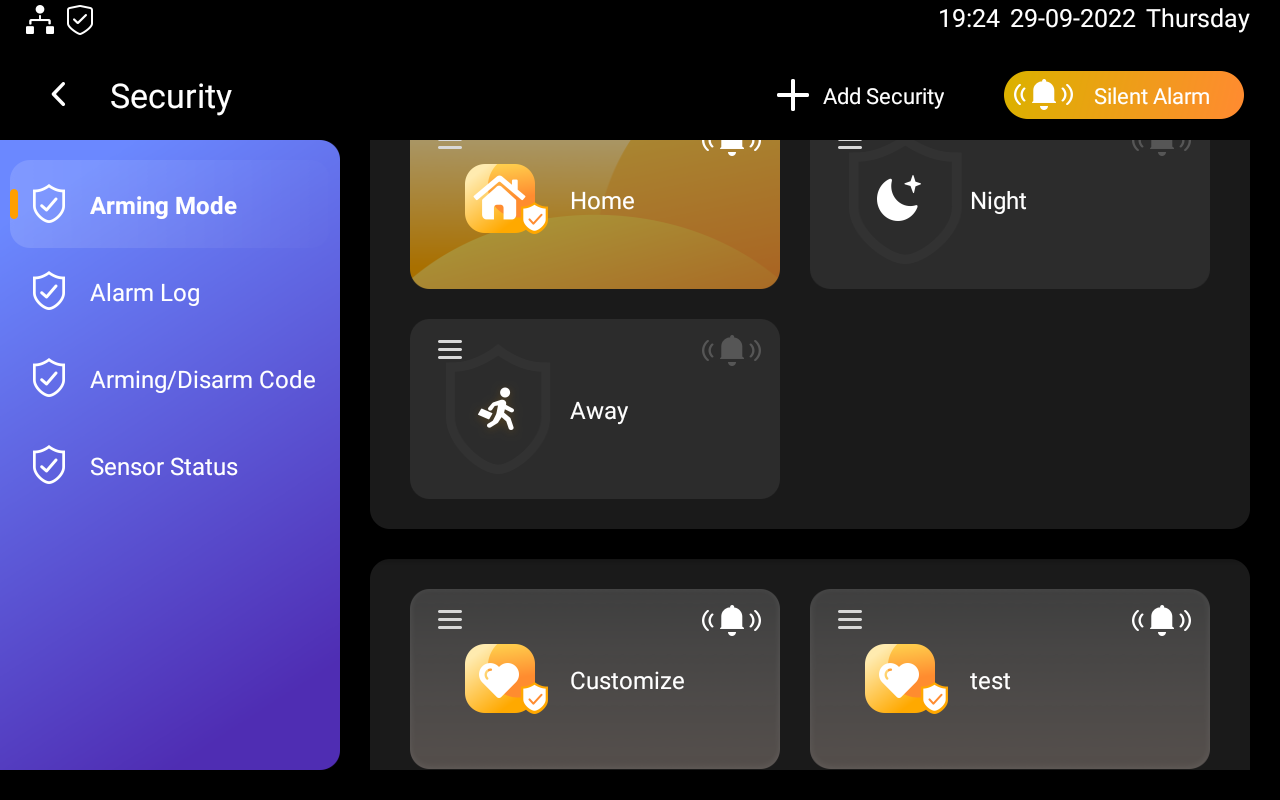
You can check, edit, and delete scenes if needed.
Check and edit modes
You can check and edit the scenes by tapping the mode.
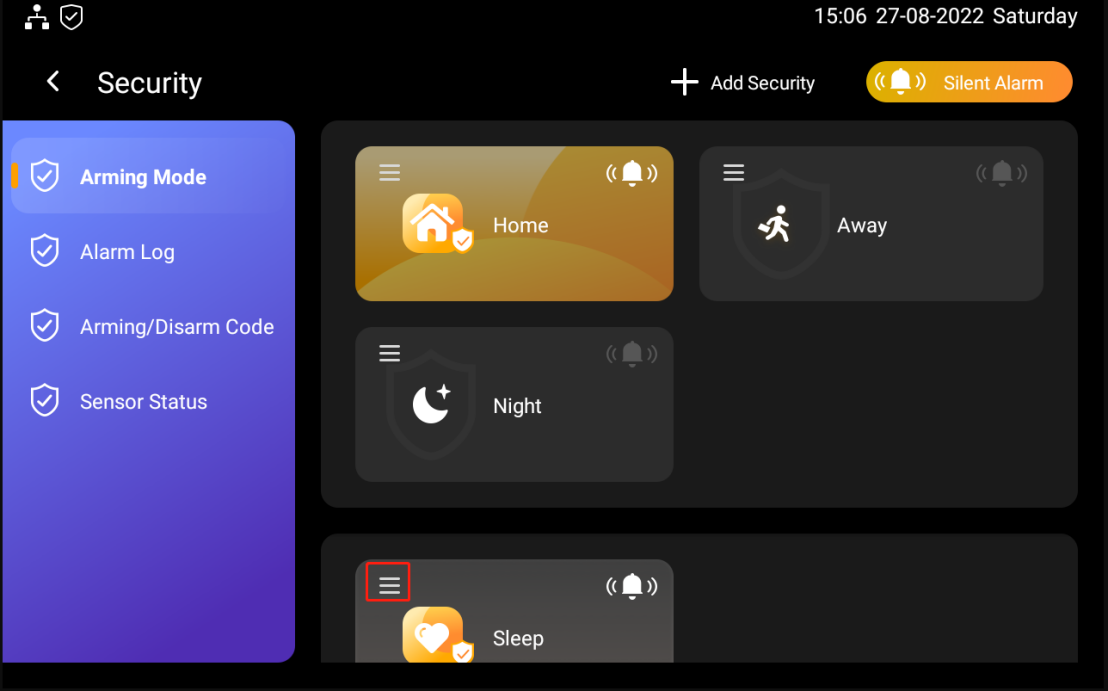
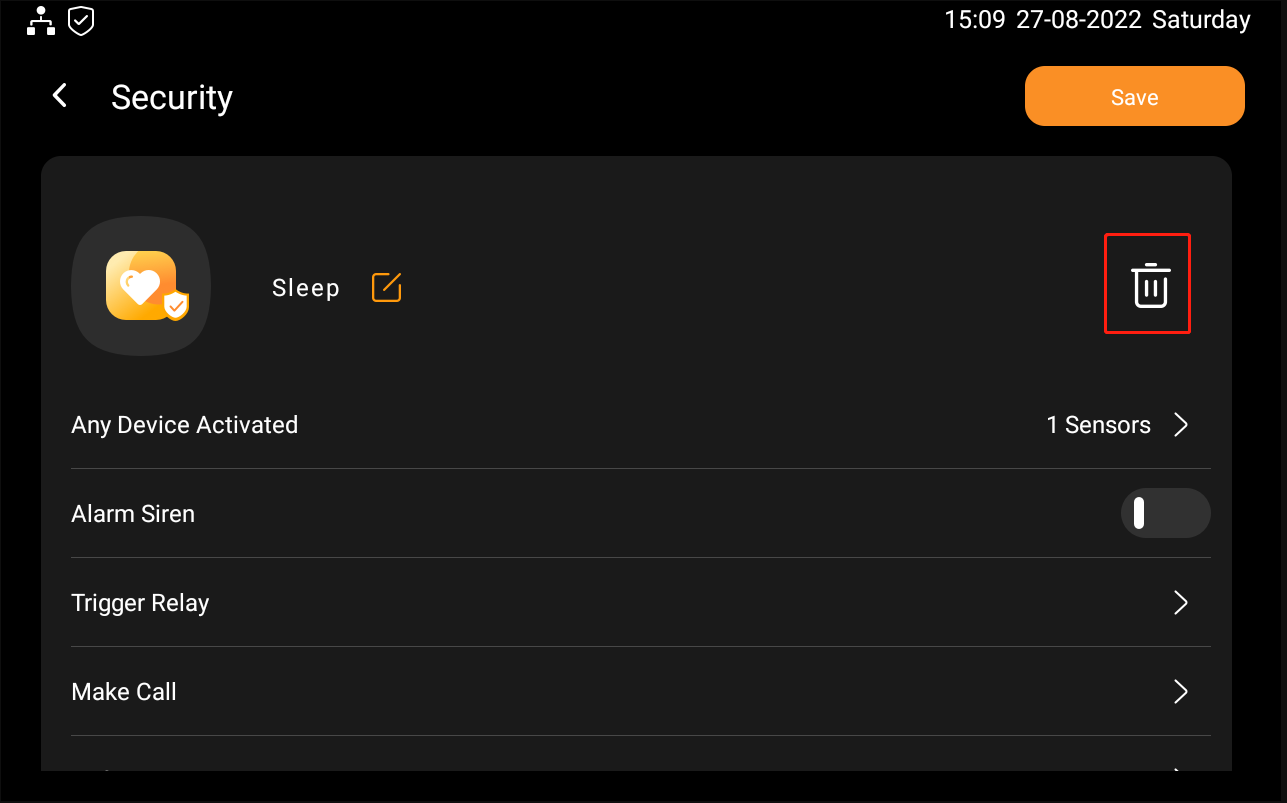
Delete customized security mode
On the home screen, swipe left, then tap Security.
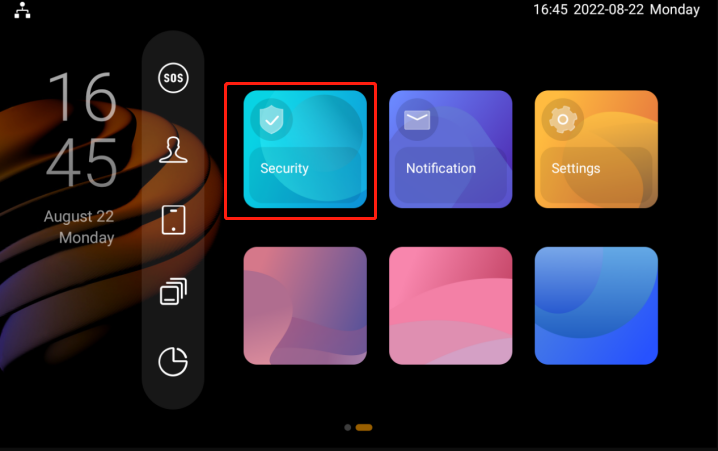
Tap
 of the scene, then delete the mode.
Arm you system
Bypass
You can use By pass to exclude the malfunctioning devices from your scenes so that your scene can run properly. Also you can use Bypass to meet your personalized requirement.
Forced Bypass
You will be asked to bypass the device that is detected malfunctioning by the system when you are setting up arming.
Set up Bypass for device
You can set bypass for your device if needed
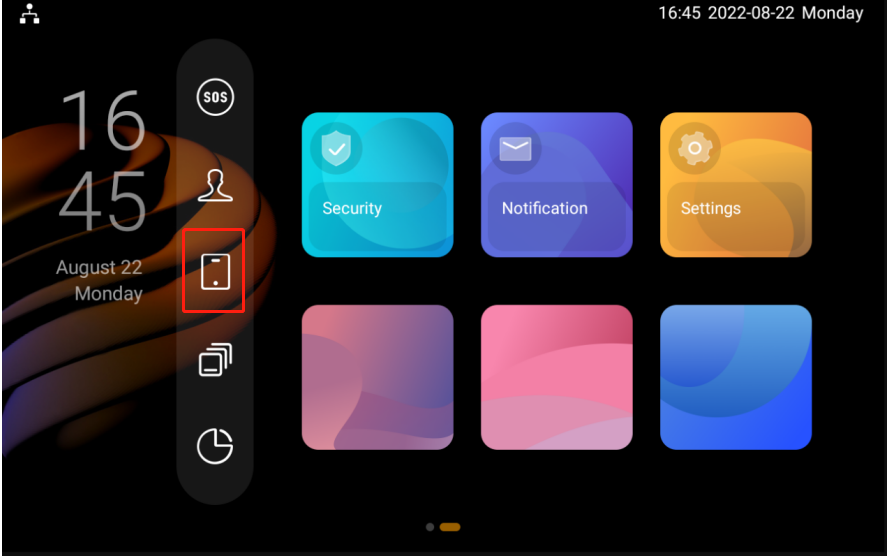
 Enable Device Bypass
Tap to go to Device screen.
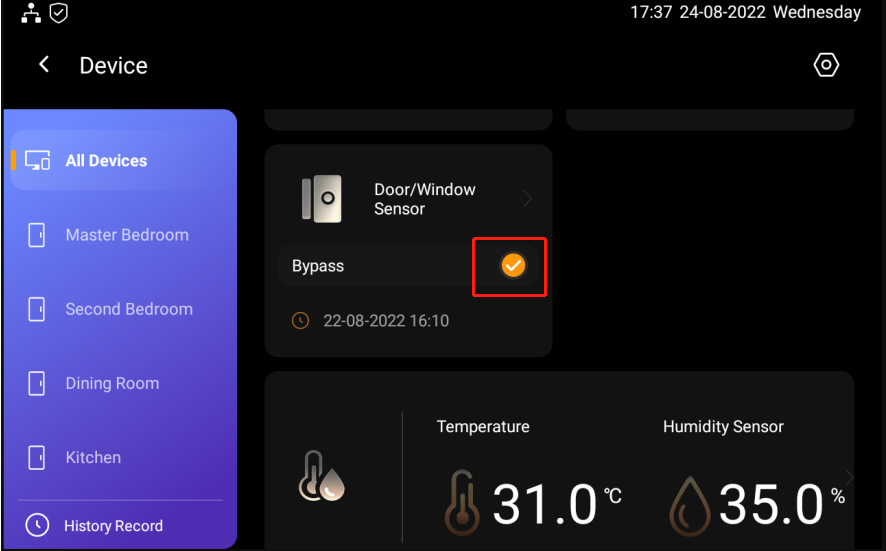
Select the sensor you want to bypass by checking of the sensor.
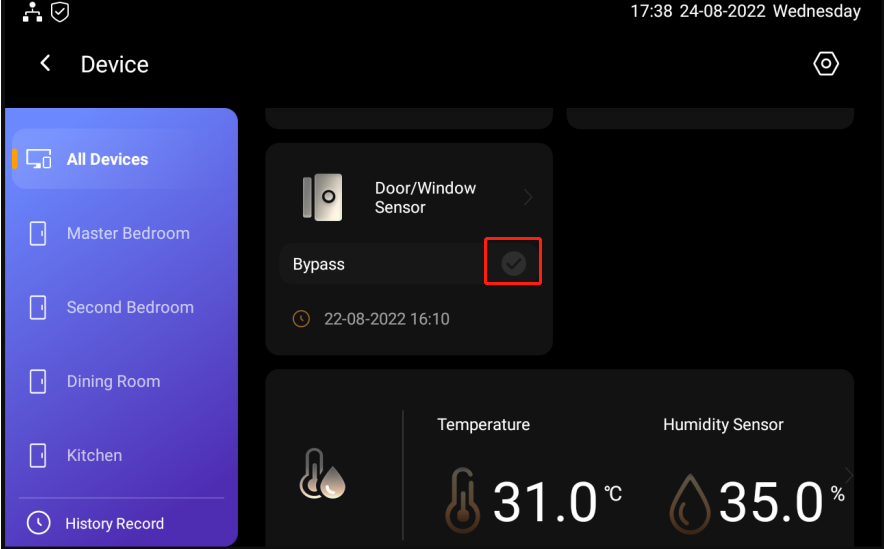
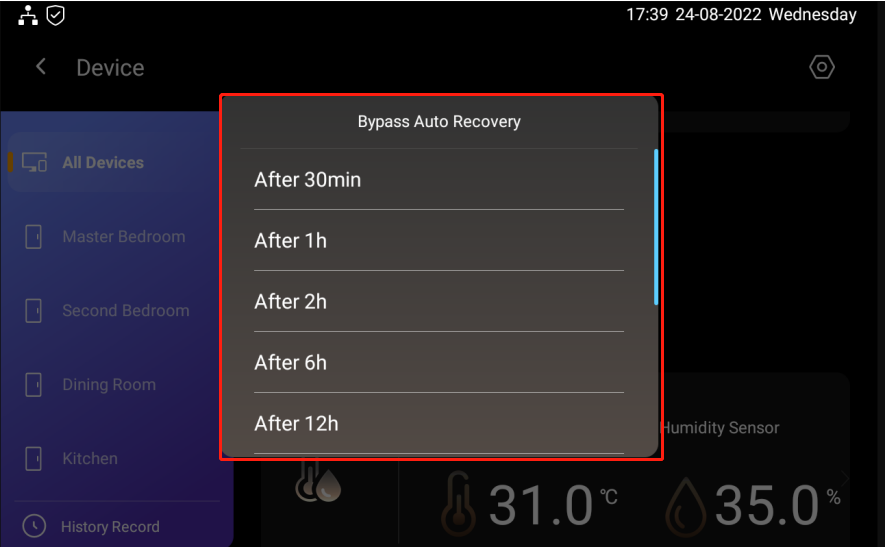
Select the bypass duration. For example, if you sent as After 1h, then the sensor will only be passed for one hour. When the sensor is bypassed successfully,
 will be displayed.
Disable Bypass
Bypass will be disabled when the sensor reaches the preset Bypass time. You can also manually disable the the Bypass for the senor by ticking off the  .
.
Enable alarm siren and alert push when alarming
To allow your SmartPanel Elite 10 sounds the siren and push the alert when an alarm is triggered, do as the following:
Tap
 at the left corner of the scene image.
Tap
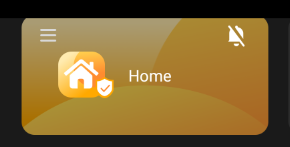
 if you want o disable siren for all scenes.
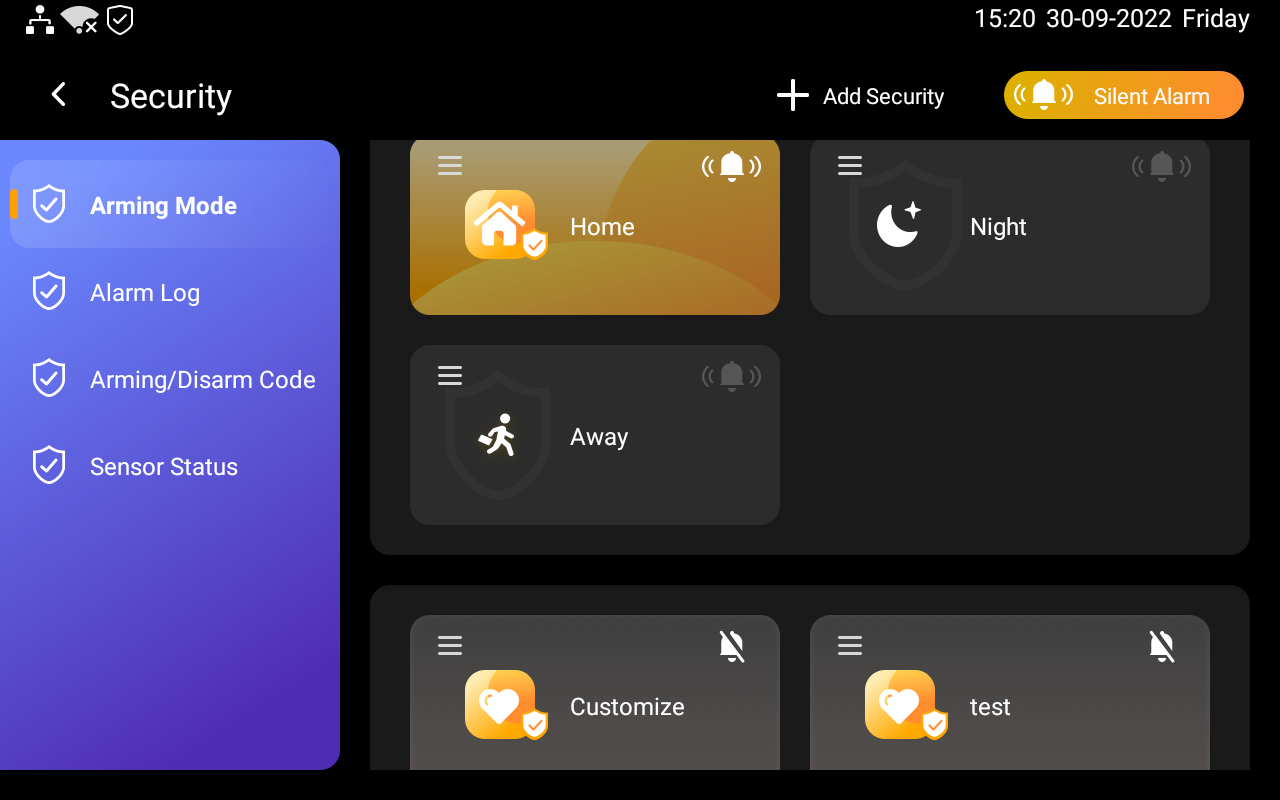
The siren feature is enabled.
Arm the system
You need to set up security modes before you can arm your system. To configure, create, edit, and delete security modes, see Create and Manage security modes.
To arm your system, do as the following:
Tap anywhere of SmartPanel Elite 10 display to wake it up, and swipe left or right to the Security screen.
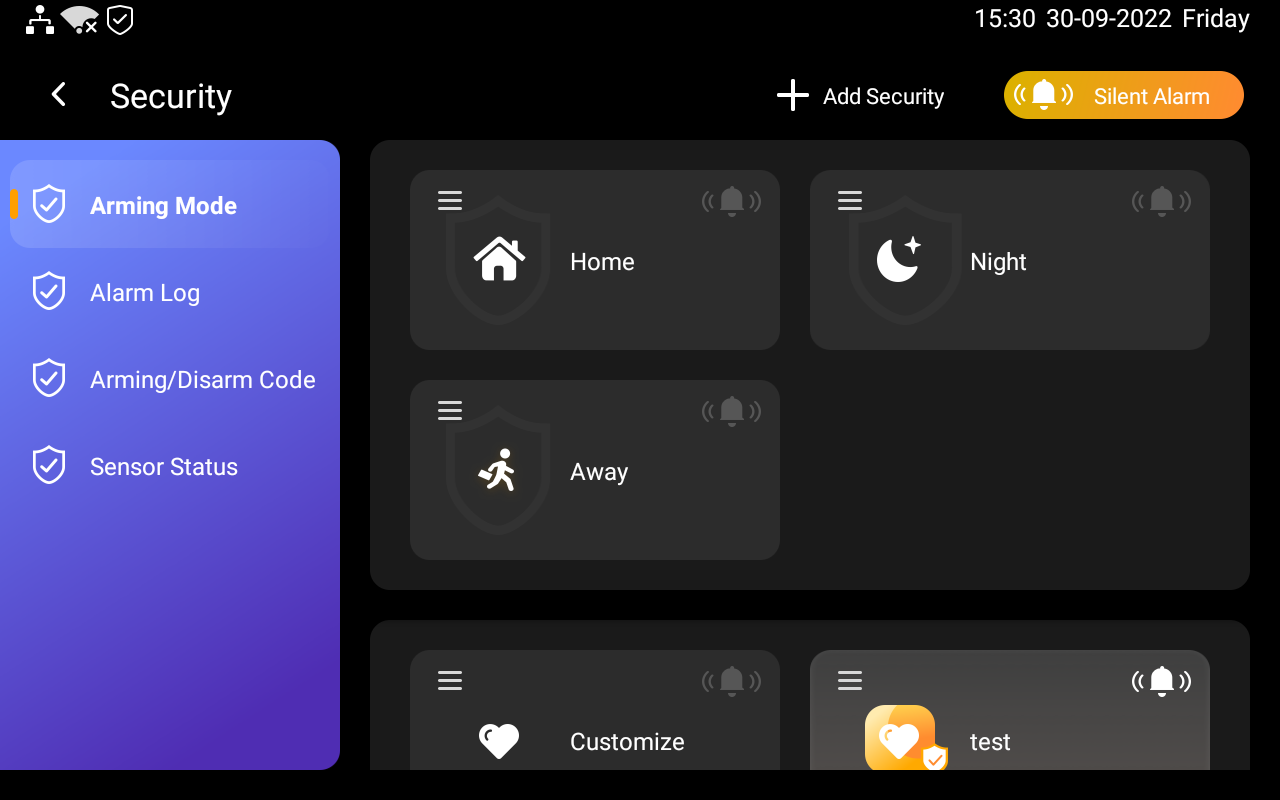
Disarm your system
To disarm your system, tap the highlighted mode image again, and enter the disarm code which is 0000 by default. You’ll know the system is disarmed when the mode image turns back to be dim.
If receiving an alert push when the system is armed, it will be disarmed automatically once you deal with the alert.
Security logs
Check security logs
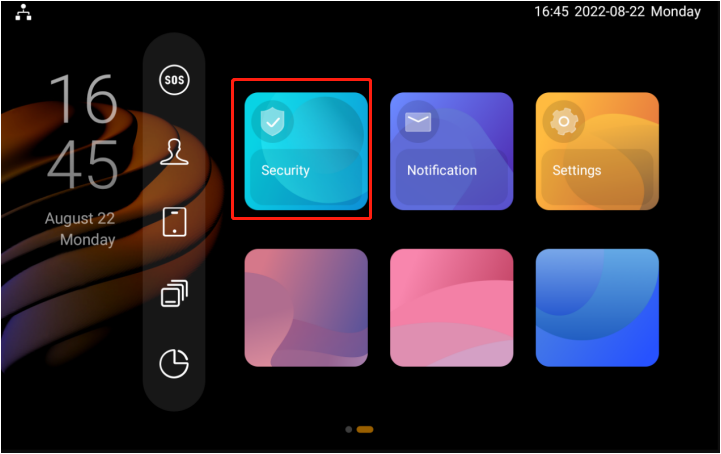
One the home scree, swift left, and tap Security.
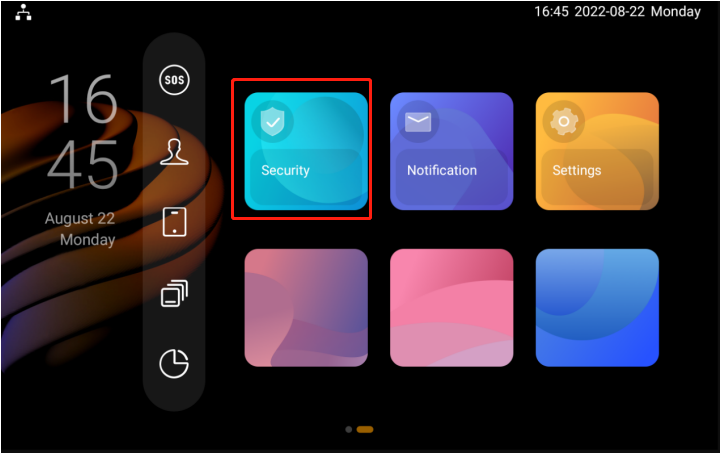
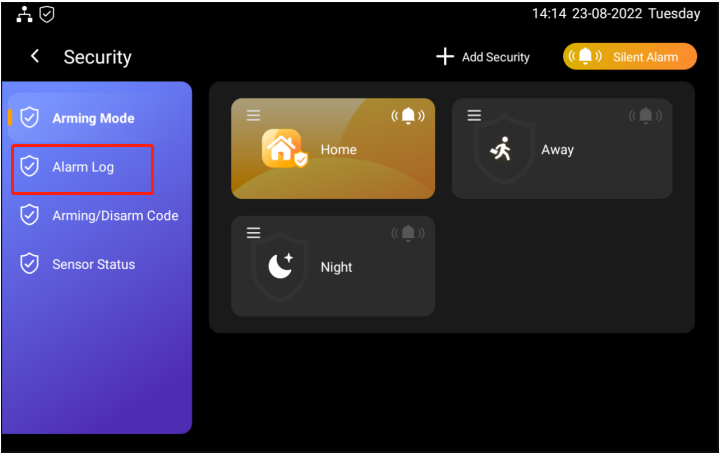
Tap Alarm log, and do any of the following.
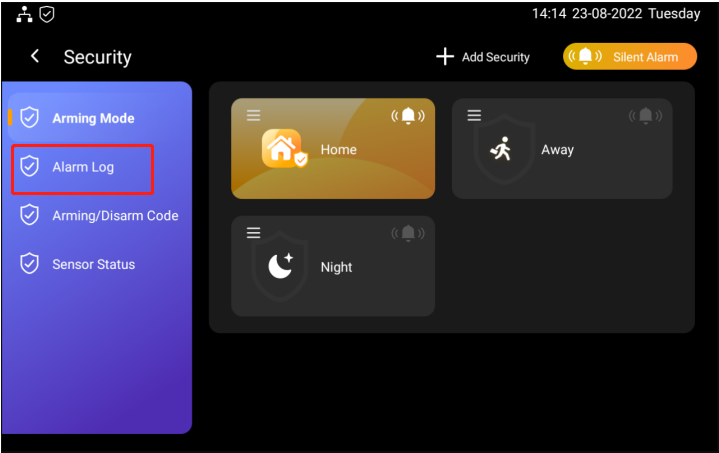
Tap alarms to check the security activity log for the alarms triggered by sensor in the arming mode. You can also tap Date to check the log in the past 30 days.
NOTE:
You can also check the security activity log on the BelaHome Appp or on the home center web interface.
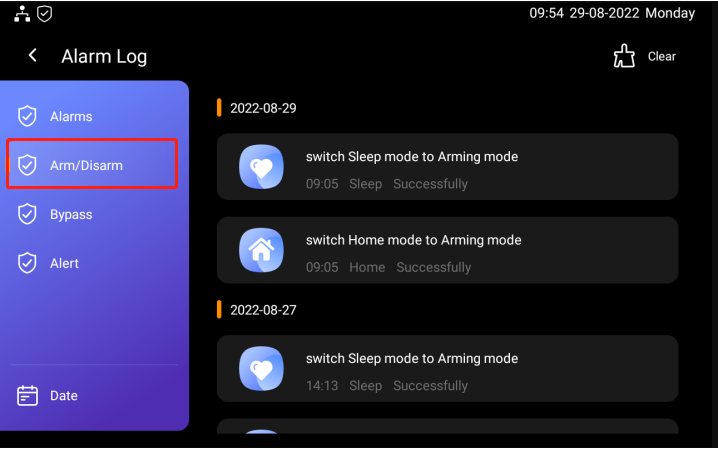
Tap Arm/Disarm to check the changes made to the arming mode. You can tap Date to check the arming mode changes in the past 31 days.
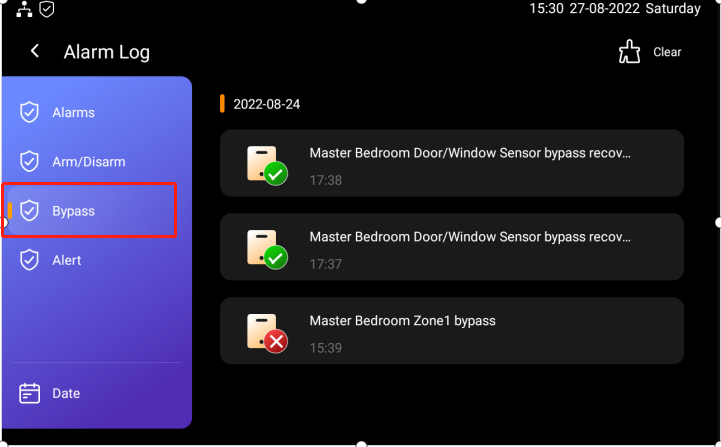
Tap Bypass to check the sensor bypass log. You can tap Date to check the bypass in the past 31 days.
Tap Alert to check the alert log of the sensors . You can tap Date to check the the alerts given by the sensor in the past 31 days.
Delete security log
One the home scree, swift left, and tap Security.
Tap Alarm log, and do any of the following.

 Tap Alarms, then tap to delete alarm logs. You can select the alarms you want to delete.
 Tap Arm / Disarm, then tap to delete arming logs. You can select the arming mode changes you want to delete.
 Tap Bypass, then tap to delete bypass log. You can select the sensor bypass log you want to delete.
Tap Alert, then to delete the alert log. You can select the sensor alert log you want to delete.
Use the intercom
Control door locks
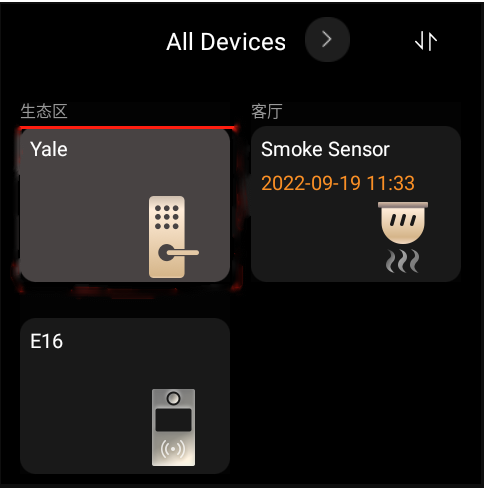
You can lock and unlock any connected door locks.
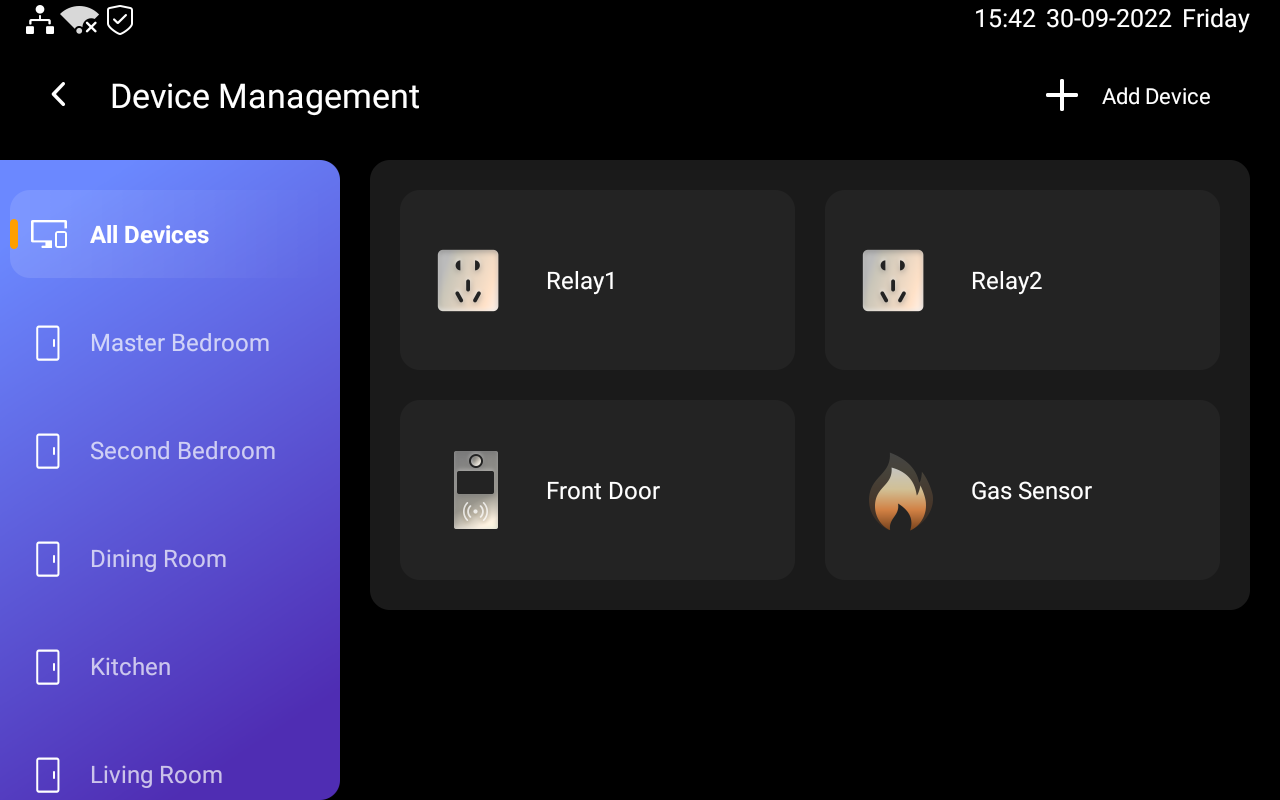
On All Devices screen, tap the desired smart lock.
Control door phones
Unlock the door remotely
When you are upstairs and your visitor rings, you can unlock the door on SmartPanel Elite 10 without having to rush down to the intercom.
Tap anywhere of the SmartPanel Elite 10 screen to wake it up.
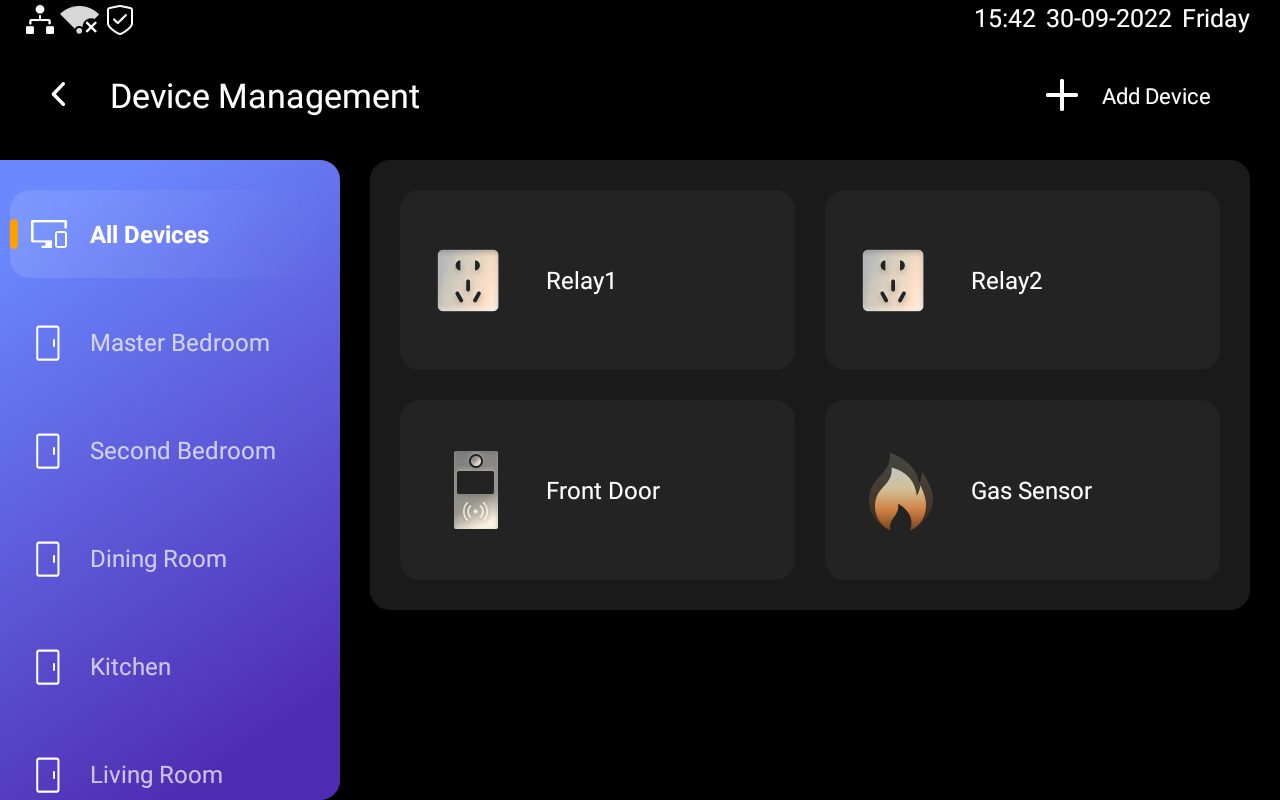
Swipe left or right to go to the All Devices screen.
Find the door phone you need to control, and tap its image.
Unlock the door during a call
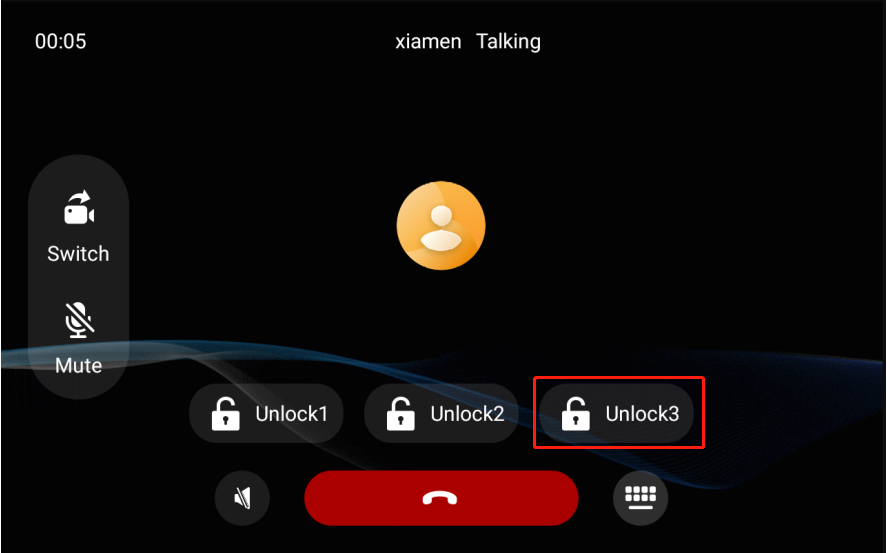
You can answer the door phone call and unlock the door during the call.
On the calling screen, tap  to release the door.
You are also able to call the door phone to see and hear who the visitor is. To do so, see the section Make one-to-one voice calls in this guide.
Unlock in monitoring
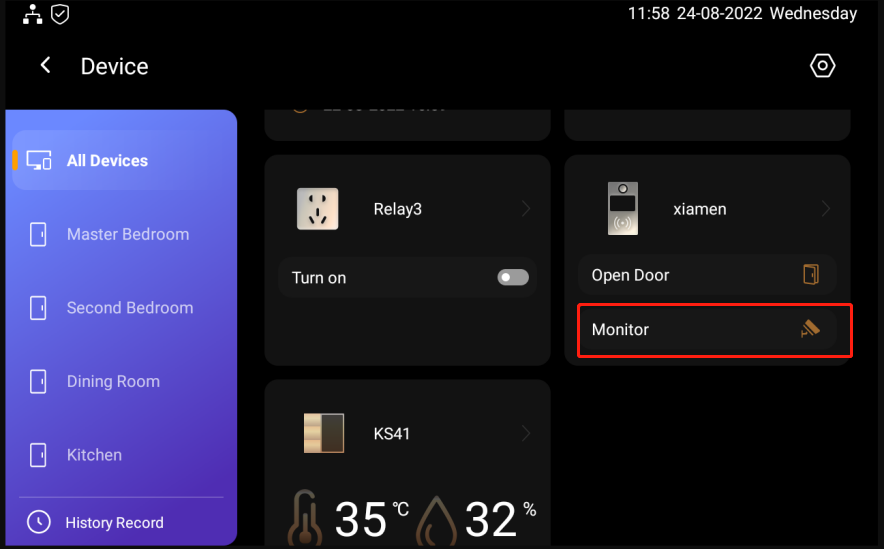
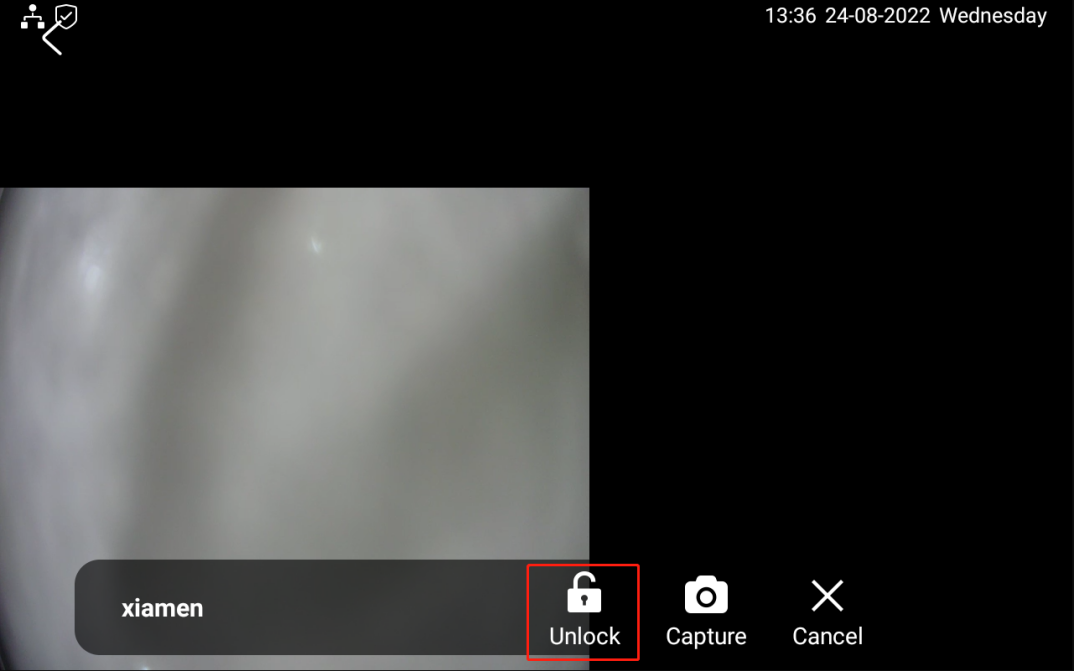
You can monitor who is at door, for example your family or your friends or relatives, and open the door for them during the monitoring.
Tap
 to go to device screen.
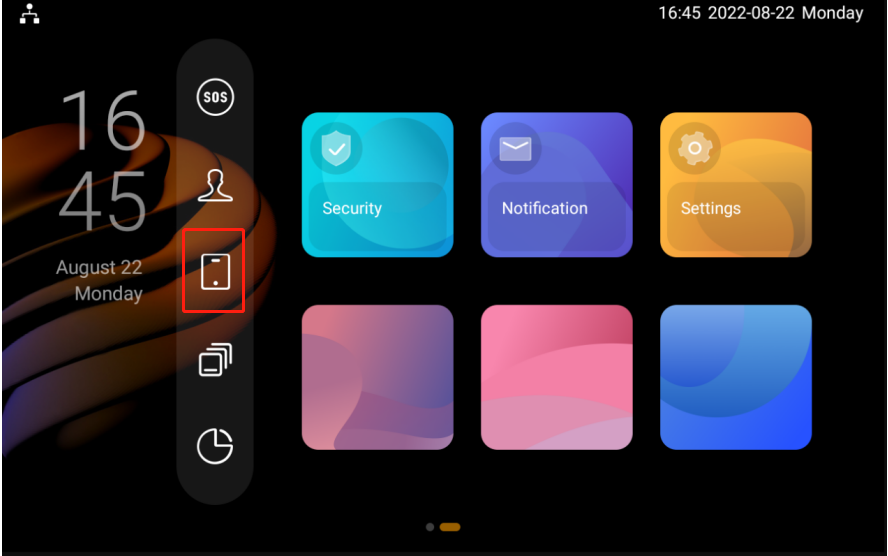
Find the door phone you want to monitor, then tap Monitor to start monitoring.
Communication in Family
You and your family members can make calls with each other, and send and receive messages at any time through SmartPanel Elite 10.
Make one-to-one voice calls
You can call any device, including the door phones, in your family, or family member’s through SmartPanel Elite 10. You can also receive their calls on SmartPanel Elite 10.
To make calls, do as the following:
Tap
 to turn to the Emotional Bond screen, or swipe left or right to go to the Emotional Bond screen.
Select the family member or device you want to call.
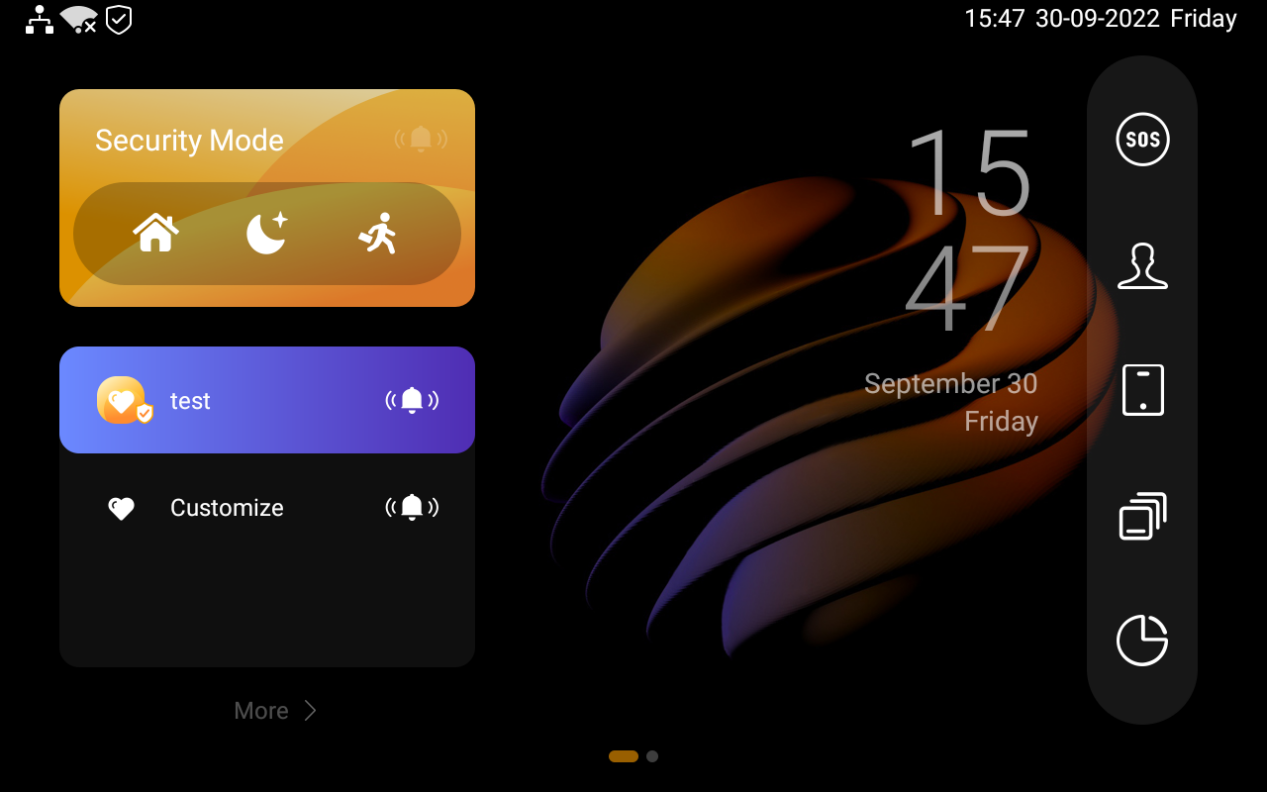
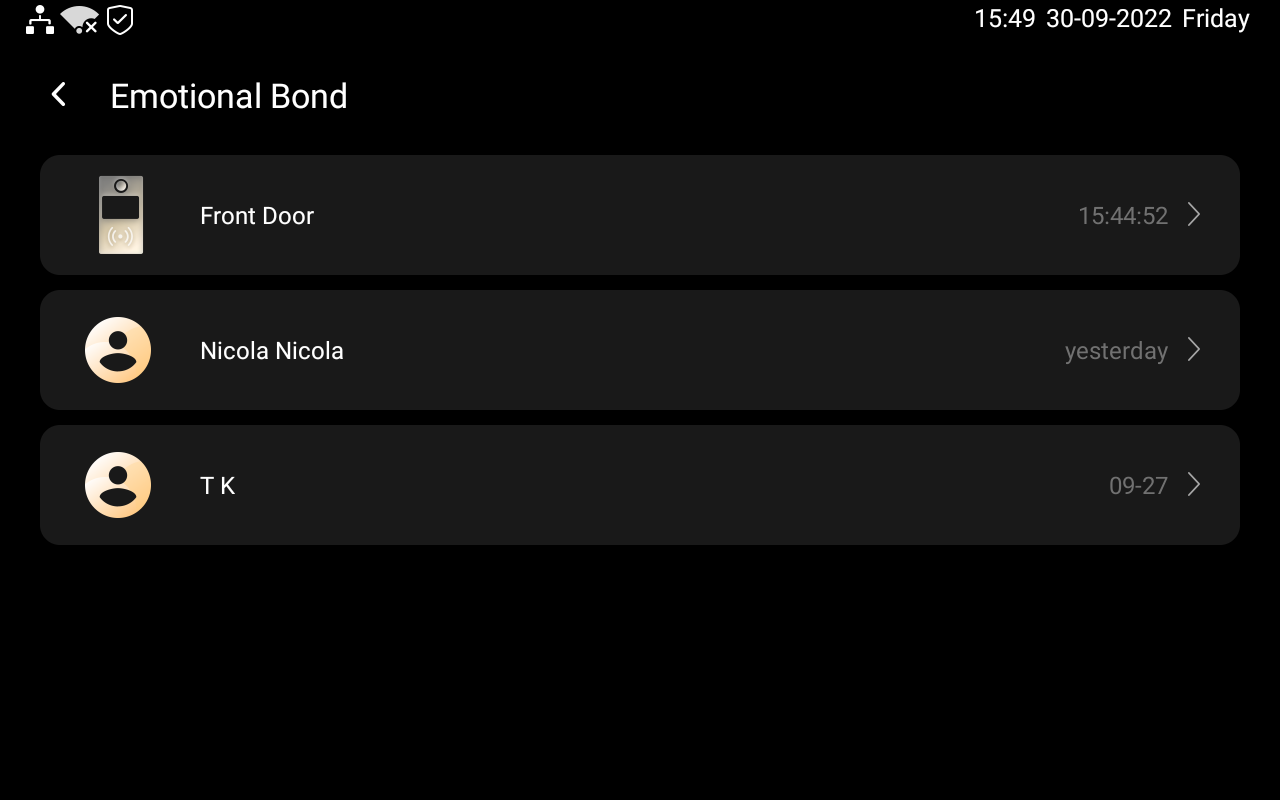
On the conversation screen, tap
 .
.
What else you can do on the voice call screen:
Tap
 to silence your microphone. Doing so, the called will not hear your voice.
Tap
 to adjust the volume.
Tap
 to hang up the call.
Send audio messages
SmartPanel Elite 10 allows you to send and receive voice messages.
Tap
 to turn to the Emotional Bond screen, or swipe left or right to go to the Emotional Bond screen.
Select the member or device you want to sent texts to.
In the conversation, tap and hold
 at the bottom right to record an audio message. Each message should be within 30 seconds. To cancel before sending, slide your finger to the left while you are recording.
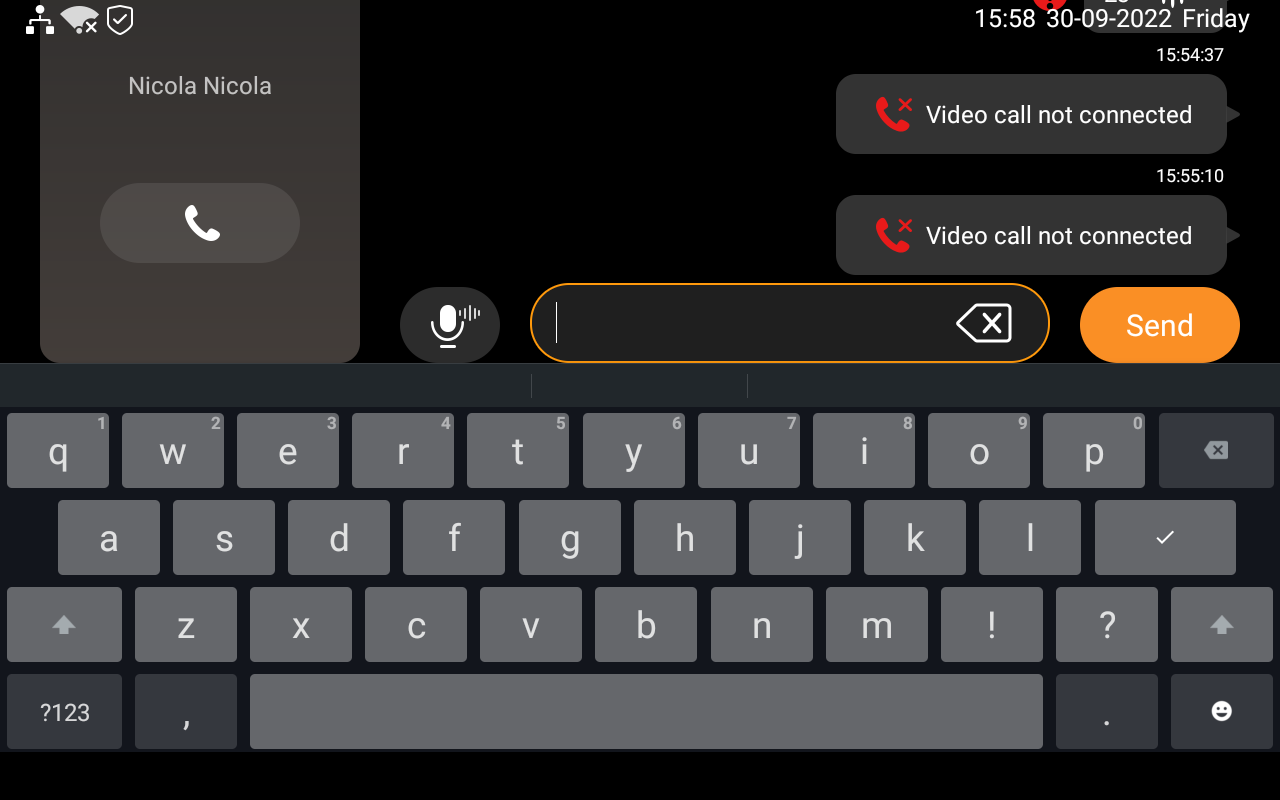
Lift your finger to send the message.
See text messages
SmartPanel Elite 10 allows you to see text messages sent from BelaHome App or SmartPanel Elite 10. However, you cannot send messages through SmartPanel Elite 10.
To see received text message, go to Emotional Bond screen, and select the contact. In the conversation screen, you can see all the messages list there.
Family accounts
In akubela, there are three account types with different permissions, they are administrator, management role and general member. ONLY the administrator of the family has the permissions to log in to Home Center web interface to manage family member accounts and more.
To manage family accounts from Home Center web interface, see Family accounts management.
Update, Restart and Reset
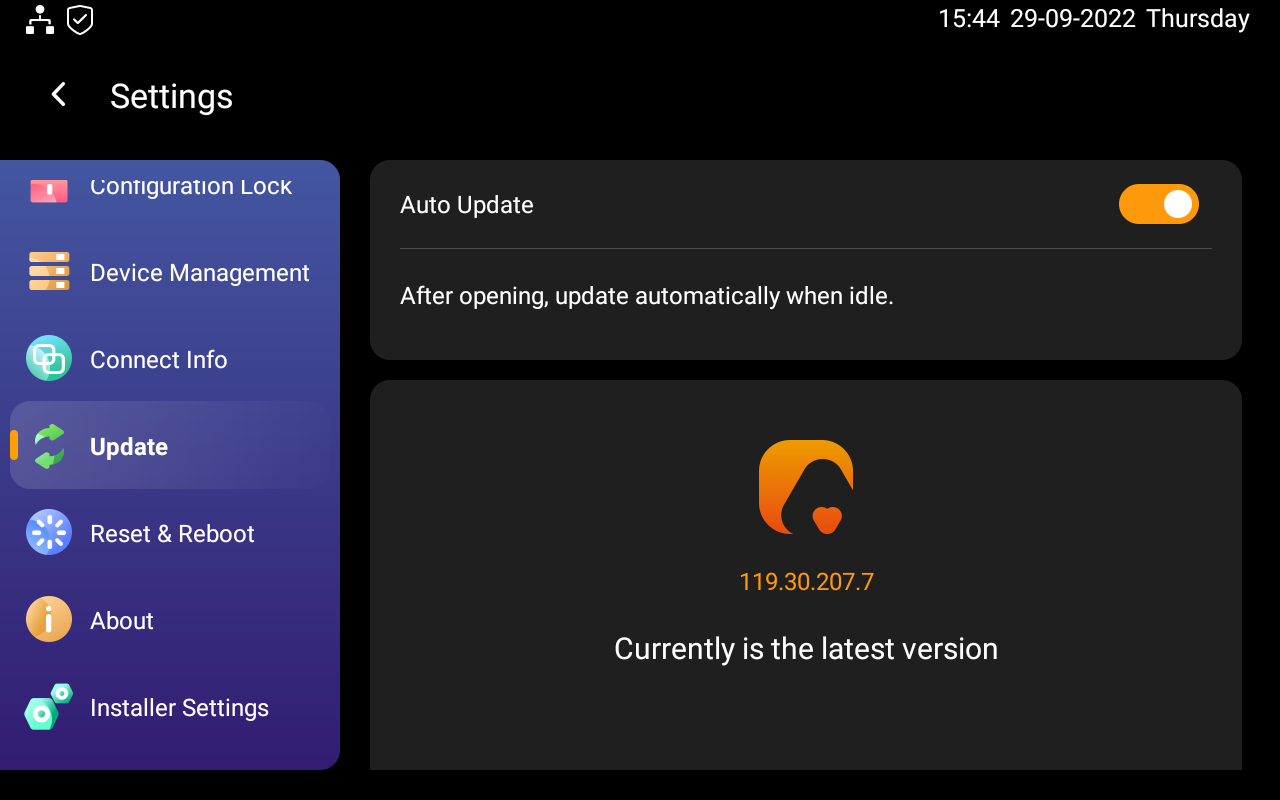
To update SmartPanel Elite 10 to the latest version, swipe down from the top edge of any screen to open Control Center, and tap  > Update. On the Update screen, do any of the following:
Toggle on Auto Update to update the firmware automatically. If an update is available, SmartPanel Elite 10 downloads and installs it automatically.
NOTE:
When Auto Update is off, the system will push the available update to the device. The device will install the latest version only when you agree to.
Tap Update to manually update the system when the latest firm version is available.
NOTE:
If your system already installs the latest version, the screen shows no Update button.
Restart your SmartPanel Elite 10
To restart the system, do any of the following:
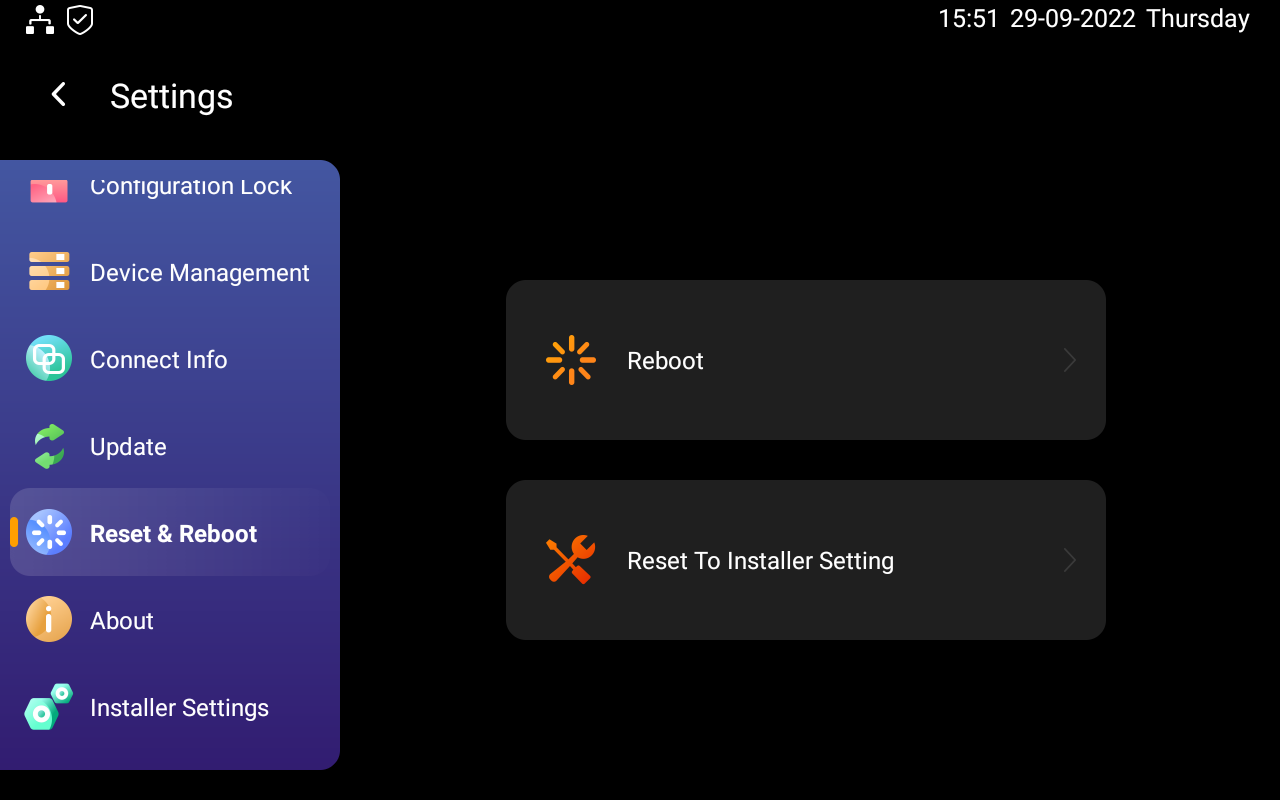
Swipe down from the top edge of any screen, tap Setting
 > Reset&Reboot.
Tap Reboot to restart the SmartPanel Elite 10.
Restore SmartPanel Elite 10 to installer settings
You can restore SmartPanel Elite 10 to the settings that are configured by your installer.
Swipe down from the top edge of any screen to open Control Center.
Tap
 > Reboot&Reset > Reset to Installer Setting.
Privacy Policy
As you use our services, you’re trusting us with your information. We keep working hard to protect your data. The Privacy Policy is meant to help you be clear about what information we collect, why we collect it, and how you can protect your privacy.
To read the Privacy Policy, do as the following:
Swipe down from the top edge of any screen to open Control Center.
Tap
 > About > Privacy Agreement.
Get Help
If you need more information or troubleshooting advice, feel free to contact us at https://support@akubela.com.