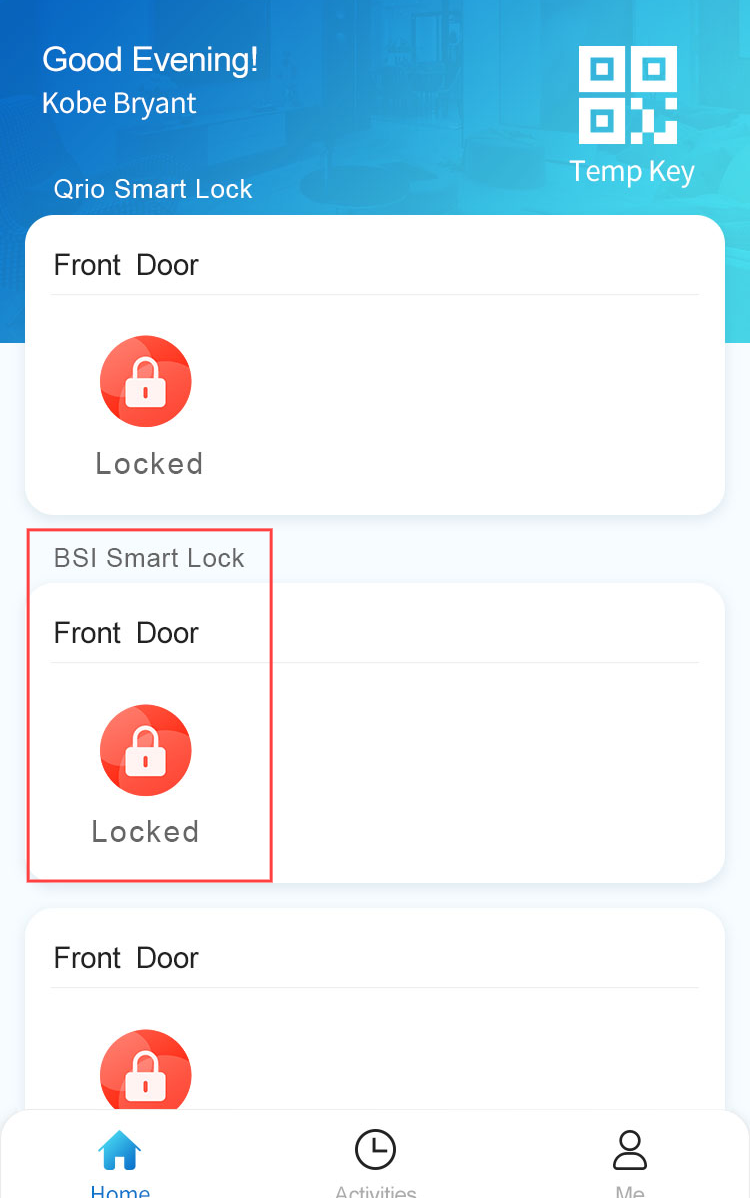
The integration of the BSI lock with SmartPlus enhances home security and access control. You can securely unlock the smart lock remotely using the SmartPlus App.
Note
The SmartPlus App version should be 4.0.6.2(Android)/4.4.6(iOS) or higher.
Support the BSI locks that feature Bluetooth.
Make sure the Bluetooth feature on your mobile phone is turned on for pairing with the BSI lock.
Add the BSI Lock
Tap Me > Device Management > Third-party Devices.
Tap
 in the upper right corner.
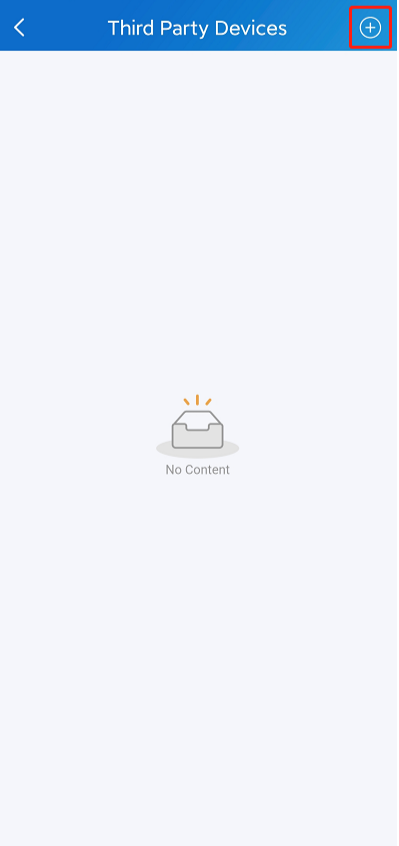
Select BSI and tap Add. The app will start scanning the lock near it.
Select the desired lock after scanning and press the paired button on the lock, following the instructions on the app.
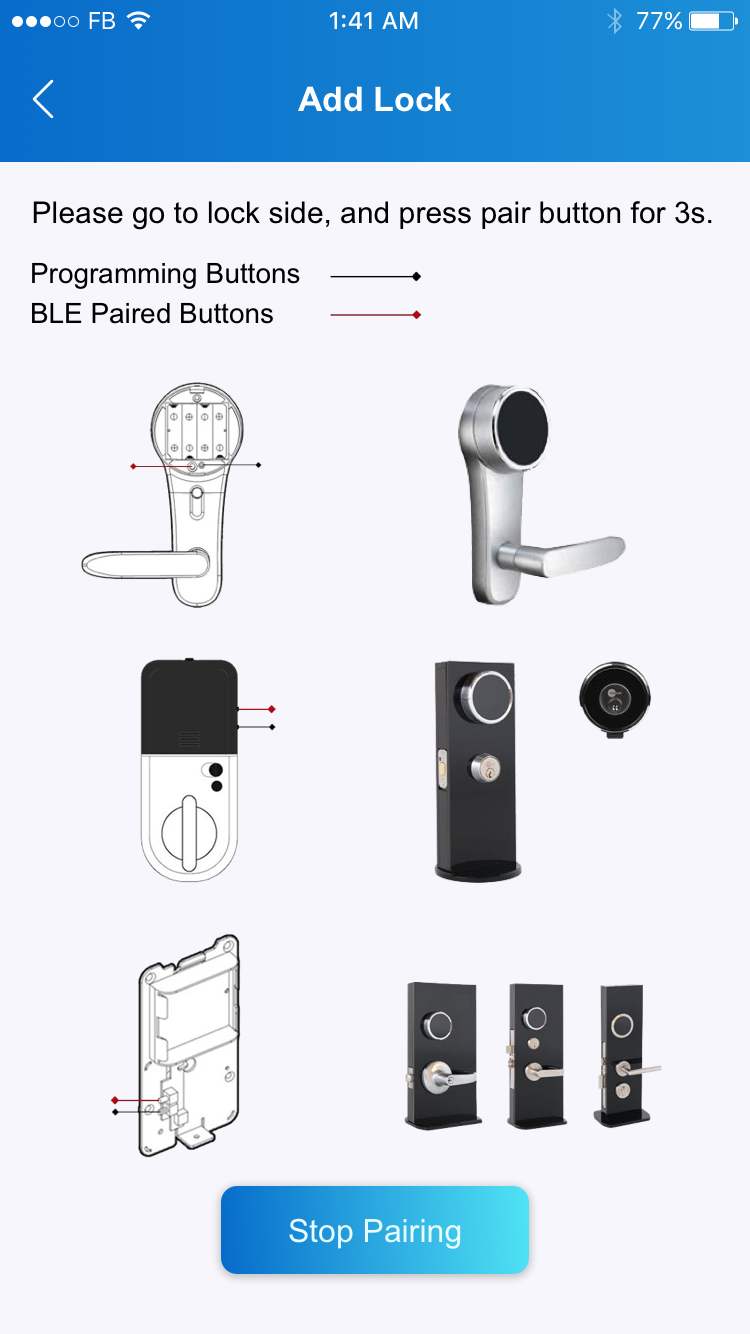
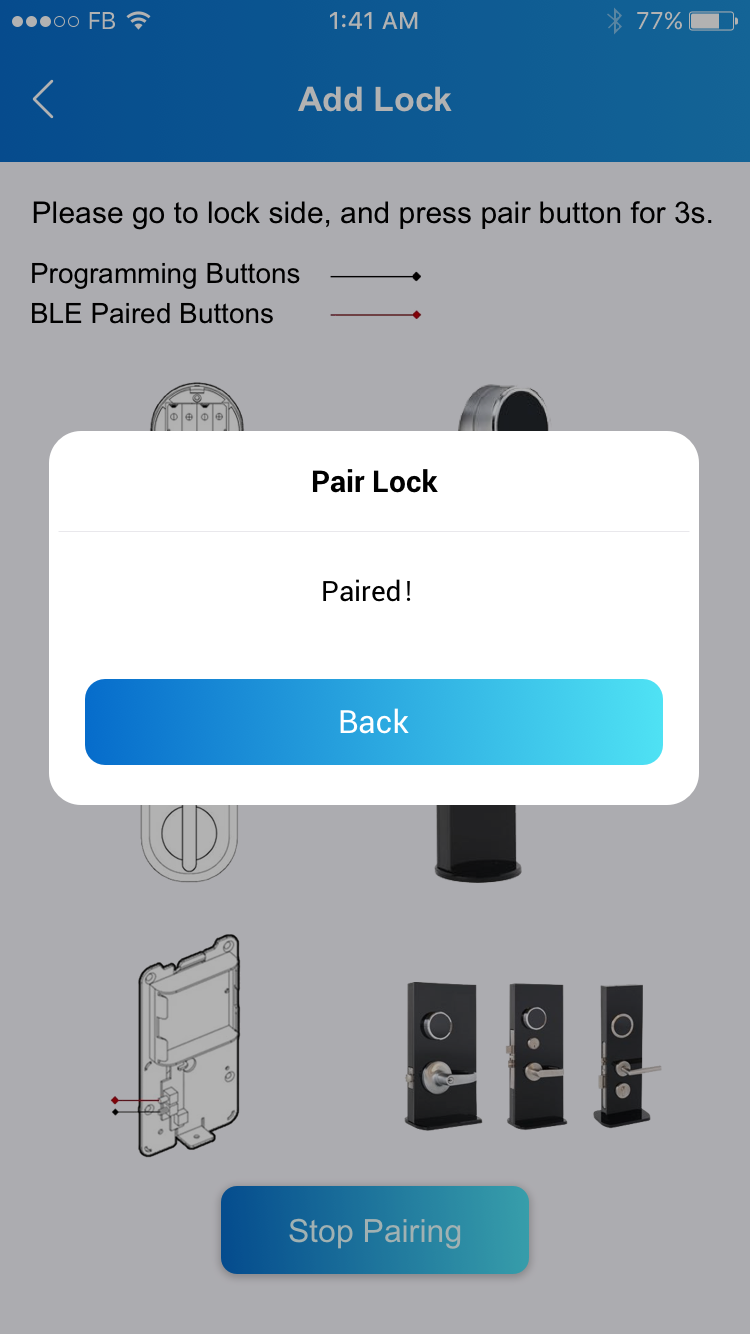
The app will prompt “Paired” after pairing succeeds.
Set up the Lock
After adding the lock, the lock will be displayed on the homepage of the SmartPlus App and the Third-party Devices list.
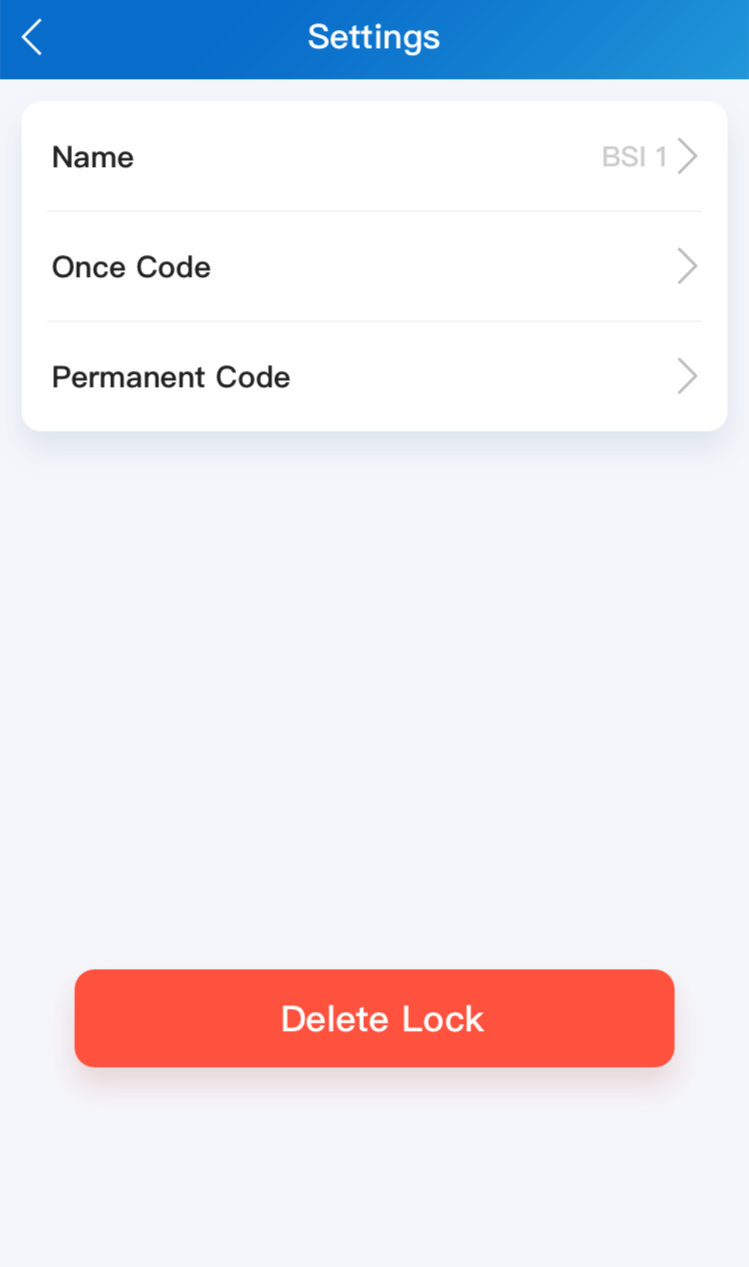
Tap Me > Device Management > Third Party Devices > BSI > [The Lock Name].
You can:
Change the lock name.
Set the one-time code.
One account can have 10 codes at most.
The code should be 4 or 5 digits.
Set the permanent code.
One account can have 10 codes at most.
The code should be 6 digits.
Unlock the Lock
You can unlock the lock by tapping Unlock on the homepage or entering the one-time or permanent code on the lock.