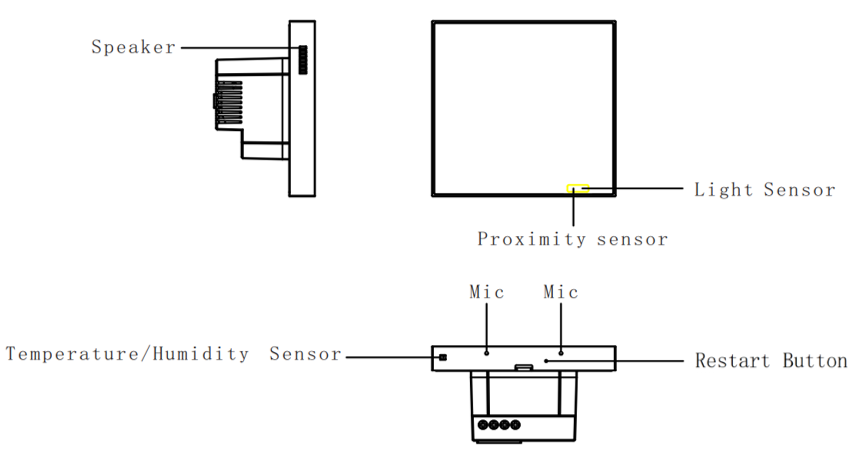
Your HyPanel
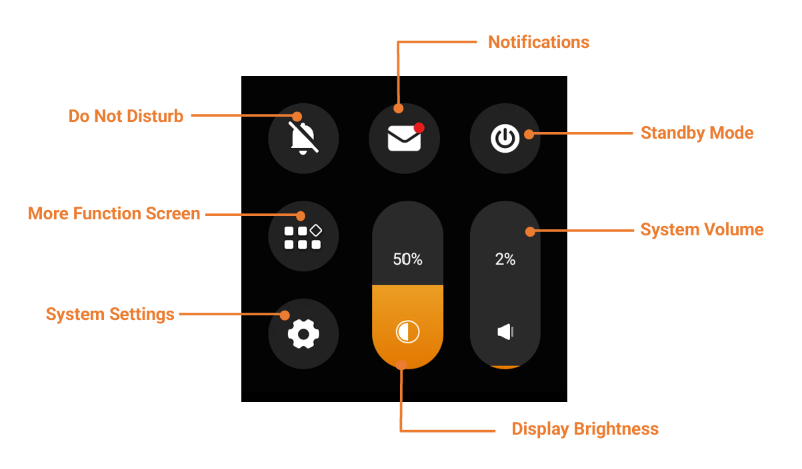
Control center
To open the Control Center for quick setting, swipe down from the top edge of any screen.
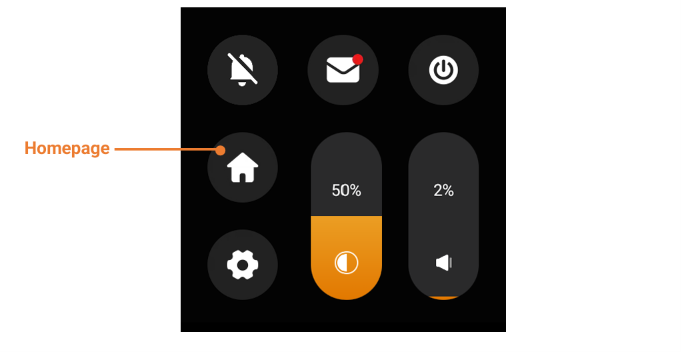
Swipe down from the top edge on non-home screens to open the Control Center. More Function is replaced by Homepage; other buttons remain unchanged.
Notification center
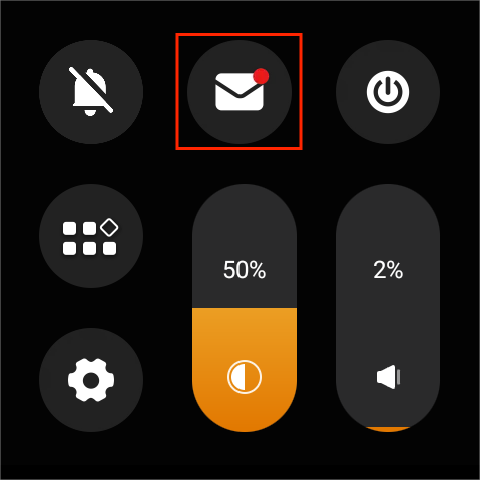
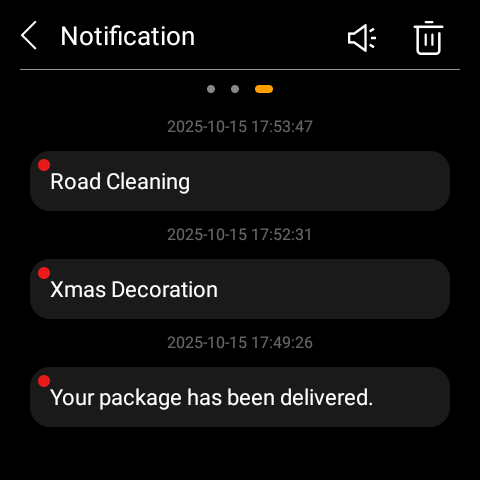
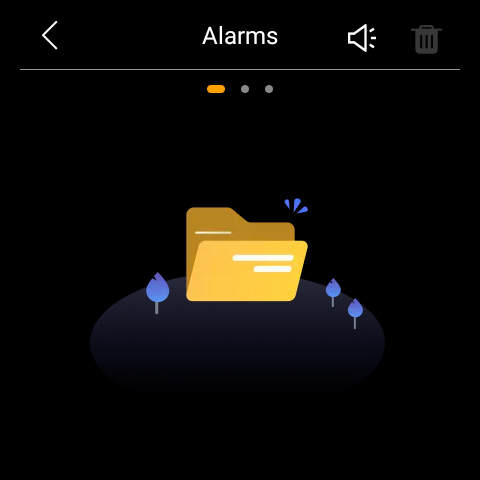
To access the notification center, swipe down from the top edge of any screen and tap  . All alerts, alarms, and system notifications appear here, including the false attempt and loitering alarms from SL50 and SL60 smart locks.
If your HyPanel is part of a community project, you can also receive notifications from the property managers, such as package deliveries, community voting, upcoming events, and more.
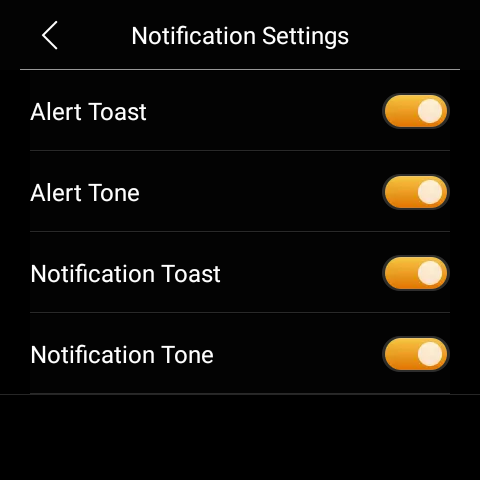
TIP:
To mute notification sounds and prevent pop-ups, simply tap
>
.
Home screen
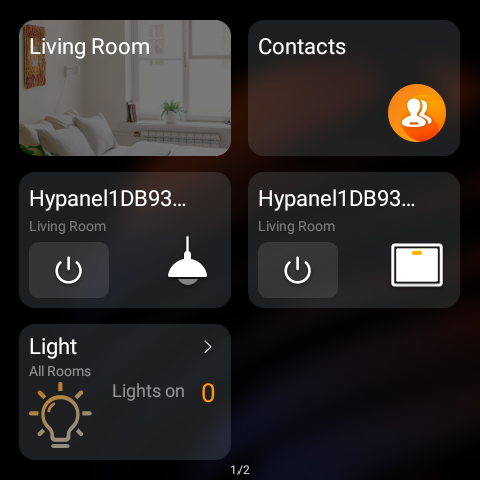
Every time you wake up the HyPanel, the homepage appears, offering up to 30 customizable pages where you can add shortcut cards for easier control of your smart home.
Add shortcut cards
By default, HyPanel displays only the Living Room and Contacts cards.
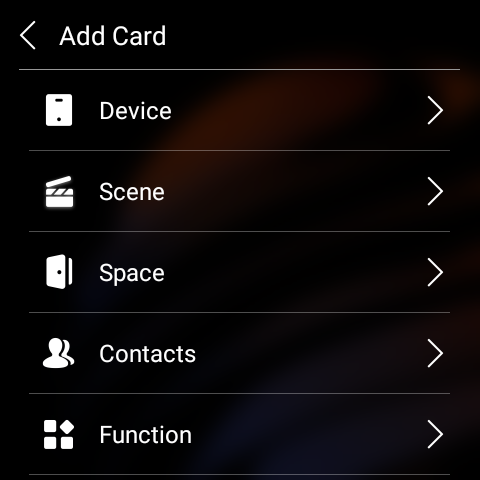
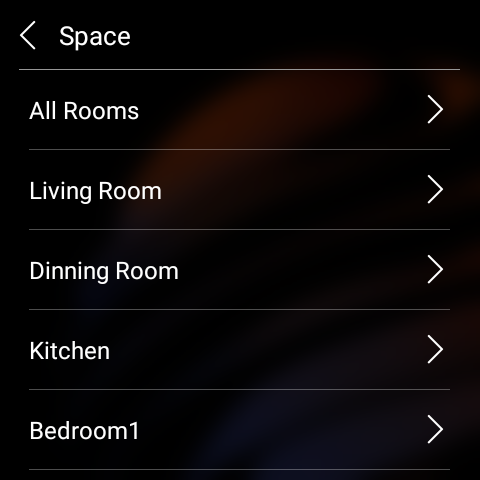
For quick access to frequently used functions, you can add shortcut cards to the Home page, such as specific devices, scenes, contacts, rooms, function tabs, third-party apps, and more.
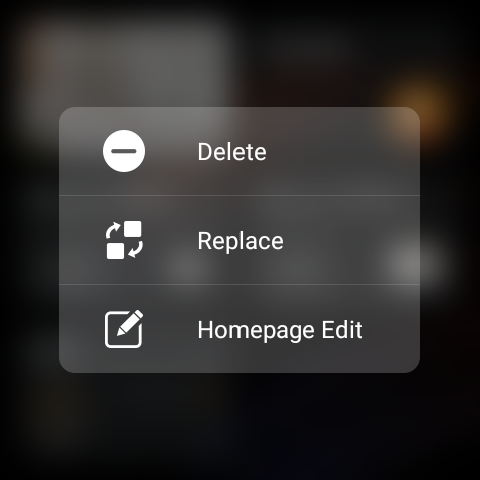
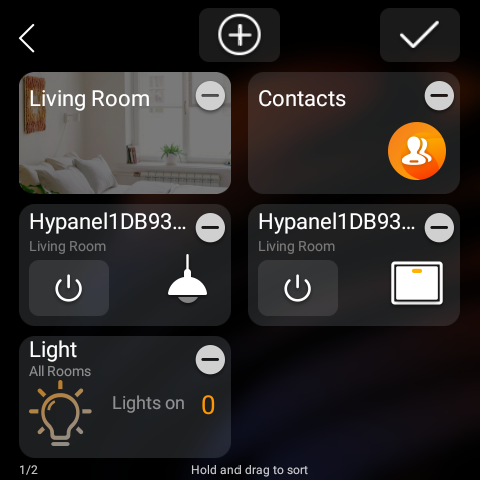
On the homepage, press and hold a blank area, or press and hold any existing card and tap Homepage Edit.
Tap
 .
Choose a card type, then select the specific card you want to add.
Replace, delete, or rearrange cards
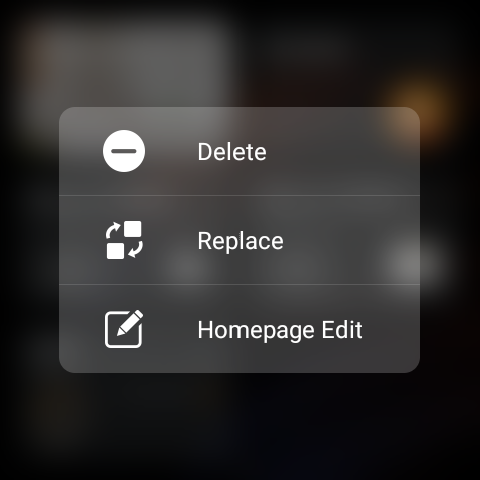
Remove a card: Press and hold a blank area on the homepage, and tap
 . Or press and hold the card, then select Delete.
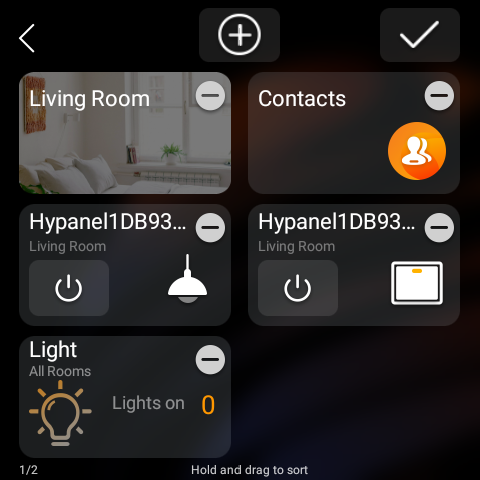
Rearrange cards: Press and hold a blank area on the homepage, then press and hold the card you want to move, and drag it to a new position.
Lock Home screen
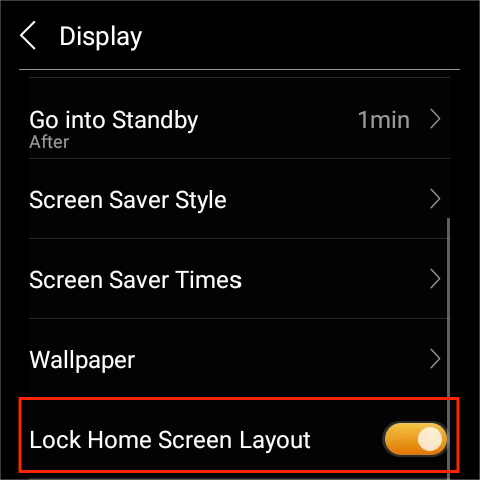
To prevent unauthorized or accidental changes to the Home screen, swipe down from the top edge of any screen, go to  > Display, and enable Lock Home Screen Layout.
Once enabled, the following actions will be disabled:
Adding, removing, replacing, or rearranging shortcut cards
Modifying device settings
Deleting devices
Hotel guest room control QR code
NOTE:
Available only on panels used in hotel guest rooms for GRMS projects.
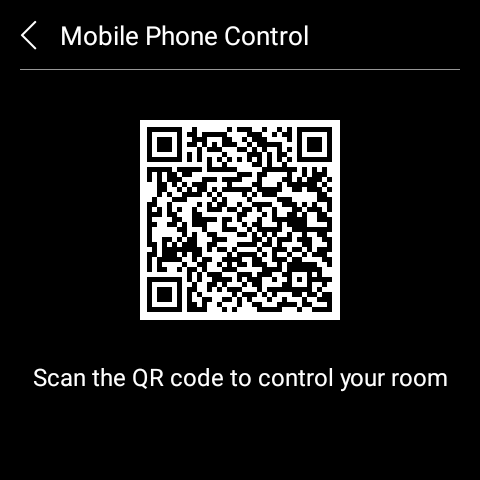
For panels in GRMS setups, a QR code will appear on the Home screen. Hotel guests can scan the code to control their room devices via an H5 web interface without downloading any app.
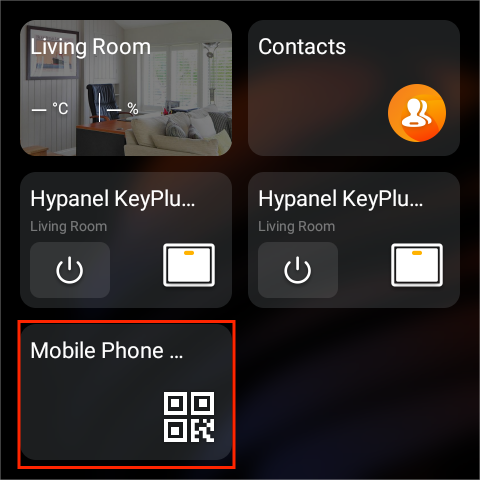
The QR code is active only during the guest’s stay.
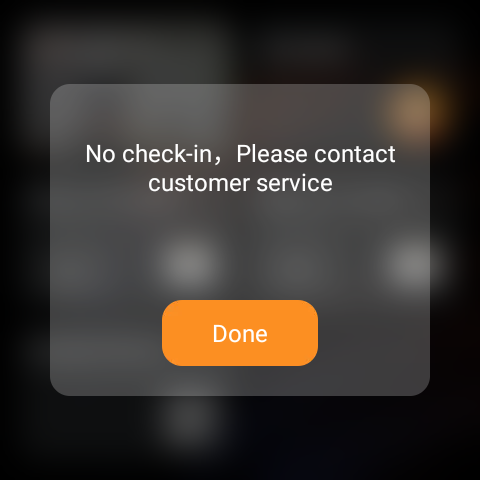
Once the guest checks out, the QR code becomes unavailable.
Maintenance QR code
NOTE:
Available for rental units.
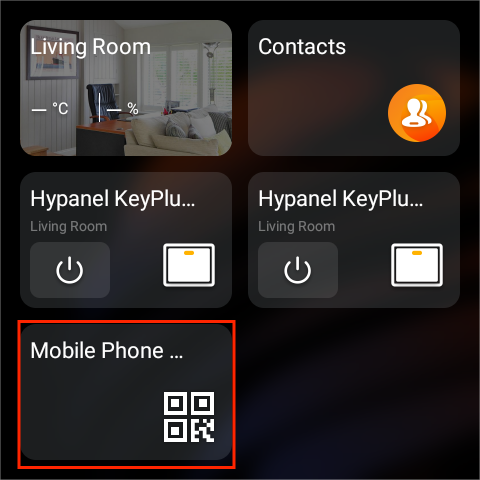
When your service provider sets your home to Maintenance status or during a scheduled maintenance window, the panel automatically displays a Maintenance QR Code on the Home screen for maintenance staff to scan and perform repairs.
Gesture control
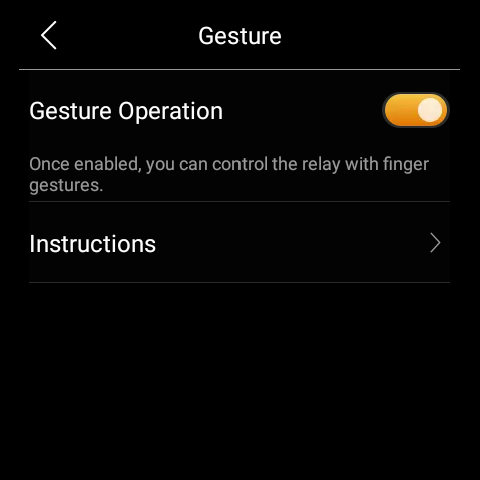
The F51-R2-EU version of HyPanel can connect with two relays, allowing you to use finger gestures for convenient control from any screen:
To open/close relay 1, simply swipe down with 2 fingers.
To open/close relay 2, swipe down with 3 fingers.
NOTE:
This feature cannot work if the connected relays are shades.
Gesture Control with Cooling/Heating Systems.
If Relay 1 is linked to a cooler or heater, use 2 fingers to swipe down for control.
When Relay 2 is connected to the cooler or heater, employ 3 fingers to swipe down for control.
If both Relay 1 and Relay 2 are connected to coolers and heaters, they combine into one thermostat. Swipe down with 2 fingers to open/close the thermostat; the 3-finger gesture is not available in this case.
To disable gesture control, go to  > System Settings > Gesture.
Voice control
You can use the Bela voice assistant to control devices and scenes, as well as answer and end calls.
Enable Bela
Swipe down from the top edge of any screen.
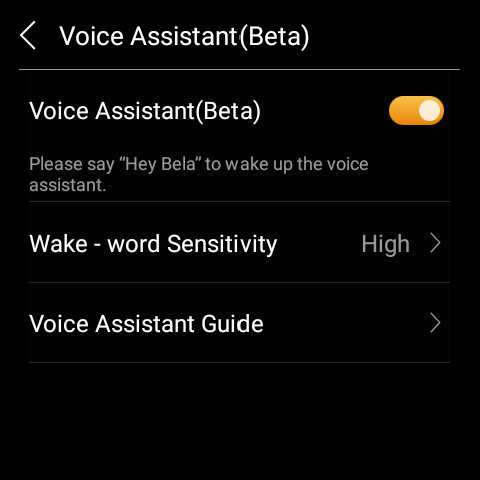
Go to
 > Voice Assistant(Beta).
Toggle on Voice Assistant and adjust the Wake-word Sensitivity if needed.
Use voice control
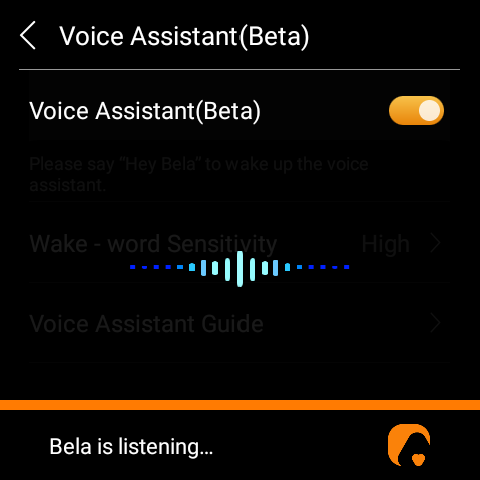
Say “Hey Bela” to wake up the voice assistant, then speak your command.
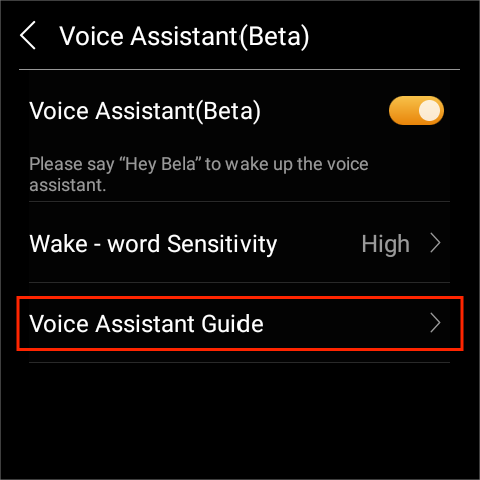
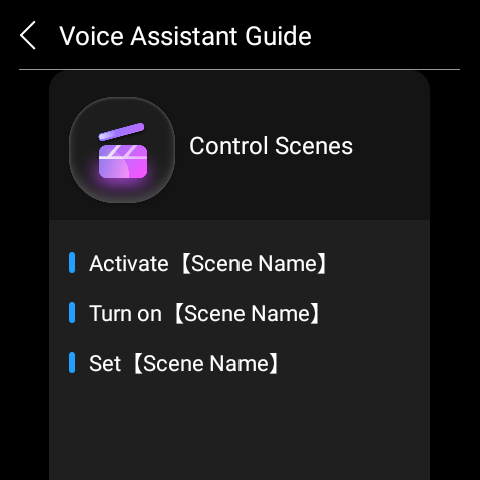
For supported commands, refer to the Voice Assistant Guide.
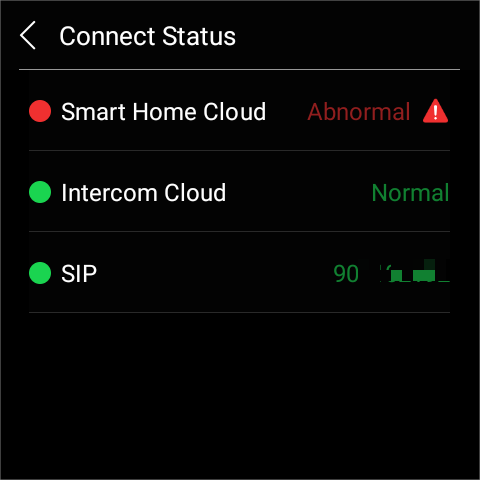
Learn the server status
If you notice that some features aren’t working, first check whether your device is properly connected to the server.
Swipe down from the top edge of any screen, and tap
 > System Settings > Connect Status.
The connection status will display in the center of the screen.
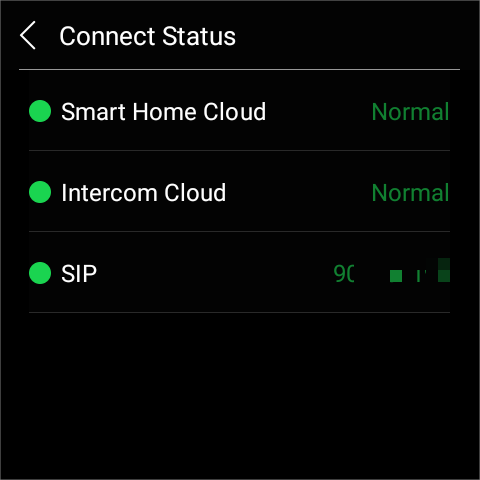
The green icon indicates that your device is successfully connected to the cloud server and communication is normal.
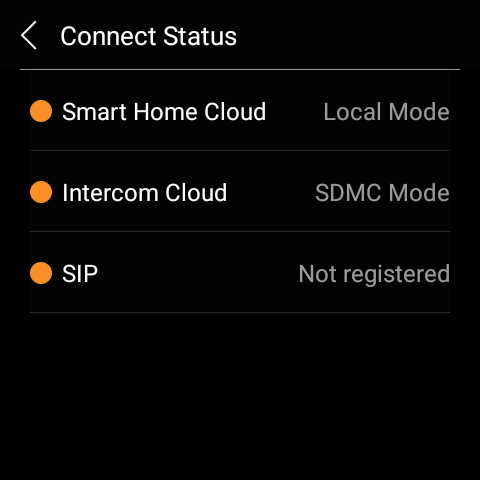
The yellow icon indicates that your device is being used locally without the cloud connection.
The red indicator means an issue has occurred. Tap
 to view the error details.
For assistance, contact your service provider or the akubela technical support team.