Akuvox SmartPlus can be integrated with Hikvision NVR, allowing users to view its live stream and playback.
Both installers and end users can add the Hikvision NVR.
Note
The tested Hikvision NVR model is DS-7616NI-M2/16P.
For Installers
Log in to the cloud platform with your account.
Community Projects
Add NVR to the Public Area
Navigate to the desired project by clicking
 on the Sites module.
Select Public Area or the building where the device is installed.
Click Third-Party Devices > NVR > New.
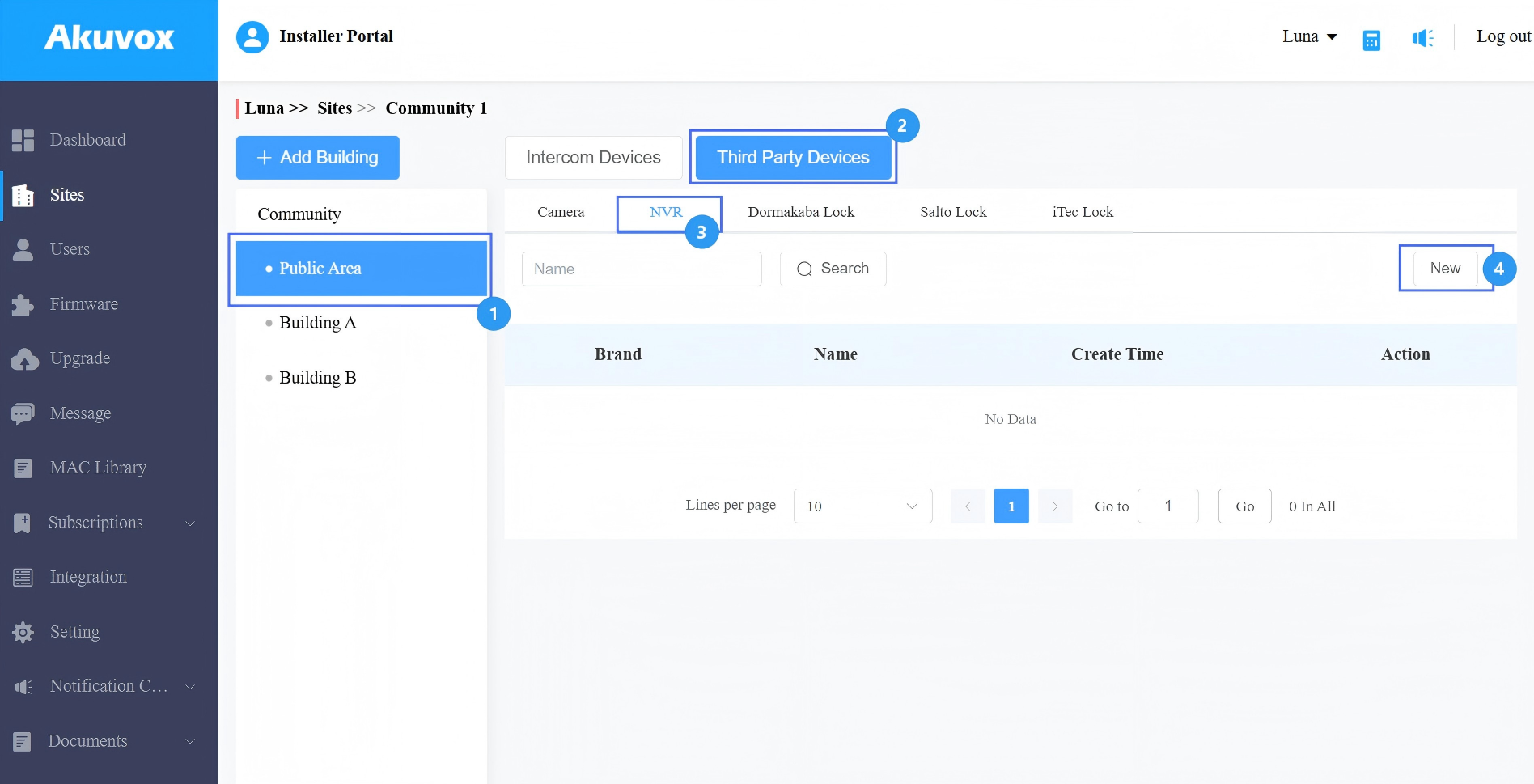
Select Hikvision from the NVR Brand dropdown menu.
Enter the NVR name, NVR address(IP address or domain name), username, and password.
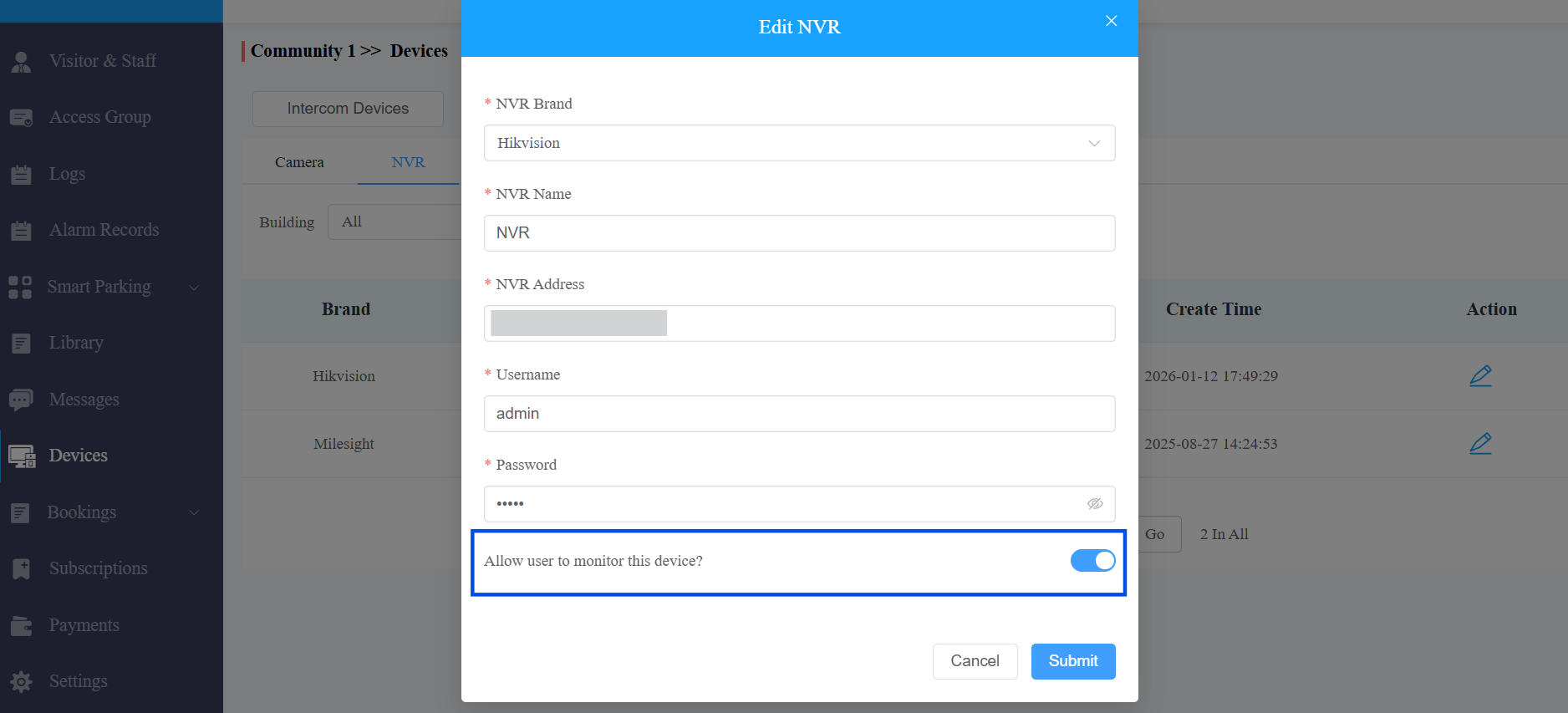
If the NVR is a public device, you can enable/disable Allow user to monitor this device. This decides whether end users can view the live stream of the NVR with their SmartPlus Apps.
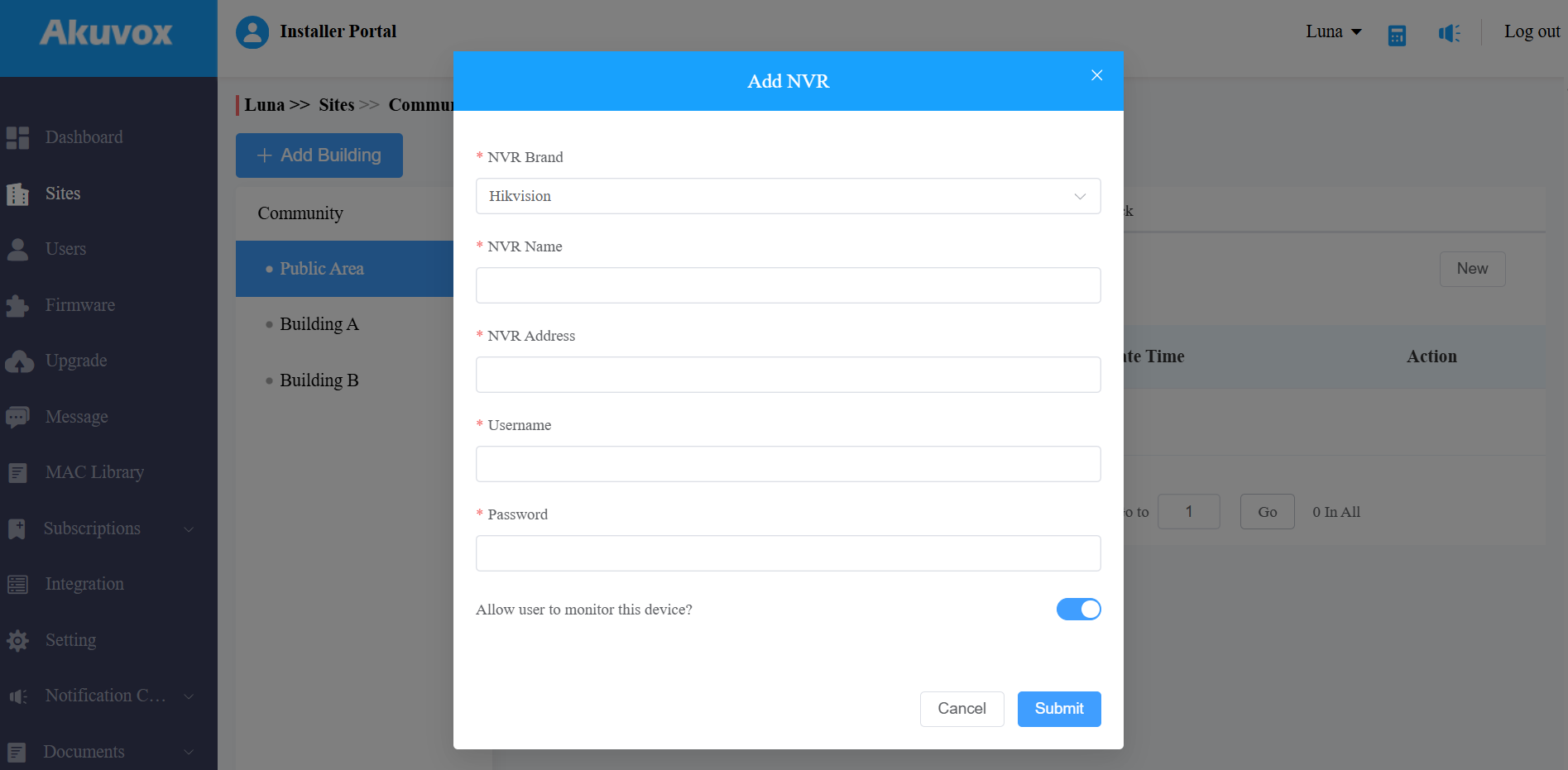
Click Submit.
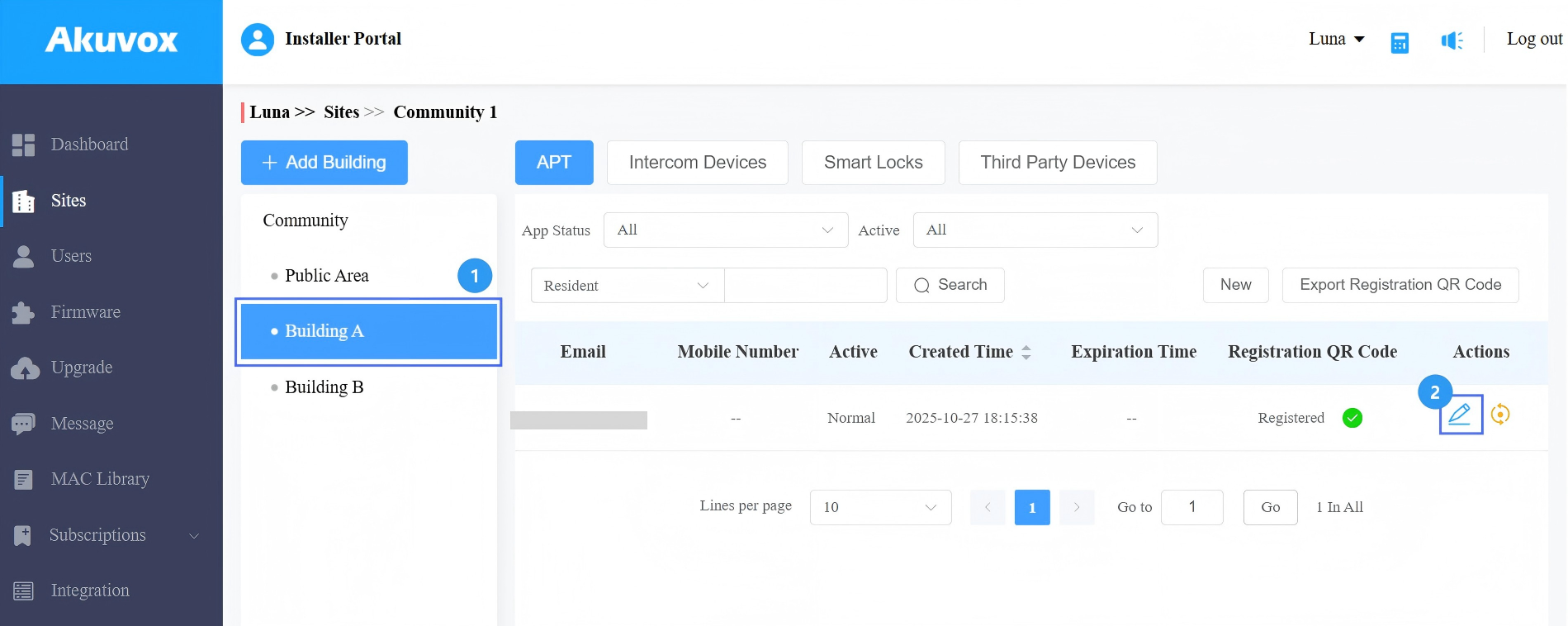
Add NVR to a Specific Apartment
Navigate to the desired project by clicking
on the Sites module.Select the target building.
Click
 of the target apartment.
Scroll to the Third Party Devices section and select NVR.
Click New on the right.
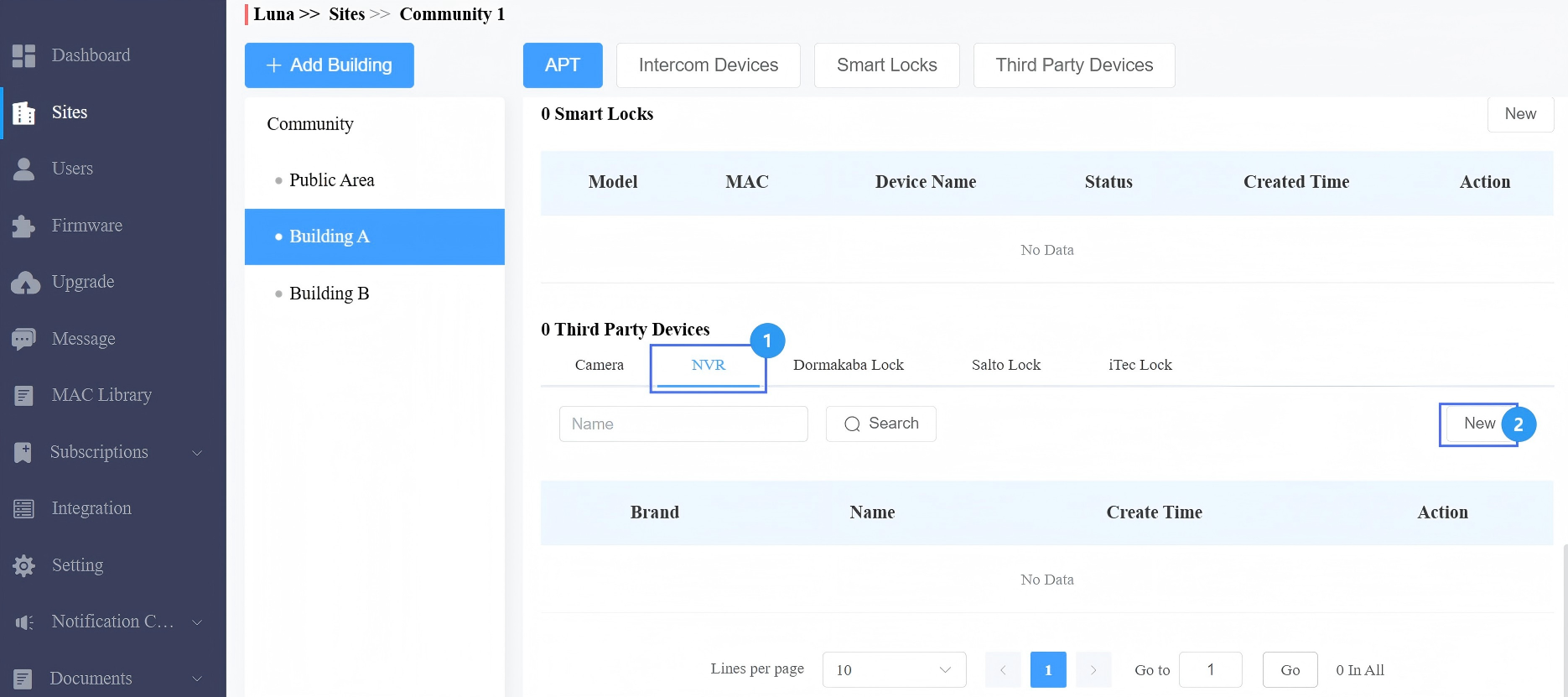
Select Hikvision from the NVR Brand dropdown menu.
Enter the NVR name, NVR address(IP address or domain name), username, and password.
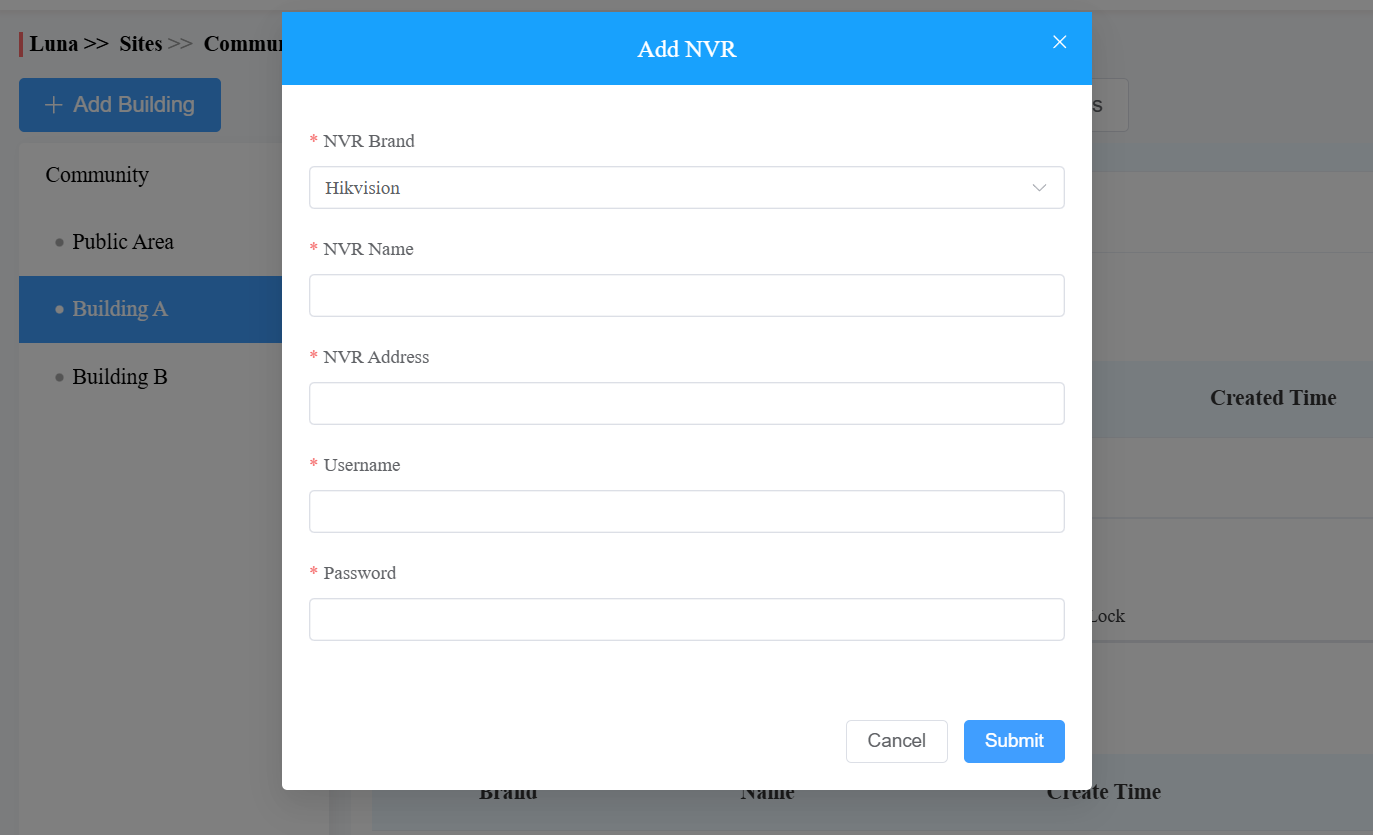
Click Submit.
Single-Family House Projects
Click
 of the target user.
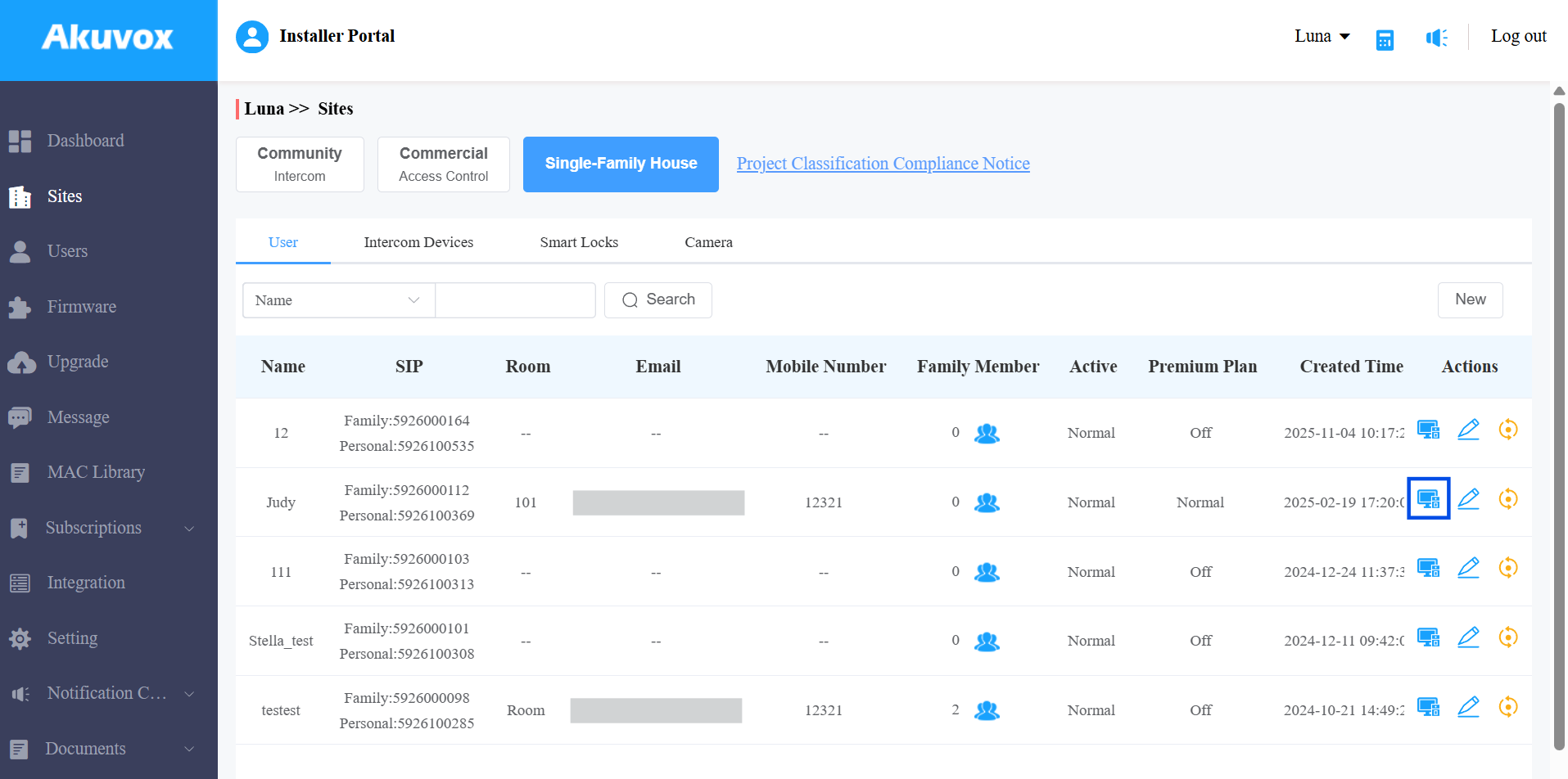
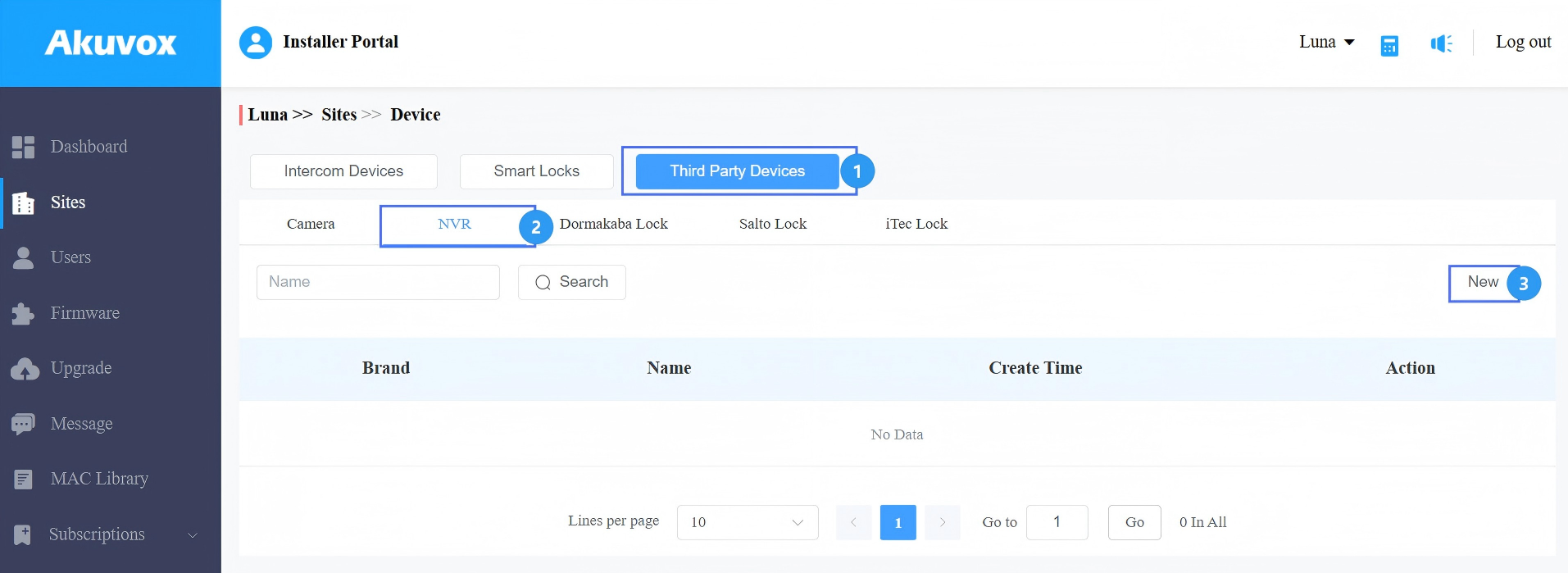
Click Third Party Devices > NVR > New.
Select Hikvision from the NVR Brand dropdown menu.
Enter the NVR name, NVR address(IP address or domain name), username, and password.
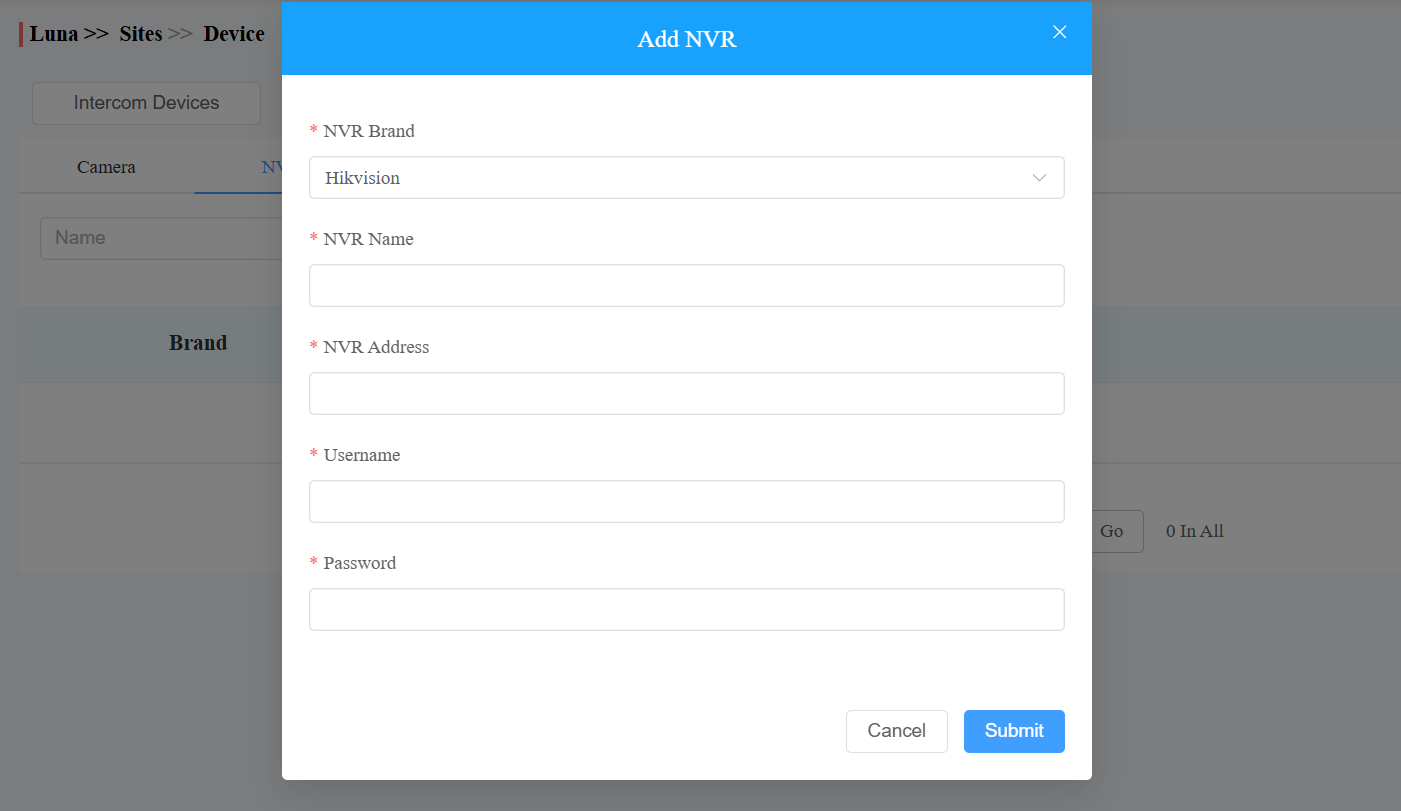
Click Submit.
For Property Managers
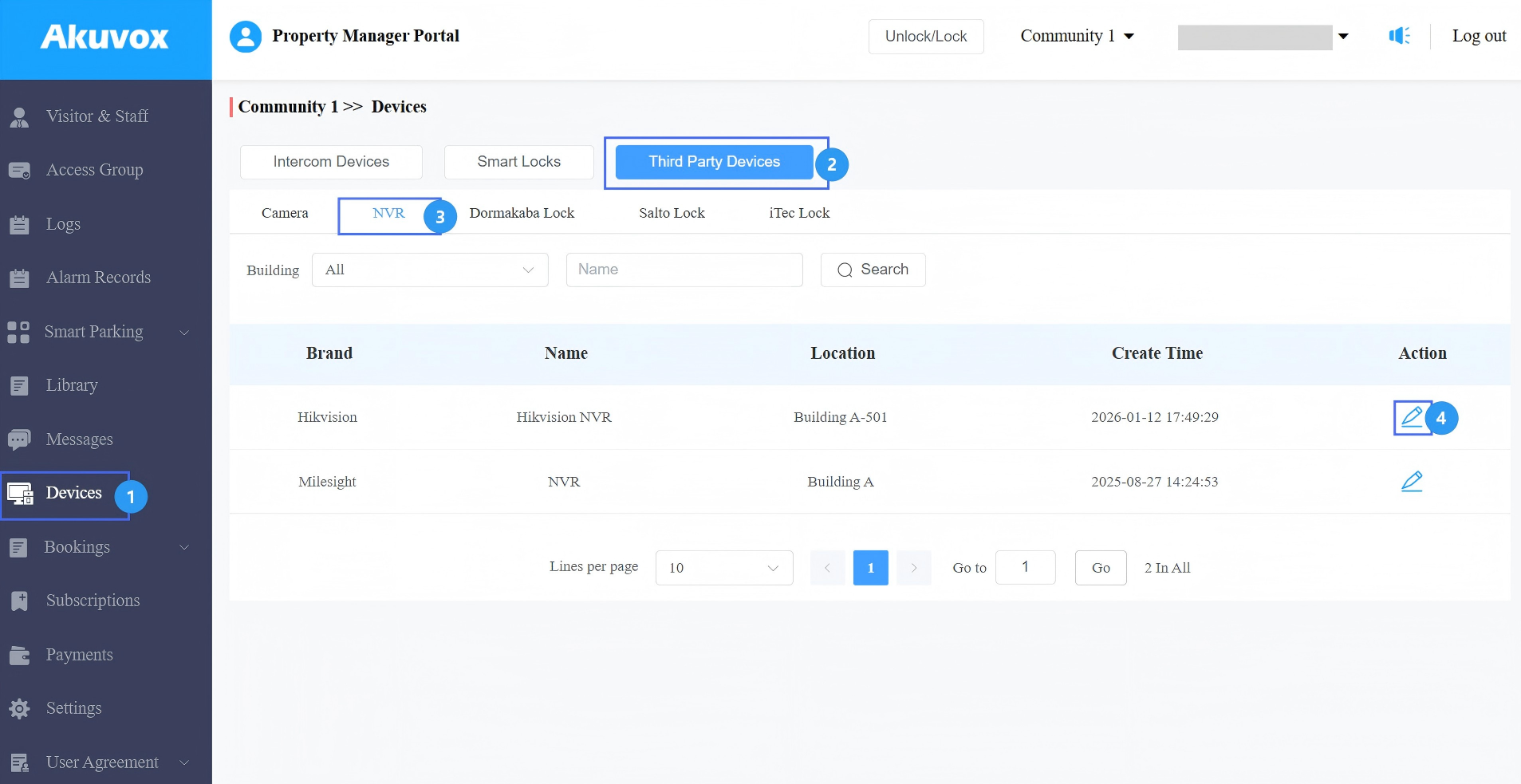
After your installers add the NVR to the public areas on SmartPlus Cloud, you can check the device information on the property manager web portal and view its live stream with the SmartPlus App.
Log in to the SmartPlus Cloud platform with your account.
Click Devices > Third Party Devices > NVR.
Click
 to modify the NVR’s settings.
If it is a public device, you can set whether end users can view the live stream from the NVR.
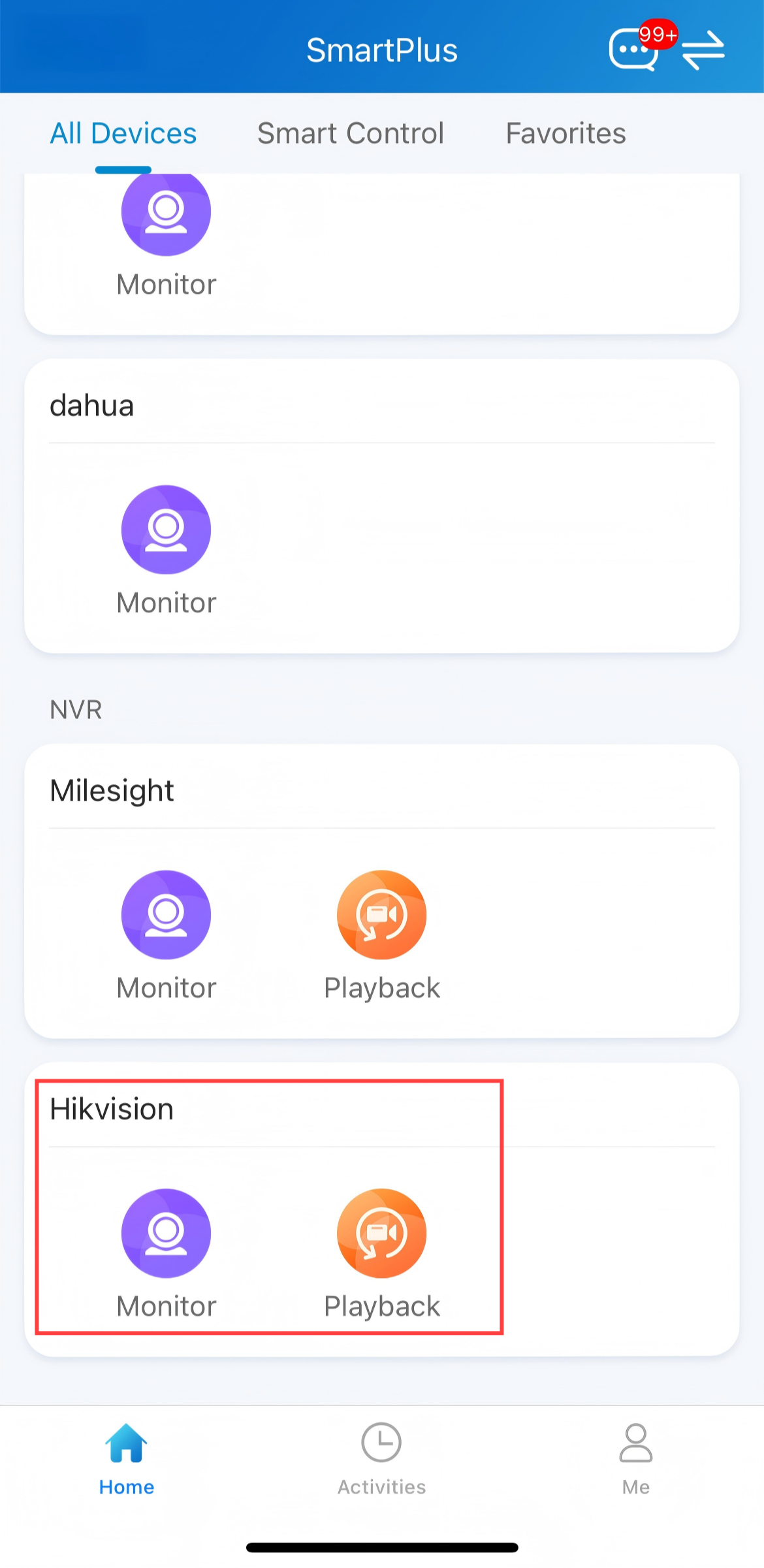
On the SmartPlus App, tap Monitor to view the live stream and tap Playback to view the playback.
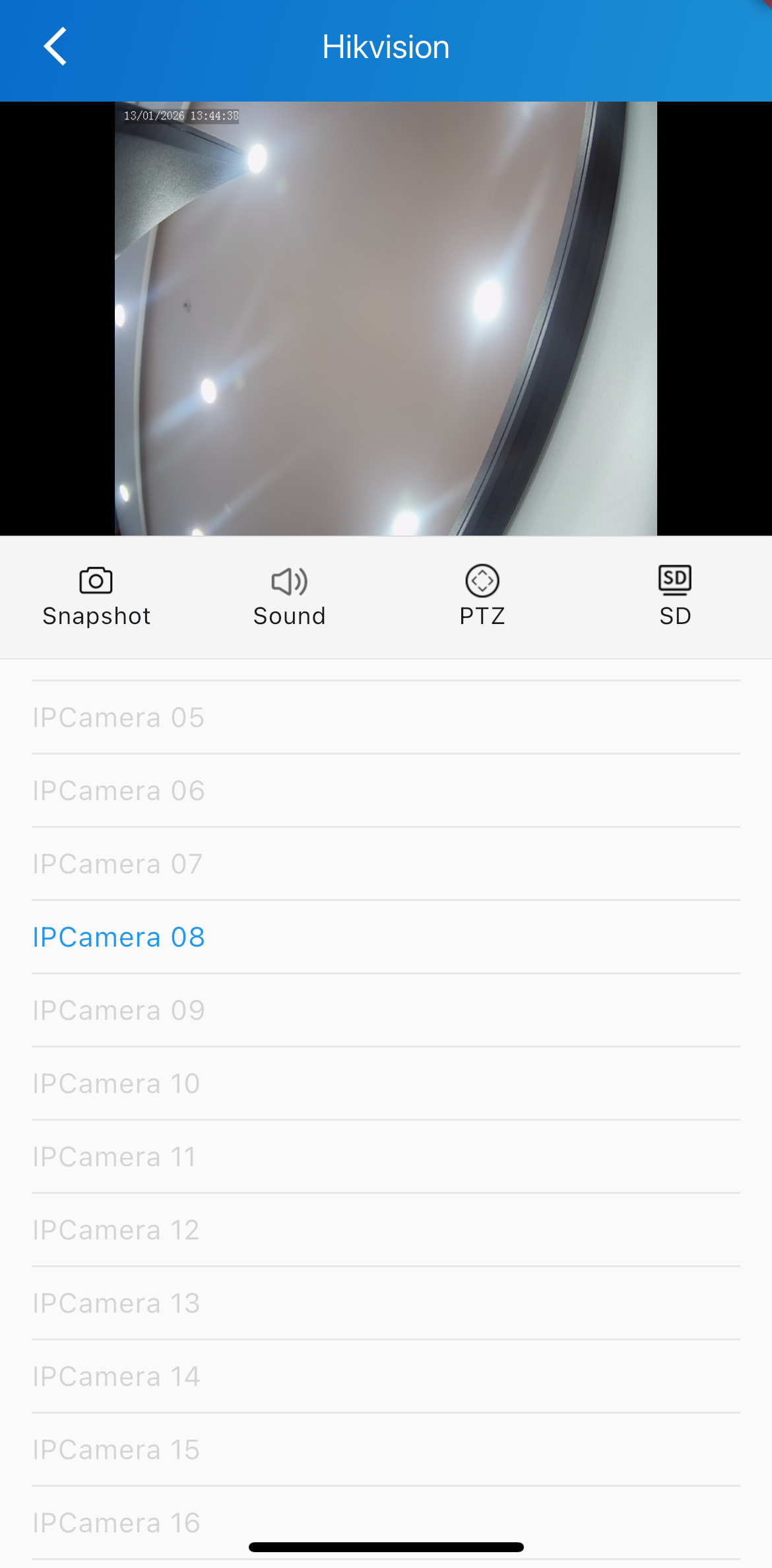
On the monitor page, you can tap:
Snapshot to take a screenshot.
Sound to turn on the sound or mute.
PTZ to zoom in/out. This is effective for cameras that can be remotely controlled.
SD to switch between HD(High Definition) and SD(Standard Definition).
For End Users
Only with family master accounts can you add the Hikvision NVR.
Compatible SmartPlus App Version
Android: 7.34.0002.
iOS: 7.34.2
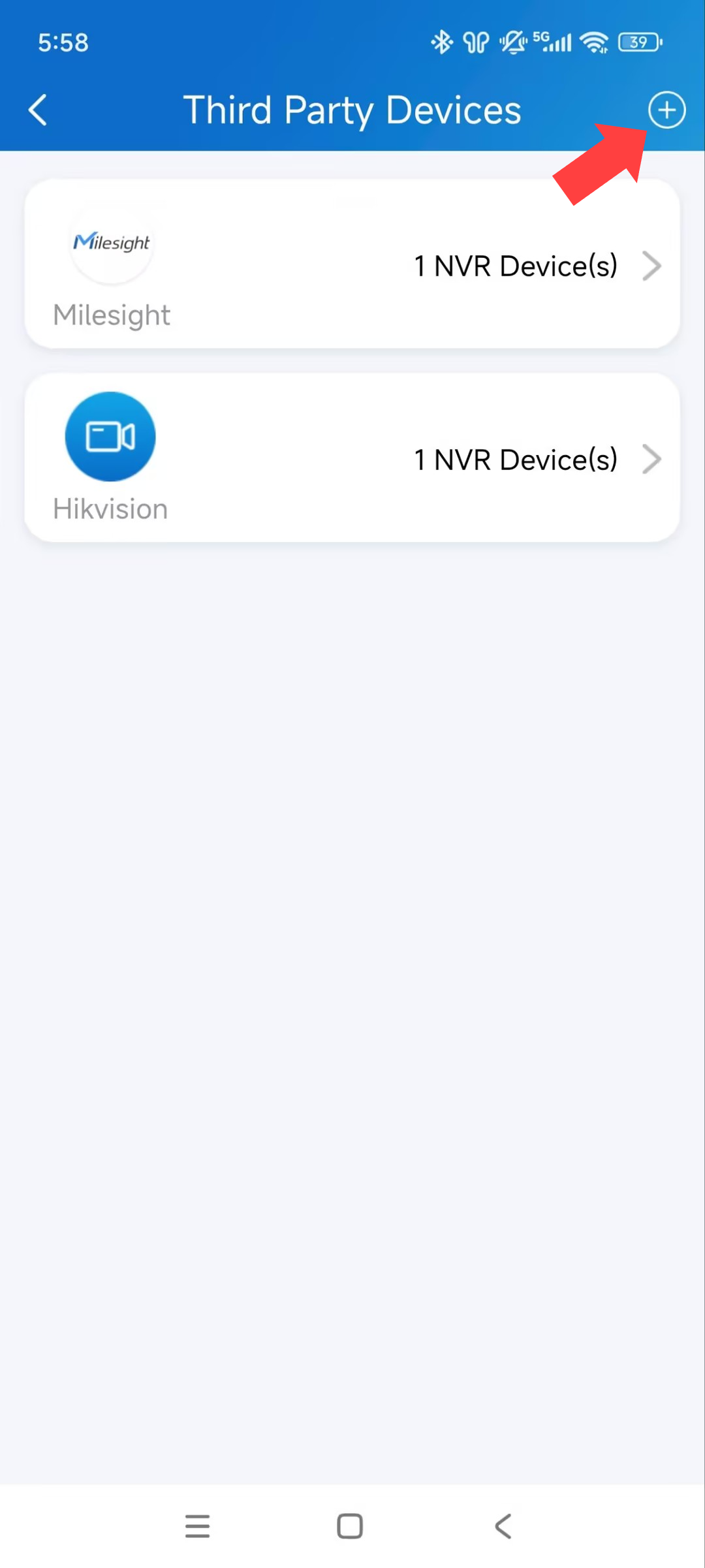
Tap Me > Device Management > Third-party Devices.
Tap + in the upper-right corner.
Select the Hikvision brand.
Enter the NVR name, NVR address(IP address or domain name), username, and password.
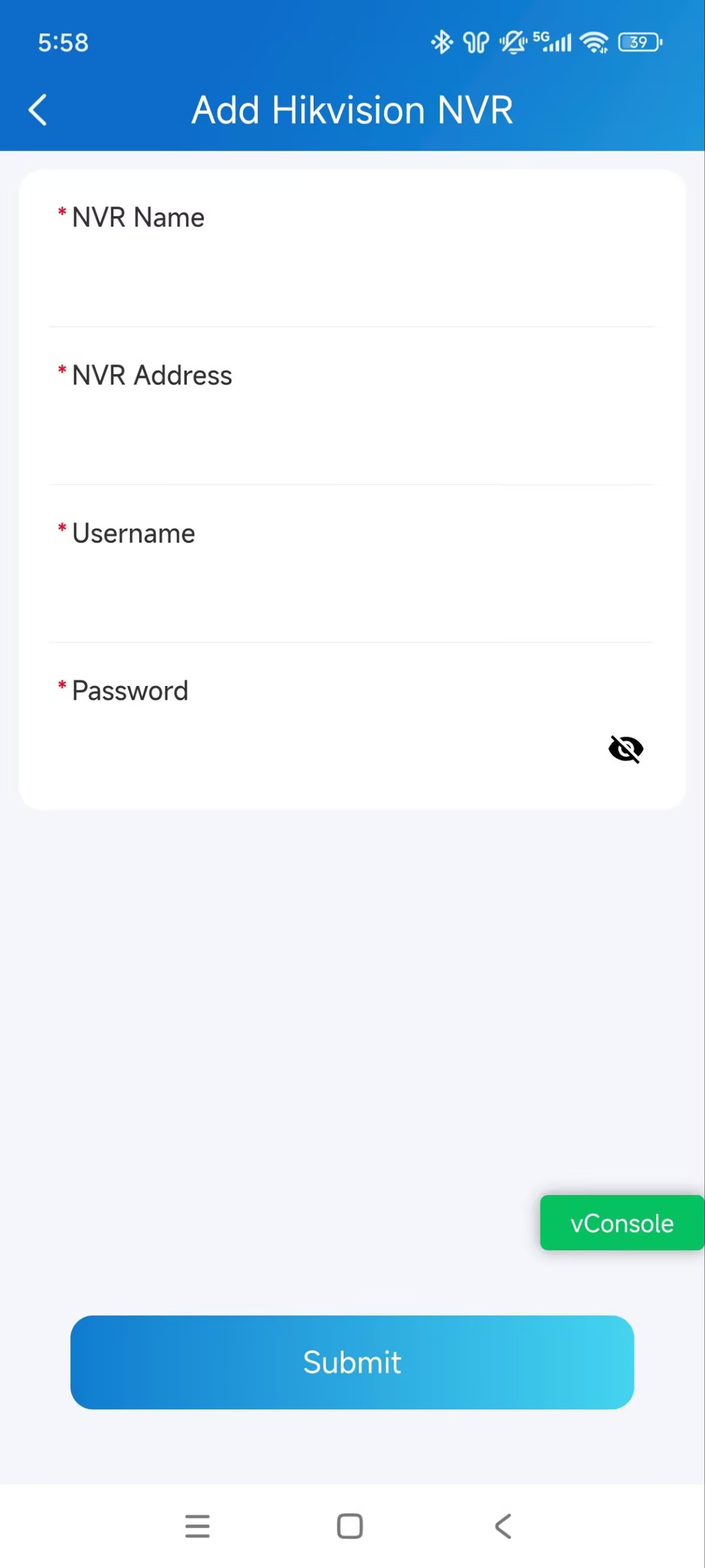
Tap Submit.
Tap Monitor on the homepage to view the live stream; tap Playback to view the playback.
On the monitor page, you can tap:
Snapshot to take a screenshot.
Sound to turn on the sound or mute.
PTZ to zoom in/out. This is effective for cameras that can be remotely controlled.
SD to switch between HD(High Definition) and SD(Standard Definition).