Through the SmartPlus App or SmartPlus Cloud platform, property managers and end users can issue temporary keys to visitors and delivery persons for door opening. The time-limited temp keys can enhance access security.
Note
The temp key for couriers is a PIN code and for visitors contains a QR code.
The following device models support opening the door via scanning a QR code.
S539, S535, X916, X915, X912, R29, E18, E16, A05, and A08.
For End Users
You can create temp keys for delivery persons and visitors via the SmartPlus App.
To Delivery Persons
Tap Temp Key on the home page or tap Me > Authorization > Temp Keys.
Tap +Delivery Temp Key, and the temp key will be generated automatically.
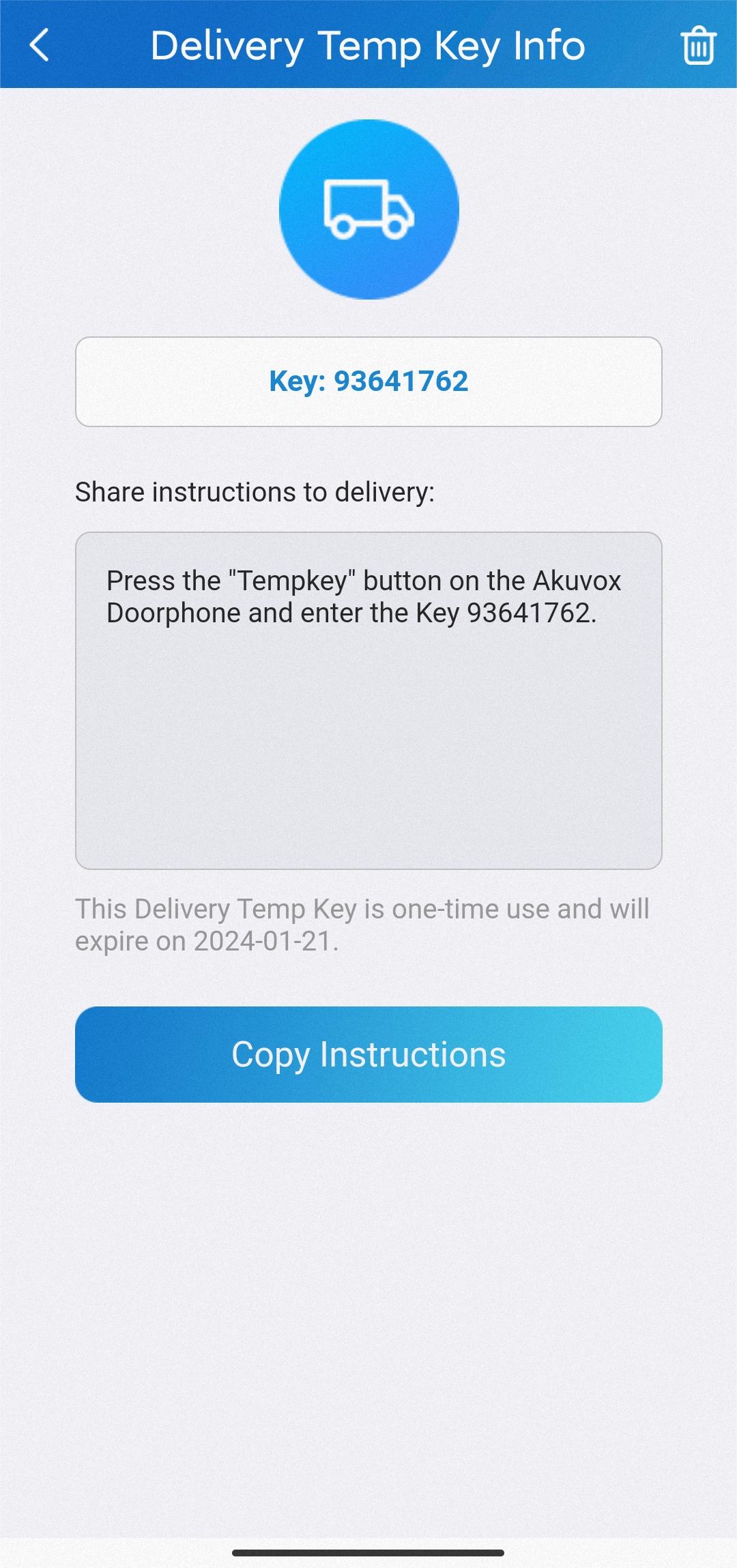
Users can copy and share the key with the courier.
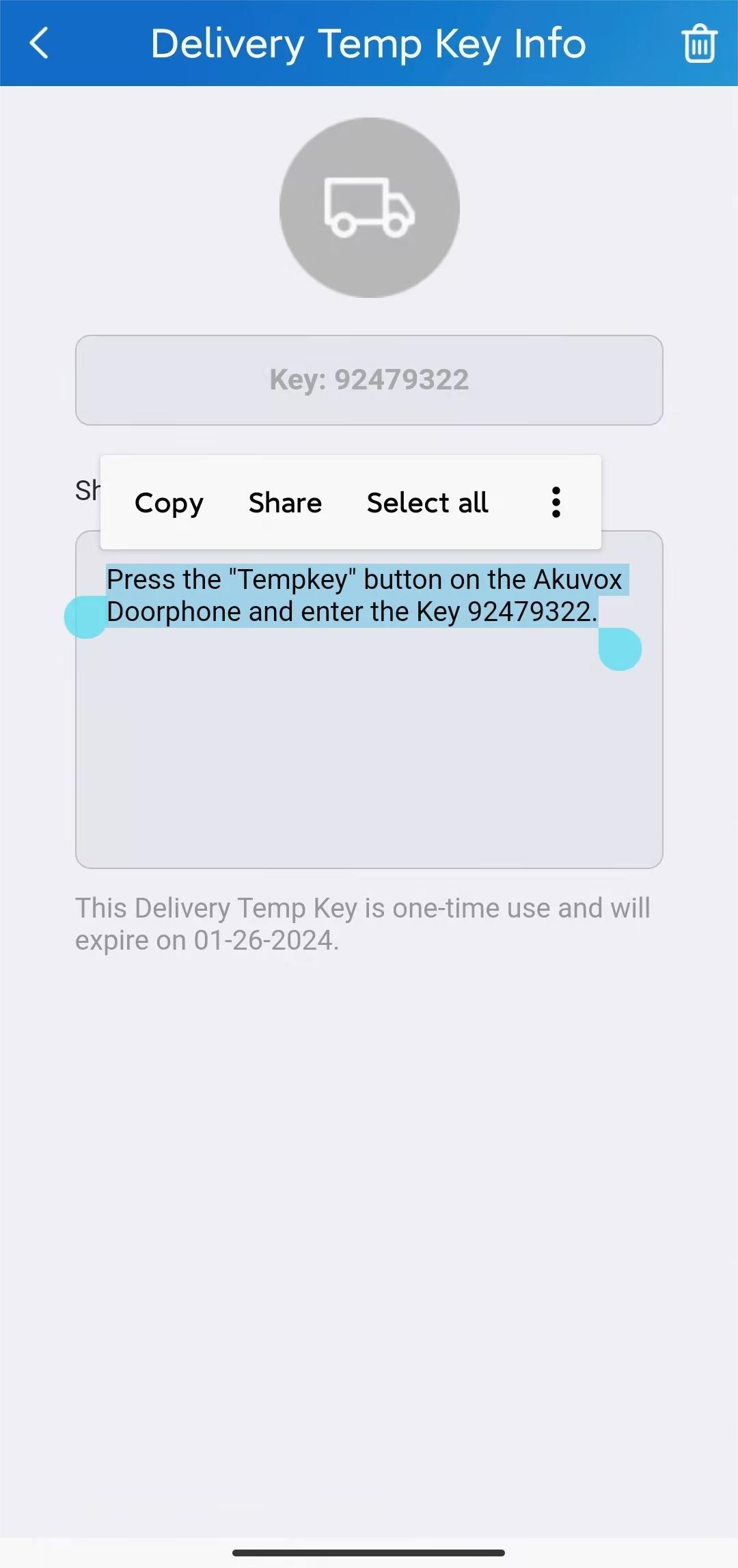
After sharing, the courier can open the door by entering the PIN code on the door phone.
To Visitors
Tap Temp Key on the home page or tap Me > Authorization > Temp Keys.
Tap +Temp Key to enter the settings page.
Enter the visitor's name and customize the ID number.
Select the Repeat Mode from Never, Daily, or Weekly, which determines how often the visitor can use the key.
Select the number of Each Door Counts that determines how many times the visitor can open doors using the temp key on the selected door phone(s).
Note
Configure this option ONLY when the Never mode is applied.
Select the door(s) the visitor can open.
Configure the time range when the visitor can open doors.
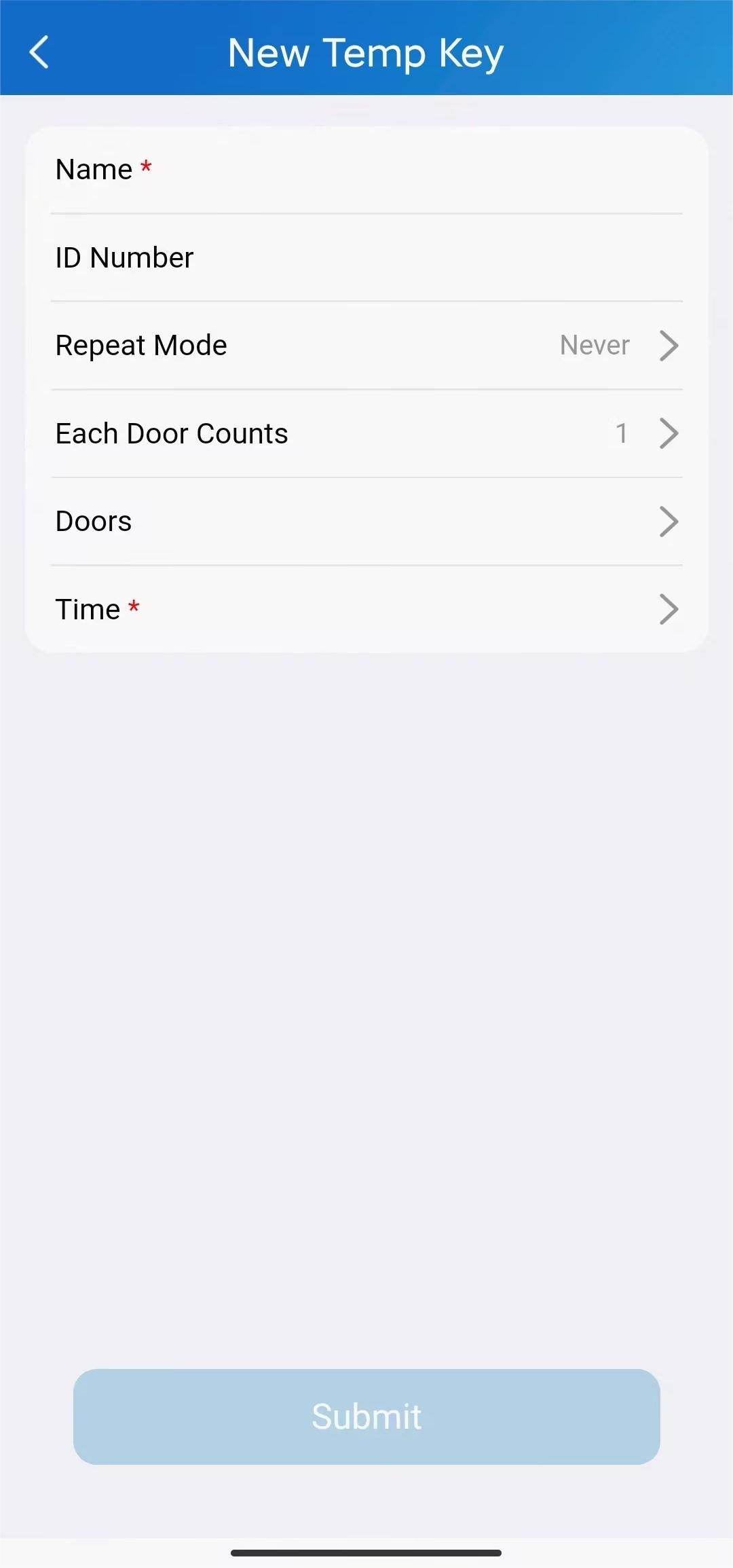
Click Submit and tap Share Key to share the key through the desired method.
.jpg "Temp key3(1).jpg")
For Property Managers
Community Projects
To Delivery Persons
You can issue temp keys to delivery persons via the SmartPlus Cloud platform.
Log in to the cloud with your account.
Click Visitor & Staff > Delivery Auth > New.
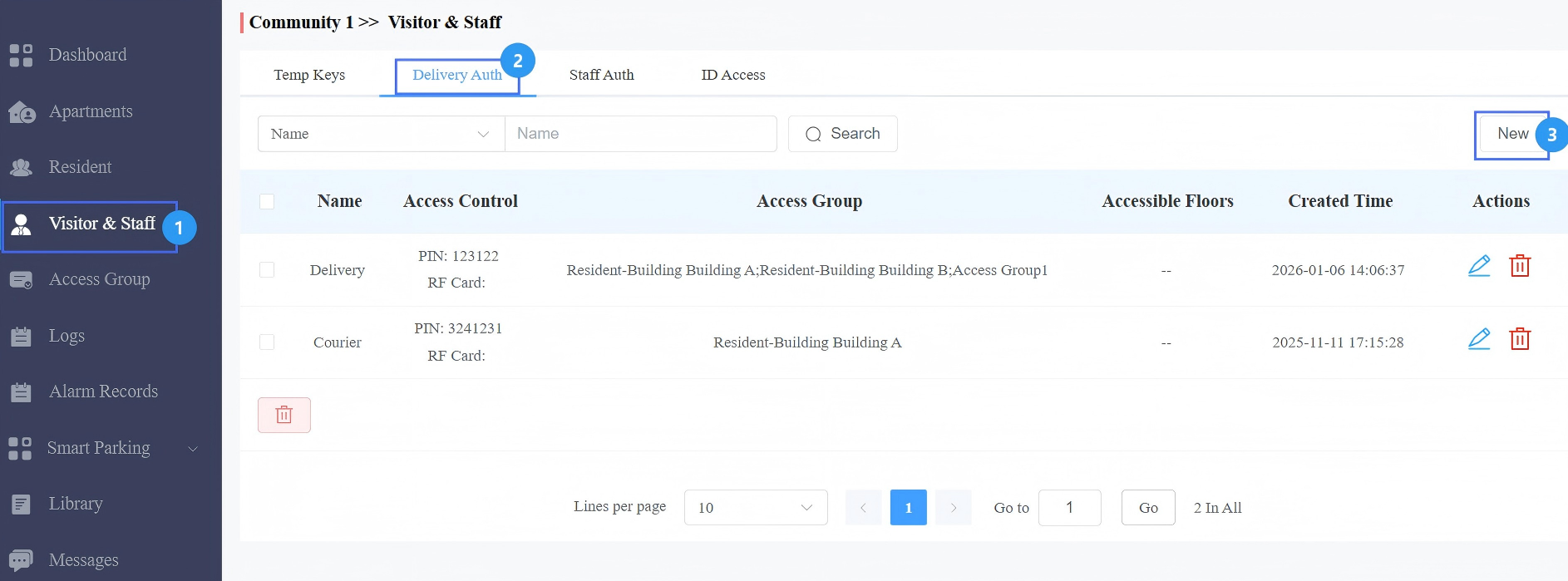
Enter the delivery person’s name.
Enter the PIN code and/or RF card code.
Select the floor number that the courier can access.
Select the access group or create a new one. To create a new access group,
Select the repeat mode that determines how often the visitor can use the key.
Select the door(s) to be opened.
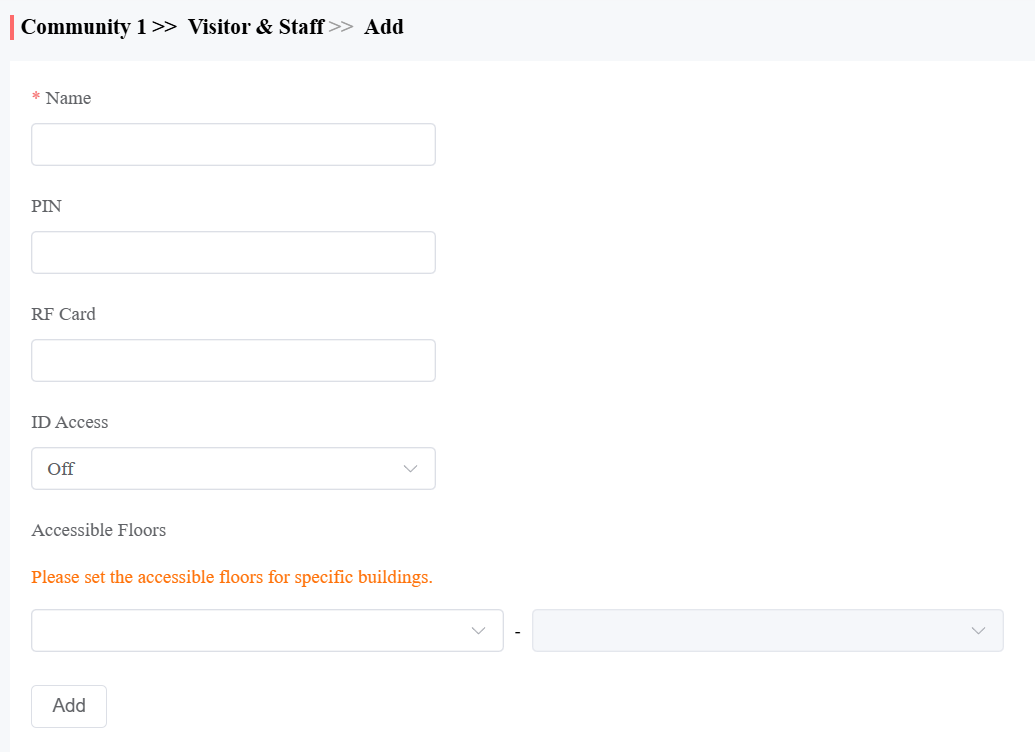
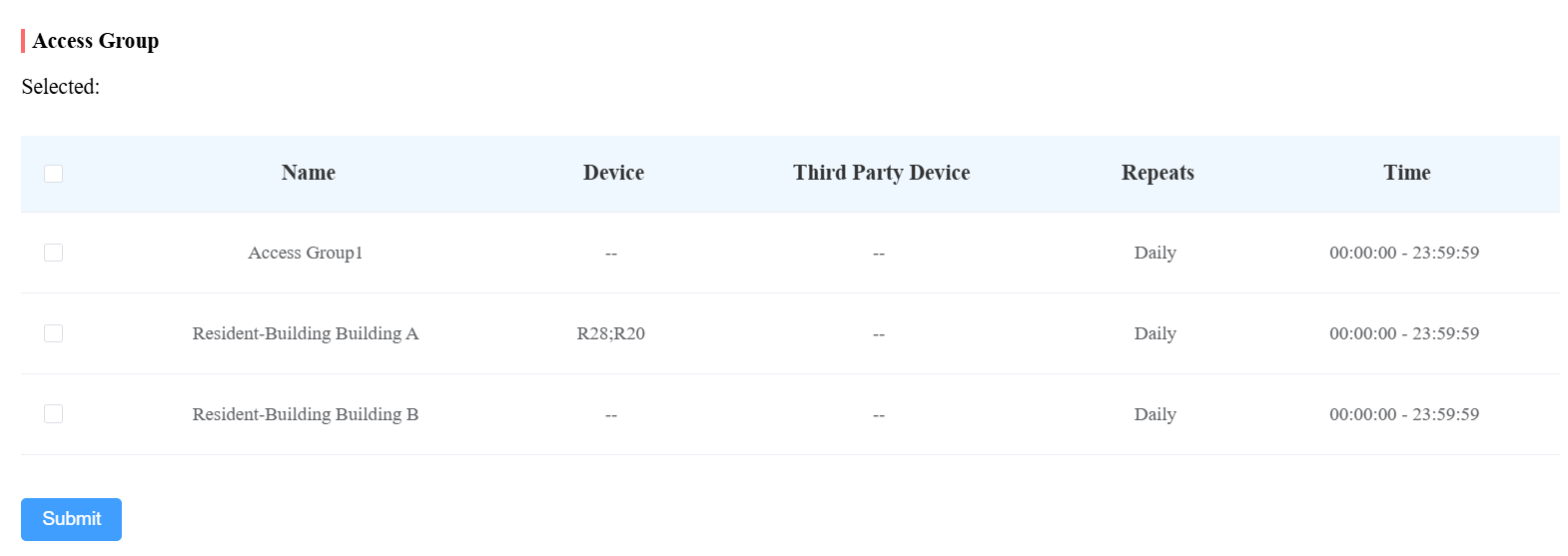
Click Submit.
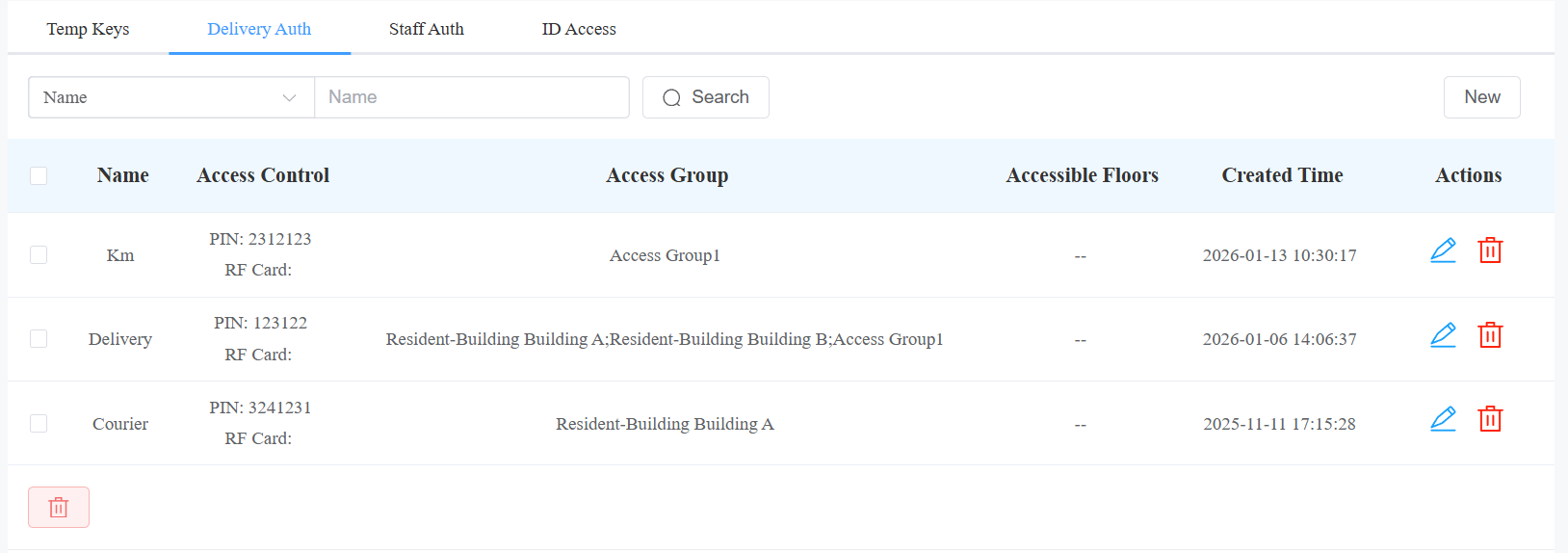
After the temp key is created, it will also display on the SmartPlus App Temp Key page.
Note
The SmartPlus App service should be activated by your installer before you can use it.
For convenience, you can check and share the key via the SmartPlus App.
To Visitors
You can issue temp keys to visitors via both the SmartPlus App and SmartPlus Cloud platform.
Note
The SmartPlus App service should be activated by your installer before you can use it.
On the SmartPlus Platform
Log in to the cloud with your account.
Click Visitor & Staff > New.
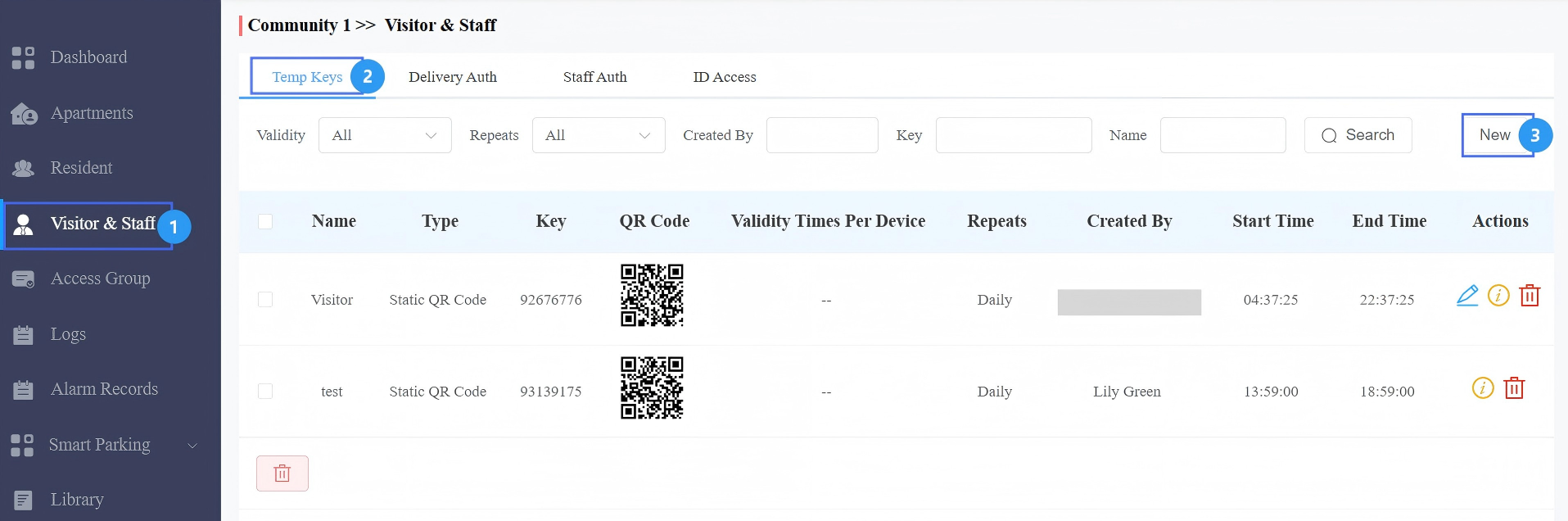
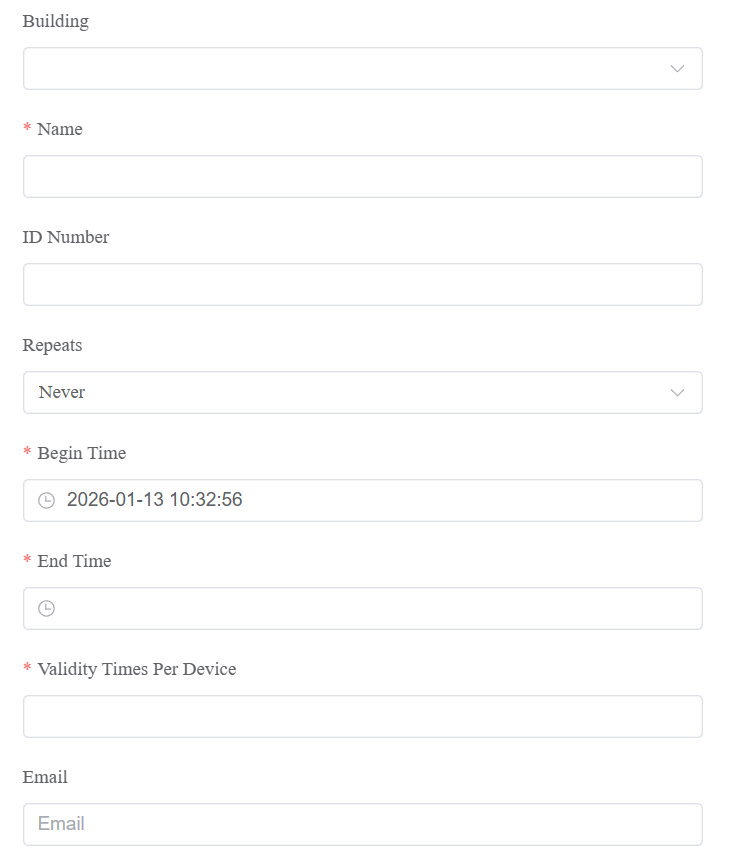
Select the building and apartment.
Enter the visitor's name and customize the ID number.
Select the Repeat Mode that determines how often the visitor can use the key.
Select the number of Validity Times Per Device that determines how many times the visitor can open doors using the temp key on the selected door phone(s).
Note
Configure this option ONLY when the Never mode is applied.
In the Email field, you can enter the visitor's email address to receive the temp key or later share it through the desired method.
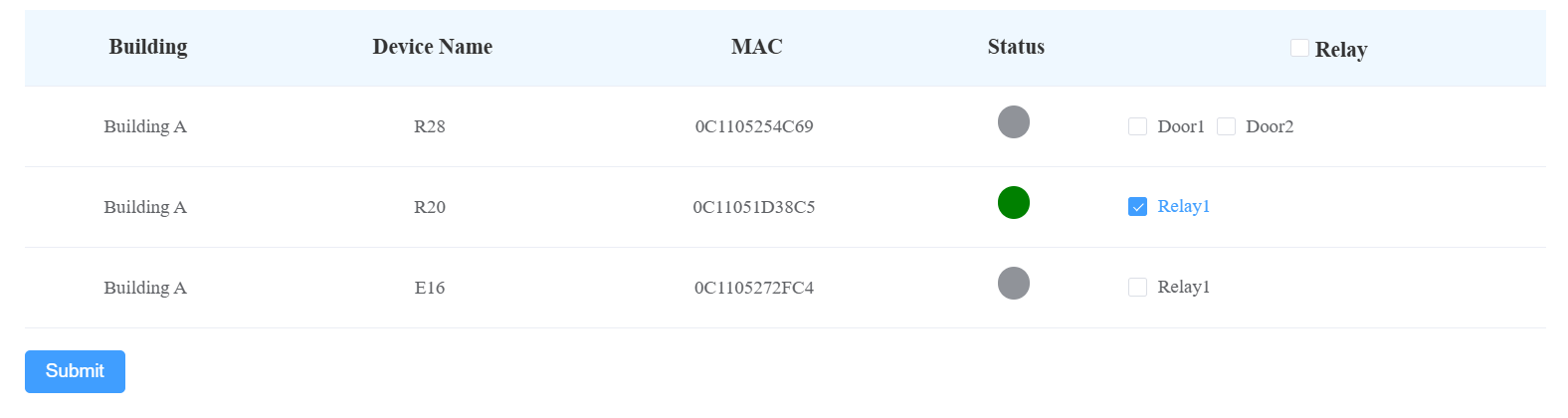
Click Submit.
On the SmartPlus App
Tap Temp Key on the home page or tap Me > Authorization > Temp Keys.
Tap the add icon in the upper-right corner.
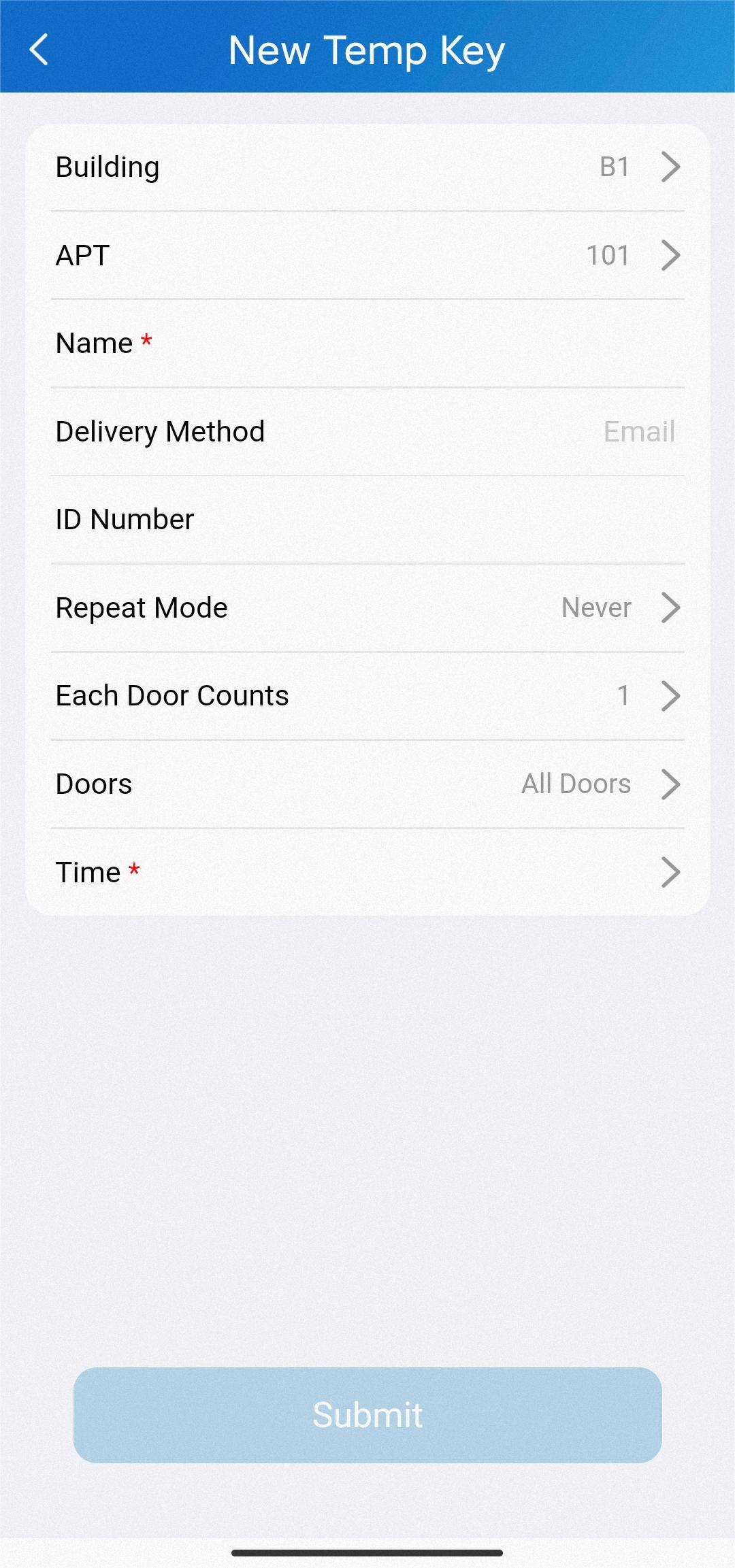
Select the building and apartment.
Enter the visitor's name.
In the Delivery Method field, property managers can enter the visitor's email address to receive the temp key or later share it through the desired method.
Customize the ID number.
Select the Repeat Mode from Never, Daily, or Weekly, which determines how often the visitor can use the key.
Select the number of Each Door Counts that determines how many times the visitor can open doors using the temp key on the selected door phone(s).
Note
Configure this option ONLY when the Never mode is applied.
Select the door(s) the visitor can open.
Configure the time range when the visitor can open doors.
Click Submit and tap Share Key to share the key through the desired method.

Commercial Projects
Log in to the Smart Access platform with your account.
Click User > Visitor > New.
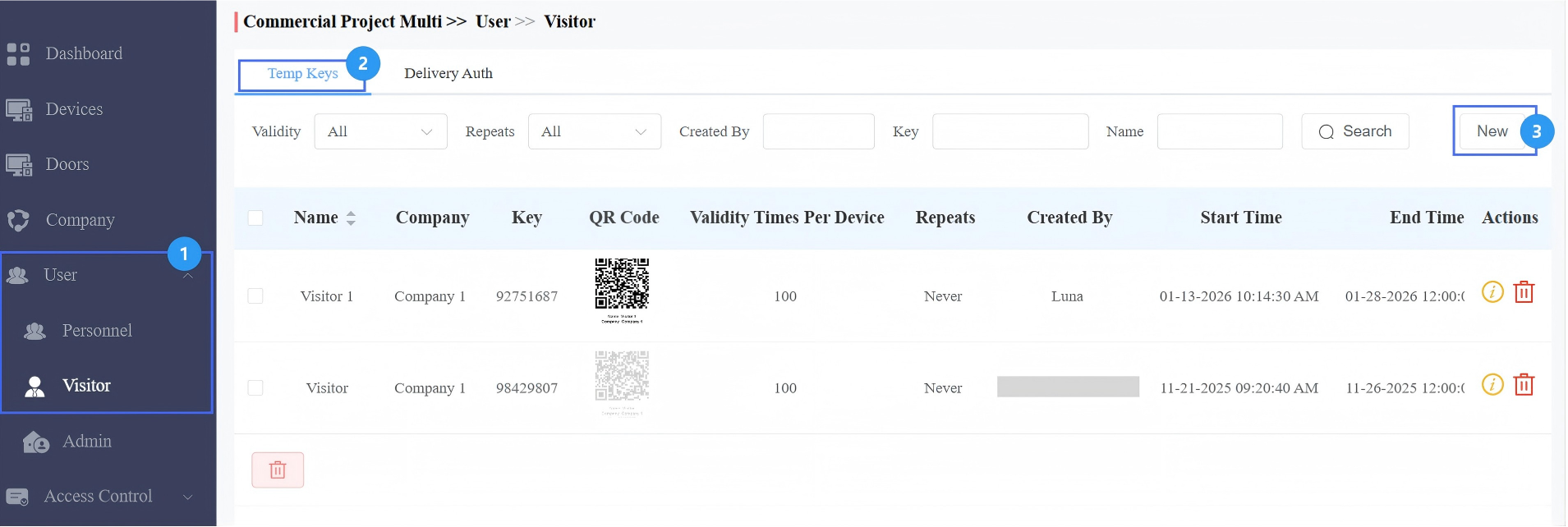
Select the company and enter the visitor’s name. If it is a single company project, the company option will not appear.
Customize the ID number.
Select the Repeats: Never, Daily, or Weekly.
Specify the Begin Time and End Time within which the visitor can use the key.
Specify Validity Times Per Device. This defines the times of using the key on each device.
Optionally, you can enter the visitor’s email. The temp key information will be sent to it.
Check the door(s) to be opened.
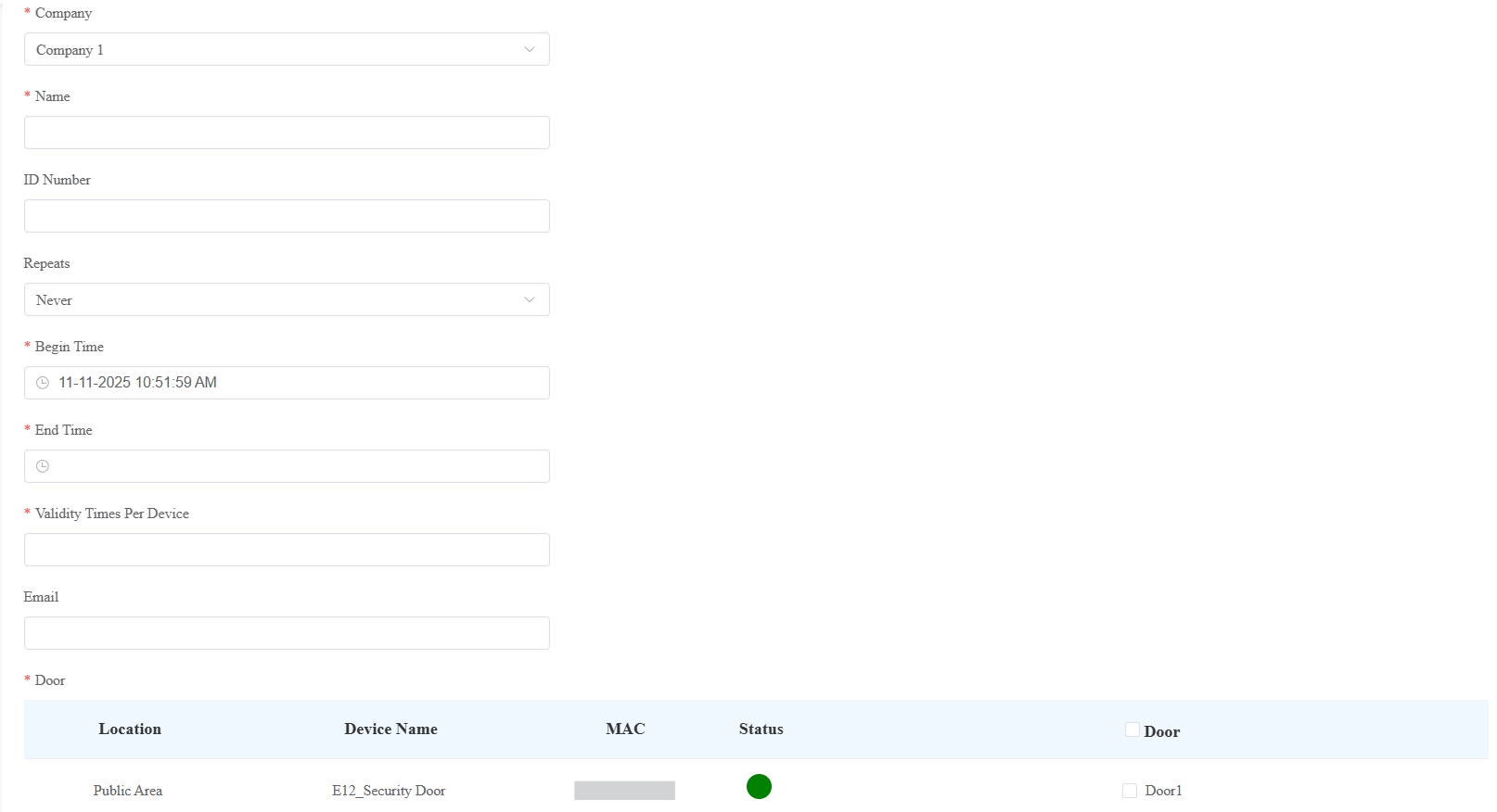
Click Submit.