This feature allows authorized operators — Installers (Ins), Project Managers (PM), and Administrators (Admin) — to register credentials such as RF Cards and Faces directly on a supported device while adding or managing a user in the cloud portal.
The operator selects a registration terminal from within the cloud interface and directs the user to complete enrollment at that device. Once the device captures the credential, it is automatically uploaded to the cloud and distributed to all other devices associated with that user.
This guide covers RF Card registration. Face ID registration follows the same workflow.
Before You Begin
The registration device must be connected to the cloud and online.
The user must be physically present at the registration device during enrollment.
Compatible Model and Minimum Version
Model | Minimum Firmware Version |
|---|---|
E16 | Coming soon |
Configuration
Use a project manager account as an example.
Log in to the cloud platform with your PM account.
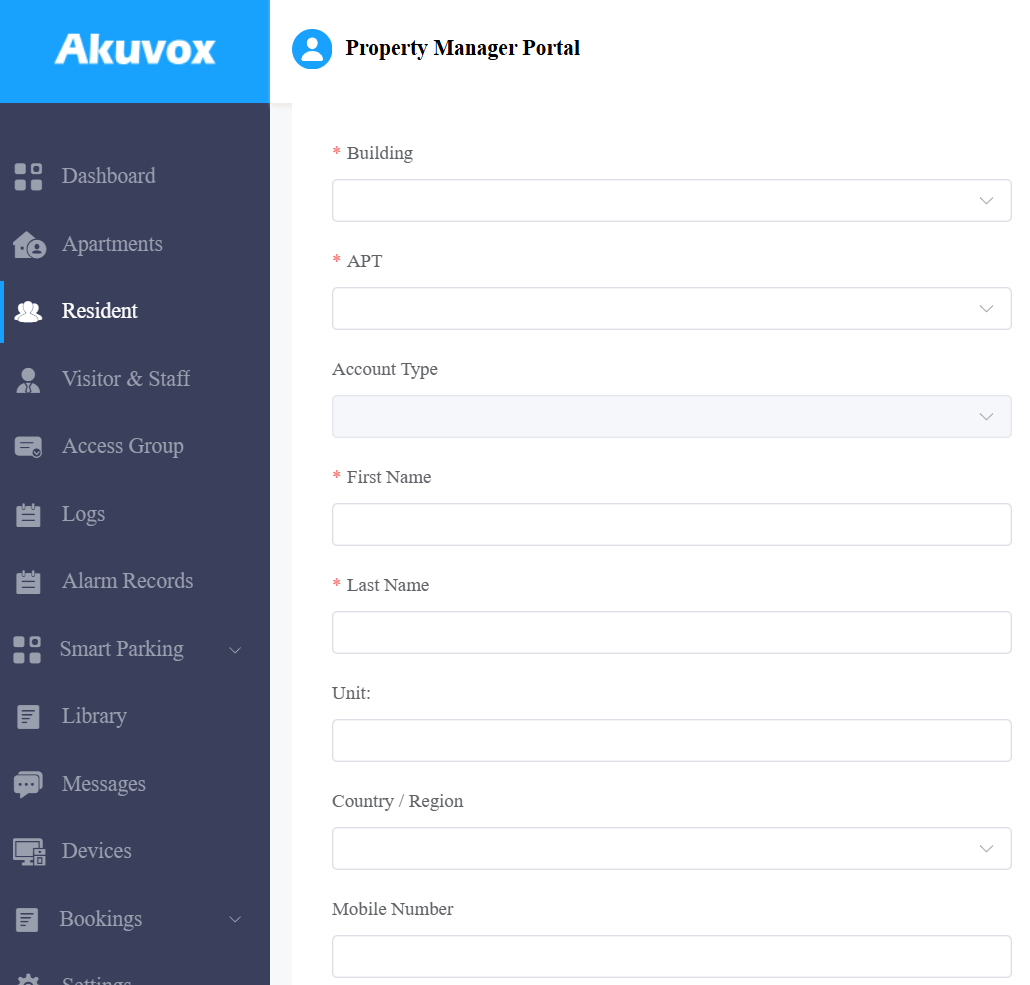
Click User > Personnel > New Personnel. To modify a current user, click
 .
.Complete all required fields in the Basic Info section.
Click Submit and Next. The system creates the account immediately at this point.
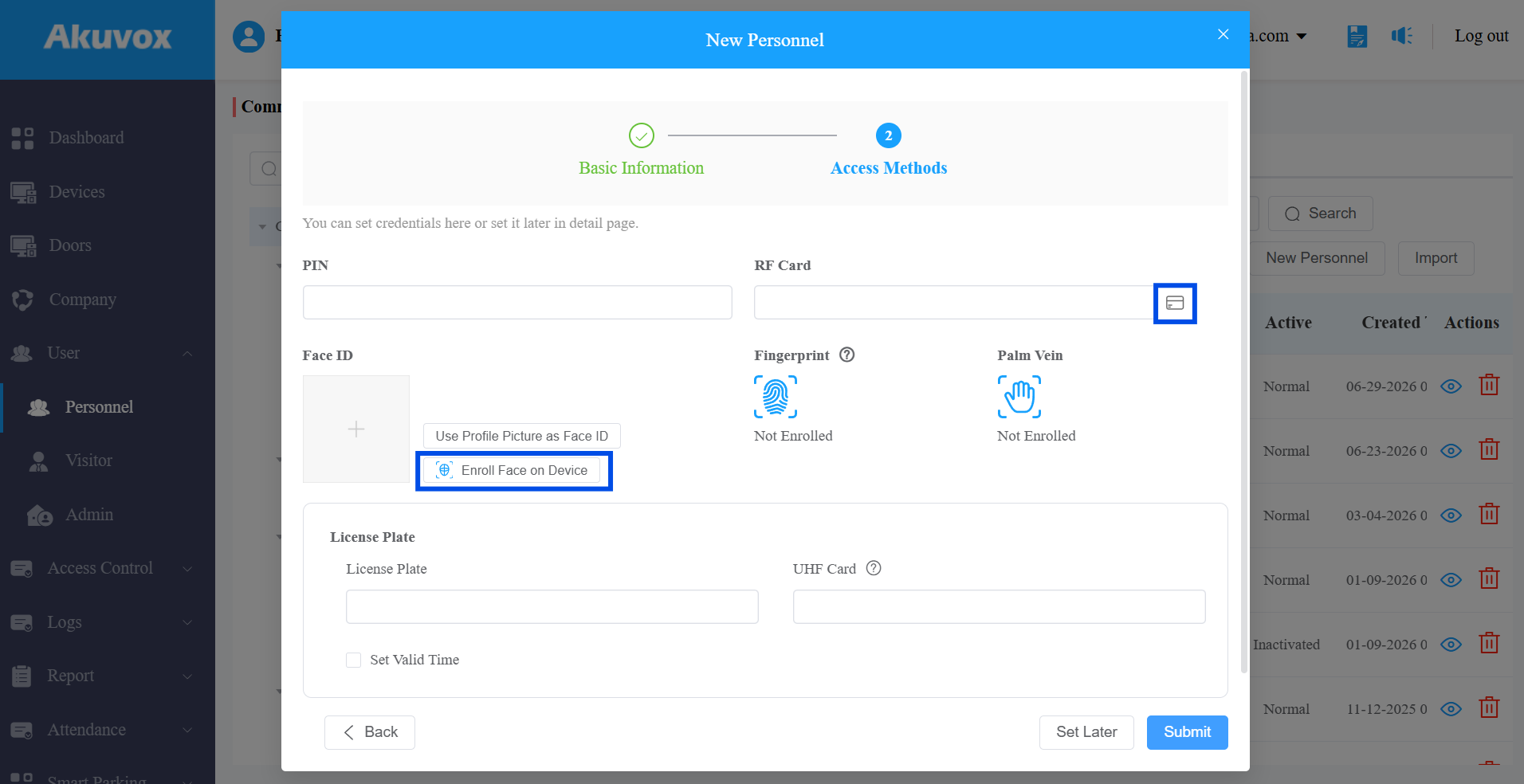
Click the Read Card icon or Enroll Face on Device. Take the card registration as an example.
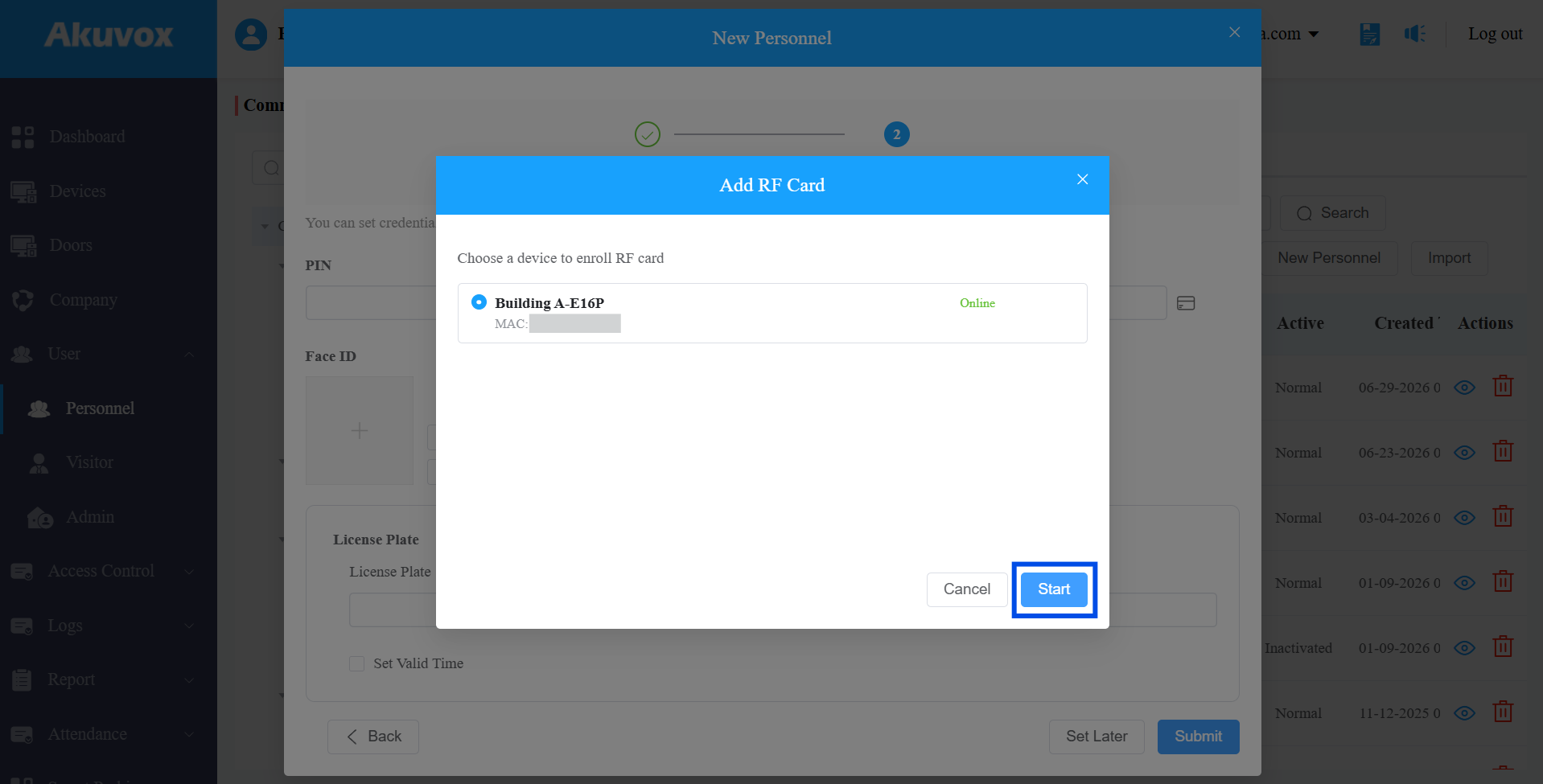
In the device selection dialog, select the device to use as the registration terminal.
Click Start. The device will display a prompt and enter card-reading mode.
Notify the resident to go to the selected device and hold their card near the reader.
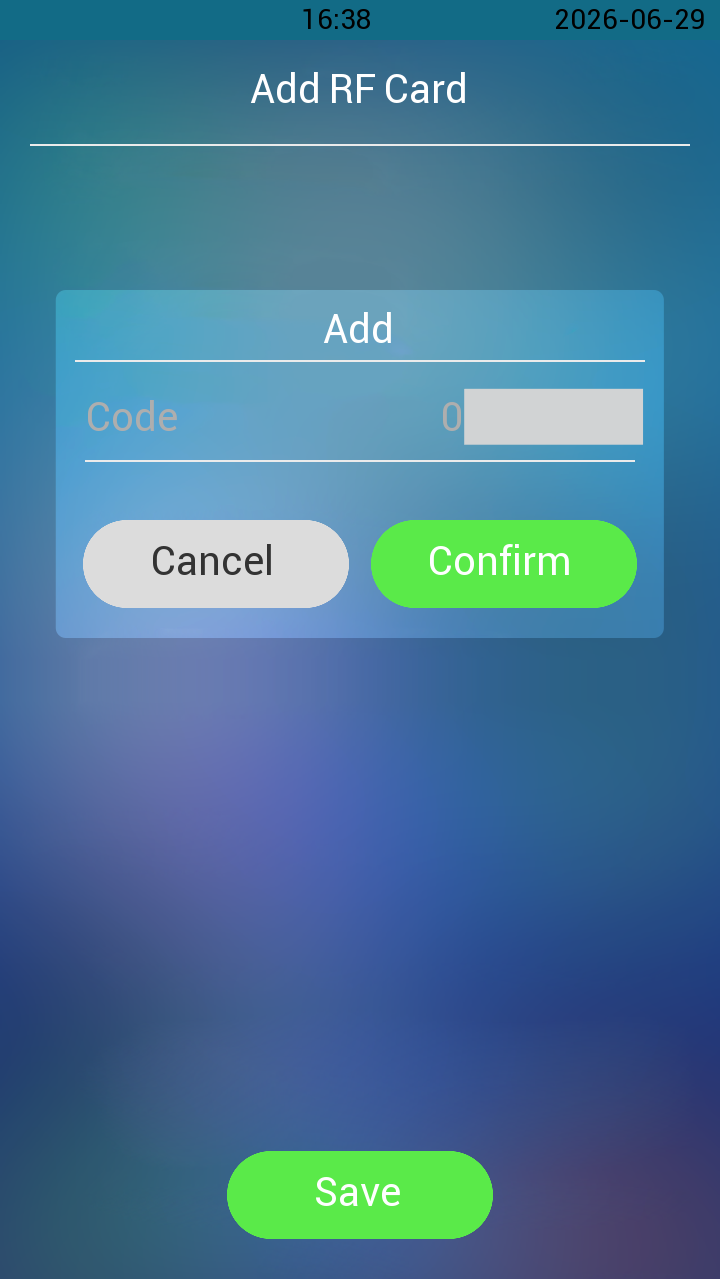
Wait for the device to read the card, confirm, and save the card code.
The card number is automatically uploaded to the cloud and populated in the form.
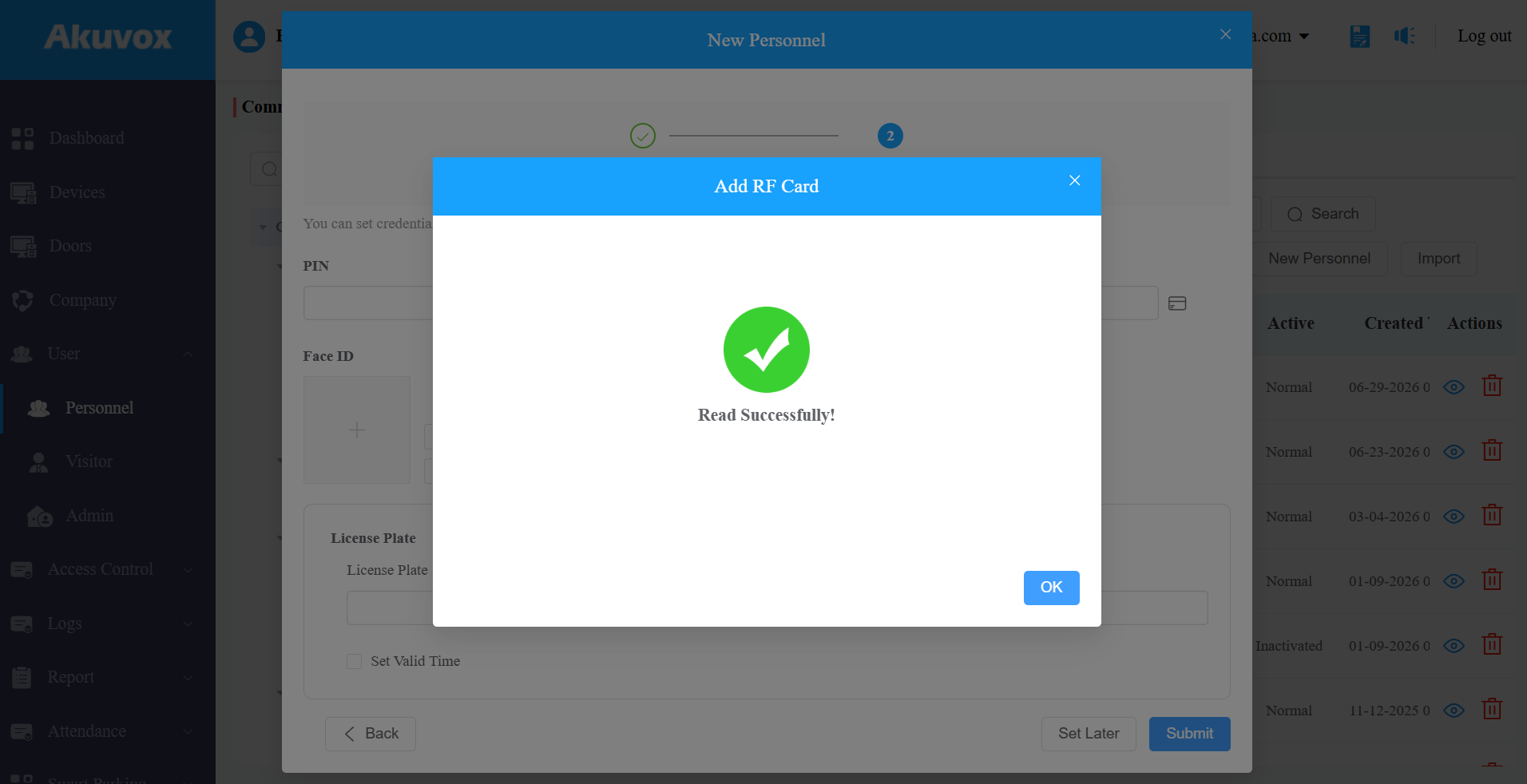
Click Submit to complete the resident profile.
Verification
Confirm that the credential is populated in the user's profile after the user completes enrollment on the device.
Have the user attempt to open a door with the registered credential at the door phone.
Troubleshooting
Issue | Possible Cause | Solution |
|---|---|---|
Device selection list is empty. | No eligible online device in the project. | Confirm the registration device is powered on, online, and assigned to the current project. |
The credential not populated after swiping. | Device did not successfully read the card, or upload failed. | Retry enrollment at the device; verify the device is online. |