The dimmer is a KNX device compliant with the KNX Secure standard and can therefore be operated securely. KNX Secure–compliant devices are clearly indicated in ETS.
KNX Data Secure is supported on this device to protect user data from unauthorized access and operation through encryption and authentication. The security function can be enabled or disabled in ETS and requires professional knowledge.
Each device is labeled with an FDSK (Factory Default Setup Key) certificate, which is required for KNX Security. This label must be stored securely.
When KNX Secure is enabled in the ETS project, the following must be considered during commissioning:
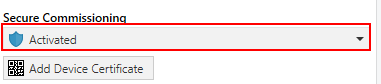
Fig.5.1(1)
After importing a KNX Secure device into a project, a project password must be assigned immediately to protect the project from unauthorized access.
NOTE:
The password must be stored securely. Without it, the project cannot be accessed (neither by the KNX Association nor by the manufacturer), and commissioning keys cannot be imported.
For the initial download of a KNX Secure device, a commissioning key is required.
The key (FDSK) is printed on the device label and must be entered into ETS before the first download.
During the first download, ETS prompts for the key in the Add Device Certificate window. The key can also be scanned via QR code (recommended).
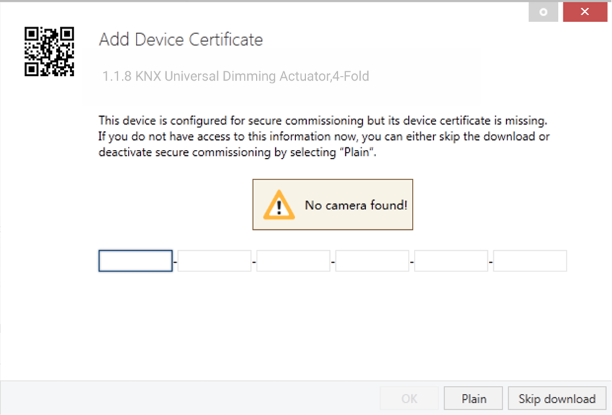
Fig.5.1(2) Add Device Certificate Interface
Device certificates can be added in advance via the Security tab(Fig.5.1(3)) on the Project Overview page, or by selecting a device in the project and using Add Device Certificate(Fig.5.1(4)).
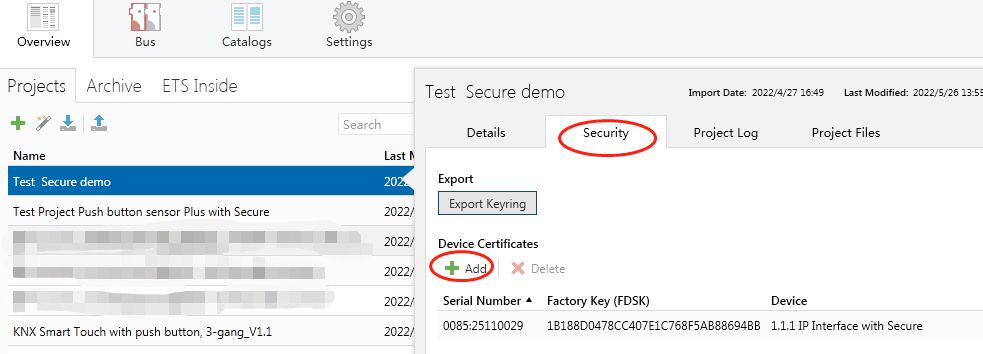
Fig.5.1(3) Add Device Certificate
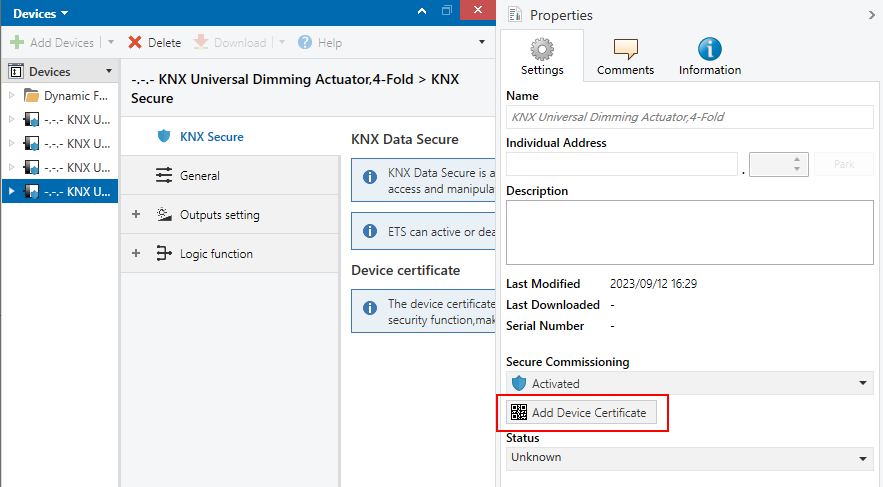
Fig.5.1(4) Add Device Certificate
The FDSK is only required for initial commissioning. After it is entered, ETS assigns a new key to the device.
NOTE:
Without the FDSK, the device cannot be operated in KNX Security mode after a reset.
The FDSK is only required for initial commissioning. After it is entered, ETS assigns a new key to the device(Fig.5.1(5)).
The original FDSK is needed again only if the device is reset to factory settings (e.g., when reused in a different ETS project).
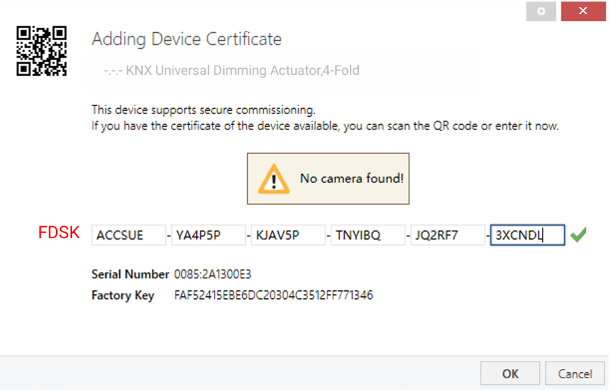
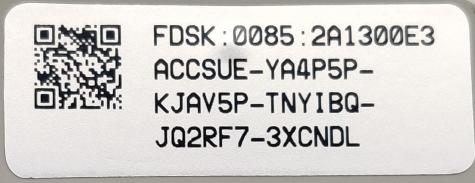
Fig.5.1(5)
Example:
If the database needs to be used for a different device, a prompt will appear when downloading it to a new device (see Fig. 5.1(6), left). Click Yes to open the Add Device Certificate window, then enter the new device’s initial FDSK.
The device must also be reset to factory settings (not required if it is already at factory state). Otherwise, an error will occur (see Fig. 5.1(6), right), and the download will fail.
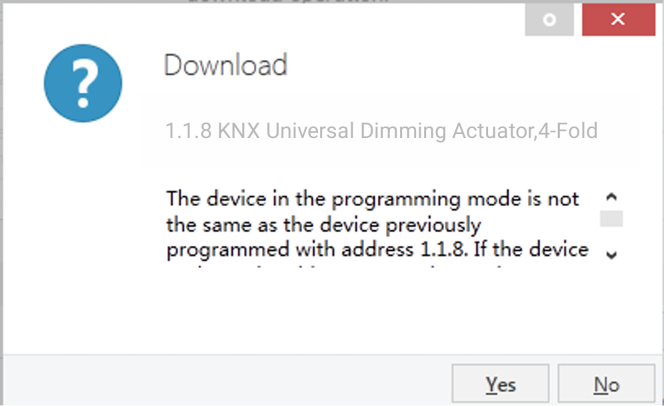
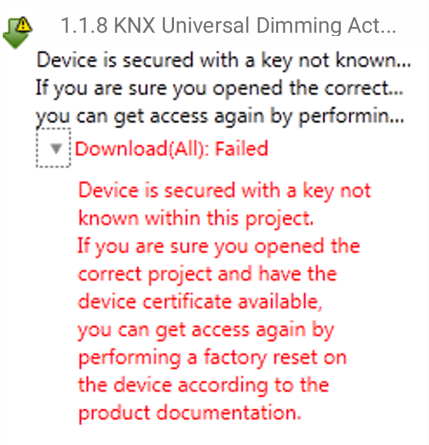
Fig.5.1(6) Example
When downloading the application to a different device or using the same device in another ETS project, the device must be reset to factory settings and a new FDSK must be assigned. After successful download, Add Device Certificate option becomes unavailable (greyed out) (Fig.5.1(7)), indicating that the key has been assigned.
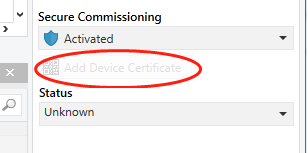
Fig.5.1(7)
Key management:
ETS can generate and manage keys (Fig.5.1(8)). Keys and passwords can be exported as a .knxkeys file.
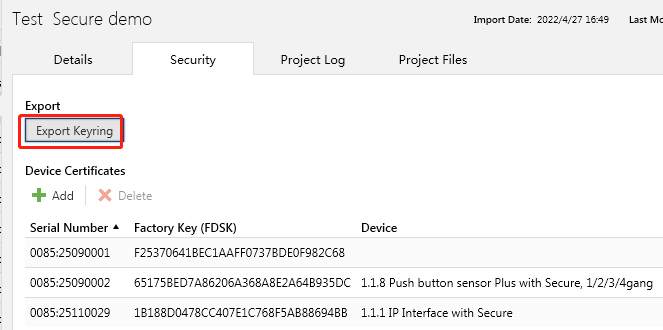
Fig.5.1(8)
NOTE:
Any USB interface used to program KNX Security devices must support long frames; otherwise, ETS will report a download failure.