5.2.1 General Setting
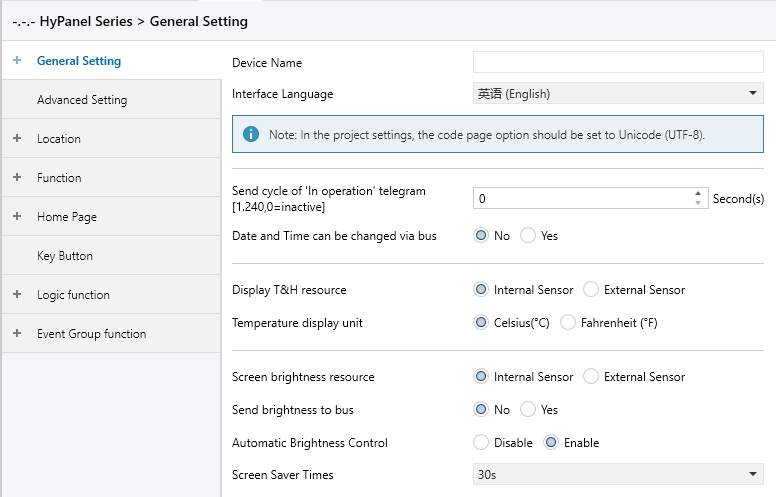
Figure 5.2.1 “General Setting” Interface
Device name
Set the HyPanel’s name, which will be displayed on the HyPanel card. If left blank, the original name will be retained. The maximum length is 63 bytes.
Interface Language
Specifies the display language for the panel.
Options: English, Persian, German, Arabic, Spanish, French, Hebrew, Italian, Dutch, Polish, Portuguese, Turkish, Russian, Ukrainian, Simplified Chinese, Traditional Chinese, Japanese, Korean, Others.
If your desired language is not listed, select “Others” and enter it in the Language name field.
Language name
This field appears when Interface Language is set to Others. Enter the desired language from those supported by HyPanel.
NOTE:
If the entered language is not supported by HyPanel, the previously downloaded will be displayed by default.
Send cycle of “In operation”telegram [1...240s, 0 = inactive]
Set the time interval when this device cycle sends telegrams through the bus to indicate this module in normal operation.
When set to “0”, the object “In operation” will not send any telegram.
When set to a non-zero value, the object “In operation” will send a telegram with logic “1” to the bus at the configured interval.
Options: 0 ~ 240s, 0=inactive.
To reduce bus load, choose the longest acceptable interval based on actual requirements.
Date and Time can be changed via bus
Determines whether the date and time displayed on the HyPanel can be modified via the bus.
Options:
No: Cannot be modified via bus. The panel sends the current date and time to the bus every full hour.
Yes: Date/time can be modified via bus. When enabled, the "Date" and "Time" objects become visible. Configure them as needed.
Display T&H resource
Specifies the source of temperature and humidity data displayed on the panel.
Options:
Internal Sensor: Use the panel’s built-in temperature and humidity sensor.
External Sensor: Use an external temperature and humidity sensor.
Temperature display units
Specifies the unit for displaying temperature on the panel.
Options:
Celsius (℃)
Fahrenheit (℉)
Screen brightness resource
Set the light sensor source of the HyPanel.
Options:
Internal Sensor: Use the panel’s built-in light sensor.
External Sensor: Use an external light sensor.
Sent brightness value to bus
This parameter is available when Screen Brightness Resource is set to Internal Sensor.
It determines whether the panel sends its brightness value to the bus.
Options:
No: Do not send brightness value.
Yes: Send brightness value. When selected, the “Screen backlight brightness” object becomes visible, and brightness changes will be reported to the bus.
Automatic Brightness Control
Determines whether the panel automatically adjusts screen brightness.
Options:
No: Disabled.
Yes: Enabled. When selected, HyPanel’s brightness will be automatically adjusted based on the current ambient light level.
Screen Saver Times
Specifies the time interval before the HyPanel enters screensaver mode.
Options:
15s
30s
1min
5mins
10mins
30mins
1hr
5.2.2 Proximity Setting
The Proximity Setting interface, as shown in Figure 2.2.2, configures the proximity sensing function. You can specify the proximity sensor source, detection distance, telegrams to be sent when a person approaches or leaves the sensing area, and the delay time for sending these telegrams. When the built-in sensor detects a person, it corresponds to “approaching”; when no presence is detected, it corresponds to “leaving”.
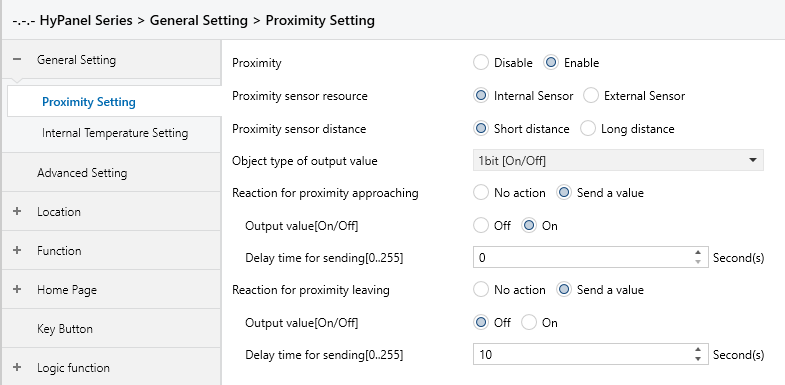
Figure 5.2.2 “Proximity Setting” Interface
Proximity
Sets whether to enable the proximity sensing function.
Options:
Disable: Disables the proximity sensing function. The “Proximity sensor resource” setting will not be displayed.
Enable: Enables the proximity sensing function. When selected, the HyPanel will automatically wake up based on the selected sensor source.
Proximity sensor resource
Displayed only when “Internal Sensor” is selected as the proximity sensor source.
Used to select the sensor source for human presence detection.
Options:
Internal Sensor: Use the panel's built-in sensor. The settings for “Proximity sensor distance” and “Object type of output value” will also be displayed.
External sensor: Use an external sensor. The settings for “Proximity sensor resource” and “Object type of output value” will not be displayed.
Proximity sensor distance
Displayed only when “Internal Sensor” is selected as the proximity sensor source.
Used to set the detection distance of the built-in sensor.
Options:
Short distance: Detect presence within 50 cm.
Long distance: Detect presence within 100 cm.
Object type of output value
Displayed only when “Internal Sensor” is selected.
Used to define the data type of the telegrams sent to the bus when a person enters or leaves the sensing area.
Options:
1bit[On/Off]
1byte[scene control]
1byte[0..255]
1byte[0..100%]
Reaction for approaching/leaving
Sets whether a telegram should be sent when a person enters or leaves the sensing area.
Options:
No action
Send a value: When selected, the following parameters become available:
Output value [On/Off]
Output scene NO. [1..64]
Output value [0..255]
Output value [0..100%]
These parameters determine the telegram values sent to the bus. The valid range depends on the selected data type.
Delay time for sending[0..255]
Sets the delay time before sending a telegram.
Options: 0 ~ 255
NOTE:
If a leaving event is detected during the delay time set for an approaching telegram, the approaching telegram will be ignored. Telegrams are only sent when the proximity status changes.
5.2.3 Internal Temperature Setting
The Internal Temperature Setting interface, as shown in Figure 5.2.3, configures parameters related to the built-in temperature sensor.
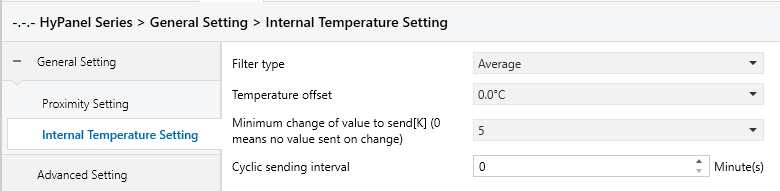
Figure 5.2.3 “Internal Temperature Setting” Interface
The following parameters allow you to configure the filter type, calibration offset, sending conditions, and cyclic sending interval for the internal temperature sensor.
Filter type
Specifies how many measurements are averaged before sending the value to the bus.
Options:
Low: Sends the average of 4 temperature readings.
Average: Sends the average of 16 temperature readings.
High: Sends the average of 64 temperature readings.
Temperature offset
Applies a correction value to the measured temperature so it better reflects the ambient temperature.
This adjustment only affects the value sent via telegram and does not impact the panel display.
Options: -5℃~5℃
Minimum change of value to send[K] (0 means no value sent on change)
Defines the minimum temperature change that will trigger the sending of a new value to the bus.
Options: 0...5 (0 disables value sending on change).
Send actual Humi. when change by[1..20]
Sets the change threshold for humidity values to trigger sending the updated value to the bus.
Options: 1 ~ 20
Cyclic sending interval
Specifies the time interval for periodically sending temperature values to the bus.
Options: 0...120min
This interval operates independently and starts timing upon programming completion or after a device reset. It is unaffected by value changes.