This function requires Home page to be enabled in Advanced Setting in advance. If not enabled, the menu bar will not be displayed on the left.
5.6.1 Home page setting
The parameter setting interface Home page setting, as shown in Figure 5.6.1, configures the type and enable/disable status of the home page.
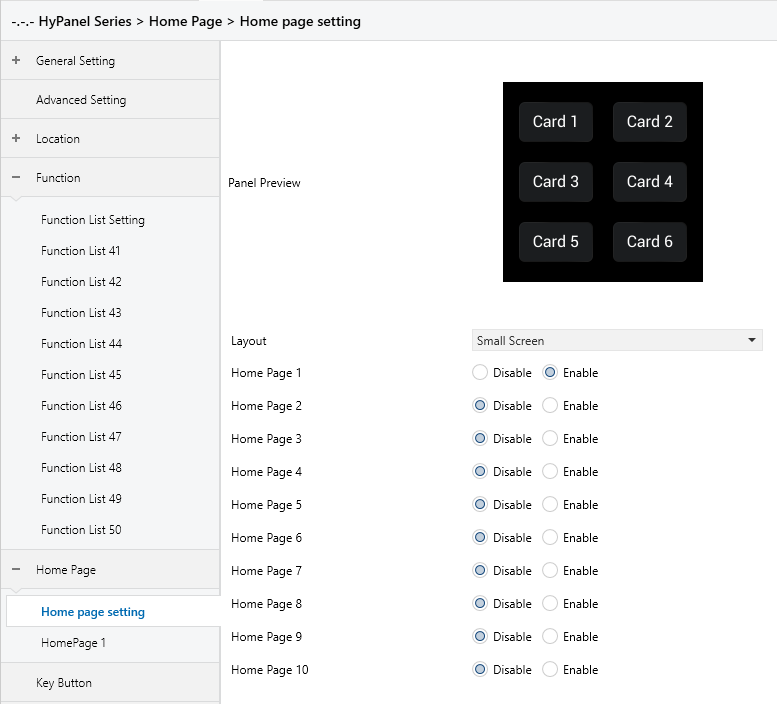
Figure 5.6.1 “Home page setting” Interface
Panel Preview
Displays the preview effect of HyPanel's Home page according to the selected Layout type in the parameter “Layout” .
Layout
Sets the layout type of the HyPanel device.
Options:
Small Screen
Large Screen(Horizontal)
Large Screen(Vertical)
Home Page x,x=1…10
Sets whether to enable Home Page x. When enabled, HyPanel will generate the corresponding home page. A maximum of 10 home pages can be set.
Home Page 1 is enabled by default; 2-10 are disabled by default.
5.6.2 HomePage x
Parameter Setting Interface “Home Page x”, as shown in Figure 5.6.2, configures the Function type, serial number, and device ID of the devices linked to the home page. The number of cards that can be set per page varies depending on the selected layout type. You can configure up to 6 cards per page for Small Screen devices, 9 cards per page for Large Screen(Horizontal) devices, 10 cards per page for Large Screen(Vertical). Parameters for each home page are the same. Below is an example of parameter settings for one home page.
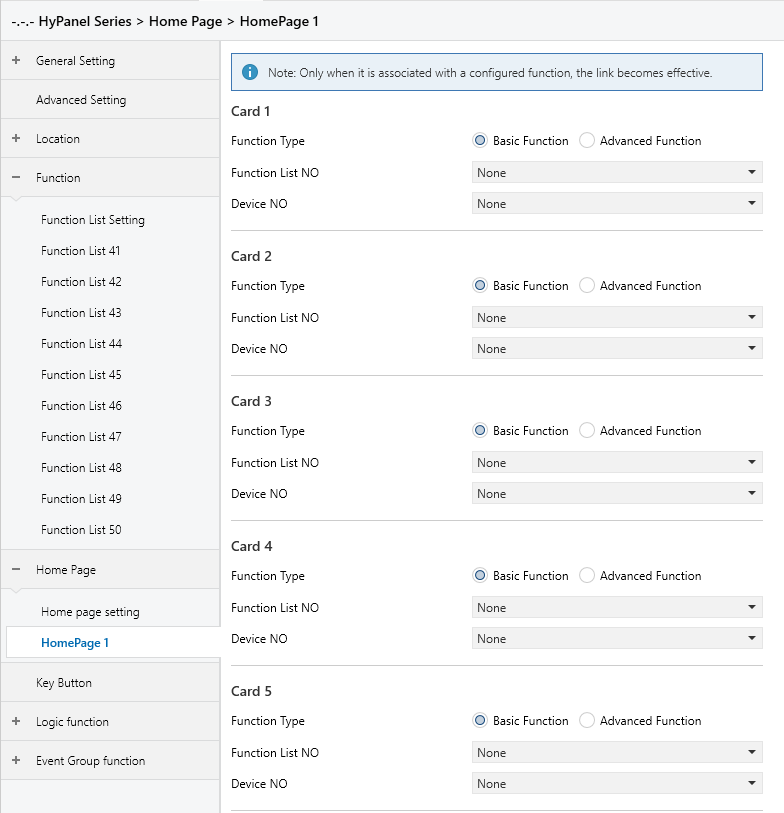
Figure 5.6.2 “HomePage x” Interface
Function Type
Sets the type of the linked card.
Options:
Basic Function
Advanced Function
Users can choose the device type to be linked as required.
When Basic Function is selected for Function Type the following parameters are visible:
- Function List NO
Specifies the Function List page number for Basic Function. Users can choose based on the actual devices to be linked.
- Device NO
Specifies the device serial number for Basic Function. Users can select based on the actual devices to be linked.
For example, for device Function2-3, “Function List NO” should be set to “Function List2”, and “Device NO” should be set to “Function3”.
NOTE:
If the associated “Function List NO” or “Device NO” does not exist, the corresponding position on the home page will be displayed as empty.
When Advanced Function is selected for Function Type the following parameters are visible:
- Function List NO advanced
Sets the Function List page number for Advanced Function. Users can choose based on the actual devices to be linked.
For example, for device Function42-1, “Function List NO advanced” should be set to “Function List42”.
NOTE:
If the associated “Function List NO advanced” does not exist, the corresponding position on the home page will be displayed as empty.