You can easily add, manage, and call contacts using HyPanel devices.
What You Should Know
Log into device web portal: Enter the device IP address into a browser, and log in with credentials.
The default username and password are admin/admin.
If you change the default ones, use the new credentials.
Third-party SIP account registration (optional): Register a third-party SIP account on HyPanel if you need to call external SIP devices. For details, refer to this guide.
Add Contacts
Here we use HyPanel Pro with firmware version 71.1.39.316 as the example.
1. Cloud Contacts
When HyPanel is connected to the akubela cloud, contacts are automatically synced. These include:
Public door phones
Door phones and HyPanels in the same home
Family administrator and members
2. Local Contacts
Automatic Search
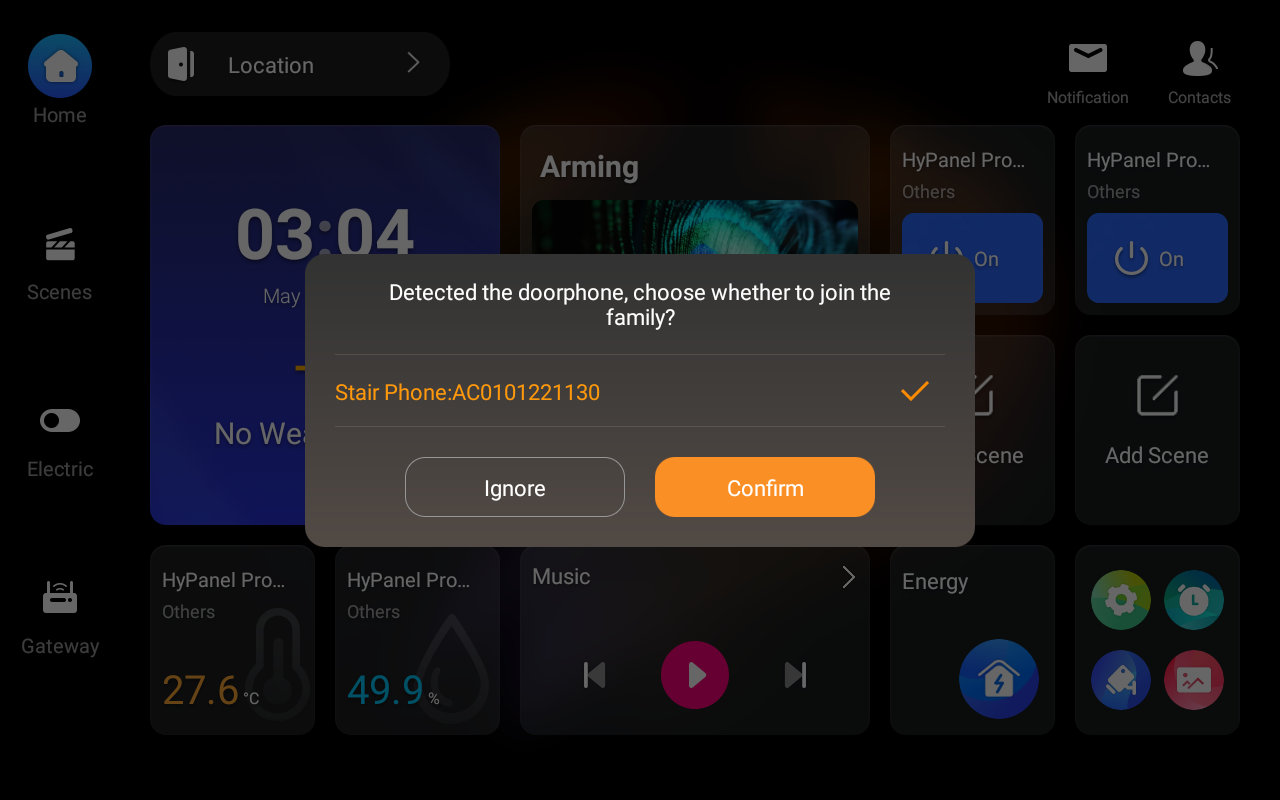
After initialization, HyPanel device automatically scans for door phones on the same LAN. Tap the detected device and confirm to add it.
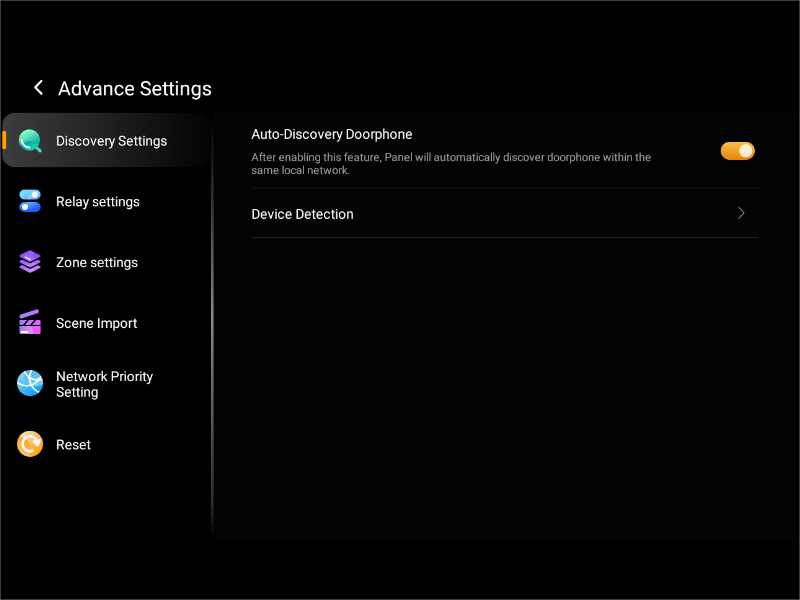
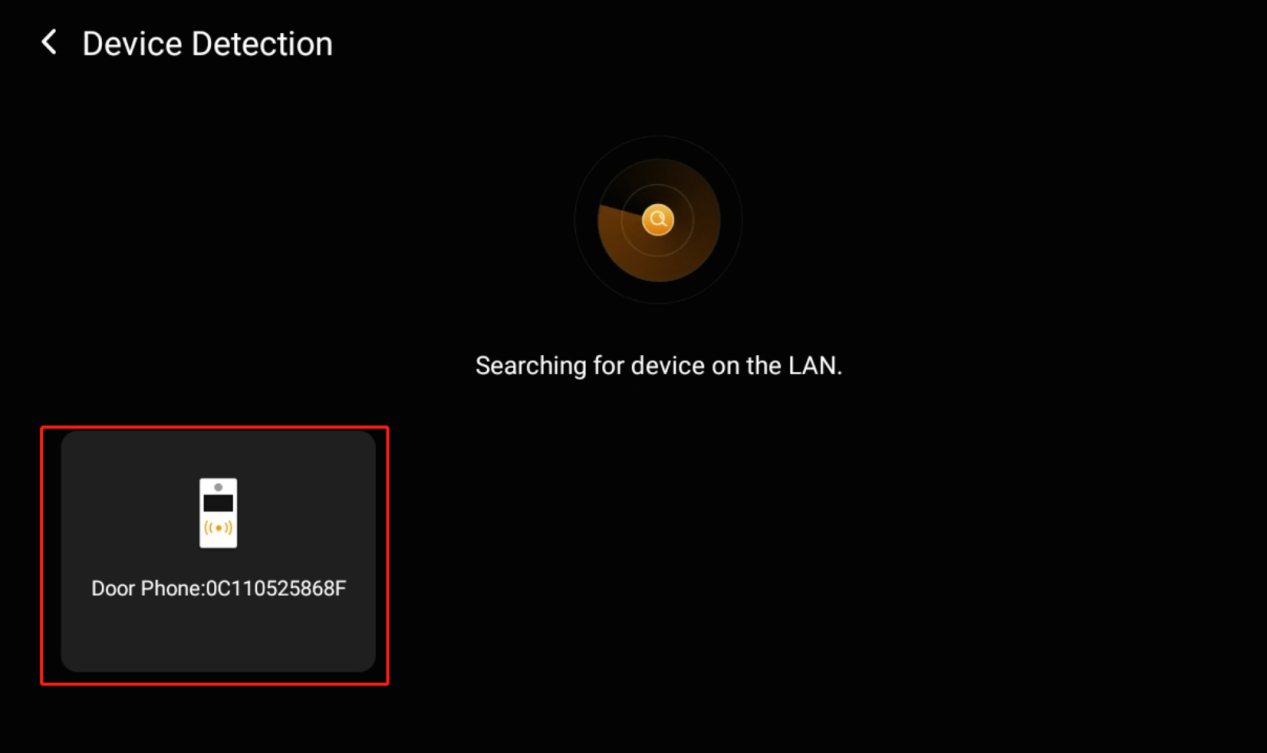
If you skipped the auto-search, go to Settings > Advance Settings > Discovery Settings > Device Detection to manually search. Tap detected devices to add them.
TIP:
On previous firmware versions, the path may be Settings > System Settings > About > Device Detection.
Manually Addition
Add Individually
Use this method for third-party SIP servers or when auto-search fails.
(1) Log in to the device web portal, and go to Set Mode > Local Contacts List.
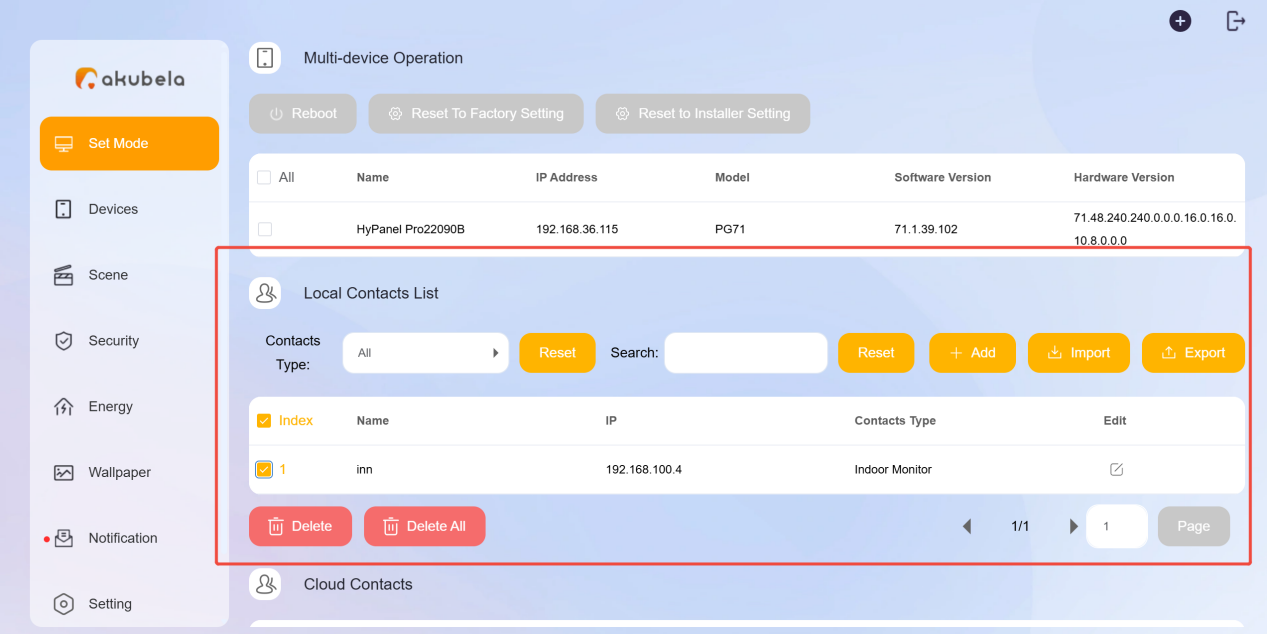
(2) Click Add, then enter contact name, call number(IP address or SIP account) and contacts type.
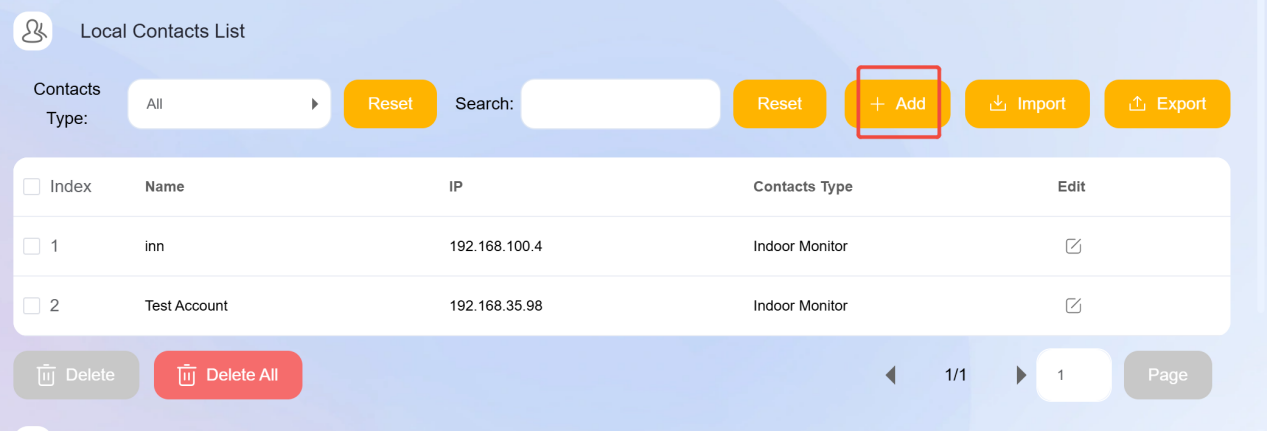
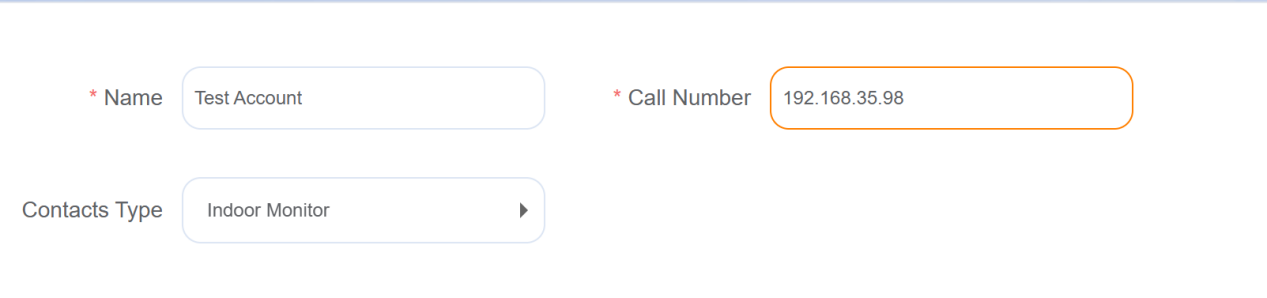
(3) To add contacts to a door phone, refer to the Contacts chapter in the specific door phone’s user guide.
Batch Import
(1) Log in to the device web portal and go to Set Mode > Local Contacts List.
(2) Click Export to download the contact template.
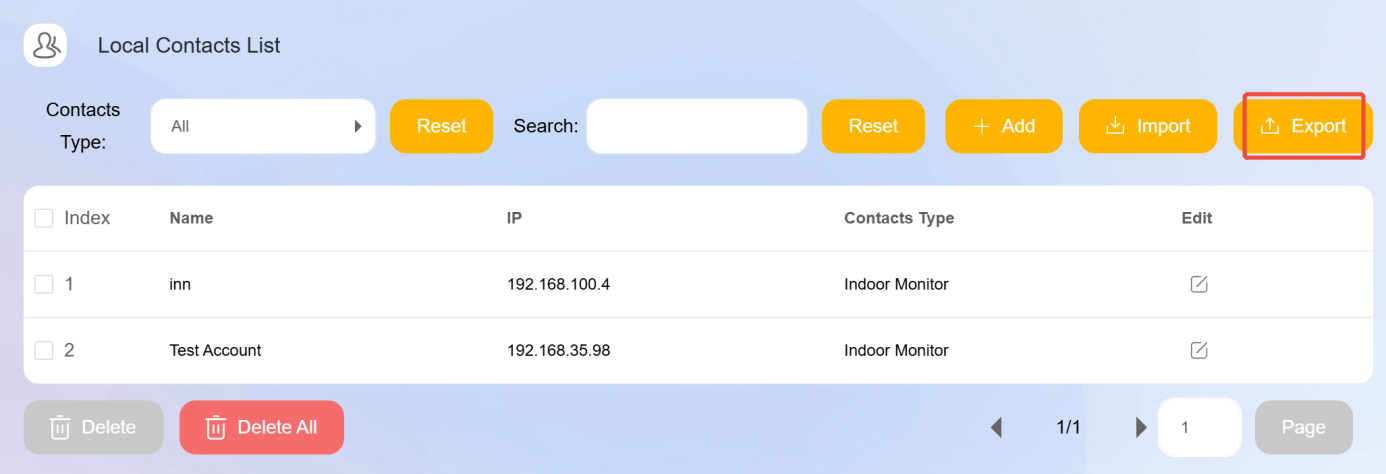
(3) Fill in the template with:
Name: Contact Name
Type code:
0:Door Phone
1:Guard Phone
2:Indoor Monitor
3:IP Camera
IP Address: IP Address or SIP Account
.png)
(4) Save the file as CSV and click Import to upload it.
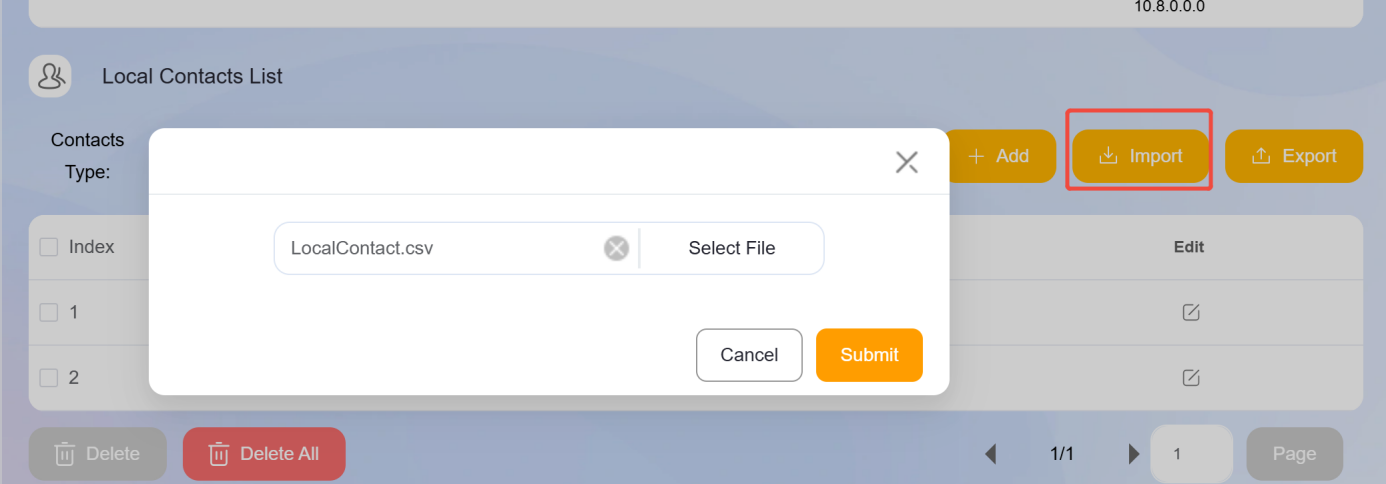
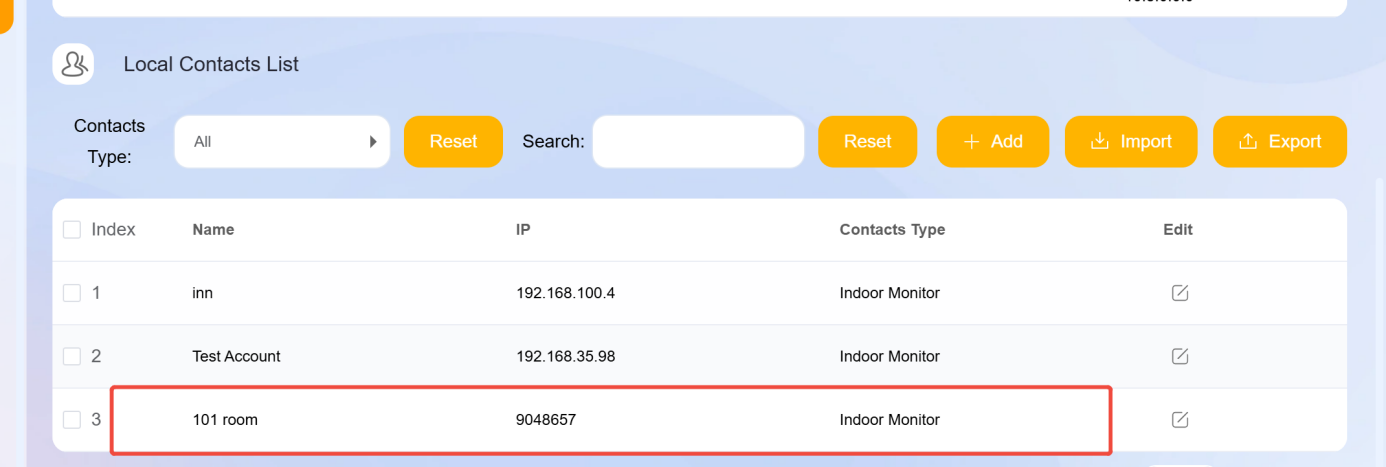
Once uploaded, the new contact will appear in the list.
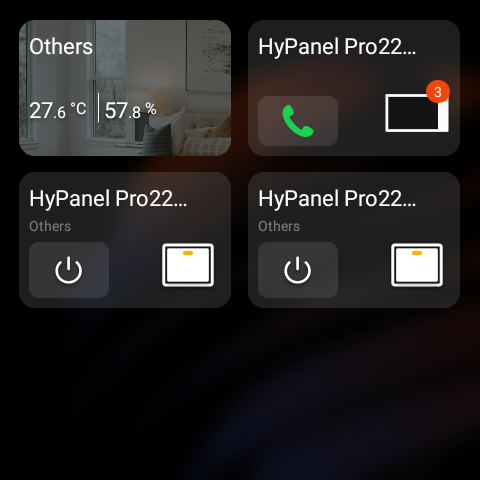
Add Contact Shortcuts to Home Page
NOTE:
Only small screen panels (HyPanel, HyPanel Plus, HyPanel KeyPlus) support adding contact shortcut cards.
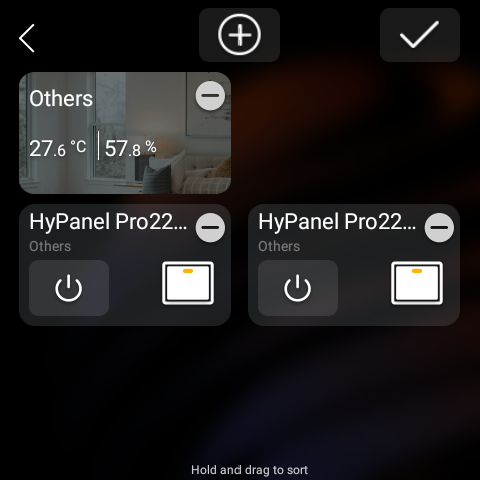
(1) Long press the blank area on the home page and tap  .
.
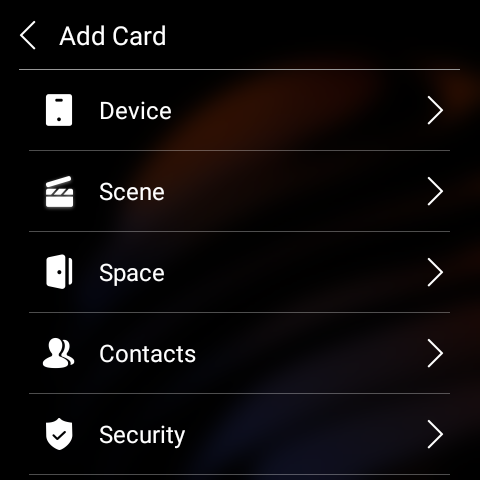
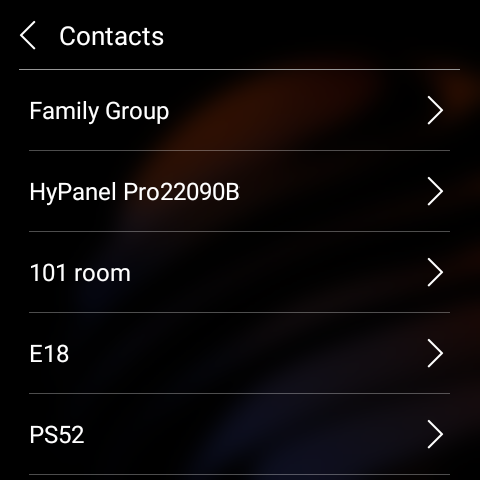
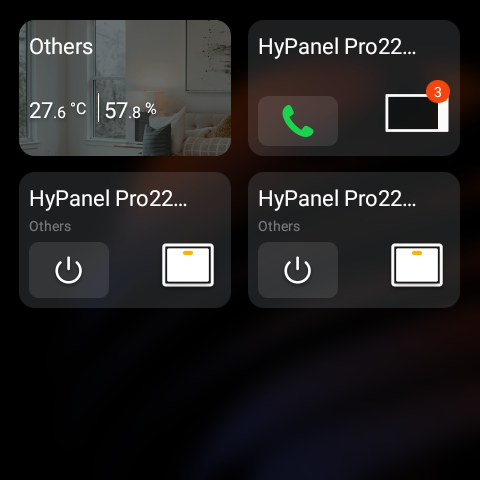
(2) Tap Contact, select the desired contact, and tap Add.
TIP:
For cloud-connected panels, you can add the Family Group to the Home screen. Tapping it will call all devices and apps within the family.
Make Calls Between Contacts
Select a Contact to Call
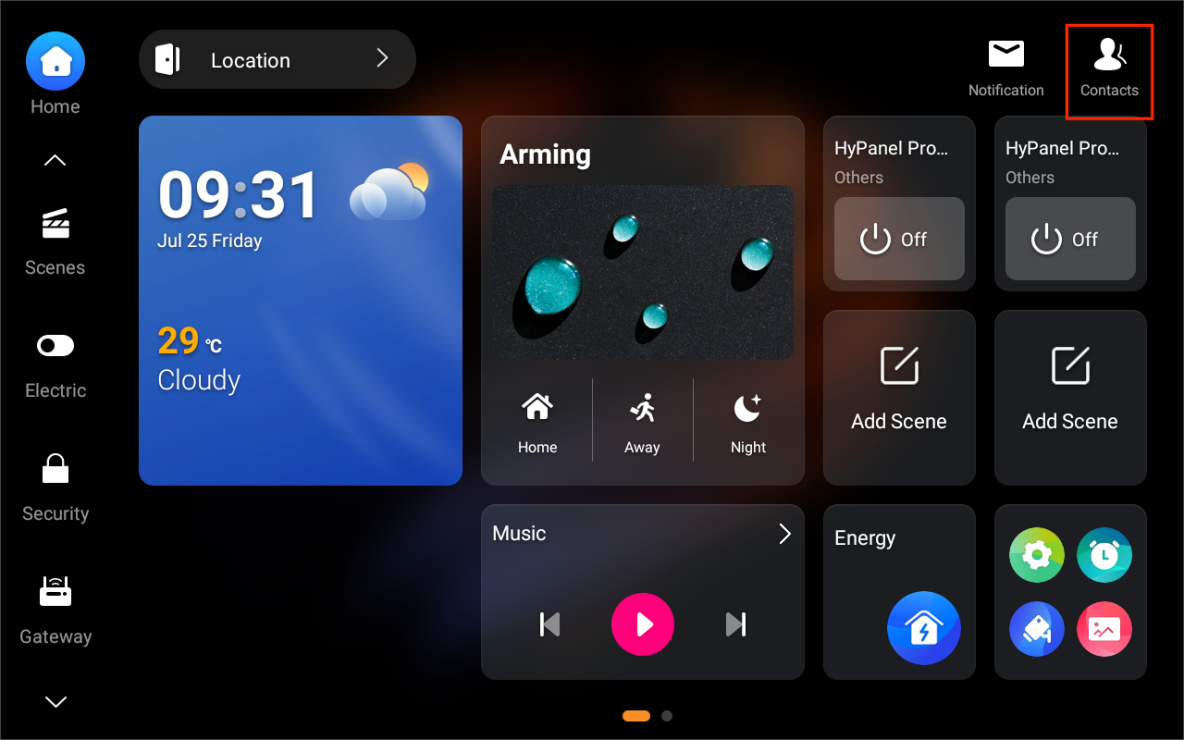
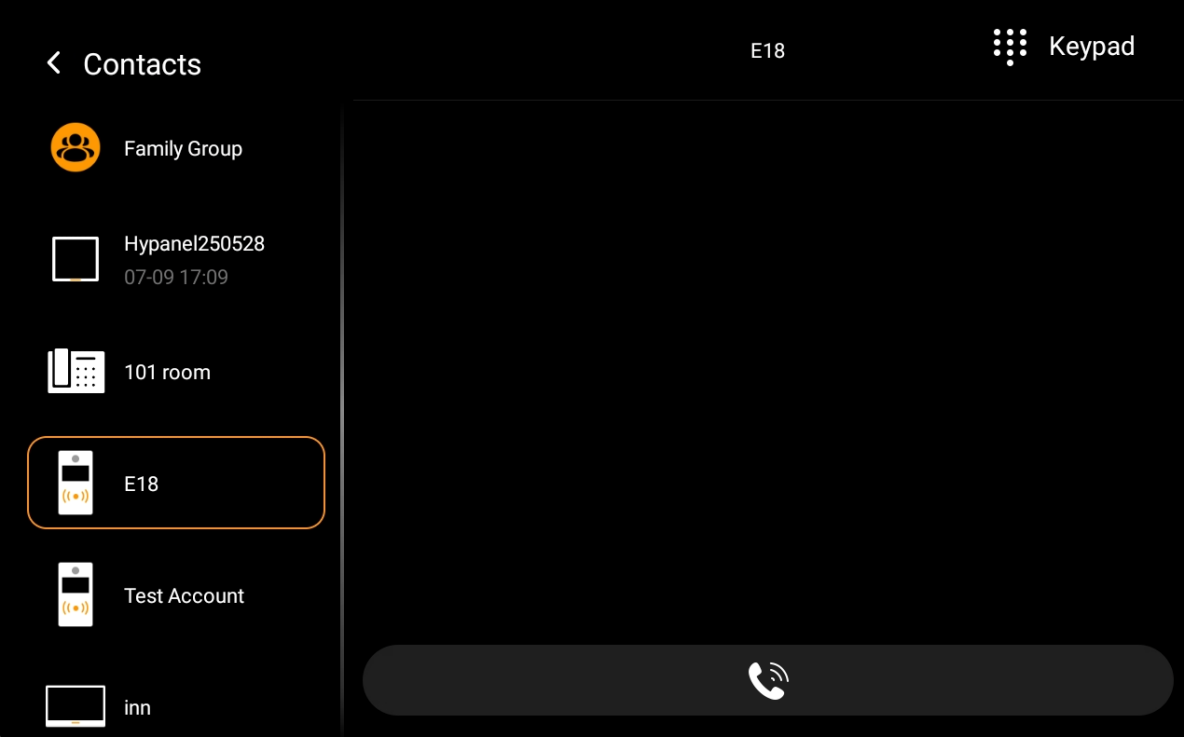
Tap Contacts, choose a contact, and tap  .
.
Use Shortcut to Call
On the home page, tap  on the specific contact shortcut card.
Call using IP or SIP Number
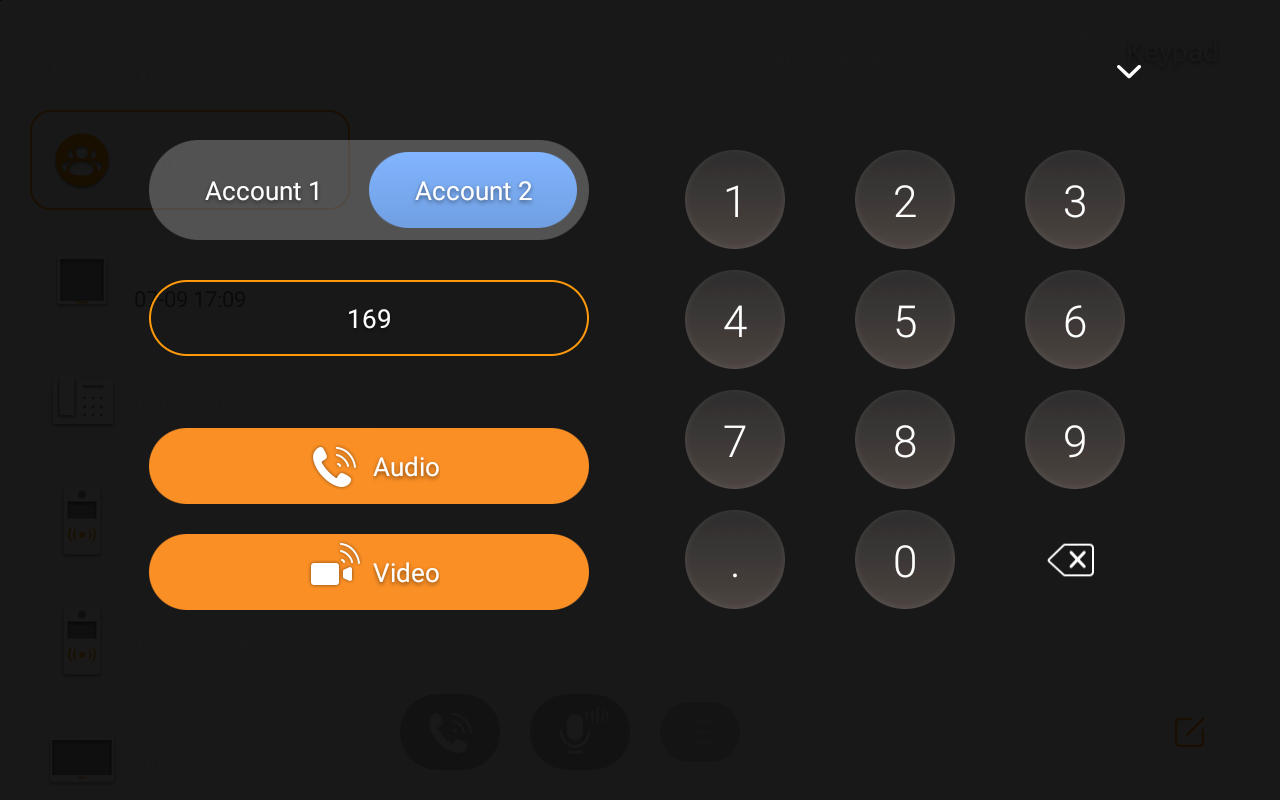
Go to Contacts > Keypad, enter the SIP account or IP address, and tap Video or Audio to call.
NOTE:
If a SIP server is registered, select Account 2 for dialing.