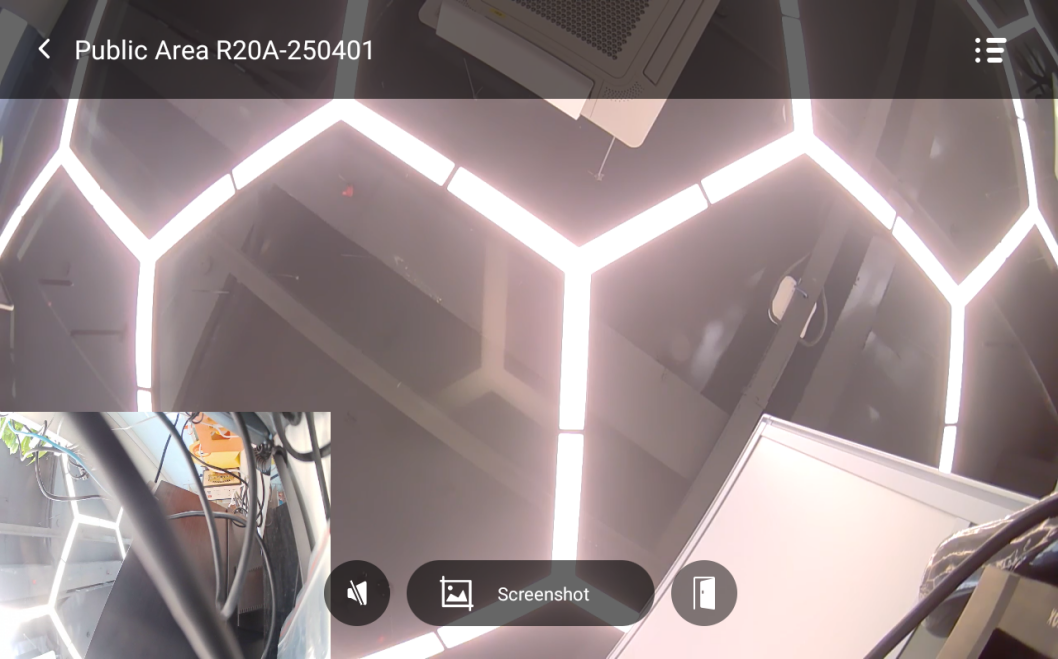
If the door phone’s built-in camera does not fully cover the access-controlled area, you can link an additional sub-camera to the door phone. Once linked, you can view both the main camera and the sub-camera during live monitoring or calls.
What You Should Know
Supported devices and firmware versions:
Device | Version |
HyPanel (PS51) | 51.1.39.15 or later |
HyPanel V2 (PS51 V2) | 251.1.39.4 or later |
HyPanel Plus (PS52) | 52.1.39.7 or later |
HyPanel KeyPlus (KS53) | 53.1.39.7 or later |
HyPanel Pro (PG71) | 71.1.39.44 or later |
HyPanel Ultra (PH81) | 281.1.39.29 or later |
HyPanel Supreme (PHX1) | 1001.1.39.27 or later |
HyPanel Elite 10 (PH59) | 159.1.39.137 or later |
SmartPanel (X933H) | 933.1.39.10 or later |
SmartPanel Elite 10 (PH58) | 119.1.39.10 or later |
Supported door phones:
All Akuvox door phone models running firmware version xxx.30.10.xxx or later are supported.
Supported IP cameras:
For supported third-party IP camera models, refer to this guide.
Notes and Limitations
On KS53, PS51, and PS52, the sub-camera video is available only during calls. Simultaneous display of both cameras is not supported.
If a door phone is used as a sub-camera and no video is displayed, try disabling RTSP authentication on that door phone.
Step 1 Add the Sub-Camera to the akubela System
A sub-camera can be either an IP camera or another door phone.
Before linking it to a door phone, make sure the device has already been added to the system via the Cloud or Local Contacts.
Option A: Add Devices via the Cloud
If the sub-camera is an IP camera
See here for detailed instructions.
If a door phone is used as the sub-camera
See here for detailed instructions.
Option B: Add Devices to Local Contacts
If a door phone is used as the sub-camera
See here for detailed instructions.
If the sub-camera is an IP camera
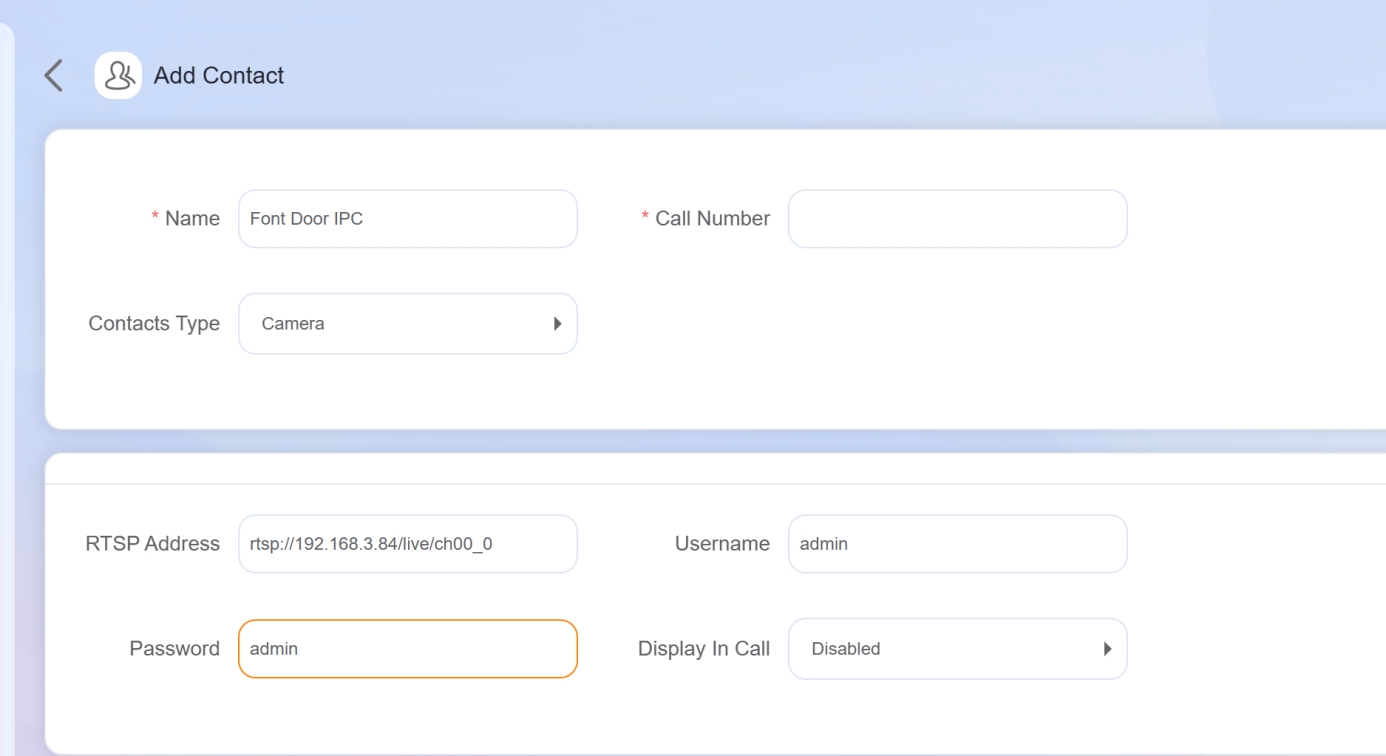
Obtain the RTSP address and authentication credentials (username and password) from the camera manufacturer.
NOTE:
For Akuvox door phones, the default RTSP address is: rtsp://device IP/live/ch00_0, and the default credentials are admin/admin.
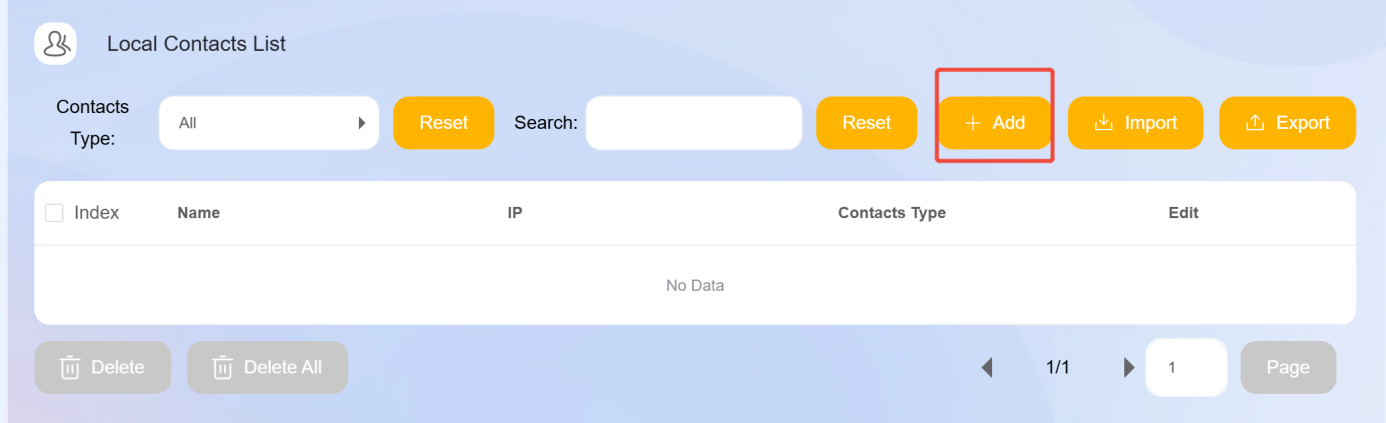
Log in to the home center’s device web portal, go to Local Contacts List, and click Add.
Enter the Name, RTSP Address, Username, and Password, then set the Contacts Type to Camera.
Click Submit to save the settings.
Step 2 Link the Sub-Camera to the Door Phone
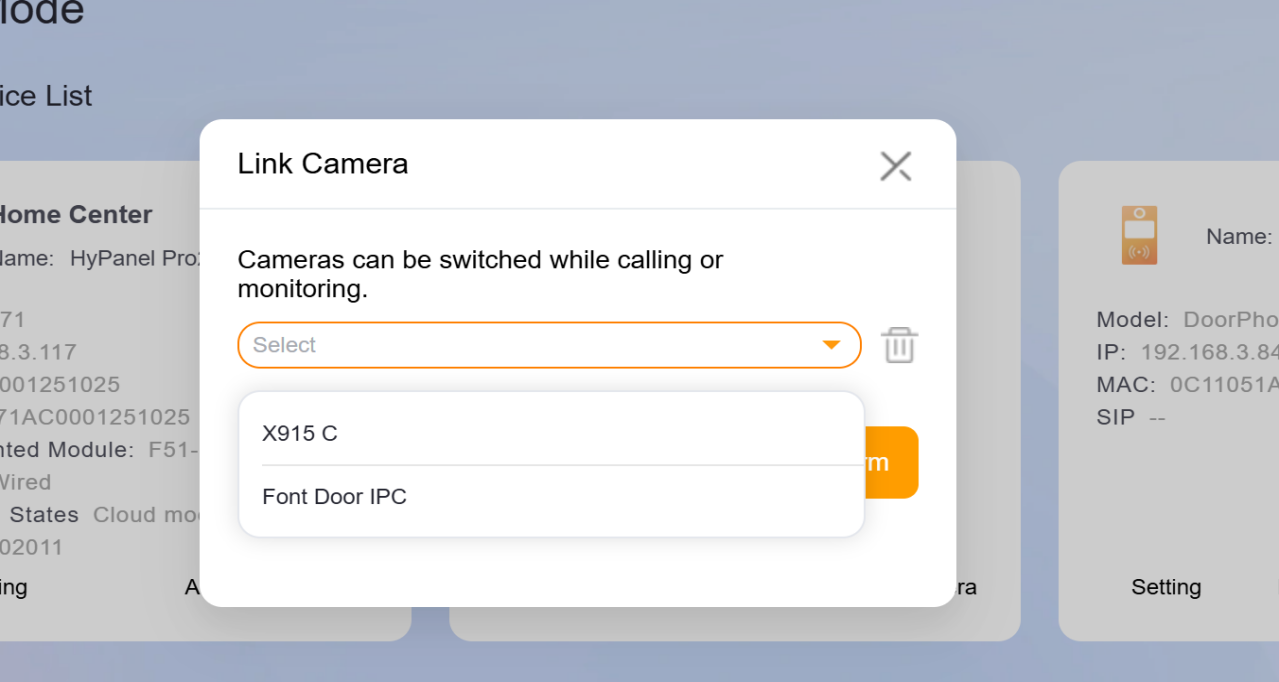
Log in to the home center’s device web portal, select the target door phone, and click Link Camera.
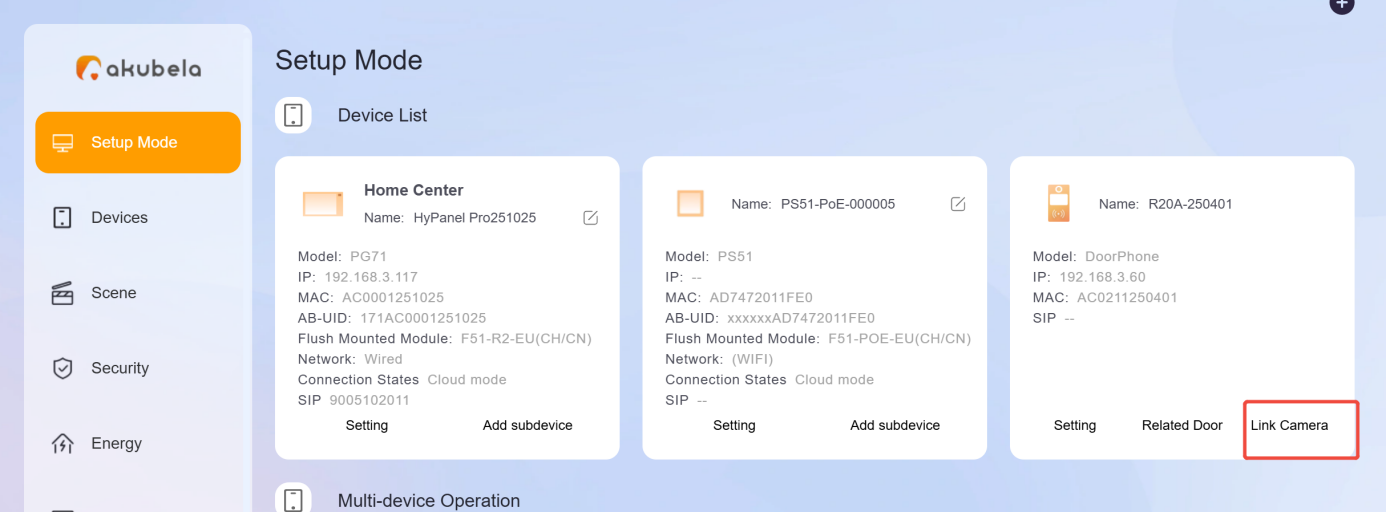
Select the sub-camera from the list.
NOTE:
Only cameras or door phones within the same family can be linked as sub-cameras.
Once linked, you can view both the door phone camera and the sub-camera during monitoring or calls.