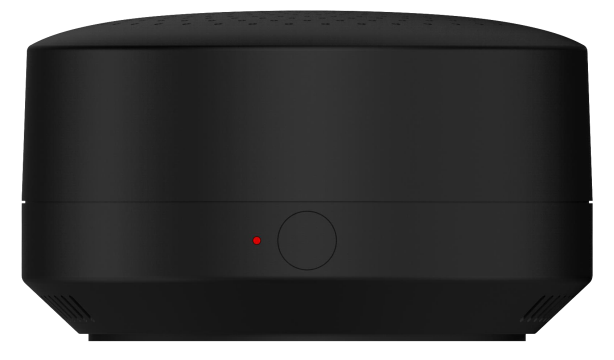
G31
Product Overview
.png)
.png)
Basic Operations and LED Status
Operation | Steps | LED /Buzzer |
Power On | Connect to a power adapter using the provided USB-C power cable. | Solid red light |
Startup | 1. Device powers on and the Zigbee module initializes. | Green solid light, turns off after 5 seconds |
2. ZigBee module is ready. |
| |
Enter Pairing Mode | 1. Press and hold the button for 5 seconds. | Solid red light |
2. The device is in pairing mode. | Buzzer beeps once with green light flashes slowly | |
Factory Reset | 1. Quickly press the button 5 times within 2 seconds. | Yellow light flashes slowly |
2. Press and hold the button for 5 seconds. | Solid red light | |
3. Factory reset complete. | Yellow light flashes slowly, then green flashes quickly | |
Upgrade | / | Yellow solid light during upgrading |
Add Zigbee Devices | When Zigbee device discovered | Buzzer beeps once with green light flashes slowly once |
Function Differences
The G31 can function as either a home center or a gateway. Here are key distinctions in main functions and important notes when it serves as different roles.
| Home Center (Cloud Connected) | Gateway (Other HyPanel devices as Home Center) |
Add & Control Zigbee Devices | ✔ | ✔ |
Add & Control 3rd-Party Devices | × | × |
Add & Control IR Devices | ✔ | ✔ |
Scenes | ✔ | ✔ |
Arming | × | ✔ |
Energy | × | × |
Intercom | ✔(Calls between app and door phones) | ✔(Calls between app and door phones) |
BelaHome App | ✔ | ✔ |
User Web Portal | × | ✔ |
NOTE:
When G31 is used as the home center:
Cloud Connection Recommended: Full features, including scenes and third-party device integration, require cloud connection.
Local Use Limitations: Without cloud connection, G31 functions and BelaHome app control are unavailable.
Gateway Restriction: With G31 as home center, no other gateway devices or panels can be added as sub-gateways.
Preparations
Power on the G31 and connect it to a network.
Update the G31 to the firmware version 31.1.37.19 or later.
(1) Download required firmware from our Knowledge Base.
(2) Make sure your computer and G31 are on the same network.
(3) Install and use the IPscanner tool to find G31’s IP address. You can download the tool here.
(4) Enter G31’s IP address into the browser. The default login credentials are both admin.
(5) Click Setting on the Set Mode interface to enter G31’s device web portal.
(6) Click Settings > Upgrade, and import the firmware.
Update the BelaHome app to the following versions:
iOS: 3.20.3 and later
Android:
Google: 3.20.0005 and later
Huawei: 3.20.1005 and later
Xiaomi: 3.20.1105 and later
OPPO: 3.20.1205 and later
vivo: 3.20.1305 and later
Use G31 as Home Center
1. Connect G31 to akubela Cloud
Connect the G31 to the cloud to access full features.
(1) Log into the akubela cloud with the installer account.
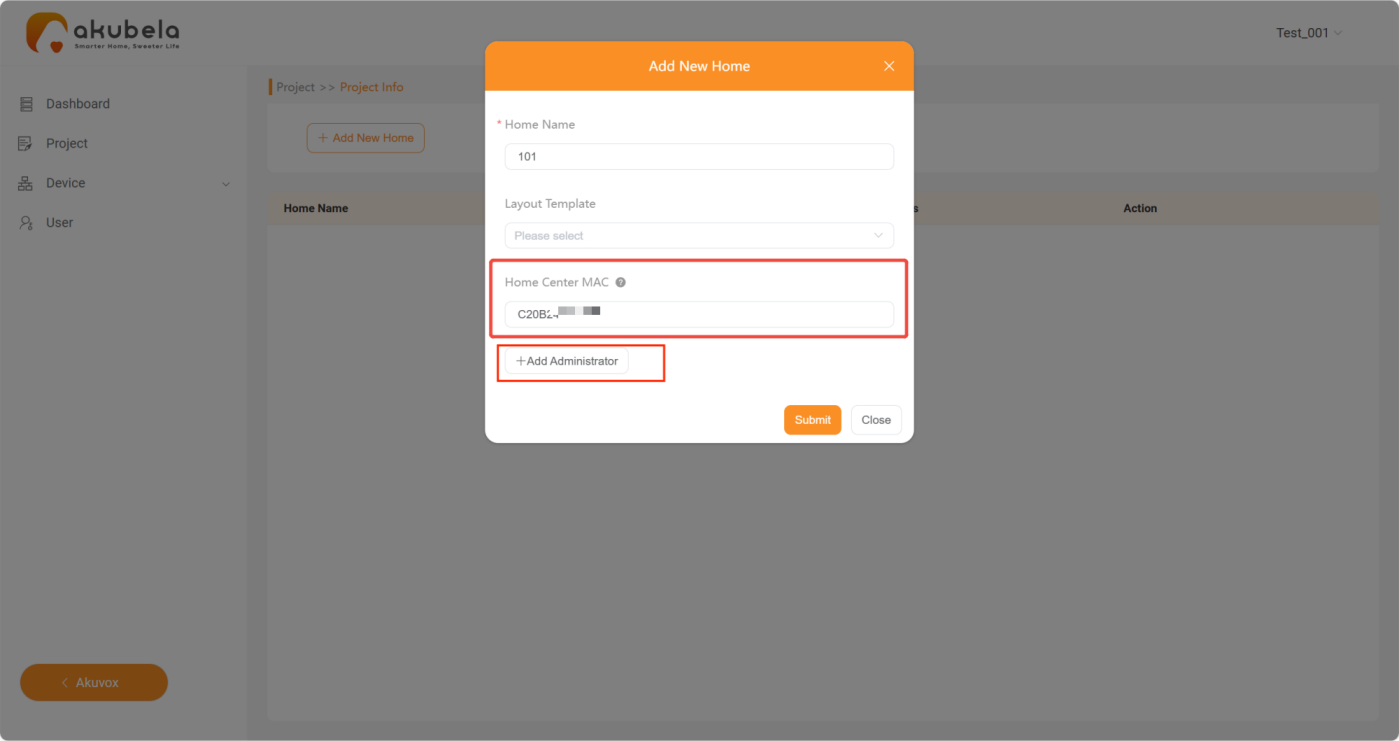
(2) Create a project and add the G31’s MAC address to the home.
TIP:
You can click Add Administrator to create the family administrator account. This allows the user to log in to BelaHome app without the need for self-registration.
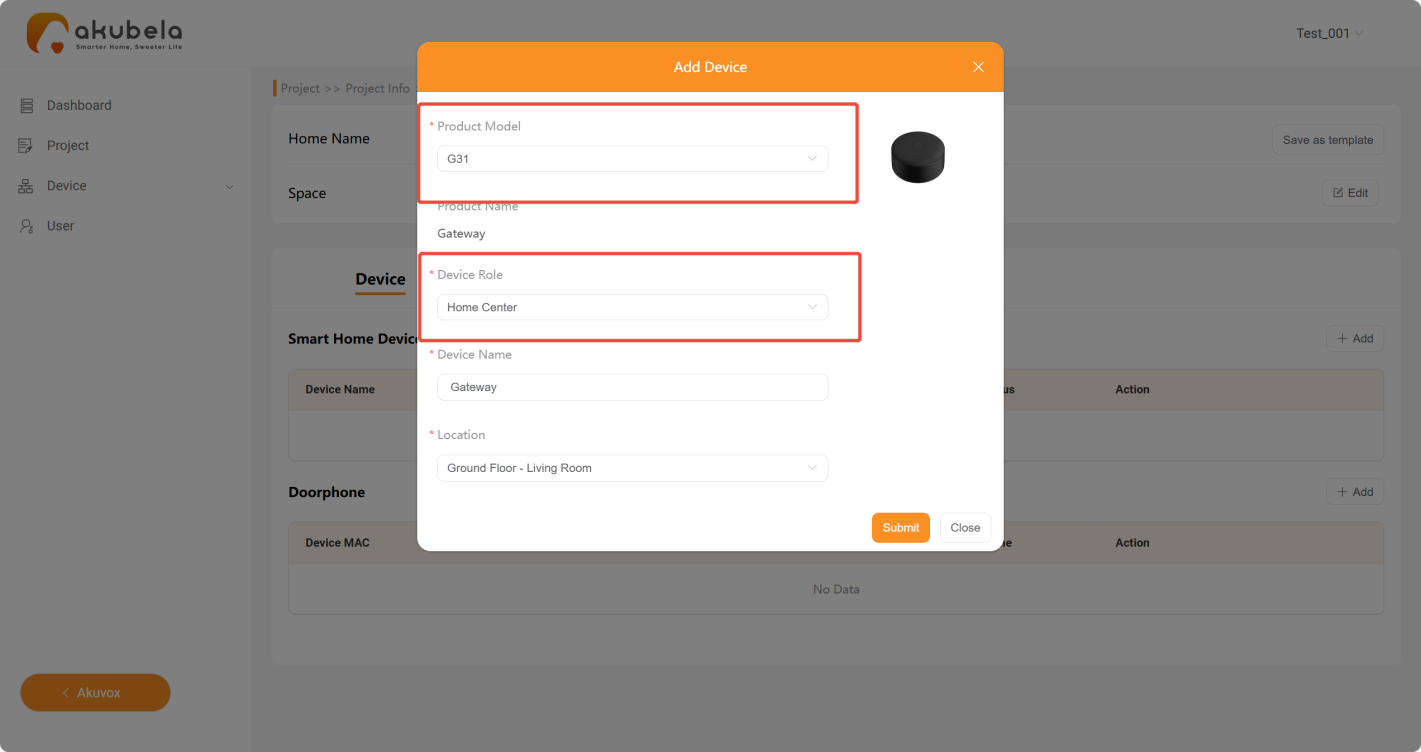
(3) In the home template interface, add G31 as the home center.
TIP:
For the detailed cloud-based project creating instructions, refer to the following guides:
2. Configure G31 by Installers
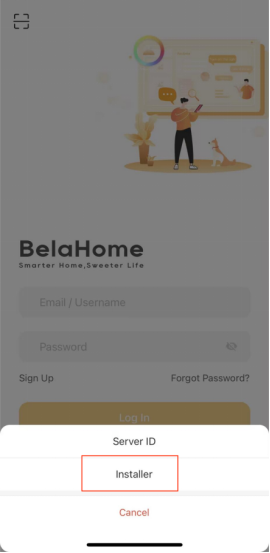
(1) Open the BelaHome app. Tap > Installer to enter the installer mode.
.png)

(2) Log into with the installer or distributor account credentials.
NOTE:
In Installer mode, the installer/distributor login account may differ from the account that created the family on akubela cloud.
(3) Select G31 configuration, follow the onscreen instructions to put it into pairing mode, and then tap Next.
.png)
.png)
(4) Connect your phone to the hotspot named “G31-xxxxxx(the last 6 digits of its MAC address)”.
NOTE:
For G31 firmware versions earlier than 31.1.37.19, use password Admin888 to connect.
.png)
Once added, you can tap Space Management to modify the room settings, and press  to add Zigbee devices.
.png)
(5) Log out the installer account.
3. Bind G31 to the Family by Users
(1) Log into the BelaHome app using the user account.
NOTE:
If the user doesn’t have an account, tap Sign Up to register.
.png)
(2) After signing in, follow the steps below depending on the G31’s connection method:
Wired connection, no setup needed
If the G31 is connected via a wired network, its configurations and Zigbee devices (if previously added by the installer) will appear automatically on the Home screen. No further setup is required.
Wi-Fi connection
If the G31 is not connected via a wired cable and needs Wi-Fi, or if you want to switch from wired to wireless:
a. On the Home screen, tap Click to Add, and select G31.
NOTE:
If the account is already bound to a family and you need to bind the G31 to a new family, go to Me > Scan icon > No QR code available,bind a home manually > G31.
.png)
.png)
b. Select G31(Wi-Fi).
.png)
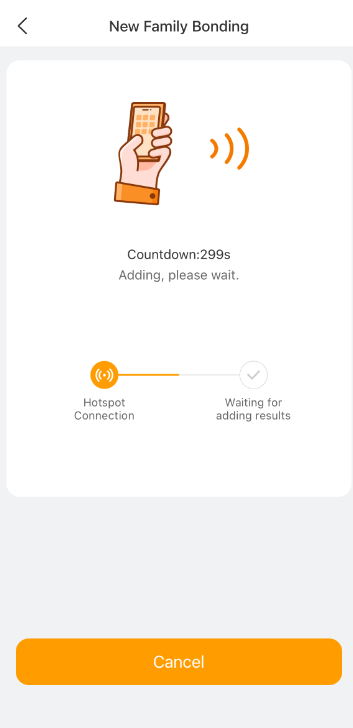
c. Tap Go Immediately, then connect your phone to the hotspot named “G31-xxxxxx(the last 6 digits of its MAC address)”
.png)
d. Connect to a 2.4GHz Wi-Fi network.
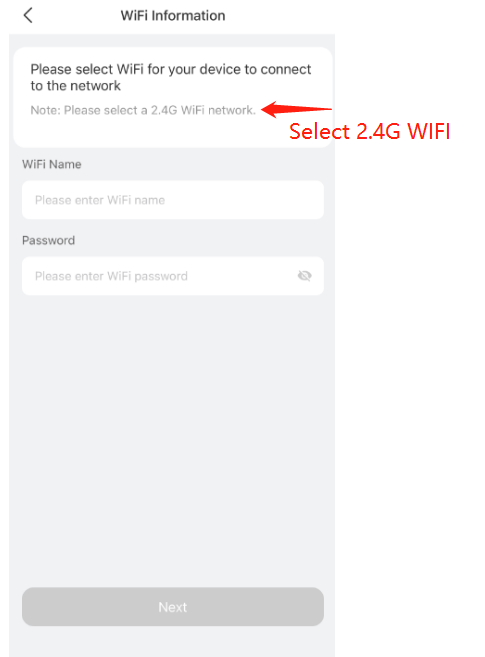
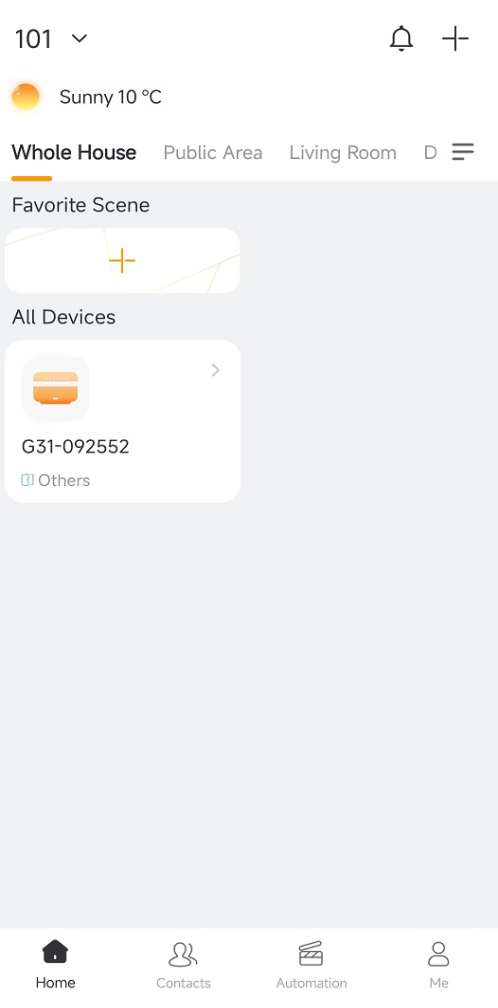
Once completed, the G31 will beep, and the app will automatically turn to the Home screen.
4. Add Zigbee Devices and Create Scenes
Add Zigbee devices:
Tap  to open the device scanning screen. Wait for automatic detection, or select the device type from the list to add it manually.
.png)
Create scenes: Go to Automation >
 to add a scene.
.png)
.png)
Use G31 as Sub-Gateway
If a HyPanel device serves as the home center, you can add the G31 as a sub-gateway.
1. Add G31 to a HyPanel as a Sub-Gateway
G31 using wired connection
(1) Put G31 in pairing mode.
(2) On the BelaHome’s Home screen, tap
 in the upper right to open the device scanning screen.
.png)
(3) The G31 will be automatically detected within the same local network. Select it to add it to the family.
G31 with Wi-Fi connection
In the device scanning screen, find the G31 from the device list, and then follow the on-screen instructions to complete setup.
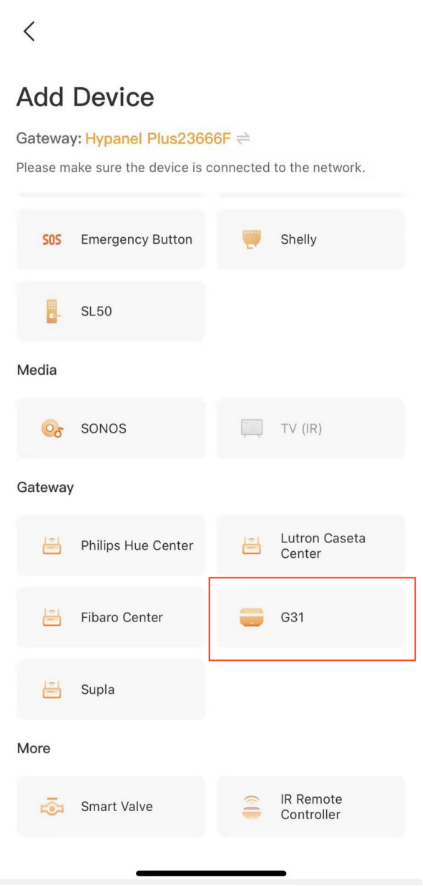
2. Add Zigbee Devices to G31
(1) On the BelaHome Home screen, tap  in the upper right and select the G31 as the gateway for adding Zigbee devices.
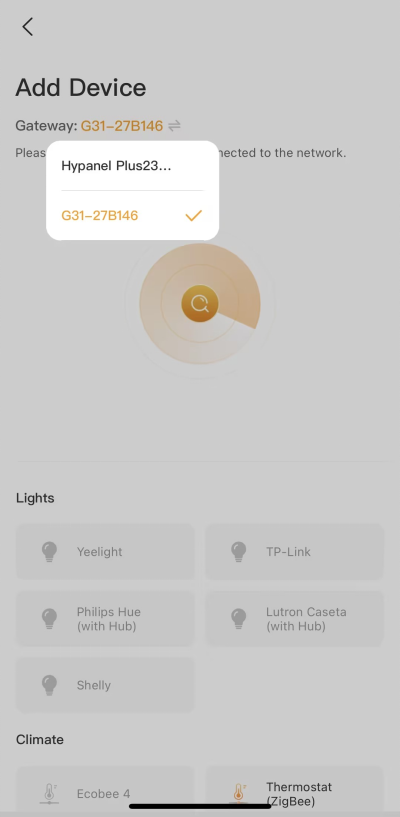
(2) Wait for automatic detection, or select the device type from the list to add it manually.
Network Configuration Tips
To switch from Wi-Fi to a wired network, connect an RJ-45 Ethernet cable and restart the G31.
To change Wi-Fi, go to the G31 settings screen in the BelaHome app, tap Change WiFi, and follow the onscreen instructions.
The G31 cannot connect to networks in the 192.168.240.X range (Wi-Fi or wired) as its built-in hotspot uses this range, which would cause conflicts that prevent device setup.