.jpg)
This manual guides you in using the fingerprint reader ACR-CID13.
Note
Compatible models and firmware versions(or higher):
S535 with the fingerprint module installed: 535.30.10.236.
R29CT: 29.30.10.607. Its hardware version should be higher than 29.3.12.
Enroll the fingerprints on the SmartPlus Cloud via ACR-CID13.
Users place their registered fingers on the door phone to open doors.
Product Overview
Akuvox's ACR-CID13 is a semiconductor desktop fingerprint capture device. It offers high reliability, strong adaptability to dry and wet fingers, and fast fingerprint recognition speed. The device is capable of fingerprint image capture, image processing, and feature extraction, featuring a compact size, novel design, low power consumption, and simple interfaces.
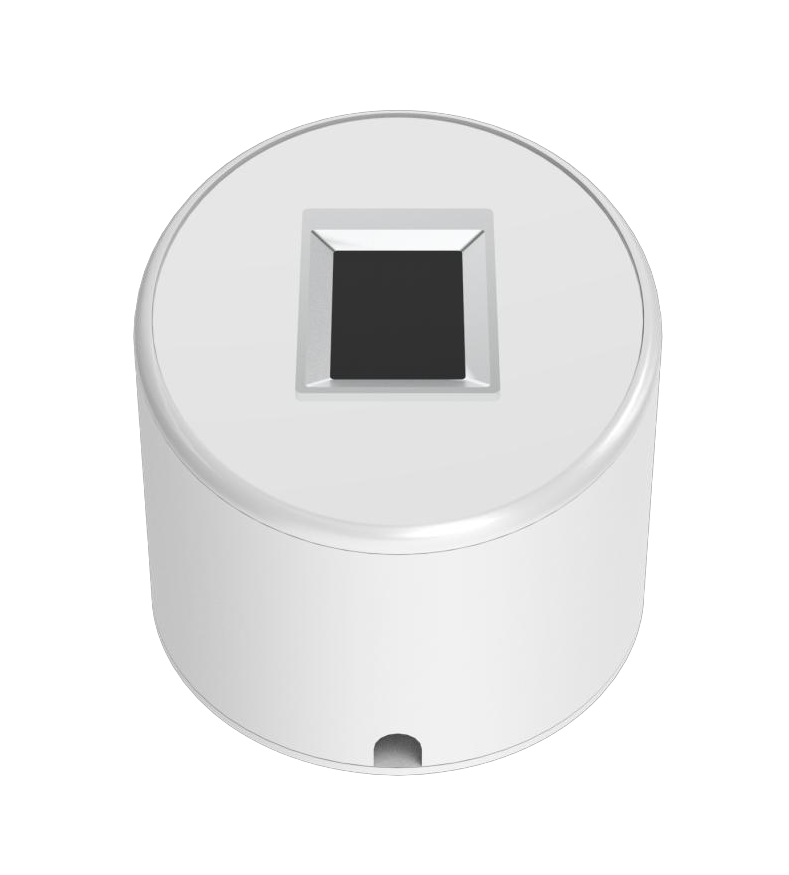
Product Specifications
Communication Interface | USB 2.0 |
Operating Voltage | DC 5.0 ± 0.5 (V) |
Maximum Current | <60mA VDD (excluding the indicator light module) |
Indicator Light | Red/Green |
Image Resolution | 256 × 360 pixels |
Fingerprint Image Capture Time | ≤0.25s |
Image Distortion Calibration | ≤2% |
Effective Fingerprint Detection Area | 12.8mm × 18mm |
Connection Requirements
Windows USB 2.0 Port.
No requirements for installing drivers.
After connecting to a computer, its green indicator light remains on.
Fingerprint Enrollment Requirements
Place the fleshy part of your finger in the middle of the reader to ensure accurate fingerprint capture and recognition.
Apply light and even pressure on the reader. Pressing too hard may make the fingerprint image dark or blurred.
Keep your finger still during the enrollment.
Configuration
The device works with Akuvox SmartPlus Cloud.
For SmartPlus community projects, property managers can enroll fingerprints for residents.
For Smart Access commercial projects(created after October 15, 2024), installers, project managers, and administrators can enroll fingerprints for personnel.
For Community Projects
Connect the device to your computer via USB.
Log in to the SmartPlus Cloud with your account.
Click Resident.
Click New to add a resident; click
 to modify an existing one.
Find the Access Type section.
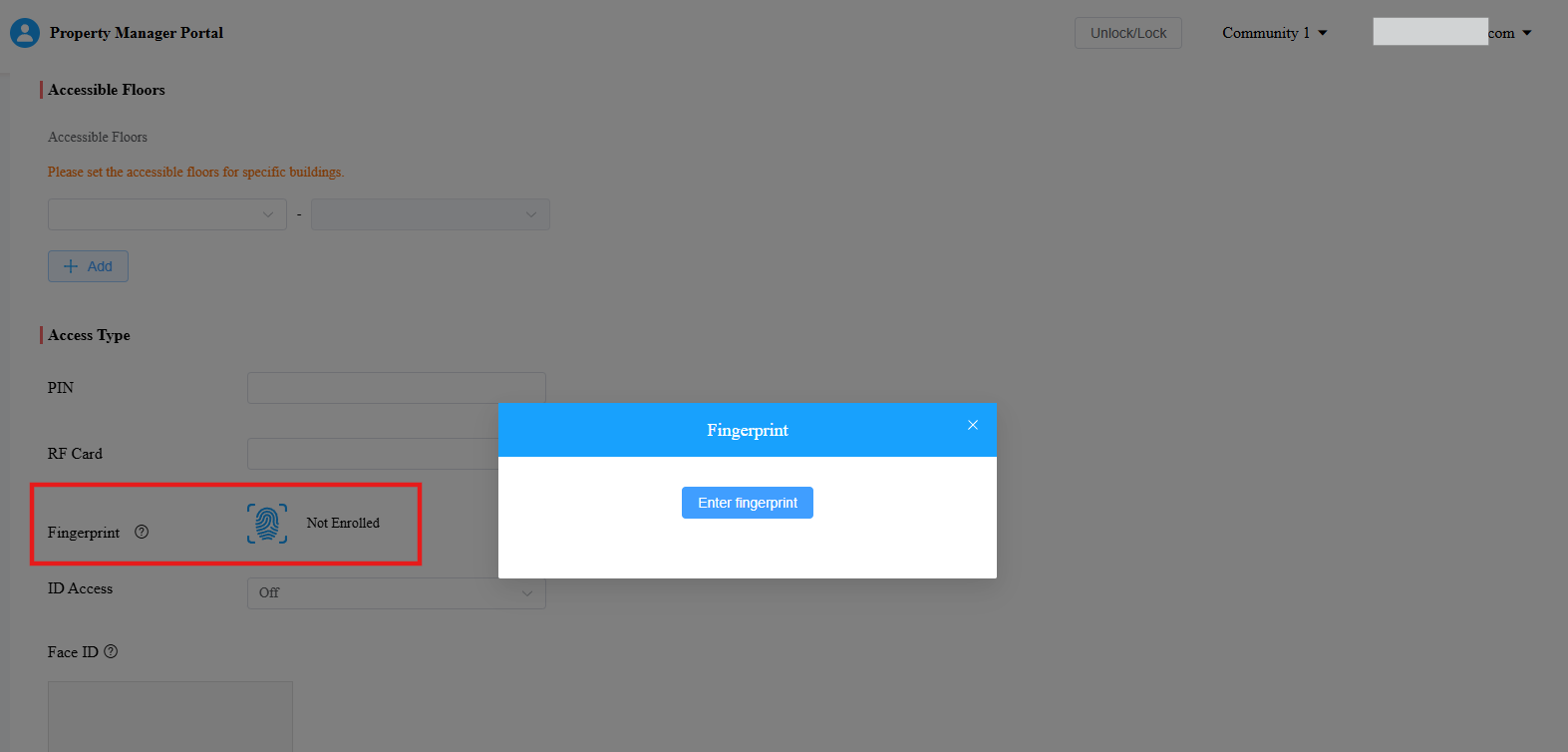
Click
 and click Enter fingerprint.
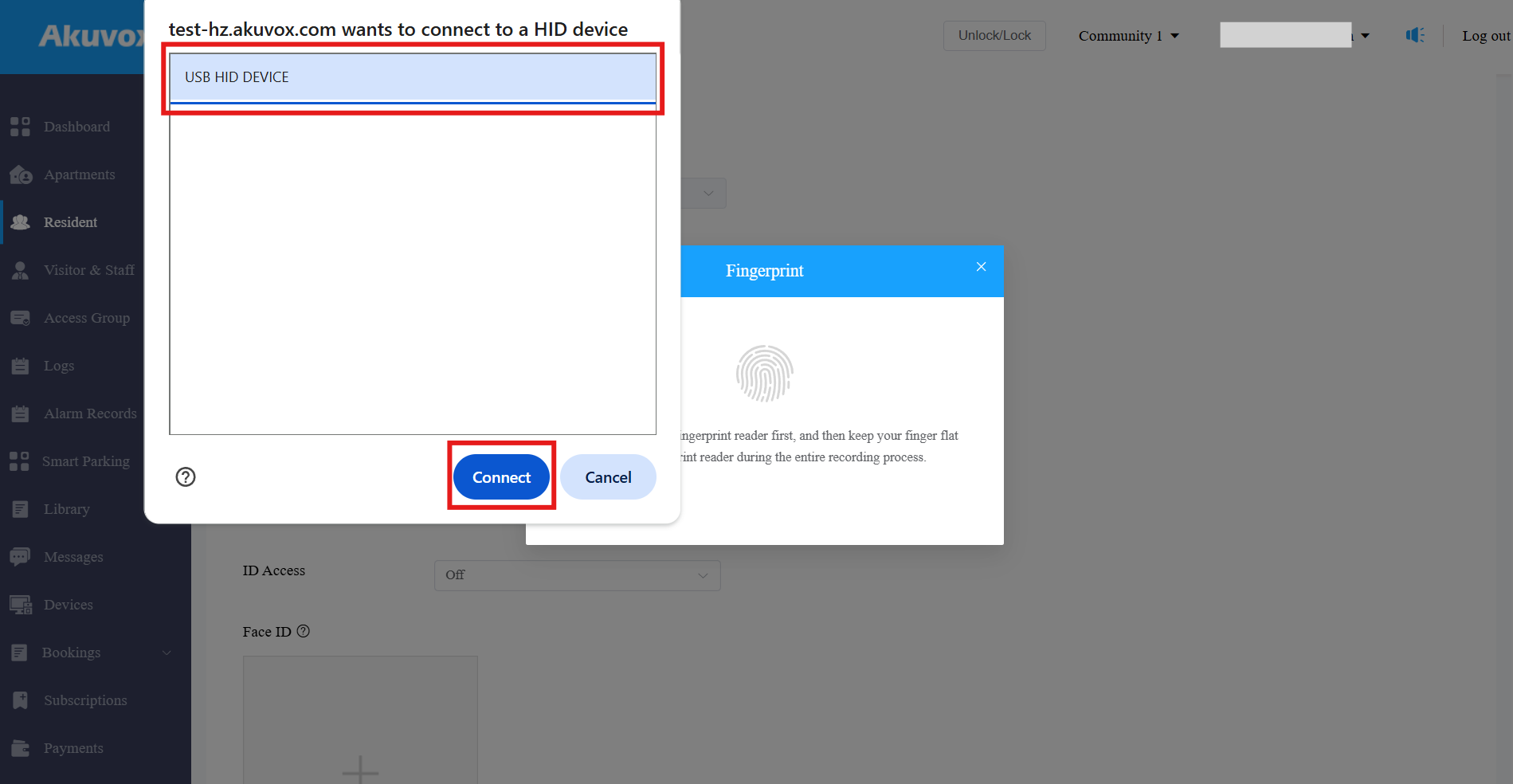
Select the device in the pop-up window and click Connect.
Place the user’s finger on the ACR-CID13. Collect the same fingerprint continuously three times.
The green indicator light flashes upon each collection.
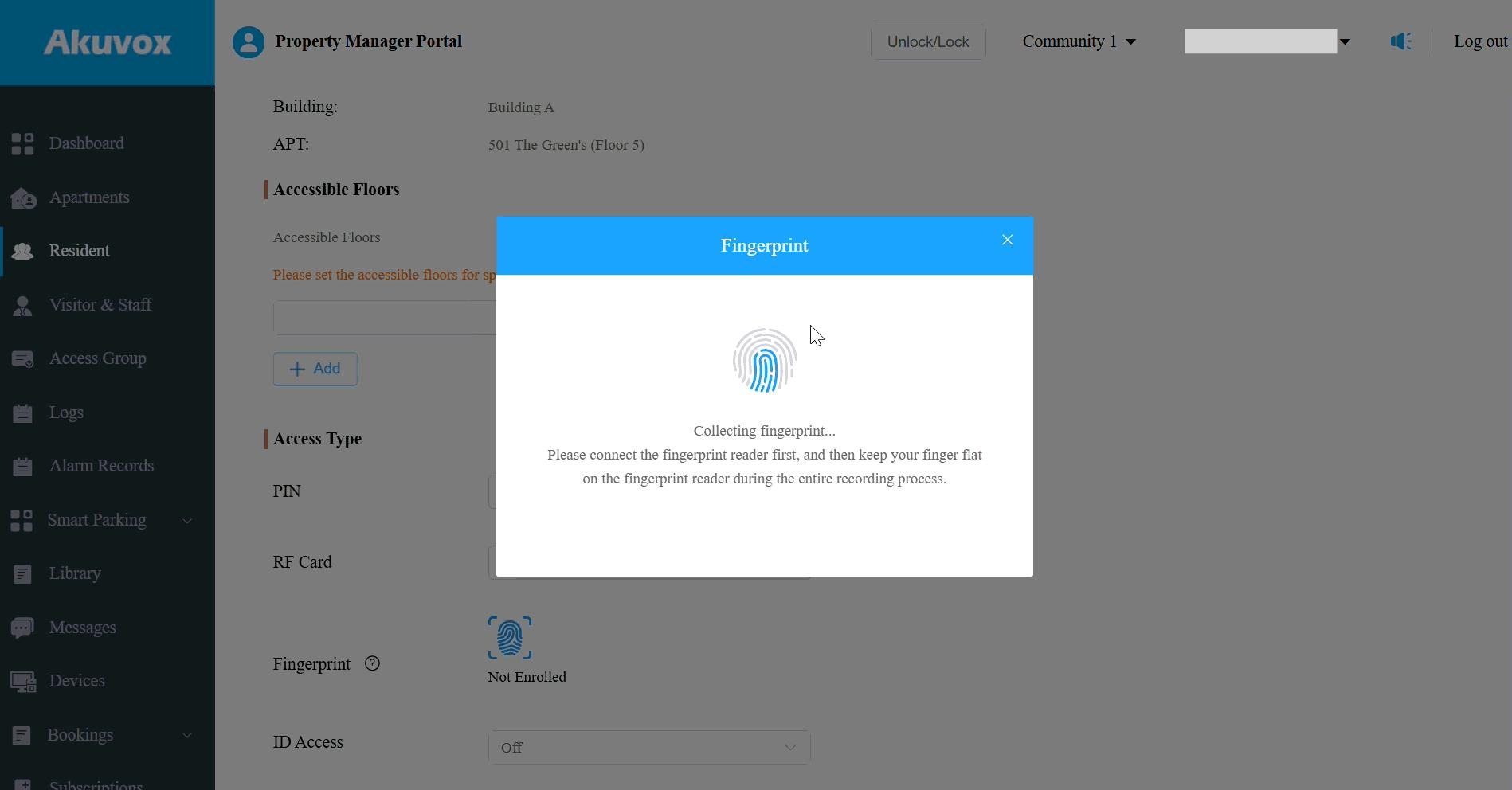
After enrollment, the Fingerprint status will change to Enrolled.
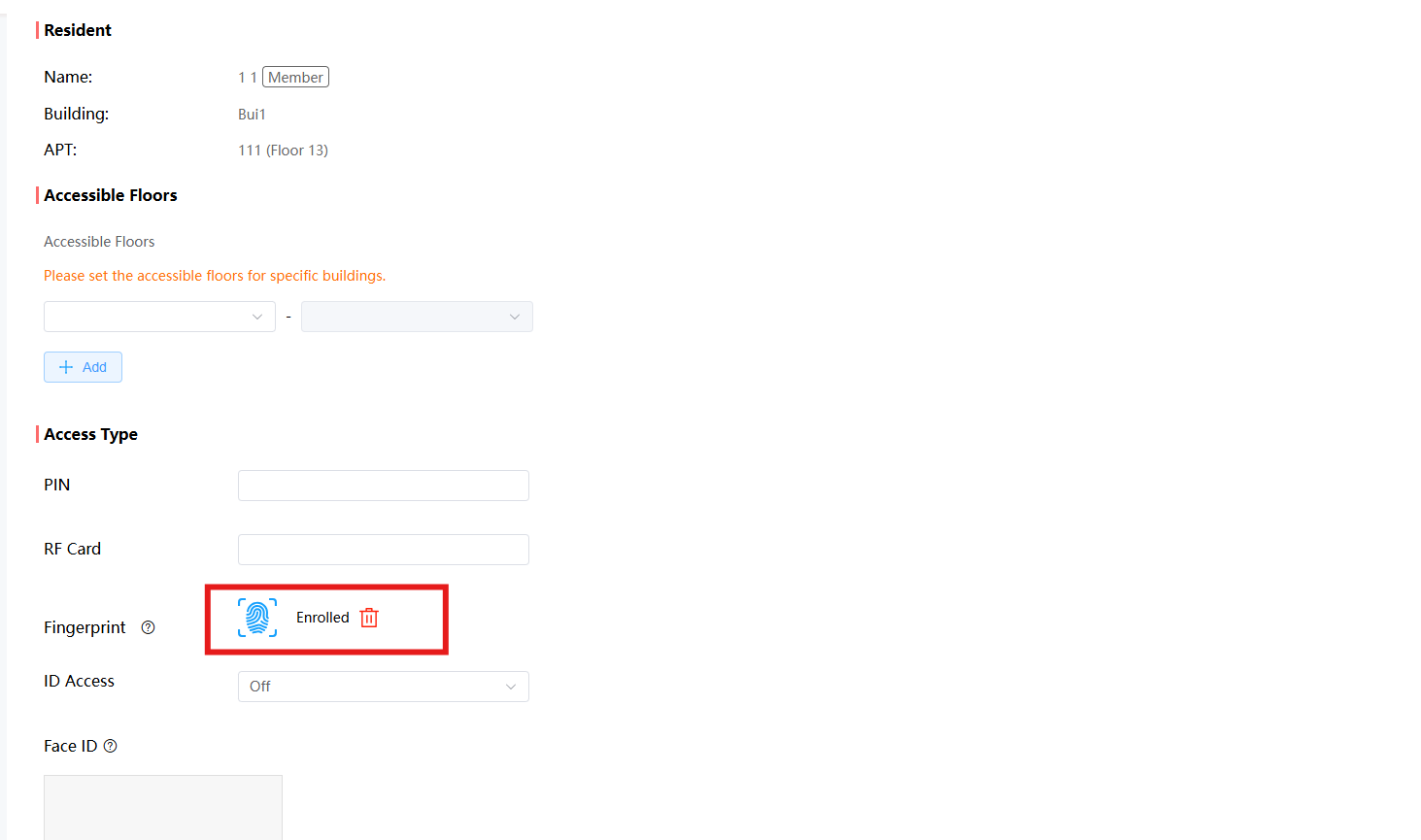
When the user puts the registered finger on the door phone’s fingerprint reader area, the door will open.
For Commercial Projects
Take an installer account as an example.
1. Log in to the cloud with your account.
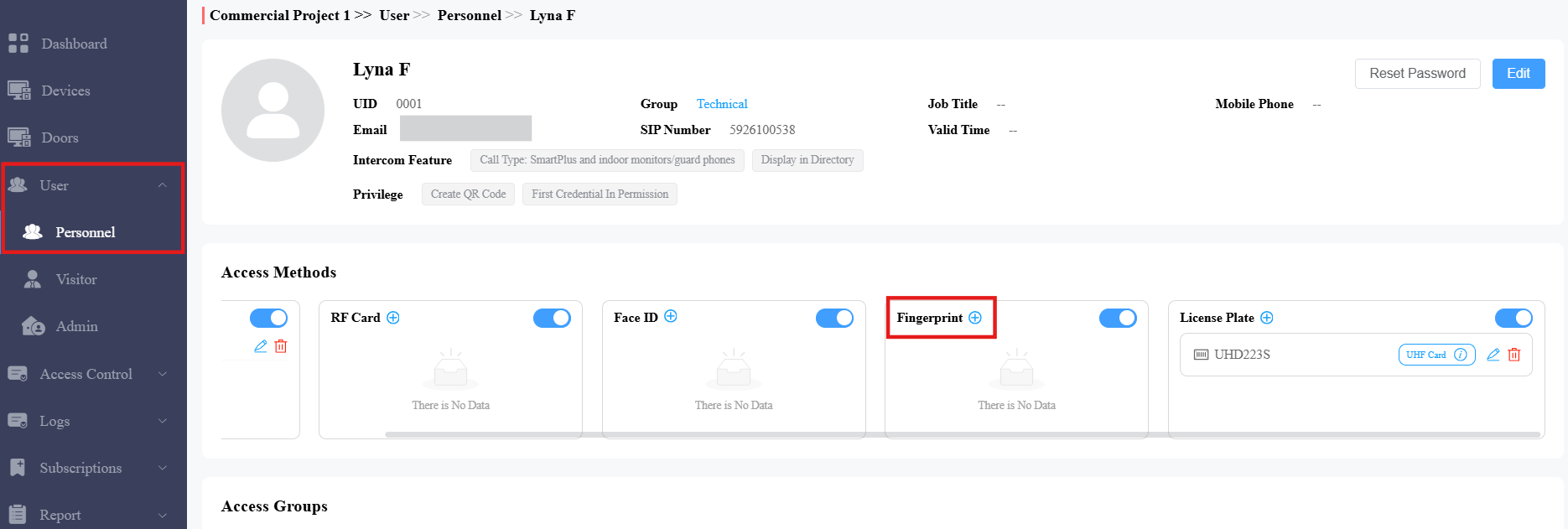
2. Click User > Personnel in the left column.
3. Click New Personnel to add a user; click to modify a current one.
4. Click next to Fingerprint.
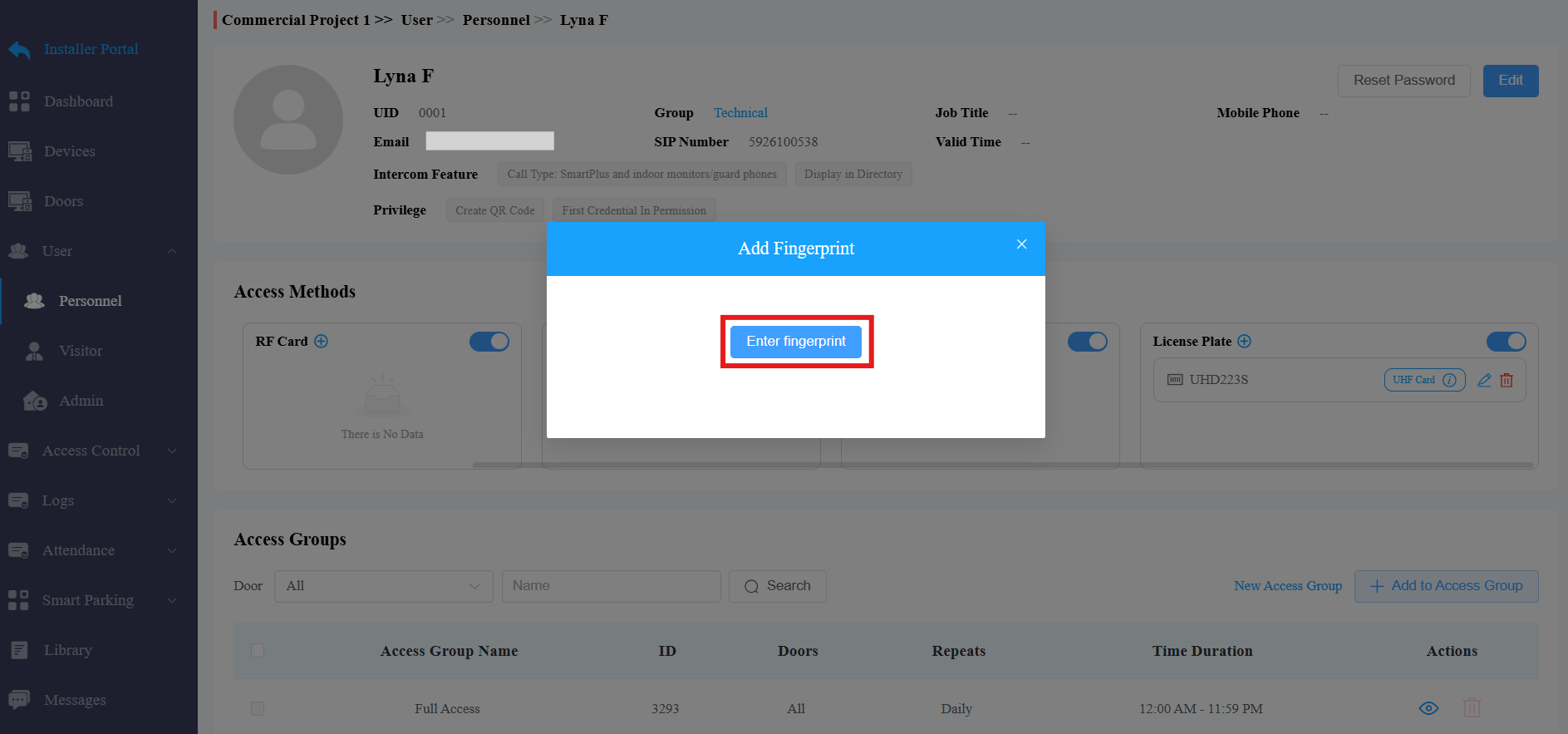
5. Click Enter fingerprint.
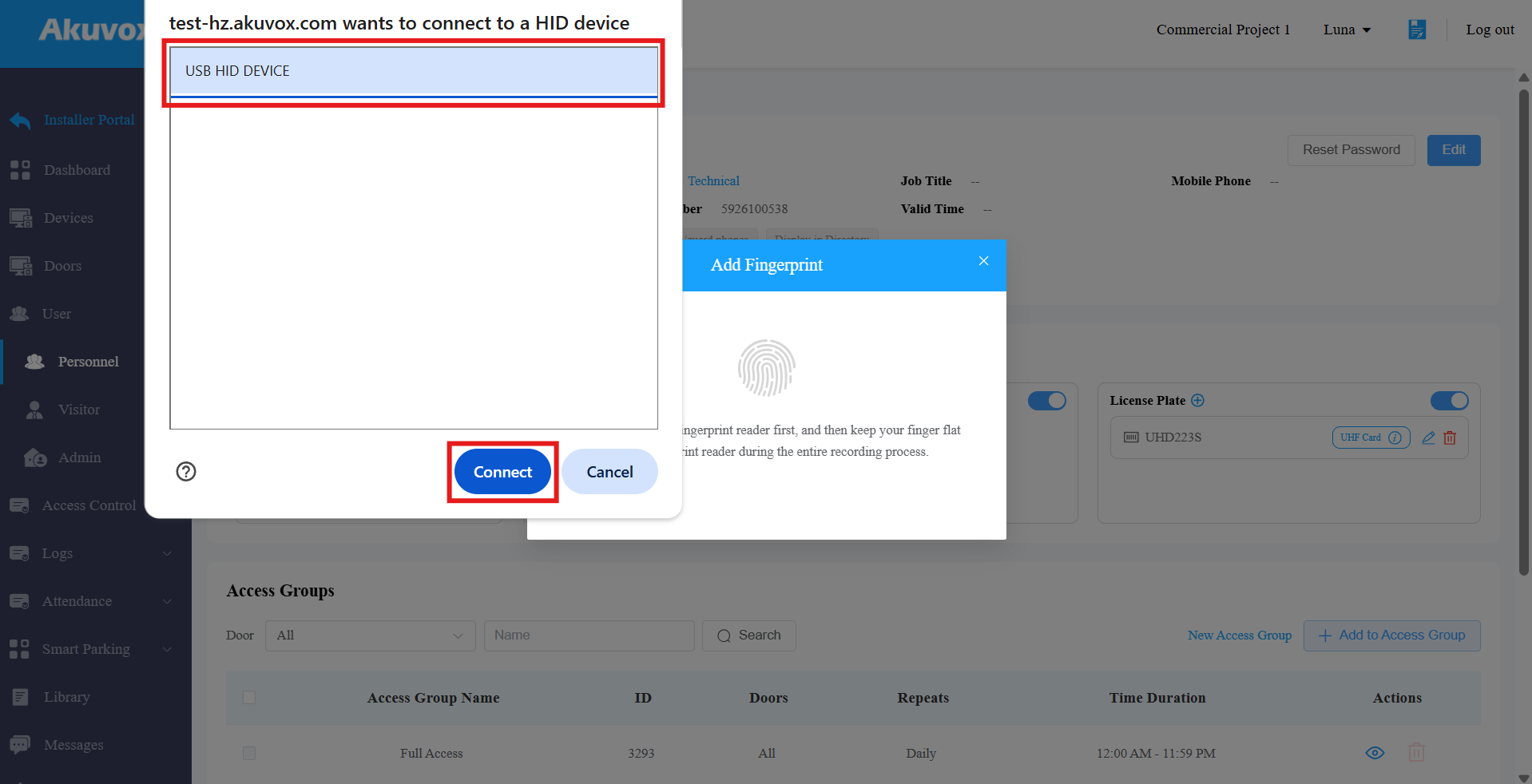
6. Select the device in the pop-up window and click Connect.
7. Place the user’s finger on the fingerprint reader. Collect the same fingerprint continuously three times.
The green indicator light flashes upon each collection.
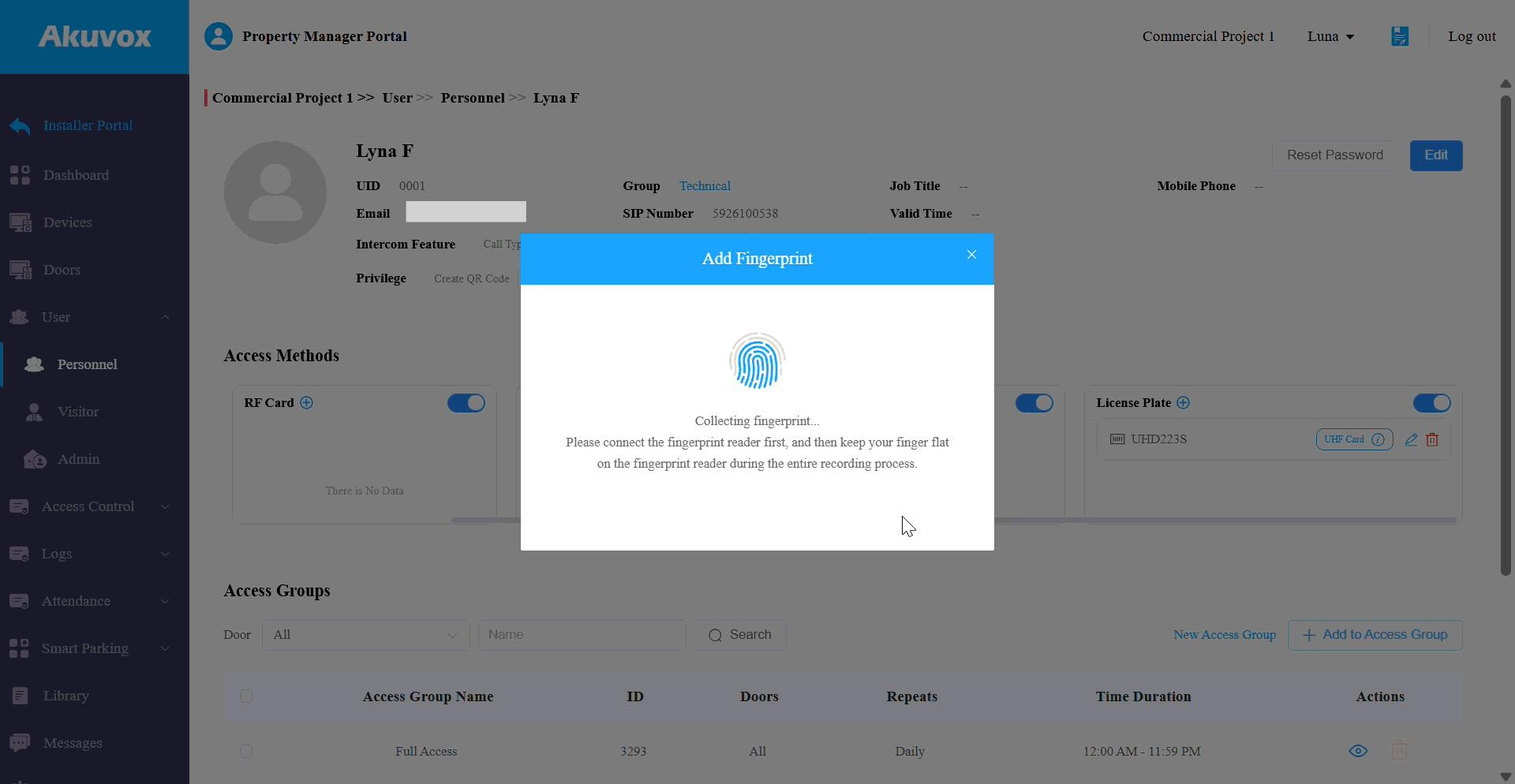
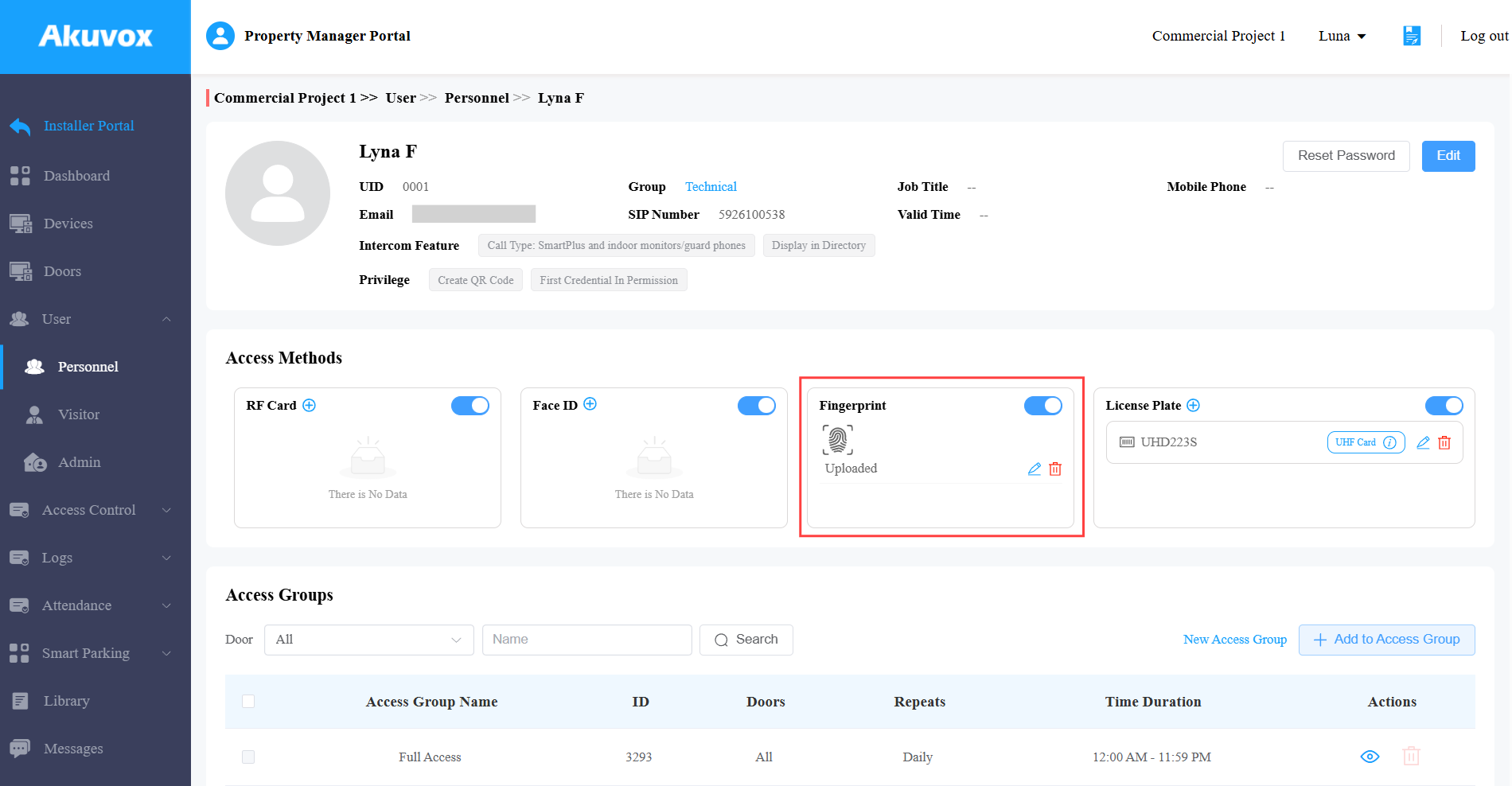
After enrollment, the Fingerprint status will change to Uploaded.
When the user puts the registered finger on the door phone’s fingerprint reader area, the door will open.
Note
If opening the door fails, please check whether the user is in an access group that allows him/her to open the door during the scheduled time.