About This Manual
This manual is intended for distributors who need to properly manage the installers, residents, devices, and remote maintenance on the MySmart local server.
Update Time: September 2026
System Overview
Distributors using this server will be able to:
Add, delete, search, and check the installer account.
Manage the community, commercial project, and personal devices by searching for and checking the devices’ information.
Check and delete third-party devices.
Add the device MAC to the device MAC library separately, or use a template and remove the device MAC from the MAC library.
Leave your contact information for the customers.
Login
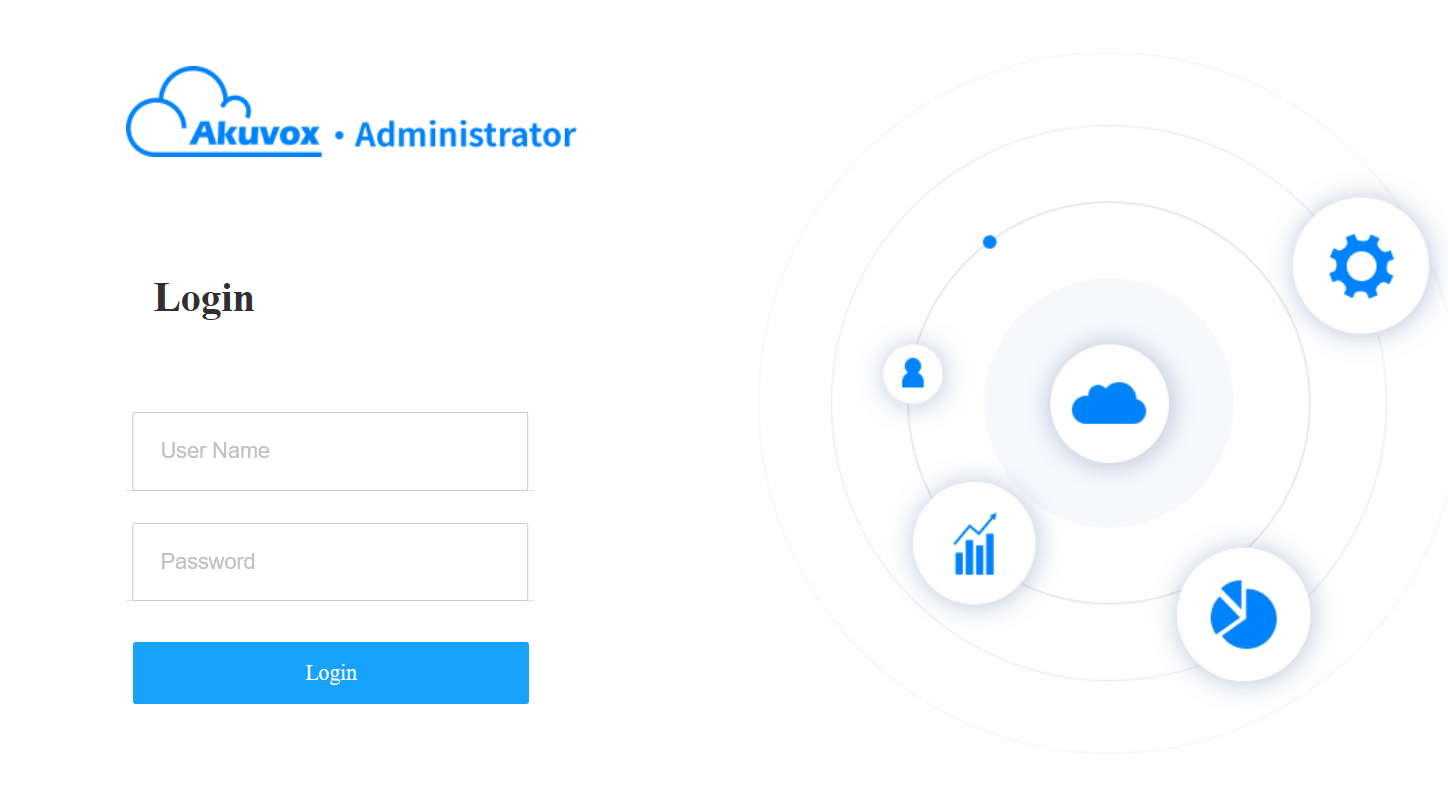
Log in to the server using the user account information obtained from the Akuvox technical team.
Navigate to the server address in a browser.
Enter your username and password.
Click Login.
Note
Google Chrome Browser is recommended.
You can click Log out to exit the system.
Email Confirmation
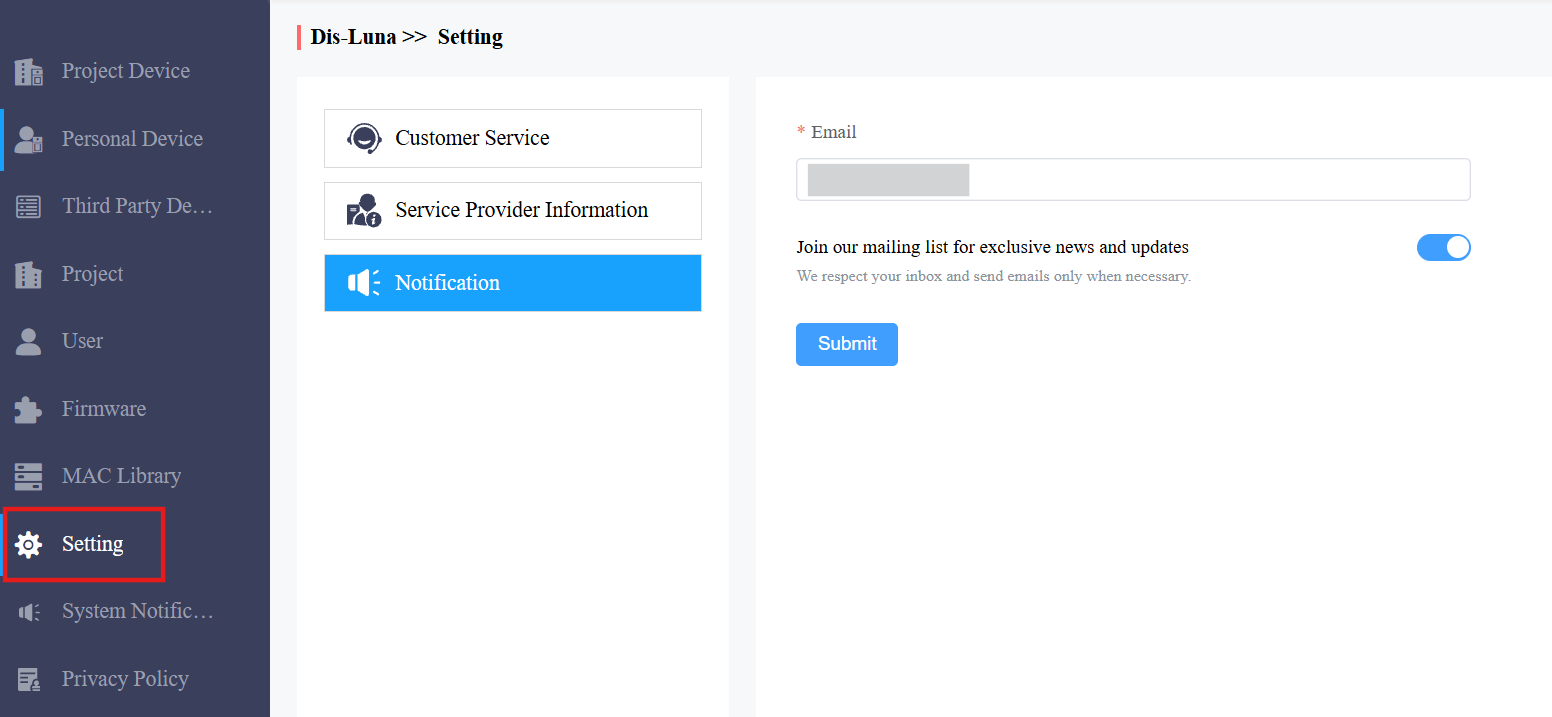
You are required to enter an email address when you log in for the first time.
The email address is used to reset your login password when you forget it and to receive notifications from Akuvox.
You can change the email address and turn off push notifications on the Setting > Notification interface.
Main Interface
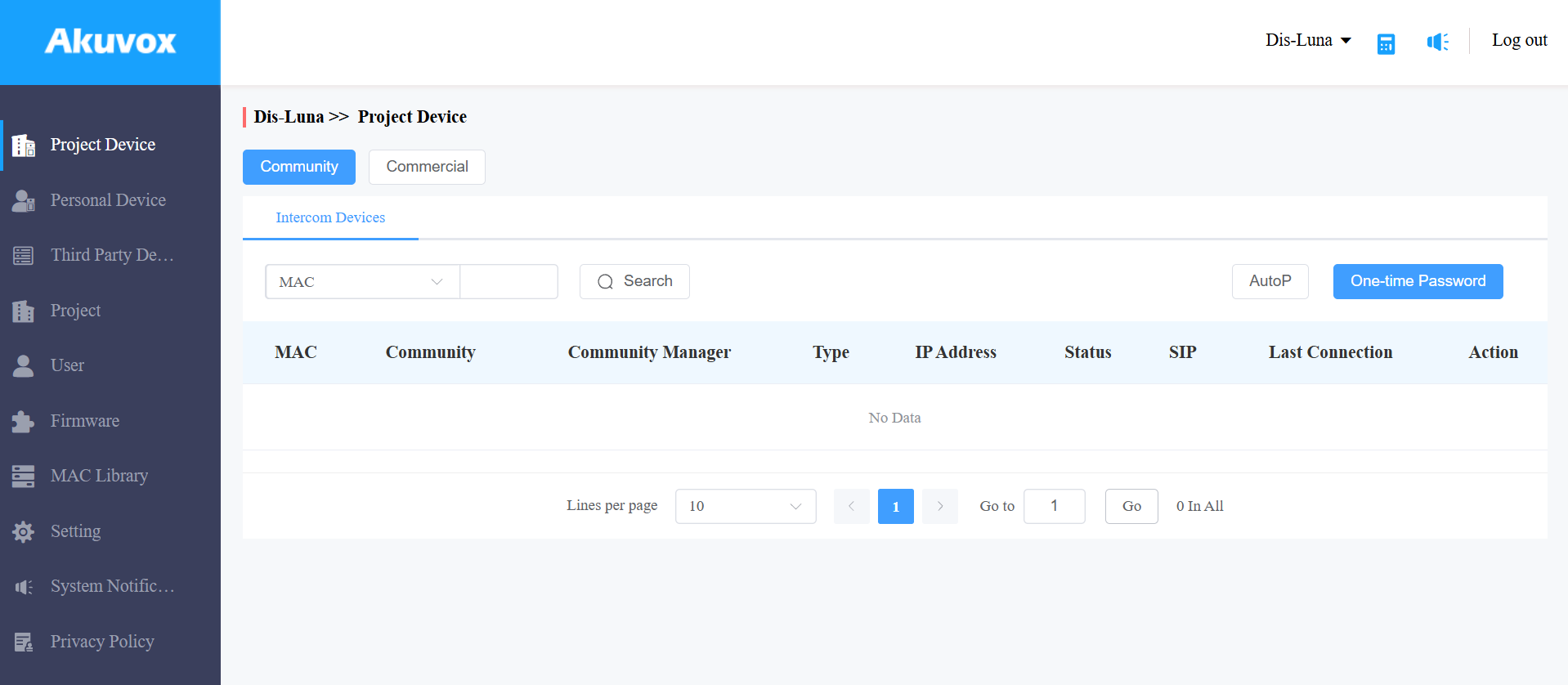
The left menu bar allows you to manage users, devices in different projects, device MAC addresses, and firmware.
Module Description
Module Name | Description |
Project Device | Allows you to manage the devices in community scenarios and commercial project scenarios. Moreover, it allows you to conduct remote maintenance on the devices. |
Personal Device | Allows you to check and delete the single-family house devices; moreover, it allows you to conduct remote maintenance on the devices. |
Third-Party Device | Allows you to check and delete the third-party devices added by installers. |
User | Allows you to manage the installers and check end-user information. |
Firmware | Allows you to check the device firmware available for updates. |
MAC Library | Allows you to register, check, and delete the MAC. |
Setting | Allows you to set up your customer service contacts. |
Device Management
You can add device MACs, check device information, and delete devices.
Add Device MAC to MAC Library
You can add device(s) to the MAC library separately or using a template. The device MAC needs to be added to the distributor’s MAC library before the installer can add the device to their project.
Add MAC Separately
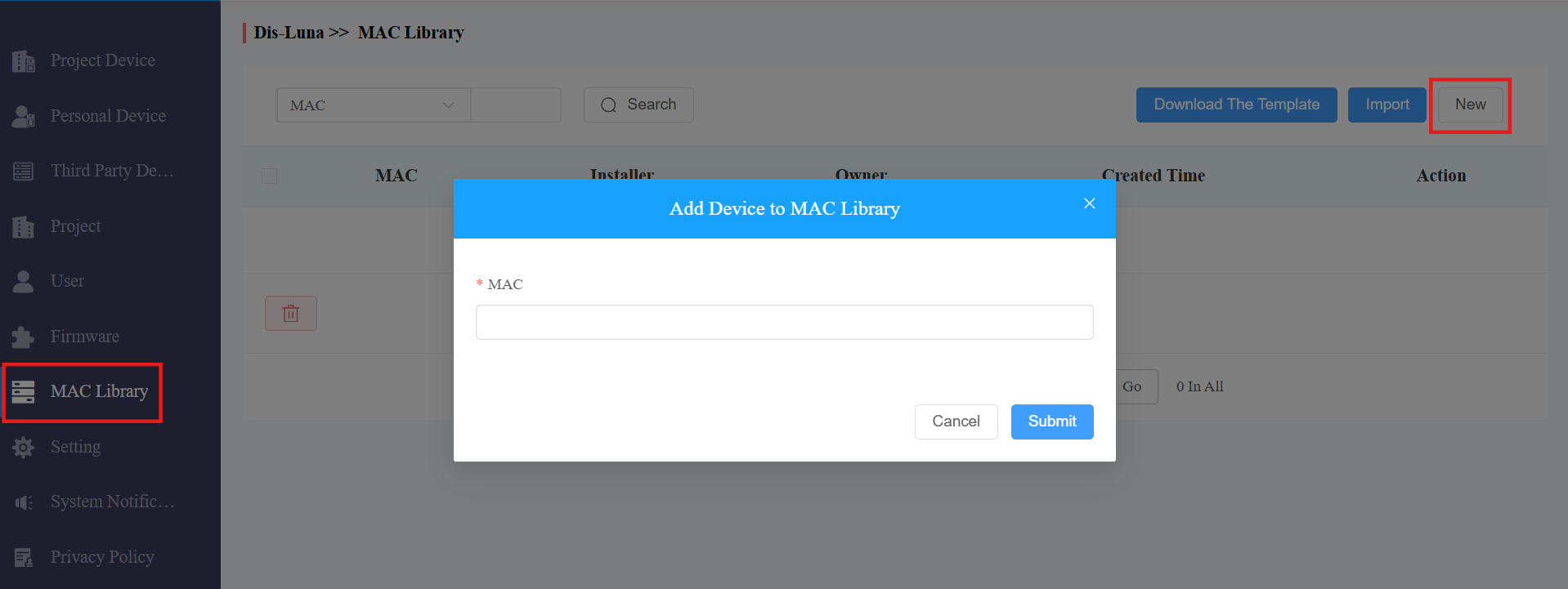
Go to MAC Library.
Click New and fill in the device MAC.
Note
If the device is bound to the user, it must be unbound before you can remove the device MAC from the MAC library.
Add MAC Using a Template
Download the template and fill in the MACs.
Click Import to upload the file.
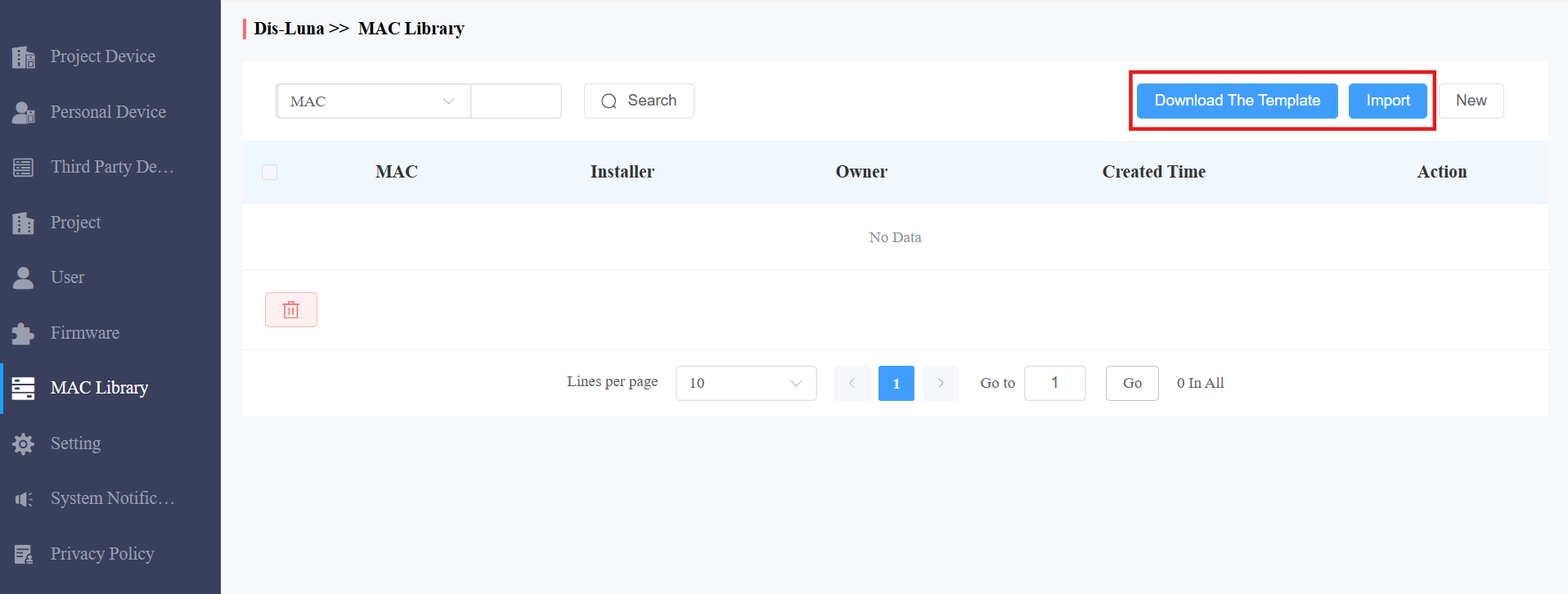
Template Sample

Check/Delete Devices
Project Device includes devices deployed in community and commercial projects; Personal Device includes devices deployed in single-family house projects. You can provide remote maintenance for these devices.
Go to the Project Device/Personel Device module.
For Project Device, select the project type.
Check and delete the device(s).
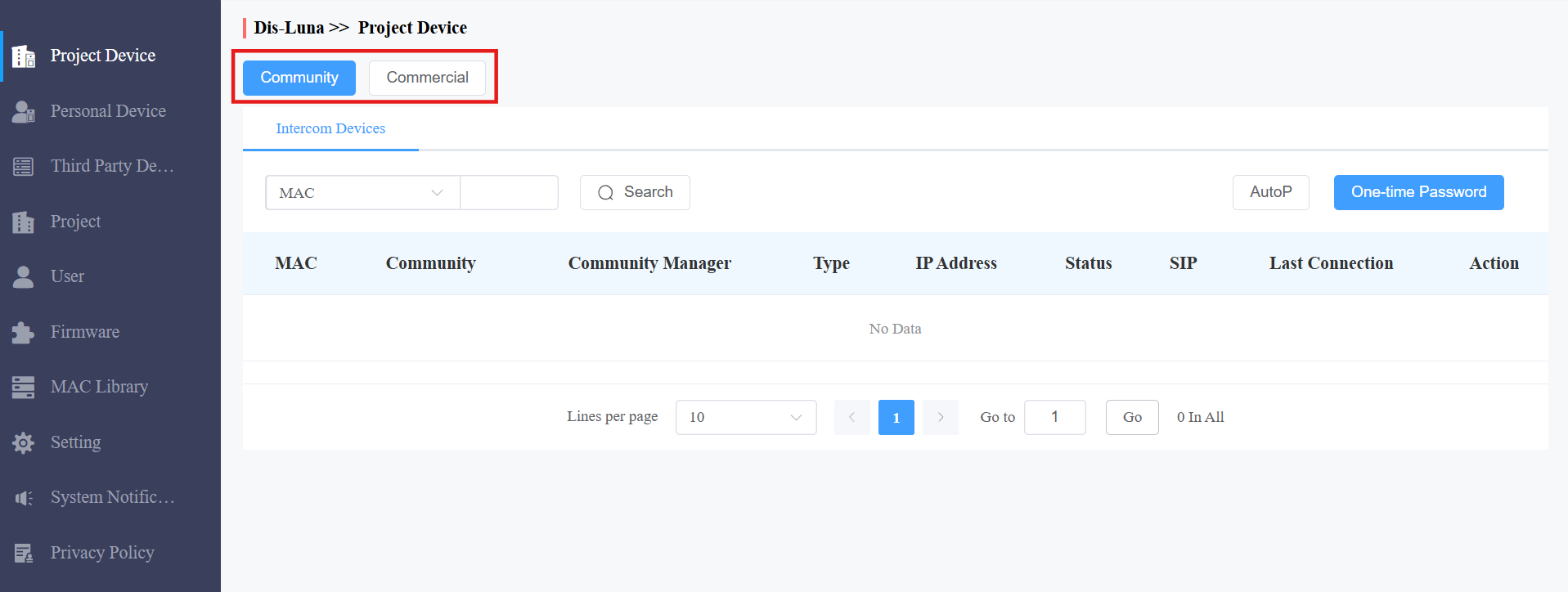
Remote Maintenance for Devices
You can provide end users with remote maintenance in terms of device data transmission type configuration, device reboot, device web interface remote access, device provisioning, etc.
Go to Project Device/Personal Device module.
Click
 of the device for which you want to provide remote maintenance.
Click Settings on the right.
Reboot, reset, or log into the device web interface remotely via Remote Control.
Enter the commands for auto-provisioning, then click on Submit.
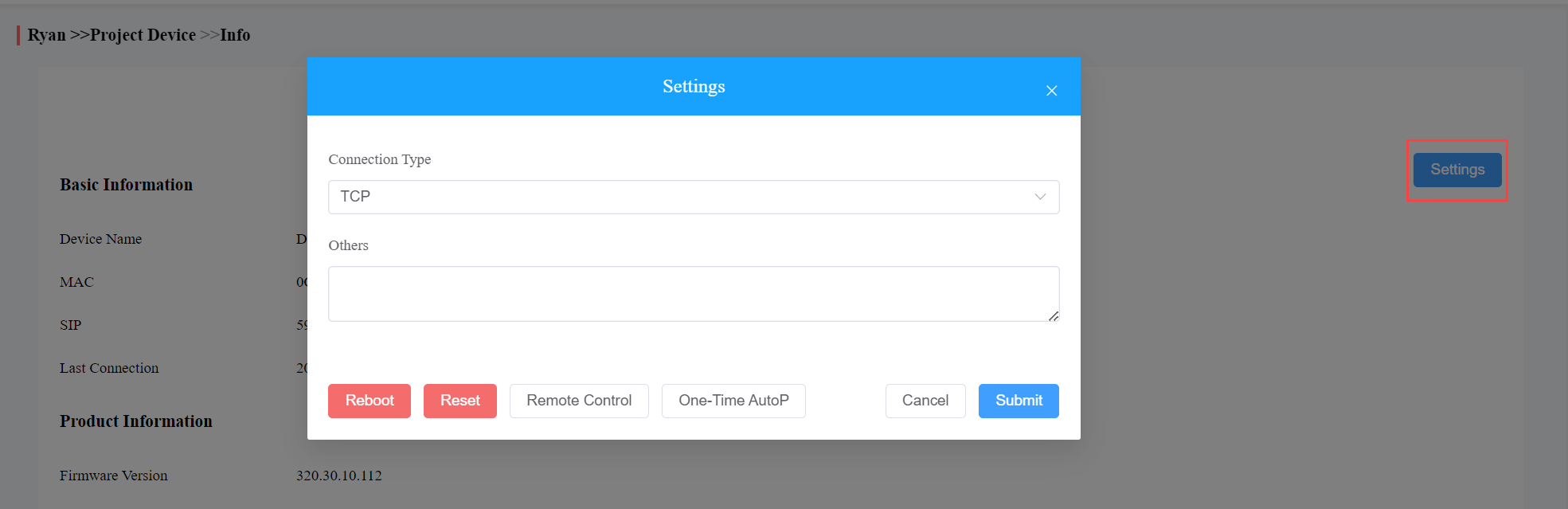
Click One-Time AutoP if you only want the AutoP command(s) to be implemented one time.
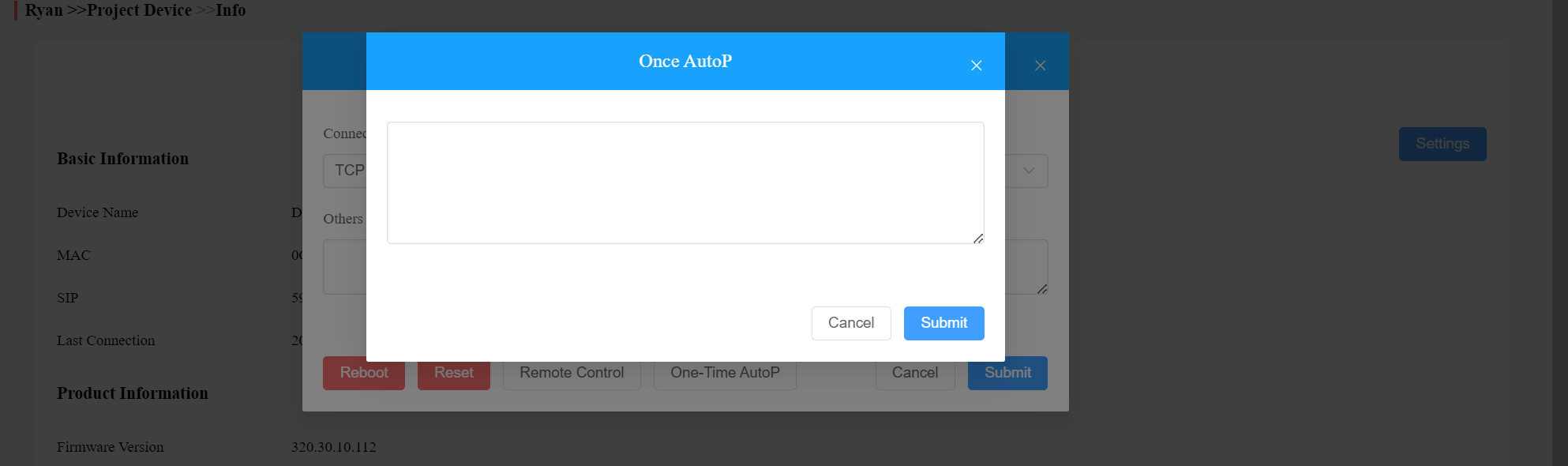
Note
Duplicate commands will not be retained.
Batch AutoP for Devices
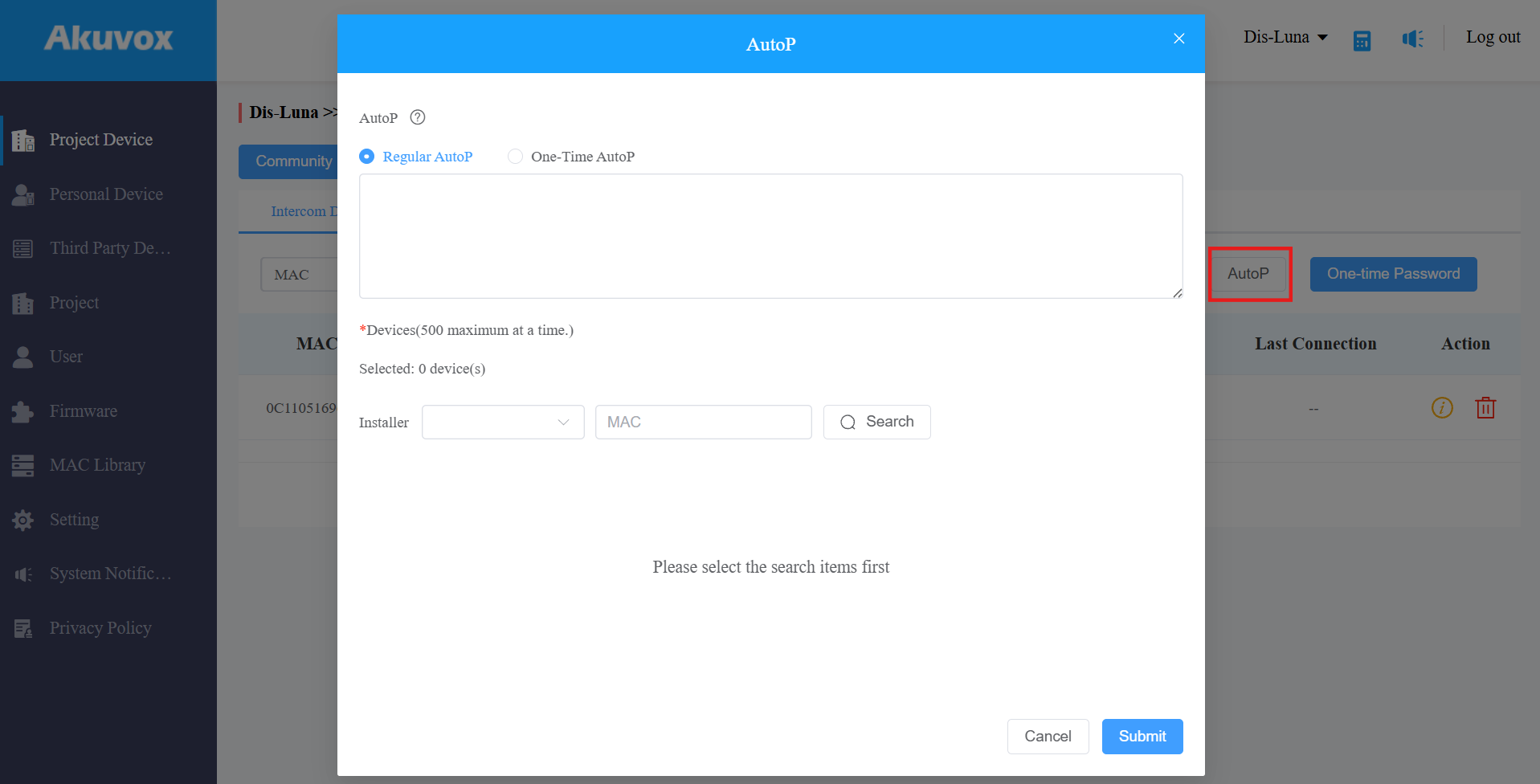
AutoP allows you to configure the devices remotely. You can synchronize the selected configuration command to the targeted devices in your projects via auto-provisioning. You have two AutoP options: Regular AutoP or One-Time AutoP.
To conduct AutoP for the devices:
Go to Project Device/Personal Device module.
Click AutoP.
Select the AutoP type.
Regular AutoP: The configuration is always valid.
One-Time AutoP: The configuration is valid for one time only
Enter the AutoP commands.
Search for and select the devices to be provisioned, then click Submit. You can synchronize the commands to 500 devices at a time.
Note
Duplicate commands will not be retained.
One-time AutoP commands will not be valid once you reset the device(s), either for a factory reset or configuration reset.
Generate One-Time Password for Intercom Devices
The one-time password is used to reset the intercom devices' web password.
Note
Click here to view the detailed guide on setting devices' web passwords via one-time password.
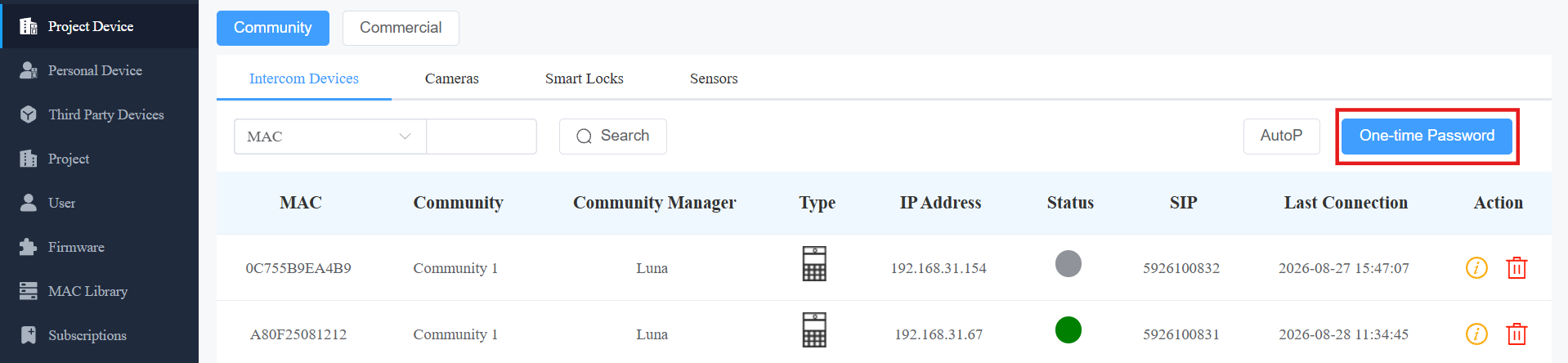
Click One-time Password on the Project Device or Personal Device module.
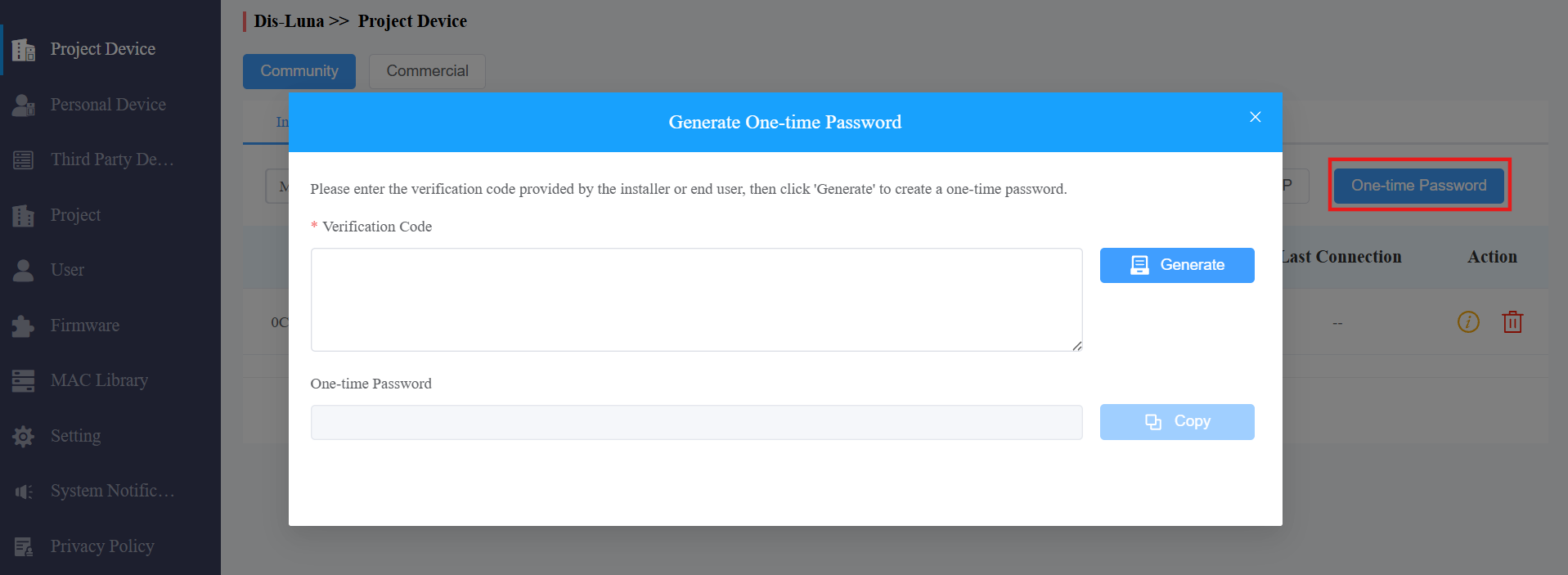
Paste the verification code generated on the device's login interface.
Click Generate, and the One-time Password will display. Then, you can use the password or send it to an installer to log in to the device's web interface and set a new web password.
Third-party Device Management
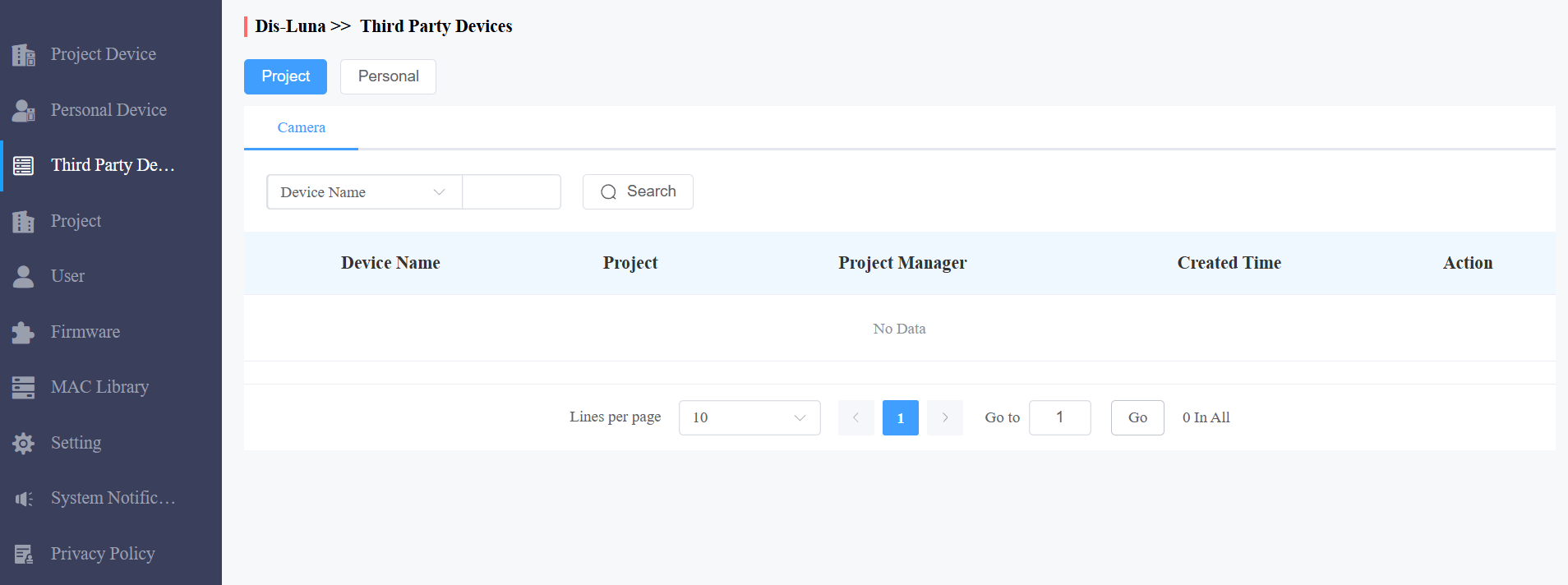
Through the Third-Party Devices module, you can check and delete the third-party cameras added by installers.
Click Third-Party Devices in the left column.
Click Project when the device is installed in a community/a commercial project, or Personal when it is in a single-tenant project.
Click
 to delete the device.
User Management
The user module is where you can manage sub-distributor accounts and installer accounts and check the end user information.
Sub-Distributor Account Management
In some cases, there are secondary agents under certain distributors, and installers are under them. These sub-distributors have the authority to manage installers, but they are also under the control of their distributor. The distributor creates an account for the sub-distributor, who can then log in to their web portal to create an account for the installer.
Note
You need to contact the Akuvox technical team to grant you permission before you can create sub-distributor accounts.
Add Sub-Distributor Account
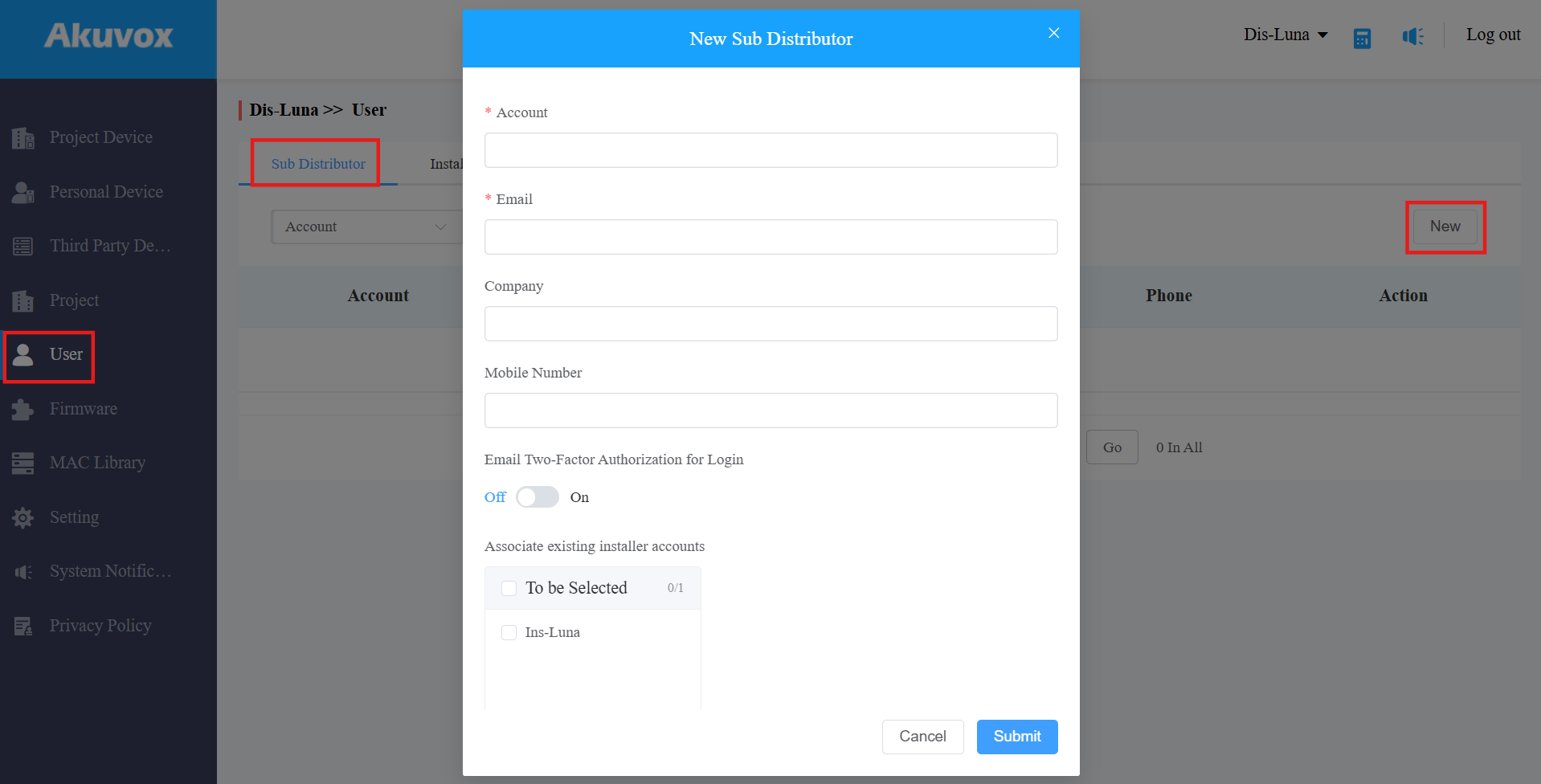
Go to User > Sub Distributor and click New on the right.
Enter the information and complete the settings. See item descriptions in the chart below.
Field | Description |
|---|---|
Account | (Required) Fill in the sub-distributor’s account name. |
Fill in the sub-distributor’s email address to which the account expiration email for users will be sent. If it is left blank, the account expiration email will be sent to the distributor’s email address. | |
Company | Fill in the sub-distributor’s company name. |
Mobile Number | Fill in the sub-distributor’s phone number. |
Email Two-Factor Authorization for Login | If enabled, when sub-distributors log in to the server, they need to fill in a verification code to log in. |
Associate Existing Installer Accounts | Select which installers can be managed by the sub-distributor. Once selected, the sub-distributors will have the same level of authority as the distributor, including being able to manage the installer’s account, devices, and end users. |
Edit/Delete Sub-Distributor Account
You can check, edit, or delete the sub-distributor accounts at any time
Go to User > Sub Distributor.
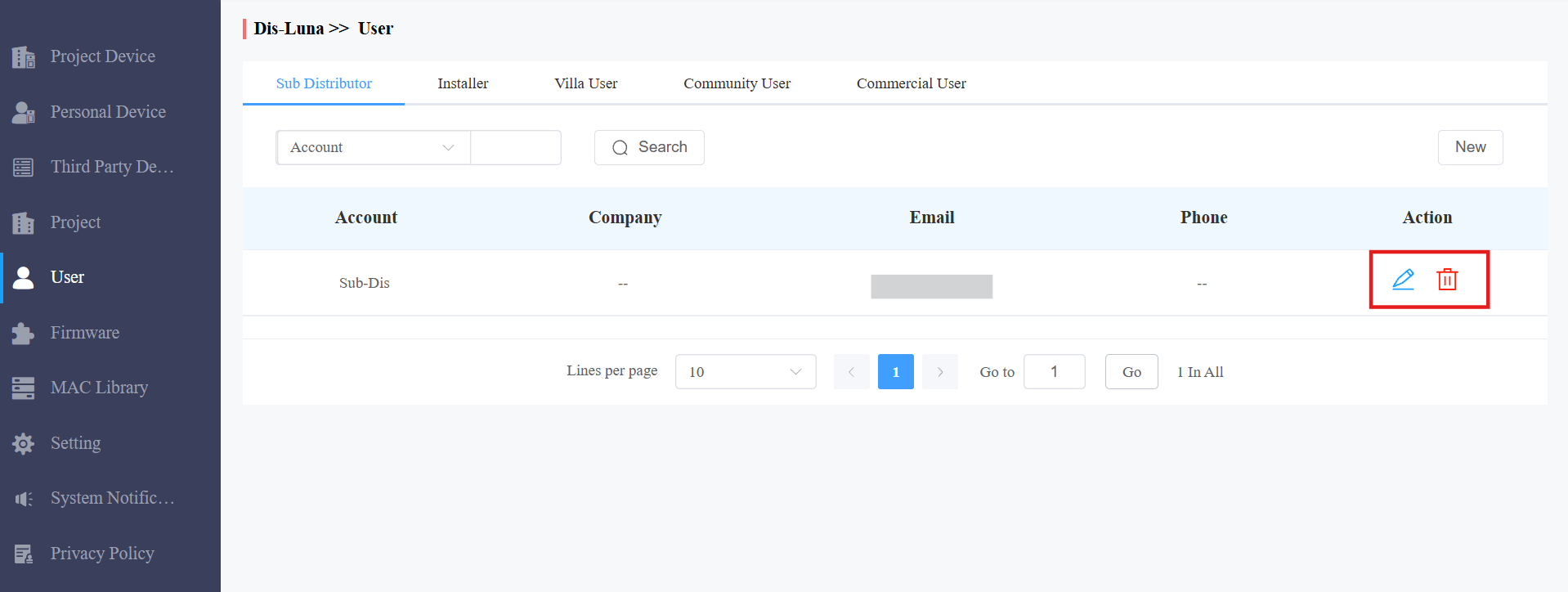
Click
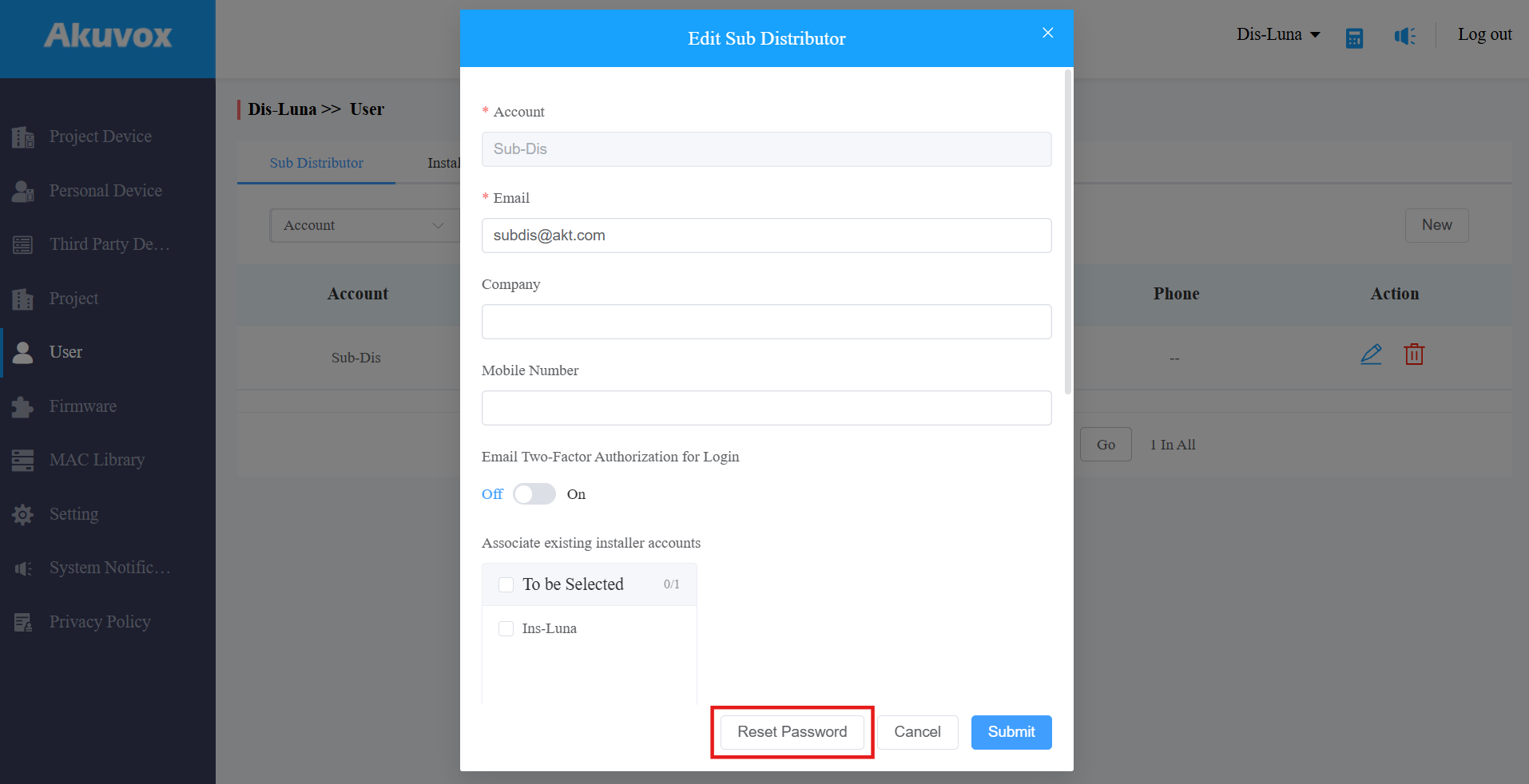
 to change the account settings and reset the account password.
 Click
 to delete the account. Please note that you have to clear the installers associated with this sub-distributor before you can delete the account.
Installer Account Management
Add Installer Account
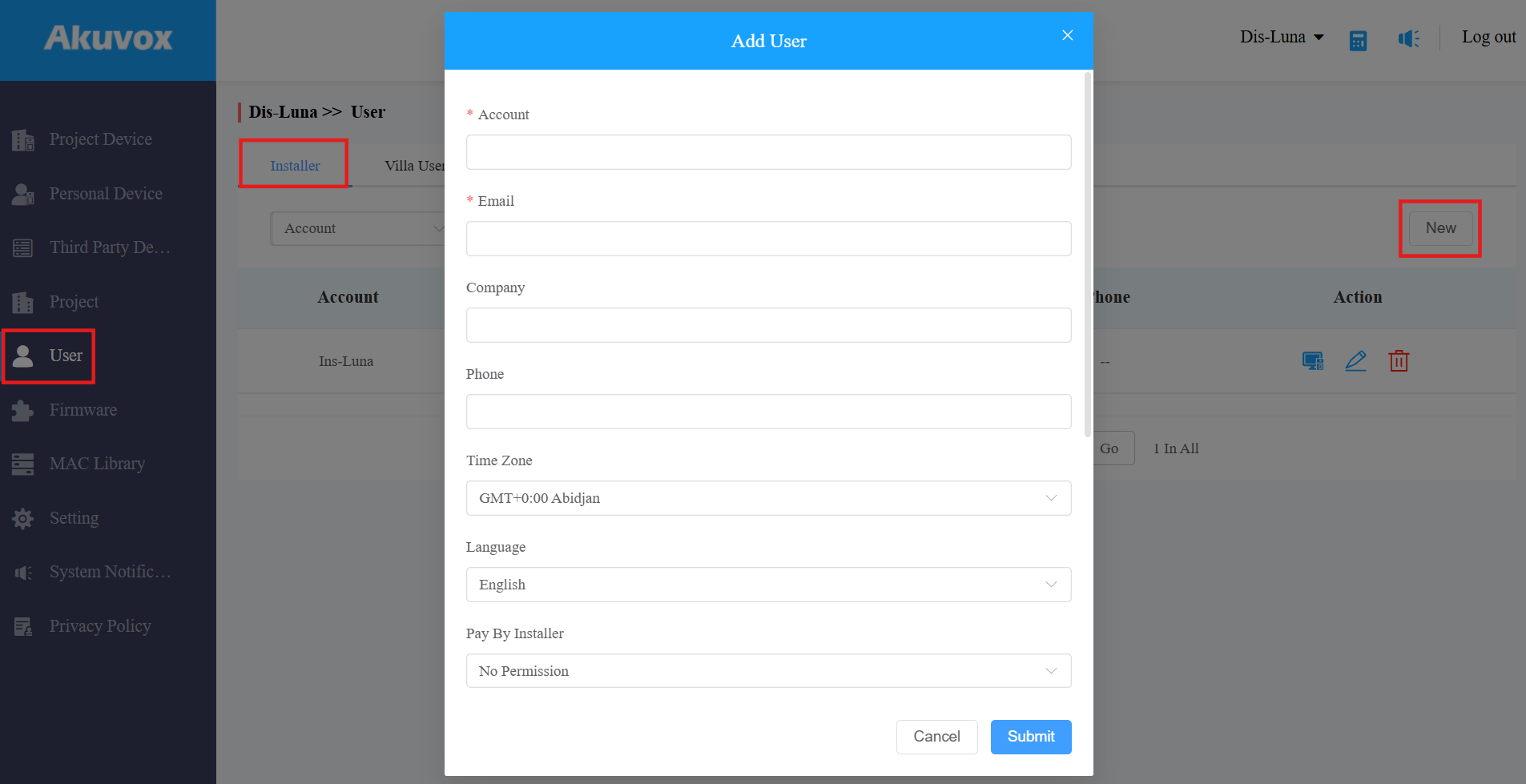
Click User > Installer > New.
Set up an installer account.
Field | Description |
Account | Fill in the installer’s account name. |
Fill in the installer’s email address. | |
Company | Fill in the installer’s company name. |
Phone | Fill in the installer’s phone number. |
Time Zone | Select the specific time zone, which will become the default time zone for the devices of the project created under the installer account. |
Language | Select the language of the Email that will be sent to the installer when the installer account is created |
Connect Type | Select the device data transmission type. Leave it at the default if no specific requirement or use a specific type according to the suggestions from the Akuvox technical team. |
RTP Confusion | Switch on RTP Confusion to avoid RTP transmission from being blocked in certain countries or regions where RTP transmission is banned, eg, Egypt. Note: RTP Confusion is switched off by default. |
RTSPS | Set whether to use RTSP to control the media stream between servers and clients. |
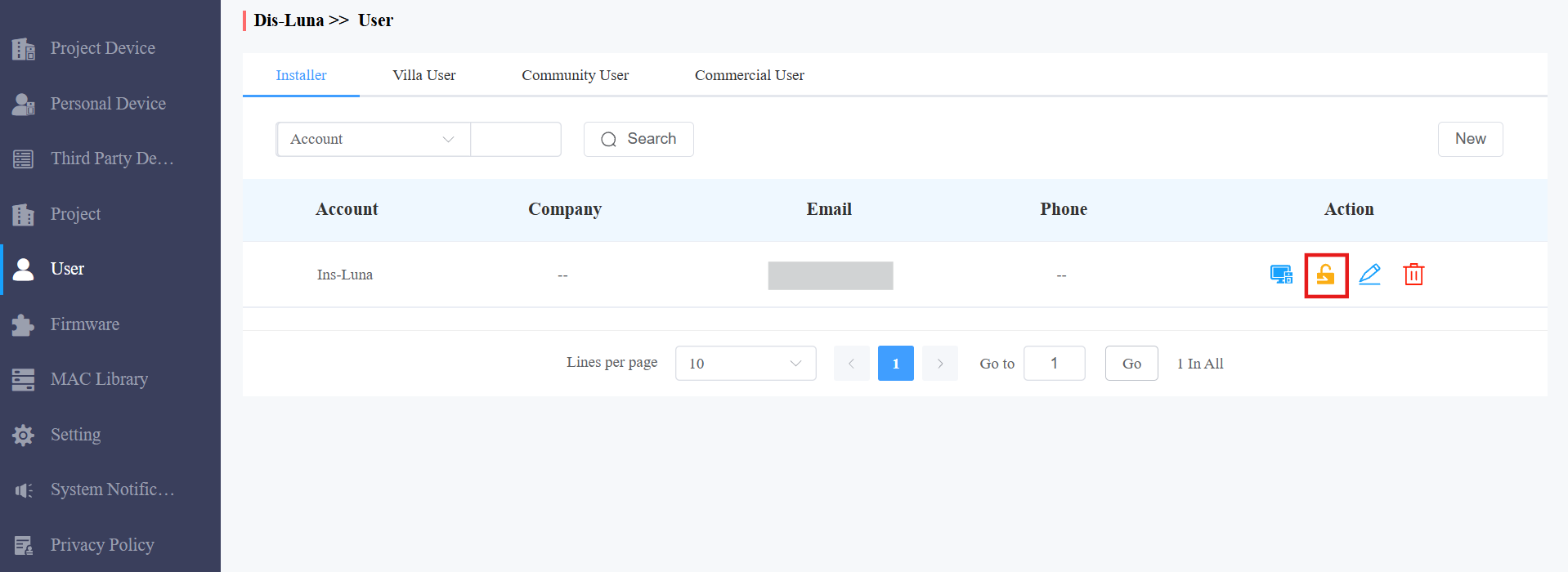
Get Access Without Password | This feature enables you to access the installer's web portal without a password when your installer needs your support or assistance. By default, this feature is turned off. Your installer must enable this function before you can log in to their account. Once the function is enabled, you will see a lock icon |
Email Two-Factor Authorization for Login | If enabled, when installers log into the server, they need to fill in a verification code. |
 in the Action column, which you can click to be redirected to their accounts.
Edit/Delete Installer Account
After the Installer accounts are created, you can check, edit, and delete the installer accounts if needed.
Go to User > Installer.
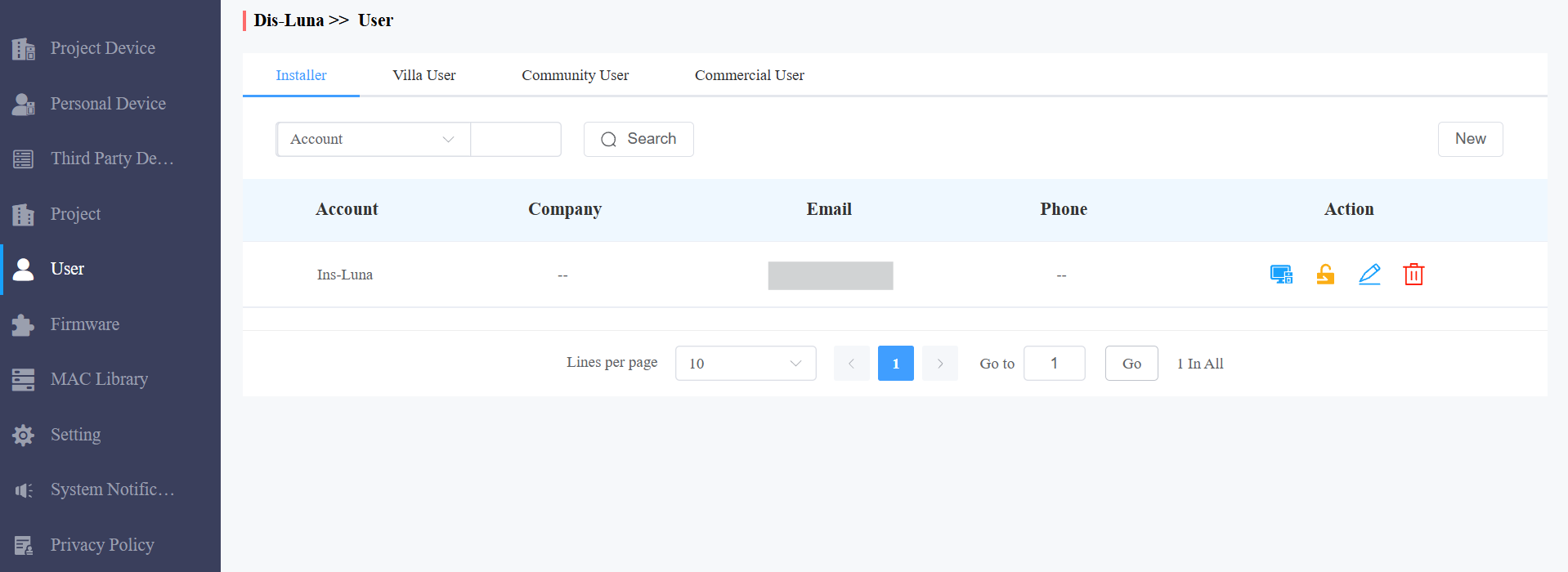
Search for the installer by account or email.
Click
 to add MAC addresses for the installer’s single-family house projects.
Note
Before a kit’s MAC addresses can be removed, the addresses must be unbound from the user account they are currently associated with.
Click
 to edit the installer information and password.
Click
to delete the installer.
Access Installer Account
You can access the installer account without a password for management and deployment assistance, but you must first be authorized by the installers to log in from your web portal. Installers can grant or revoke this permission at any time.
Click User > Installer.
Select the installer account, then click
 to access the installer account.
Note
The installer account access feature must be enabled when adding an installer to allow password-free access from your web portal. Refer to the chapter "Add Installer Account" for details on "Getting Access Without Password."
Sub-Installer Account Management
You can search for and check the sub-installer account information. The sub-account format is [Installer Account: Sub-account]
Go to User > Installer.
Search the sub-account by entering the installer account name.
You can check the account information, but not edit or delete it.
End User Account Management
End-user account management involves searching and checking the end users’ accounts.
Check End User Account
You can also search for and check the end user’s information.
1. Click User Module, and select Villa User, Community User, or Commercial User.
Search for the residential user information by account type and search type in the Search field.
Search for the commercial project user information by account type and search type in the Search field.
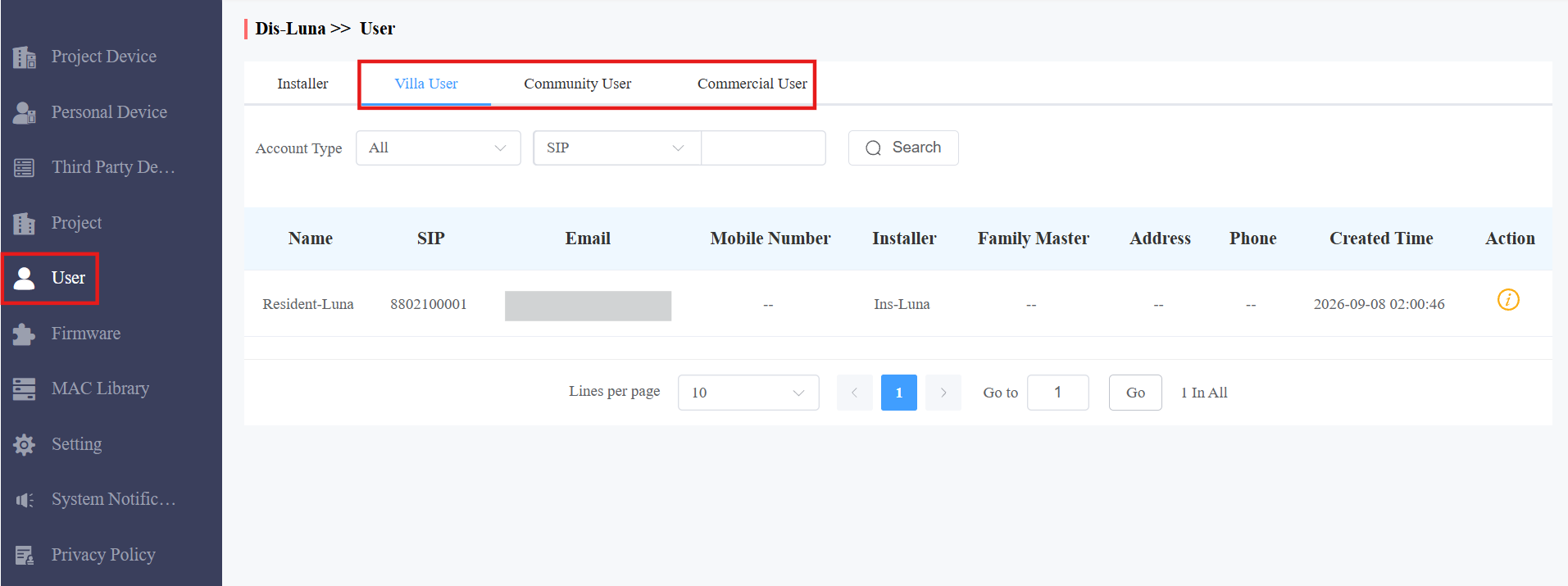
Parameter Description (Villa User and Community User)
Column Name | Description |
Account Type | Search for end-user information by All, Family Master, or Family member. |
Search Type | Select end-user information by SIP number, Email, Mobile phone number, installer, and family master. |
SIP | Displays the end user’s SIP number. |
Displays the end user’s email address. | |
Mobile Number | Displays the end user’s mobile phone number. |
Name | Displays the end user’s name (both family master and family member). |
Installer | Displays the name of the installer(s). |
Family Master | Displays the name of the family master(s). |
Community | Displays the resident’s community information. |
Address | Displays the address of the end user(s). |
Phone | Displays the landline number of the end user(s). |
Created Time | Displays when the account is created. |
Action | For checking the account details. |
Parameter Description (Commercial Project User)
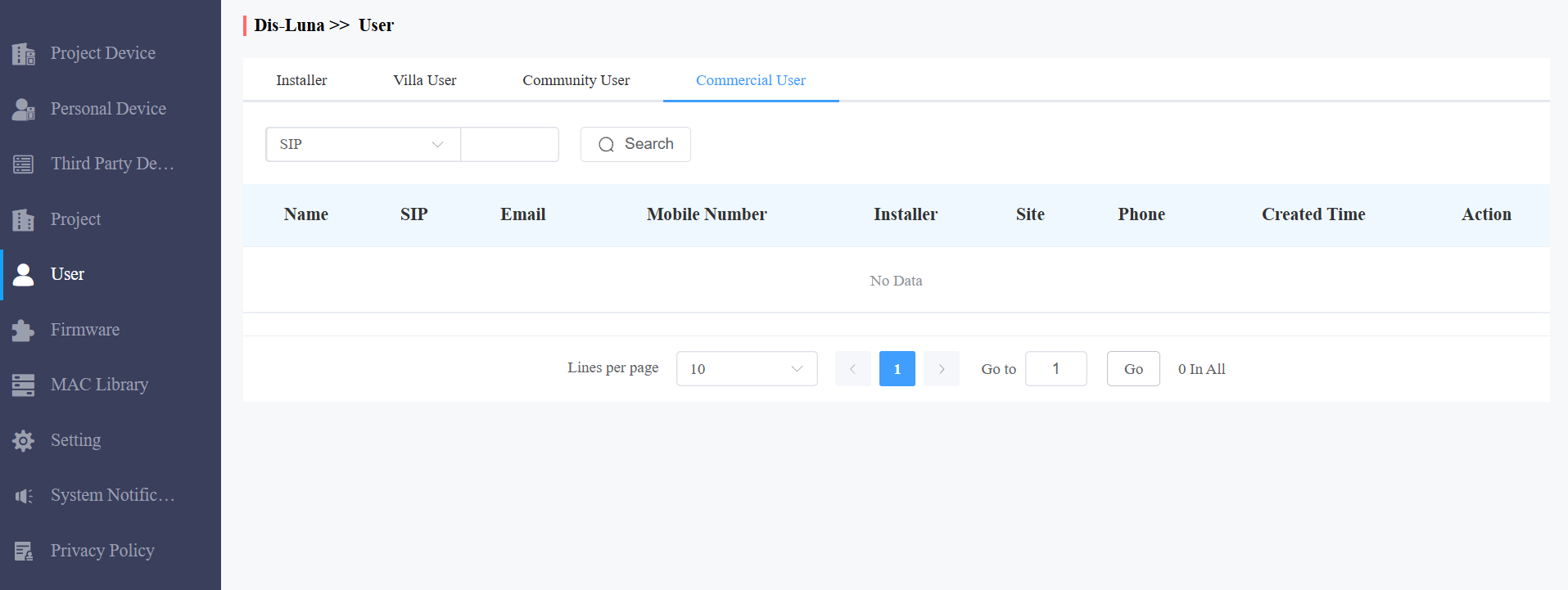
Column Name | Description |
Search Type | Select end user information by SIP number, username, Email, mobile phone number, installer, and commercial project name. |
Name | Displays the username. |
SIP | Displays the user’s SIP number. |
Displays the user’s Email address. | |
Mobile Number | Displays the user’s mobile phone number. |
Installer | Displays the name of the installer(s). |
Site | Displays the user’s commercial project name. |
Phone | Displays the landline number of the end user(s). |
Created Time | Displays when the account is created. |
Action | For checking the account details. |
Firmware List
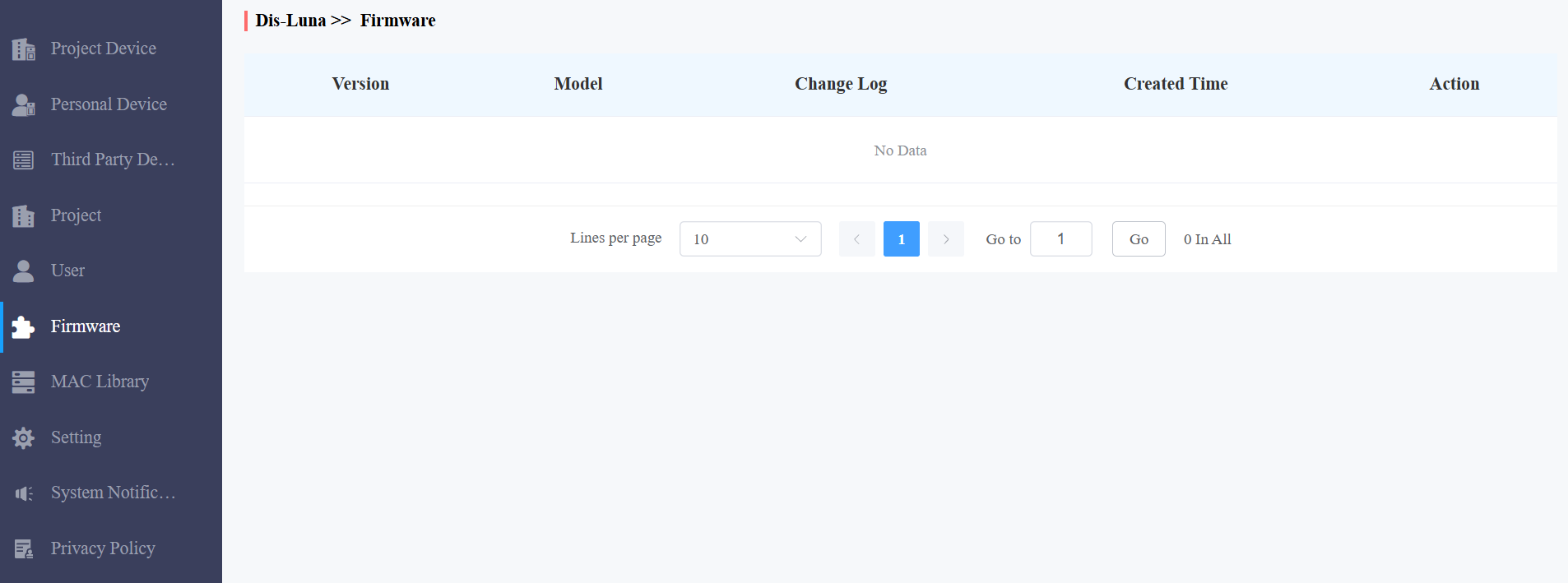
Firmware module is where you can check the latest firmware that is available for your installers.
Click Firmware.
Firmware List Description
Heading | Description |
Version | Displays the firmware version number. |
Model | Displays the device model. |
Change Log | Generally displays remarks on the version. |
Created Time | Displays when the firmware was uploaded. |
Action | Click to check the detailed firmware information. |
Customer Service
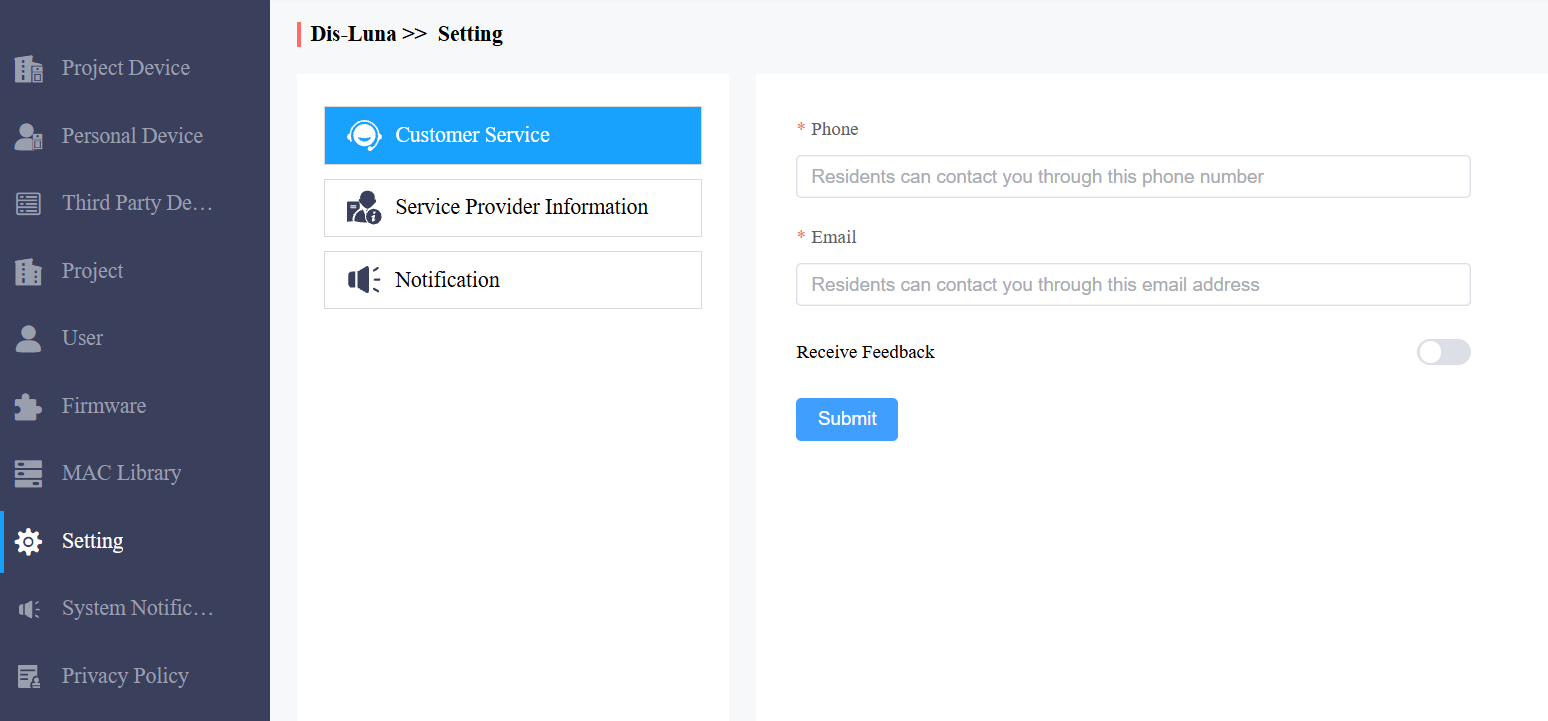
You can leave your contact information for the installers and end users in the Setting module so that they can contact you using the contact information.
Enable Receive Feedback if needed, and then installers' and end users' feedback will be sent to the email address that you fill in.
Privacy Policy
You will see the Privacy Policy window when you log into the platform for the first time.
The Privacy Policy tells you how the user data is collected, used, and protected.
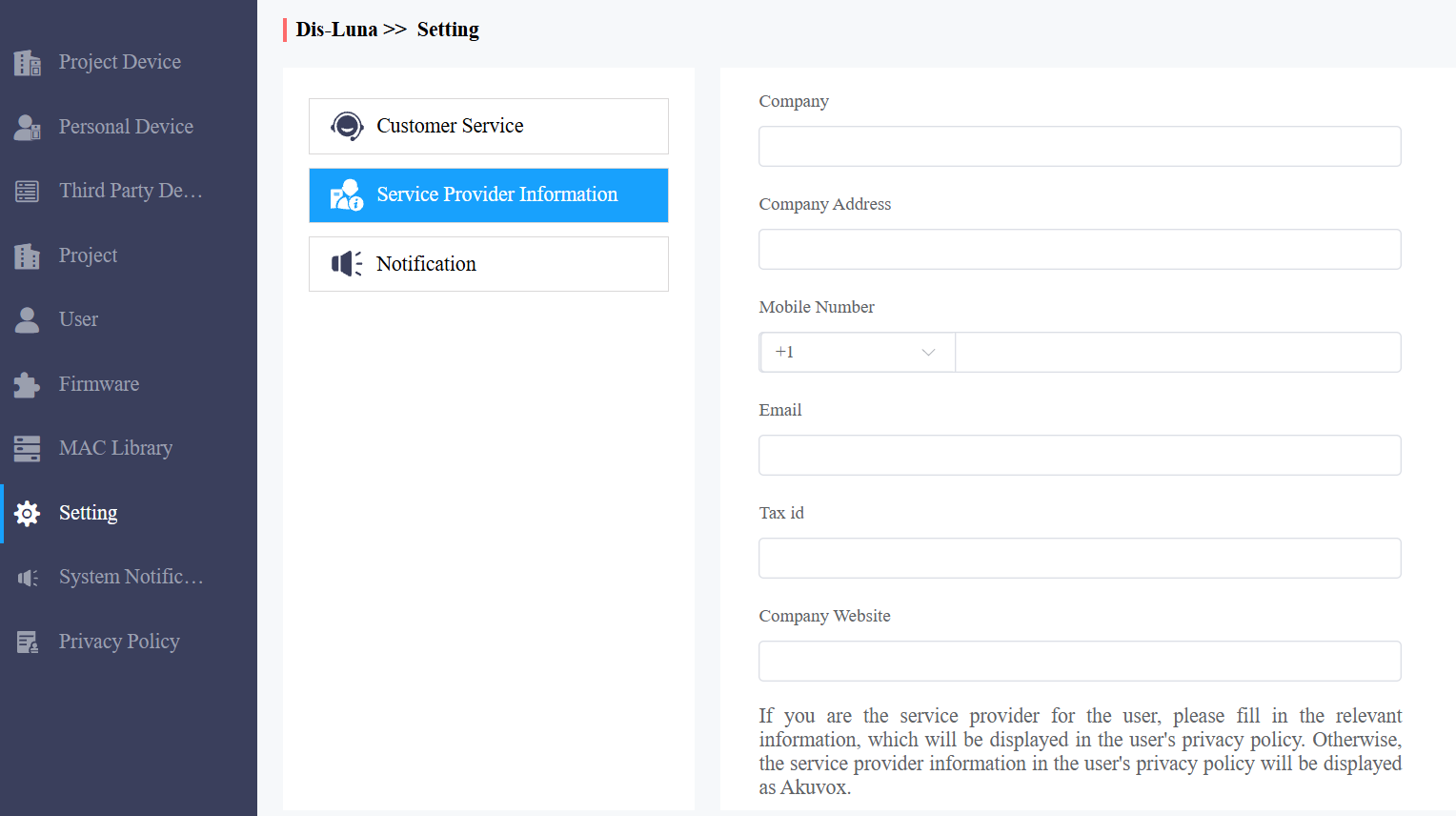
When you click Agree, you will be guided to the Service Provider Information interface to fill in your information. The information will be displayed in the privacy policy for end users. It is not mandatory to fill it out. Not filling it in will not affect your use of the server services.
When you click Disagree, you cannot log in to the server.
Contact Us
For more information about the product, please visit us at www.akuvox.com, or feel free to contact us by
Sales email: sales@akuvox.com
Technical support email: support@akuvox.com
Telephone: +86-592-2133061 ext.7694/8162
We highly appreciate your feedback about our products.