Admin Setup
The SL30 supports a single primary administrator. The preset admin code must be linked to a specific family member in the app.
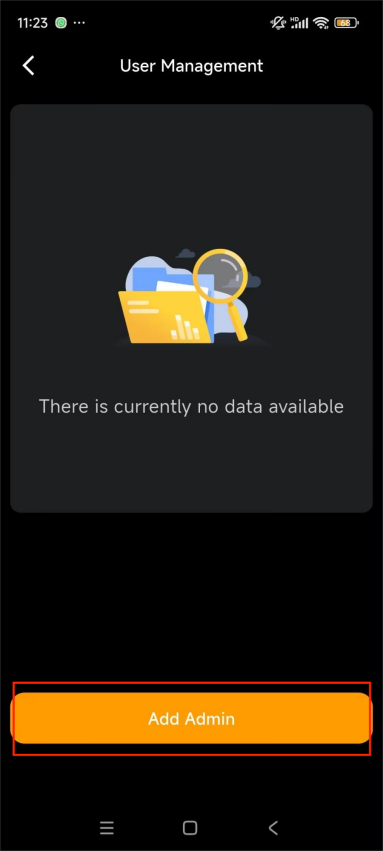
Go to [SL30 device card] > User Management.
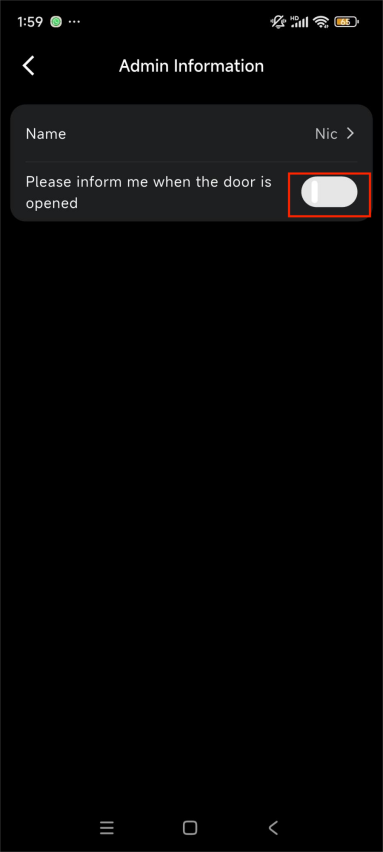
Tap Add Admin and enter the admin's name.
(Optional) Enable unlock notifications.
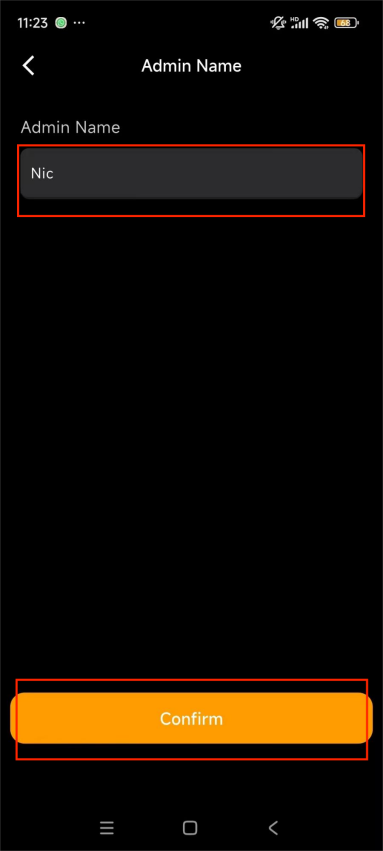
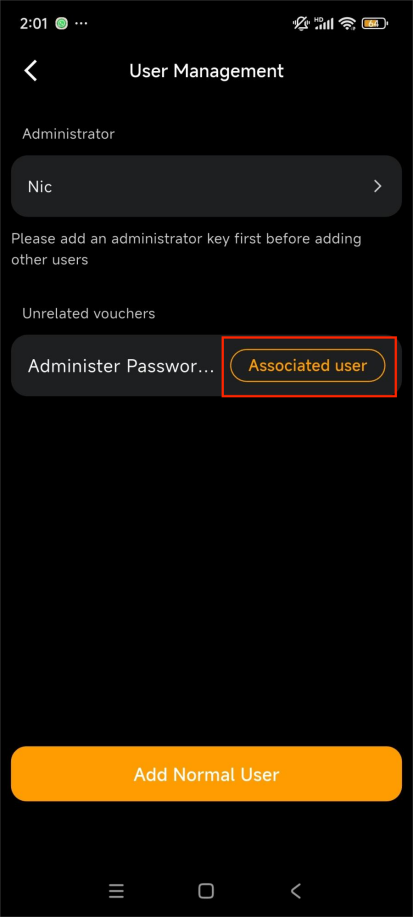
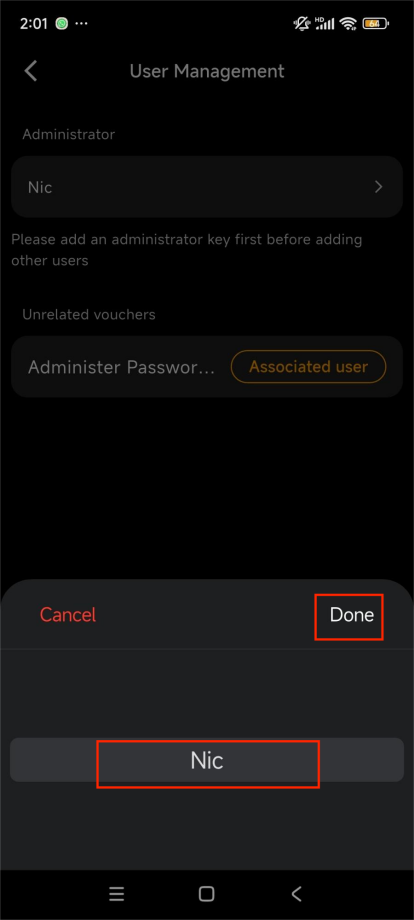
Tap Associated User in the Unrelated Vouchers field to select the admin just added.
Tap Done to assign the password to the admin.
User Management
Add User
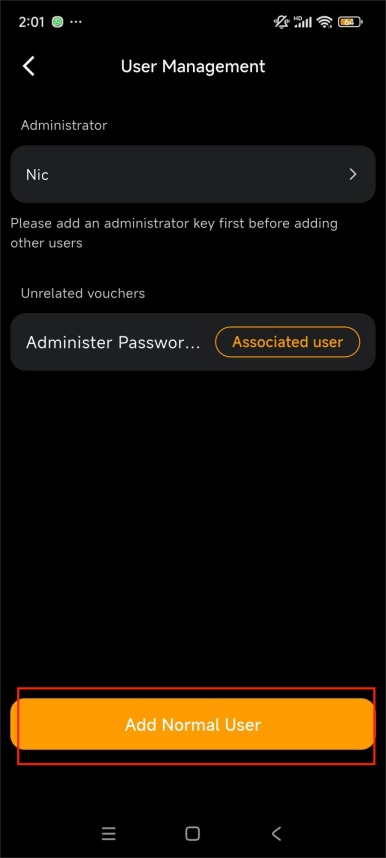
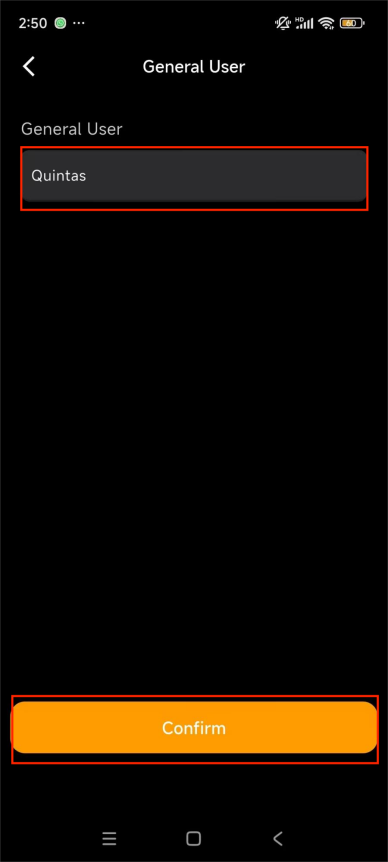
Go to [SL30 device card] > User Management > Add Normal User.
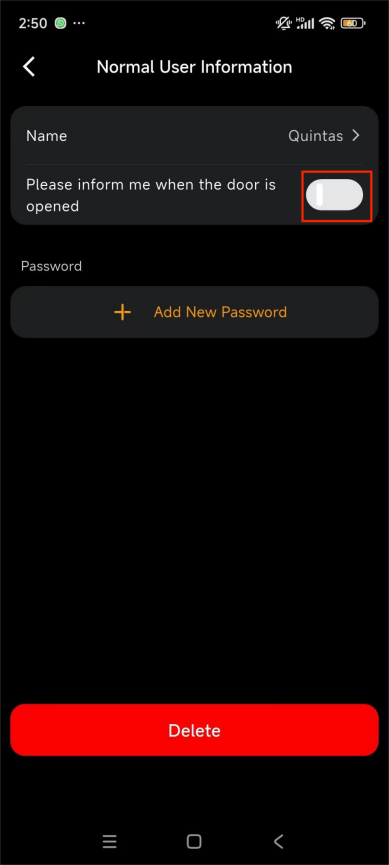
Enter the user name and tap Confirm.
(Optional) Enable unlock notifications.
Add User Code
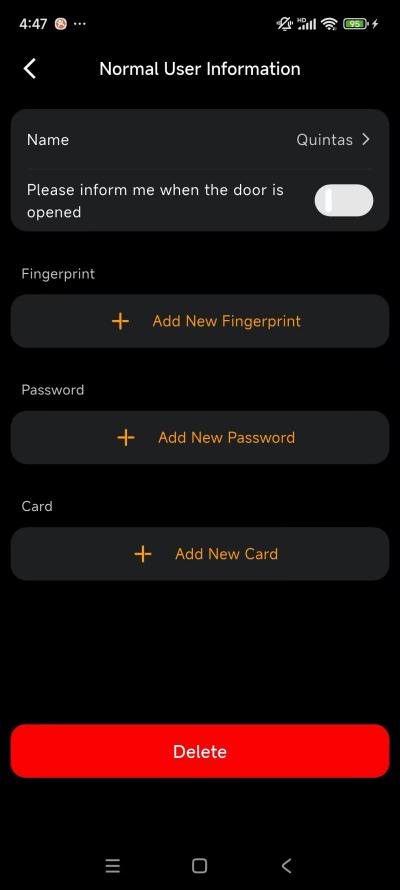
You can either generate a new credential or link existing ones (PIN codes/cards/fingerprints already stored locally on the lock) to a user.
Create a New Credential
Select the specific user, then choose the desired credential type.
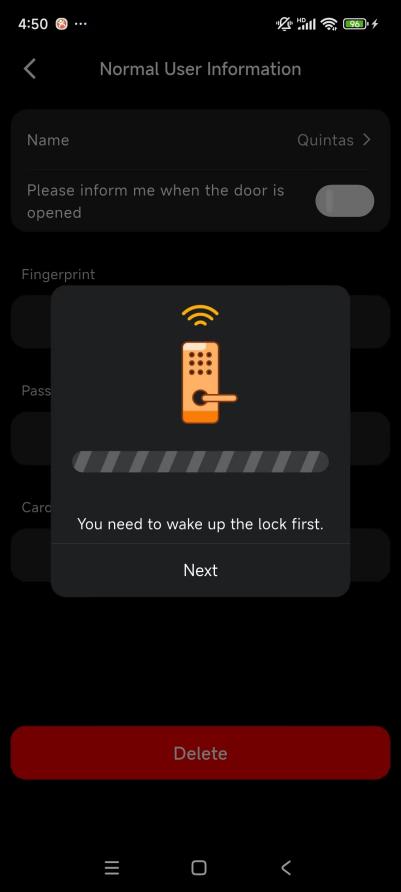
Wake the lock, then tap Next.
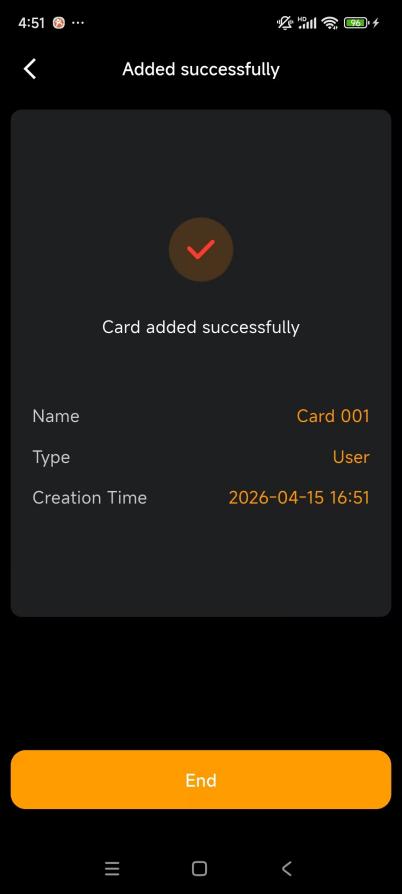
Once connected, follow the onscreen instructions to add the credential.
The app will confirm successful addition.
Link Existing Credentials
NOTE:
Each credential name must be unique. You cannot assign two credentials with the identical name (e.g., "Password 001") to the same user.
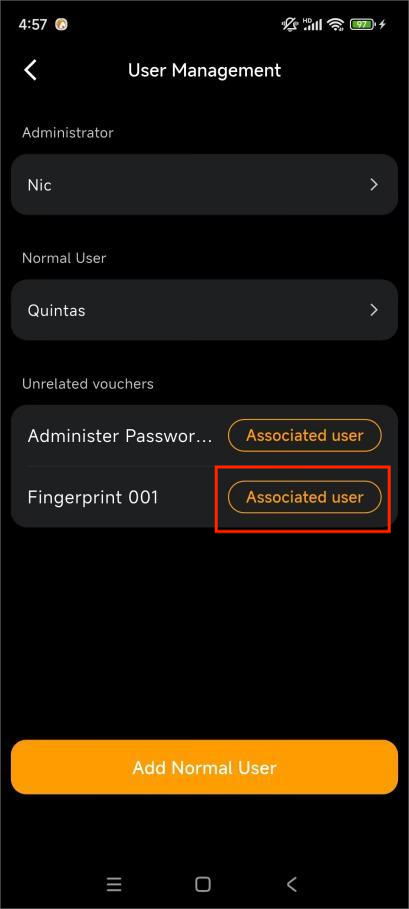
Go to [SL30 device card] > User Management.
Locate the desired credential in the Unrelated Vouchers field.
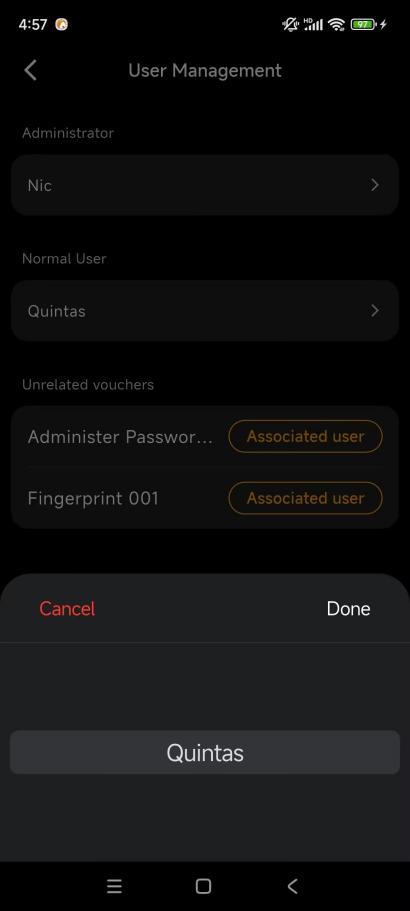
Tap Associated user, select a user to link it to, and tap Done.
The credential will move from the "Unrelated" list to the specific user’s profile.
Delete a User
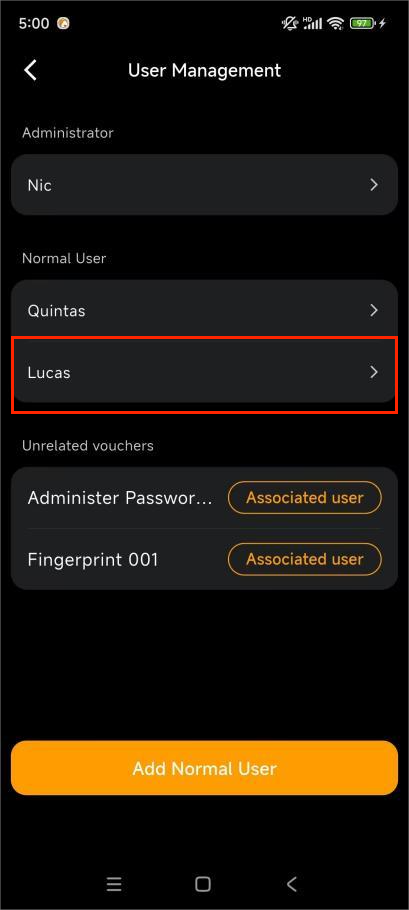
Go to [SL30 device card] > User Management.
Select the user
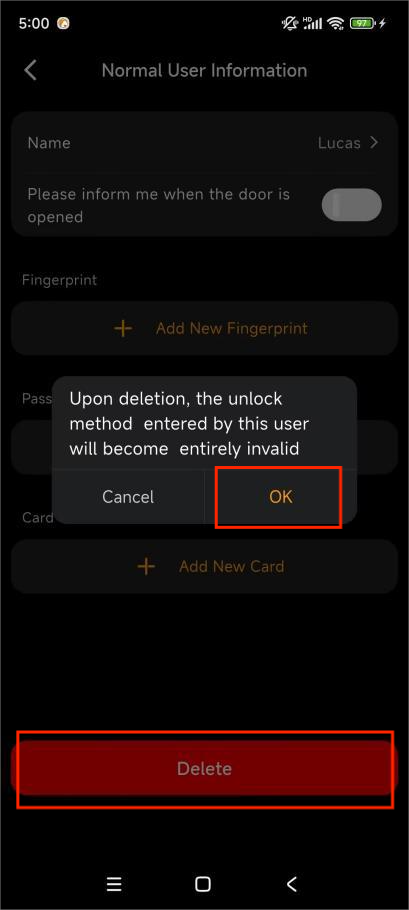
Tap Delete > OK > Next and wait for completion.
Temporary Passwords
NOTE:
The temporary passwords cannot work when the electronic deadlock switch is toggled on.
One-time Password
A one-time password is valid for a single use within one hour. You can generate 10 passwords within 30 minutes.
Go to [SL30 device card] > Temporary Password > One-time Password.
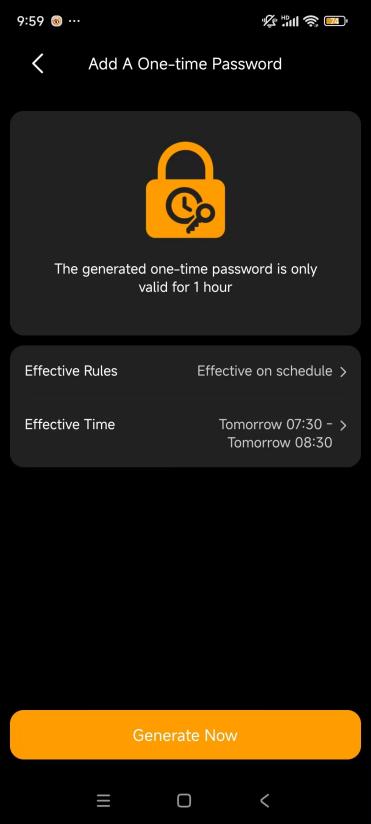
Tap Add A One-time Password or +.
Set Effective Rules:
Effective immediately: The validity period will generate automatically.
Effective on schedule: Set the Effective Time. The password takes effect at the set time.
NOTE:
If the selected time is earlier than the current time, it takes effect the next day.
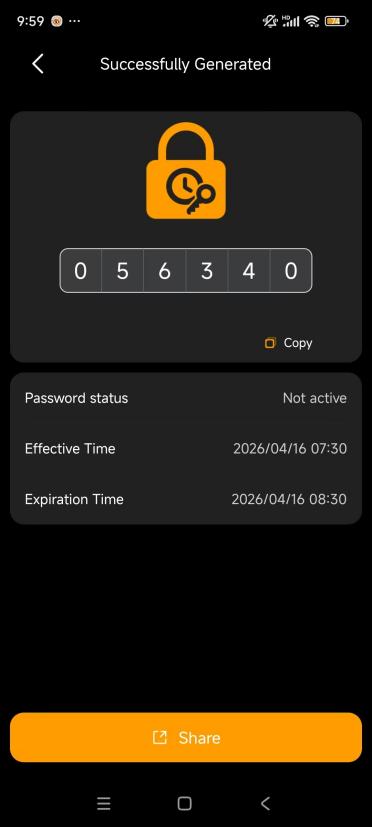
Tap Generate Now to view and share.
Periodic Password
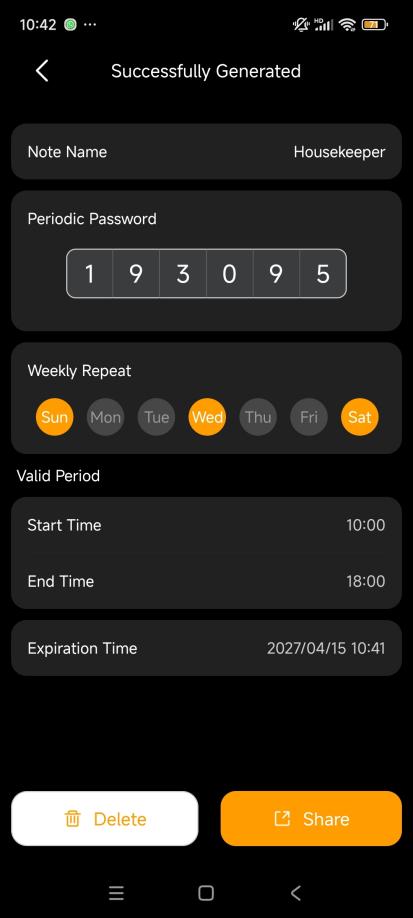
A periodic password is valid during a custom schedule. The system can store up to 10 passwords.
To create:
Go to [SL30 device card] > Temporary Password > Periodic Password.
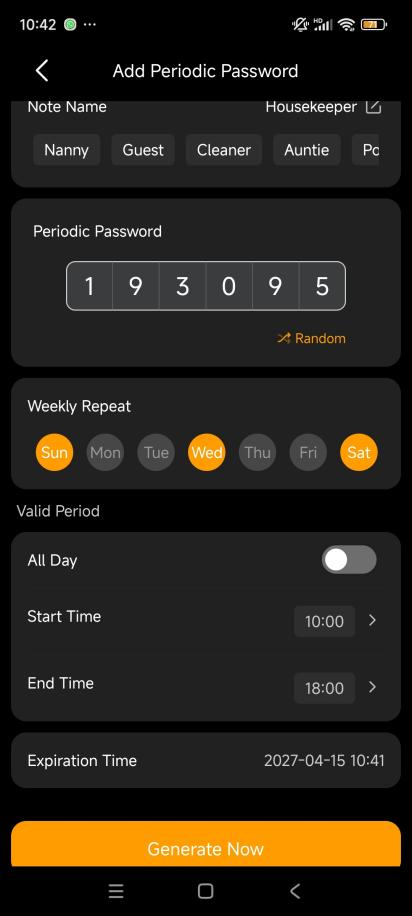
Tap Add Periodic Password or +.
Configure:
Note Name
Periodic Password: Enter a PIN manually or tap Random to generate one automatically.
Weekly Repeat: Select the day(s) the password is valid.
Valid Period: Set the daily time range (enable All Day or specify start and end times)
Expiration Time
Tap Generate Now.
Wait for confirmation.
Remote Unlock
NOTE:
The remote unlock will not operate when the electronic deadlock switch is toggled on.
Direct Unlock
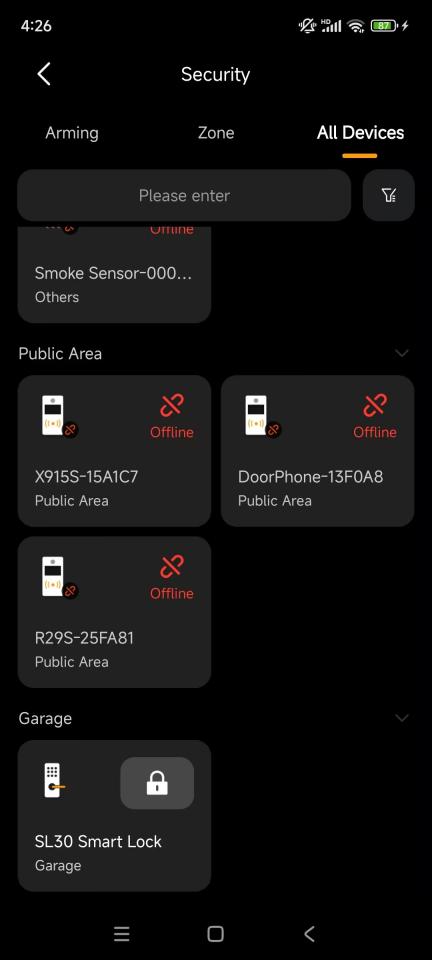
From the SL30 device card, tap  .
.
Doorbell Notifications
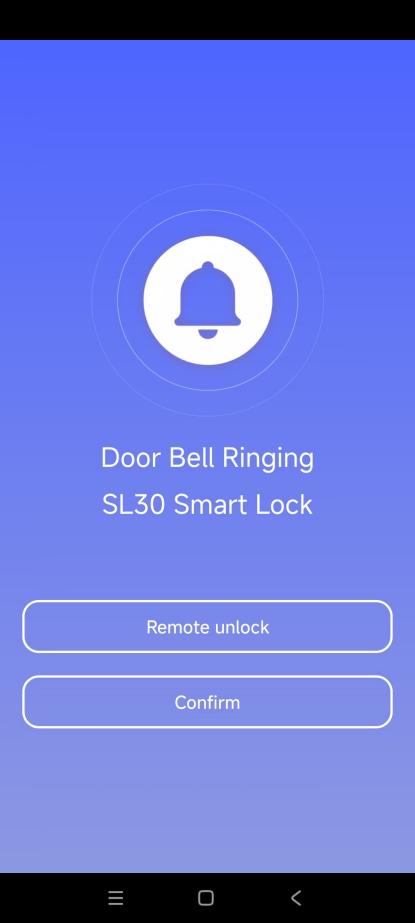
When a visitor press the doorbell button:
HyPanels (if paired): A pop-up alert will appear.
BelaHome App: You will receive an instant push notification.
Device Information
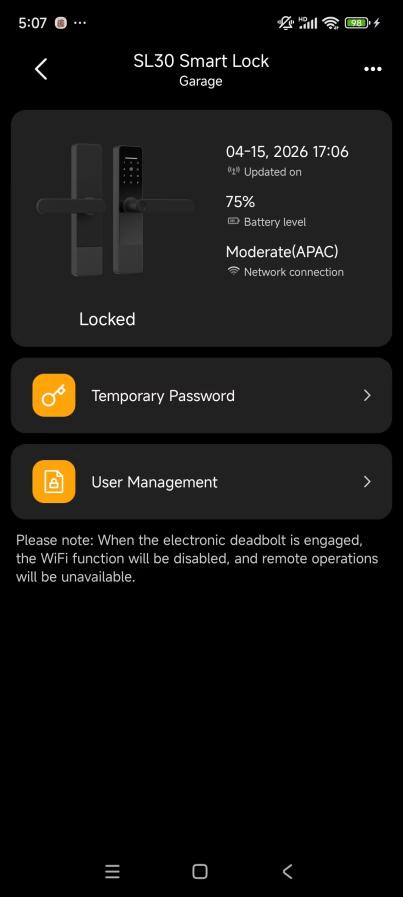
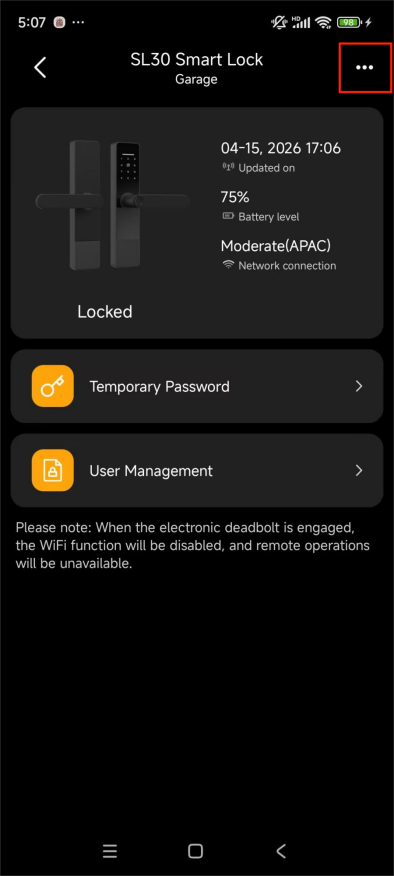
View lock status (locked/unlocked, battery level, network signal)
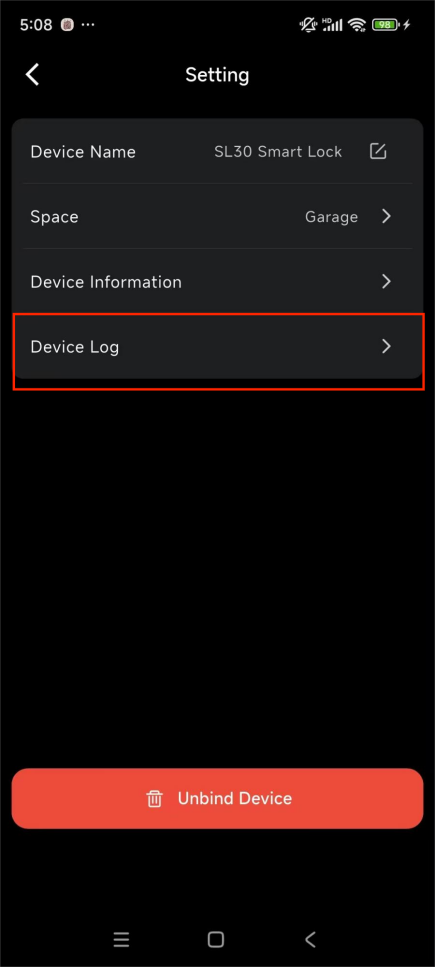
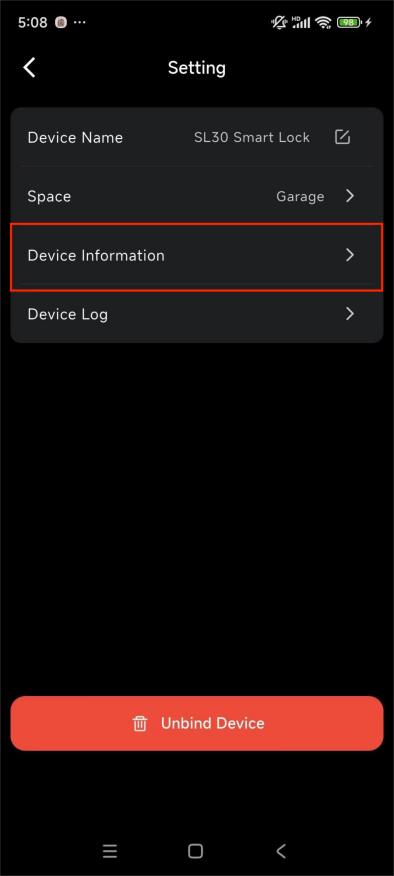
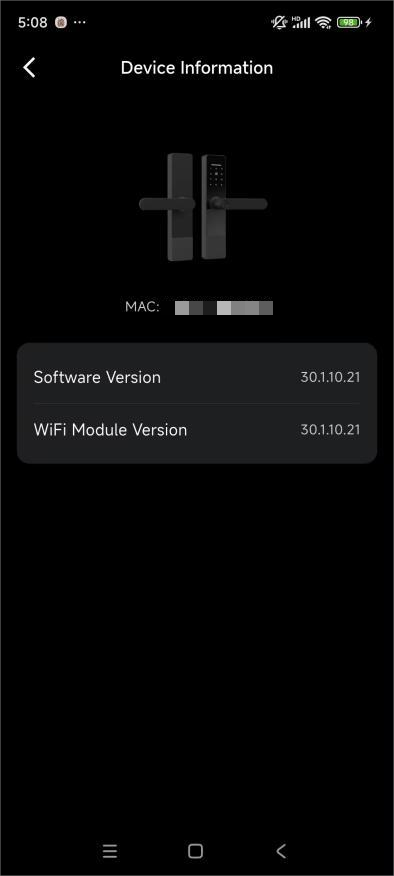
Go to
 > Device Information for MAC address, software version, and hardware version.
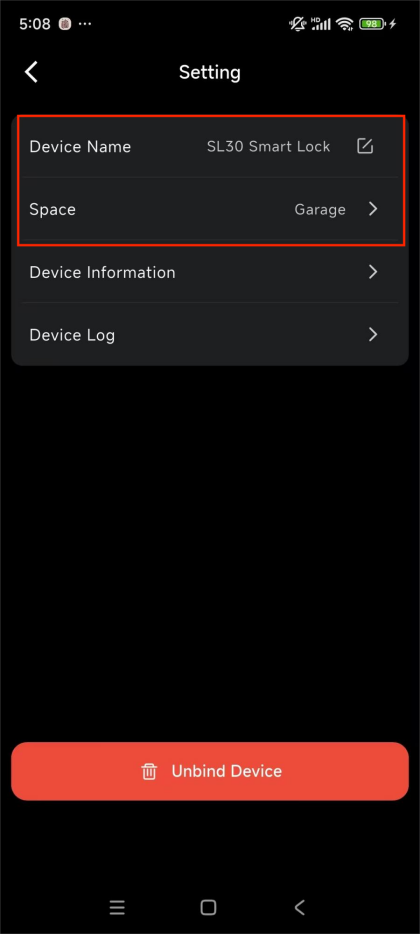
Go to
 > Device Name or Space to modify lock name and location.
Device Logs
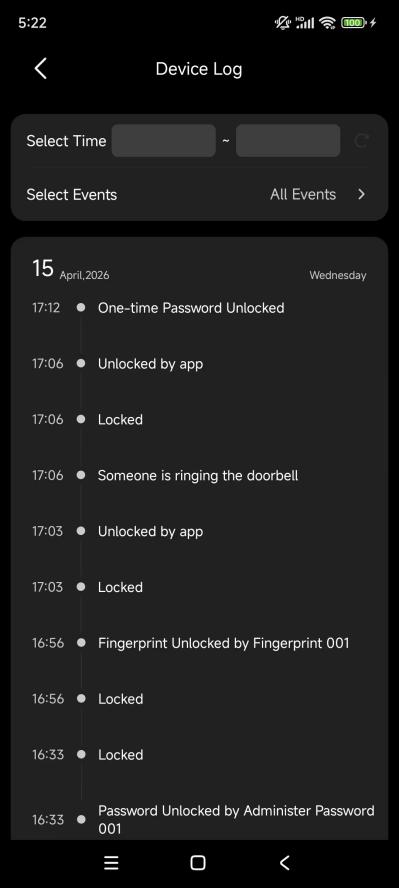
Go to [SL30 device card] >  > Device Log to view unlock events, alarms, doorbell events, and snapshots.
TIP:
Filter by date/time and event type.