Audio Codec Configuration
The device supports eight types of codecs for encoding and decoding the audio data during the call session. Each type of codec varies in terms of sound quality. Higher bandwidth means the device can capture more detail, leading to clearer sound and higher sample rates capture more data, reducing distortion and preserving sound quality.
You can select the specific codec with different bandwidths and sample rates flexibly according to the actual network environment.
To set it up, navigate to the web Account > Advanced > Audio Codecs interface.
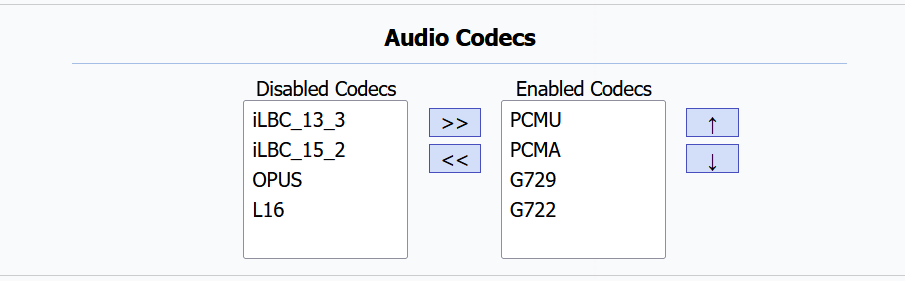
Please refer to the bandwidth consumption and sample rate for the codec types below:
Codec Type | Bandwidth Consumption | Sample Rate |
|---|---|---|
PCMA | 64 kbit/s | 8kHZ |
PCMU | 64 kbit/s | 8kHZ |
G729 | 8 kbit/s | 8kHZ |
G722 | 64 kbit/s | 16kHZ |
iLBC_13_3 | 8,16 kbit/s | 13.3kHZ |
iLBC_15_2 | 8,16 kbit/s | 15.2kHZ |
L16 | 128 kbit/s | variable |
OPUS | 154.4 kbit/s | 48kHZ |
Video Codec Configuration
Video Codec for SIP Calls
The device supports the H263, H264, H265, and VP8 codecs. Choose the desired codec based on the network environment.
Set it up on the web Account > Advanced > Video Codecs interface.
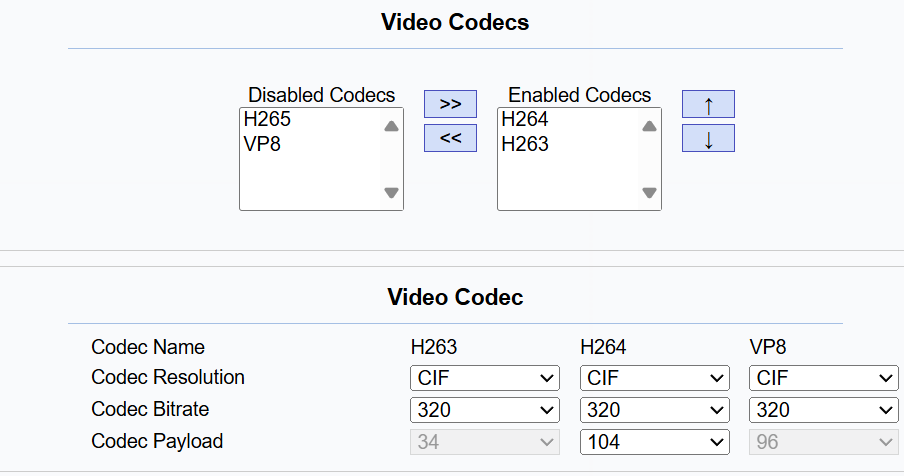
Resolution: Select the code resolution for the video quality among the options: QCIF, CIF, VGA, 4CIF, and 720P according to the actual network environment. H263 only has QCIF, CIF, and 4CIF.
Bitrate: Select the video stream bit rate (ranging from 128 to 512). The greater the bitrate, the more data is transmitted every second. Therefore, the video will be clearer.
Payload: Select the payload type (ranging from 90-119) to configure the audio/video configuration file.
Video Codec for IP Calls
You can select the IP call video quality by selecting the proper codec resolution according to the network condition.
Set it up on the Phone > Call Feature interface.

Direct IP Codec Resolution: Select the resolution from the provided options. The default is 720P(1280×720 pixels).
Direct IP Codec Bitrate: The video stream bitrate ranges from 128 to 4096 kbps. The default bitrate is 4096.
H264 Setting
You can also set up H264 video codec on the  > Video Settings screen.
(1).png "image(804)(1).png")
Profile: Select the video code profile level; the higher the profile is, the more complex and efficient the encoding will be. Base Profile is the default setting.
Rate Control: Used to control the encoding bitrate.
IDR Intervals(5-100): IDR means Instantaneous Decoding Refresh. It is used to control the process of coding and decoding.
Other video settings can be configured on the same screen.
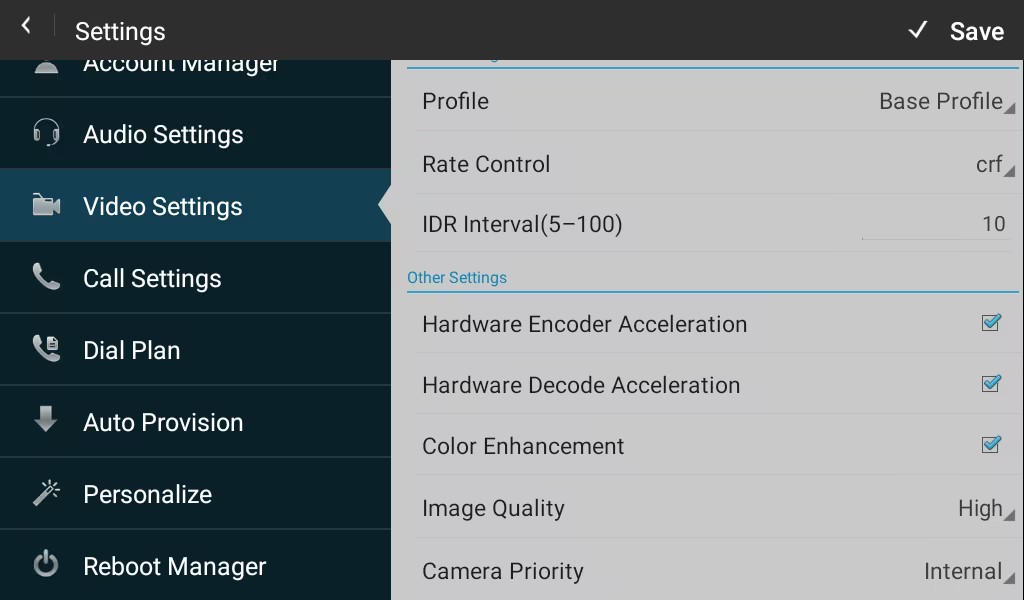
Hardware Encode Acceleration: Enable it to turn on the function to accelerate video encoding on a hardware basis.
Hardware Decode Acceleration: Enable it to turn on the function to accelerate the video decoding on a hardware basis. This function is disabled by default.
Color Enhancement: Enable it to increase the phone display color. Enabled by default.
Image Quality: Users can select Low, Middle, or High modes that determine the encoded picture quality.
Camera Priority: Decide whether the internal or external has a higher priority.
Media Feedback
To ensure smooth and continued data transmission for the video call, you are required to set both Negative Acknowledgement(NACK) and Temporal Max Media Bitrate Request(Tmmbr).
Navigate to the device > Video Settings screen.
NACK: Used to reinforce the data transmission during the video call. It can be used to prevent losing data packets in a weak network environment when discontinued and mosaic video images occur.
Tmmbr: Used to indicate the maximum bitrate that the receiver can take.